Battlefield in Aion 2 lists every Arena of Tactics matchmaking window in server time, with no local-time display anywhere on the screen. That makes it easy to miss a window if your region sits ahead of or behind the server. The game does expose the exact difference, though, in a place most players never check.
Quick answer: Open the Arena menu, compare the season start shown in local time against the same date in server time to get your offset, then shift Battlefield’s 11:00–14:00 and 19:00–21:00 server windows by that amount.
Battlefield matchmaking windows (server time)
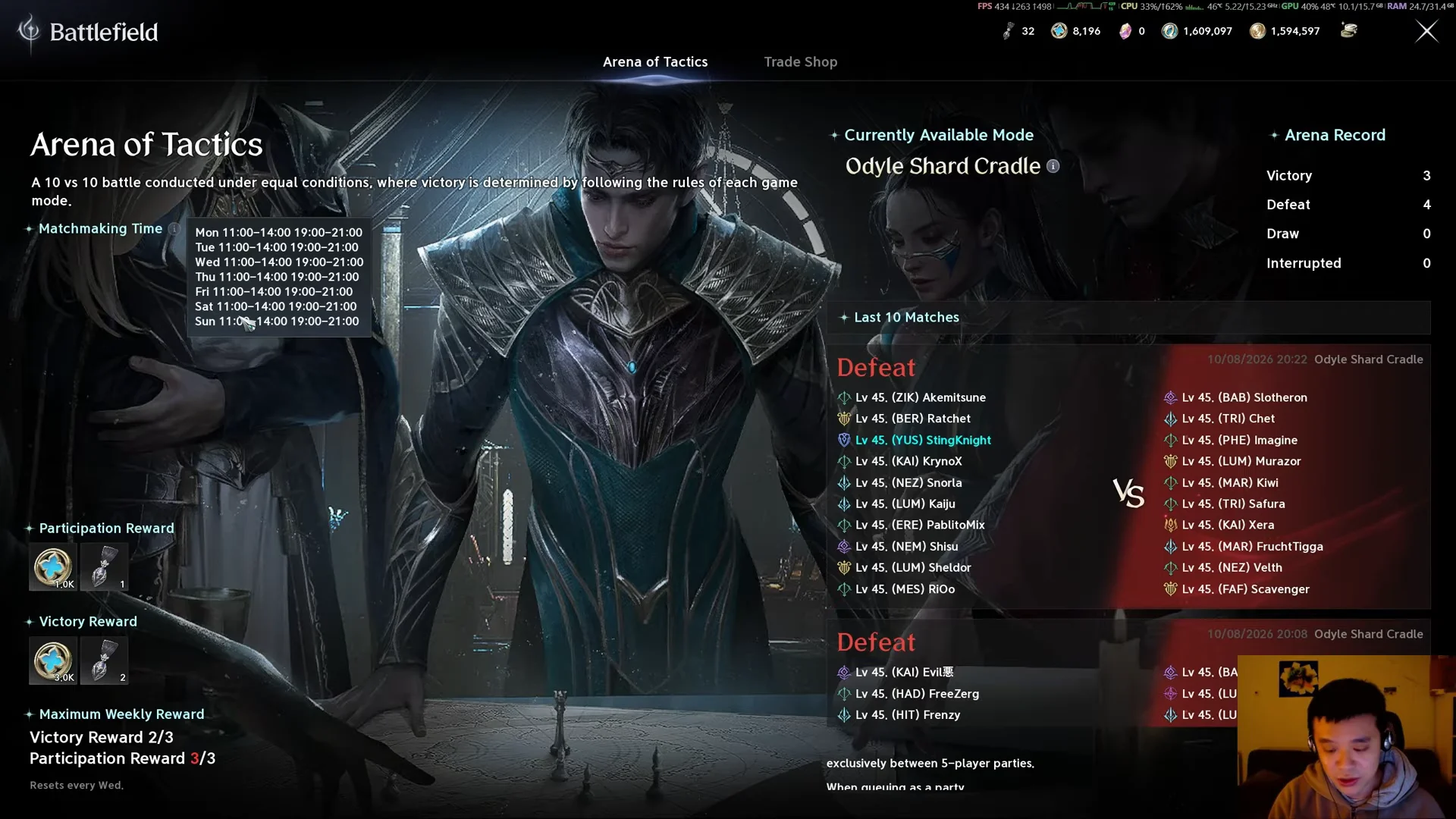
From the main menu, open Battlefield and select the Arena of Tactics tab. This is the 10 vs 10 mode played under equal conditions, and its matchmaking schedule is the same on every day of the week.
- Morning window: 11:00–14:00 server time, Monday through Sunday.
- Evening window: 19:00–21:00 server time, Monday through Sunday.
These times are what the schedule actually posts. To turn them into hours you can plan around, you need to know how far your server clock runs from your own.
Find your server-time offset in the Arena menu
Escape and open the Arena menu, then look at either the Arena of Solitude or the Arena of Cooperation card. Both show the current season dates in the top-right corner.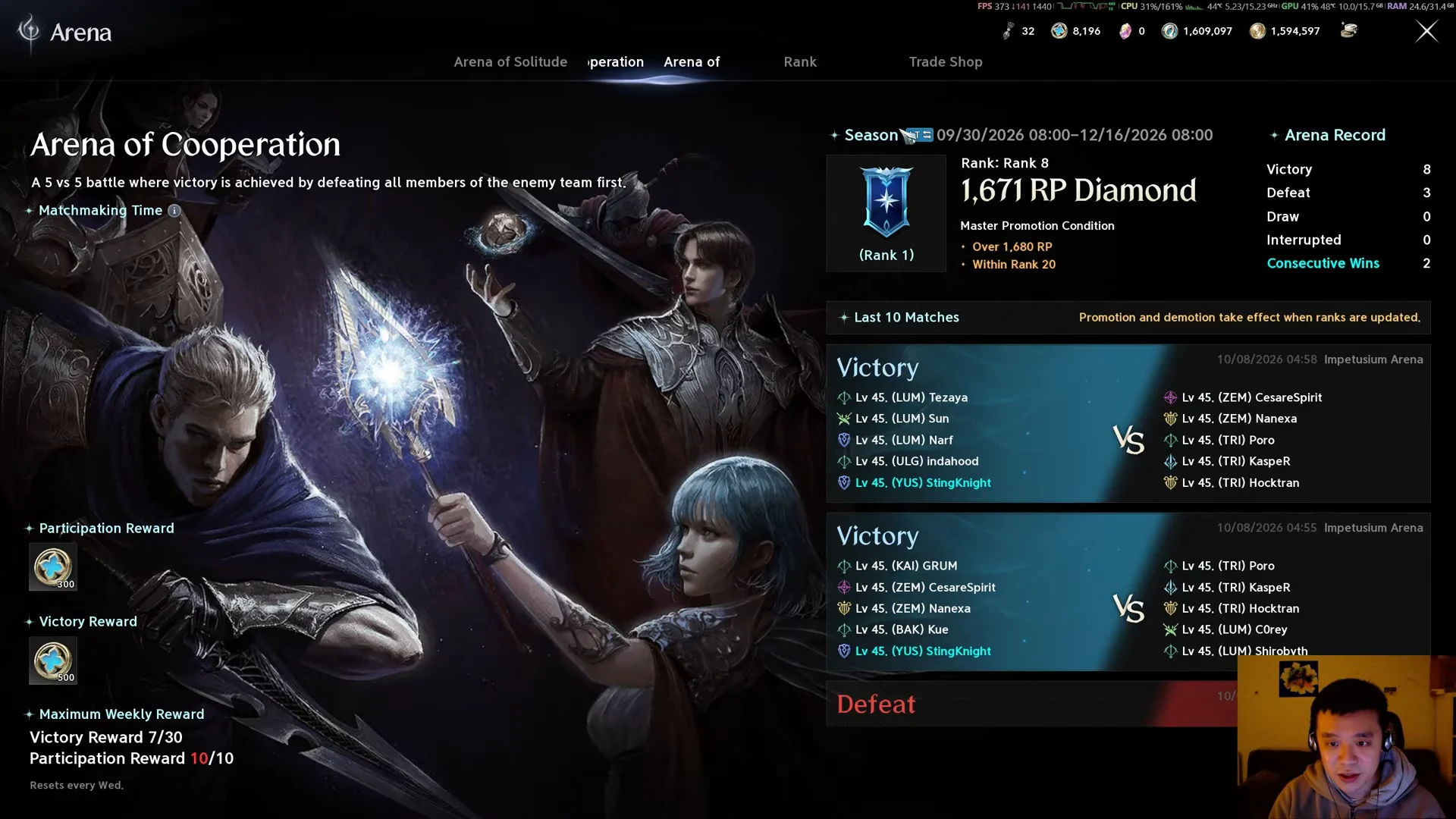
Convert the Battlefield schedule to your local time
Return to the Battlefield screen and apply your offset to both windows. When the server is ahead of you, subtract the difference from each listed time. When it is behind, add it instead.
Using the 1-hour example above, a UK player on the EU server subtracts one hour from each window. The result is 10:00–13:00 for the first slot and 18:00–20:00 for the second, in local time.
| Window | Server time | Local time (server +1h) |
|---|---|---|
| Morning | 11:00–14:00 | 10:00–13:00 |
| Evening | 19:00–21:00 | 18:00–20:00 |
The 1-hour figure is only an example for UK players on the EU server. Your own offset depends on your region and the server you play on, so always read it from your Arena card before converting.
You will know the conversion is right when matchmaking becomes available at the local hours you calculated. The queue only opens inside those windows, so a correct offset lines up the two exactly.
Odyle Shard Cradle: current mode and party rules
The mode currently running in Arena of Tactics is Odyle Shard Cradle, an arena-style matched mode. Knowing the windows only helps if you can queue, and this mode has a strict group rule.
Matchmaking is available only for full 5-player parties, and matches are formed exclusively between 5-player groups. Solo players and partial groups cannot enter, so assemble a complete party before the window opens if you want to play the moment it becomes available in your local time.