
The popup pointing to C:\Windows\SystemApps\MicrosoftWindows.Client.AIX_cw5n1h2txyewy\AIXHost.exe with the message “The application is exiting and cannot service this request” is tied to the Windows AI Experience Host, the background process that powers Recall and related on-device AI features on Windows 11. It tends to surface repeatedly on Copilot+ PCs such as the Lenovo Yoga Slim 7x, HP OmniBook, and Surface devices, and it often appears while using Word, Excel, Outlook, or just sitting on the desktop.
What AIXHost.exe does and why it crashes
AIXHost.exe is the host process for the MicrosoftWindows.Client.AIX package, the AI Experience layer Windows 11 uses to understand on-screen content for features like Recall, Click to Do, and content discovery. When the host hits a fatal condition, Windows kills it and shows the “application is exiting and cannot service this request” dialog instead of letting the process hang.
The crash usually traces back to one of a small number of causes:
- Recall snapshot database corruption or a failed write
- Conflicts between Windows Search indexing and the AI host
- An incomplete or broken cumulative update that left the AIX package in a bad state
- Outdated NPU or chipset drivers on Snapdragon X Elite and X Plus hardware
It is not malware, and the file lives in a protected system location. Do not try to delete AIXHost.exe directly or download a “replacement” from a third-party site — that breaks the shell and can trigger 0xc000007b errors or a BSOD.
Fix 1: Reset the AIX component with PowerShell
This is the fix that works for most people because it forces Windows to tear down the broken package and re-register a clean copy on next sign-in.
powershell, right-click Windows PowerShell, and choose Run as administrator. Accept the UAC prompt.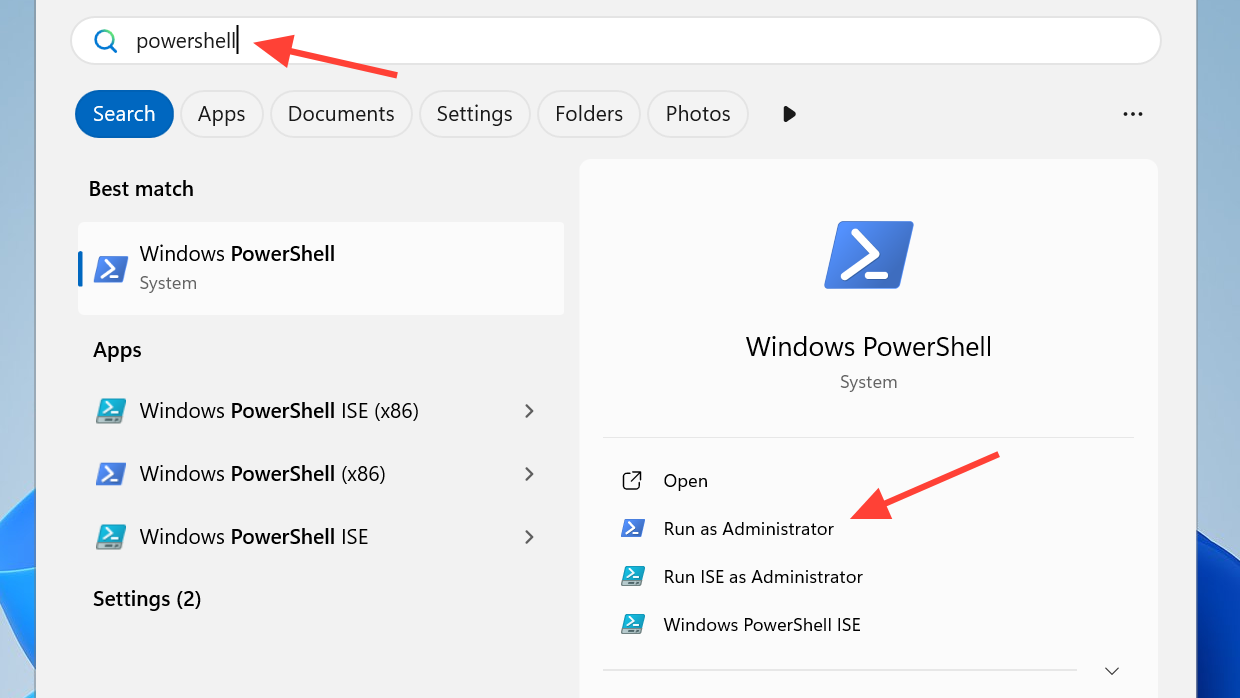
Get-AppxPackage *AIX*. You should see an entry for MicrosoftWindows.Client.AIX.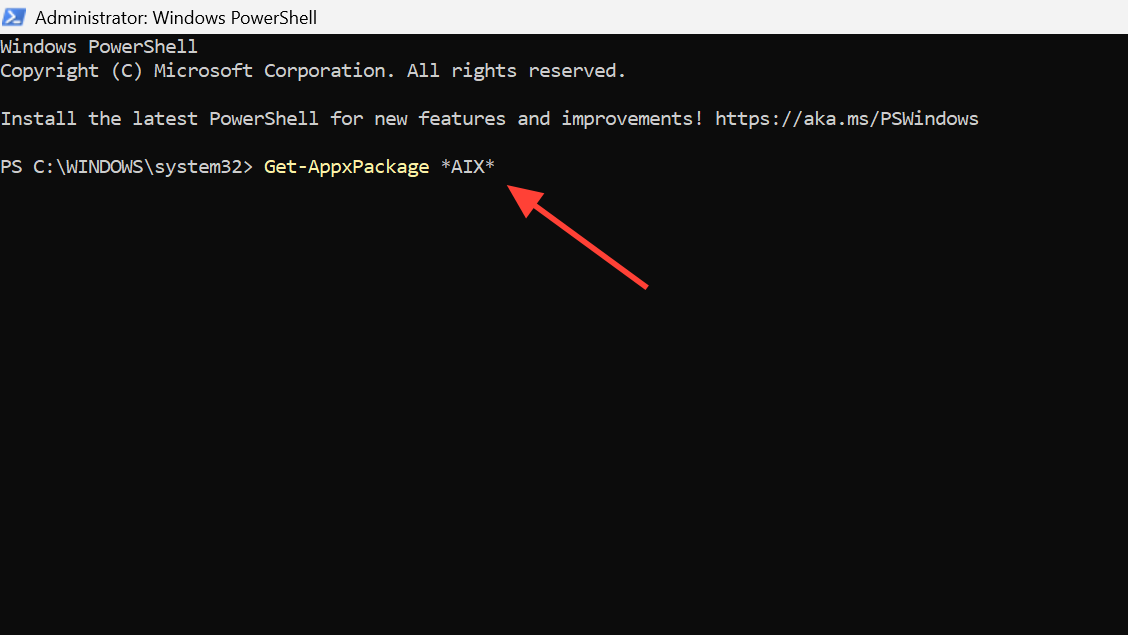
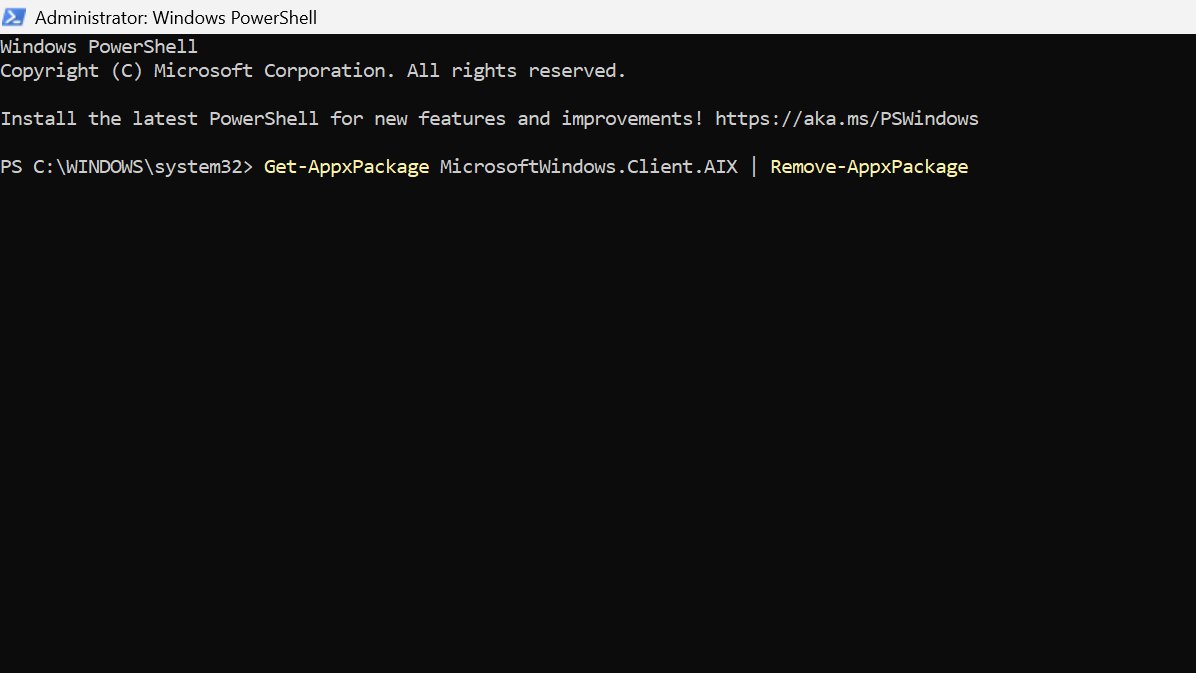
Get-AppxPackage MicrosoftWindows.Client.AIX | Remove-AppxPackage and wait for the prompt to return.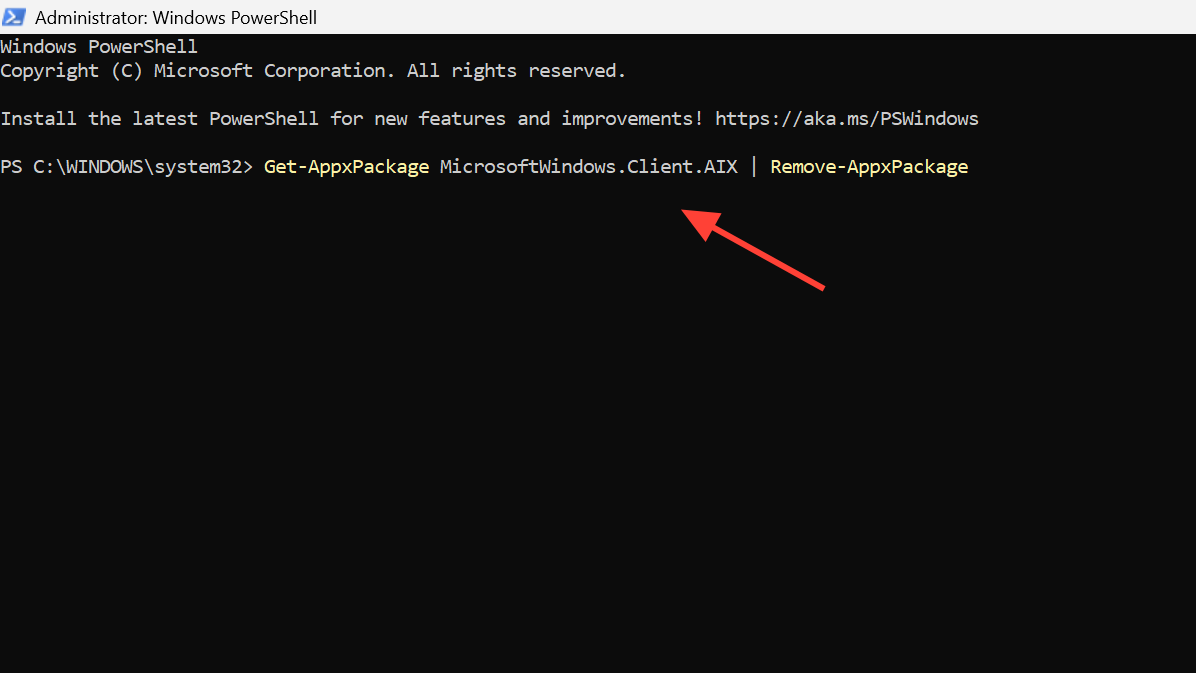
You’ll know it worked when you go through a normal sign-in and reach the desktop without the AIXHost.exe dialog appearing.
Fix 2: Turn off Recall as a Windows feature
If the PowerShell reset doesn’t stick, disabling Recall through the legacy Windows Features dialog has resolved the error for multiple users, including cases where every other troubleshooting step failed. You must be signed in as an administrator.
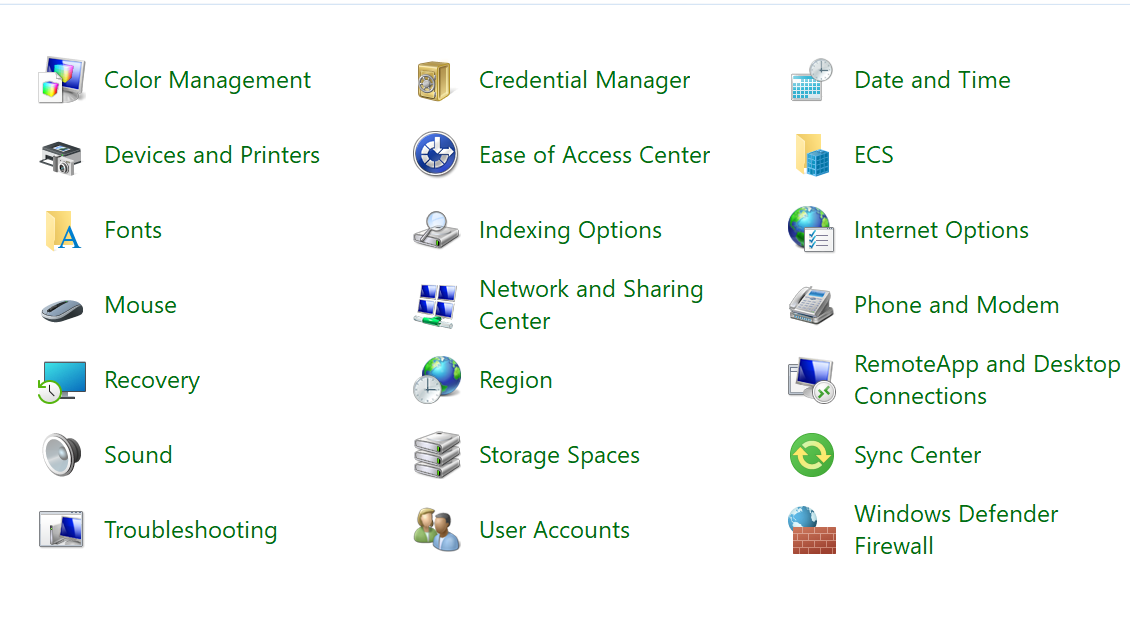
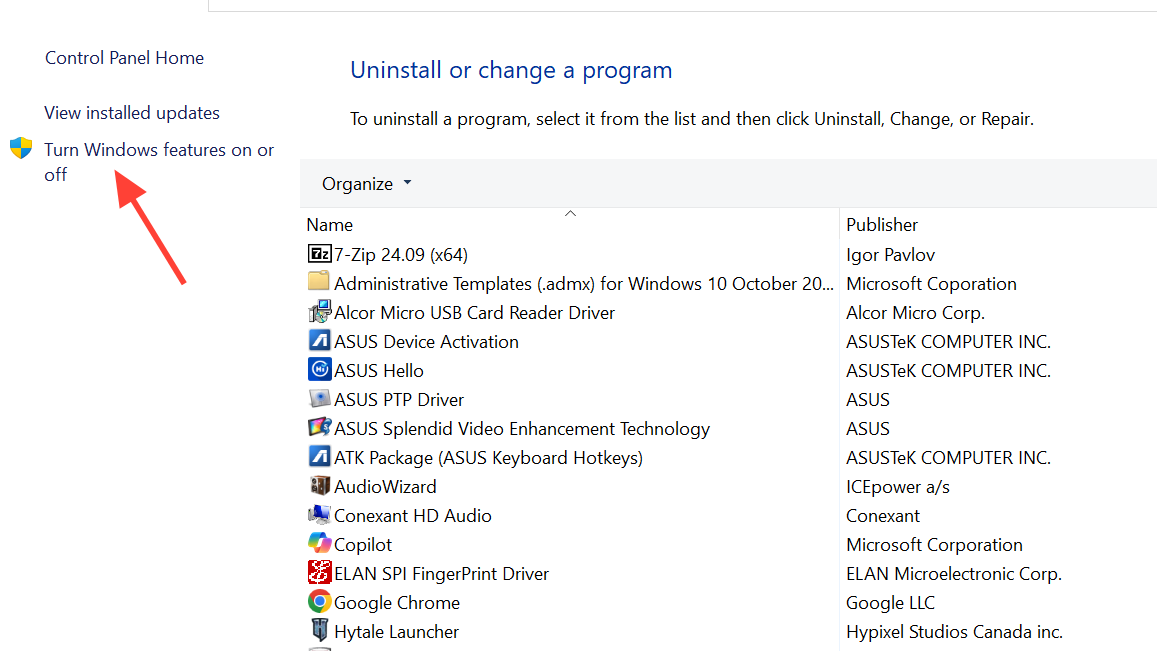
If you want Recall back, repeat the steps and re-check the box. Many users report that the error doesn’t return after this off-and-on cycle because the component is re-registered cleanly.
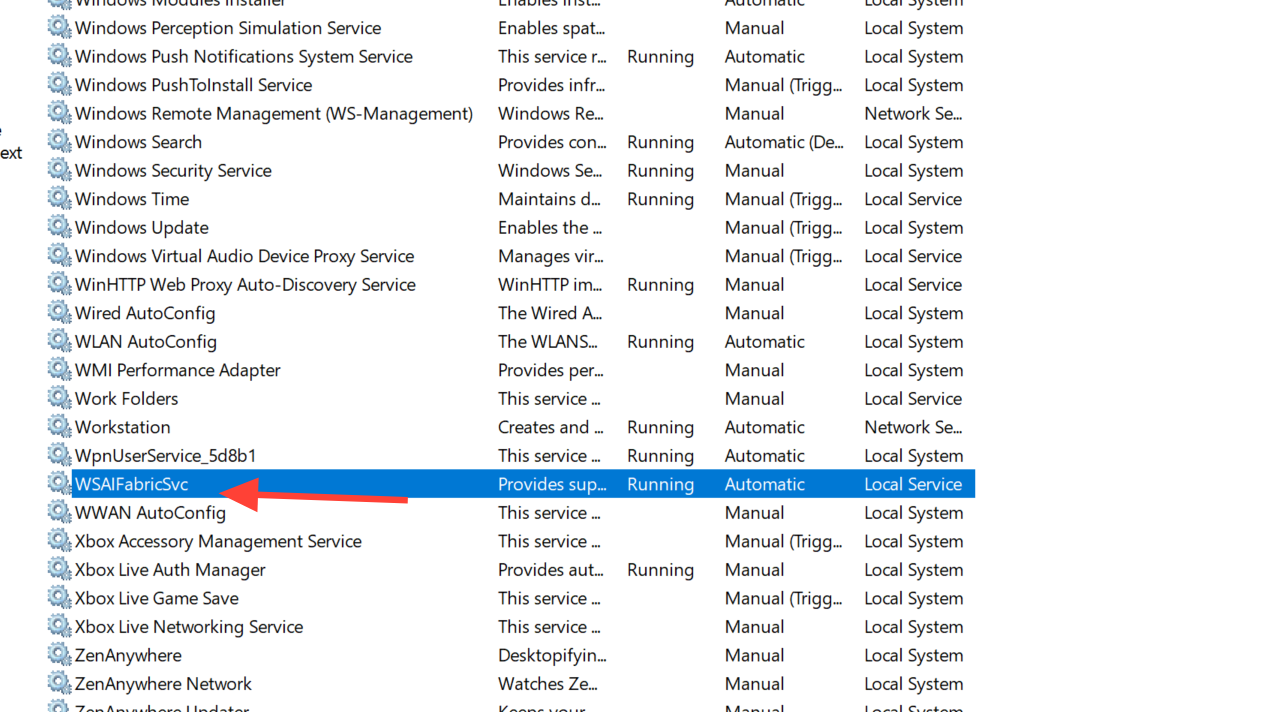
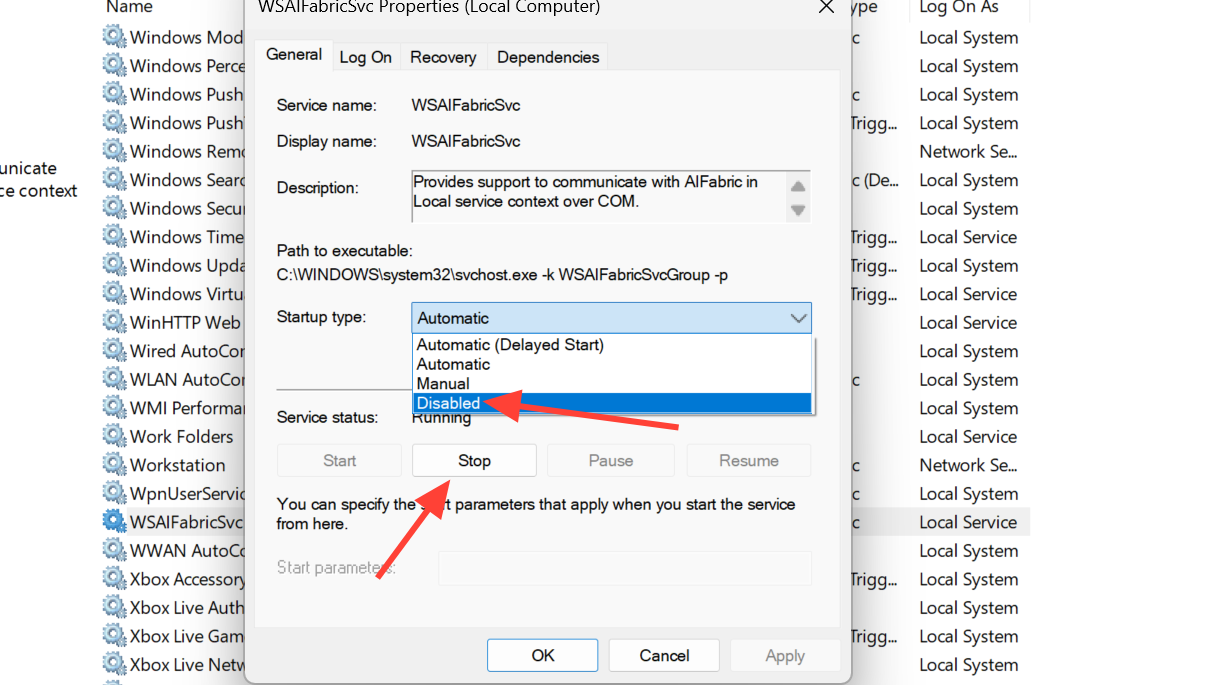
Fix 3: Disable the AI Host Fabric Service
The WSAIFabricSvc service is the communication layer between Windows and the AI host. A misconfigured service can keep restarting AIXHost.exe in a loop, which is what generates the repeated popups.
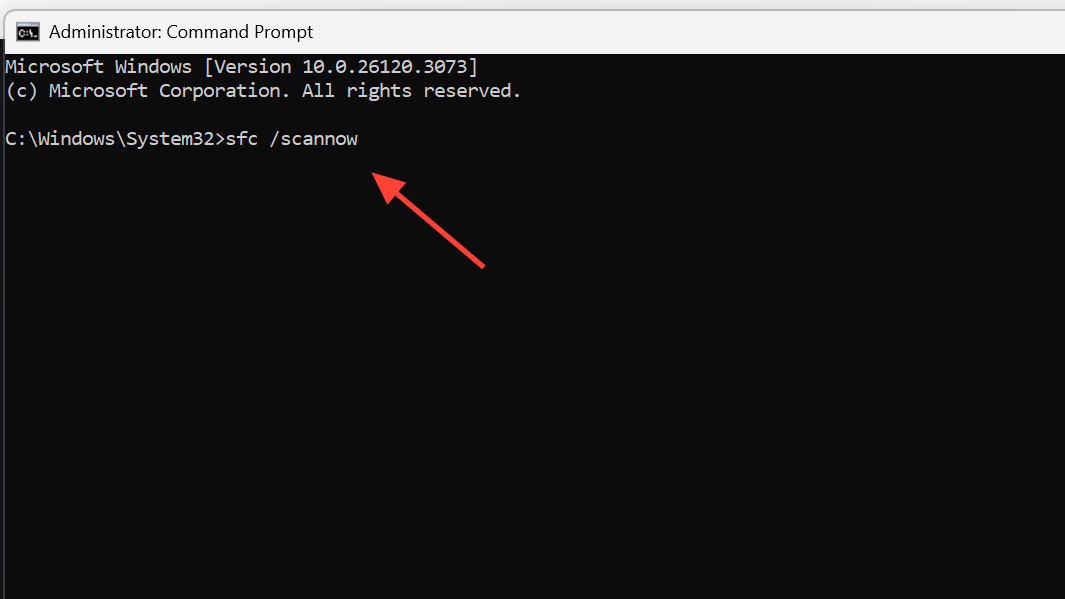
Fix 4: Repair system files with SFC and DISM
If the AIX package is fine but supporting system files are damaged, the host will still fail. SFC and DISM repair the underlying component store that the AI framework depends on.
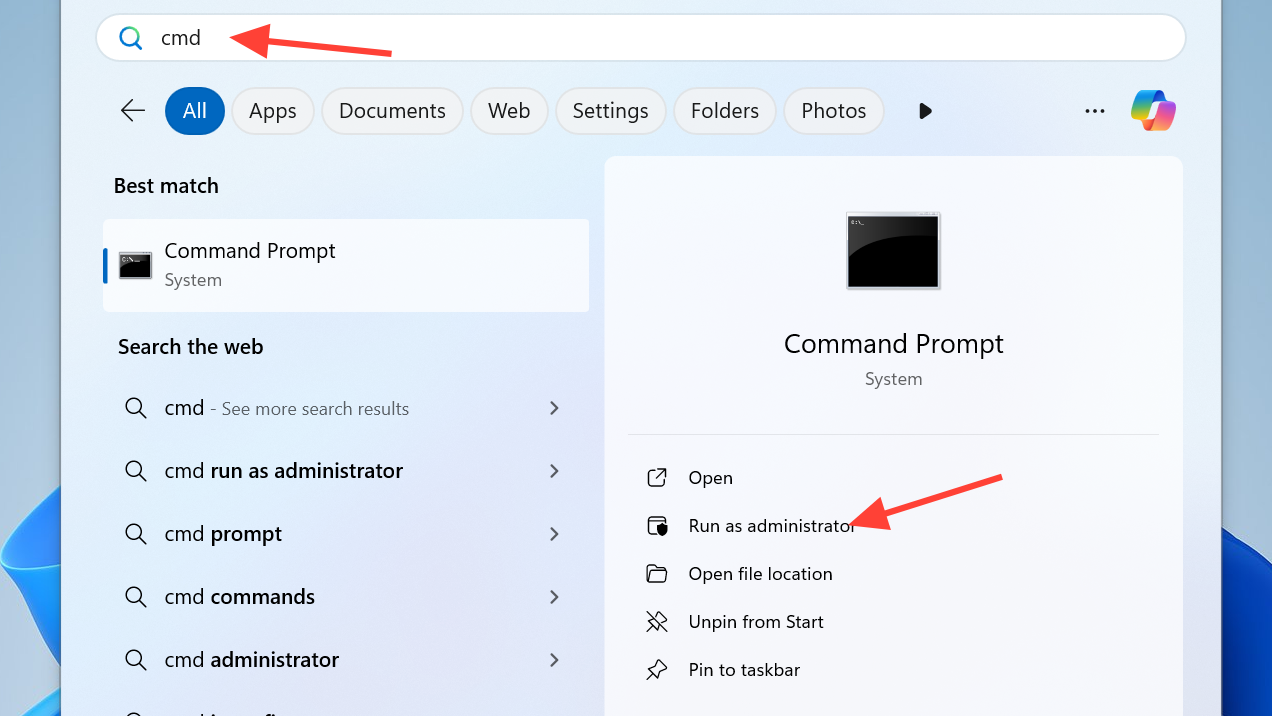
DISM /Online /Cleanup-Image /RestoreHealth first and let it finish. This pulls clean copies of damaged components from Windows Update.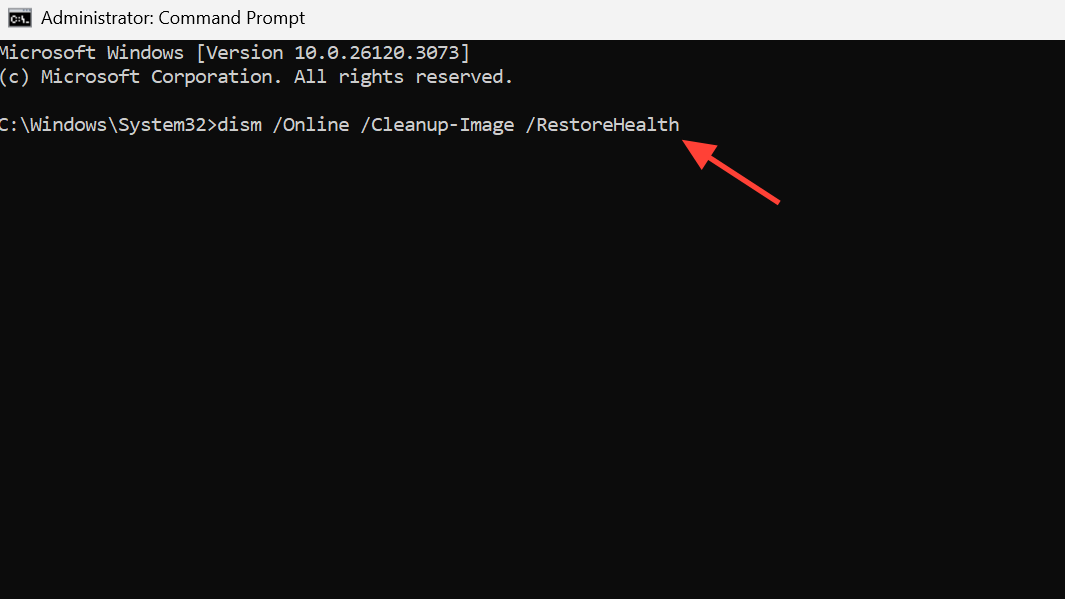
Fix 5: Stop Windows Search if indexing is the trigger
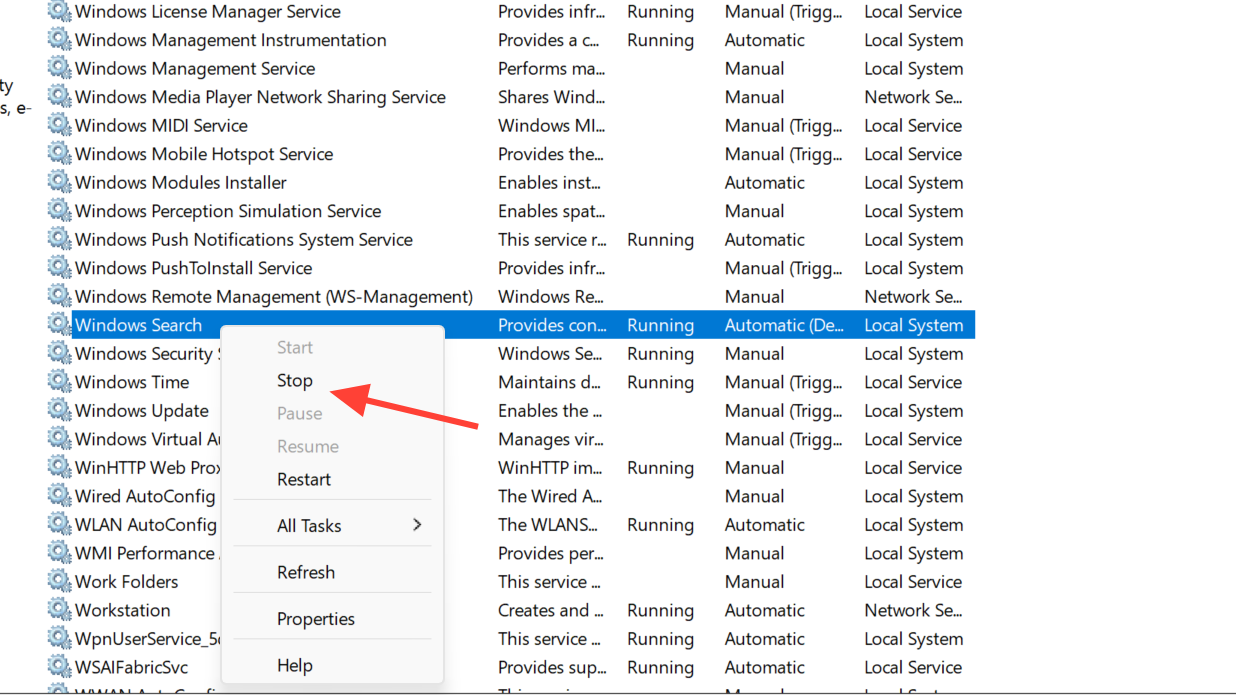
Windows Search occasionally collides with the AI host while trying to index snapshot metadata. Stopping the service is a quick way to confirm whether indexing is the culprit.
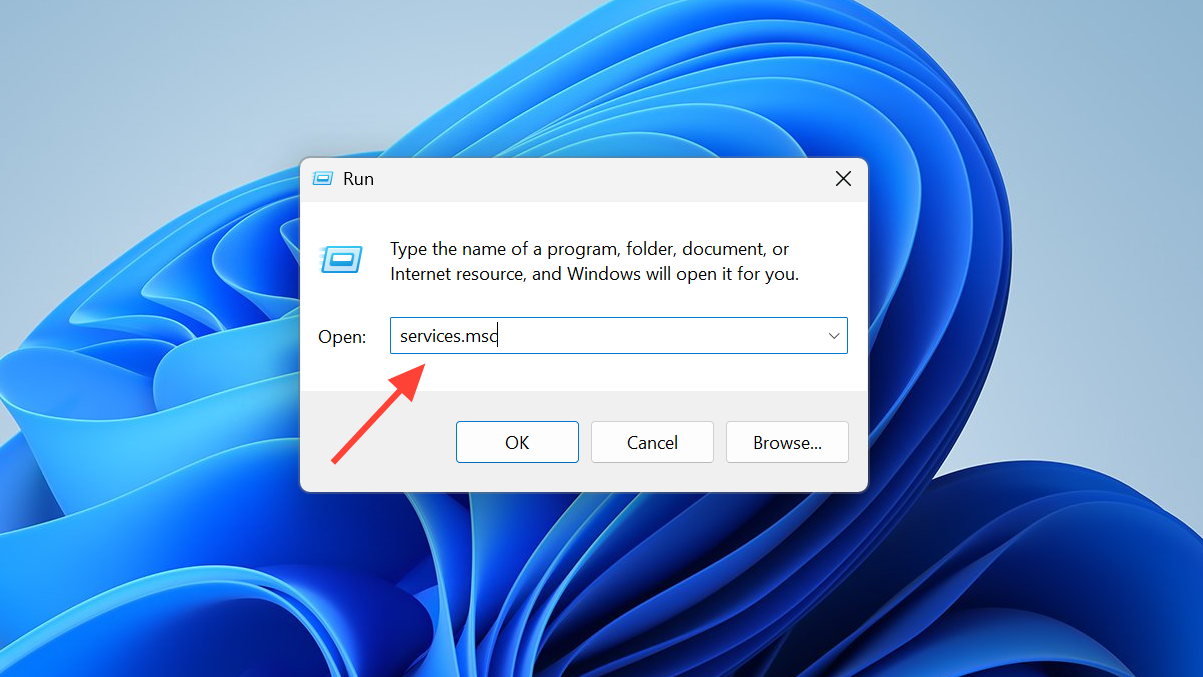
Open services.msc, right-click Windows Search, and choose Stop. If the pop-up stops immediately, leave the service stopped temporarily and rebuild the index from Control Panel → Indexing Options → Advanced → Rebuild. Set the service back to Automatic (Delayed Start) afterward so the file search keeps working.
What to do if nothing works
For a small number of cases, none of the above resolves the issue. The two confirmed terminal fixes are an in-place repair install of Windows 11 (keeps files and apps) and, failing that, a clean reinstall, which has eliminated the error for users who exhausted every other option.
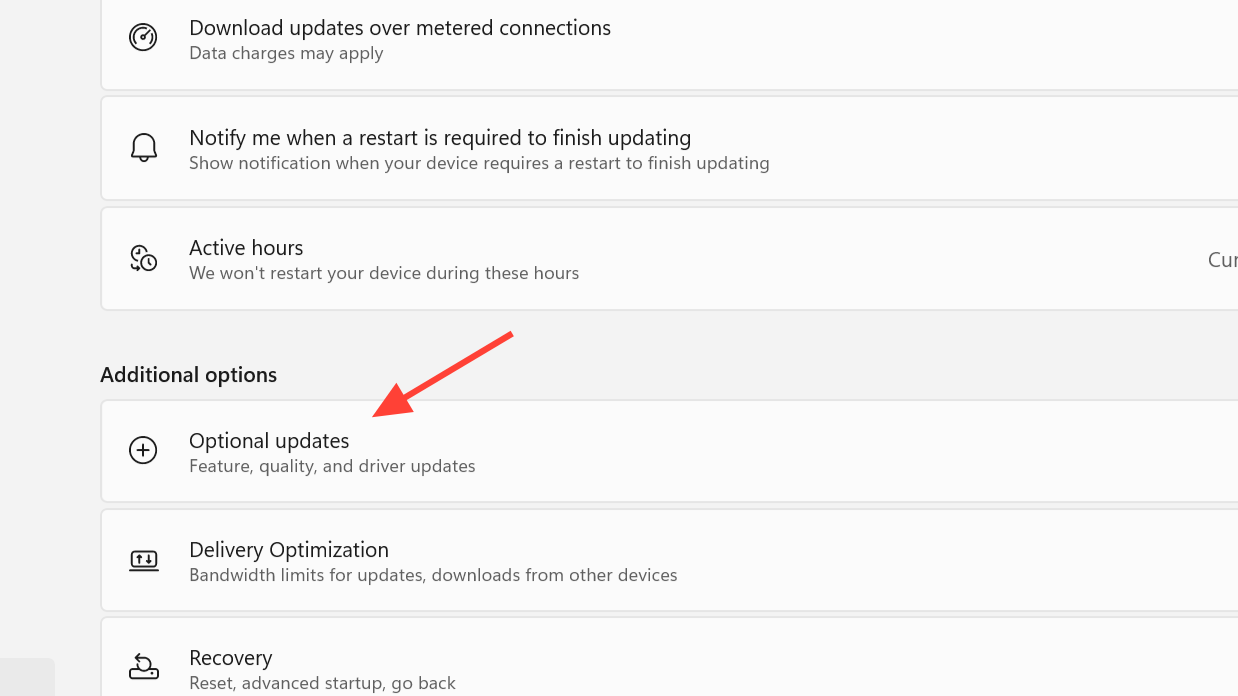
Before going that far, make sure Windows is fully patched — open Settings → Windows Update → Advanced options → Optional updates and install anything listed there, including driver updates. On Snapdragon-based Copilot+ PCs, also update the NPU and chipset drivers through Lenovo Vantage or HP Support Assistant, since stale firmware on the Neural Processing Unit is a common root cause that no amount of Windows-side troubleshooting will fix.
Reference: which fix to try first
| Symptom | Try first | If that fails |
|---|---|---|
| Popup appears at every sign-in | PowerShell reset of AIX package | Turn Recall off in Windows Features |
| Popup tied to Word, Excel, or Outlook use | Office Online Repair, then PowerShell reset | Disable WSAIFabricSvc |
| Popup after a recent Windows update | DISM + SFC, then check Optional updates | In-place upgrade |
| Popup on a new Copilot+ PC (Snapdragon) | Update NPU and chipset drivers | PowerShell reset of AIX package |
| Popup persists after every fix above | In-place repair install | Clean reinstall of Windows 11 |
The AIXHost.exe dialog is annoying, but it is purely a software-side fault in a component you can safely reset. Start with the PowerShell command, then escalate to the Recall toggle if needed — most people stop the popup at one of those two steps without losing any data or AI functionality.



