
WiFi security protocols like WEP, WPA, WPA2, and WPA3 determine how well your wireless network protects your data from unauthorized access. Using a modern protocol such as WPA2 or WPA3 significantly reduces the risk of hacking, while outdated options like WEP leave your information vulnerable. Confirming which security type your Windows 11 PC uses is a crucial first step toward securing your network and personal information.
Check WiFi Security Type Using Windows 11 Settings
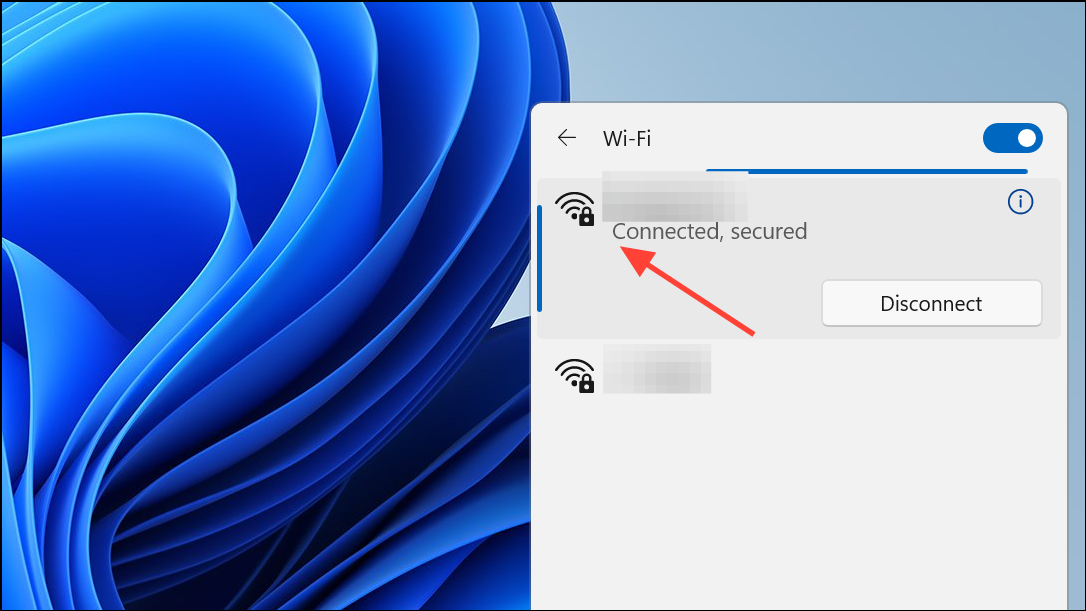
Properties under your current WiFi connection. This opens a page with detailed information about your network.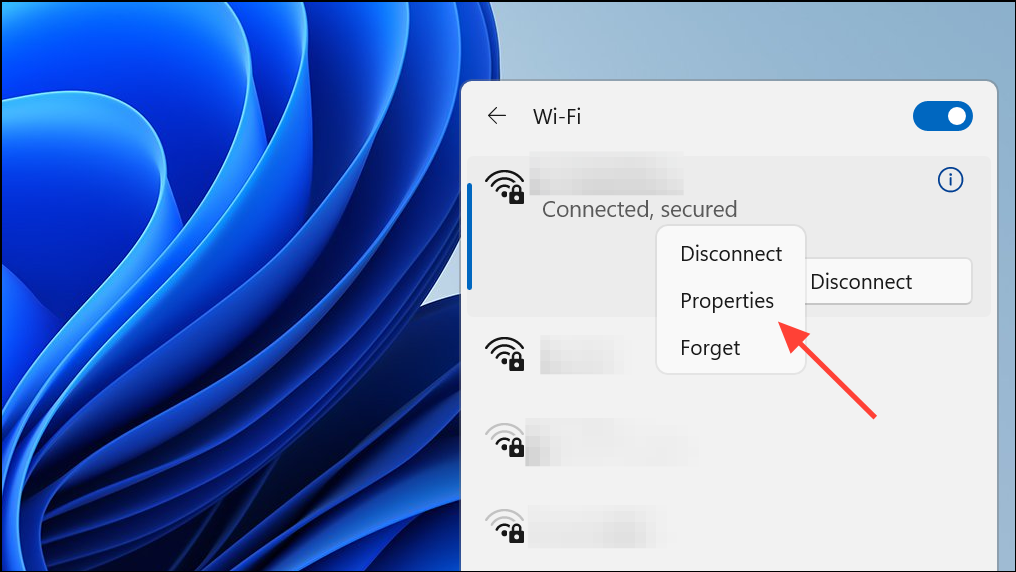
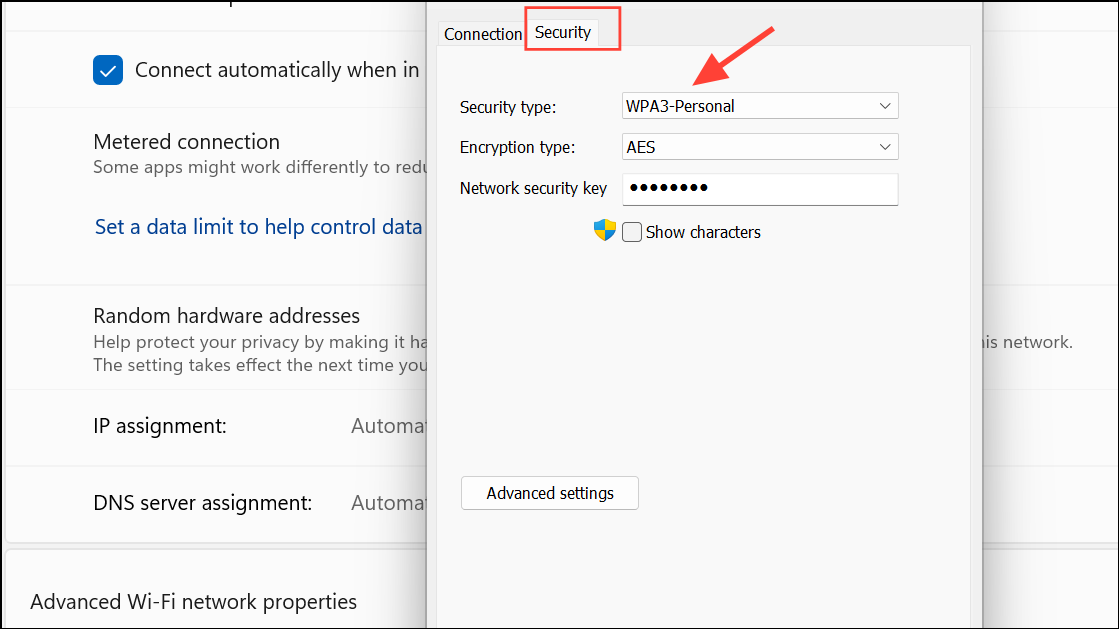
Using this method provides a quick overview of your network’s protection level. If you see WPA3 or WPA2, your network uses strong encryption. If the security type is WPA or WEP, your network is at greater risk of unauthorized access, and you should consider upgrading your router’s settings.
Check WiFi Security Type via Control Panel
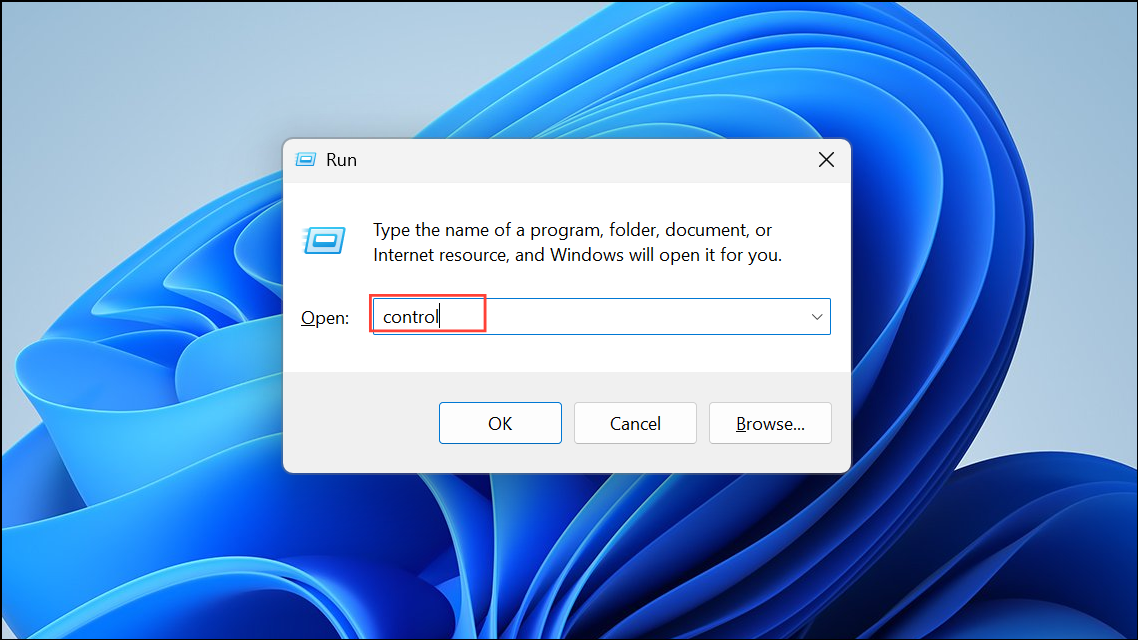
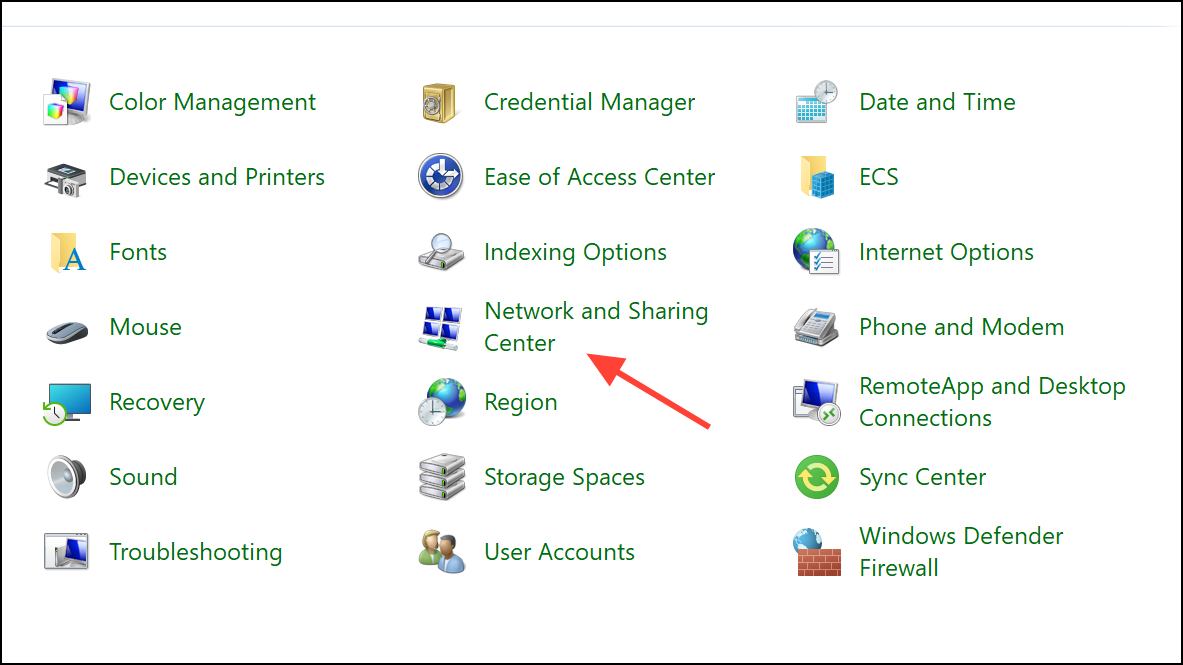
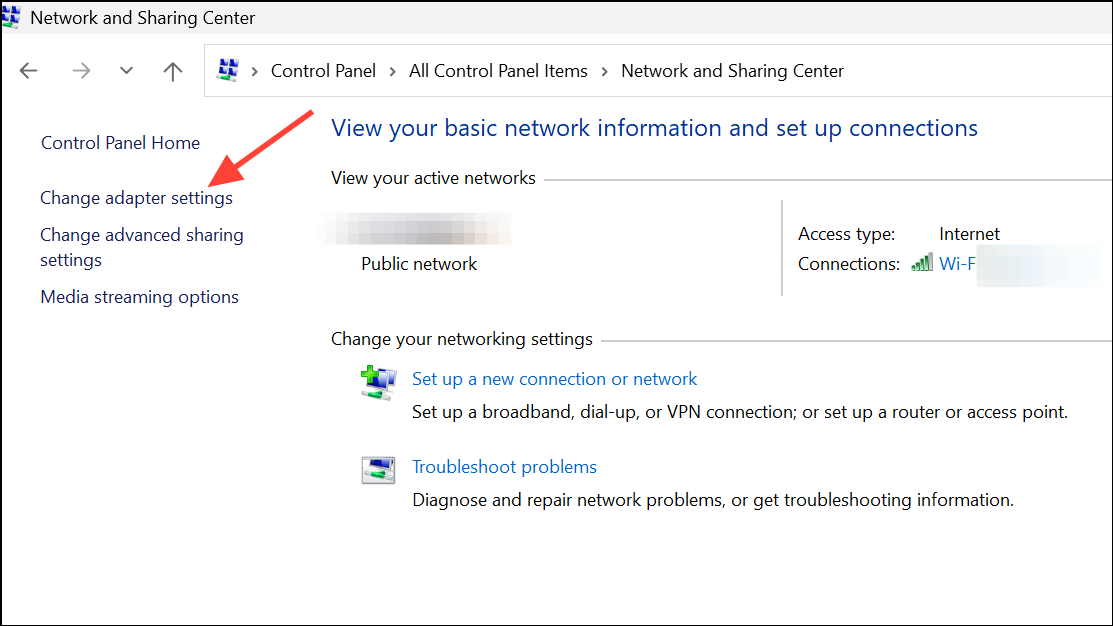
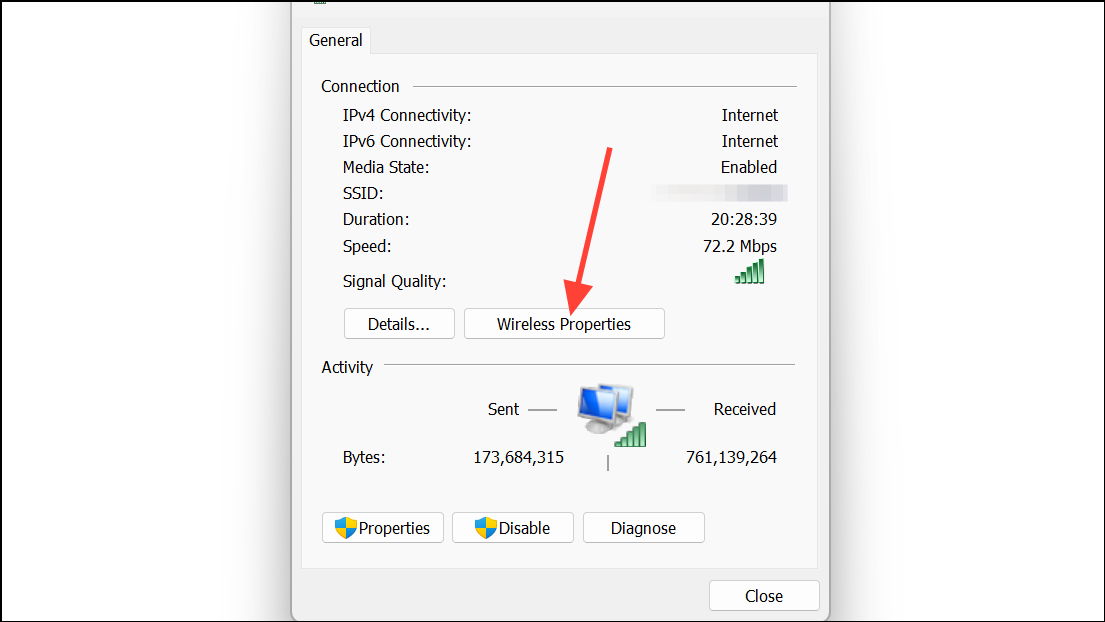
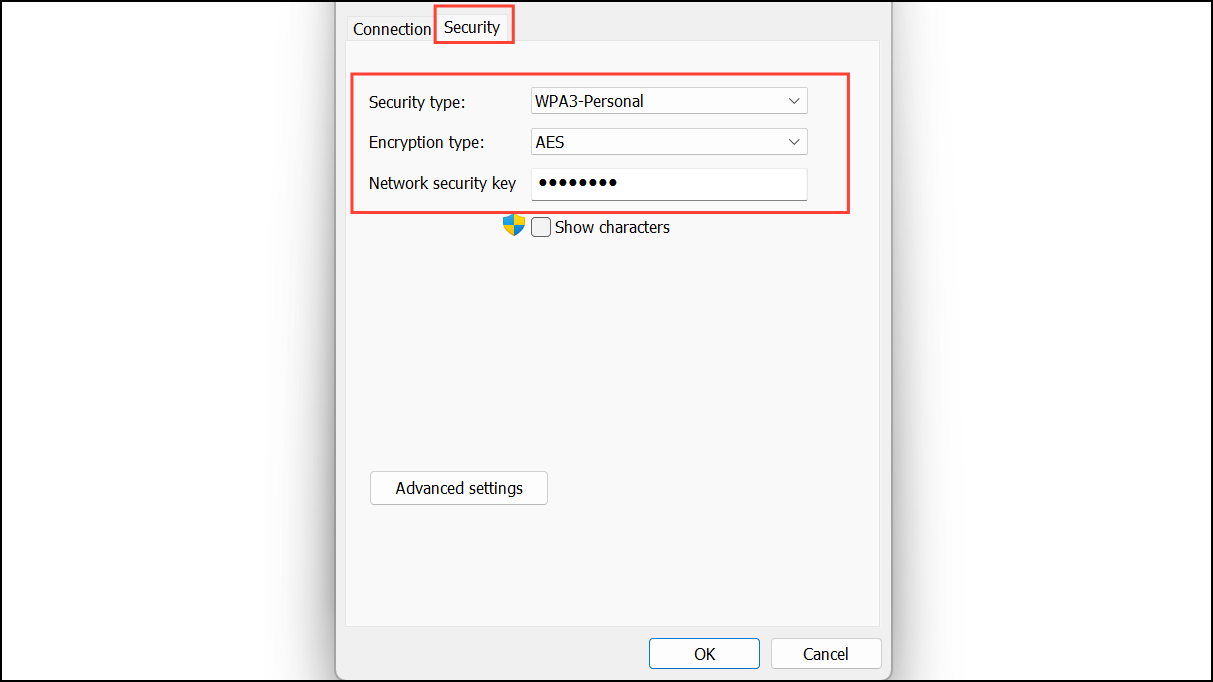
This approach not only reveals the security protocol but also the encryption method, giving you a more detailed understanding of your network’s defense. For example, WPA2 with AES encryption is considered highly secure.
Check WiFi Security Type Using Command Prompt
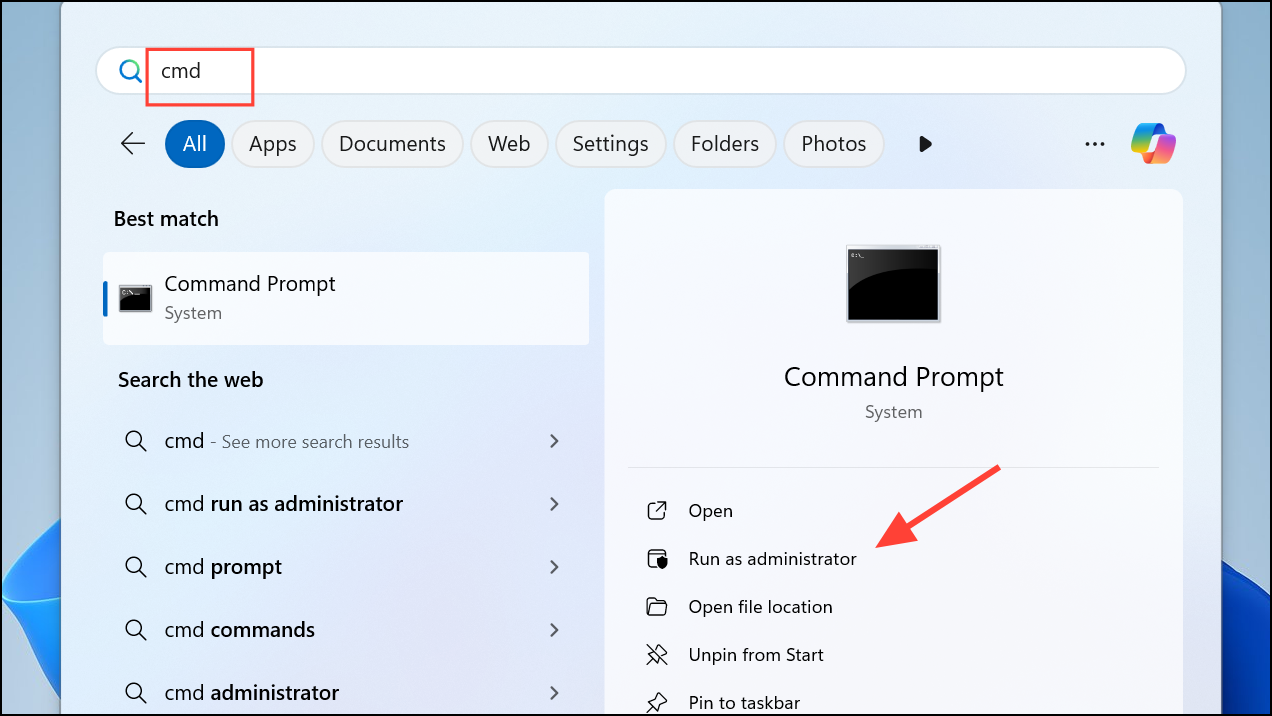
netsh wlan show interfaces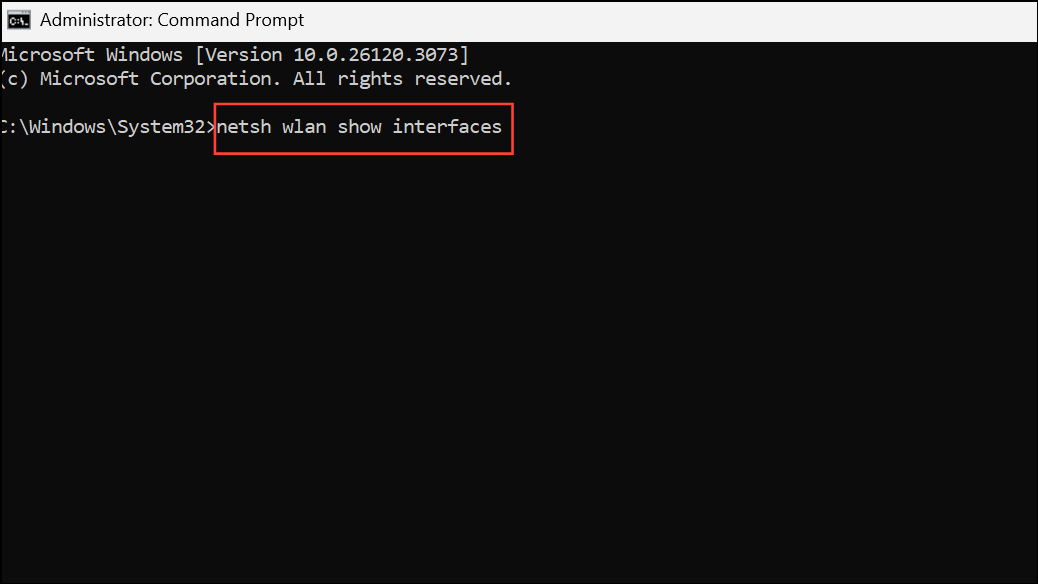
This method is especially useful for users who prefer command-line tools or need to script checks across multiple devices. It also displays other details about your wireless connection, such as signal strength and radio type.
Understanding WiFi Security Types and Next Steps
WiFi security protocols have evolved to address vulnerabilities and improve data protection. Here’s a quick summary:
- WEP: The oldest and weakest protocol, easily compromised by attackers.
- WPA: An improvement over WEP, but still susceptible to certain attacks.
- WPA2: Uses AES encryption, offering strong protection for most users.
- WPA3: The latest standard, introducing stronger encryption and better resistance to brute-force attacks.
If you discover your network uses WEP or WPA, update your router settings to WPA2 or WPA3 for better security. Access your router’s admin interface—usually by entering its IP address into a web browser—and look for wireless security settings. Choose the highest protocol your devices support, set a strong password, and apply the changes. If your router doesn’t support WPA2 or WPA3, consider replacing it with a newer model to keep your data safe.
Regularly updating your router’s firmware, using unique passwords, and enabling available security features will further reduce your exposure to network threats.
Checking your WiFi security type in Windows 11 takes just a few minutes and can make a big difference in protecting your data. Upgrading to a stronger protocol and keeping your router updated will help keep your network safe from intruders.



