

Deleting large numbers of files or entire directories in Windows 11 using the standard graphical interface can be slow, especially when dealing with gigabytes of data or millions of files. Command Prompt offers a more efficient approach, streamlining the process and providing direct control over file and folder removals. This guide covers the most effective command-line methods for deleting files and folders in Windows 11, including force-deletion techniques and key usage tips.
Delete Files and Folders with Command Prompt
Windows + S to open the search bar, type cmd, then right-click Command Prompt and select Run as administrator. Administrative access ensures you can delete protected or system files if necessary.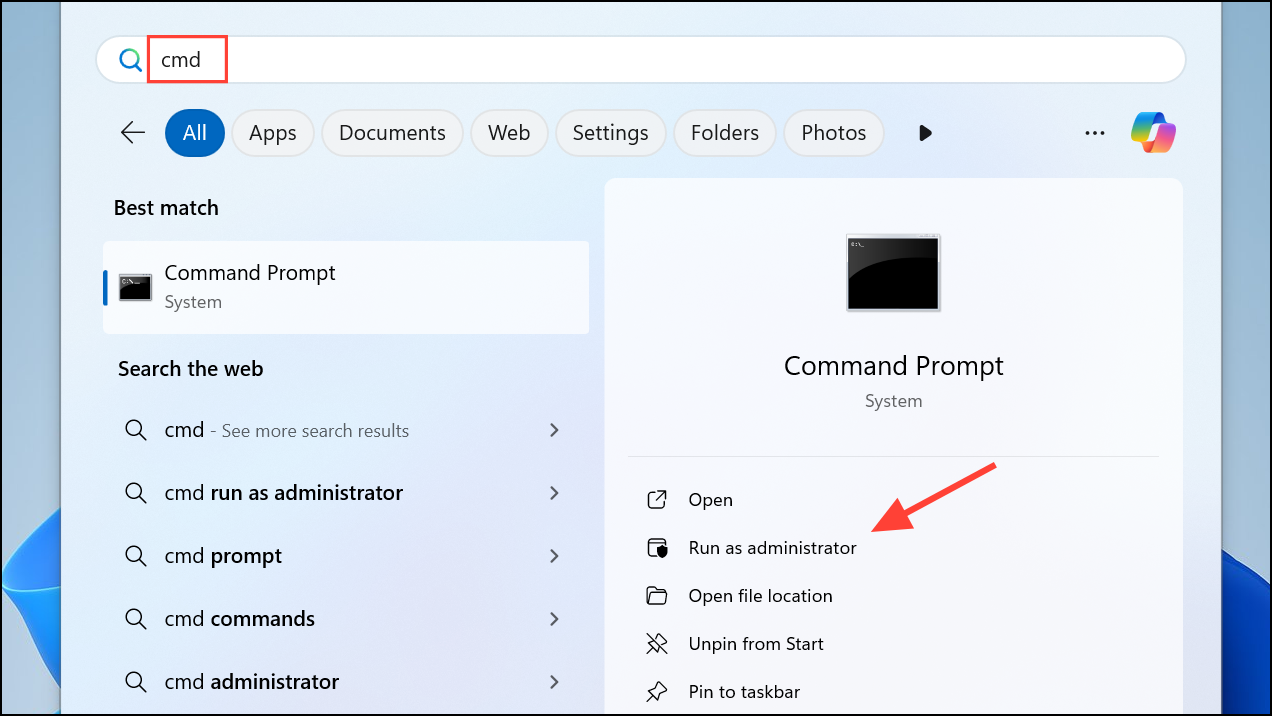
cd command to navigate to the directory containing the files or folders you want to delete. For example, to move to a folder on your desktop:cd "C:\Users\YourUsername\Desktop\Test Folder"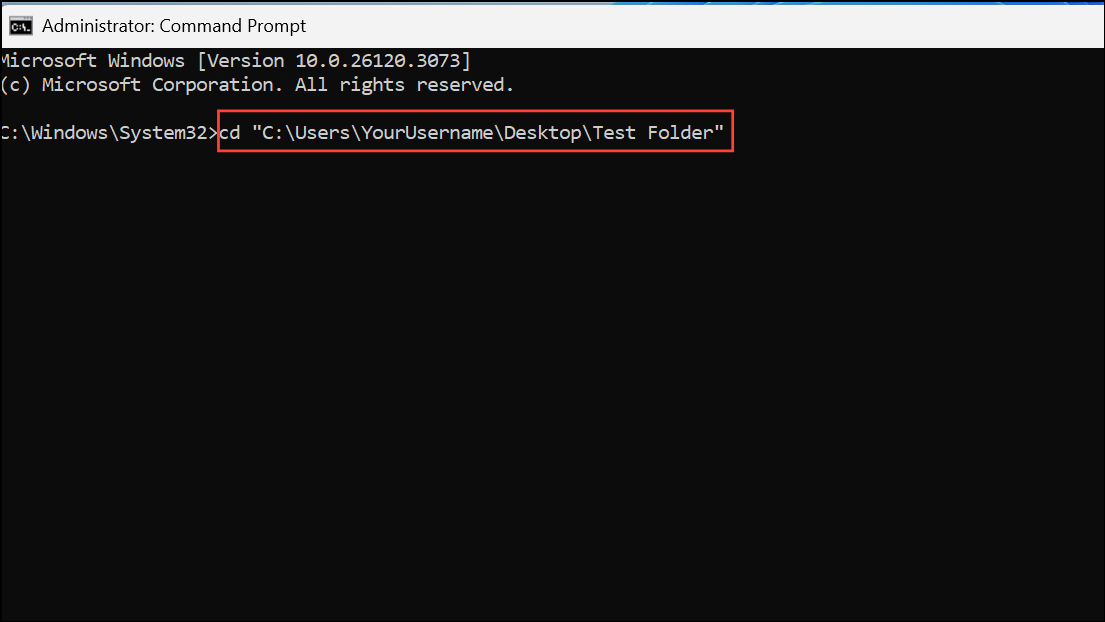
del "report.txt"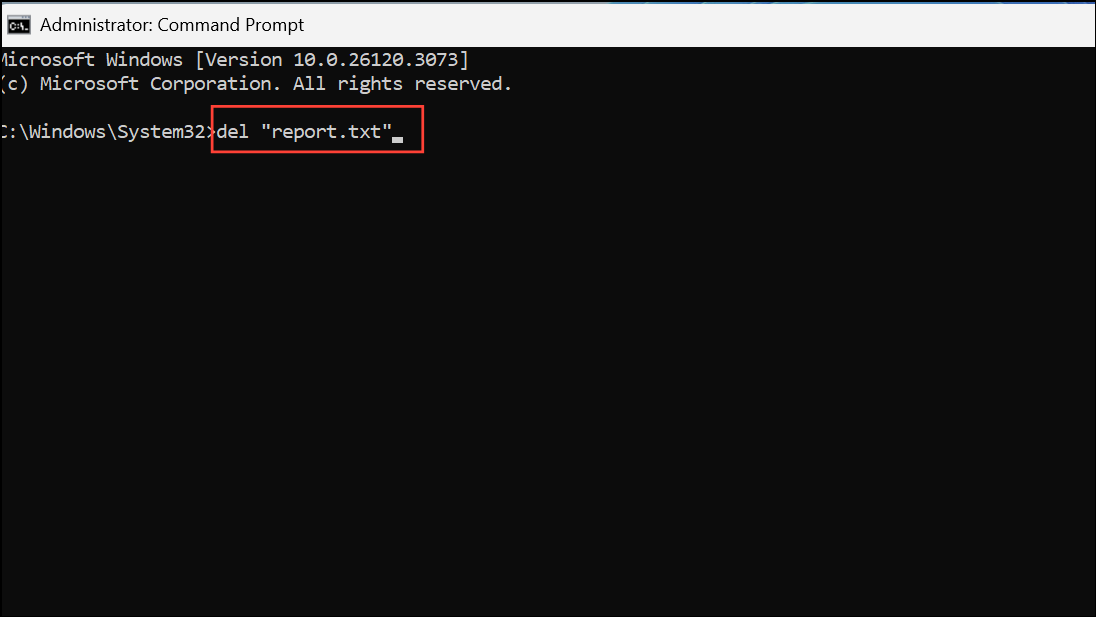
This command permanently deletes the file, bypassing the Recycle Bin. There is no undo, so double-check your target before running the command.
del *.txtdel /f "lockedfile.docx"
del /f /q *.log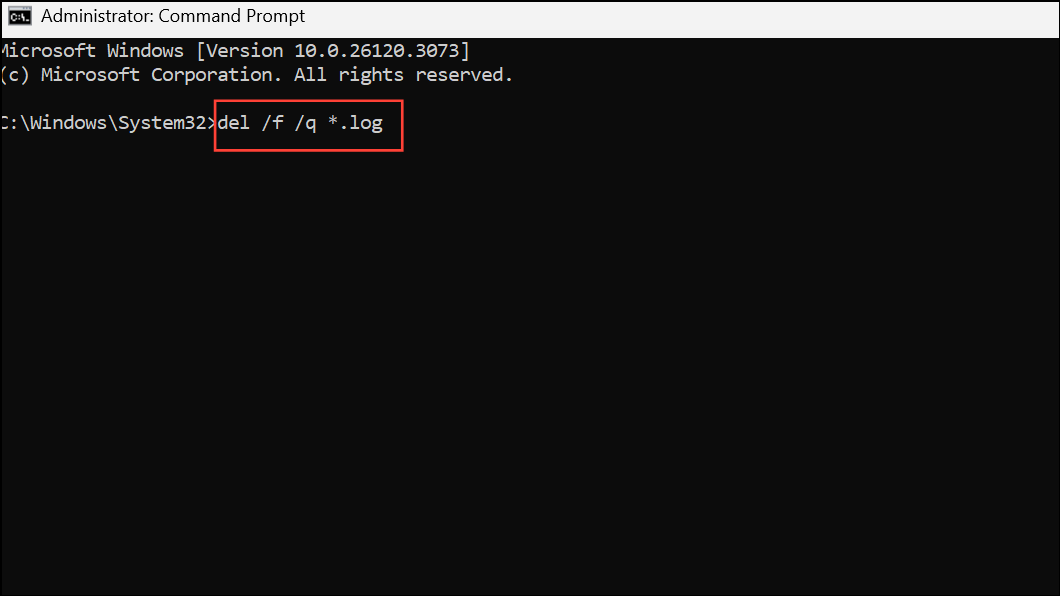
Delete Folders and Their Contents with Command Prompt
rmdir OldFolder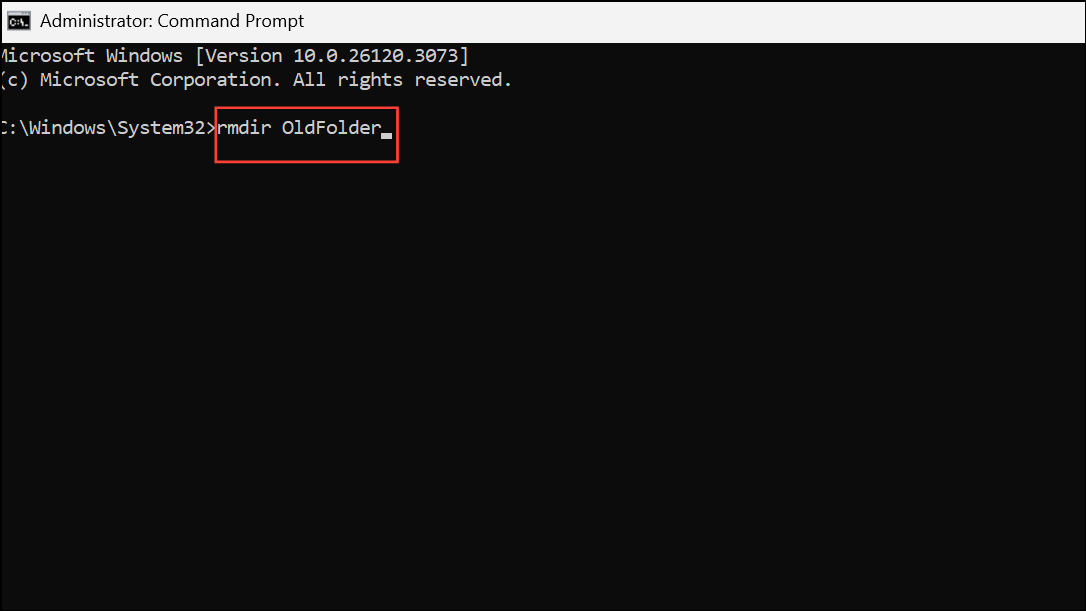
rmdir /s MyProject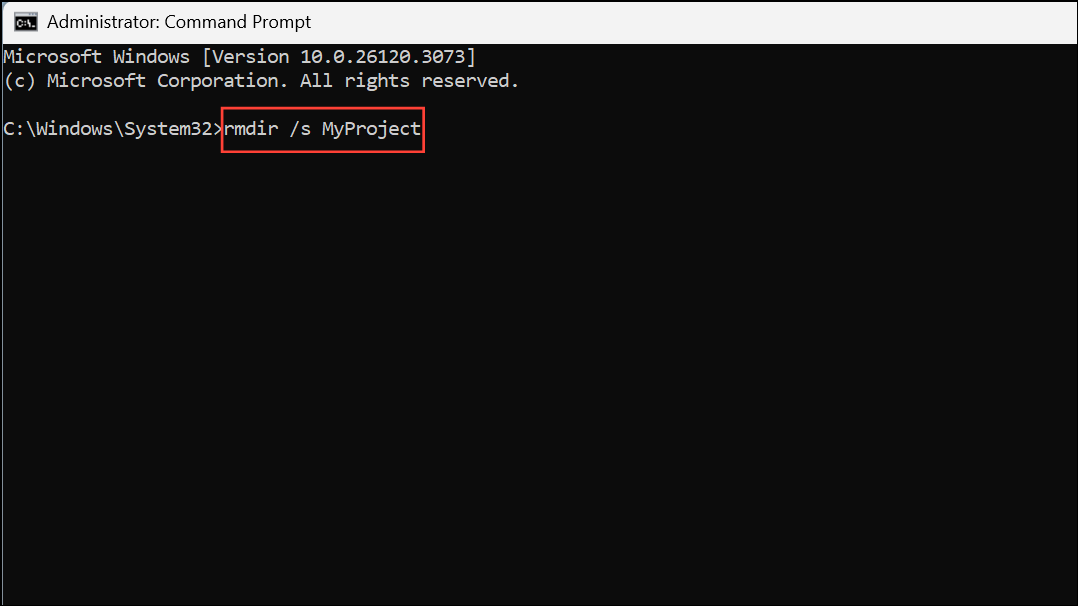
This command will prompt for confirmation. To skip the prompt, include the /q flag for quiet mode:
rmdir /s /q MyProject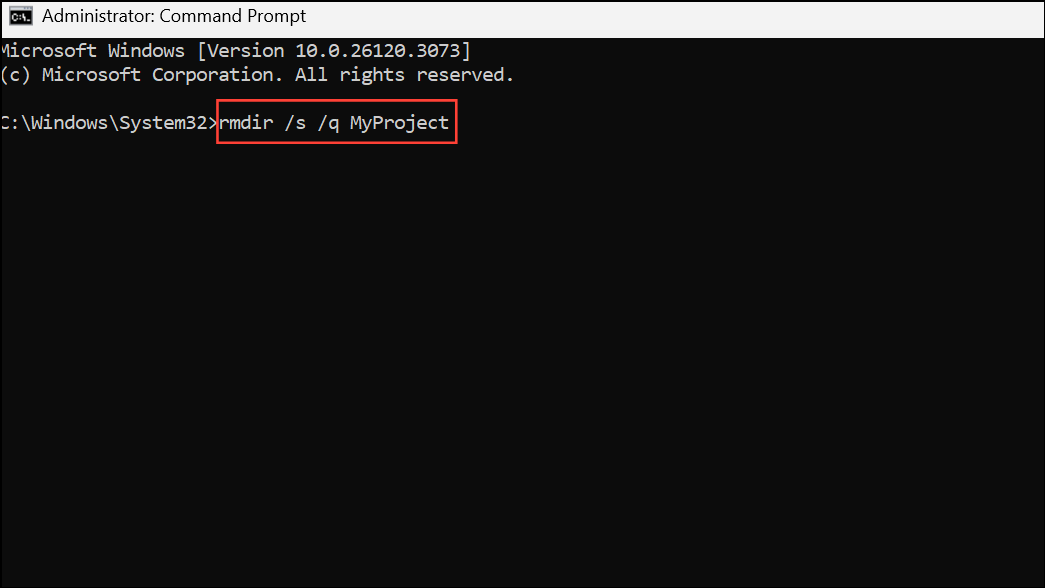
del command can be faster when used with the right flags. Example for deleting all files in a folder and its subfolders:del /f /s /q "C:\Path\To\TargetFolder\*.*"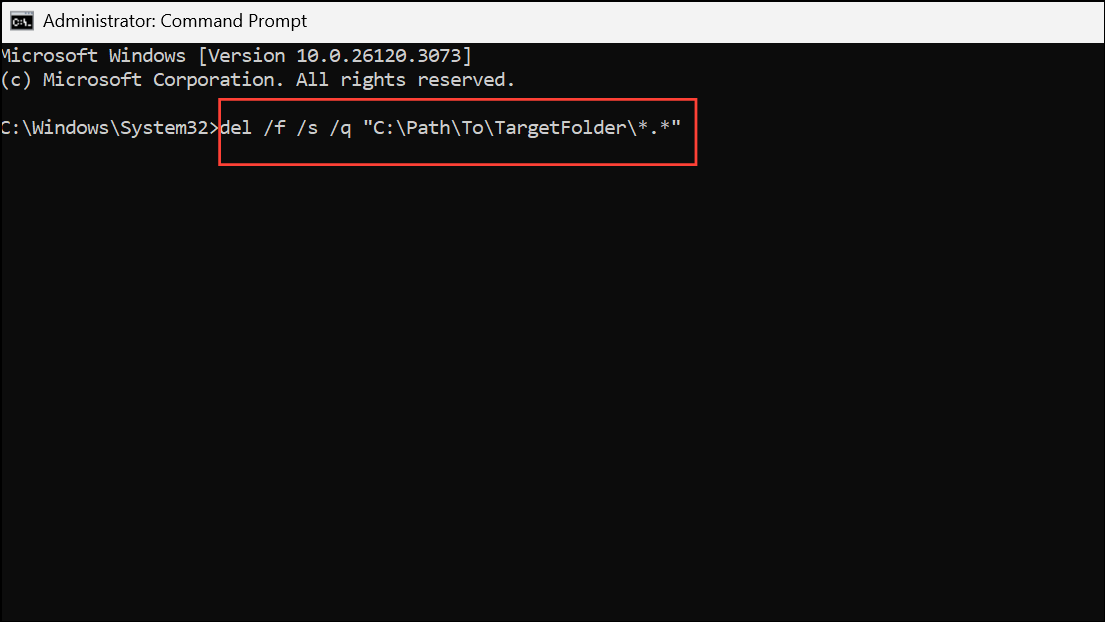
This command deletes files but leaves the folder structure. To remove empty folders afterward, run:
rmdir /s /q "C:\Path\To\TargetFolder"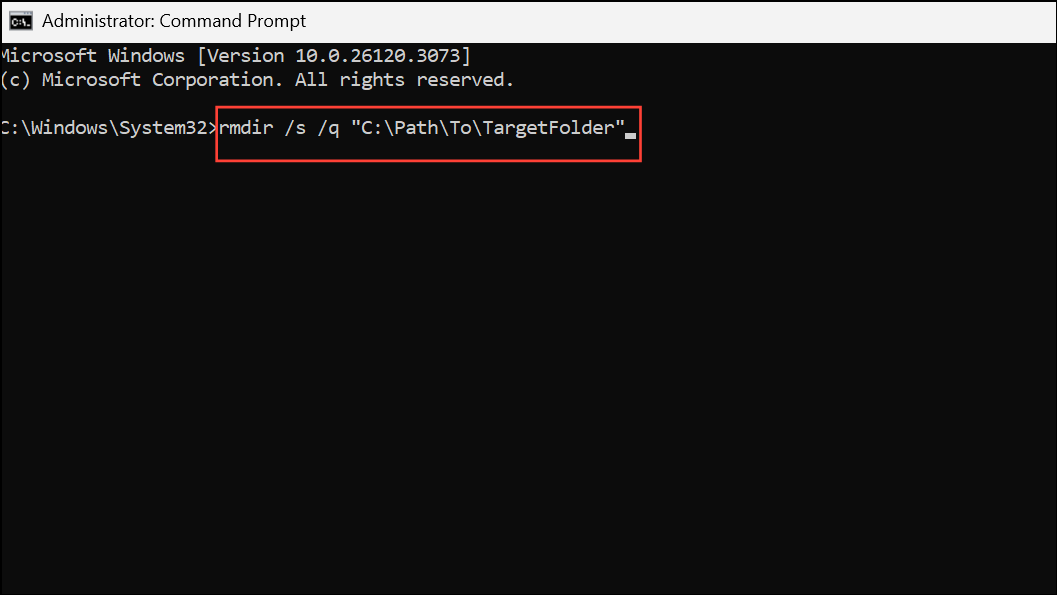
Redirecting output to nul can further speed up the process by suppressing console output:
del /f /s /q "C:\Path\To\TargetFolder\*.*" > nul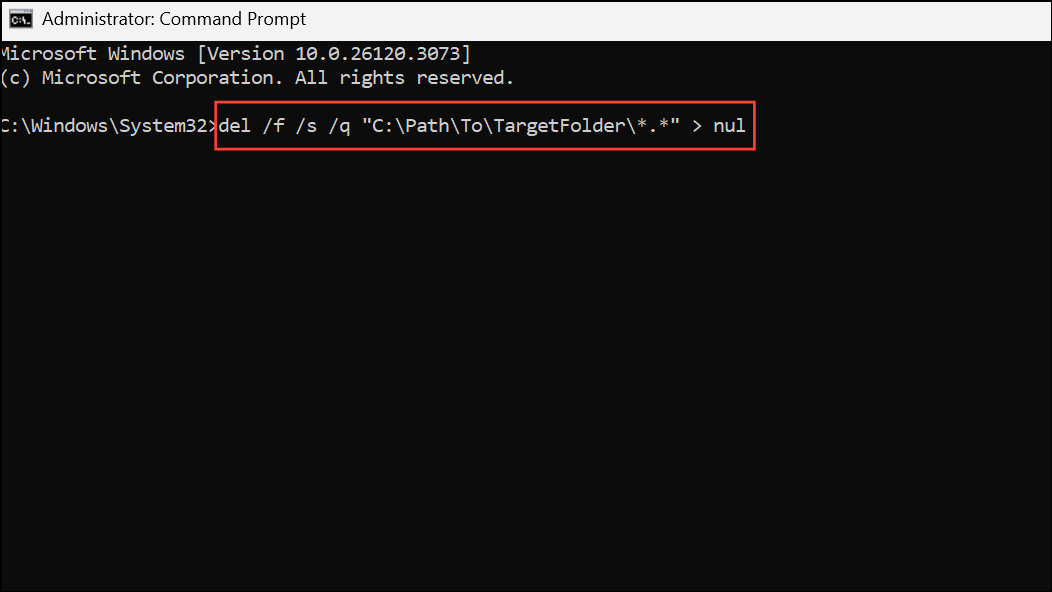
Additional Tips and Cautions
- Files and folders deleted via Command Prompt are not moved to the Recycle Bin and cannot be restored without special recovery tools.
- Always confirm the path and file names before executing deletion commands to avoid irreversible data loss.
- For stubborn or hidden files that resist deletion, ensure no programs are using them and try running Command Prompt as administrator.
- If you need to securely erase files so they cannot be recovered, consider using third-party tools with file shredding capabilities.
- For extremely large deletions, third-party utilities like Rapid Delete Pro or dedicated partition managers may offer even faster results compared to built-in commands.
- Accidentally deleted files may sometimes be recoverable with specialized data recovery software if action is taken quickly and the data has not been overwritten.
Using Command Prompt to delete files and folders in Windows 11 streamlines the process, particularly for large-scale or complex deletions. Careful use of these commands can save significant time and help maintain a clean, organized system.



