
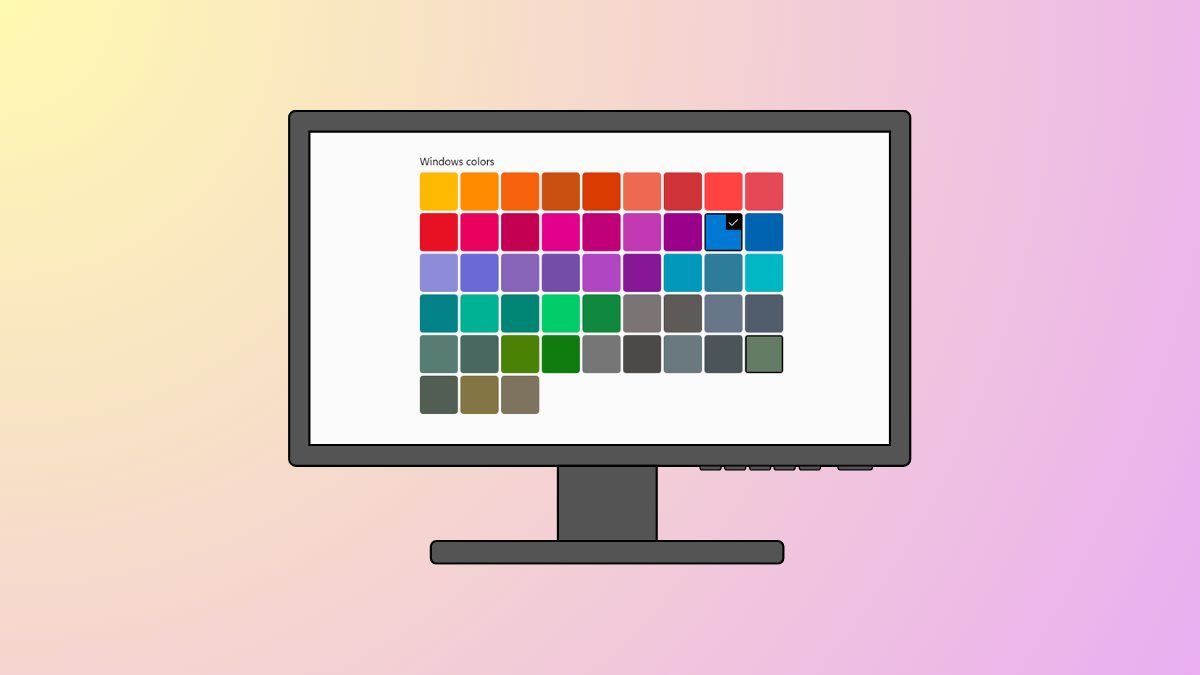
Switching between accent colors in Windows 11 leaves a visible history of your recent choices, which appears whenever you personalize your system’s appearance. This record can clutter your customization options or reveal your preferences to others who use your device. Removing this history streamlines your color selection and helps maintain privacy. Several approaches are available, ranging from direct registry edits to resetting your personalization settings.
Clear Recent Colors History Using Registry Editor
Win + R to bring up the Run dialog, type regedit and hit Enter. If prompted by User Account Control, select Yes to allow changes.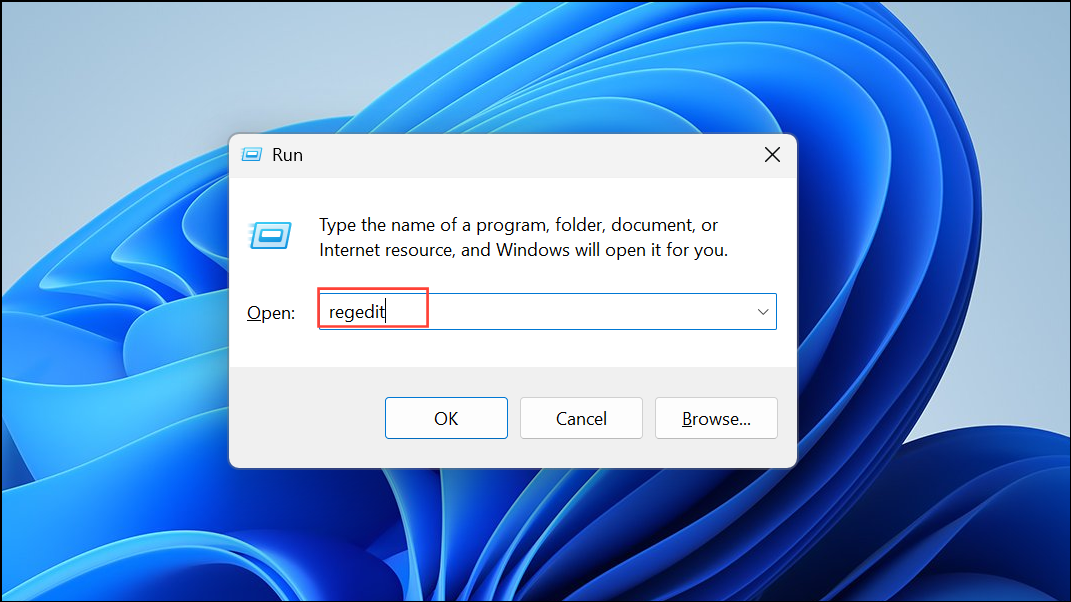
HKEY_CURRENT_USER\Software\Microsoft\Windows\CurrentVersion\Themes\History\Colors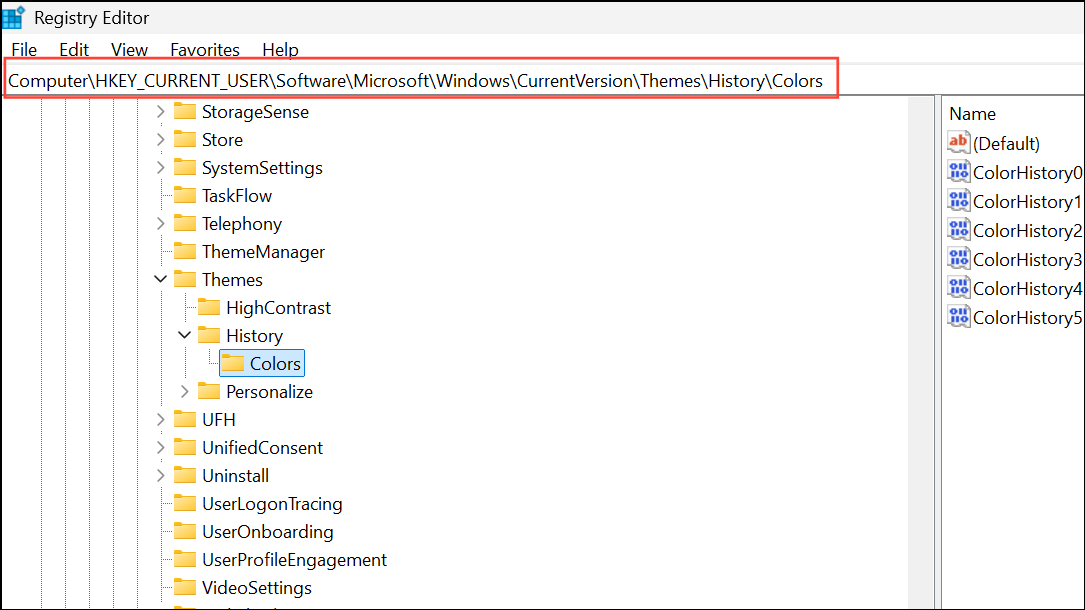
This location contains entries for each of your recent accent colors.
Colors folder and select Delete. Confirm the deletion when prompted. If you only want to remove specific colors, expand the Colors key and delete individual entries representing the colors you wish to clear.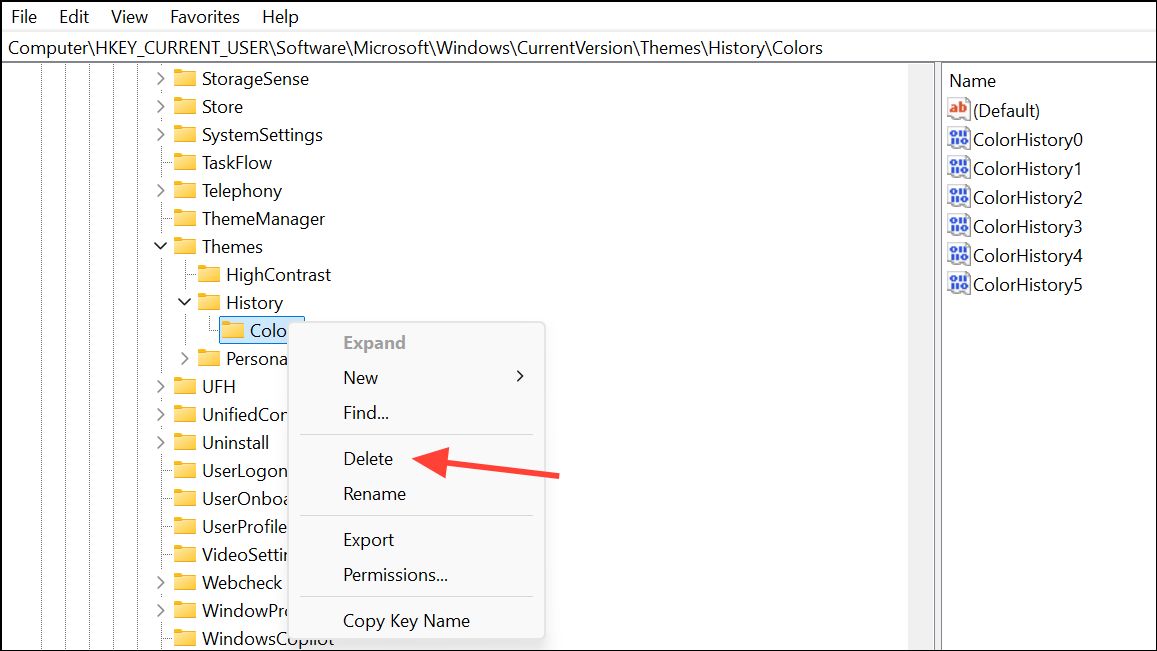
Remove Recent Colors History with Windows PowerShell
PowerShell, right-click the result, and choose Run as administrator. Approve the User Account Control prompt.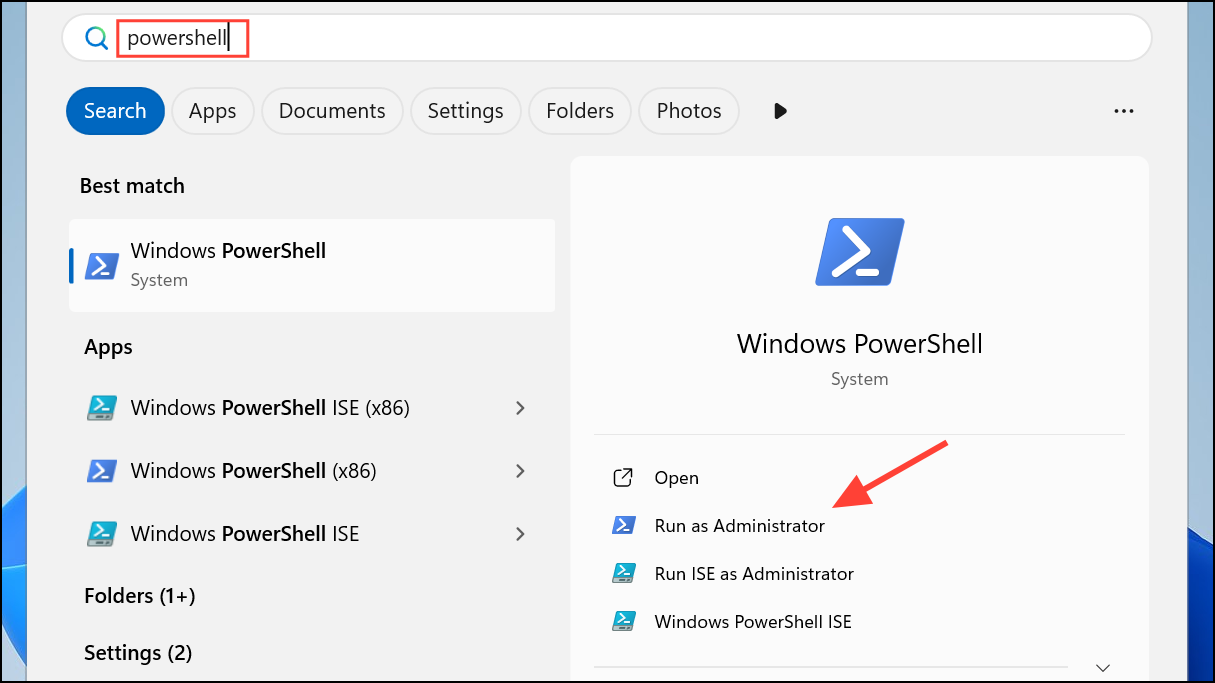
Remove-ItemProperty -Path "HKCU:\Software\Microsoft\Windows\CurrentVersion\Themes\History\Colors" -Name *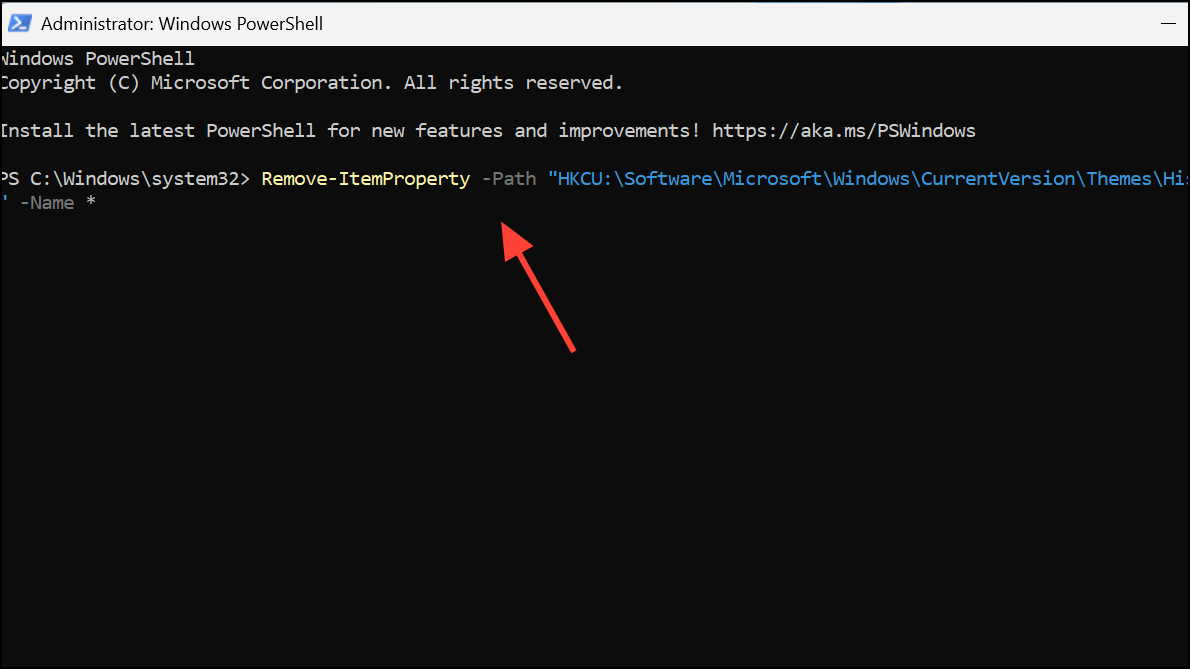
This command removes all property values (recent colors) under the specified registry key. Press Enter to execute.
Personalization > Colors to confirm the recent colors list is empty. A system restart may be required for changes to fully appear.Reset Recent Colors by Changing Personalization Settings
Win + I. Go to Personalization and select Themes from the sidebar.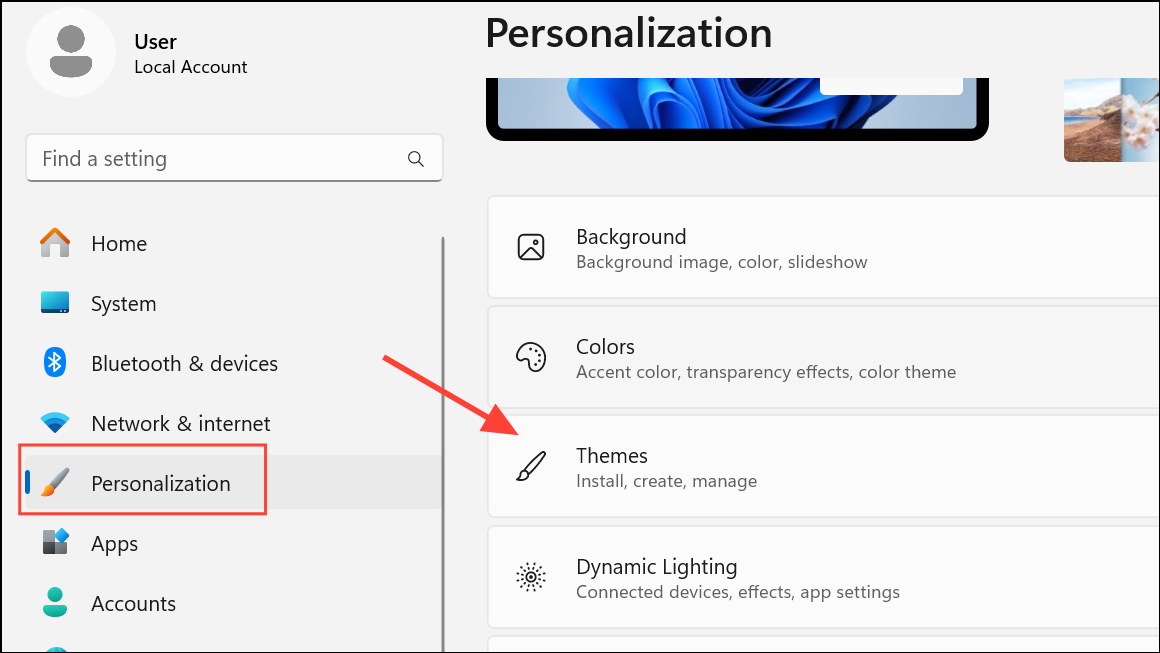
Themes, apply one of the default Windows themes. This action resets many personalization options, including recent colors history.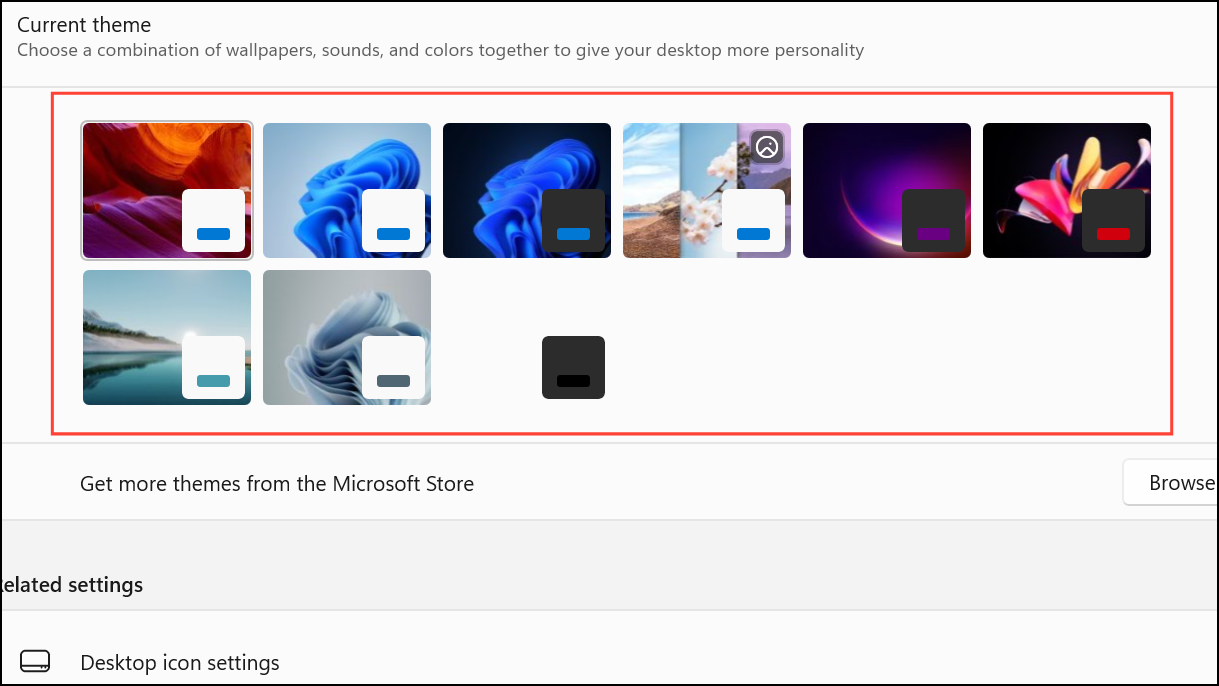
Colors section to verify that the recent colors history has been cleared. If you had other customizations, you may need to reapply them after resetting the theme.This method is less direct, as it resets other visual customizations along with color history, but it avoids direct registry edits.
Additional Notes and Tips
- Clearing recent colors does not alter your current accent color setting; it only removes the list of previously used colors.
- For users who frequently switch colors, repeating these steps keeps your recent colors list uncluttered.
- Always back up your registry or create a system restore point before making manual changes to the Windows registry.
- Third-party utilities and downloadable registry files can automate this process, but only use trusted sources to avoid security risks.
Removing your recent colors history in Windows 11 is straightforward with these methods, giving you a cleaner personalization menu and greater control over your system’s appearance.



