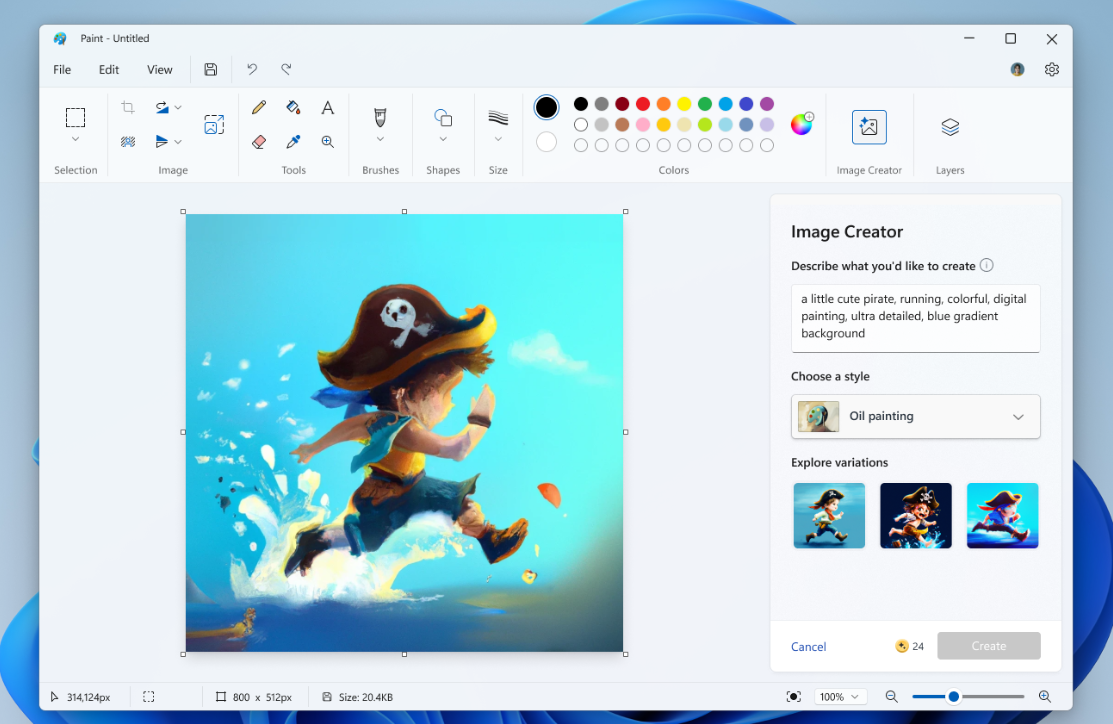
Generative Fill in Paint is only available on Copilot+ PCs and requires Paint version 11.2410.28.0 or later. If your device doesn’t meet these requirements, configuration changes won’t have any effect on Paint. On supported hardware, you can disable AI features for a single PC or at scale with policy.
Check device support and plan the scope
Before changing settings, confirm the feature is actually present and decide whether to enforce the change locally or across your environment.
- Feature availability: Generative Fill requires a Copilot+ PC; Paint must be version
11.2410.28.0or newer. - Scope options: Configure per device via Local Group Policy or registry, or deploy centrally with domain GPO or MDM.
- Effect of disabling: Paint hides the Generative Fill UI and stops the AI process; existing images remain unaffected.
- Policy reference: WindowsAI policy settings are documented under the WindowsAI Policy CSP (see WindowsAI Policy CSP).
Disable Generative Fill in Paint (Local Group Policy Editor)
This method configures all users on a single PC running Windows 11 Pro, Enterprise, or Education. It uses the built-in Administrative Template for Paint.
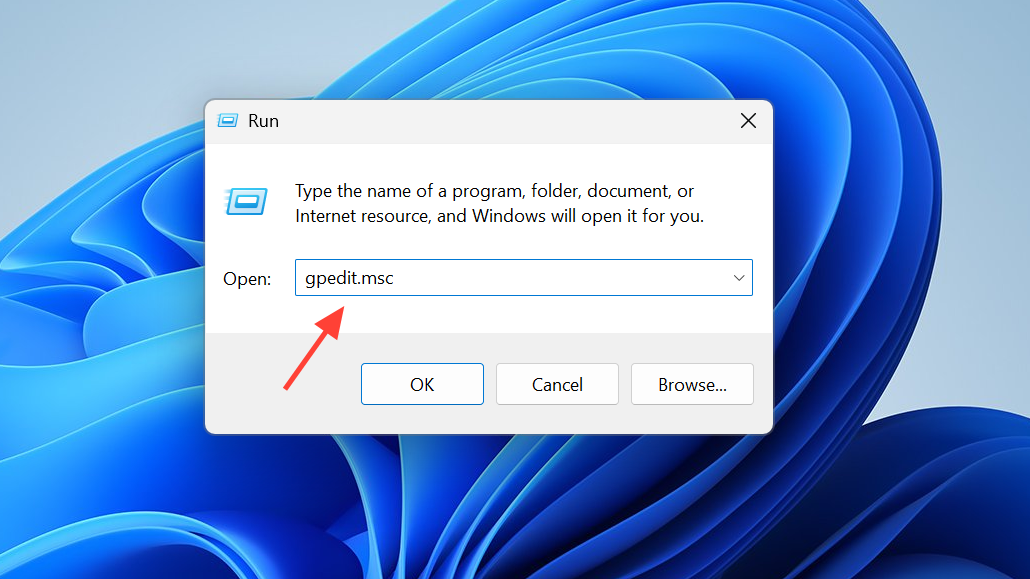
gpupdate /force in an elevated PowerShell window to refresh policy.Re‑enable later: Set the policy to Not Configured or Disabled, then reopen Paint.
Disable Generative Fill via registry (system‑wide)
This method sets a device-level policy using the registry. It affects all users on the machine. Back up the registry before making changes.
Win + R, type regedit, then press Ctrl + Shift + Enter.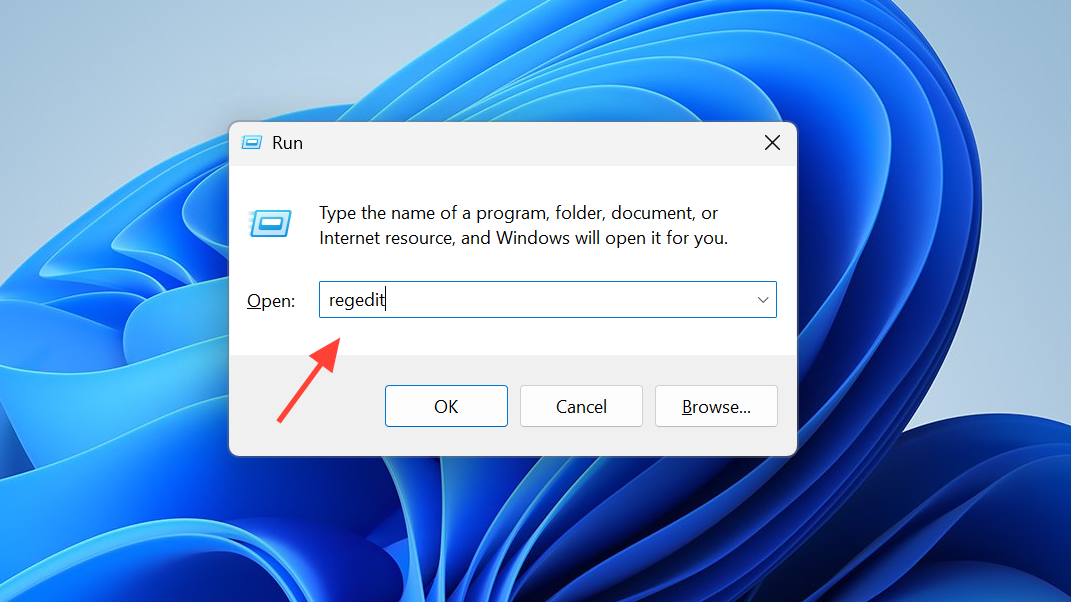
HKEY_LOCAL_MACHINE\SOFTWARE\Microsoft\Windows\CurrentVersion\Policies\Paint. Create the Paint key if it doesn’t exist.Re‑enable later: Delete the DisableGenerativeFill value or set it to 0, then reopen Paint.
Disable Generative Fill via Command Prompt (automation)
Use these commands to script the same registry configuration across multiple PCs.
REG ADD "HKLM\SOFTWARE\Microsoft\Windows\CurrentVersion\Policies\Paint" /v DisableGenerativeFill /t REG_DWORD /d 1 /f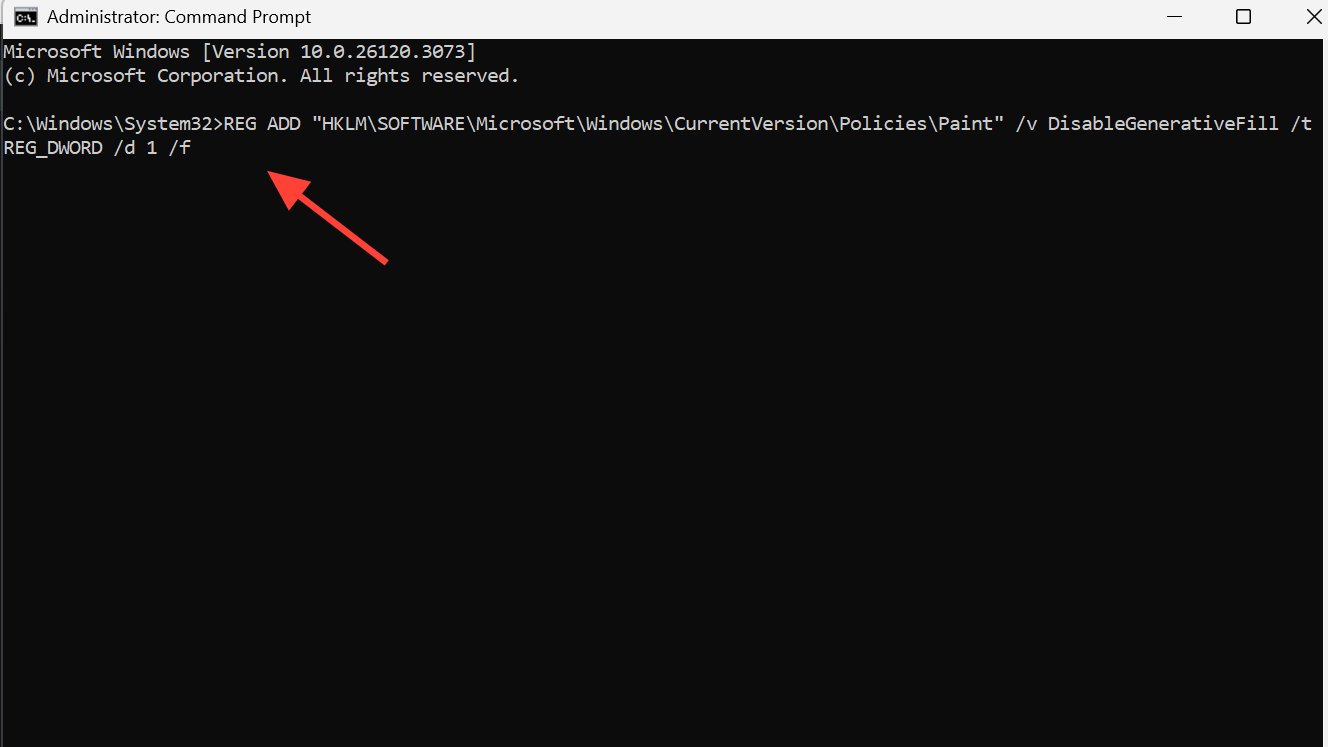
Re‑enable later: Remove the value with:
REG DELETE "HKLM\SOFTWARE\Microsoft\Windows\CurrentVersion\Policies\Paint" /v DisableGenerativeFill /fDisable Generative Fill via PowerShell (automation)
PowerShell provides a concise way to push the same change locally or with remote execution tools.
New-Item -Path "HKLM:\SOFTWARE\Microsoft\Windows\CurrentVersion\Policies\Paint" -Force
Set-ItemProperty -Path "HKLM:\SOFTWARE\Microsoft\Windows\CurrentVersion\Policies\Paint" -Name "DisableGenerativeFill" -Value 1 -Type DWordRe‑enable later: Remove the setting with:
Remove-ItemProperty -Path "HKLM:\SOFTWARE\Microsoft\Windows\CurrentVersion\Policies\Paint" -Name "DisableGenerativeFill" -ForceDisable Generative Fill across a domain (Group Policy Management)
For domain‑joined PCs, enforce a consistent configuration using Group Policy Management.
Create a GPO in this domain, and Link it here…. Name it clearly (for example, “Paint — Disable Generative Fill”).Computer Configuration > Administrative Templates > Windows Components > Paint.gpupdate /force in an elevated PowerShell window or wait for the next policy refresh cycle. Reopen Paint to validate.Best practice: Test the GPO on a pilot OU before broad deployment.
Disable Paint’s Image Creator (optional)
If you also want to remove the Image Creator option in Paint, use a registry or MDM setting. Note that the Copilot button may remain visible even when Image Creator is disabled.
OMA-URI: ./Device/Vendor/MSFT/Policy/Config/WindowsAI/AllowImageCreator
Data type: Integer
Value: 0
Re‑enable later: Delete DisableImageCreator or set it to 0, or set the OMA‑URI value to 1.
Validate results and deployment notes
- Apply cycle: Close and reopen Paint after each change. If Paint was already running, it won’t pick up new policy until restarted.
- Unsupported devices: On non‑Copilot+ PCs or older Paint builds, changing these settings has no effect.
- Rollout consistency: UI toggles may not appear on all devices. Use registry or policy enforcement for reliable outcomes.
- Testing: Validate locally before mass deployment to avoid unintended side effects.
Once configured, Generative Fill and optional Image Creator are removed from everyday use in Paint. Keep a small test set handy to verify settings after major Windows or app updates.