
On-screen keyboards in Windows 11 provide an essential alternative input method, but the default click sound with each keystroke can quickly become distracting, especially during extended typing sessions or when using headphones. Muting your entire system audio is not always practical, so Windows 11 includes dedicated options to turn off only the on-screen keyboard sounds, giving you more control over your environment.
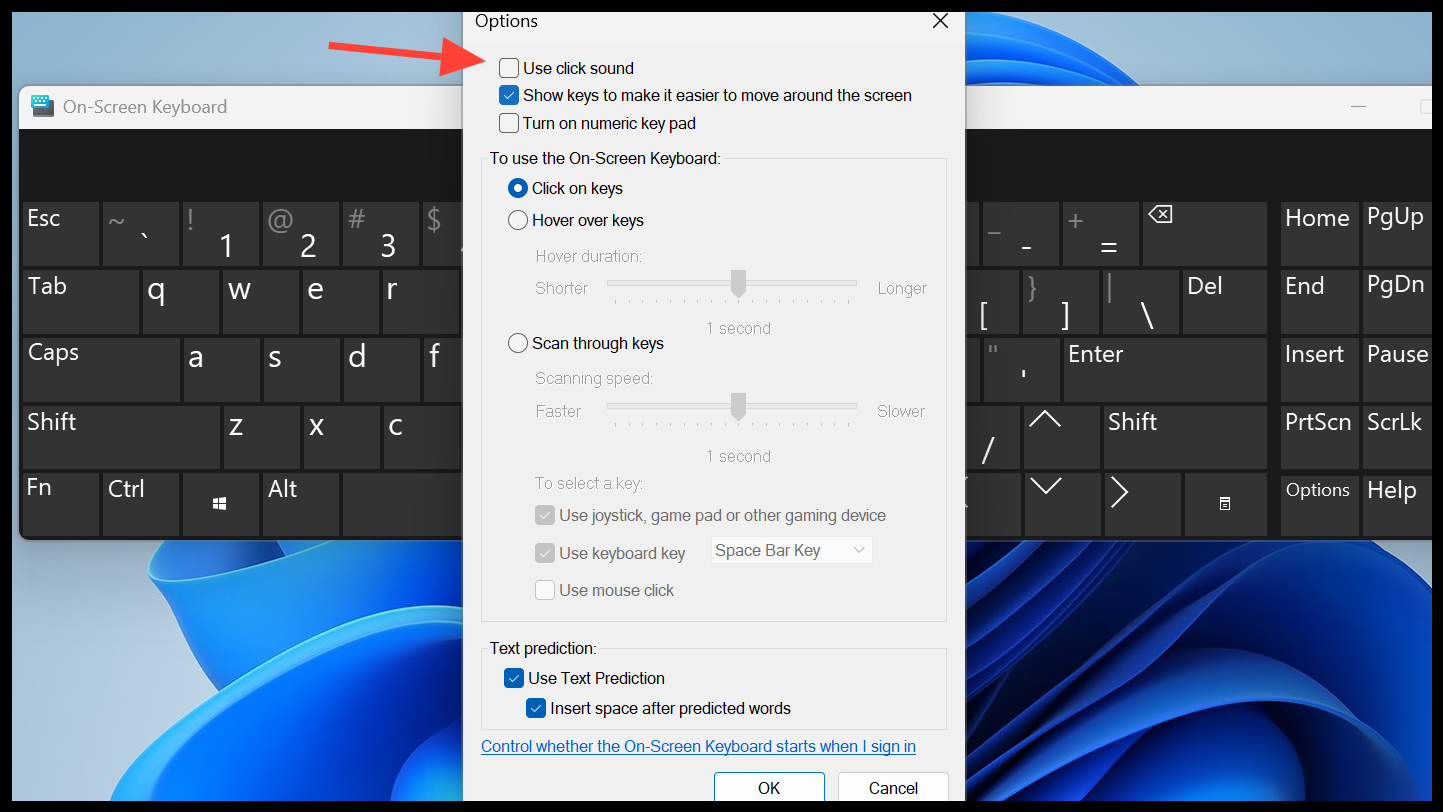
Turn Off On-Screen Keyboard Sound via Keyboard Options
Win + Ctrl + O or by searching for “On-Screen Keyboard” in the Start menu. This brings up the virtual keyboard interface on your screen.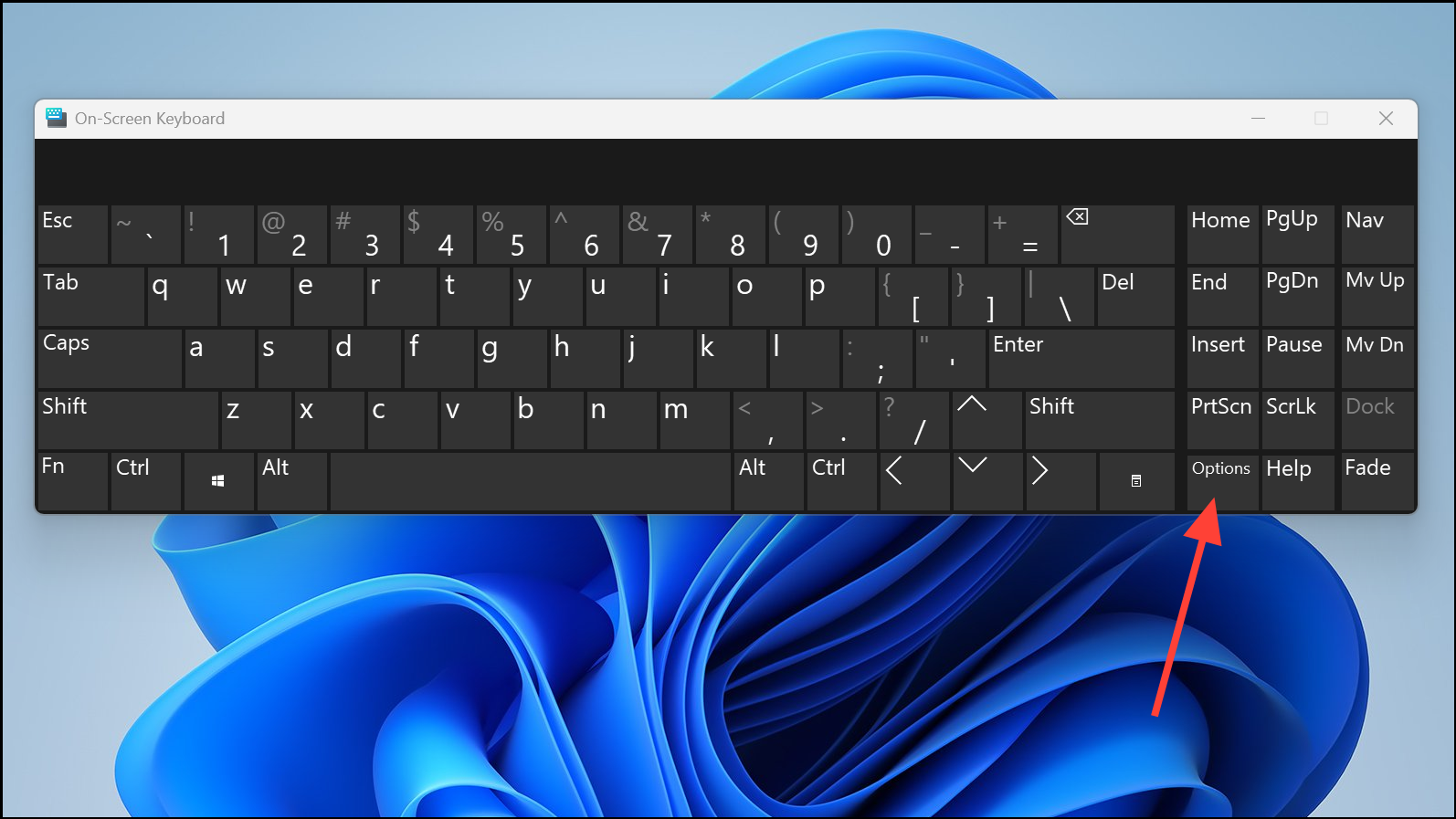
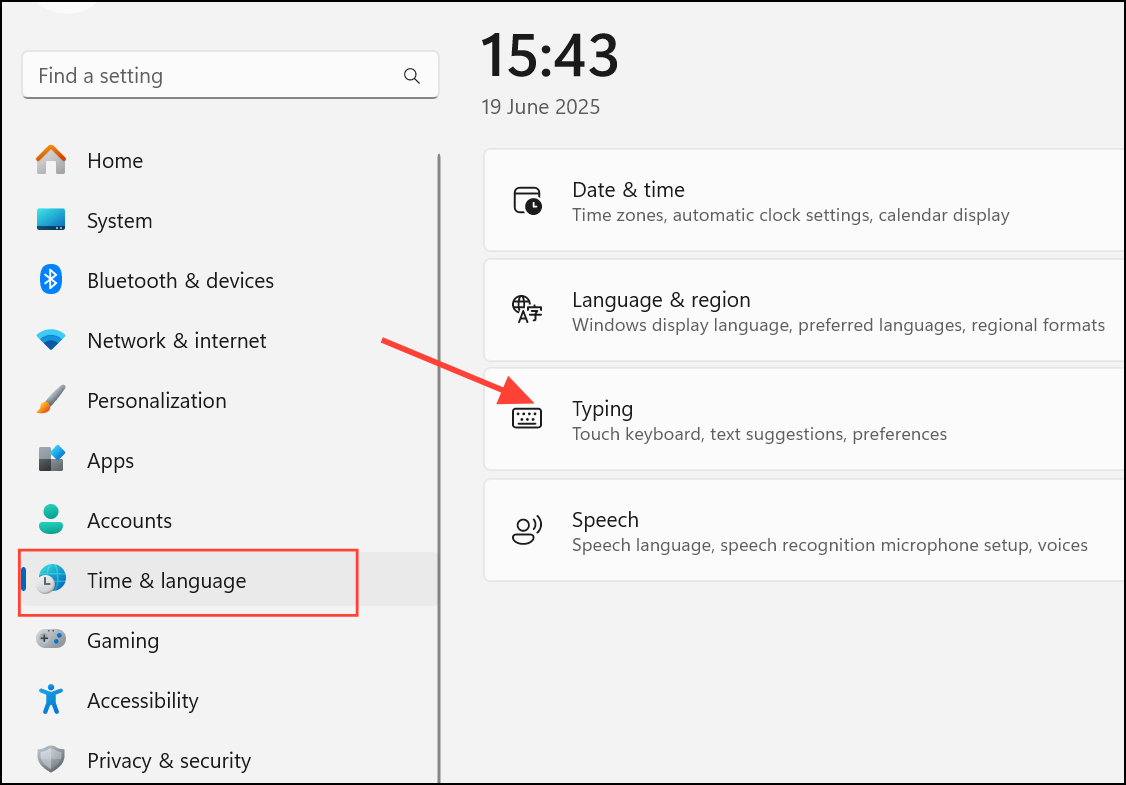
Disable Touch Keyboard Key Sounds in Windows Settings
Windows 11 also includes a modern touch keyboard for tablets and touch-enabled devices. If you’re using this keyboard, you can disable its key sounds through system settings.
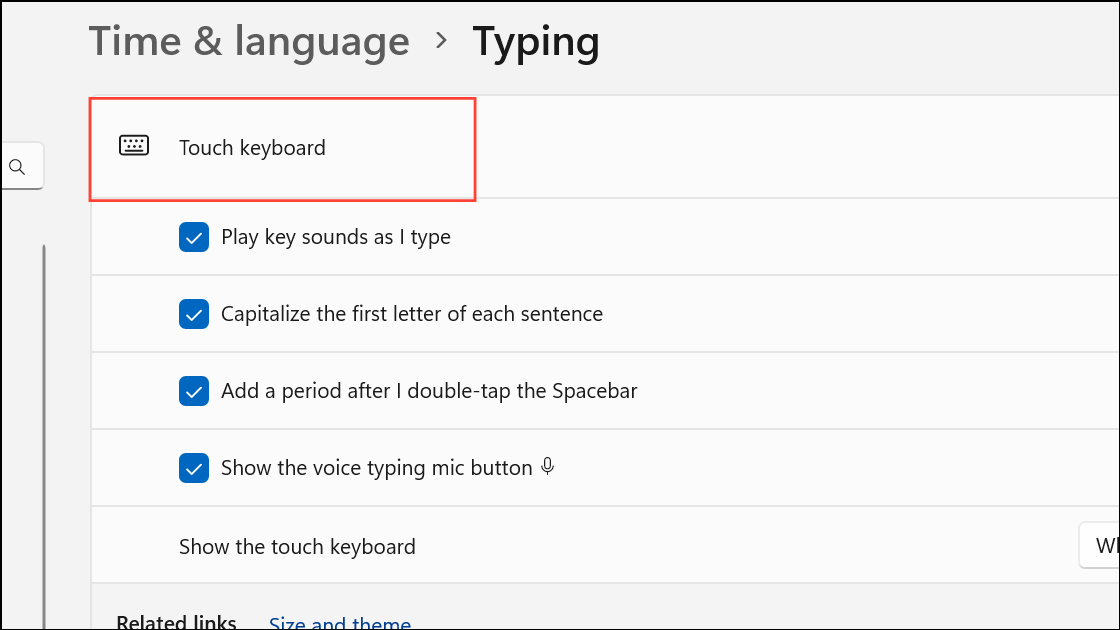
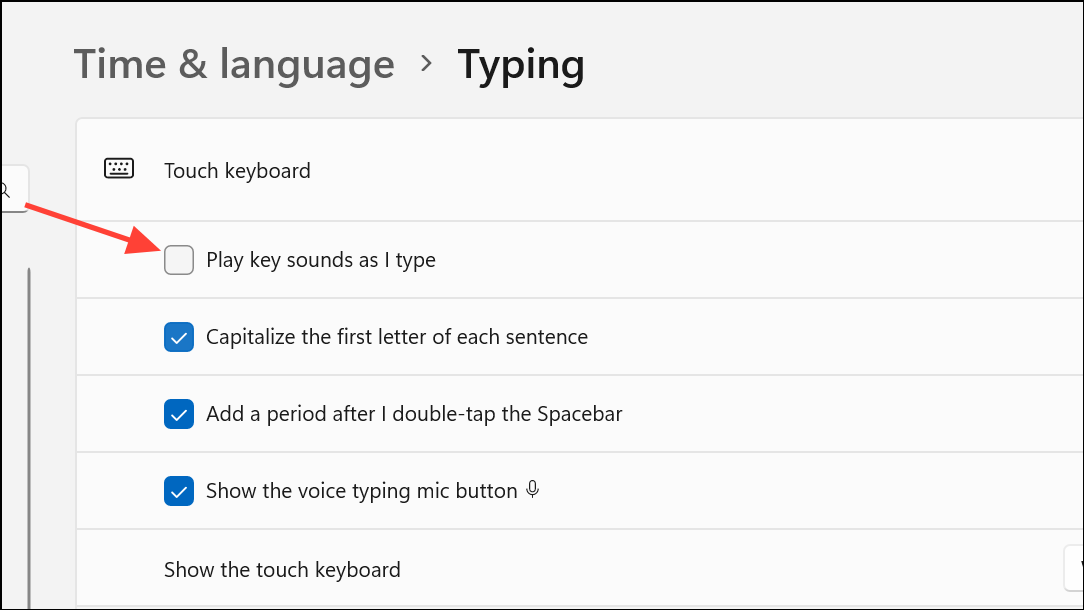
Advanced Method: Disable Touch Keyboard Typing Sound via Registry Editor
For users who prefer a more technical approach or want to automate the process, editing the Windows registry allows you to control the touch keyboard sound at a deeper level. Caution: Changing registry settings can impact system behavior, so back up your registry before proceeding.
Win + R to open the Run dialog, type regedit, and press Enter. If prompted by User Account Control, click Yes.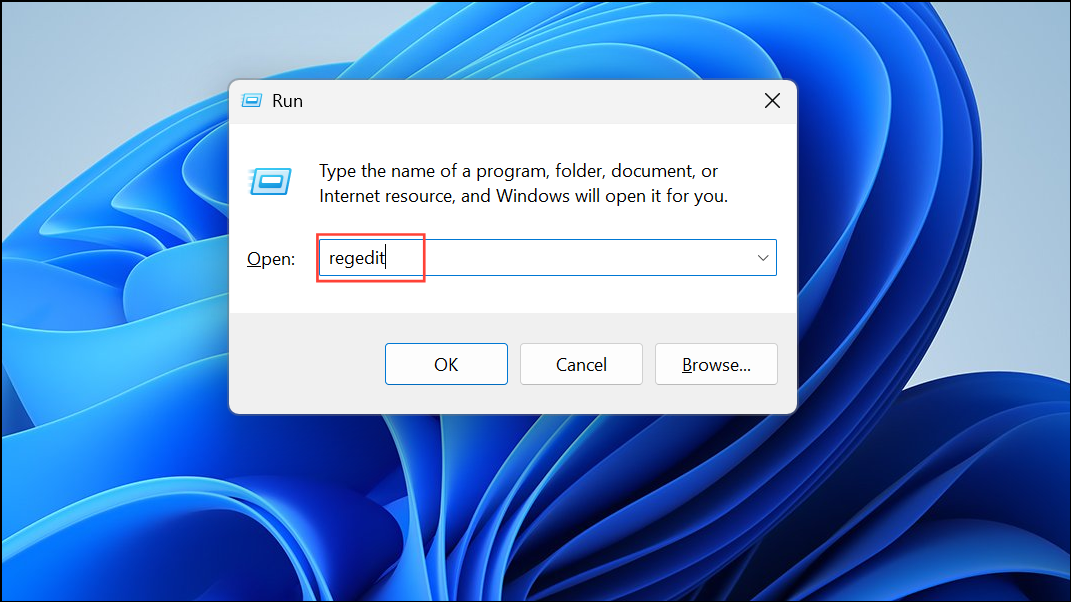
HKEY_CURRENT_USER\Software\Microsoft\TabletTip\1.7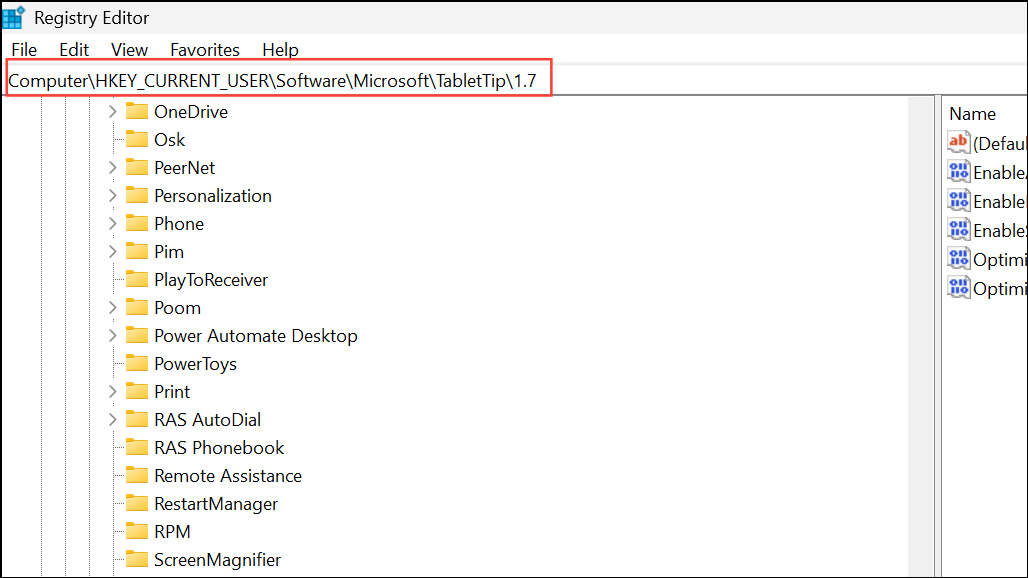
EnableKeyAudioFeedback. Double-click it and set the value data to 0 to disable key sounds. Set it to 1 to re-enable them later if needed.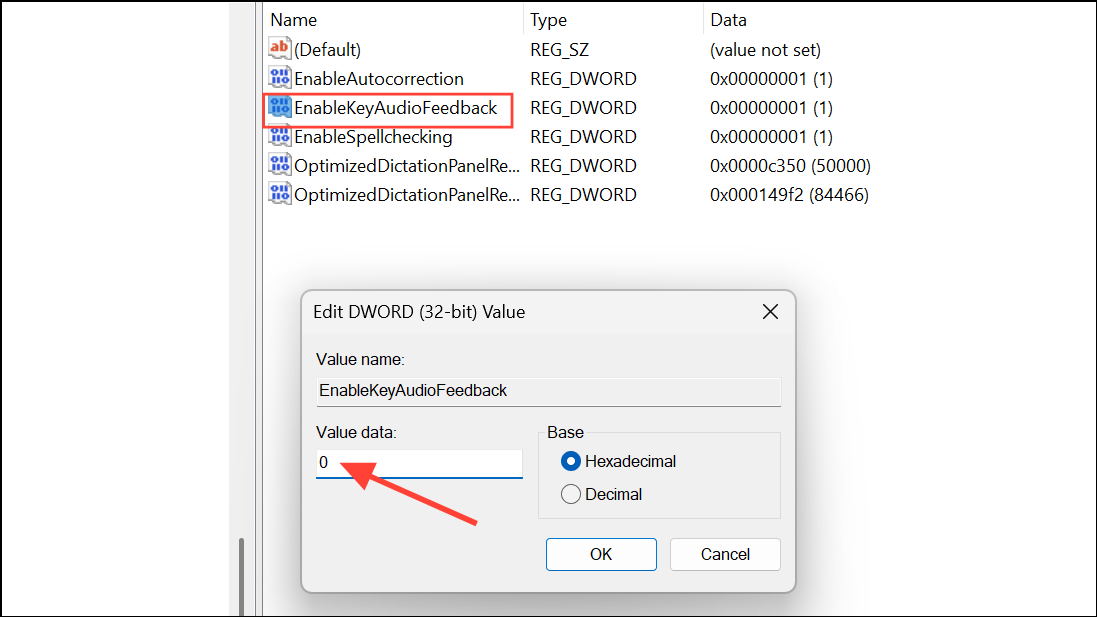
Troubleshooting and Additional Tips
If disabling the on-screen or touch keyboard sound through these methods does not work, confirm you are changing settings for the correct keyboard type. The above steps apply to the built-in Windows on-screen and touch keyboards, but third-party virtual keyboards may have separate audio controls. Also, ensure your system is fully updated, as some interface options may shift between Windows builds.
Note that muting the on-screen keyboard also removes audible feedback that confirms key presses. This can impact typing accuracy for some users, so consider whether you prefer silent operation or need audible confirmation.
With these methods, you can quickly silence the on-screen keyboard in Windows 11 and focus on your tasks without unwanted noise. Adjust the settings as needed for your workflow, and enjoy a quieter computing experience.



