

Accidental cursor jumps from a touchpad can disrupt typing and slow down your workflow, especially when you prefer using an external mouse. Windows 11 allows you to automatically disable the built-in touchpad whenever a USB or Bluetooth mouse is connected, reducing unwanted clicks and streamlining your experience. The following methods explain how to set this up, along with alternative approaches if the main option isn’t available on your device.
Disable Touchpad Automatically When External Mouse Is Connected (Recommended Method)
Windows + I. This shortcut brings up the main configuration panel for your device.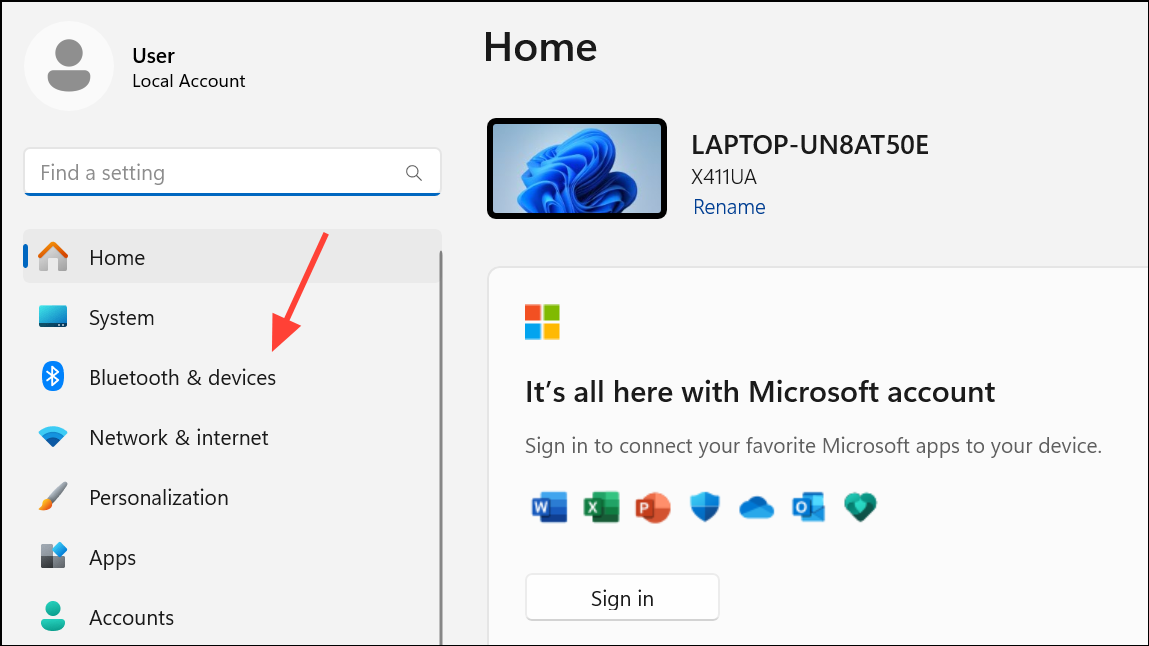
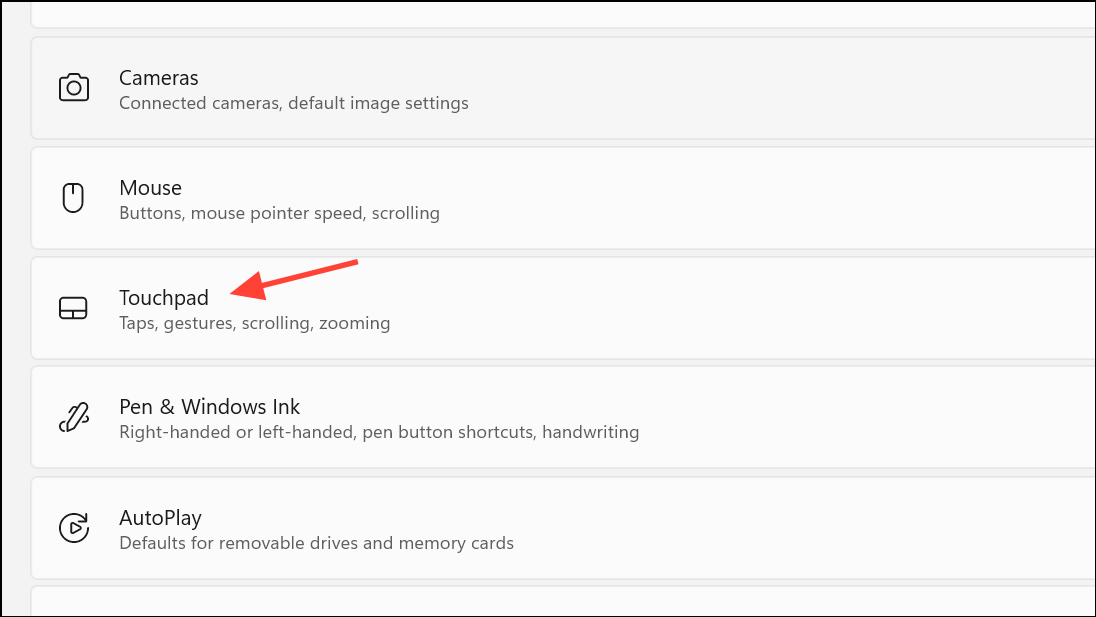
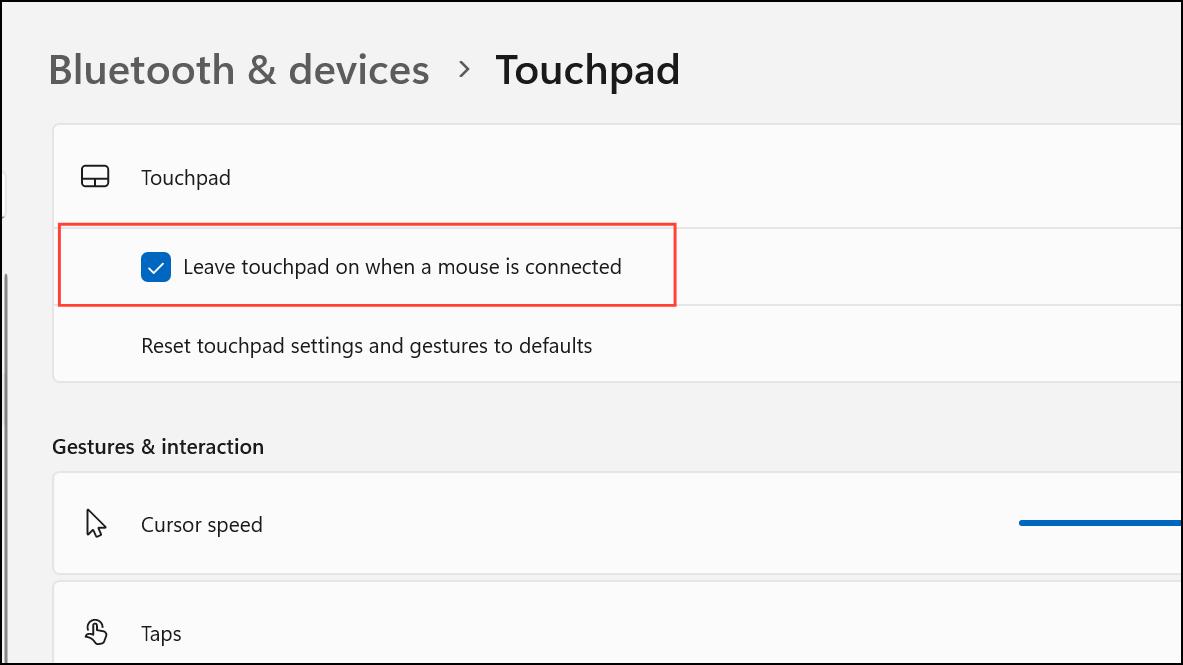
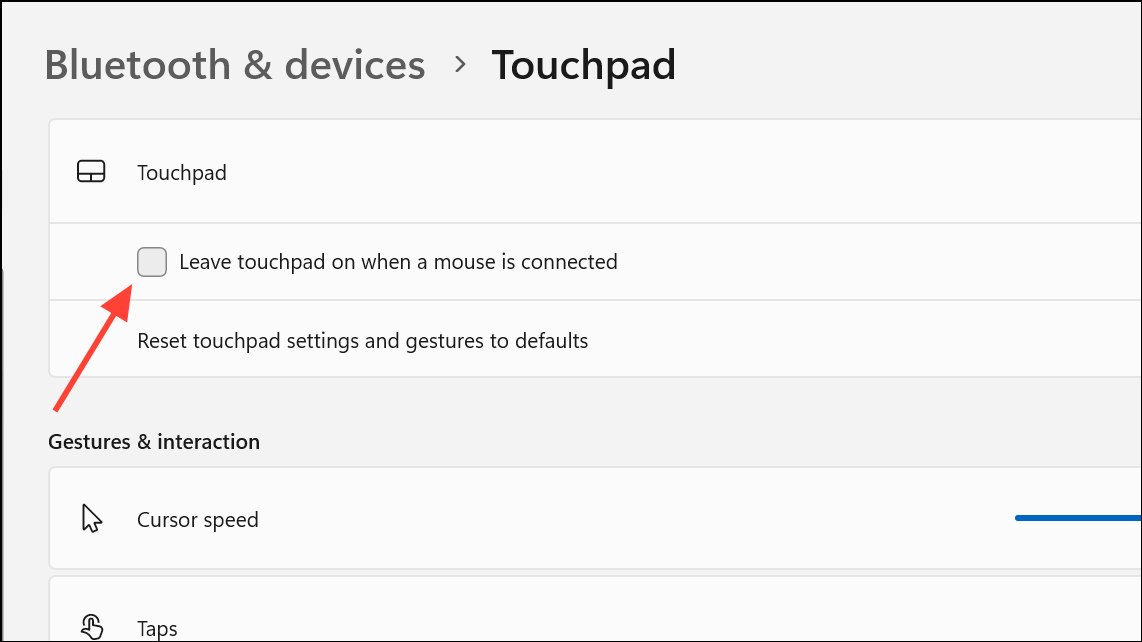
Once set, the touchpad will remain disabled as long as a mouse is connected and will automatically reactivate when the mouse is disconnected. This reduces accidental input and improves pointer accuracy during extended work sessions.
Disable Touchpad via Control Panel Mouse Settings
If your laptop does not display the touchpad option in Settings, or if you have a non-precision touchpad, use the Control Panel’s mouse settings. Some device manufacturers include additional touchpad configuration tabs here.
Control Panel, then press Enter to launch the classic Control Panel interface.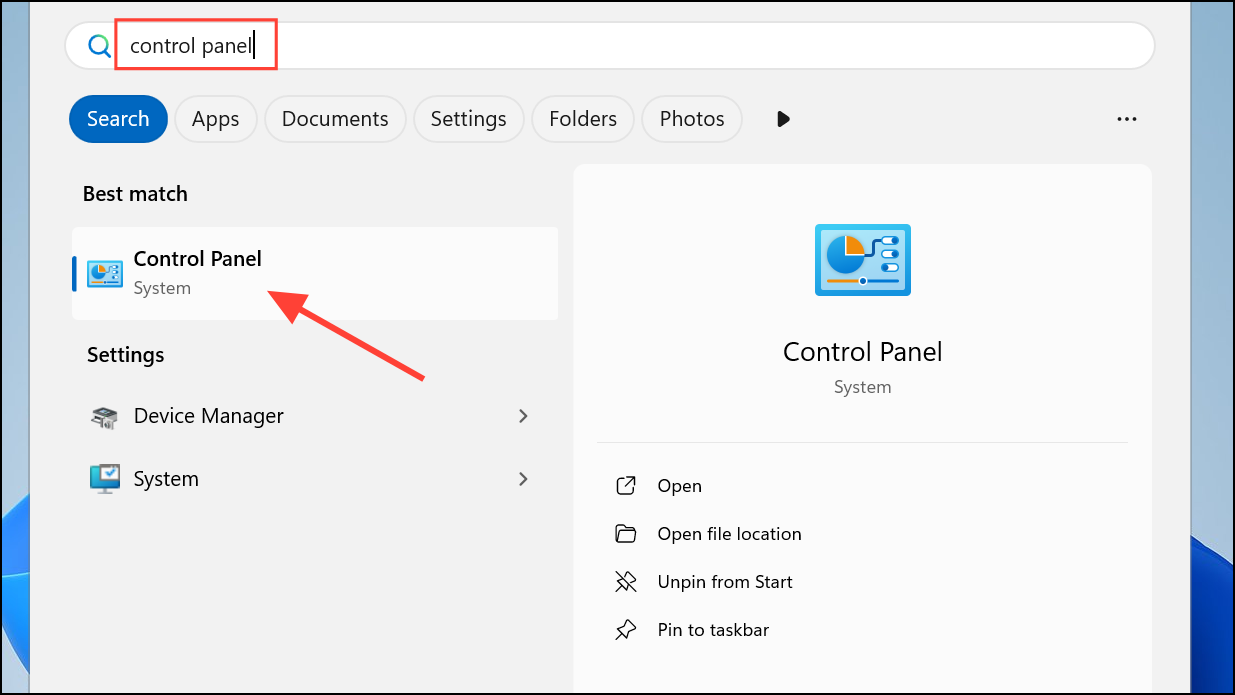
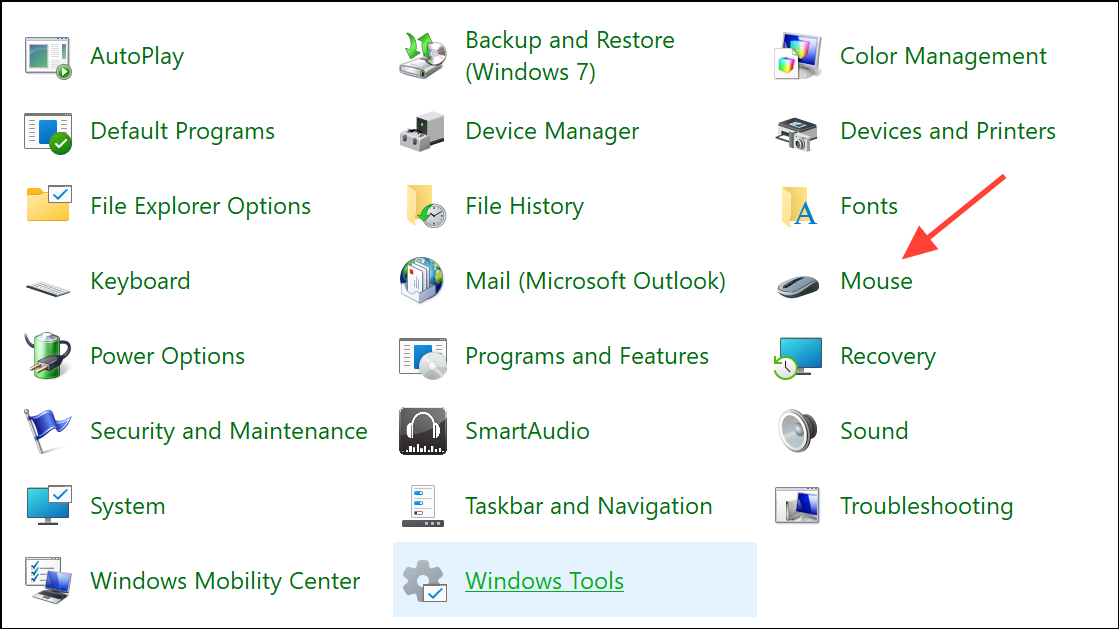
If your laptop’s Control Panel does not include this option, check for manufacturer-specific utilities or drivers that provide similar controls.
Disable Touchpad Using Device Manager
Device Manager lets you manually disable the touchpad. This approach is less dynamic, as it requires manual re-enabling if you disconnect your mouse.
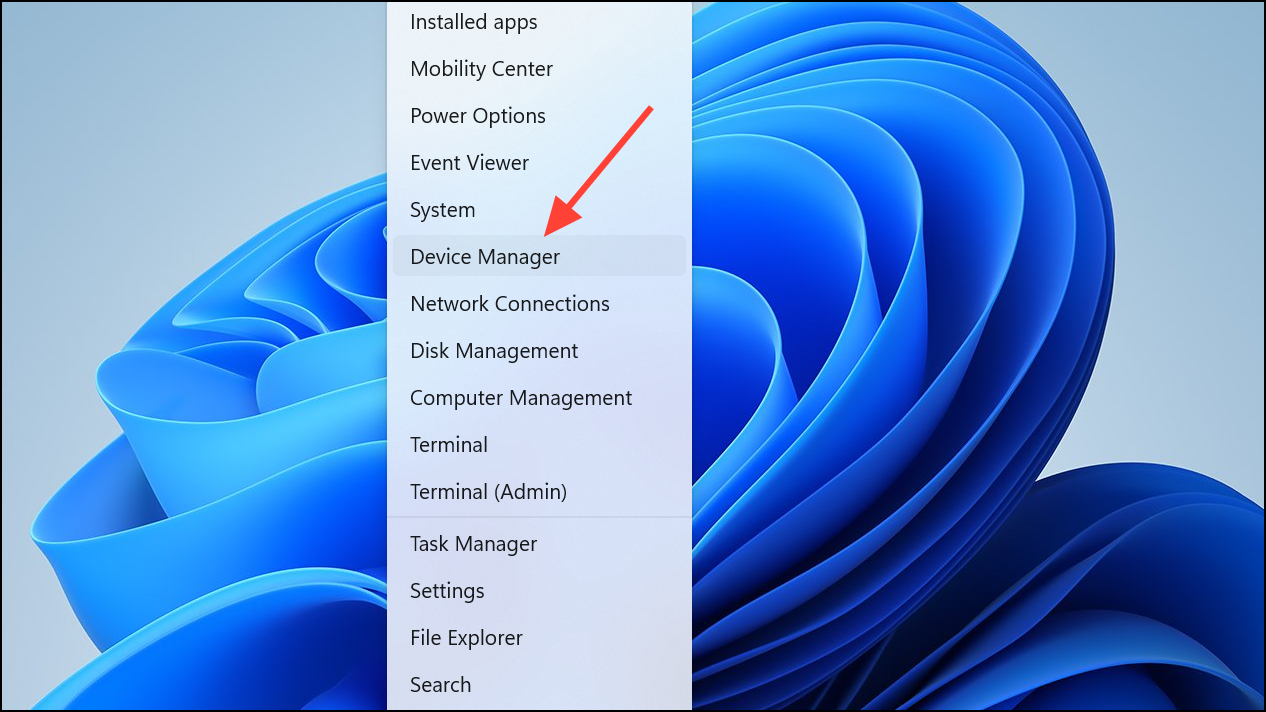
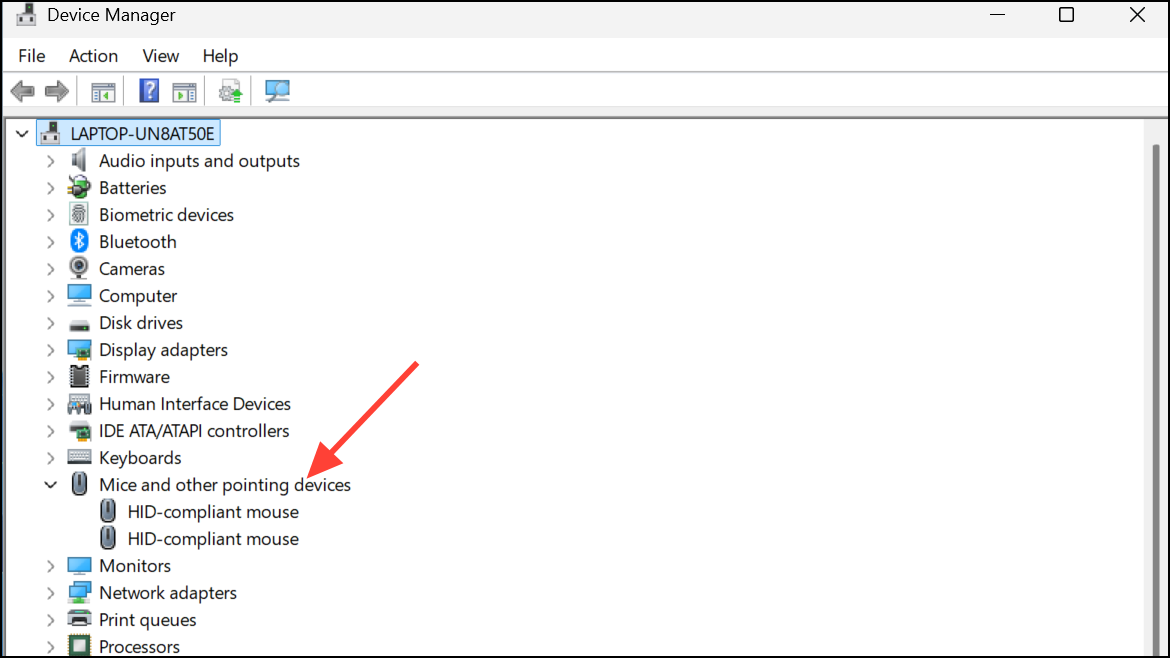
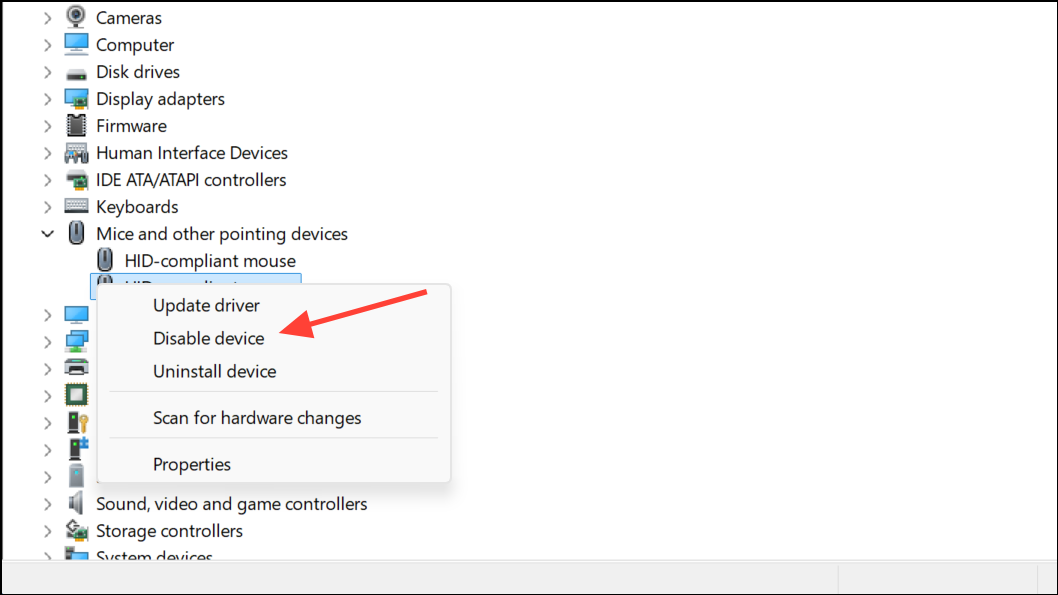
Disable Touchpad via Registry Editor
Advanced users can use the Windows Registry Editor to control the touchpad’s behavior, especially if Settings or Control Panel options are missing or unavailable. Always back up your registry and create a restore point before making changes to avoid system issues.
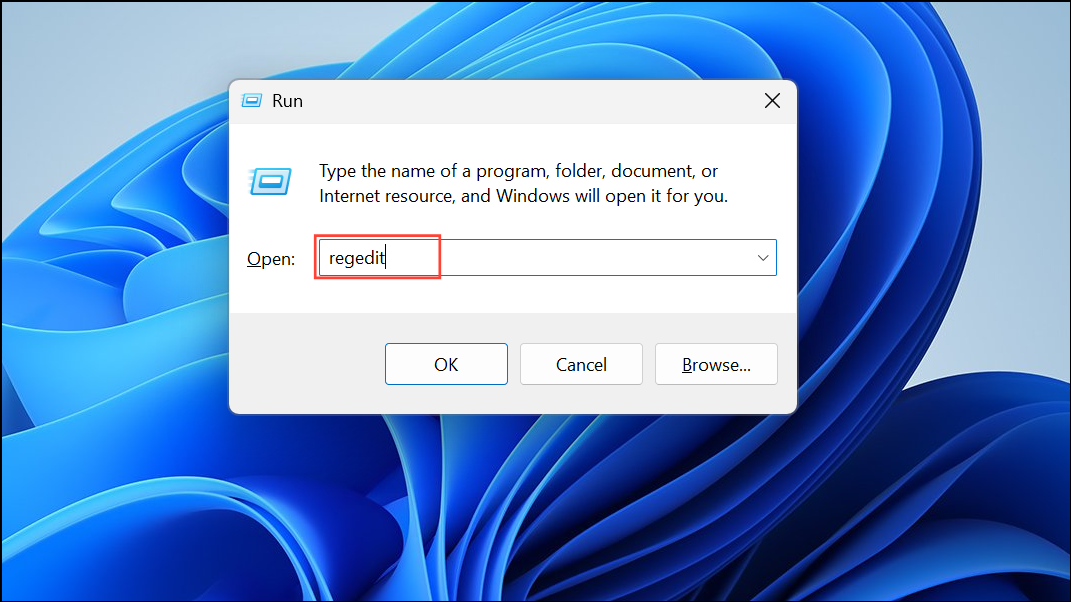
HKEY_CURRENT_USER\Software\Microsoft\Windows\CurrentVersion\PrecisionTouchPad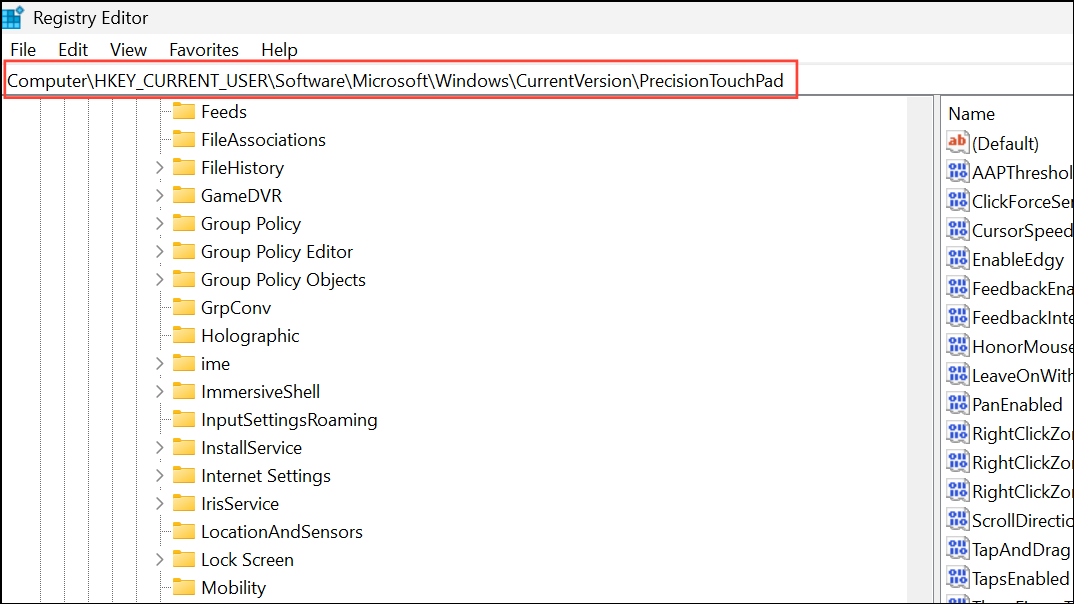
LeaveOnWithMouse. Double-click it and set its value to 0 to disable the touchpad when a mouse is connected, or 1 (or ffffffff for some systems) to always leave the touchpad on.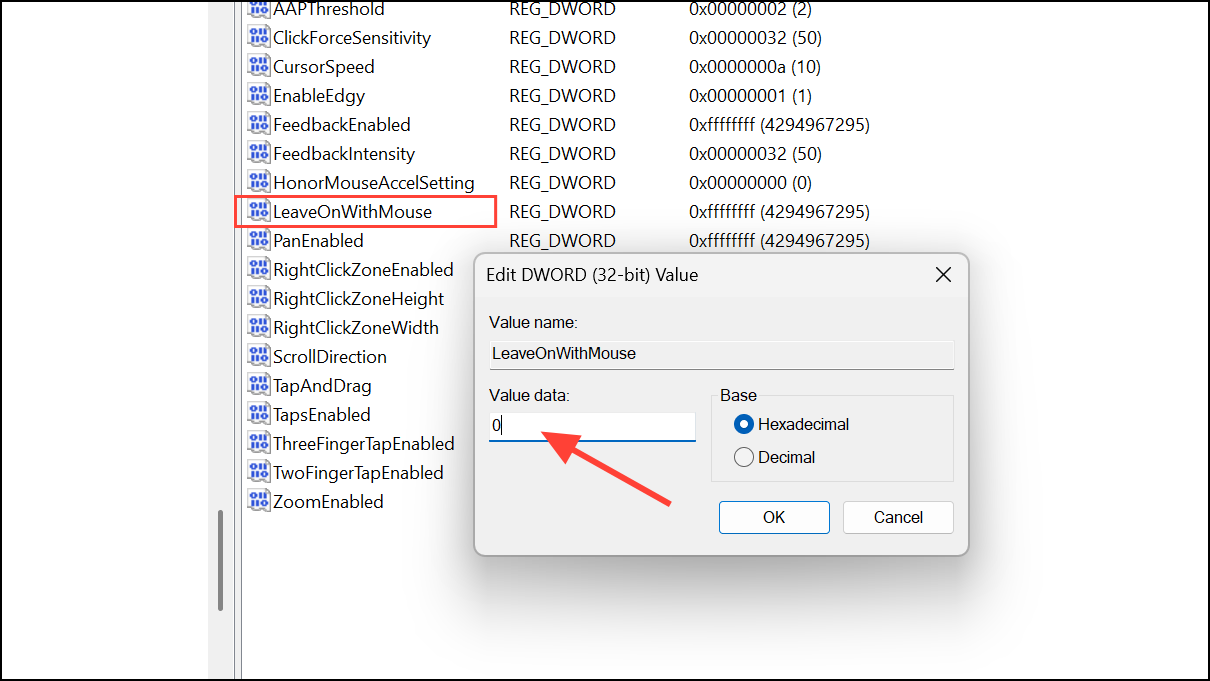
If your device uses a non-precision touchpad, this registry key may not exist or have any effect. In that case, check your laptop manufacturer’s support pages for additional instructions or proprietary touchpad utilities.
Alternative Approaches and Troubleshooting
If none of the above methods are available, try these alternatives:
- Check for a dedicated touchpad function key (often labeled with a touchpad icon) on your keyboard. Press it with the
Fnkey to toggle the touchpad. - Look for manufacturer-specific software (such as Lenovo Vantage, Dell Touchpad, or HP Control Center) for additional touchpad controls.
- Some laptops support double-tapping a corner of the touchpad to disable or enable it. Refer to your device manual for details.
- Third-party utilities like “Touchpad Blocker” can help suppress unwanted touchpad input if built-in options are insufficient.
On certain devices, disabling the touchpad may not turn off integrated touchpad buttons. If accidental clicks persist, consult your laptop’s documentation or support forums for model-specific solutions.
By configuring Windows 11 to disable your laptop’s touchpad when an external mouse is connected, you can speed up navigation and reduce accidental cursor movement. If your device lacks the built-in option, the methods above provide practical workarounds to achieve the same result.



