

Windows Search Indexing steadily consumes disk space as it catalogs files, emails, and other content to speed up search results. When storage space gets tight, the indexing database can become a significant source of disk usage and system lag. Disabling Windows Search Indexing is a direct way to reclaim disk space and reduce unnecessary background activity, especially on devices where fast search is less important than available storage.
Disabling Windows Search Indexing via Services
Windows + R to launch the Run dialog, then typing services.msc and pressing Enter. This panel lists all background services running on your system.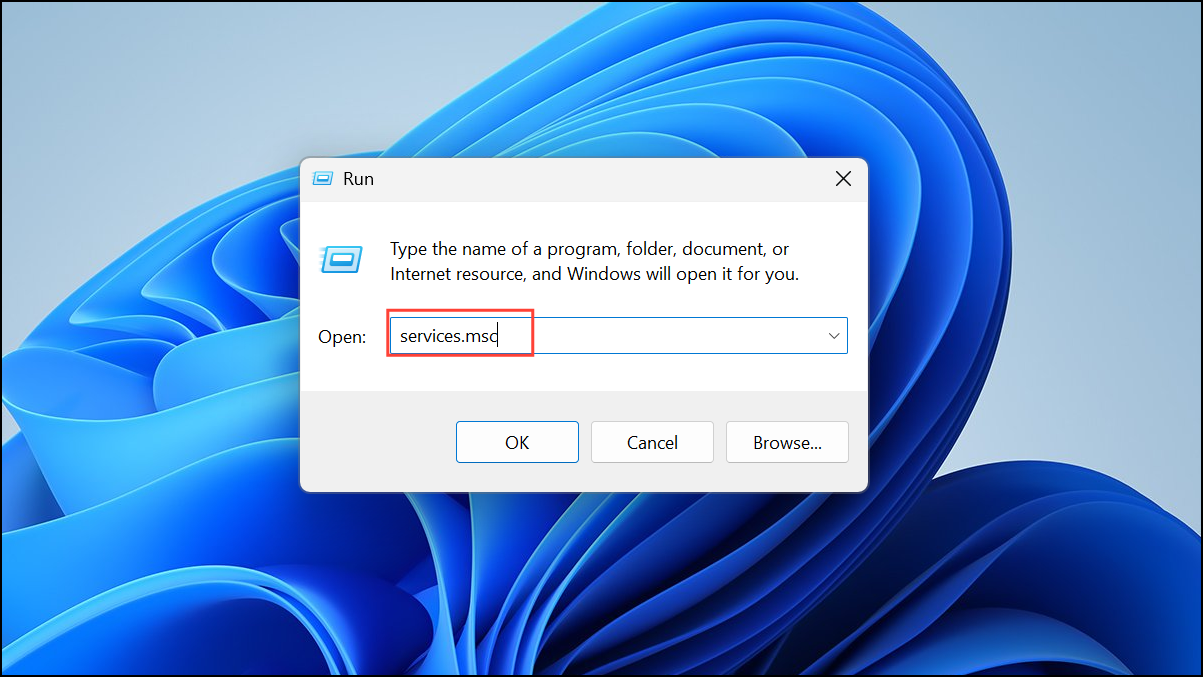
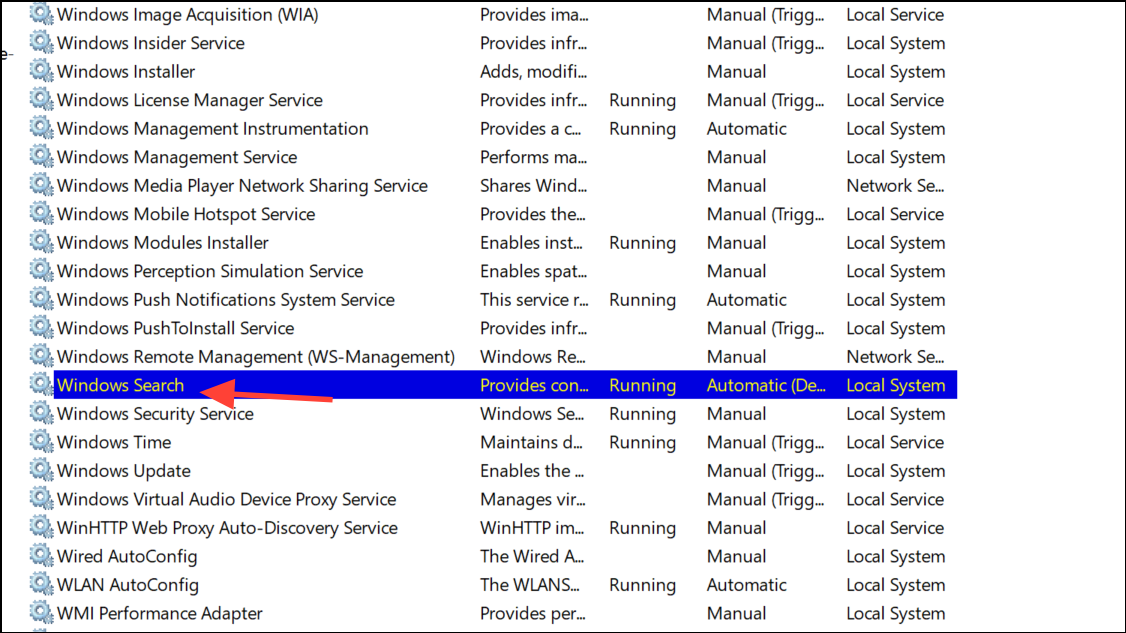
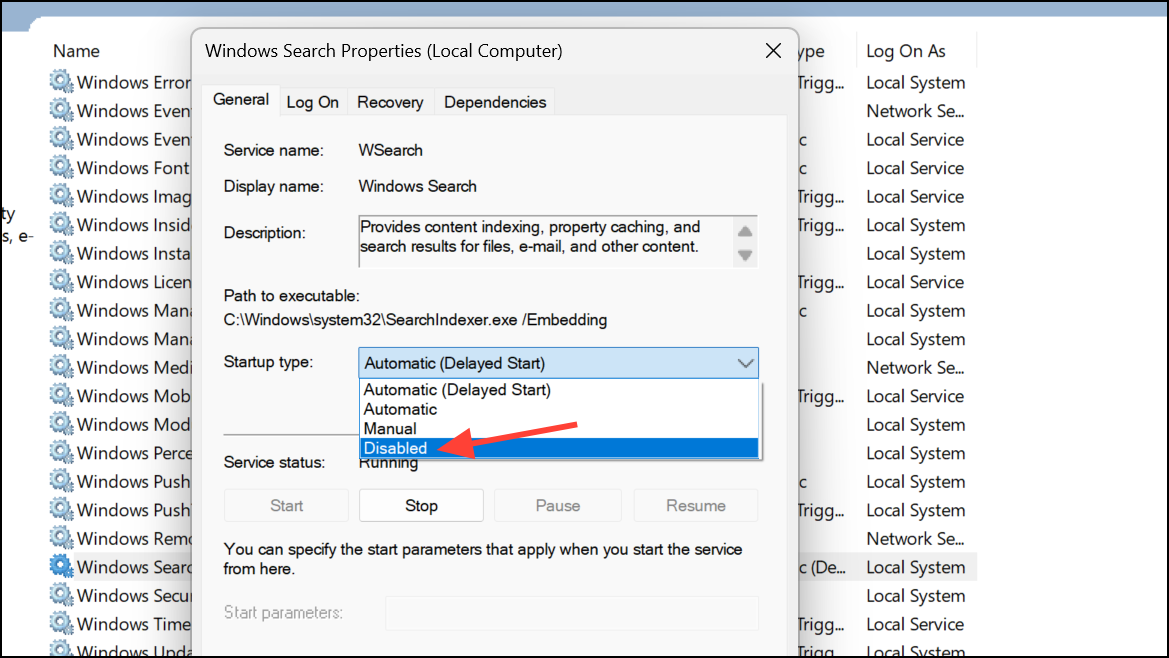
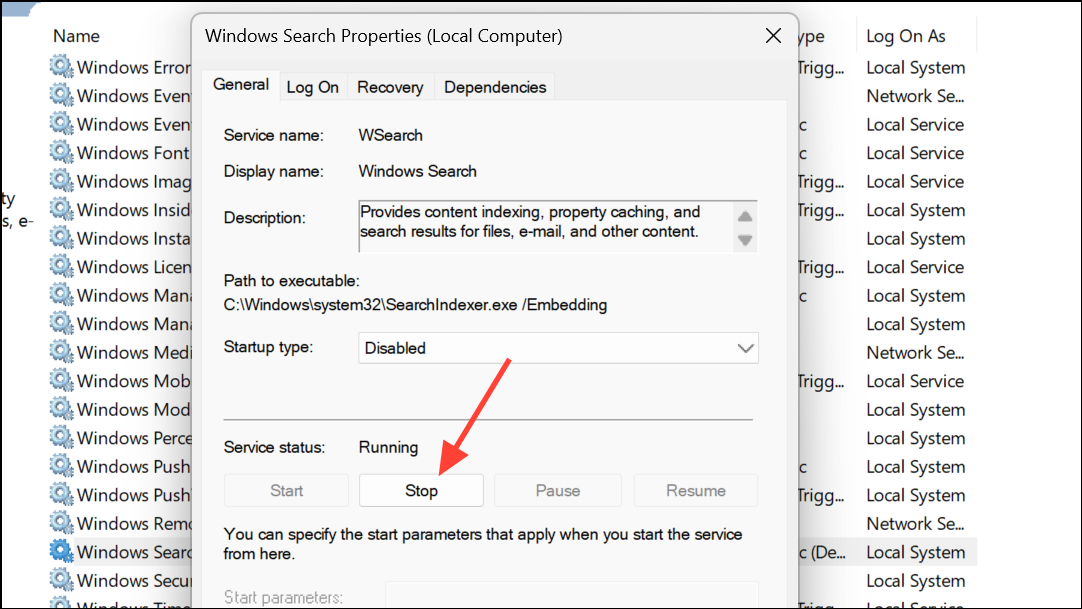
Disabling Search Indexing Using Command Prompt
Windows + X and selecting Windows Terminal (Admin) or Command Prompt (Admin) from the menu.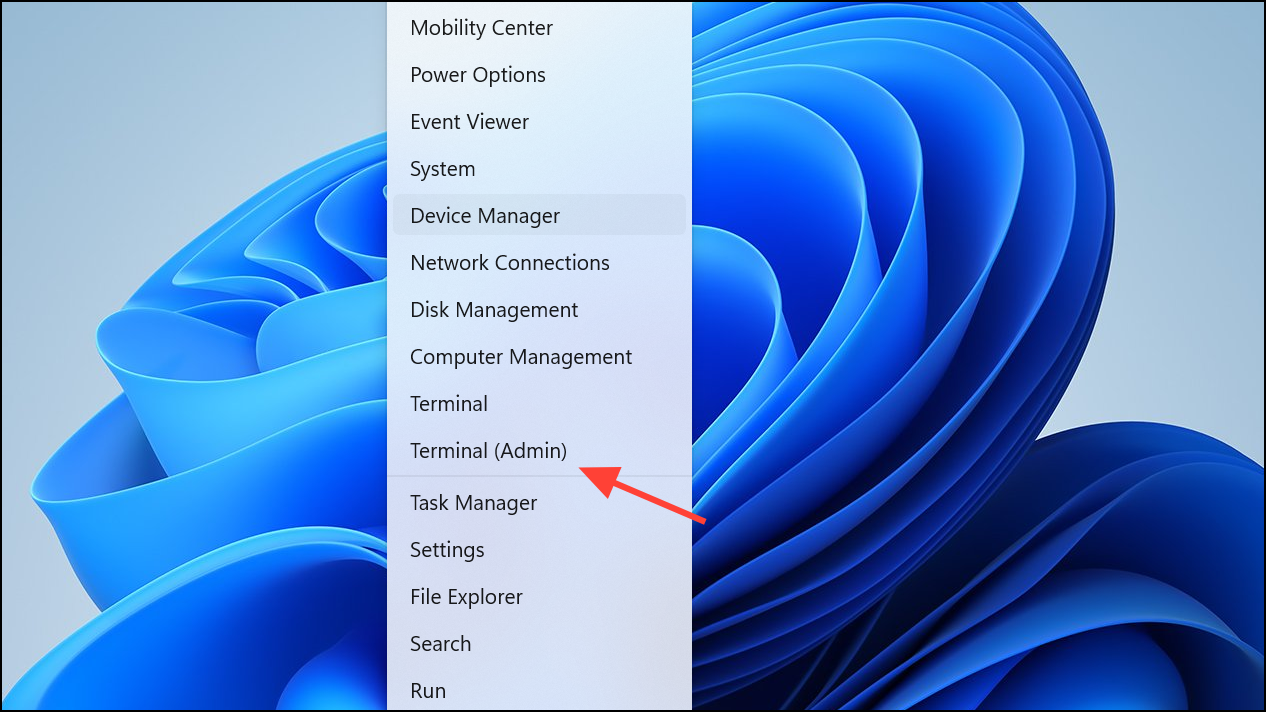
sc stop "wsearch" && sc config "wsearch" start=disabled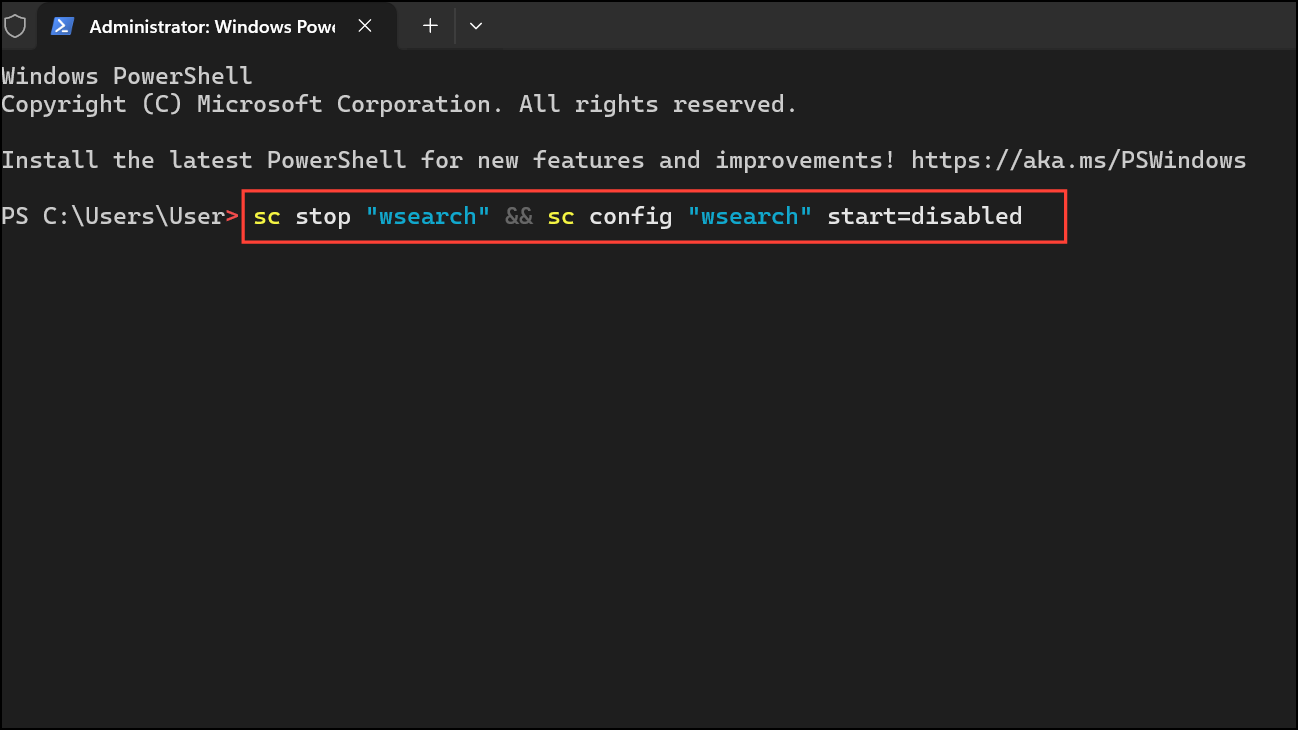
This command immediately stops the Windows Search service and sets its startup type to disabled, ensuring it won’t run on future boots.
Freeing Up Disk Space Used by the Index Database
Even after disabling Windows Search Indexing, the existing index database may still occupy disk space. To remove it:
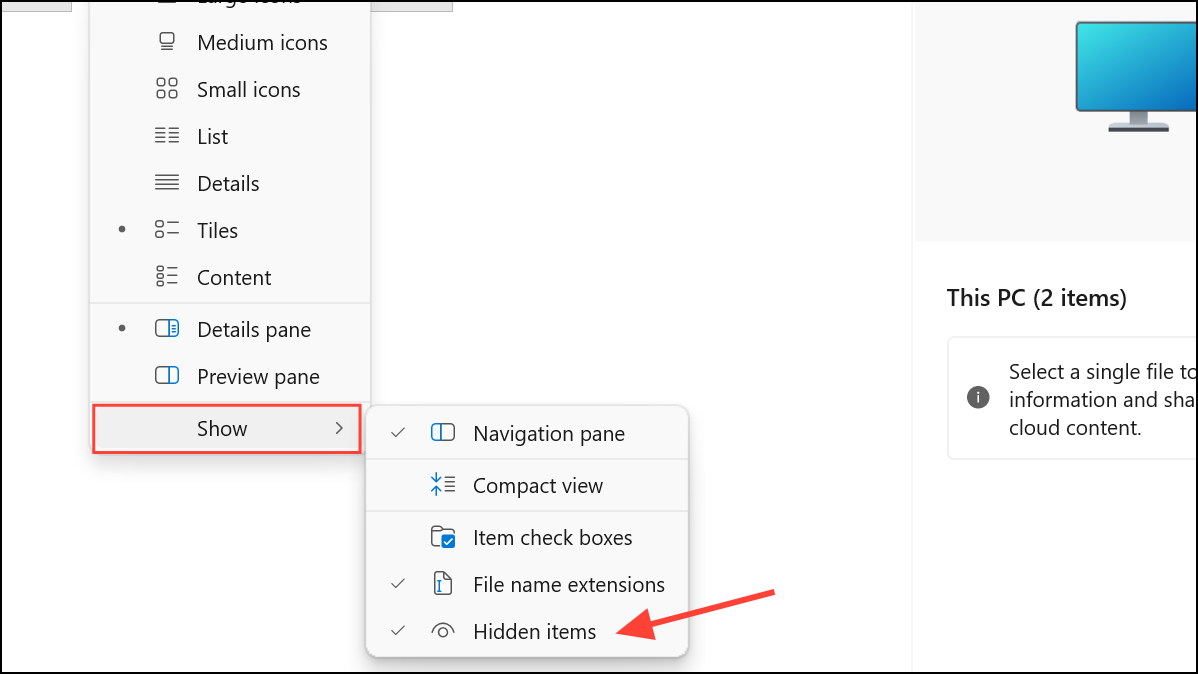
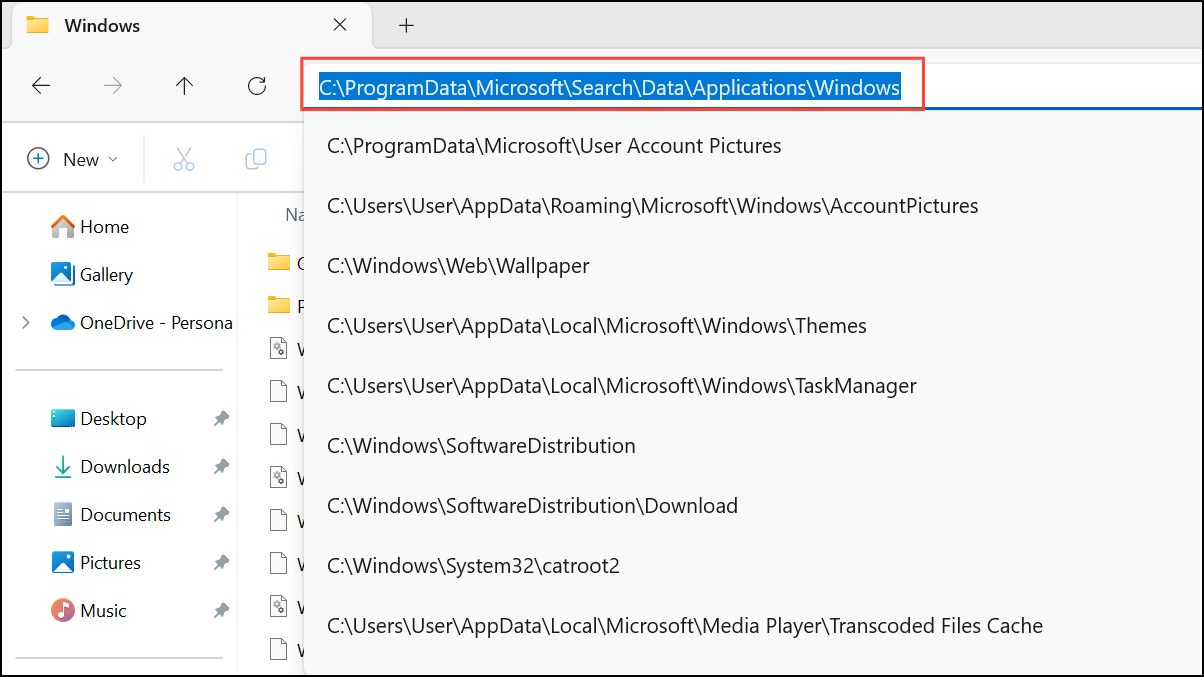
Windows.db (on Windows 11) or Windows.edb (on Windows 10). Right-click the file and select Properties to check its actual size on disk.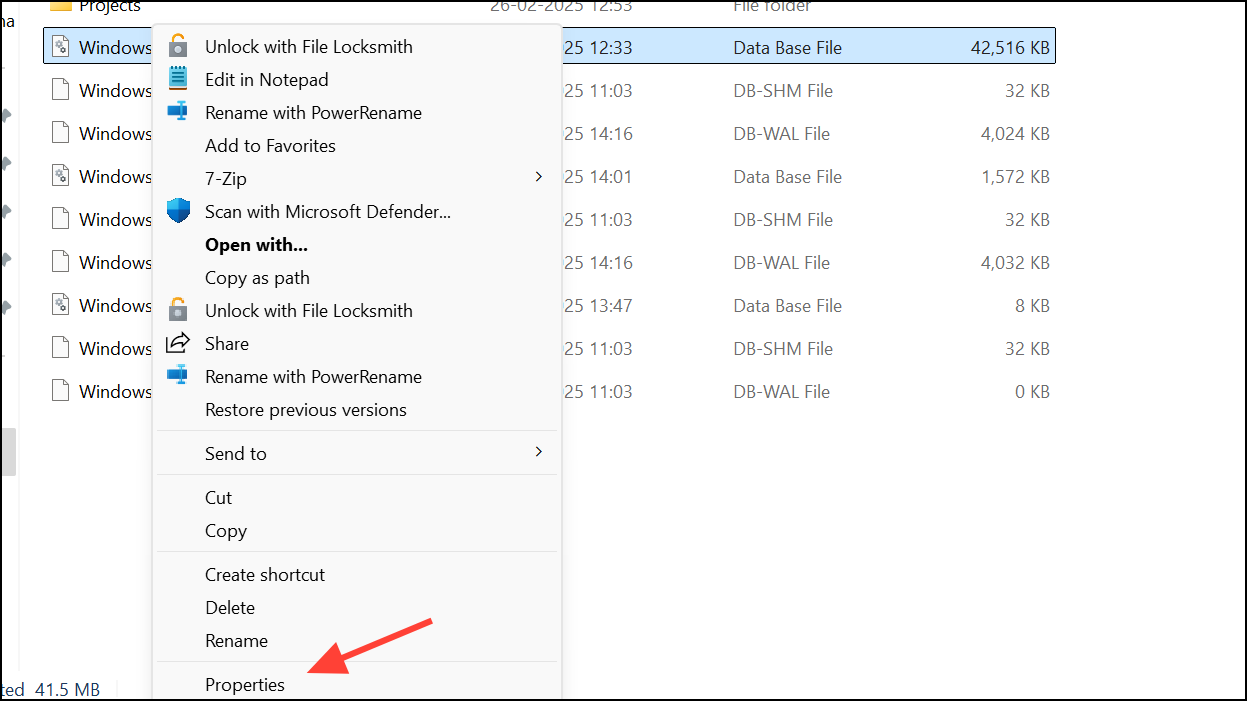
Windows.db or Windows.edb file. This permanently removes the old index, freeing up space.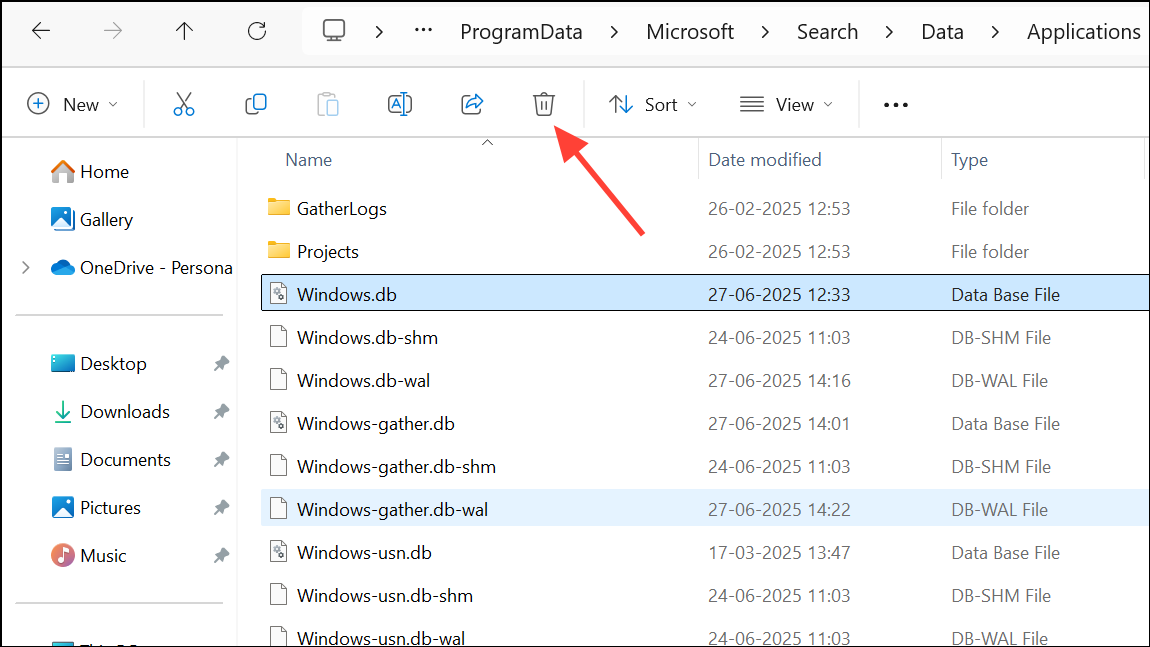
Disabling Indexing for Specific Drives or Folders
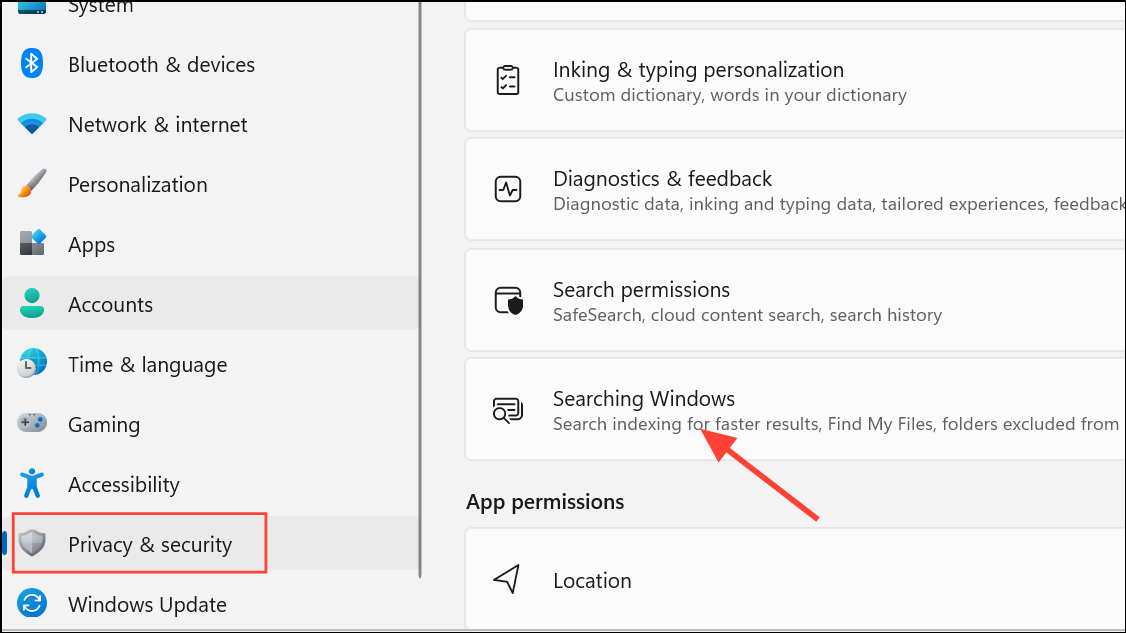
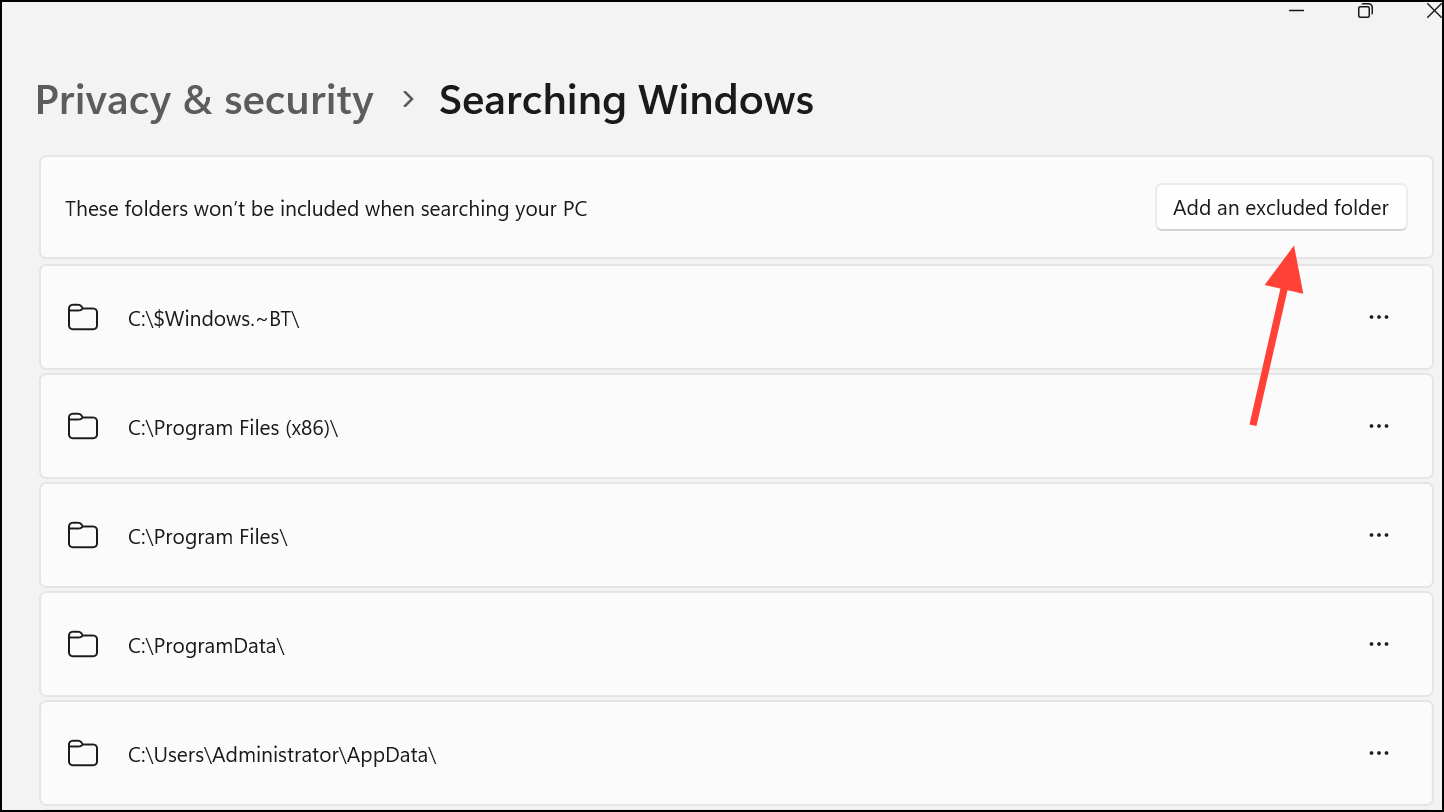
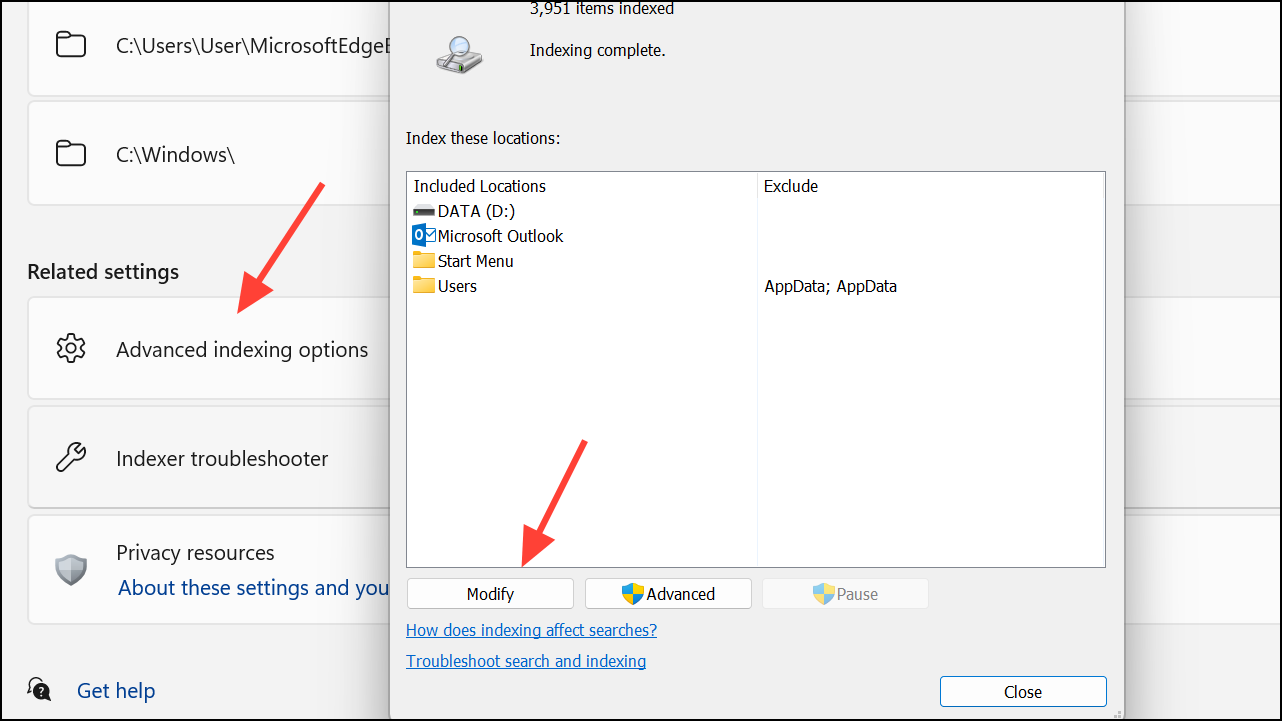
If you want to keep some search functionality but reduce disk usage, you can exclude certain drives or folders from indexing instead of disabling the service entirely.
Effects and Considerations When Disabling Indexing
Disabling Windows Search Indexing immediately stops the background process that catalogs files and metadata for quick search results. This can result in a noticeable reduction in disk activity and may free up gigabytes of storage, depending on the size of your previous index.
However, searches performed from the Start menu, File Explorer, or within apps like Outlook will now take longer, as Windows must scan files directly each time you search. If you frequently search for content across your drives, you may notice a slower response. On the other hand, if you rarely use search or have limited storage, the tradeoff is often worthwhile.
If you want to re-enable indexing later, simply reverse the steps above: set the Windows Search service to Automatic (Delayed Start) and start it again, or use the appropriate command in Command Prompt.
Disabling Windows Search Indexing in Windows 11 is a reliable way to free up disk space and reduce background resource usage, especially when storage is at a premium. If you need fast search later, you can always turn indexing back on and rebuild the index as needed.



