
Windows 11 users frequently request the ability to view the current time—including seconds—directly within the Notification Center, similar to the popular feature in Windows 10. Recent updates to Windows 11 (specifically builds 23H2 and 24H2) have started to restore this capability, allowing users to display a clock with seconds in the Notification Center flyout. This change addresses a long-standing omission since the initial release of Windows 11, streamlining workflows for those who need precise timekeeping without cluttering the system tray.
Enable Clock with Seconds in Notification Center via Settings
Win+I on your keyboard. This shortcut launches the main Settings window.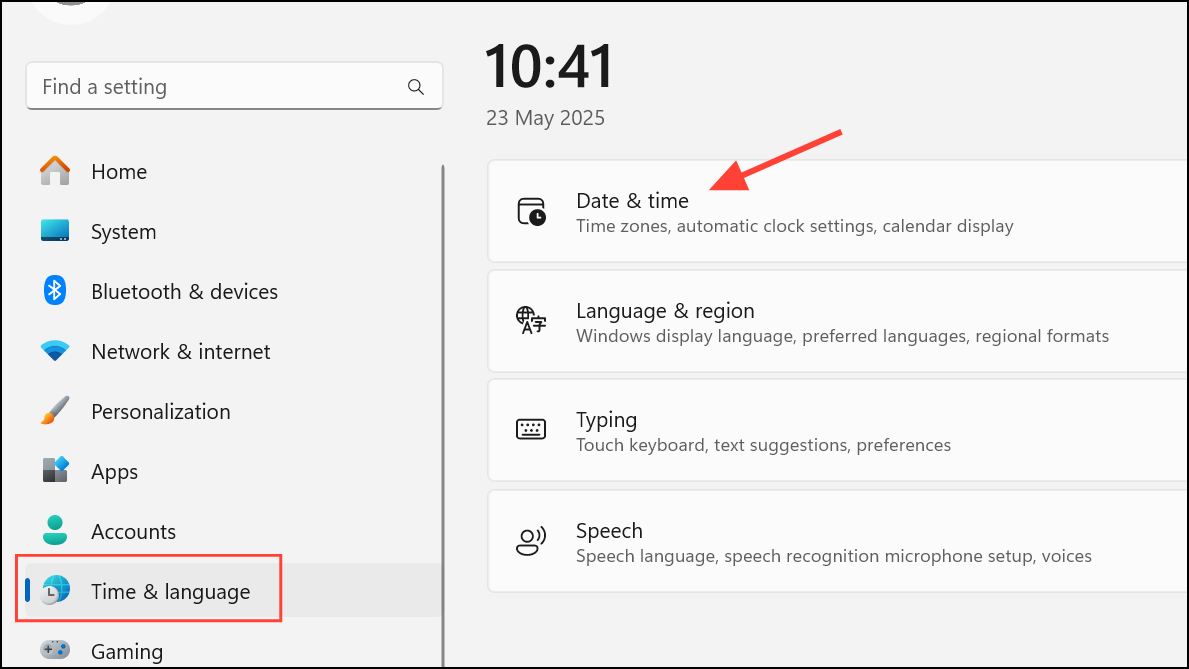
This method requires that your Windows 11 installation is updated to a supported build (23H2 22635.5240 or later). If you do not see this option, your device may not yet have received the feature or it might still be hidden.
Enable Clock in Notification Center Using Registry Editor
For advanced users or those who do not see the setting in the graphical interface, the Windows Registry provides a manual method to toggle the clock in Notification Center. Editing the registry can directly activate or deactivate the feature, but always back up your registry before making changes.
Win+R to open the Run dialog, then type regedit and press Enter.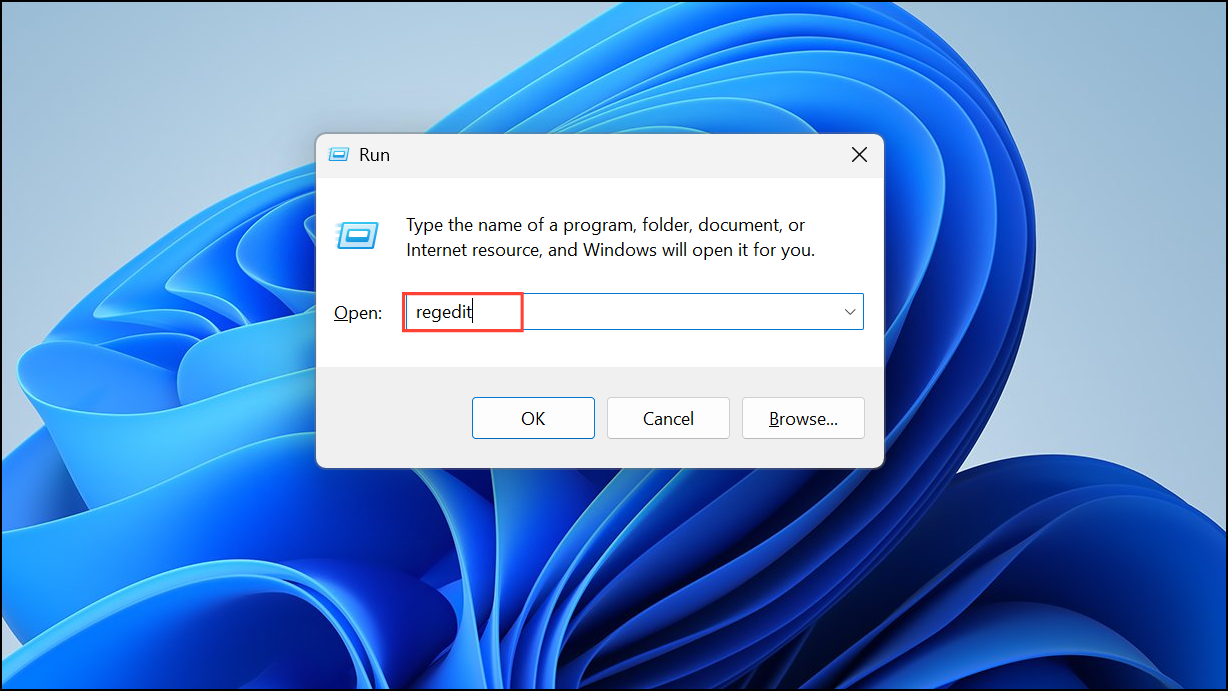
HKEY_CURRENT_USER\Software\Microsoft\Windows\CurrentVersion\Explorer\Advanced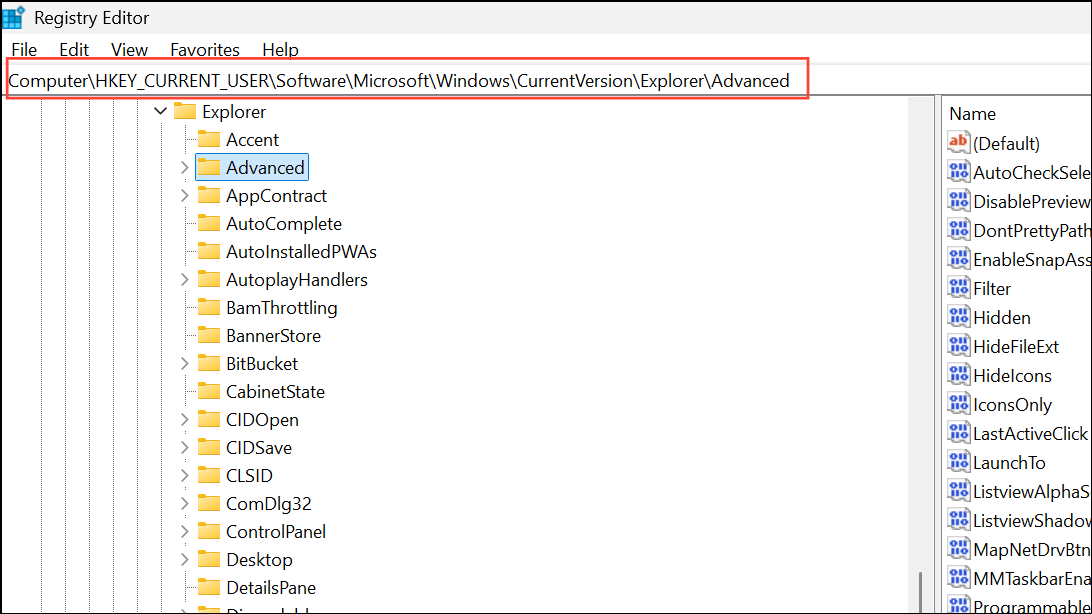
ShowClockInNotificationCenter. If it does not exist, right-click in the pane, select New > DWORD (32-bit) Value, and name it accordingly.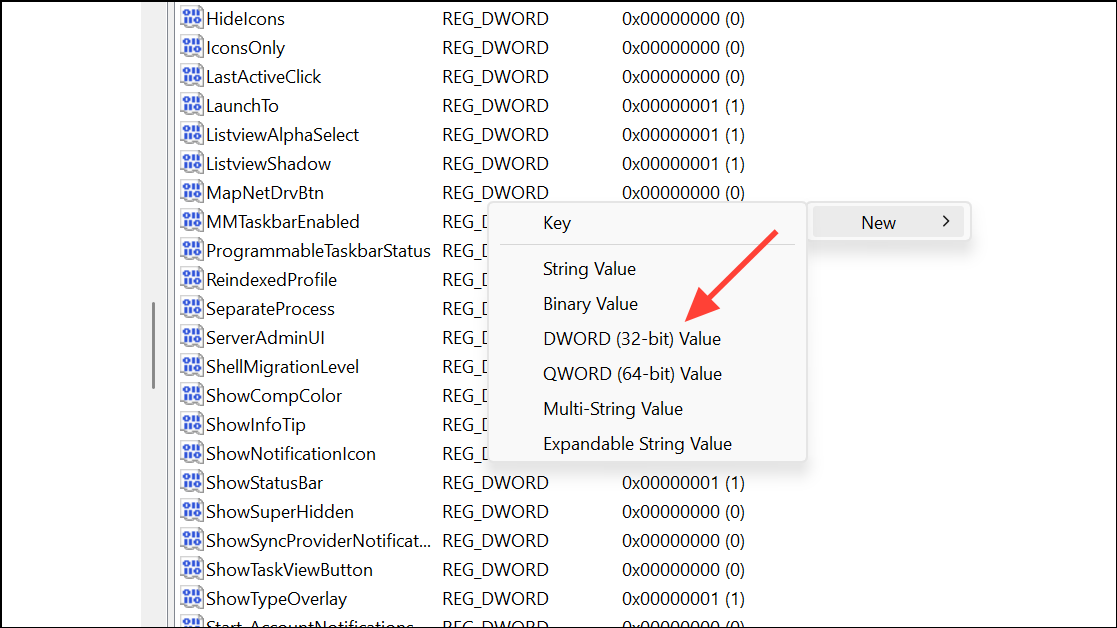
ShowClockInNotificationCenter value. Set the value data to 1 to enable the clock, or 0 to disable it. Click OK to save your changes.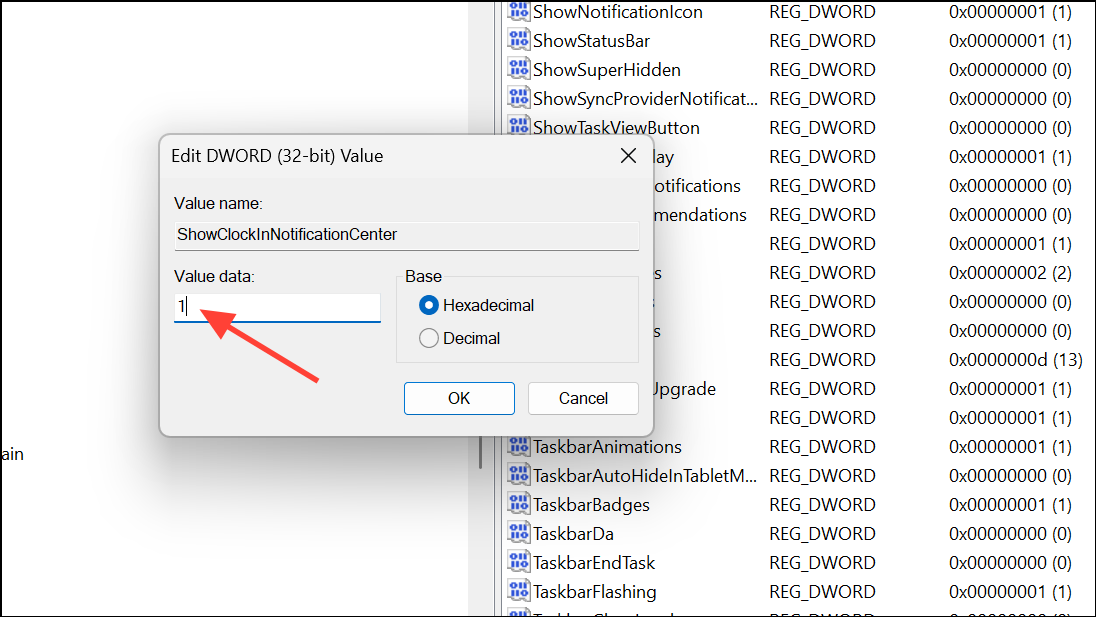
Activate Hidden Features with ViVeTool (For Unsupported Builds)
Some users on Insider or Beta builds may not see the “Show time in Notification Center” option, as Microsoft rolls out features gradually. ViVeTool, a third-party utility, can activate hidden Windows features by toggling internal feature flags.
cd command.vivetool /enable /id:42651849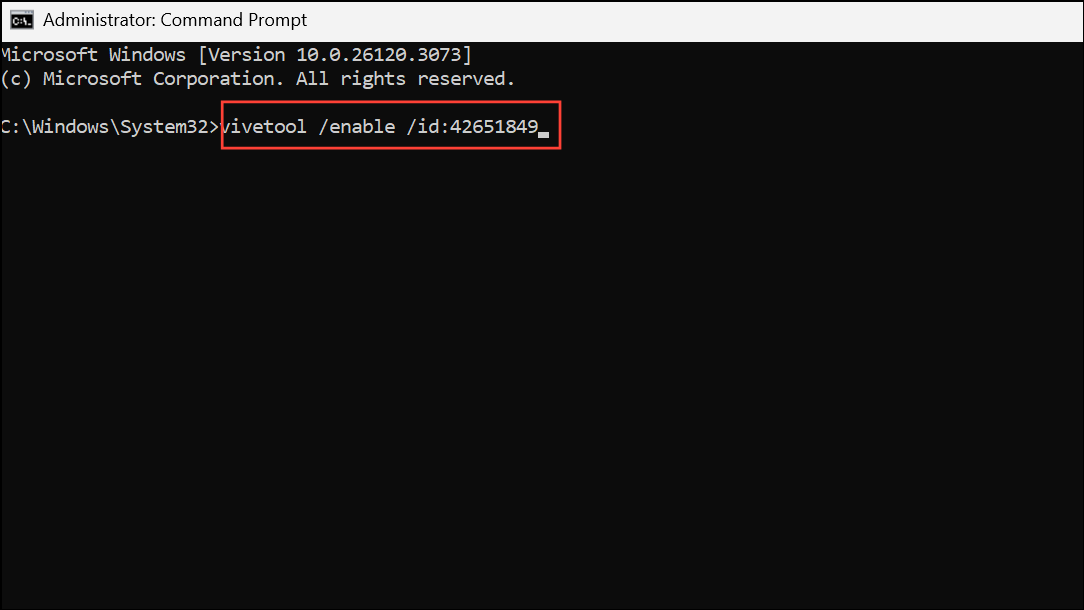
If the feature does not appear, also try:
vivetool /enable /id:48433719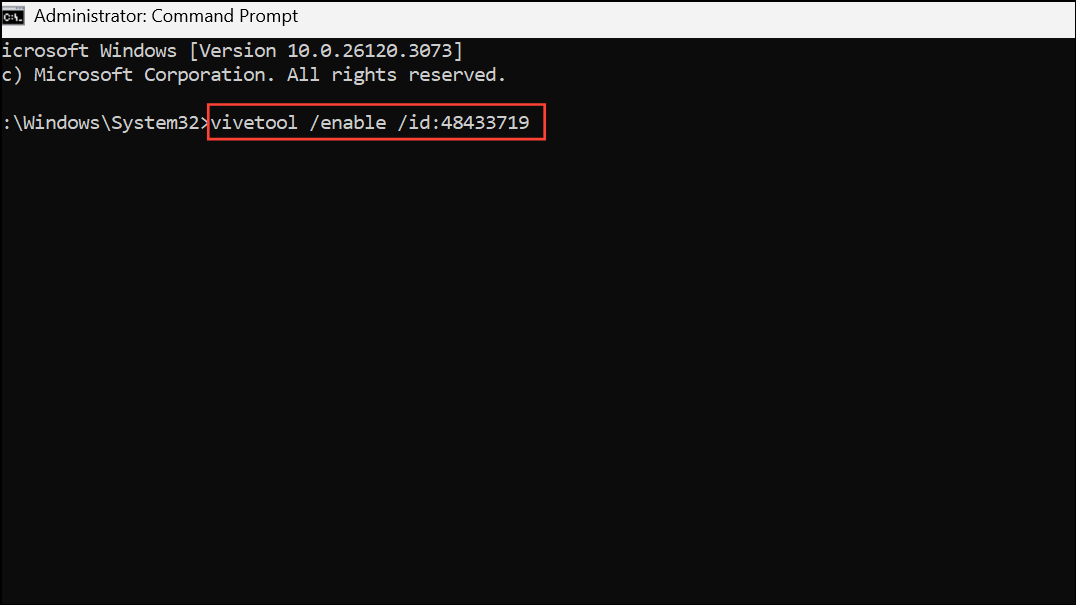
Use Third-Party Utilities for Customization
For users seeking more control or who want to replicate the classic Windows 10 clock flyout, third-party tools such as StartAllBack or ExplorerPatcher provide additional customization. These utilities let you restore the old calendar and clock flyout, add clocks with seconds, and adjust other taskbar behaviors.
- StartAllBack: Restores classic taskbar and clock features, including the calendar flyout with a clock showing seconds.
- ExplorerPatcher: Offers granular tweaks for the taskbar and system tray, including legacy clock views.
These tools may require a small purchase or download from reputable sources. Always review compatibility with your Windows version and maintain up-to-date backups before installing system-level utilities.
Workarounds for Viewing Seconds
If you only need to view the time with seconds occasionally, there are simple workarounds:
- Create a desktop shortcut to
timedate.cpl, which opens the classic Date and Time dialog with a running clock. - Use
echo %time%in Command Prompt orGet-Date -Format HH:mm:ss.fffin PowerShell to display the current time with seconds and milliseconds.
Windows 11 now gives users more flexibility to display the clock with seconds in the Notification Center, restoring a feature long-missed from Windows 10. Whether you use built-in settings, registry edits, or third-party tools, you can tailor the time display to suit your workflow.



