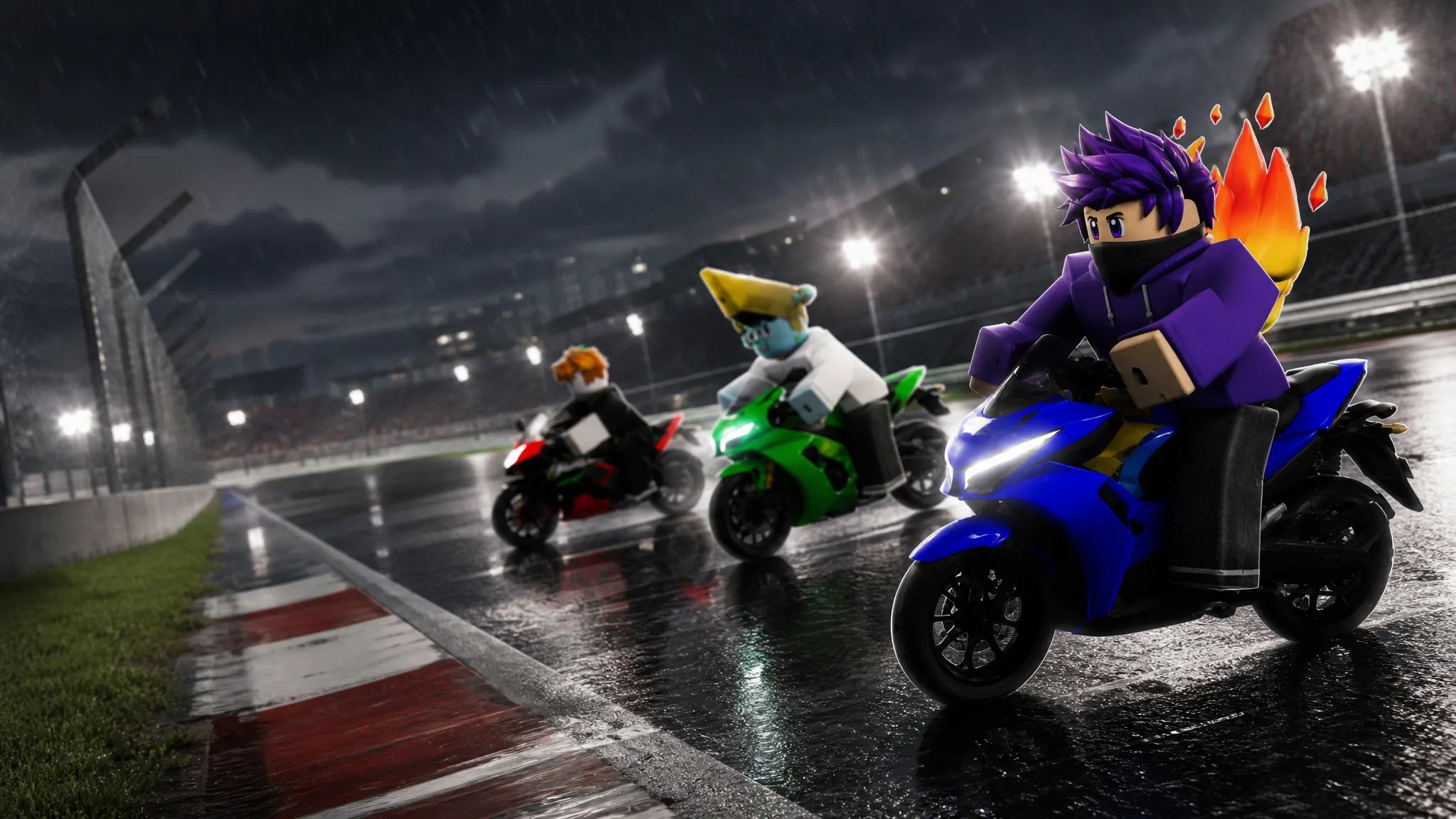
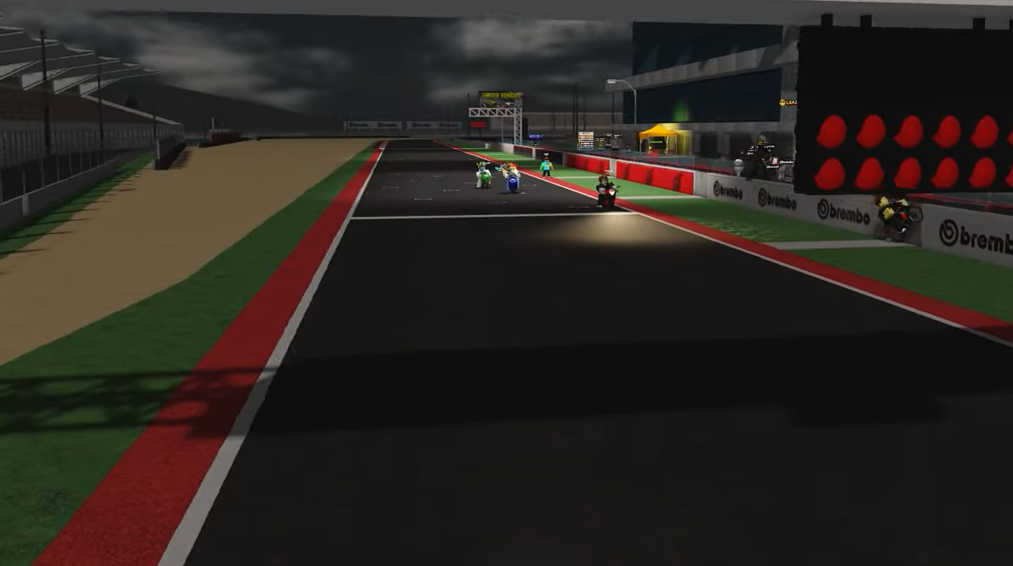
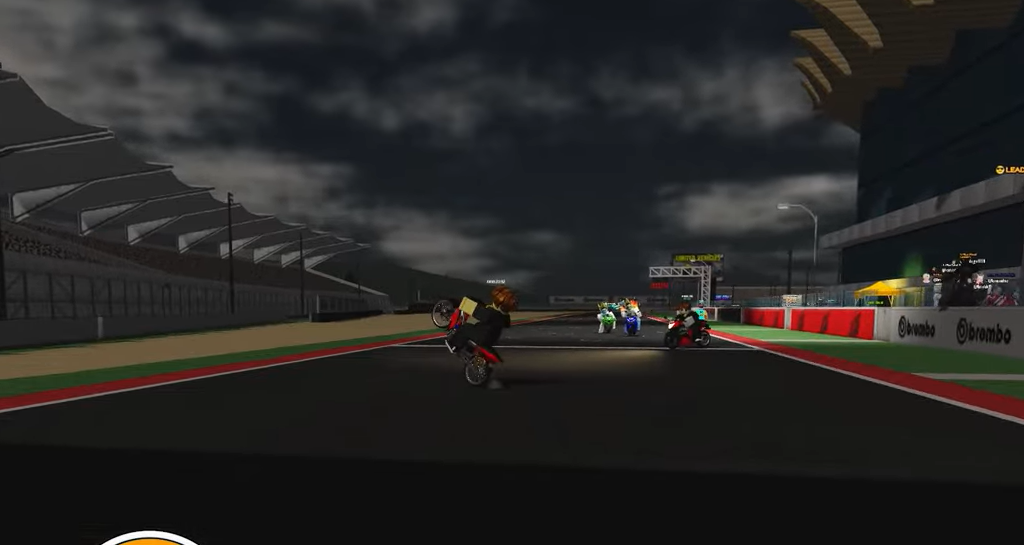
Freecam lets you detach the camera from your character or motorcycle in Drag Drive Simulator and fly it freely around the map. It runs on the standard Roblox desktop client, so you can line up low-angle passes, starting-line shots, and slow tracking moves without moving your player.
Quick answer: On PC, press Shift + L to turn Freecam on or off. Move with W, A, S, D, drop with Q, rise with E, rotate with the mouse, set base speed with the scroll wheel, and hold Shift to fly faster.
Turn Freecam on and off with Shift + L
Shift and L together to activate Freecam. The camera detaches from your character or bike and stays wherever you point it.Shift + L again to deactivate it. The camera snaps back to your character and normal controls return.You know it worked when the view stops following your player and moving the mouse pans the camera around the world instead of orbiting your avatar.
Freecam controls for PC
Once Freecam is active, the keyboard and mouse handle position, rotation, and speed. Movement is relative to where the camera is facing, so aim first, then move.
| Input | Action |
|---|---|
W | Move forward |
S | Move backward |
A | Move left |
D | Move right |
Q | Move down |
E | Move up |
| Mouse | Rotate the camera view |
| Scroll wheel | Adjust base movement speed |
Hold Shift | Speed boost for faster travel |
Set your base speed with the scroll wheel before a shot. A slow base speed makes it much easier to hold a steady line, and you can tap Shift only when you need to reposition quickly.
Roll Shot camera tilt with Z, X, and C
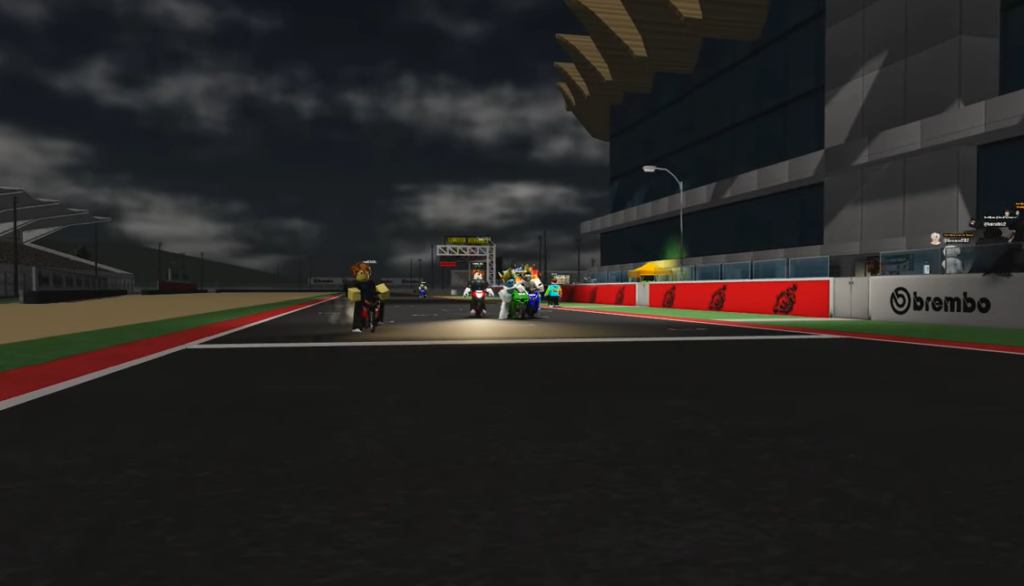
Drag Drive Simulator added a Roll Shot feature for Freecam that tilts the camera on its roll axis. Use Z, X, and C while Freecam is active to angle the horizon for dynamic cornering and starting-line shots. This is what lets you match the lean of a motorcycle instead of keeping the camera perfectly level.
Cinematic tips for smooth footage
Clean shots come from slow, controlled inputs. Sudden jerks are the most common thing that ruins a clip, so ease the camera into every move.
- Keep movements slow and steady, and avoid tapping keys hard mid-shot.
- Position the camera at the starting line to capture launches.
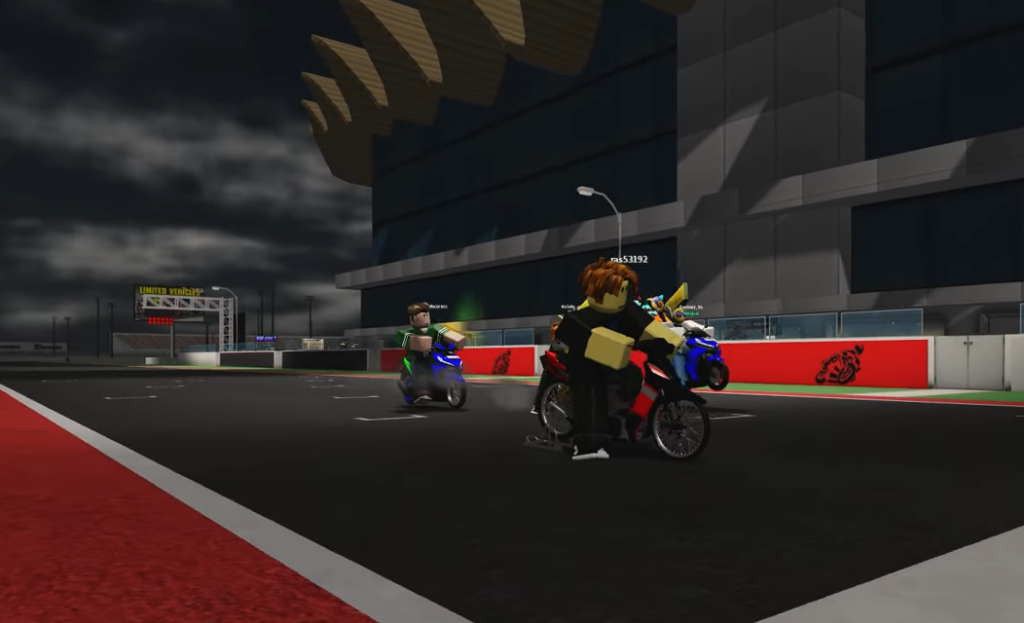
- Drop the camera low to the ground with
Qfor aggressive, close-to-the-tarmac angles. - Lower your base speed before filming so small stick and key inputs read as smooth pans.
- Use the Roll Shot keys sparingly to add tilt without disorienting the viewer.
Capture your footage with Roblox’s screenshot or recording tools, then edit the clips together afterward. The Freecam shortcut is all you need in-game; no extra permissions, plugins, or Studio access are required to use it.
If Freecam does not toggle
The shortcut only works on the Roblox desktop client, so it will not respond on mobile touch controls. Make sure you press both Shift and L at the same time, and that a chat box or menu is not capturing your keystrokes. If the camera still will not detach, close any open UI panel and try the combination again with the game window focused.