
Audio dropouts, input lag, or unreliable pairing between Bluetooth devices and Windows 11 systems often result from signal limitations and interference. Bluetooth connections rely on short-range radio frequencies, making them susceptible to environmental obstacles and hardware constraints. Addressing these barriers can improve connection stability, reduce lag, and allow devices to function reliably at greater distances from your PC.
Upgrade to an External Bluetooth Adapter with Better Range
Switching to a high-quality external Bluetooth adapter, especially one supporting Bluetooth 5.0 or newer, provides the most noticeable improvement in signal range and connection quality. Many built-in Bluetooth modules in laptops and desktops are limited by their antenna design and placement, often resulting in weak signals through walls or across rooms.
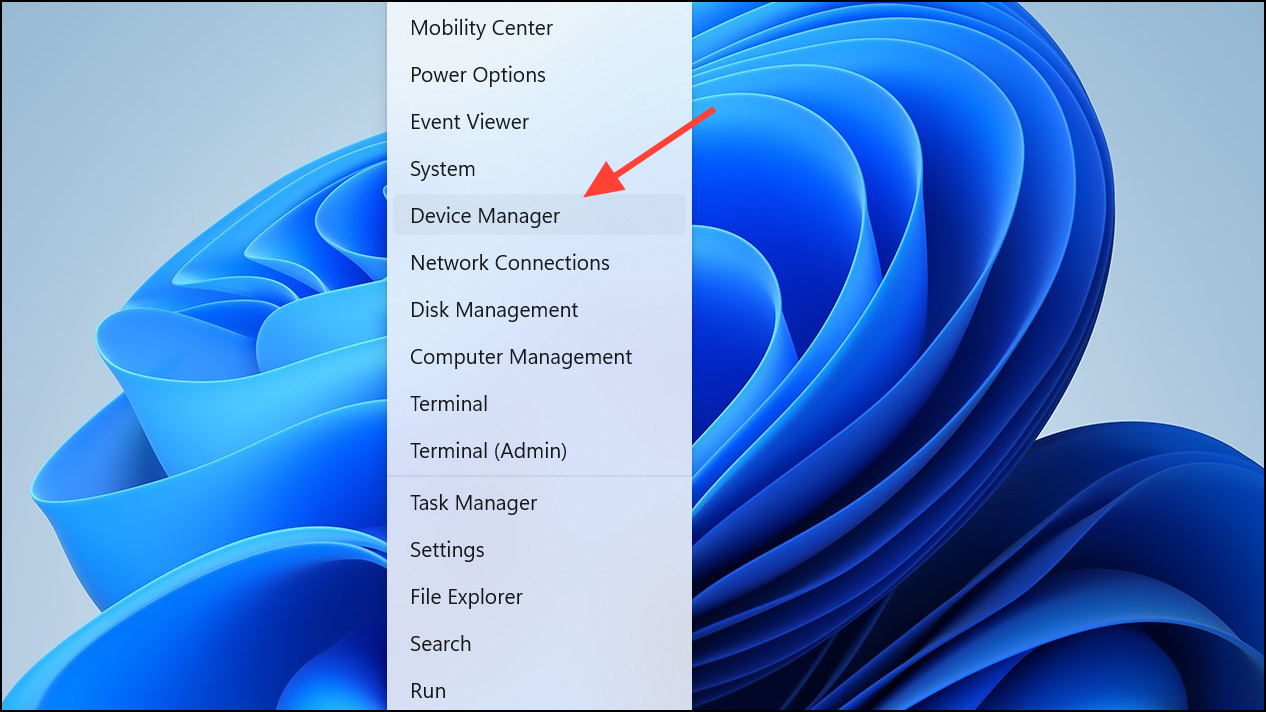
Device Manager, expand the Bluetooth section, right-click your internal adapter, and select Disable device.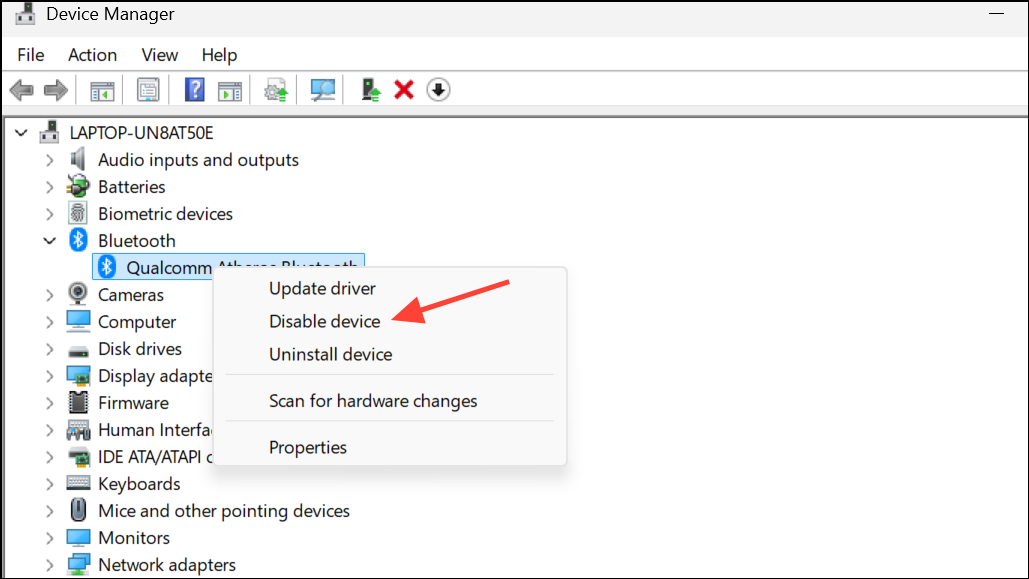
Update Bluetooth Drivers for Improved Performance
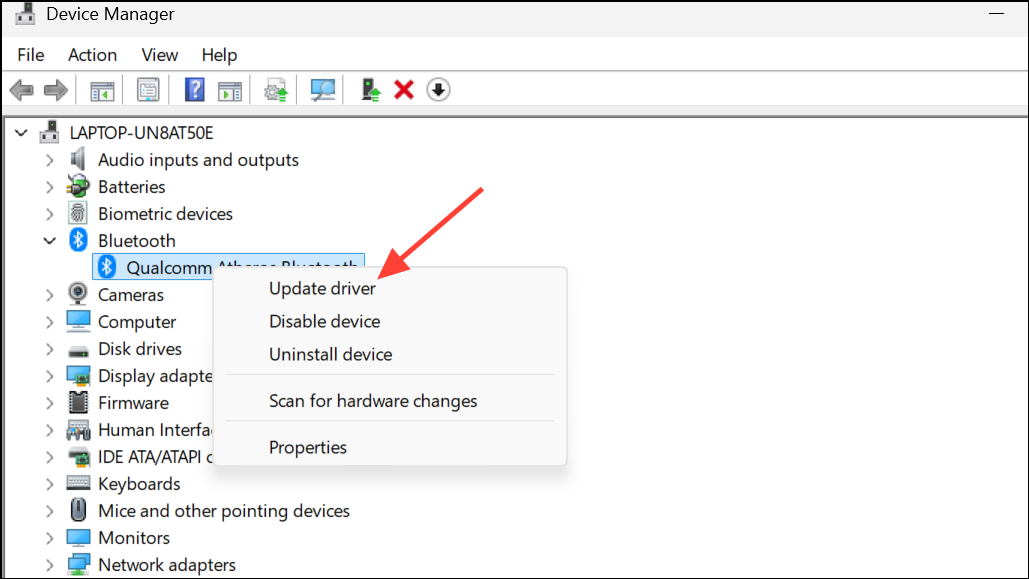
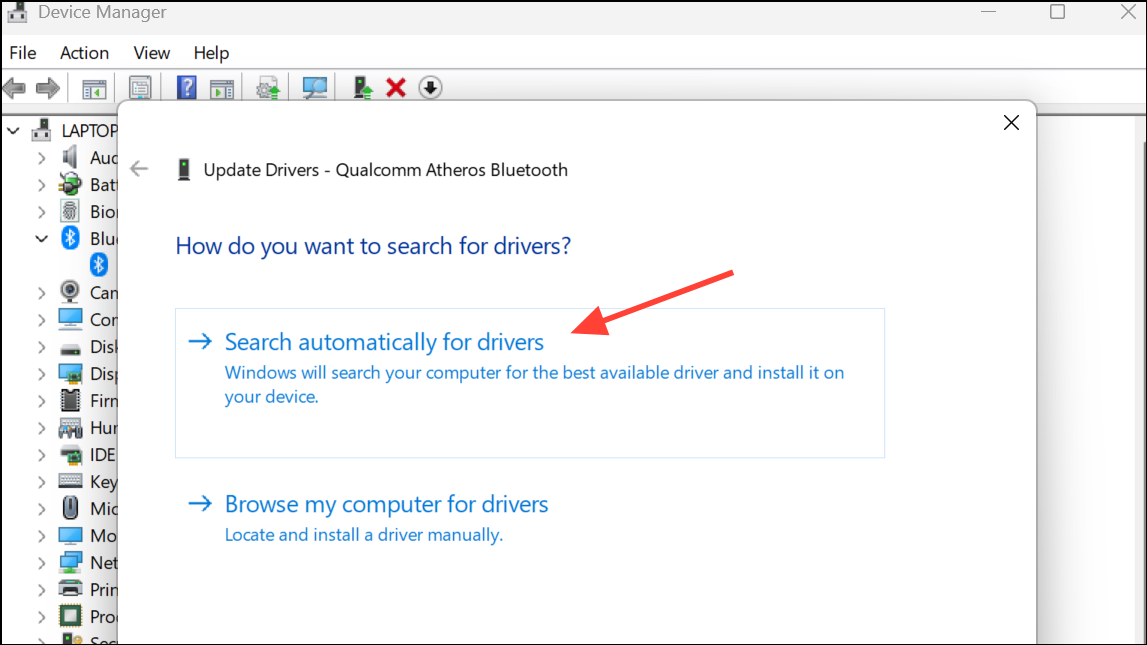
Outdated or buggy Bluetooth drivers can cause poor performance, limited range, and frequent disconnects. Installing the latest drivers optimizes how Windows 11 communicates with your Bluetooth hardware, which can resolve signal issues and compatibility problems.
Reduce Signal Interference and Optimize Device Placement
Bluetooth operates on the 2.4GHz frequency, which is heavily shared with Wi-Fi routers, microwaves, and other wireless devices. Interference from these sources can weaken the Bluetooth signal and reduce usable range.
Install the Latest Windows 11 Updates
Microsoft frequently releases updates that address hardware compatibility and performance issues. Keeping Windows 11 fully updated can improve Bluetooth functionality, fix known bugs, and sometimes unlock new features for supported adapters.
Check for updates. Windows 11 will search for and install any available updates. Follow prompts to restart your PC if required.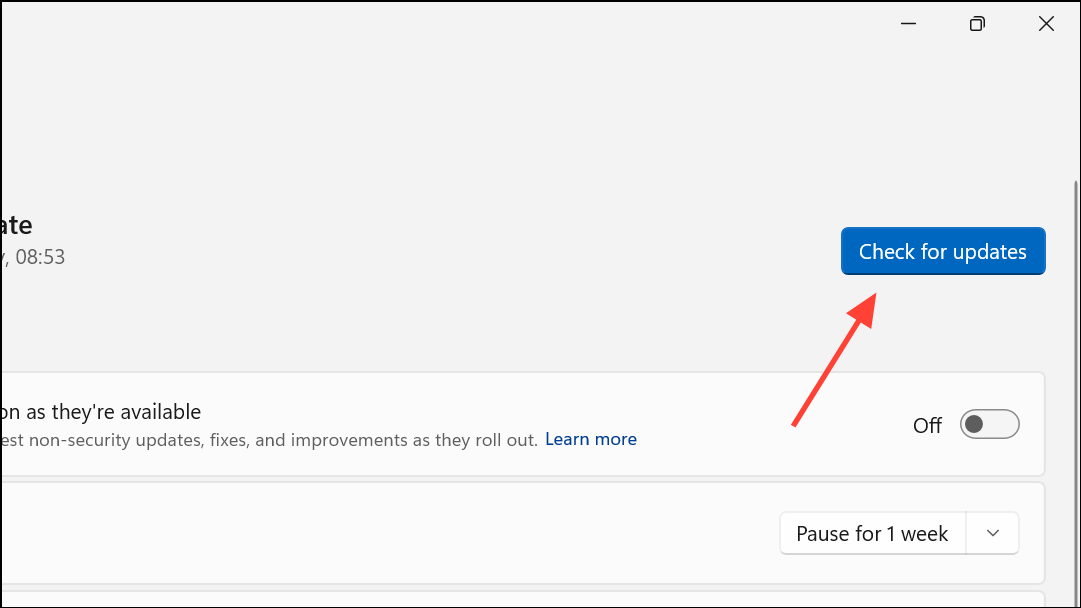
Environmental Adjustments and Practical Tips
While hardware upgrades and driver updates offer the most dramatic improvements, environmental adjustments can also make a difference, especially in challenging setups.
- Keep Bluetooth devices within line of sight when possible to avoid signal absorption by walls, furniture, or even the human body.
- Position devices higher up (such as on a shelf) to avoid obstacles on the floor or desk.
- If using a controller or other input device at a distance, consider running a long USB extension cable with a Bluetooth dongle directly to the usage area. This method is especially effective for gaming setups where low input lag is critical.
- If your device supports it, switch Wi-Fi to the 5GHz band to reduce overlap with Bluetooth’s 2.4GHz frequency.
Optimizing Bluetooth range on Windows 11 involves a mix of hardware upgrades, software updates, and smart placement. Testing these methods can result in a stronger, more reliable connection for your wireless devices—no more dropouts or lag when you’re across the room.



