

Error code 0x8004FC12 blocks Windows 11 activation, restricting access to system features and updates. This error can appear after system upgrades, network changes, or failed activations, often showing the message: Windows can't activate right now. Try activating again later. If that doesn't work, contact support. (0x8004FC12). Addressing this activation problem restores full use of your Windows installation and ensures continued security updates.
Fixing Error 0x8004FC12 Using Command Prompt
Windows + R on your keyboard. Type cmd, then press Ctrl + Shift + Enter to launch Command Prompt with administrator privileges. Alternatively, launch command prompt with admin rights from the Start menu. This is necessary because system-level commands require elevated permissions.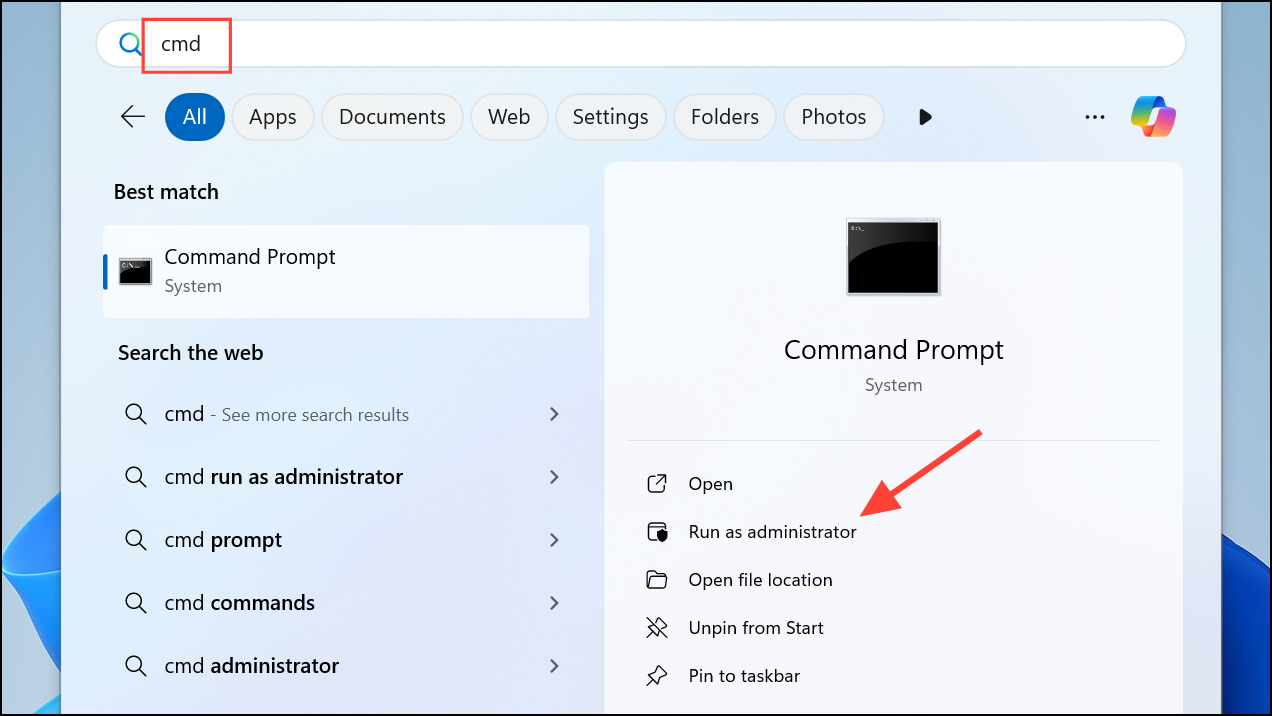
Enter after each. These commands reset local service permissions, clear resource manager transactions, and reset TCP/IP settings, all of which can resolve activation communication issues.net localgroup Administrators localservice /addfsutil resource setautoreset true C:\netsh int ip reset resetlog.txt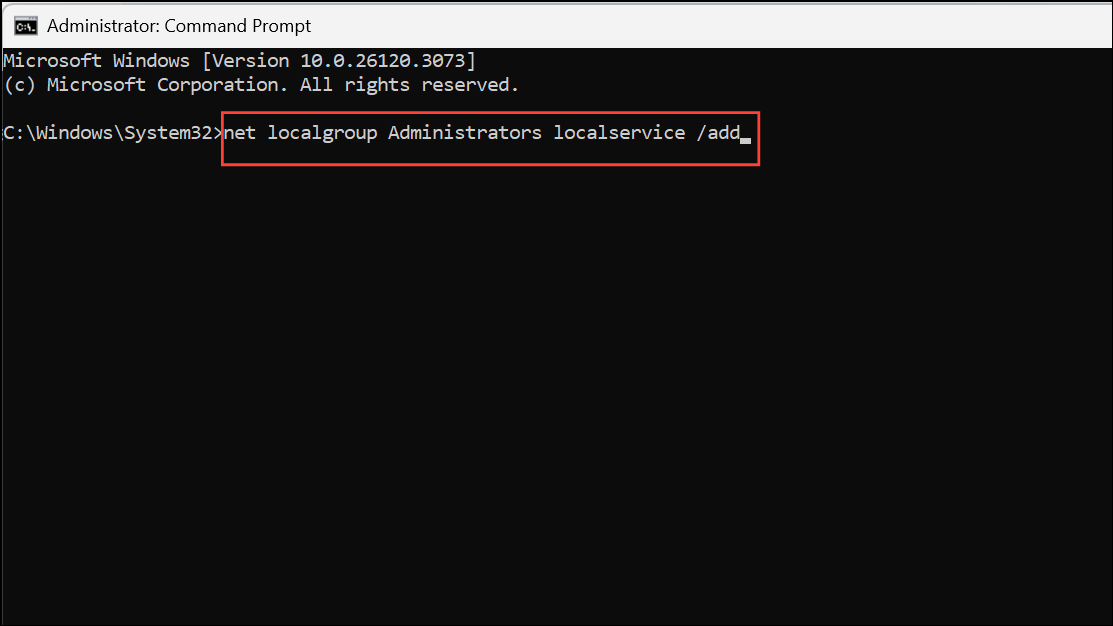
Settings > System > Activation. This reset clears network and permission issues that frequently block activation requests.Running the Windows Activation Troubleshooter
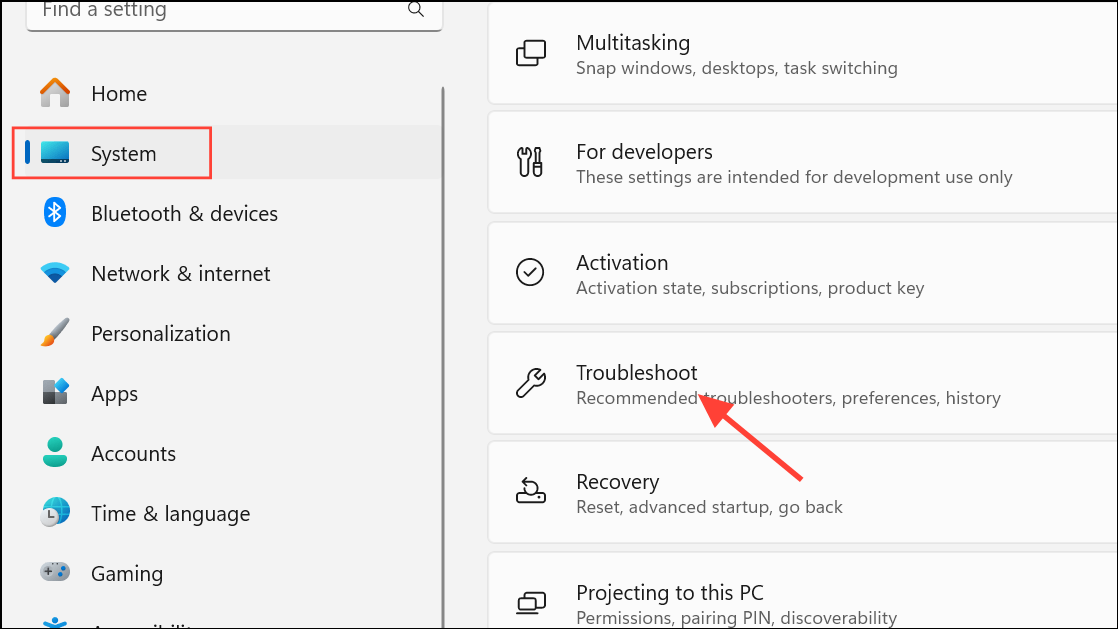
Additional troubleshooters, then find Windows Update or Activation and click Run. The troubleshooter scans for common activation issues, such as network problems, hardware changes, or mismatched product keys.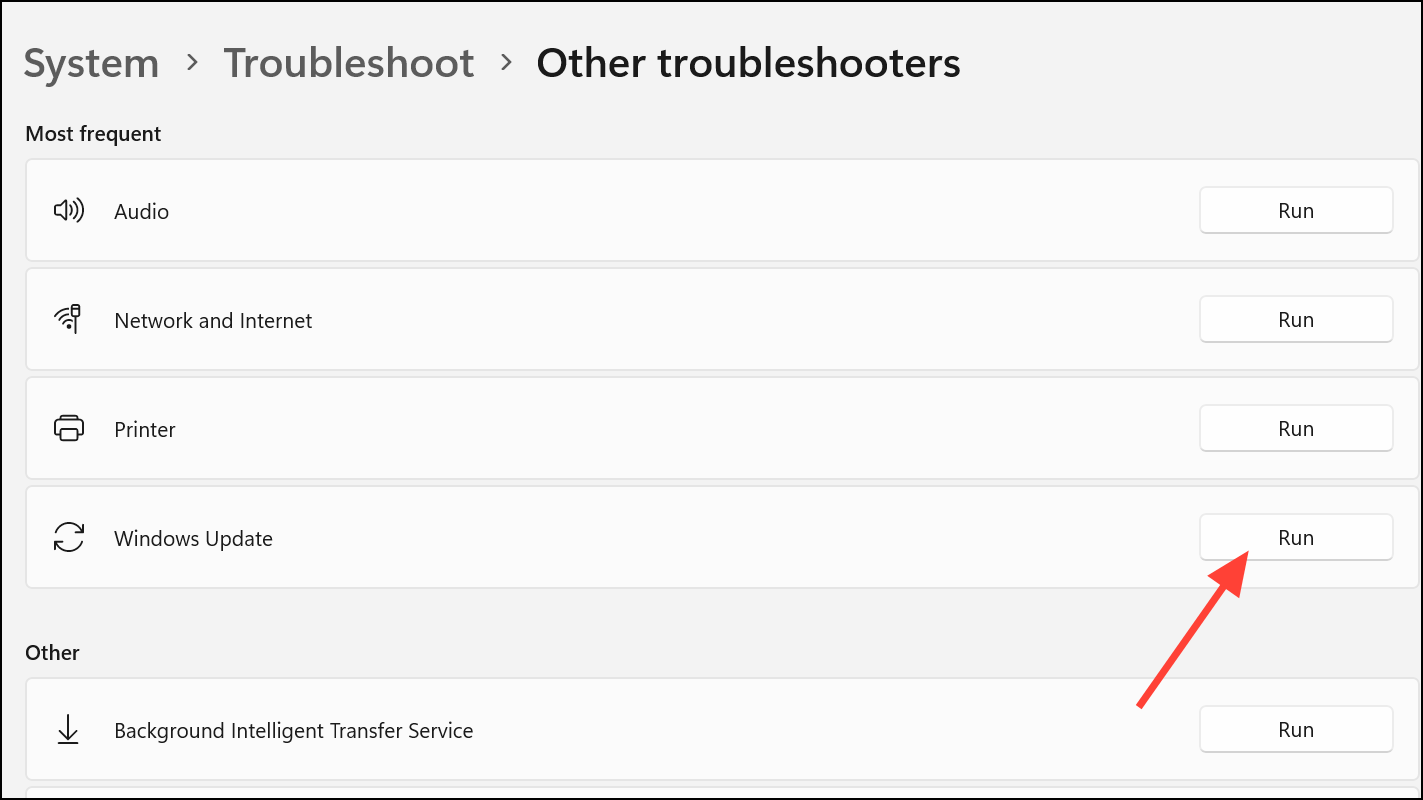
Disabling Windows Firewall Temporarily
Windows Security by clicking the shield icon in the taskbar or searching for it in the Start menu. Select Firewall & network protection.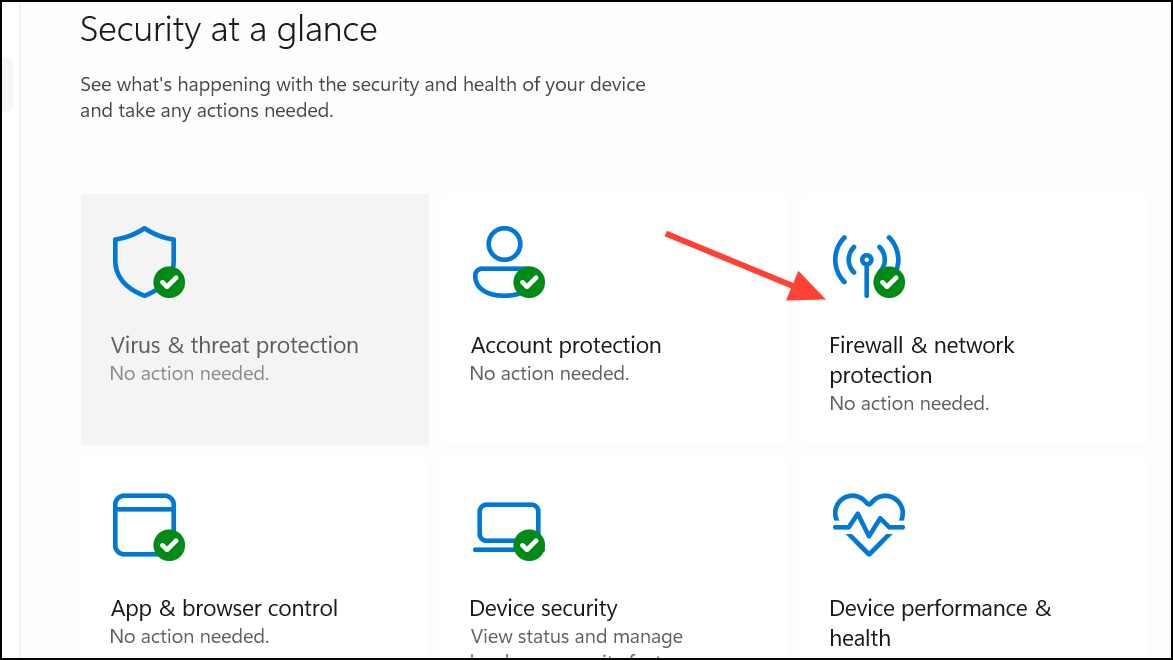
Domain network, Private network, and Public network—and turn off the firewall for each. Firewalls can sometimes block the activation process from communicating with Microsoft’s servers.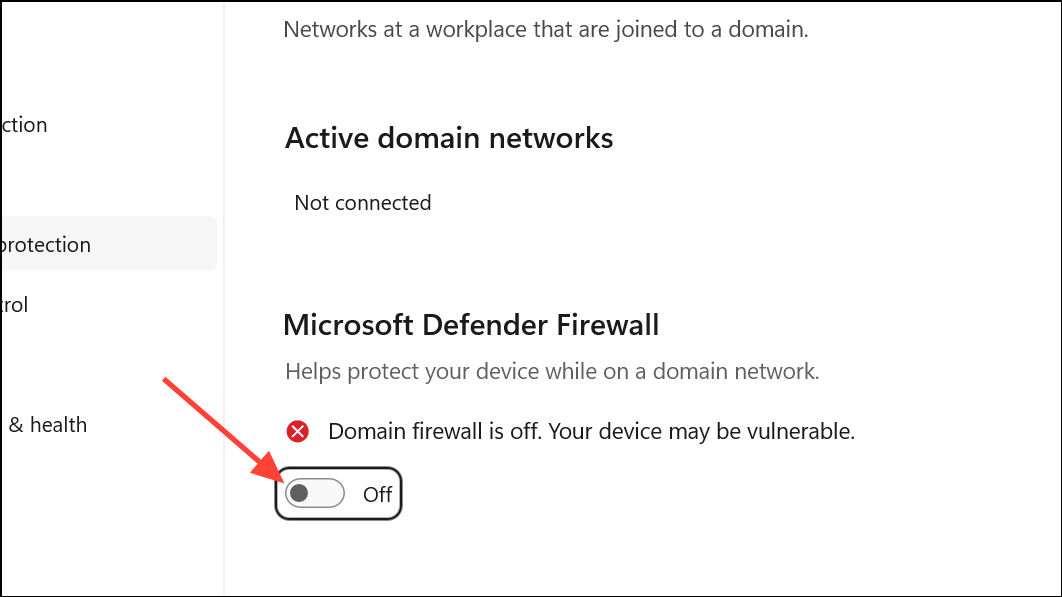
Checking Internet Connection and Waiting for Activation Servers
Activation errors can occur if your device is offline or if Microsoft’s activation servers are busy. Confirm your computer has a stable internet connection by browsing a few websites. If your connection is fine but activation still fails, wait a few hours and try again, as server-side issues may resolve on their own.
Cleaning Up Old Transactions Blocking Activation
Sometimes, pending or failed update transactions interfere with activation. The fsutil resource setautoreset command (used above) addresses this by clearing stuck transactions. If you skipped the earlier Command Prompt method, run this command as administrator:
fsutil resource setautoreset true C:\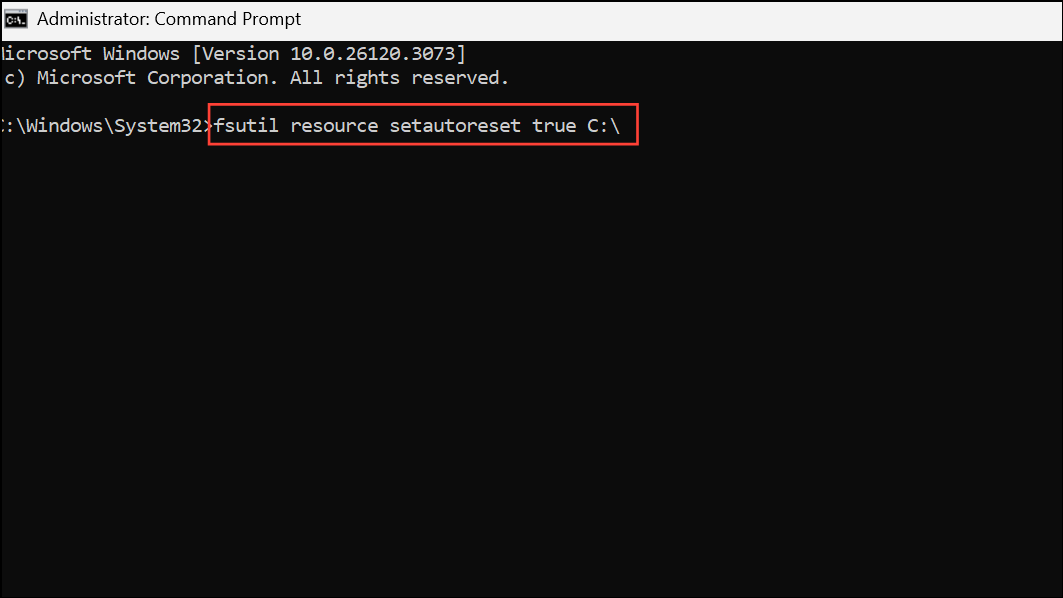
Restart your computer and retry activation. This step removes residual update locks that prevent activation requests from processing.
Alternative: Activating Windows by Phone
If online methods do not work, activate Windows by phone. In Settings > System > Activation, select Activate by phone if available. Follow prompts to call Microsoft’s automated system, provide your installation ID, and enter the confirmation ID given over the phone. This manual process bypasses some server-side communication issues.
Resolving error 0x8004FC12 restores full Windows 11 functionality and ensures your system remains secure and up to date. If none of these methods work, contacting Microsoft support provides direct assistance for persistent activation problems.



