
Attempts to rename folders in Windows can suddenly fail with the message: An unexpected error is keeping you from renaming the folder. If you continue to receive this error, you can use the error code to search for help with this problem. Error 0x80004005: Unspecified error. This issue disrupts basic file management, often affecting both local and network folders, and is commonly tied to problems in the Windows registry—specifically, malformed or inaccessible paths in the User Shell Folders registry key. Below, you’ll find the most reliable method to resolve this error, followed by secondary approaches if further troubleshooting is needed.
Correct Malformed User Shell Folder Registry Paths
Windows Explorer relies on the User Shell Folders registry key to locate user profile folders (such as Documents, Pictures, etc.). If any entry in this key contains a typo, missing environment variable, or points to a non-existent location, folder renaming operations may fail with error 0x80004005.
Windows Key + R, typing regedit, and pressing Enter. Confirm any prompts to grant administrator access.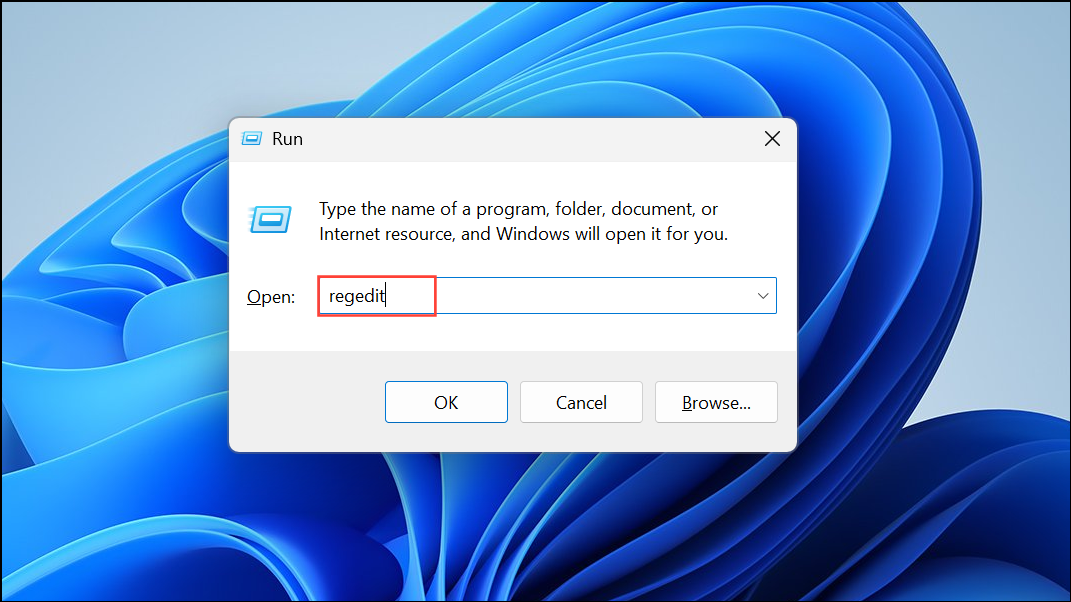
HKEY_CURRENT_USER\Software\Microsoft\Windows\CurrentVersion\Explorer\User Shell Folders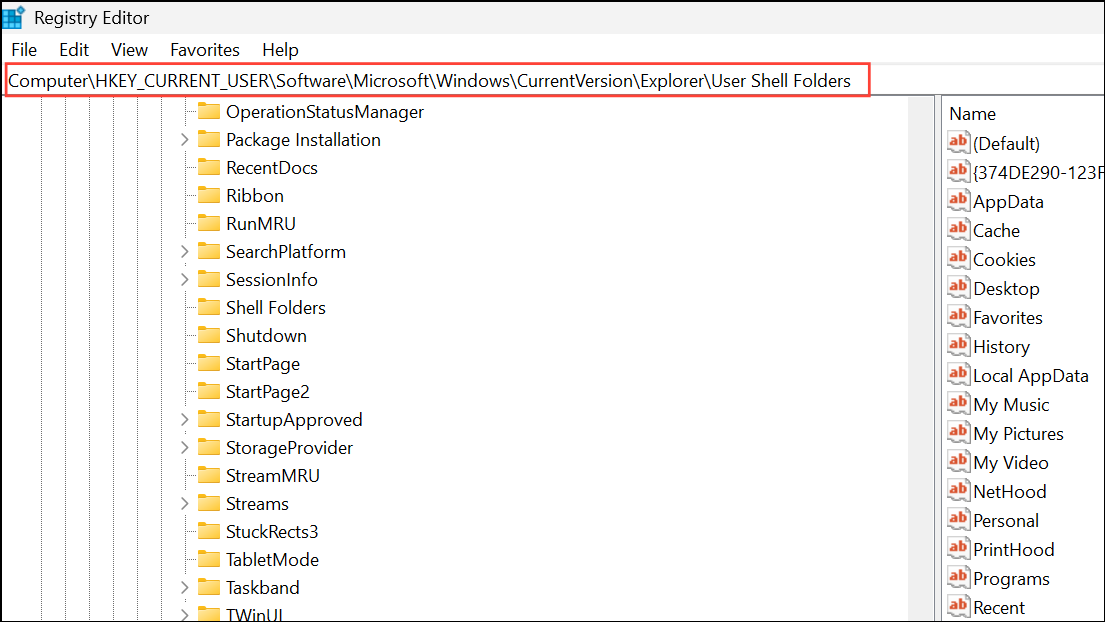
- Typos in environment variables (for example,
%USERPROFILES%instead of%USERPROFILE%). - Missing or incomplete variable delimiters (such as
%USERPROFILE\Picturesinstead of%USERPROFILE%\Pictures). - Paths pointing to drives or folders that no longer exist or are inaccessible.
User Shell Folders key before making changes.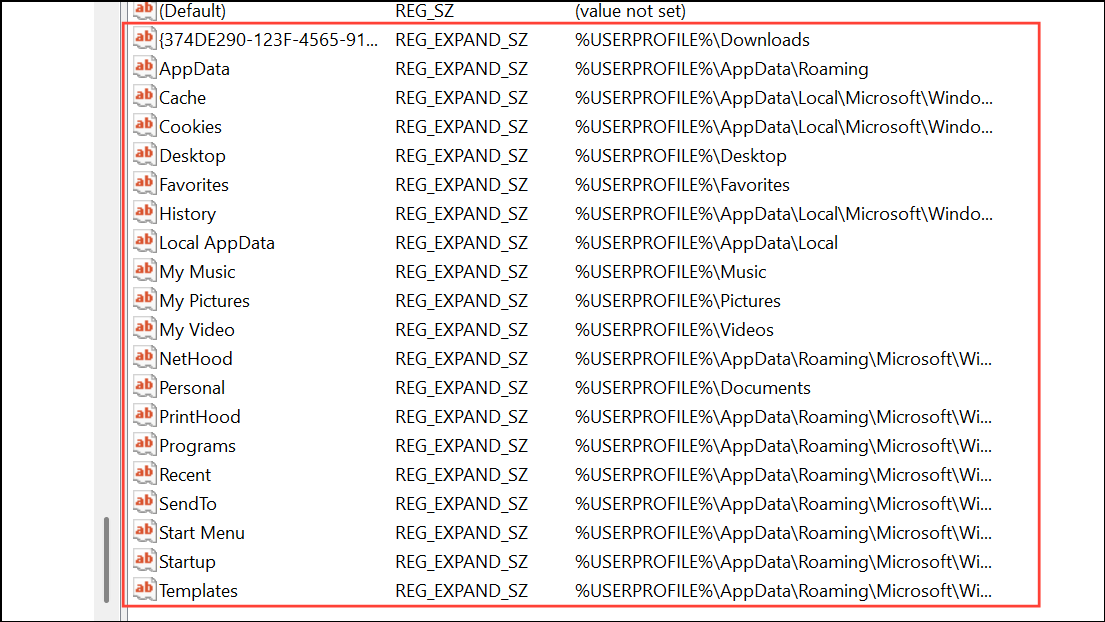
This method directly addresses the root cause for most users, restoring normal folder renaming functionality across Windows Explorer and related dialogs.
Run Windows File and Folder Troubleshooter
Microsoft provides a dedicated troubleshooter that can automatically detect and fix common file and folder permission problems, including issues that might prevent renaming or moving folders.
winfilefolder.DiagCab).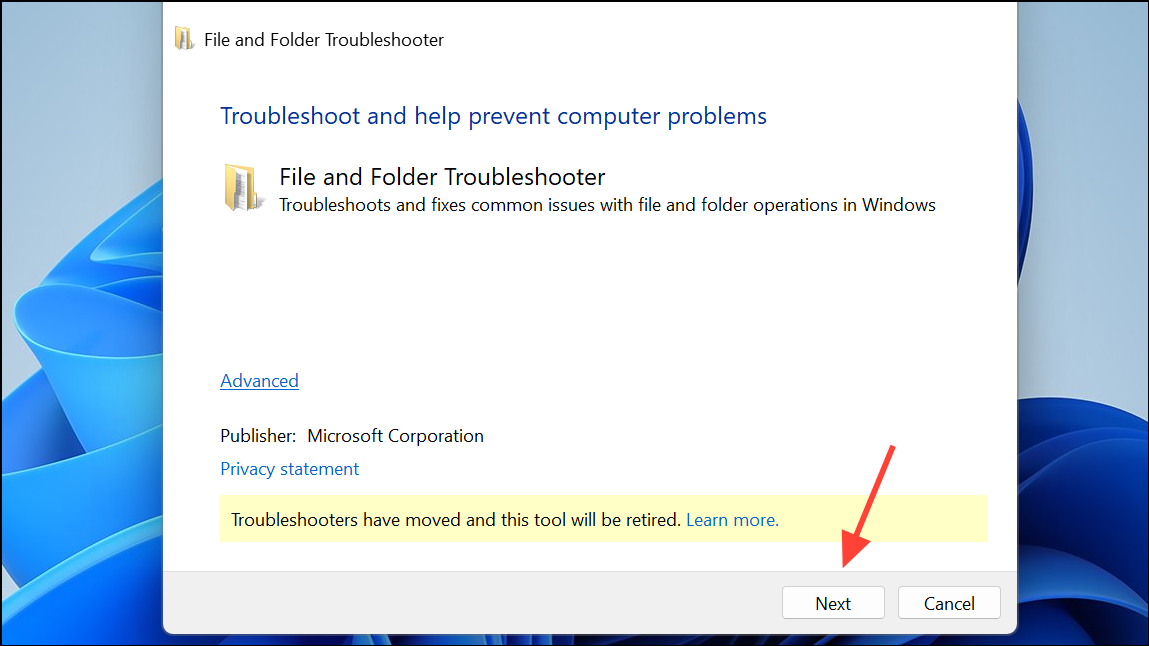
This automated tool can resolve permission problems and minor registry inconsistencies, but may not fix deeply rooted path errors in the registry.
Repair System Files Using Command Prompt
Corrupted or missing system files can sometimes cause file management errors. Running built-in Windows utilities can repair these files and restore expected behavior.
cmd in the Start menu, right-clicking Command Prompt, and selecting Run as administrator.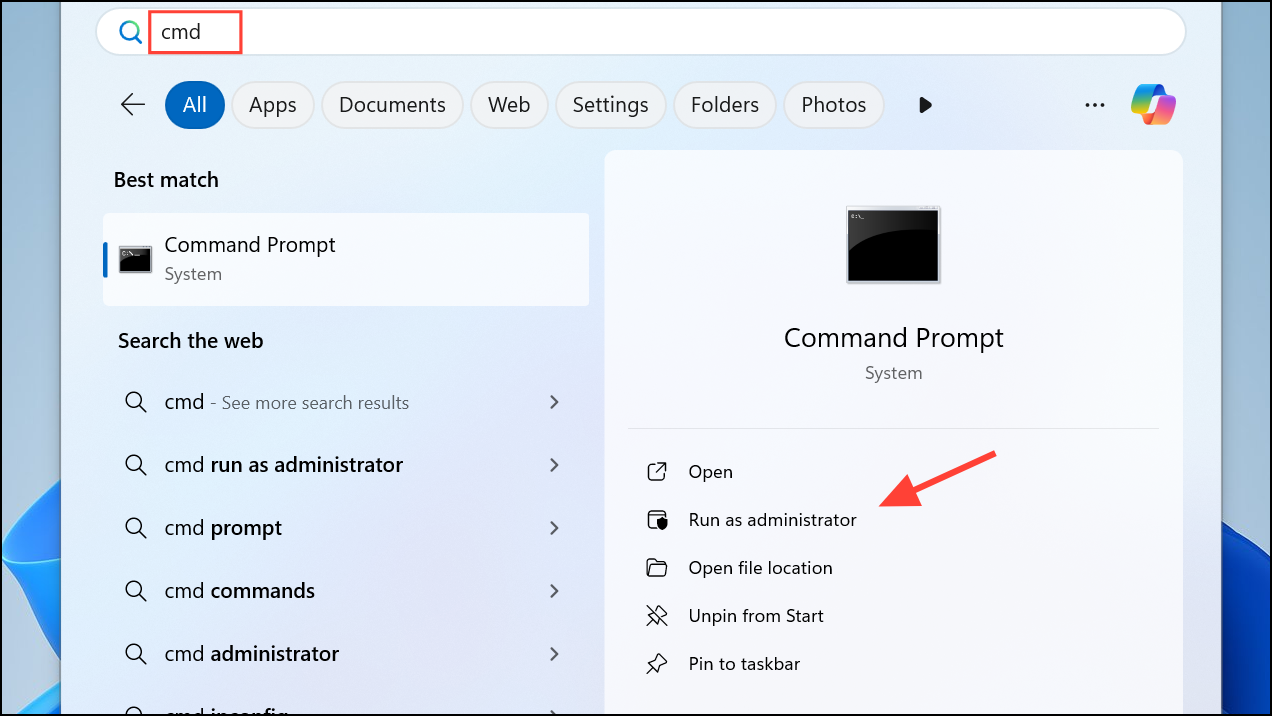
DISM.exe /Online /Cleanup-image /Scanhealth
DISM.exe /Online /Cleanup-image /Restorehealth
sfc /scannow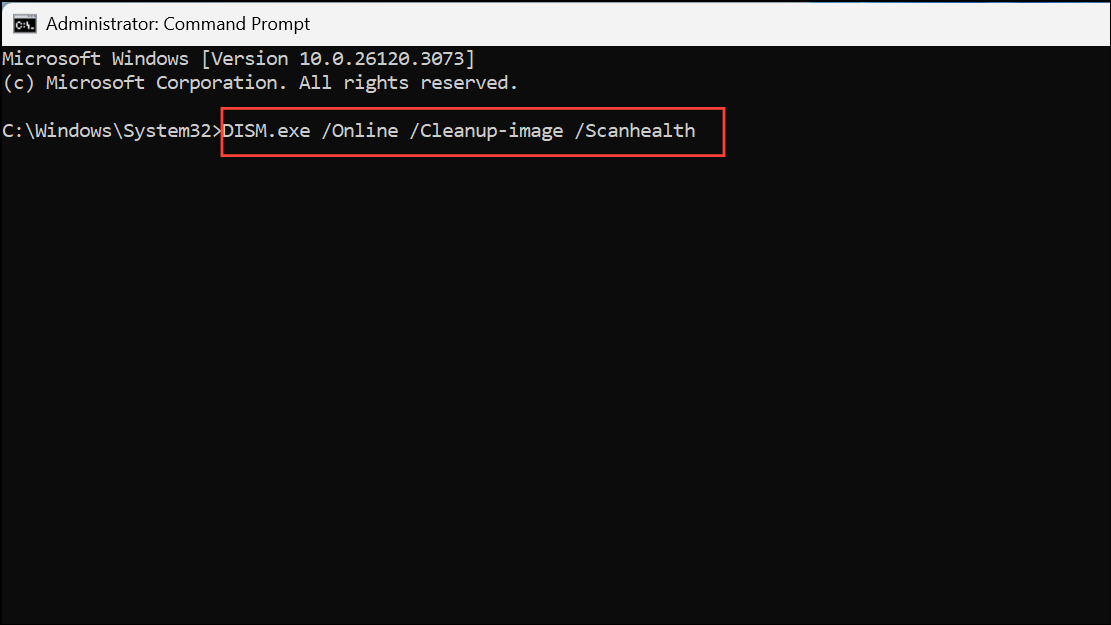
This process repairs Windows system files and can resolve issues caused by corruption, but will not fix user-specific registry path errors.
Check User Profile and Folder Redirection Settings
Problems with user profile corruption or misconfigured folder redirection—especially with OneDrive or Group Policy—can trigger the 0x80004005 error. If the above steps do not resolve the issue, consider these actions:
- Create a new local user account and check if folder renaming works there. If it does, the problem is likely profile-specific.
- Review Group Policy or local policy settings for folder redirection, especially if you use OneDrive or networked Documents folders. Ensure all redirected paths are valid and accessible.
- If you recently changed or removed OneDrive or redirected folders, restore default folder locations in Windows Explorer by right-clicking the folder, selecting
Properties, navigating to theLocationtab, and clickingRestore Default.
In rare cases, a full repair install of Windows may be necessary if system-wide corruption is suspected and all other methods fail.
Reviewing and correcting the User Shell Folders registry key resolves the majority of 0x80004005 folder renaming errors. Regularly backing up your registry and user data helps prevent recurrence of this problem after system changes or updates.



