
Windows 11 systems sometimes fail to boot properly, displaying repeated “Automatic Repair” screens without resolving the underlying issue. When the built-in Startup Repair tool cannot restore normal operation, critical system files or boot records may be corrupted. Addressing these failures requires targeted troubleshooting with advanced recovery tools and command-line utilities.
Repair Boot Records and Configuration Data
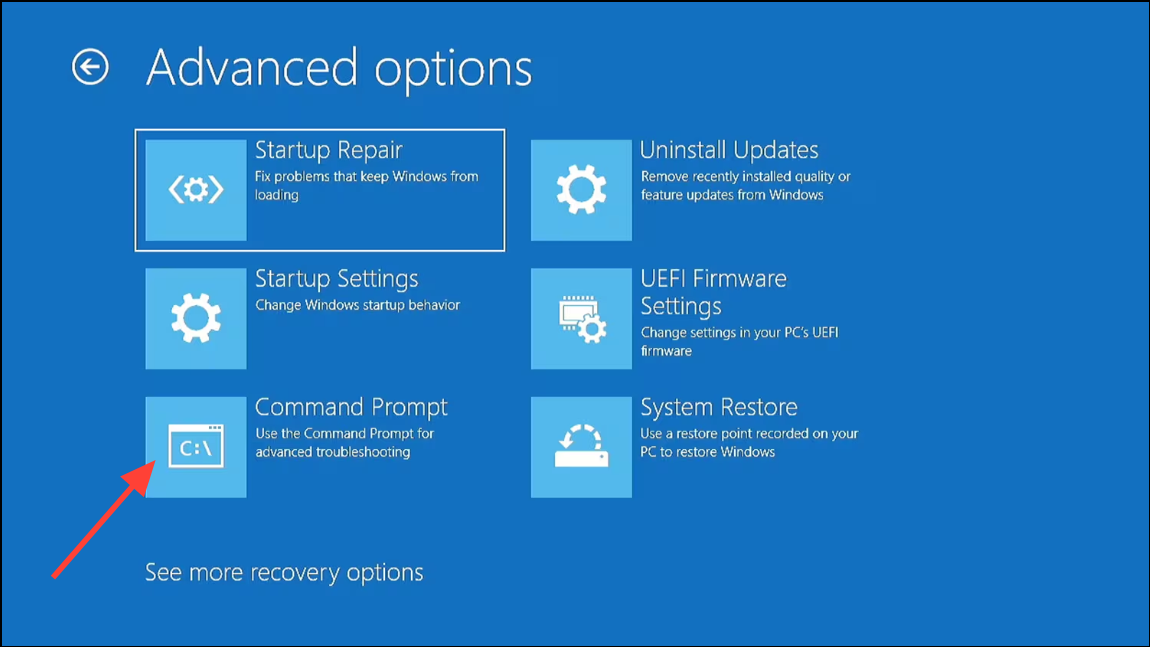
Corrupted boot records often cause Windows 11 to loop through Automatic Startup Repair without success. The Bootrec utility can rebuild essential boot structures, restoring the system’s ability to start correctly.
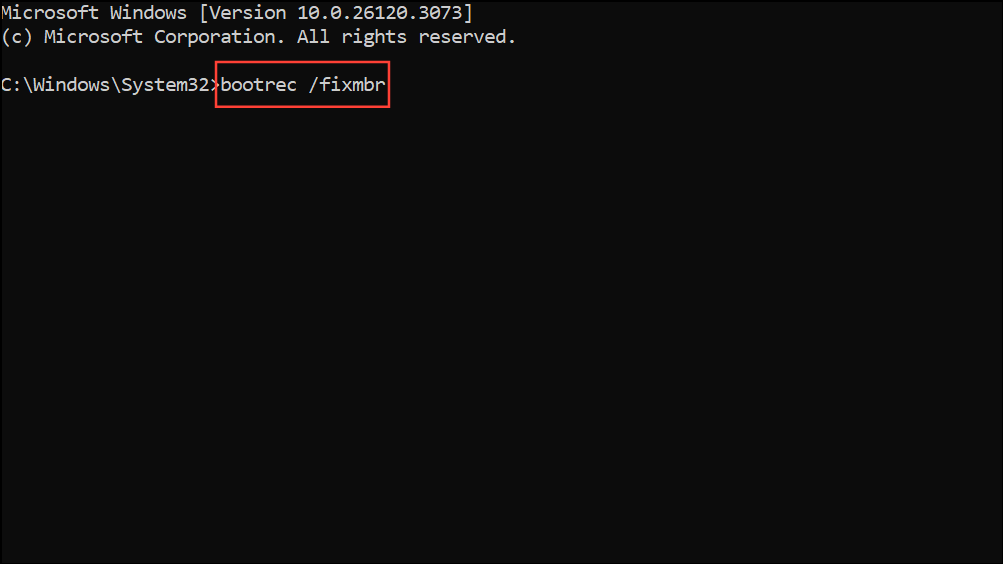
bootrec /fixmbr
bootrec /fixboot
bootrec /scanos
bootrec /rebuildbcd
If you see Access is denied after bootrec /fixboot, run bootsect /nt60 sys first, then retry bootrec /fixboot.
Repair System Files with DISM and SFC
When boot records are intact but Windows 11 still fails to start, system files may be corrupted. Deployment Image Servicing and Management (DISM) and System File Checker (SFC) can scan and repair these files.
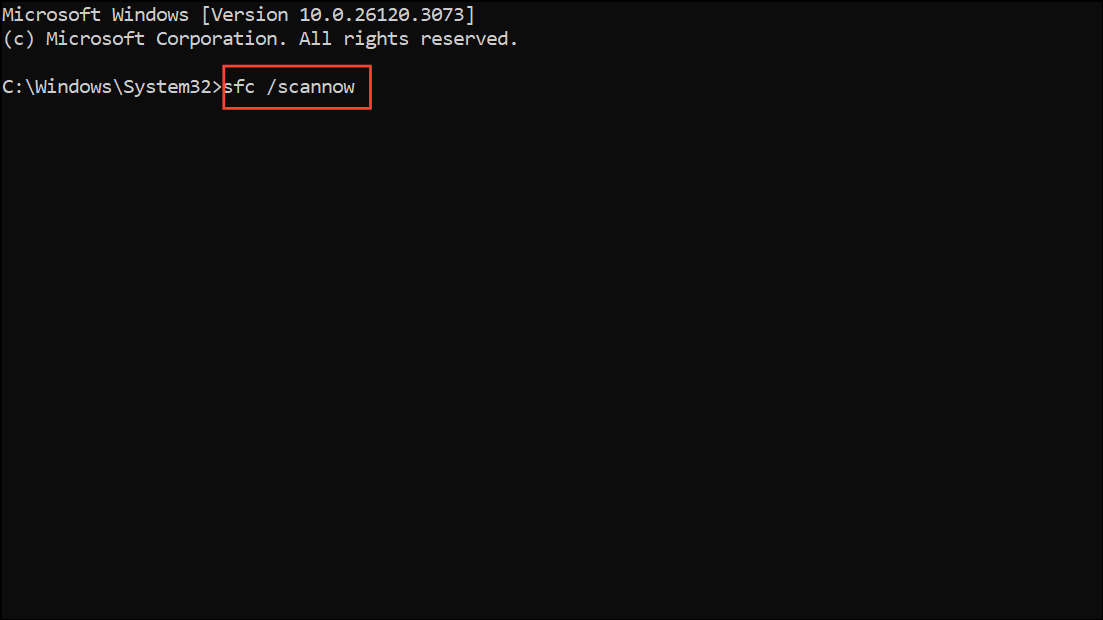
sfc /scannow
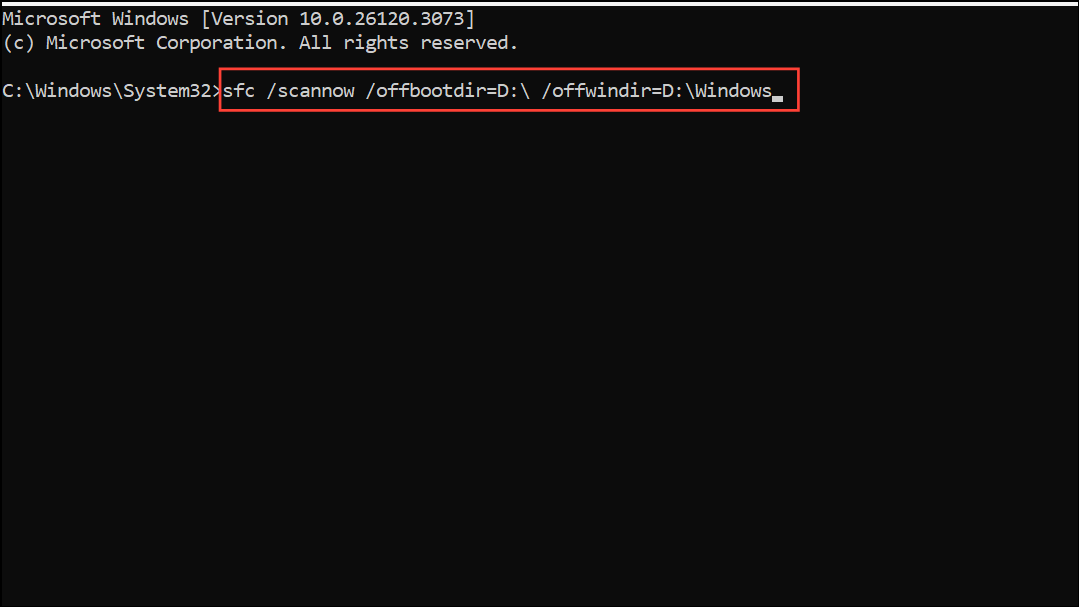
If you are running SFC from a Windows To Go or external Windows environment, target the offline Windows directory. Replace D: with your system drive letter:
sfc /scannow /offbootdir=D:\ /offwindir=D:\Windows
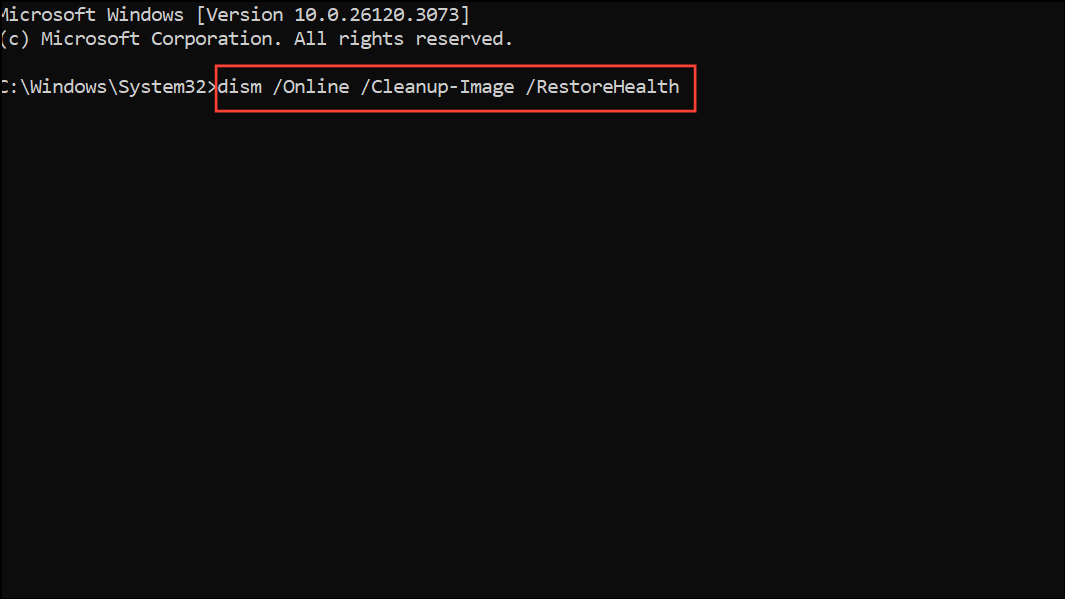
Dism /Online /Cleanup-Image /RestoreHealth
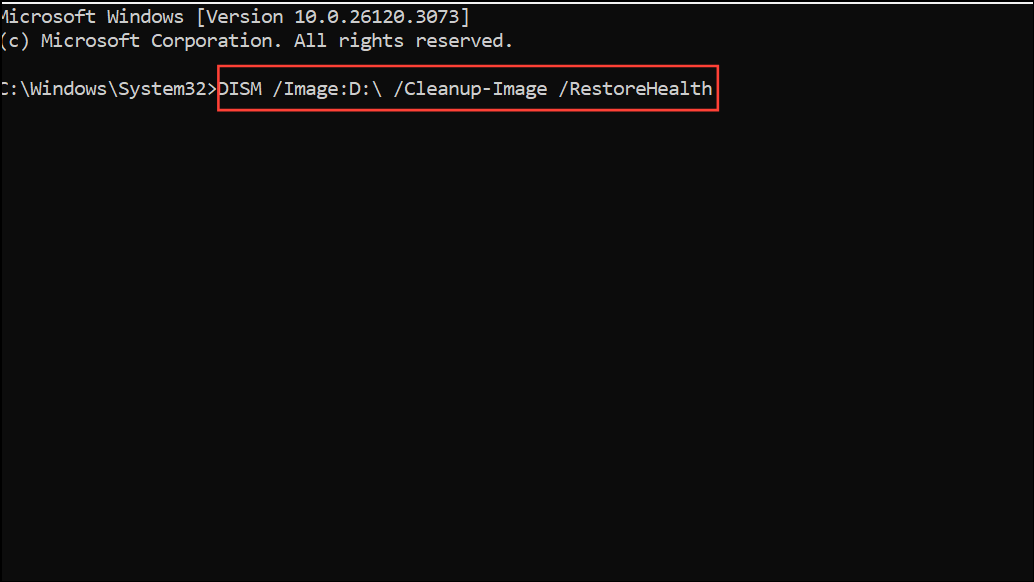
If running from a recovery or external environment, target the correct image path:
DISM /Image:D:\ /Cleanup-Image /RestoreHealth
Check Disk for File System Errors
File system corruption or bad sectors can prevent Windows 11 from booting, even if system files are intact. The Check Disk utility can detect and repair these issues.
chkdsk /r c:
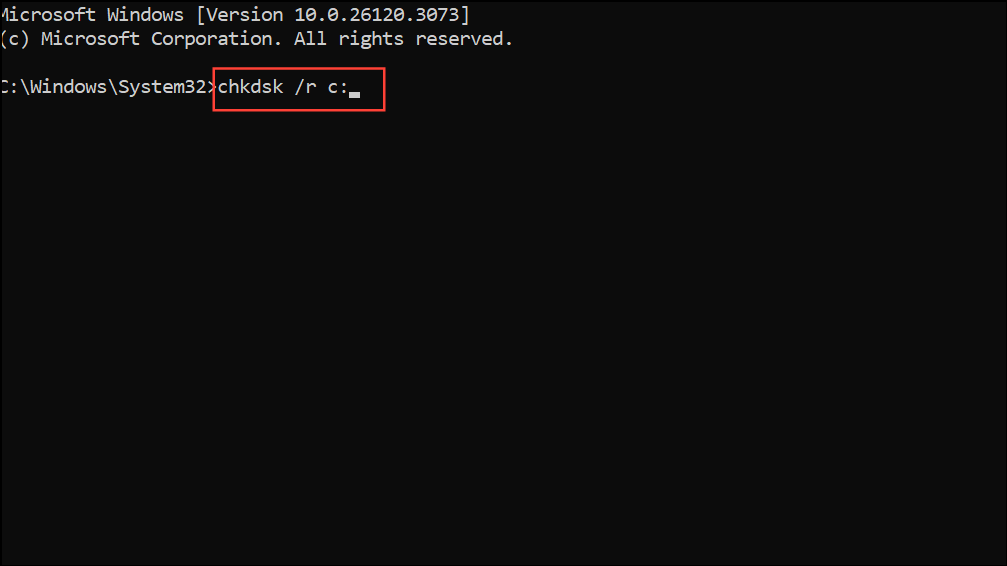
This scan may take some time, especially if errors are found. Wait for it to finish before restarting.
Restore the Registry from the RegBack Directory
Corrupted registry hives can also block Windows 11 from starting. Restoring the registry from a backup folder may resolve persistent boot failures.
copy c:\windows\system32\config\RegBack\* c:\windows\system32\config
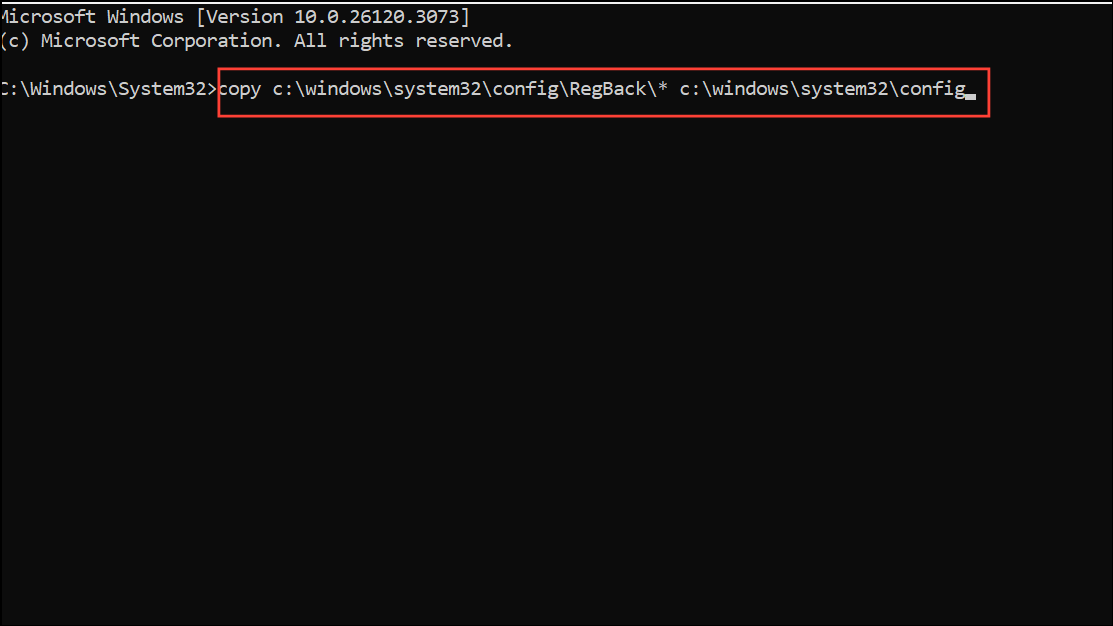
When prompted to overwrite files, type All and press Enter. This step restores registry files to their previous state.
Reset Windows 11 or Use Installation Media
If all command-line repairs fail, resetting or reinstalling Windows 11 may be necessary. Resetting preserves personal files but removes installed applications and settings.
Troubleshoot > Reset this PC. Choose to keep your files if possible. Follow the on-screen instructions.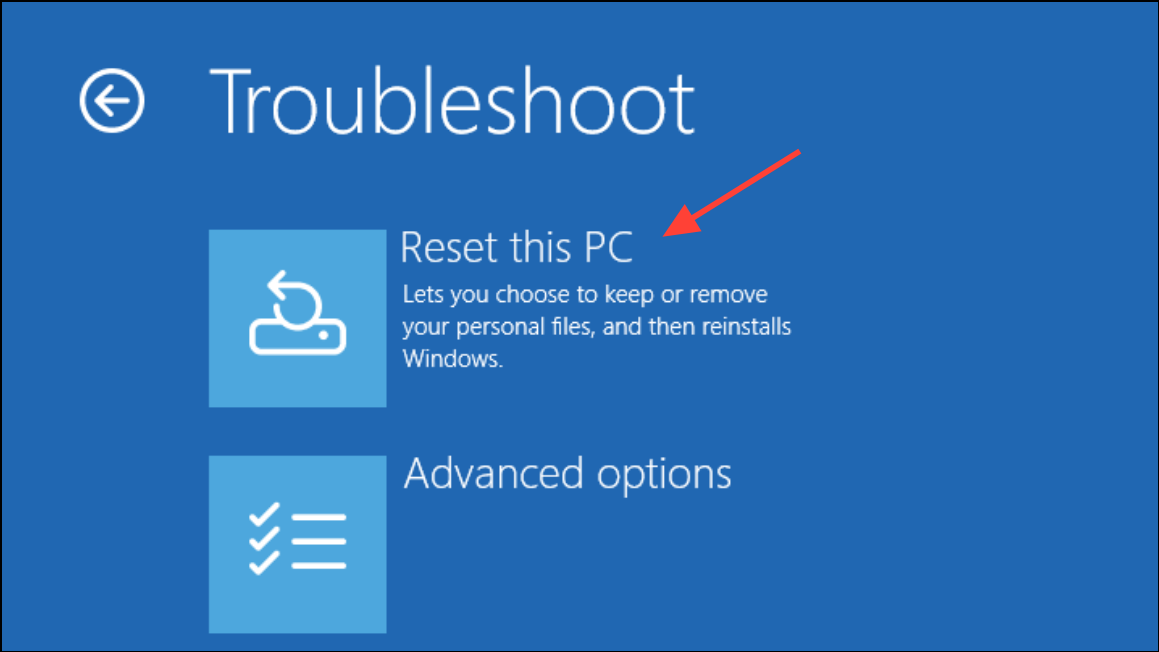
Repair your computer instead of Install now. Access Troubleshoot and try Startup Repair or Command Prompt again.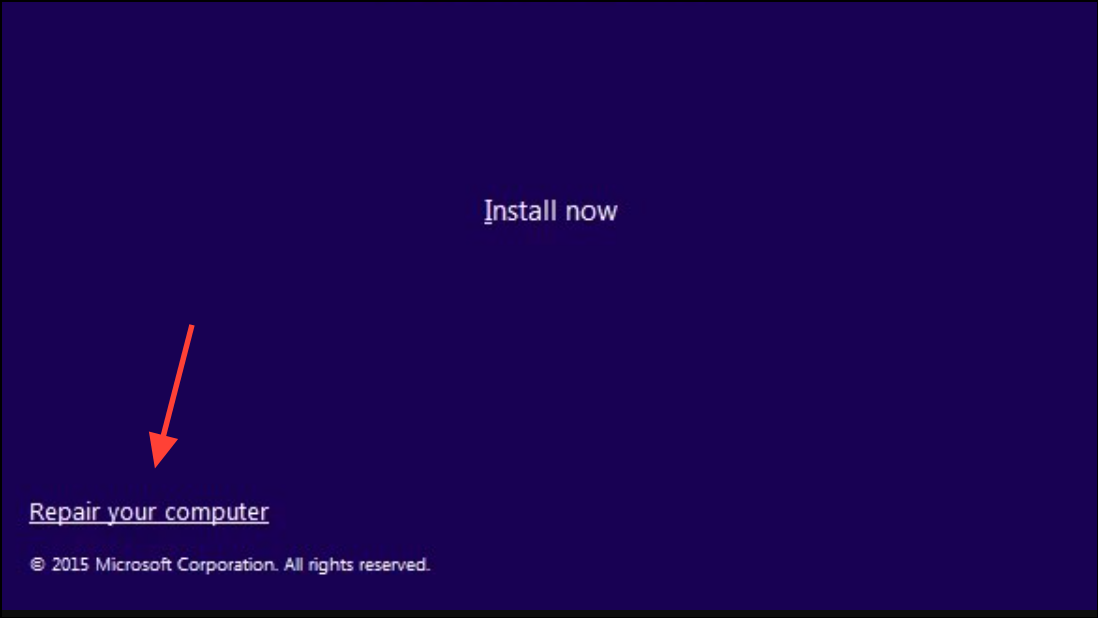
Additional Troubleshooting: BIOS and Secure Boot
Some systems block boot repairs due to Secure Boot settings in the BIOS/UEFI. If bootrec /fixboot returns “Access is denied” and bootsect /nt60 sys does not resolve it, temporarily disable Secure Boot in BIOS. Save changes, rerun the boot repair commands, then re-enable Secure Boot for security.
Persistent boot failures in Windows 11 can be resolved by systematically repairing boot records, system files, and the registry. If all else fails, resetting or reinstalling Windows 11 restores normal operation, though regular backups and restore points can prevent future data loss.



