
The “WARNING! BIOS Recovery mode has been detected” message interrupts the normal boot process on ASUS motherboards, signaling that your system cannot load the BIOS properly. This error typically appears after a failed BIOS update, sudden power loss during firmware flashing, or BIOS corruption, and leaves your PC unable to start Windows 11 until the BIOS is recovered. Addressing this issue restores your computer’s ability to boot reliably and prevents repeated recovery prompts.
Recover BIOS Using a USB Flash Drive
Restoring the BIOS from a USB flash drive is the most direct and effective method for resolving this error, especially when the system cannot access the BIOS setup screen or boot into Windows.
BIOSRenamer.exe utility included in the archive or on the ASUS support page. Double-click the utility to automatically rename the BIOS file with the correct extension (usually .CAP) required for your motherboard’s recovery process.F1 to enter BIOS setup. Once inside, press F5 to load optimized defaults, then confirm by selecting OK. This step resets all BIOS settings to stable defaults and helps prevent further boot issues.Recover BIOS Using the Motherboard Support DVD
If your motherboard includes a support DVD, you can attempt recovery with the disc. Note that the BIOS version on the DVD may be outdated, so use this method only if you cannot access a USB drive or the latest BIOS file.
X299E3.CAP). Use your keyboard or mouse to select the file.F1 to enter BIOS setup. Press F5 to restore default BIOS settings, then confirm with OK.Reformat the USB Drive to FAT16 or FAT32
Incorrect USB formatting can cause the motherboard to fail to detect the BIOS file. Reformatting ensures the drive is compatible with the recovery utility.
FAT32 (or FAT16 if required) as the file system, then click “Start” to format. Be aware this erases all data on the drive.Reset BIOS Settings or Clear CMOS
Corrupted or unstable BIOS settings can cause repeated recovery prompts. Resetting the BIOS to default values or clearing the CMOS can resolve configuration errors.
F1 during boot. Once inside, press F5 to load optimized defaults and confirm with OK.Perform a Startup Repair or System Restore
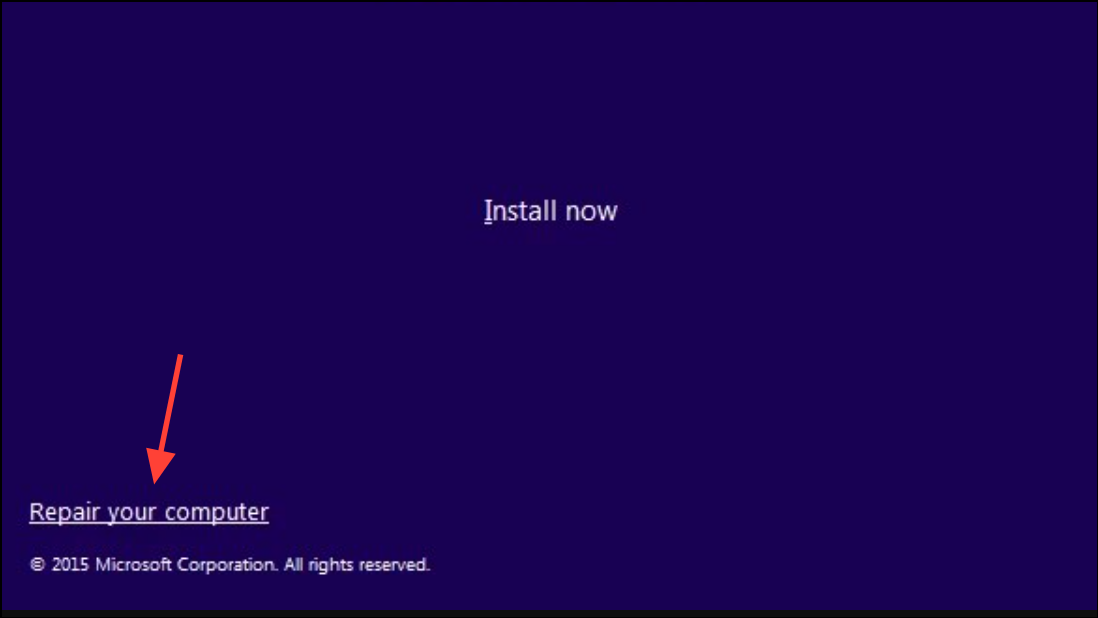
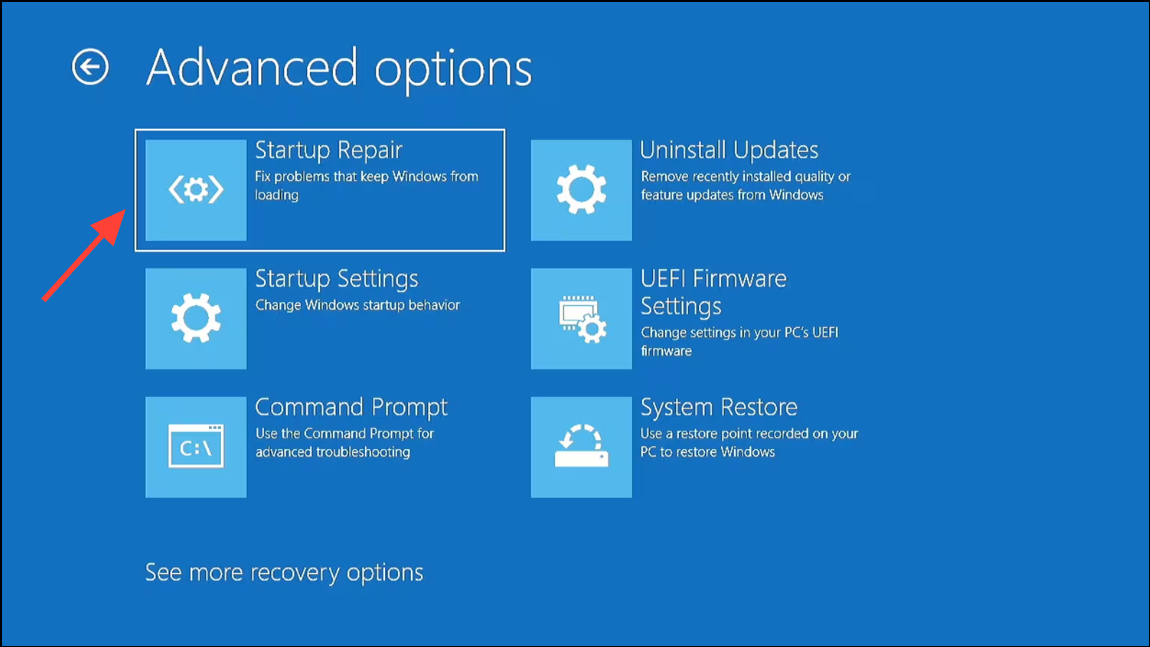
In rare cases, the error may persist due to underlying system file corruption or failed Windows updates. Startup Repair and System Restore can address these issues.
Replace the Faulty Motherboard (If All Else Fails)
If none of the above solutions resolve the BIOS recovery mode error, hardware failure may be the root cause. Persistent BIOS corruption, inability to flash firmware, or repeated recovery prompts after all troubleshooting indicate a defective motherboard.
Consult your manufacturer’s support or a professional technician to confirm the diagnosis. If necessary, replace the motherboard with a compatible model and reinstall your system components.
Restoring BIOS functionality with these methods returns your system to normal operation and prevents recurring recovery errors. Always use the latest BIOS version for your motherboard and avoid power interruptions during firmware updates to reduce the risk of future issues.



