
Chrome failing to launch after a system restore on Windows 11 interrupts browsing, blocks access to saved data, and disrupts daily workflows. This issue commonly occurs because system restore may leave Chrome’s files or user data in a corrupted or inconsistent state, causing the browser to appear briefly in Task Manager before closing or not responding at all. Addressing this problem requires targeted steps to repair, reset, or reinstall Chrome without losing important user data.
Repair Chrome Installation Without Uninstalling
https://www.google.com/chrome/?standalone=1. This installer can repair the existing Chrome installation without requiring a full uninstall, which helps preserve user settings, bookmarks, and extensions.Ctrl + Shift + Esc, look for any running Chrome processes, right-click on each, and select “End Task.” This ensures that Chrome is not running in the background and that the installer can update all files.Reset Chrome User Profile
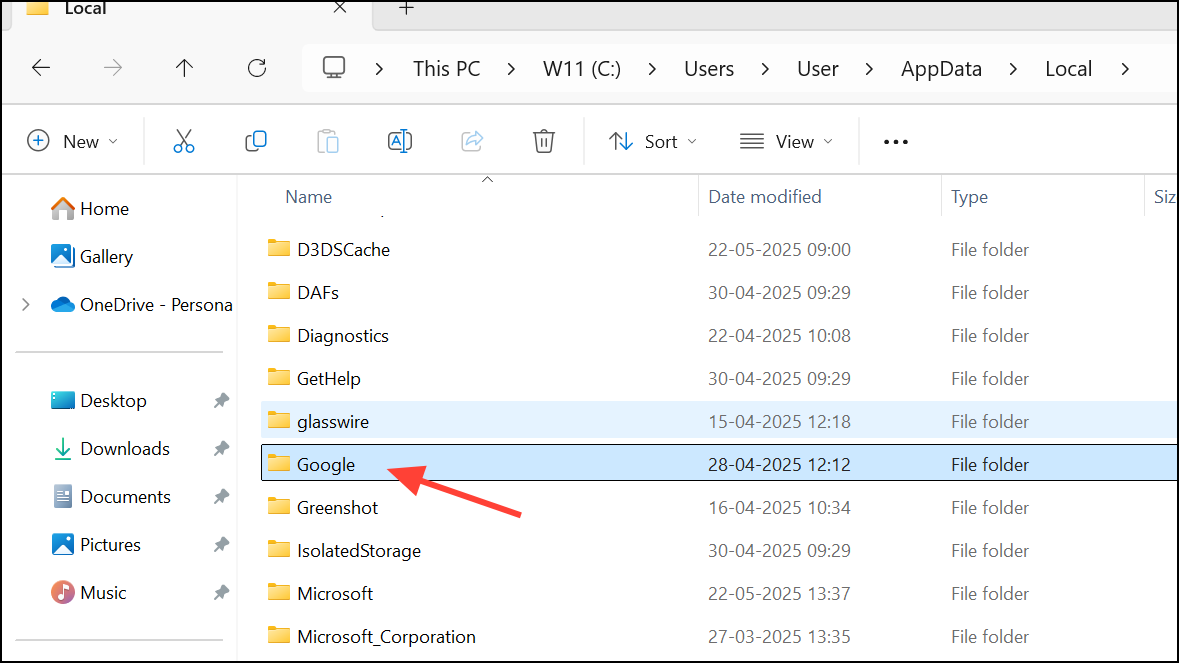
C:\Users\<your username>\AppData\Local\Google\Chrome\User Data\ in the address bar. If you do not see the AppData folder, enable hidden items by selecting View > Show > Hidden items in File Explorer.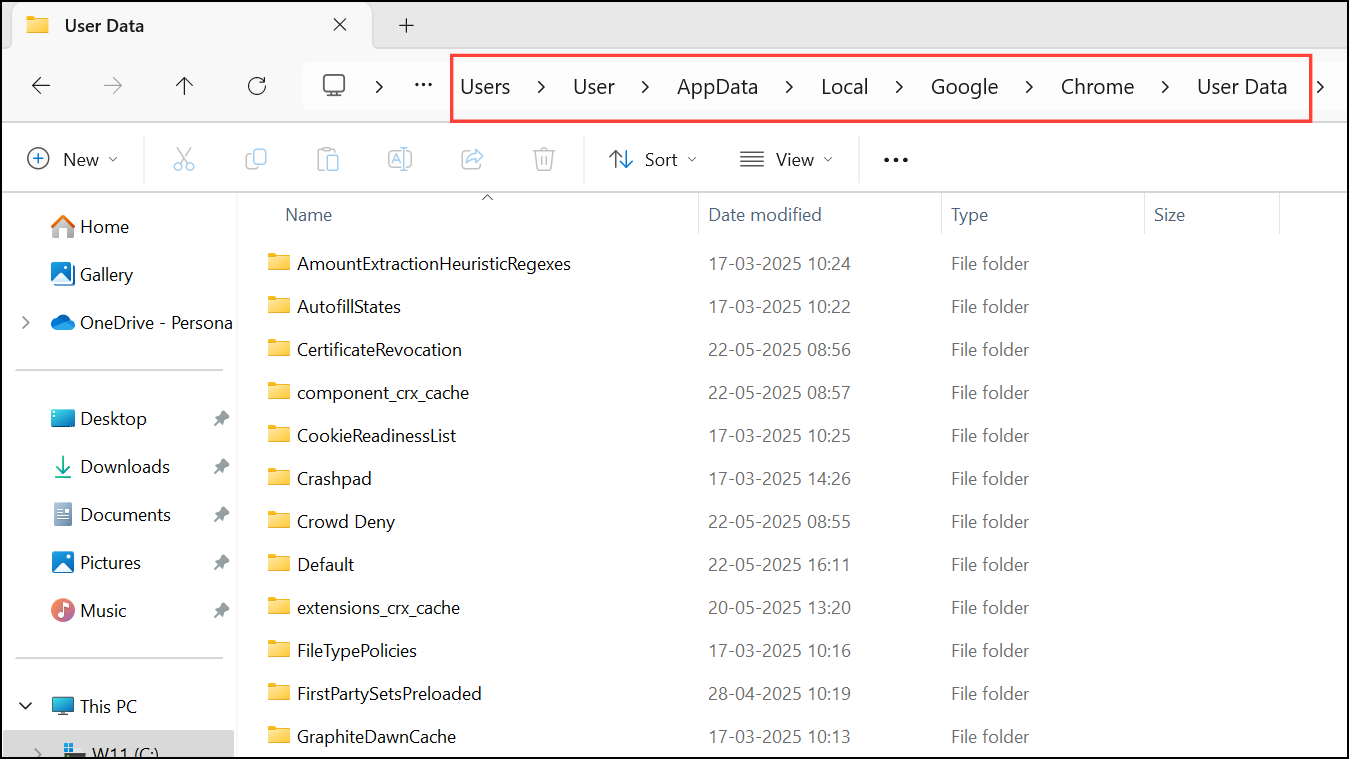
Default folder inside User Data. Rename it to Default.old. This step preserves your old data as a backup while forcing Chrome to create a new profile folder on the next launch.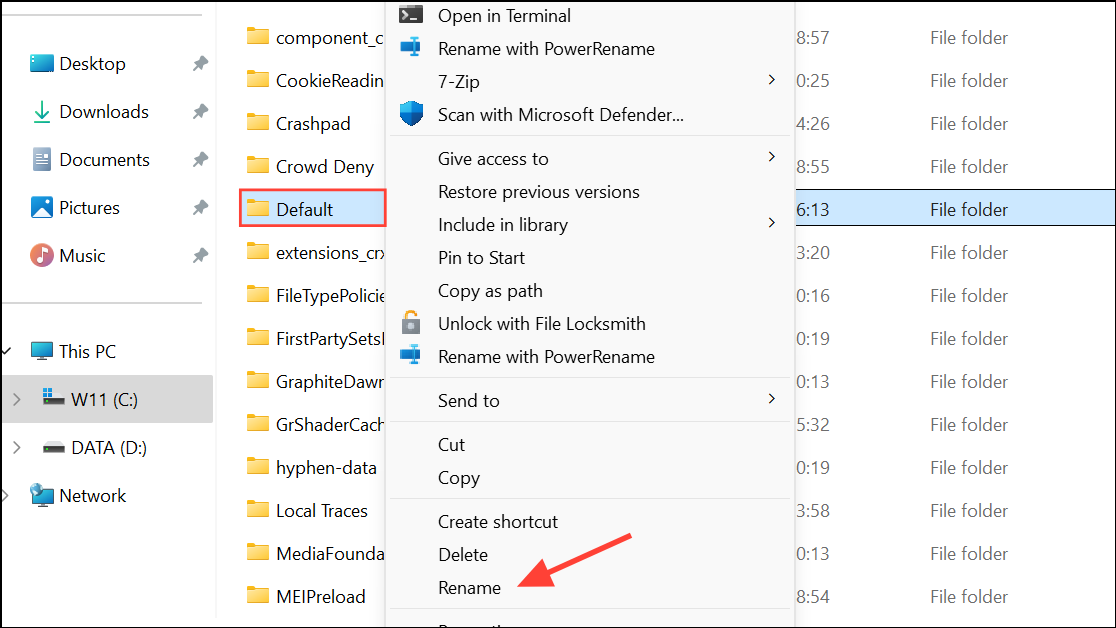
Bookmarks) from Default.old to the new Default folder to restore some settings and data.Uninstall and Reinstall Chrome Completely
C:\Users\<your username>\AppData\Local\Google\Chrome\User Data\ folder to a safe location.Win + I to open Settings, go to Apps > Installed apps, search for “Chrome,” click the three dots, and select “Uninstall.”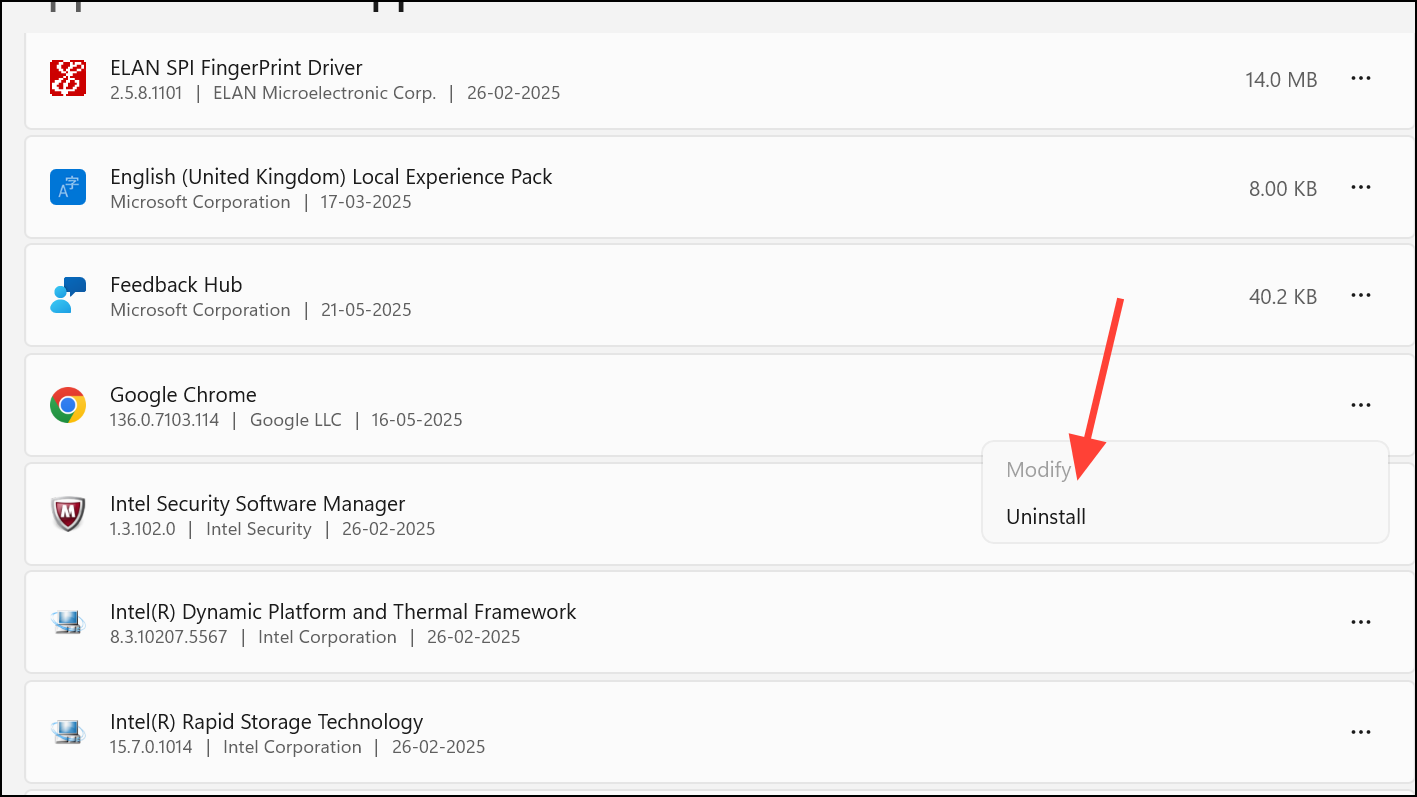
C:\Users\<your username>\AppData\Local\Google\C:\Program Files (x86)\Google\
This step ensures that no corrupted files remain that could affect the new installation.
https://www.google.com/chrome/ and run the installer.Bookmarks or Extensions) from your backup to the new User Data folder. Note that restoring the entire Default folder may reintroduce the original problem, so copy only essential files.Additional Troubleshooting Steps
If Chrome still refuses to open after these steps:
- Check if your antivirus or firewall is blocking Chrome and add it as an exception.
- Ensure Windows is fully updated by running Windows Update.
- Try running Chrome in Safe Mode by adding
--disable-extensionsto the shortcut target. - Scan your system for malware using Windows Defender or another trusted tool.
For persistent issues, consider using a disk imaging tool such as Macrium Reflect for future backups, which can restore your system to a working state more reliably than Windows System Restore.
Resolving Chrome launch issues after a system restore on Windows 11 typically succeeds with a repair or clean reinstall. Keeping backups of your user data and using disk imaging tools can prevent similar headaches in the future.



