
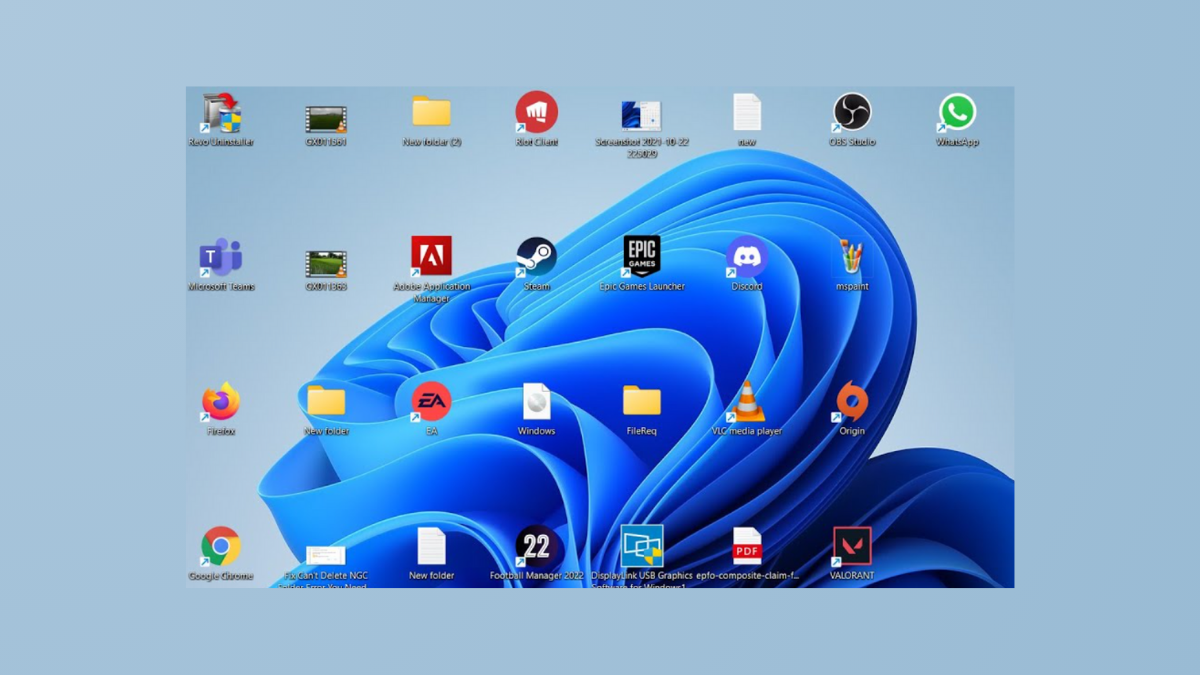
Desktop icons that reset or scatter across screens after every reboot can disrupt workflow and slow down productivity. This issue is especially common on Windows 11 systems using multiple monitors or cloud storage syncing. Addressing the root cause—whether it’s conflicting system files, display configuration changes, or corrupted icon caches—can restore order and consistency to your desktop layout.
Use Third-Party Tools to Save and Restore Icon Layouts
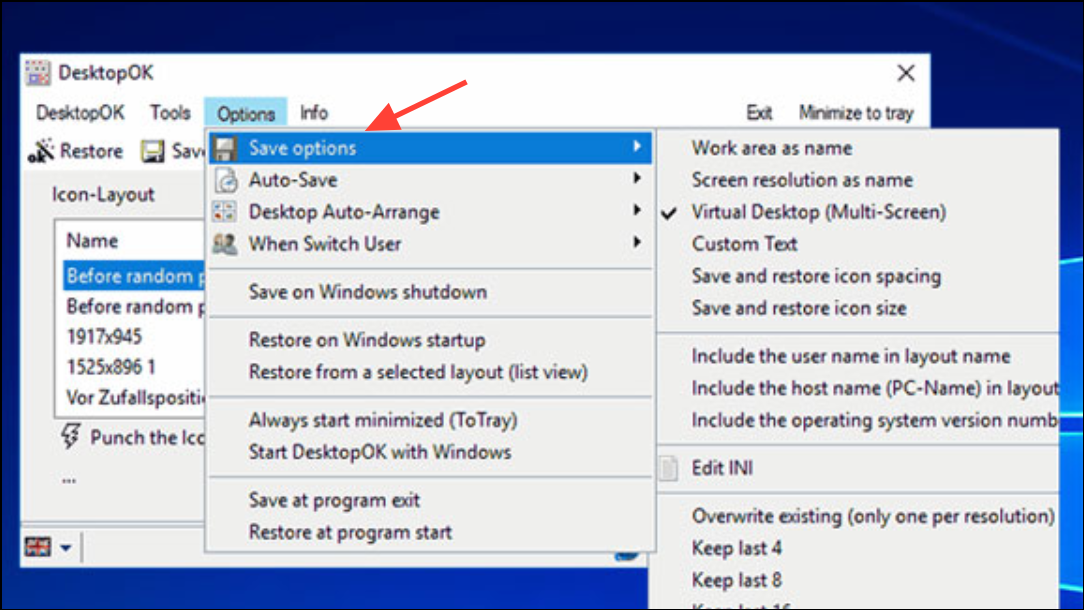
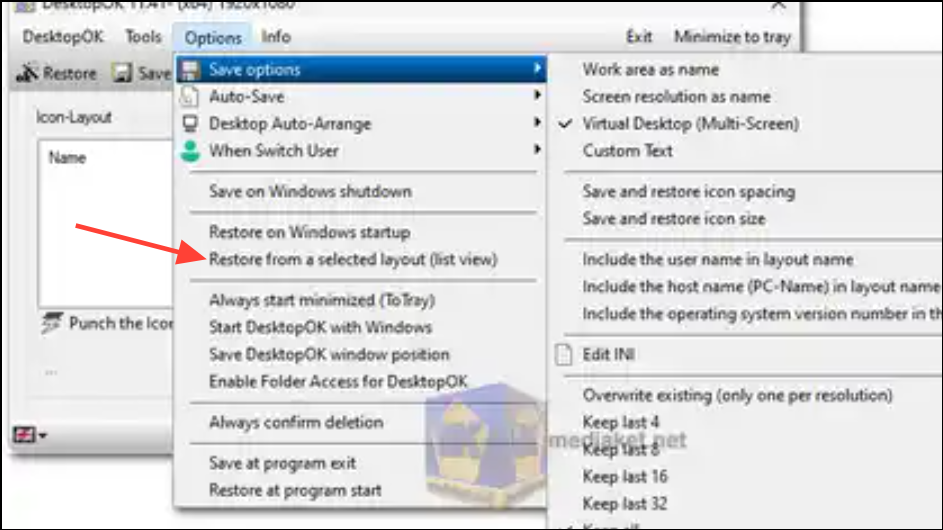
Delete Duplicate or Corrupted desktop.ini Files
View > Show > Hidden items, and then uncheck Hide protected operating system files in Folder Options. This displays all desktop.ini files.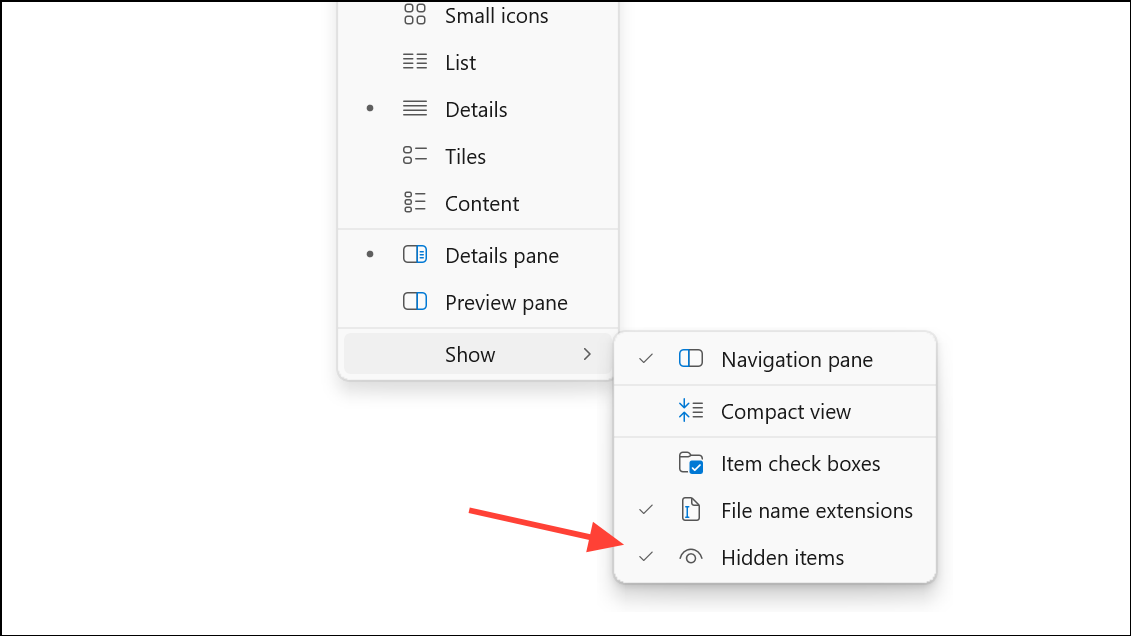
desktop.ini files or suspect corruption (often from cloud sync tools like iCloud Drive or OneDrive), delete all instances of desktop.ini from the desktop folder. Windows will automatically regenerate a clean version as needed.Clear the Icon Cache
C:\Users\[YourUserName]\AppData\Local\Microsoft\Windows\Explorer. Replace [YourUserName] with your actual Windows username. If AppData is hidden, enable Hidden items in the View menu.Ctrl+Shift+Esc), right-click Windows Explorer, then select End task.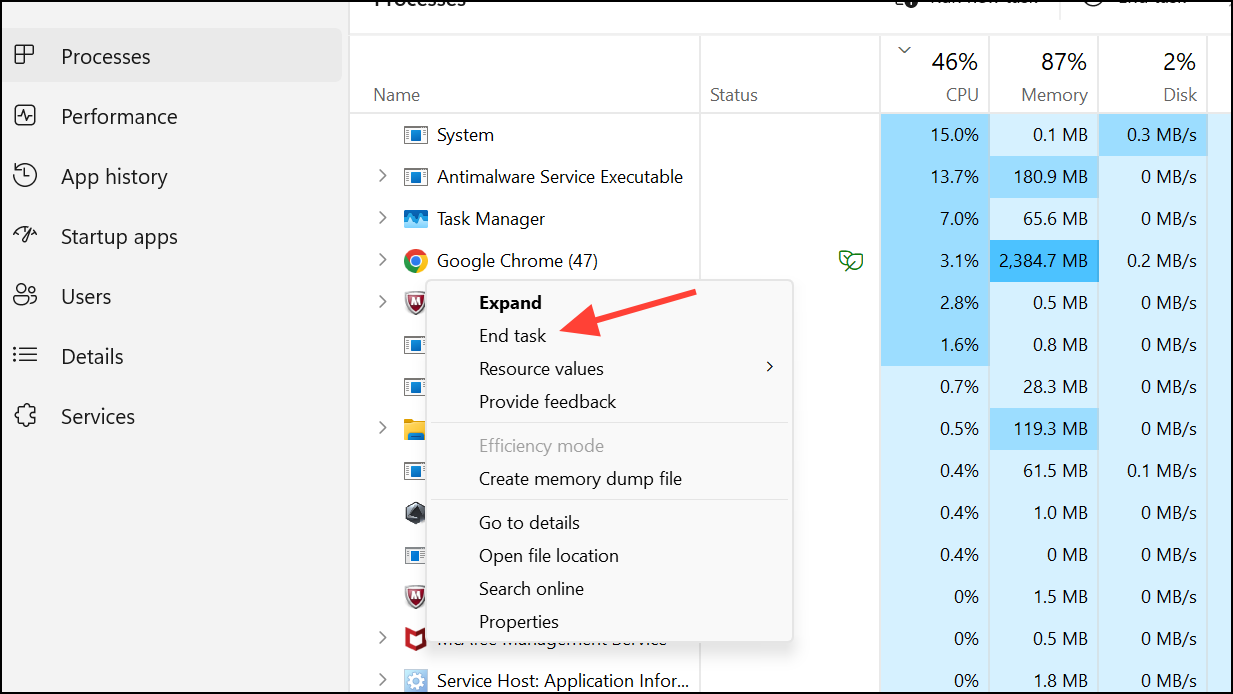
del iconcache*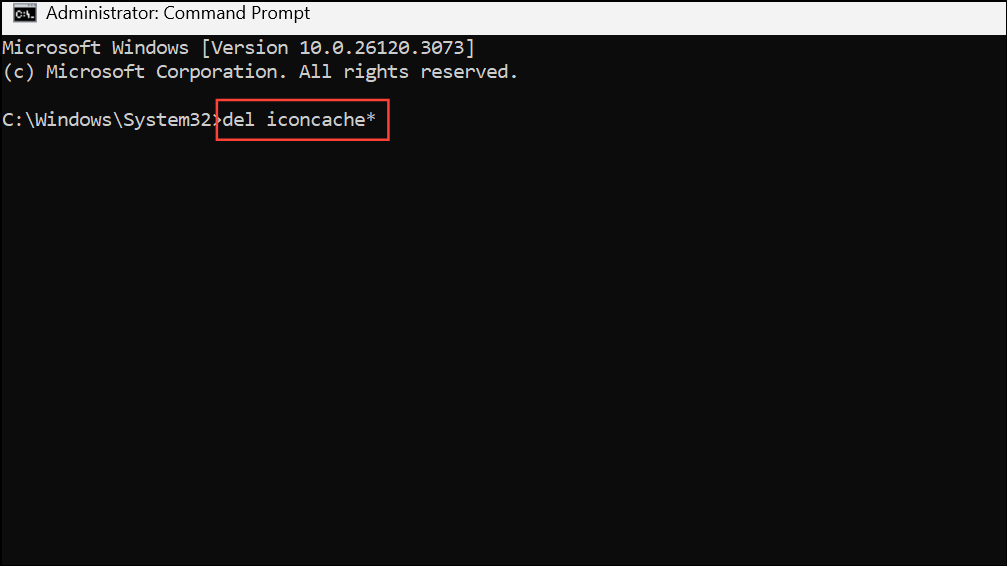
This command deletes all icon cache files, which may be corrupted and causing icon position issues.
Adjust Display and Theme Settings
Display settings. Confirm that your primary monitor is set correctly, especially if you use multiple displays or docking stations. Set the laptop screen as primary if you frequently switch between setups.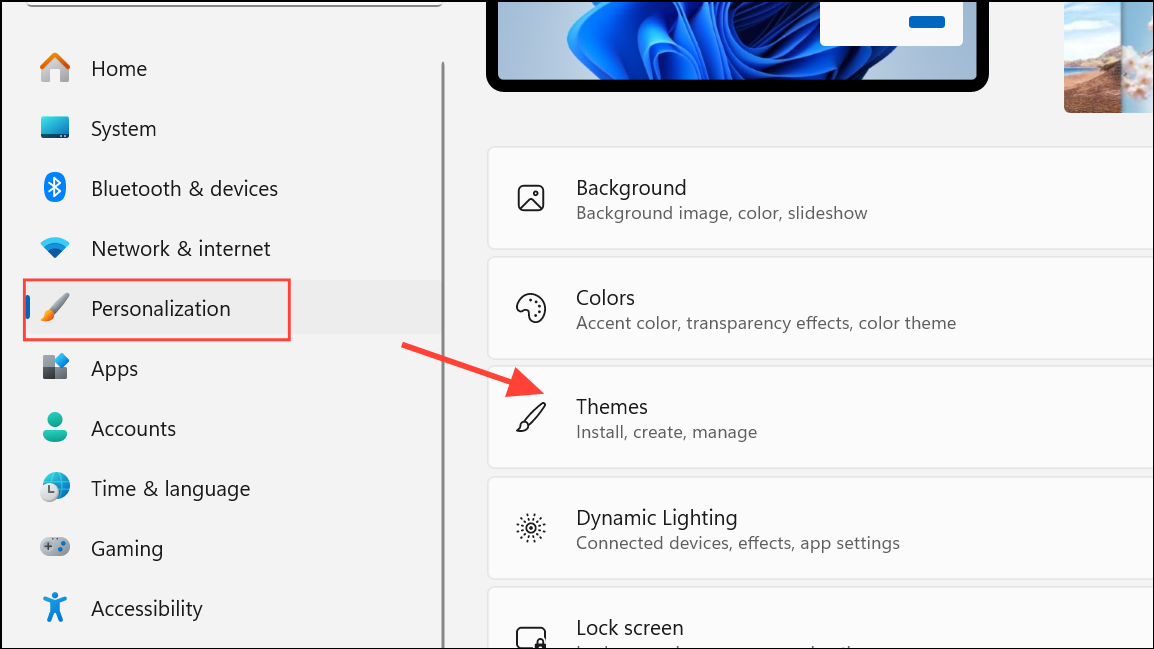
Desktop icon settings, uncheck Allow themes to change desktop icons to prevent theme switches from resetting icon positions.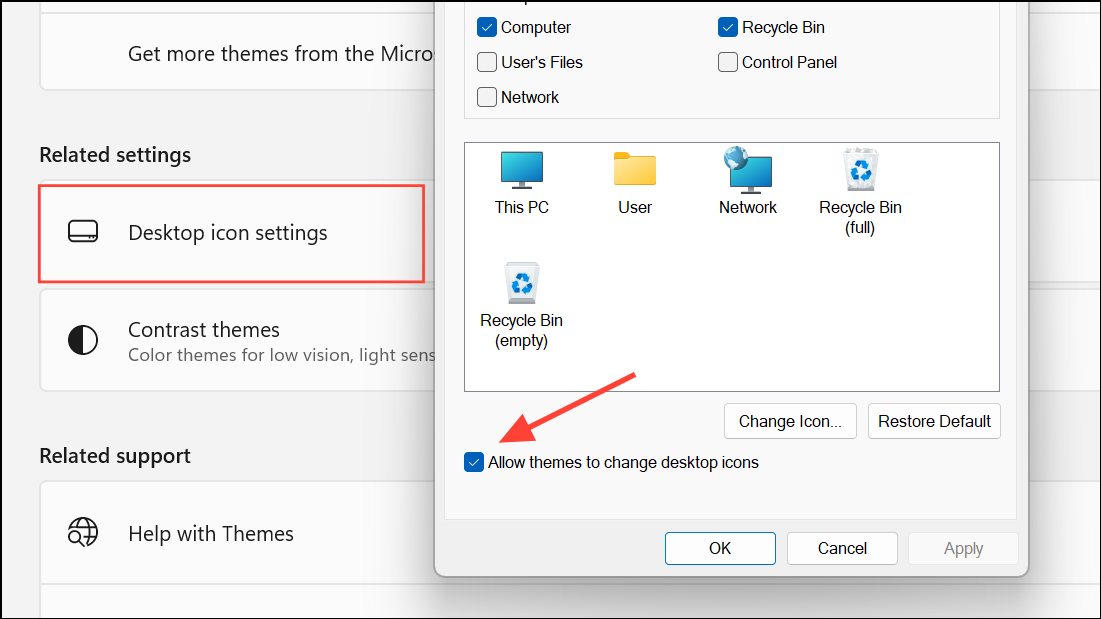
Check for Folder Redirection and Group Policy Settings
User Configuration > Policies > Windows Settings > Folder Redirection.Basic Checks: Auto Arrange and Align to Grid
View, and ensure Auto arrange icons is not checked. Also, verify if Align icons to grid is enabled or disabled according to your preference.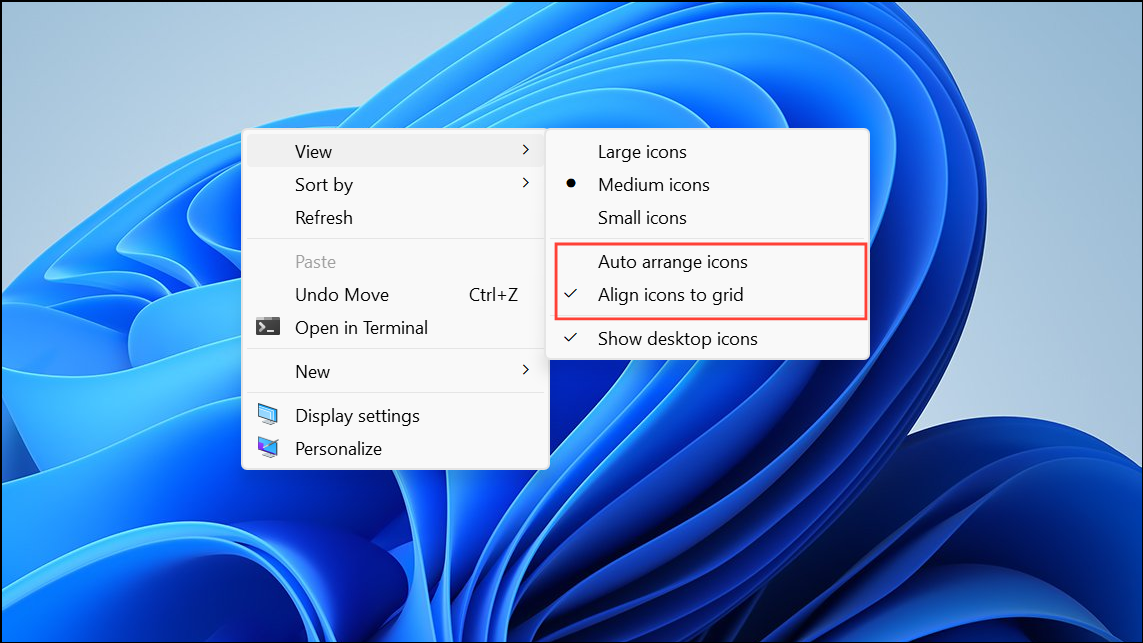
Applying these targeted steps restores desktop icon stability on Windows 11 and saves time spent reorganizing icons after every reboot or display change. For persistent issues, third-party tools provide a reliable backup to keep your desktop exactly the way you want it.



