

LS-0013 appears when launching games through the Epic Games Launcher on Windows 11, preventing titles like Fortnite from starting. This error often points to issues with game file integrity, conflicting software, or permission settings. Addressing these underlying causes restores normal game launches and reduces repeated troubleshooting.
Run Epic Games Launcher as Administrator
Granting the Epic Games Launcher administrator privileges addresses permission conflicts that can block games from launching. Running the launcher as administrator ensures it can access all required files and system resources, which has resolved LS-0013 for many users.
Properties, navigating to the Compatibility tab, and checking Run this program as an administrator. Click Apply and OK.Verify Game Files Integrity
Corrupted or missing files prevent games from starting and can trigger LS-0013. The Epic Games Launcher includes a built-in verification tool that checks for and repairs file issues.
Clear Epic Games Launcher Webcache
Corrupted webcache files in the Epic Games Launcher can interfere with authentication and game launches. Clearing the webcache removes these files and prompts the launcher to rebuild them, which can resolve LS-0013.
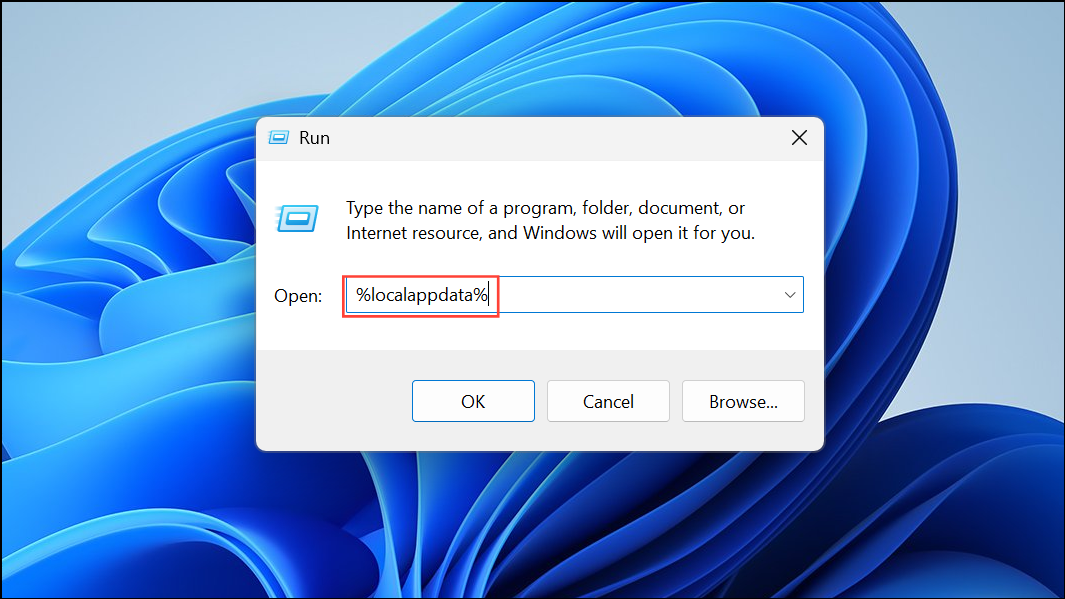
and press Enter.
Update Windows 11 and Graphics Drivers
Outdated system files or graphics drivers can prevent games from launching properly. Keeping Windows 11 and your GPU drivers current addresses compatibility issues and improves stability.
Start button and select Settings. Go to Windows Update and click Check for updates. Install any available updates and restart your PC if needed.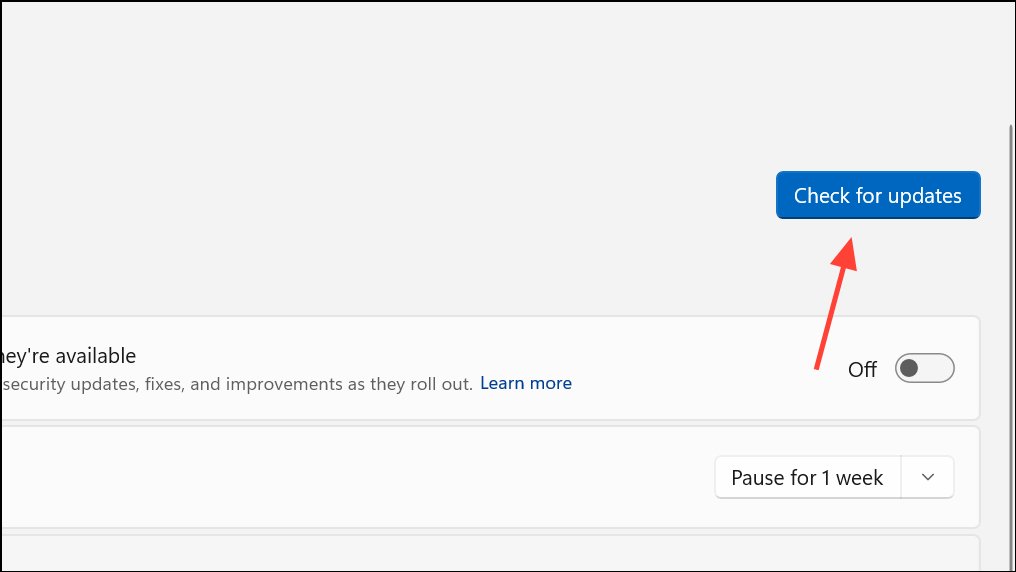
Disable Conflicting Background Applications
Software such as antivirus programs, firewalls, or peripheral drivers (like RGB lighting software or specialized mouse drivers) can conflict with Epic’s services or Easy Anti-Cheat, leading to LS-0013. Temporarily disabling or uninstalling these applications can help isolate the cause.
Task Manager (Ctrl + Shift + Esc), selecting the app and clicking End Task.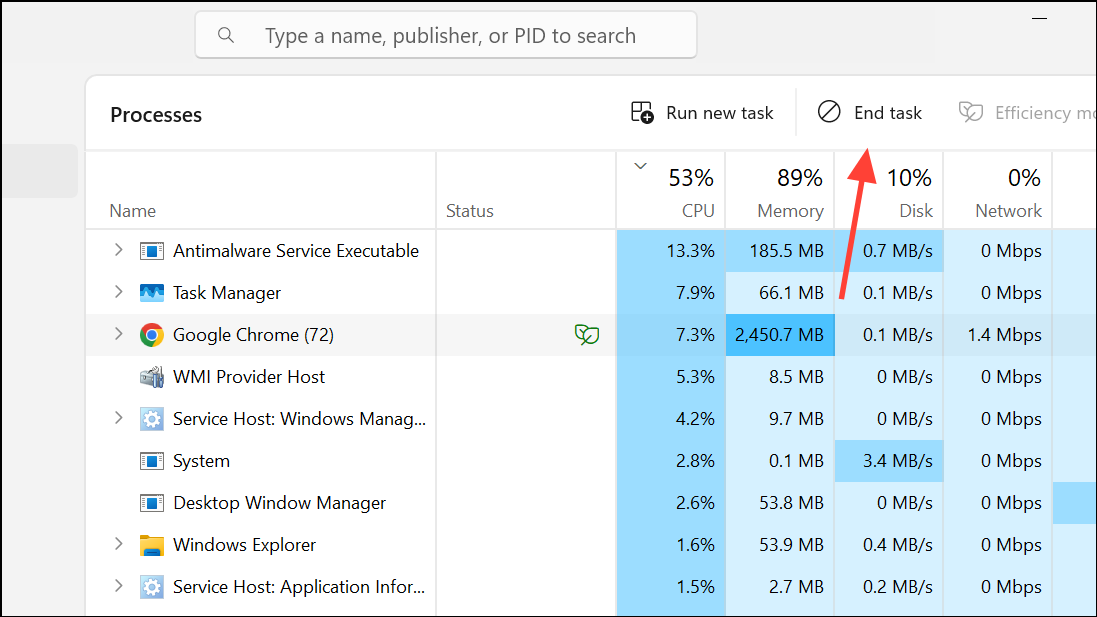
Adjust “Run as Administrator” Settings for Game Executables
For some games, especially Fortnite, having the “Run as Administrator” setting enabled on the game’s executables can cause LS-0013. Disabling this setting restores normal launch behavior.
C:\Program Files\Epic Games\Fortnite\FortniteGame\Binaries\Win64.FortniteClient-Win64-Shipping.exe, FortniteClient-Win64-Shipping_BE.exe, FortniteClient-Win64-Shipping_EAC.exe, and FortniteLauncher.exe. Choose Properties.Compatibility tab. Uncheck Run this program as an administrator if it is selected. Click Apply and OK.Reinstall Epic Games Launcher and the Game
If previous steps do not resolve LS-0013, reinstalling both the Epic Games Launcher and the affected game can address persistent file corruption or configuration problems. This method removes all related files and settings, providing a clean installation environment.
Add or Remove Programs from the Start Menu, selecting Epic Games Launcher, and clicking Uninstall.C:\Program Files, C:\Program Files (x86), C:\ProgramData, and your user’s AppData directories.Check Game Version Availability and Account Issues
Attempting to launch outdated, beta, or press versions of a game can trigger LS-0013 if those versions are no longer supported. Additionally, account or web browser issues can interfere with authentication.
Resolving LS-0013 on Windows 11 involves systematically addressing file integrity, permissions, background software, and account issues. Applying these steps restores normal launch behavior for Epic Games titles and reduces future launch failures.



