
The “Failed to format the selected partition. Error: 0x8004242d” message appears on Windows 11 systems when attempting to format a disk partition—often during OS installation or setup. This error blocks the installation process and signals deeper issues with disk configuration, partition tables, or firmware compatibility. Addressing this error requires targeted steps that directly resolve the underlying causes, such as partition corruption, dynamic disk usage, or conflicting UEFI/BIOS settings.
Delete All Partitions and Recreate Them
Corruption in the disk’s partition table or Master Boot Record (MBR) frequently causes error 0x8004242d. Deleting all partitions removes problematic structures, allowing Windows 11 Setup to proceed with a clean configuration. Note that this process removes all data on the disk, so back up any important files before proceeding.
F2, F12, Esc, or Del) to open the boot menu and select the installation device.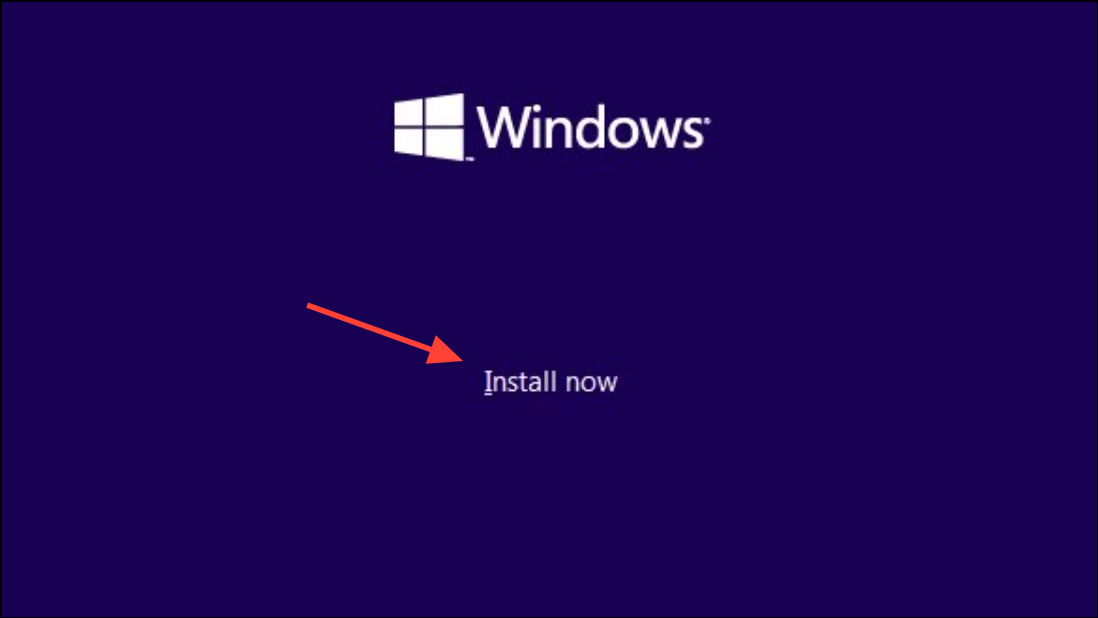
Convert a Dynamic Disk to Basic Disk
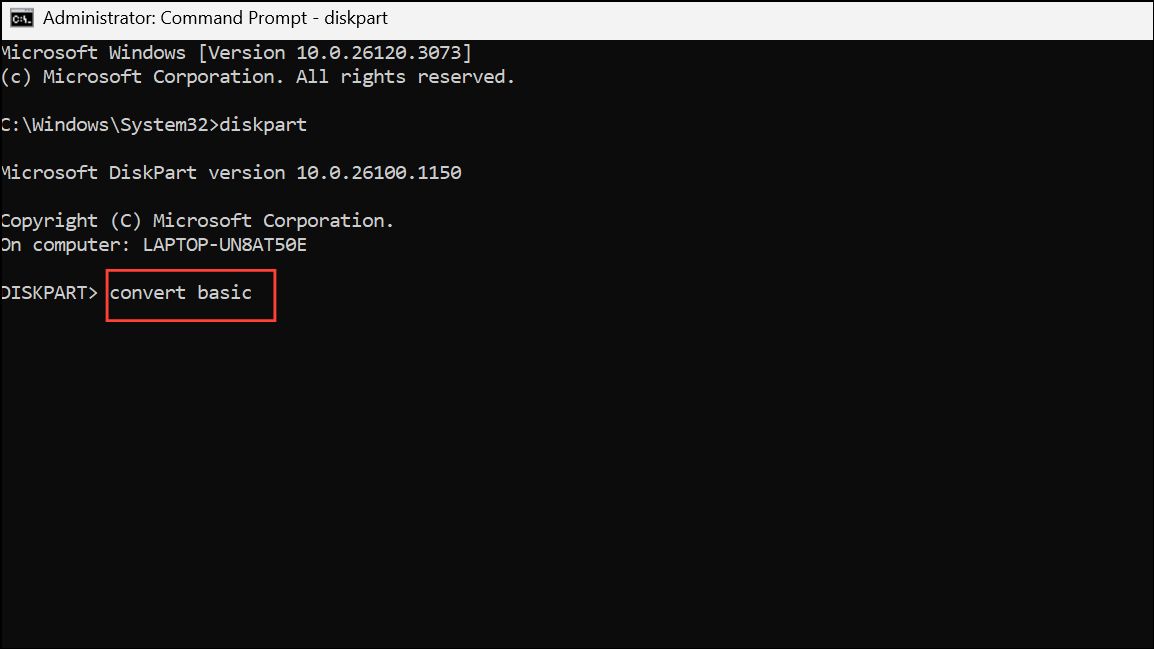
Windows 11 cannot be installed on a dynamic disk; it requires a basic disk structure. Dynamic disks support advanced features like spanning and striping, but they are not compatible with the Windows installation process. Converting the disk to basic resolves the error, but this process deletes all existing volumes on the disk, so a backup is essential.
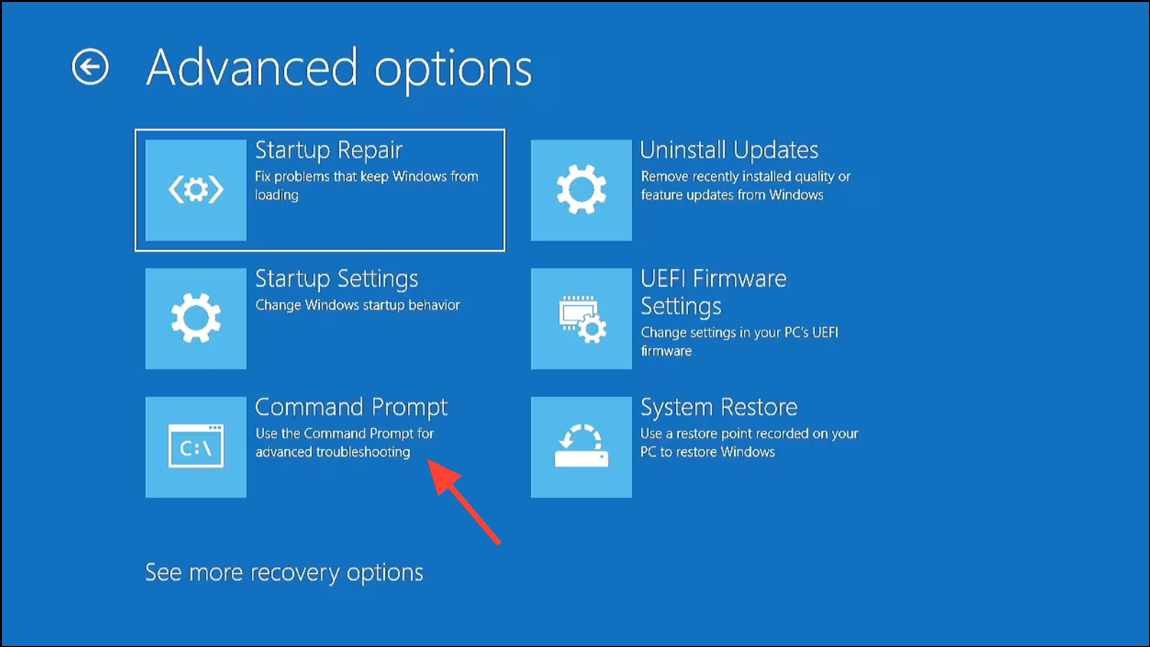
diskpart
list disk
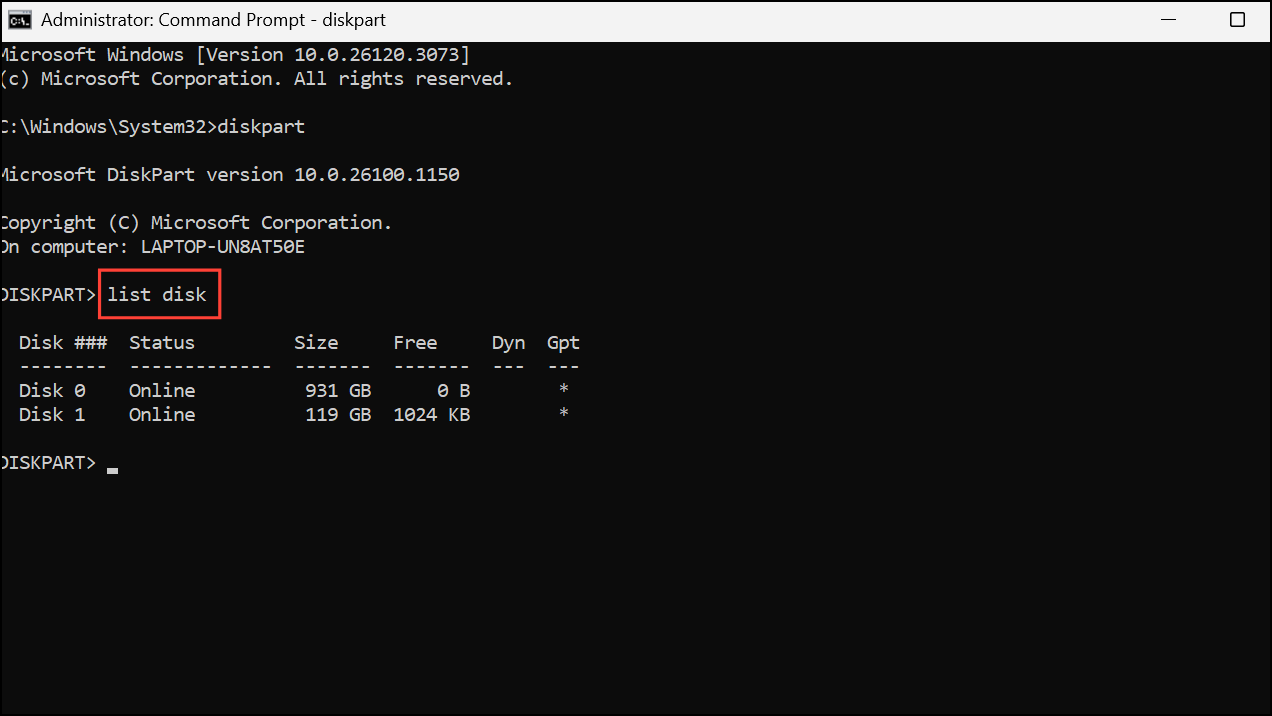
select disk X
Replace X with the number of your target disk.
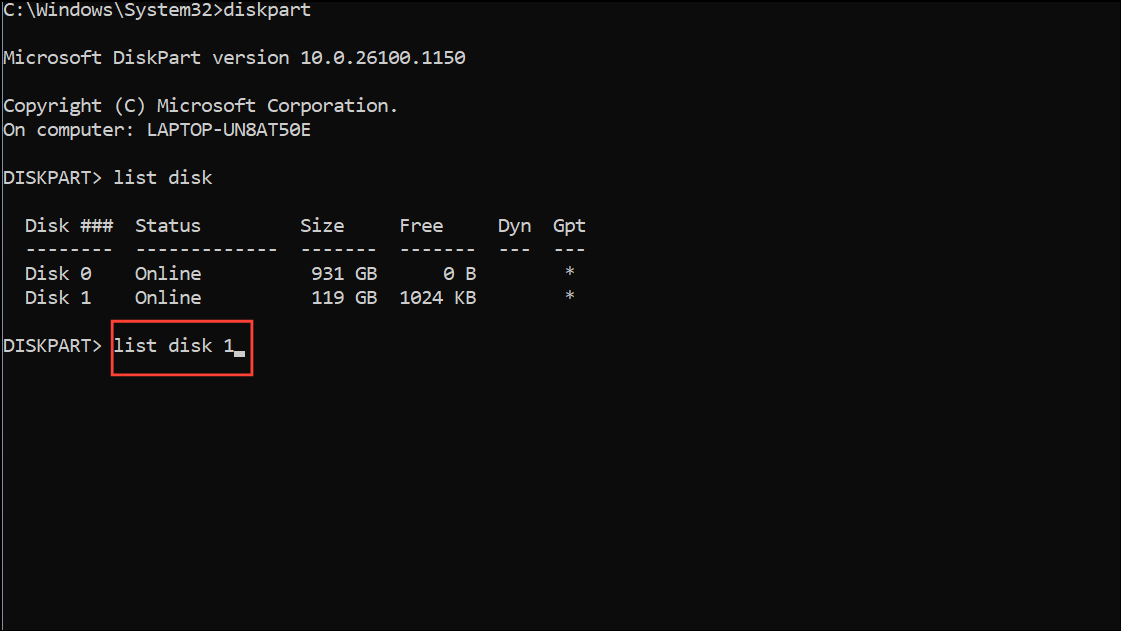
list volume
select volume Y
delete volume
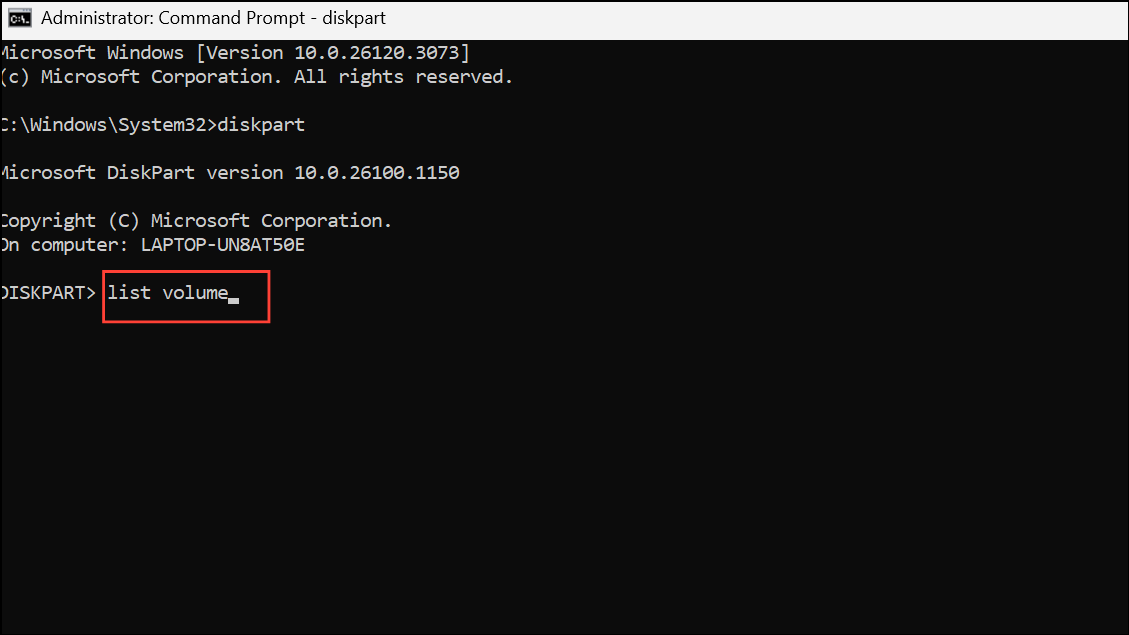
Repeat the select volume and delete volume commands for each volume.
convert basic
Clean the Disk with Diskpart
Residual metadata or partition table errors can prevent successful formatting. The clean command in Diskpart removes all partitions and data, providing a blank slate for Windows Setup. Use this method if deleting partitions through Setup fails or if the disk remains inaccessible.
diskpart
list disk
select disk X
Replace X with the disk number.
clean
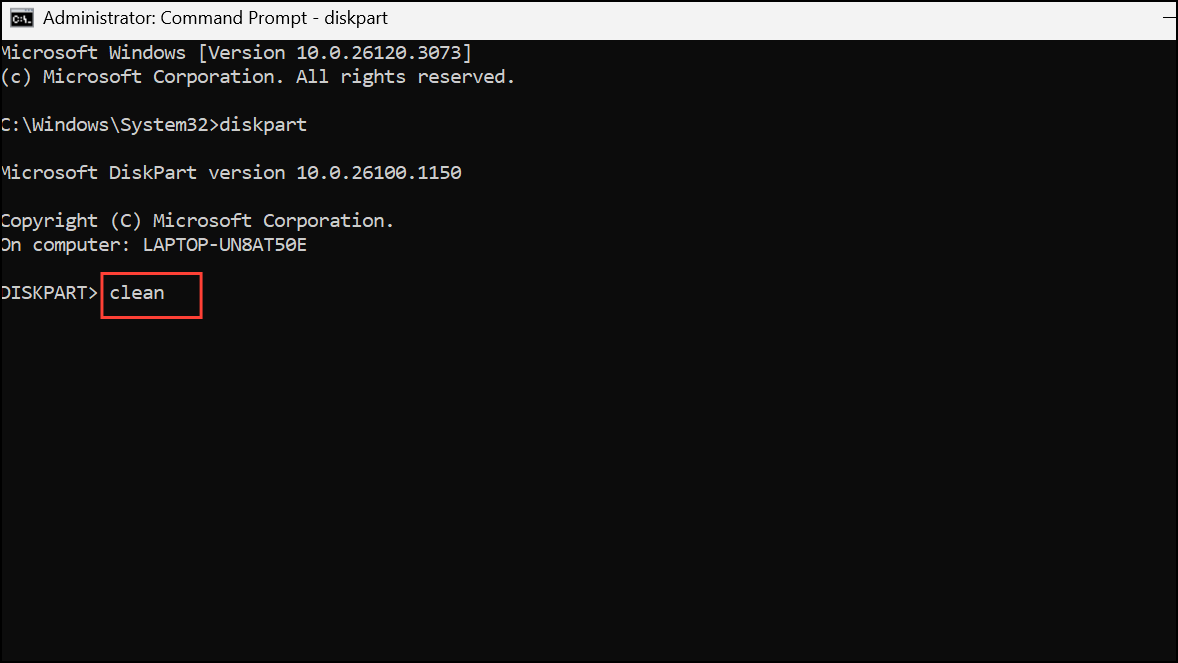
This command erases all partitions and data.
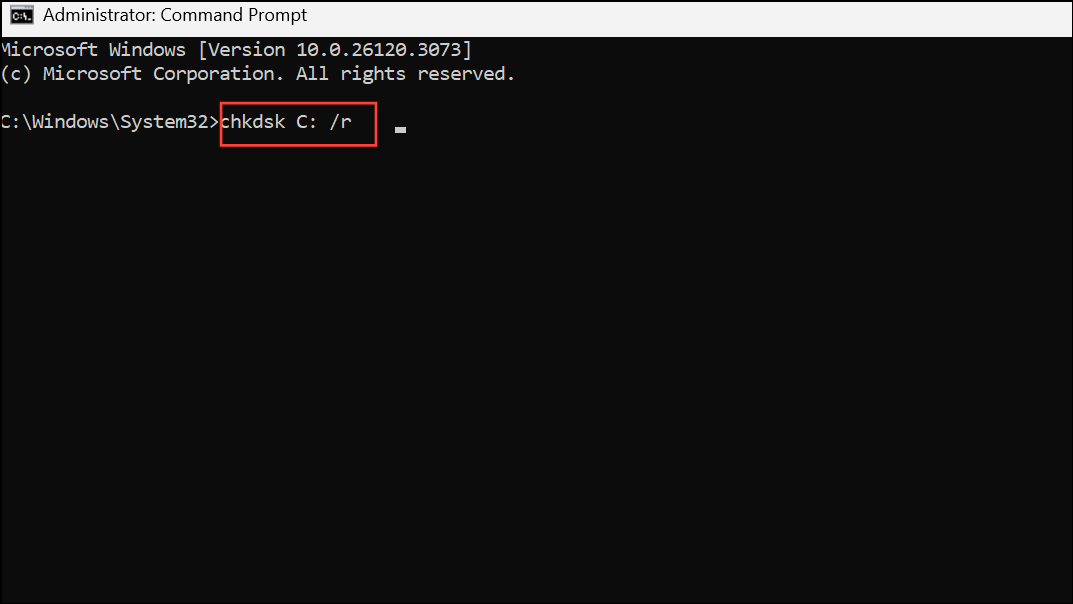
Run CHKDSK to Repair Disk Errors
Bad sectors or file system corruption can block partition formatting. Running the CHKDSK utility detects and repairs logical errors, making the disk usable again. This is especially useful if you suspect physical or logical disk issues.
chkdsk C: /r
Disable UEFI Boot Support in BIOS
Conflicts between UEFI (Unified Extensible Firmware Interface) and legacy BIOS modes can prevent disk formatting, especially if the installation media or disk was prepared using a different boot mode. Disabling UEFI or switching to legacy BIOS mode often resolves compatibility issues.
F2, Del, or Esc).Resolving error 0x8004242d in Windows 11 requires targeted steps based on your disk configuration and system firmware. By deleting partitions, converting disk types, repairing errors, or adjusting BIOS settings, you can restore full access and complete your installation without further interruption.



