
Failed Windows 11 updates accompanied by error code 0x80070005 signal permission issues that prevent the system from installing updates. This error, often labeled as “Access Denied,” can block critical security and feature updates, leaving your device vulnerable and potentially out of compliance. Addressing the root causes—incorrect permissions, corrupt system files, or misconfigured update components—restores update capability and maintains system reliability.
Grant Full Permissions to AppData Folders
Permission errors in the AppData directory can block updates. Assigning full control to your user account or the “Everyone” group ensures Windows Update can access necessary files.
Windows key + R to open the Run dialog, then enter C:\Users\%username%\AppData and press Enter. Replace C: with your Windows installation drive if different.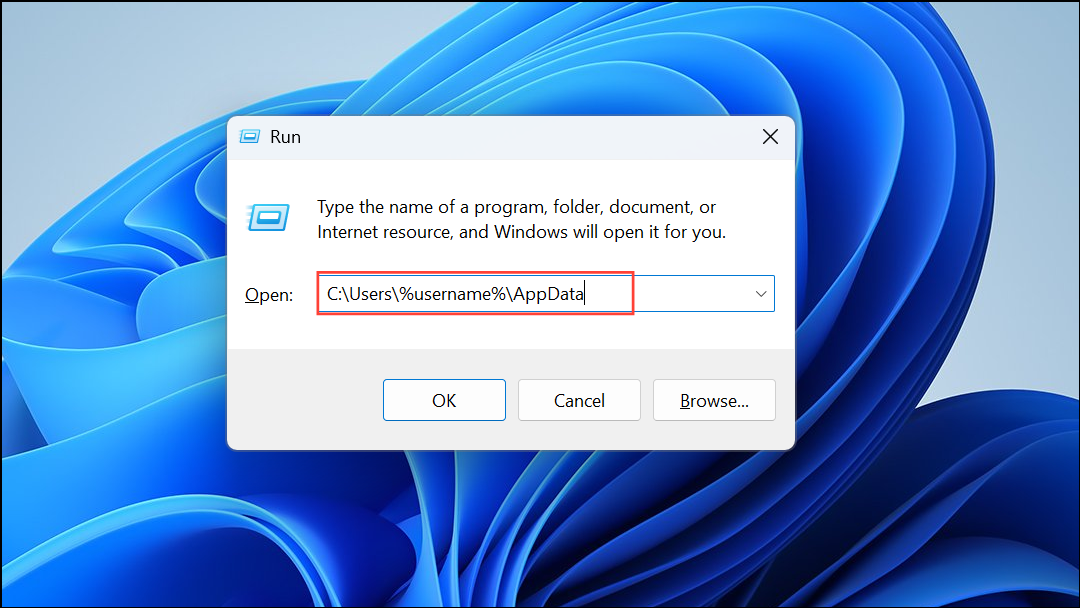
AppData folder and select Properties. Navigate to the Security tab and click Edit….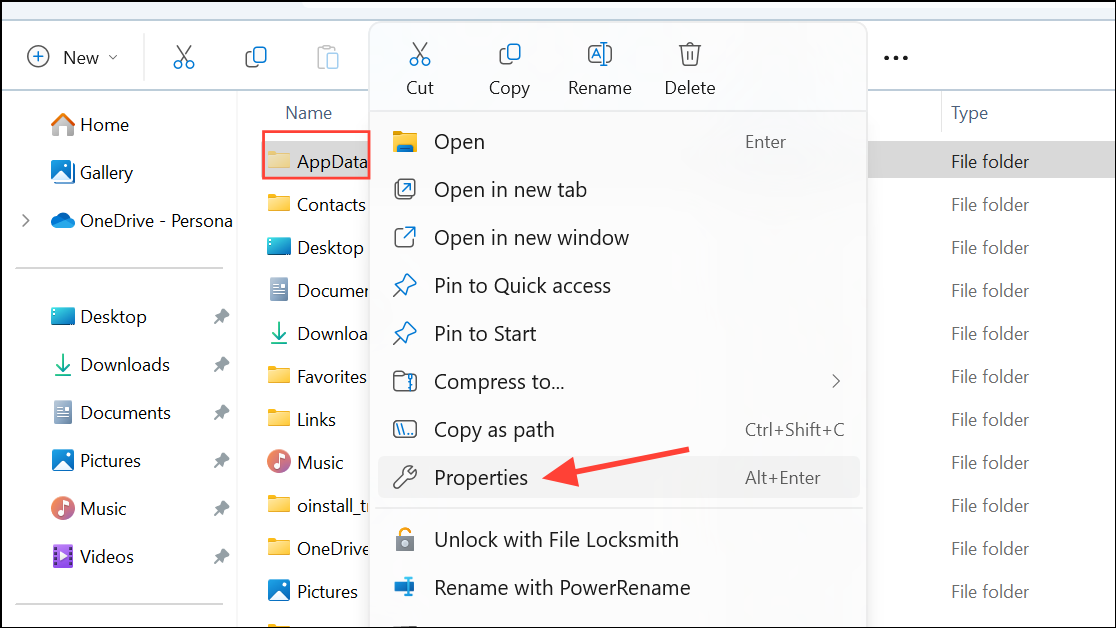
Everyone in the “Enter the object names to select” box, and click Check Names followed by OK.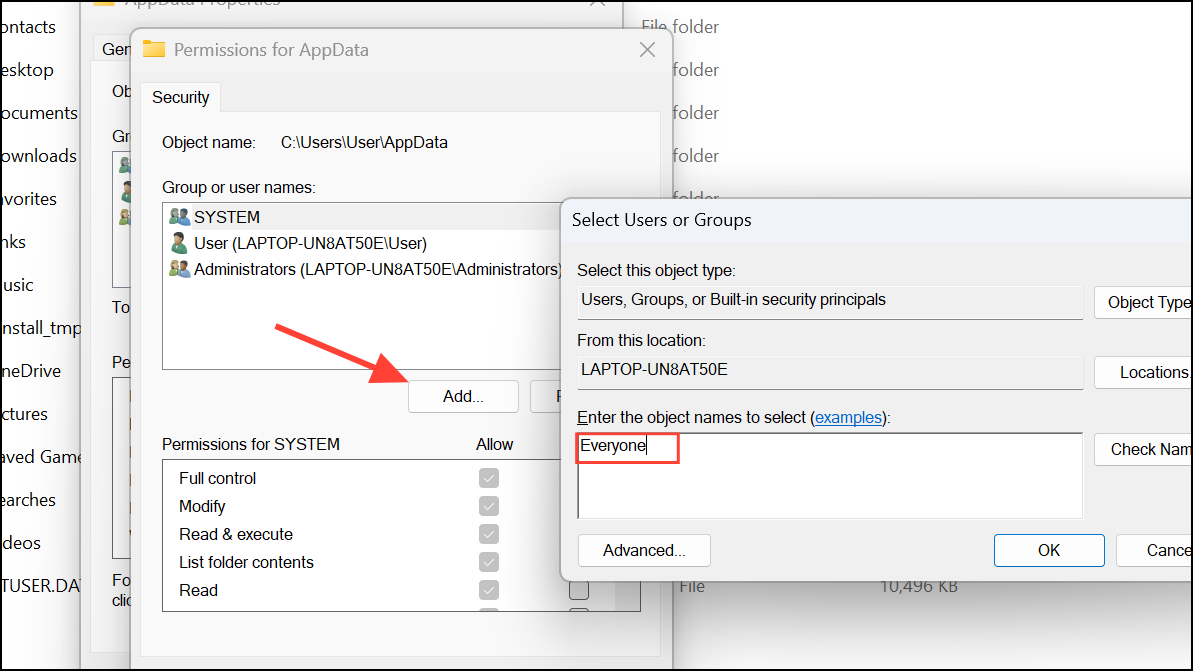
Everyone in the permissions list, check the Full Control box, then click Apply and OK to save changes.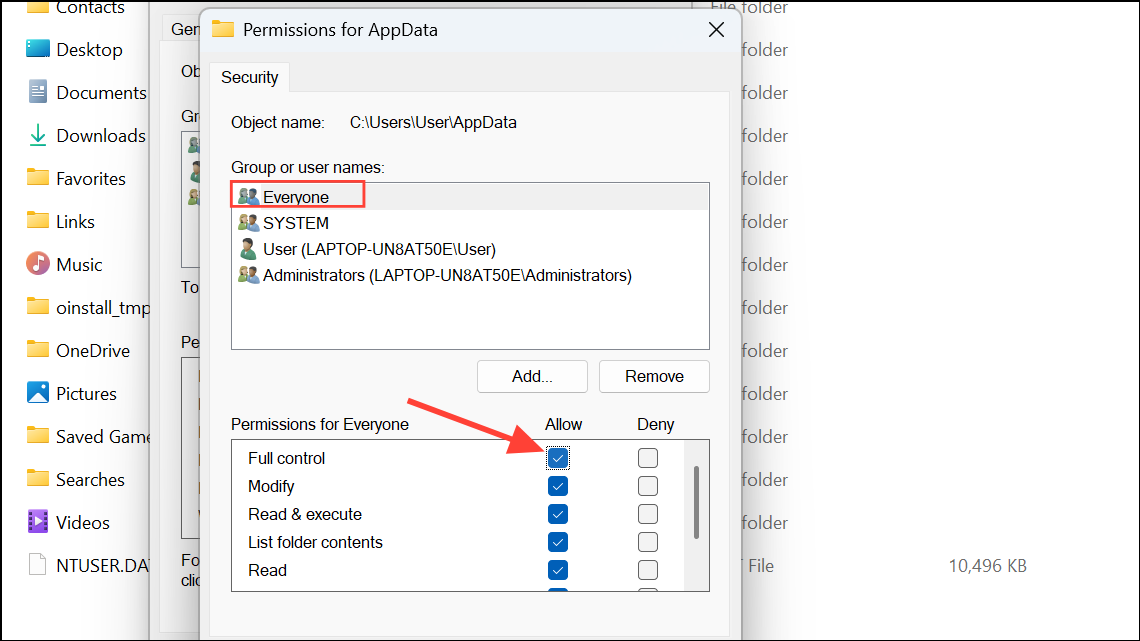
Reset Windows Update Components and Clear SoftwareDistribution
Corrupted update files or stuck update services can trigger error 0x80070005. Resetting the update components and clearing the SoftwareDistribution folder removes problematic files and restarts update services.
Windows key, type cmd, right-click Command Prompt, and select Run as administrator.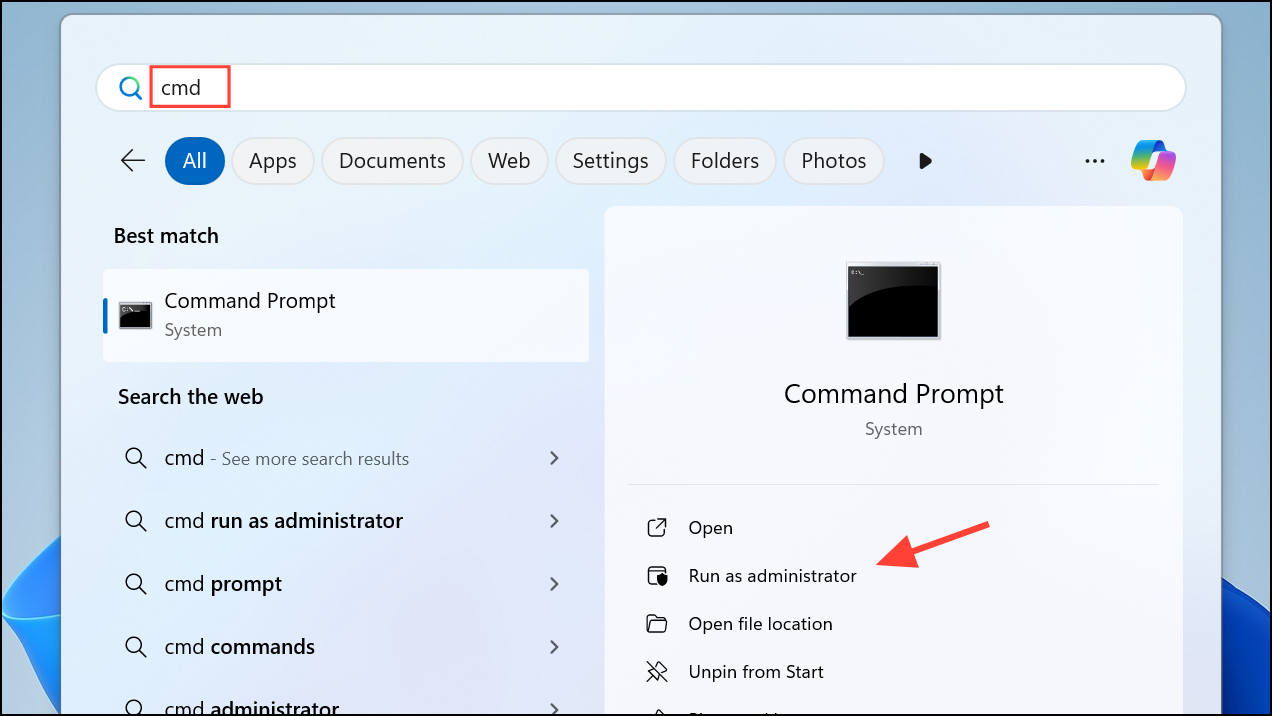
net stop wuauserv
net stop cryptSvc
net stop bits
net stop msiserver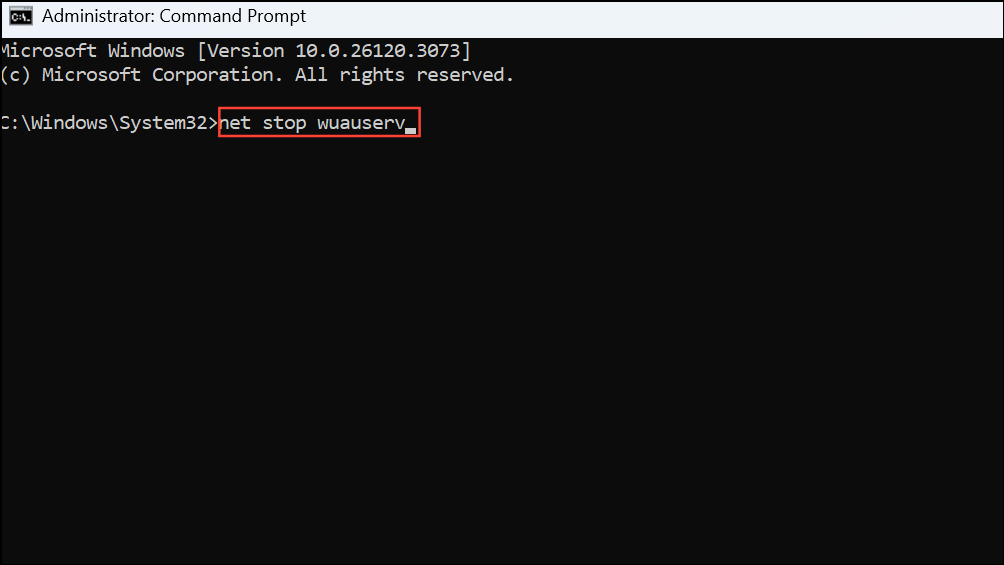
ren C:\Windows\SoftwareDistribution SoftwareDistribution.old
ren C:\Windows\System32\catroot2 catroot2.old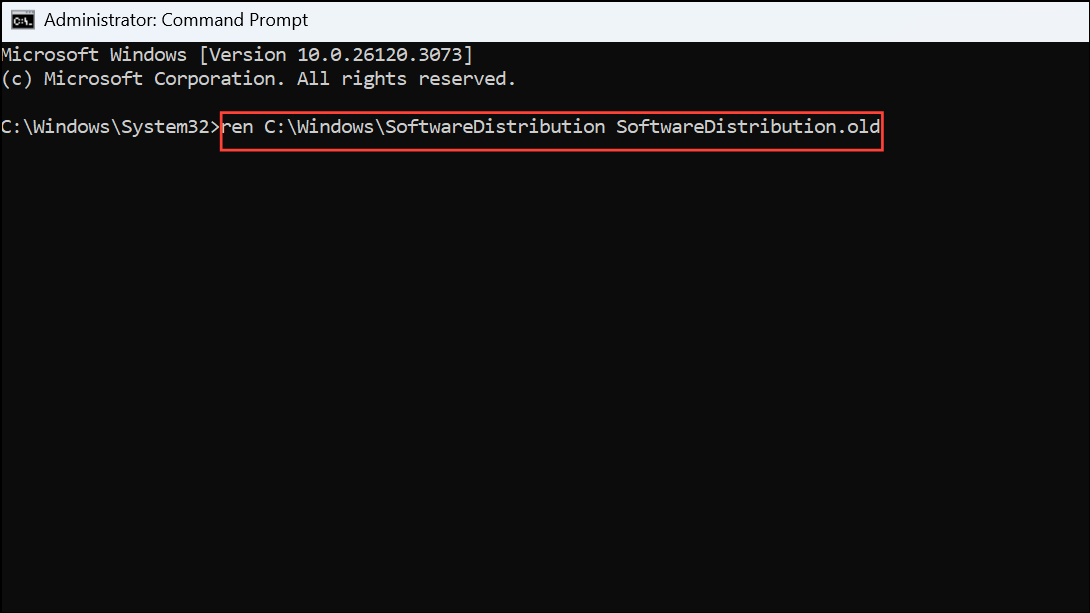
net start wuauserv
net start cryptSvc
net start bits
net start msiserver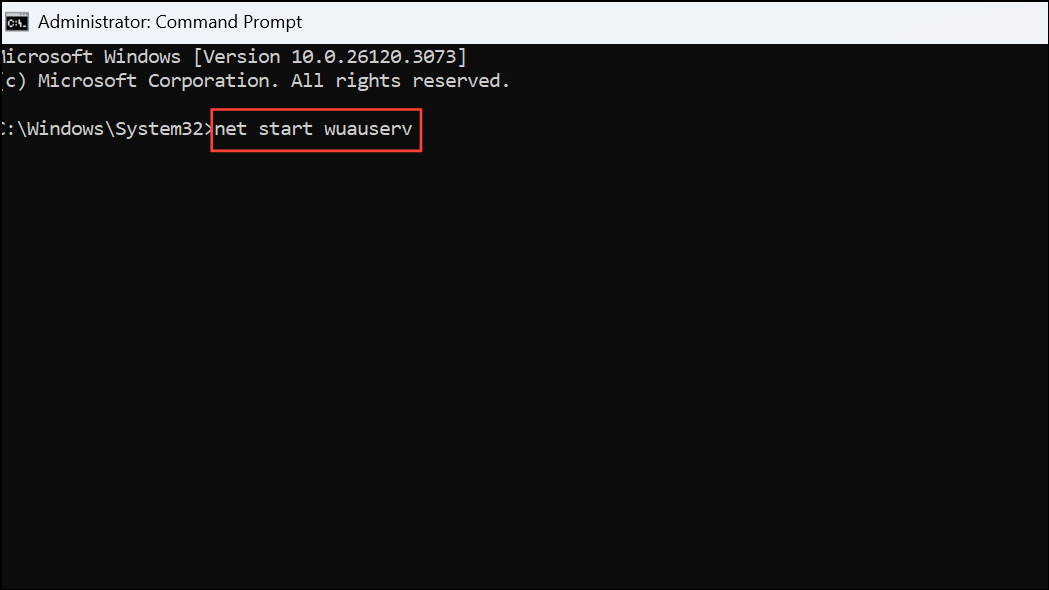
Repair System Files with DISM and SFC
Corrupt system files can interrupt update processes. Deployment Image Servicing and Management (DISM) and System File Checker (SFC) utilities restore missing or damaged files, improving update reliability.
DISM.exe /Online /Cleanup-Image /ScanHealth
DISM.exe /Online /Cleanup-Image /CheckHealth
DISM.exe /Online /Cleanup-Image /RestoreHealth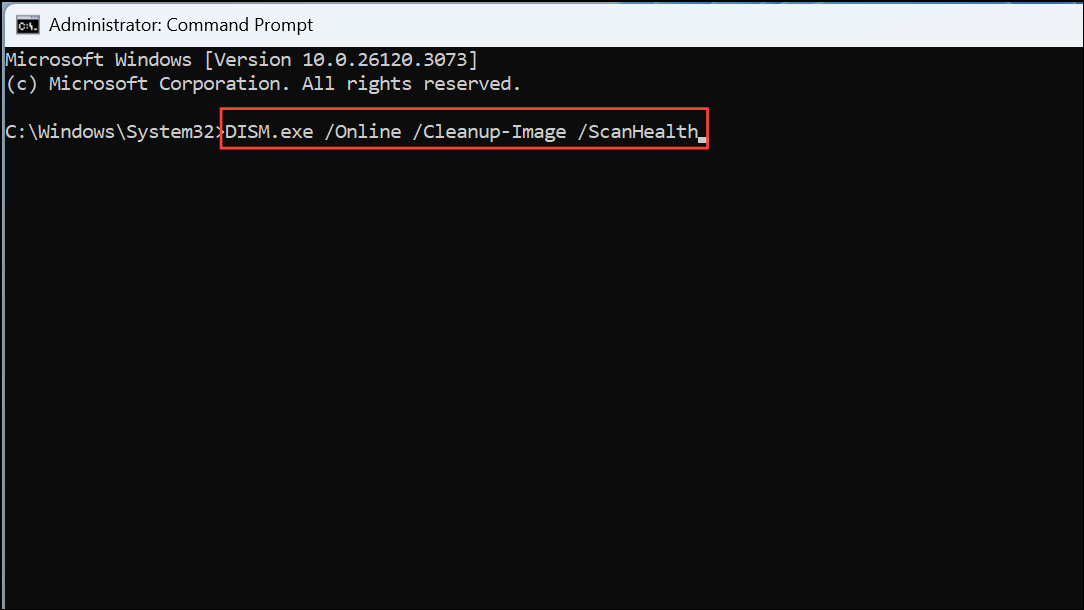
sfc /scannow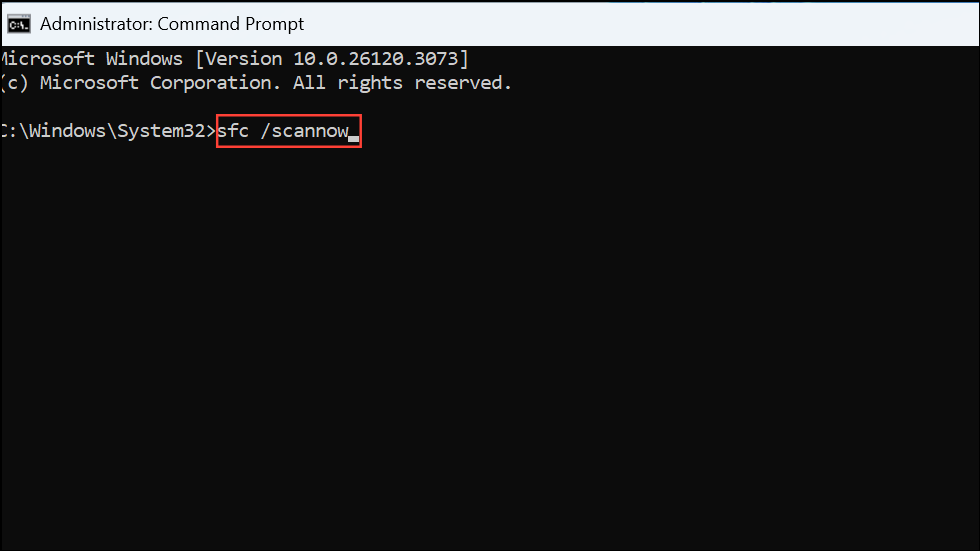
Adjust TrustedInstaller Permissions in the Registry
Windows updates rely on the TrustedInstaller service for access to protected system resources. If permissions are misconfigured, updates may fail with access denied errors. Granting full permissions to TrustedInstaller on the relevant registry keys can fix this.
Set OSBIT=32
IF exist "%ProgramFiles(x86)%" set OSBIT=64
set RUNNINGDIR=%ProgramFiles%
IF %OSBIT% == 64 set RUNNINGDIR=%ProgramFiles(x86)%
subinacl /subkeyreg "HKEY_LOCAL_MACHINE\SOFTWARE\Microsoft\Windows\CurrentVersion\Component Based Servicing" /grant="nt service\trustedinstaller"=f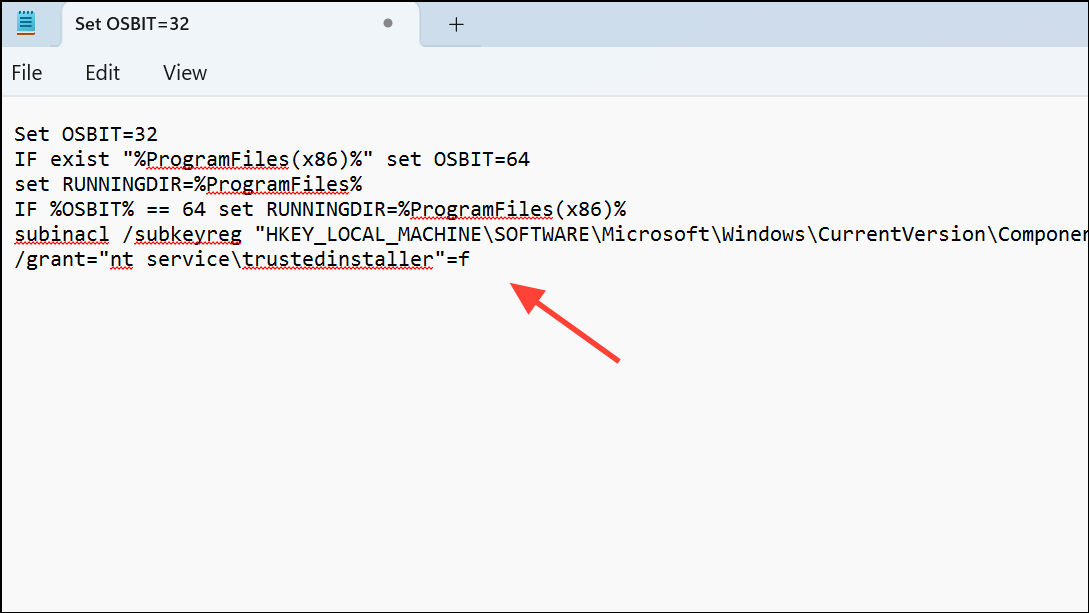
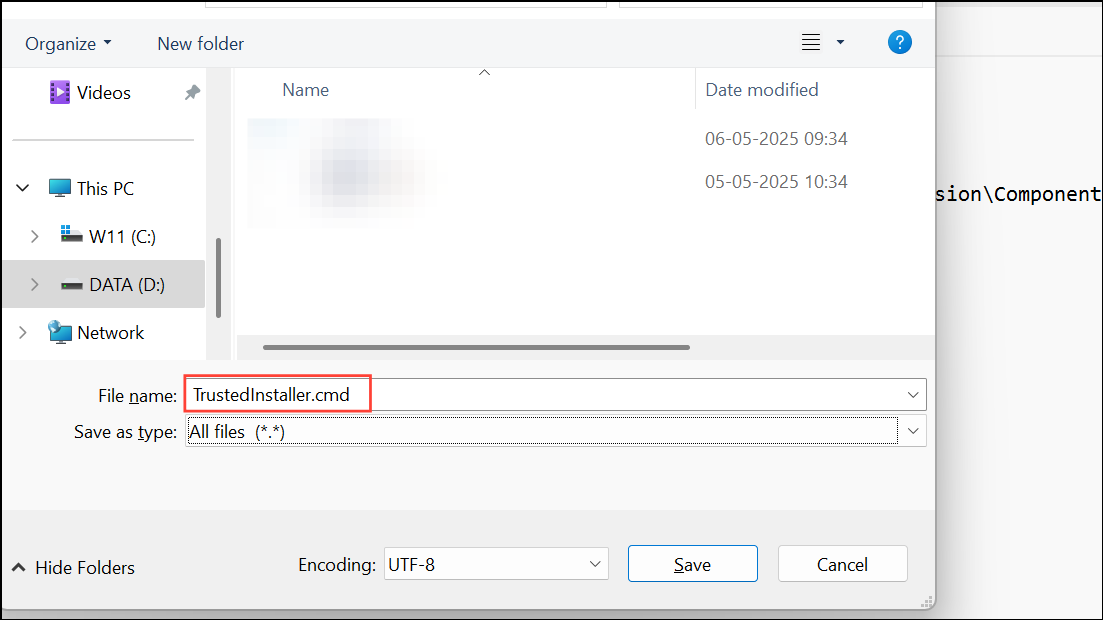
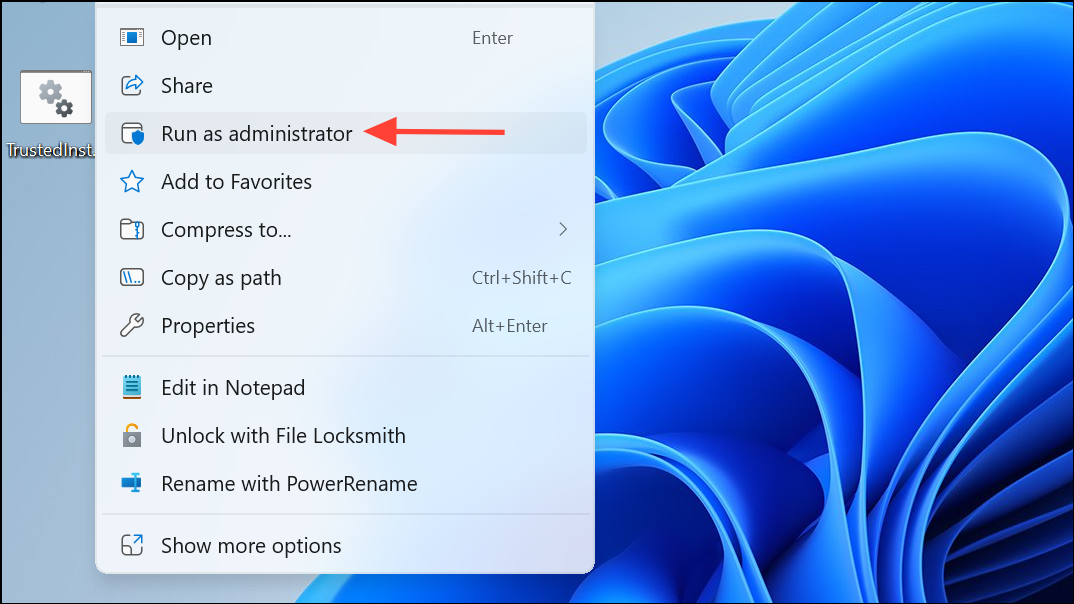
subinacl tool may need to be downloaded if not already installed on your system. It is available from archived Microsoft resources or trusted third-party sites. Always scan any downloads for malware before running.Run the Windows Update Troubleshooter
The built-in Windows Update Troubleshooter automatically detects and resolves many common update issues, including permission problems and service misconfigurations.
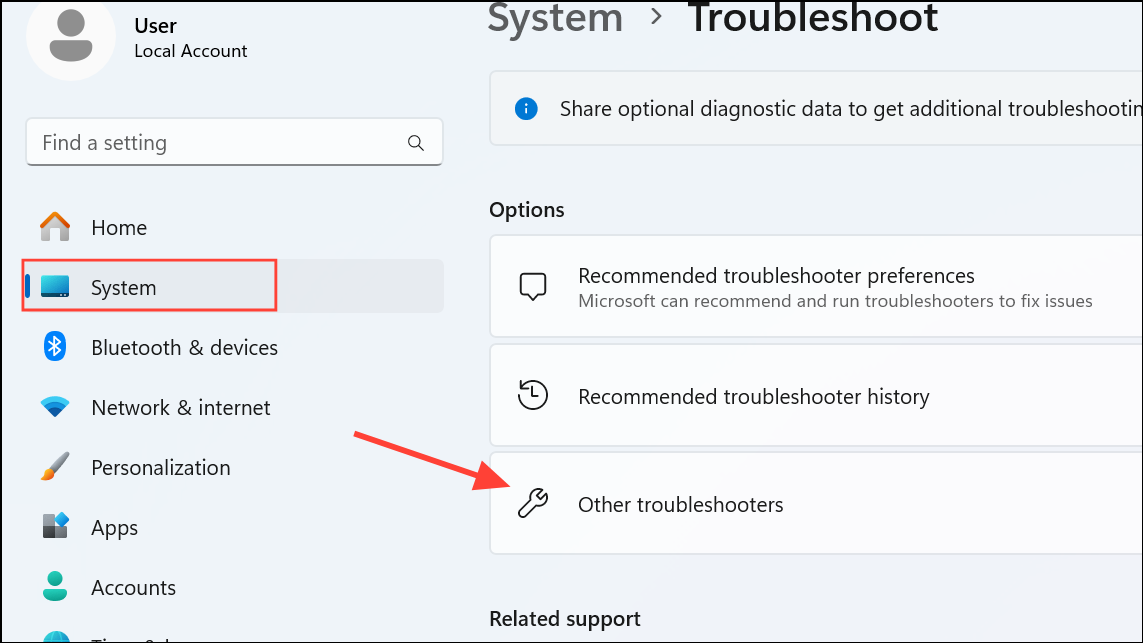
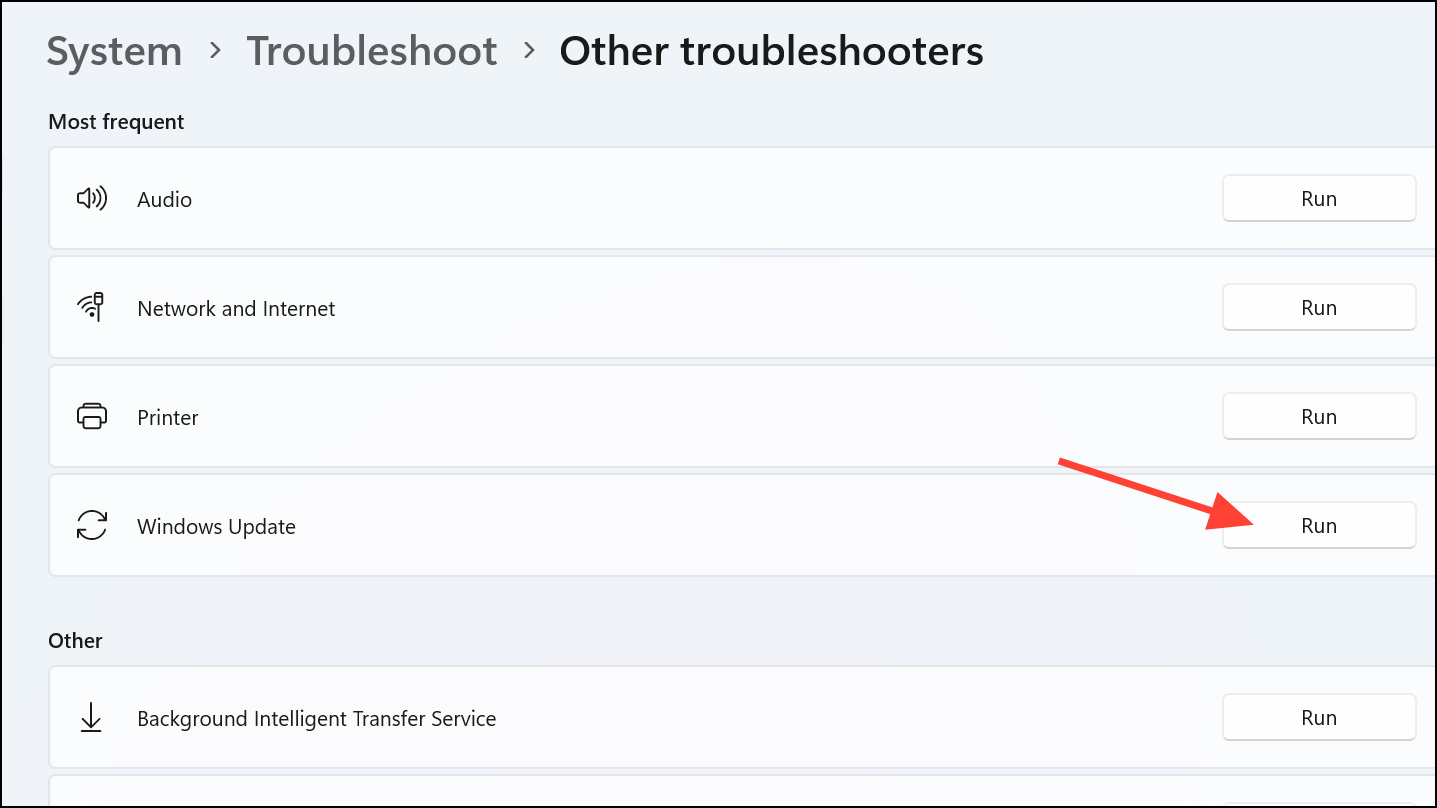
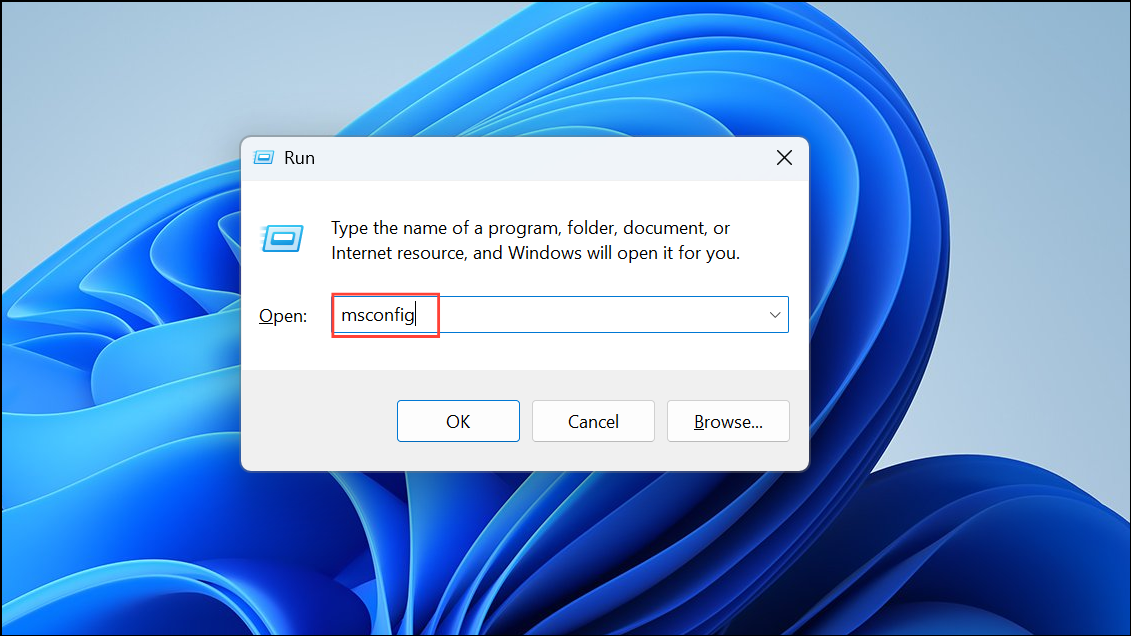
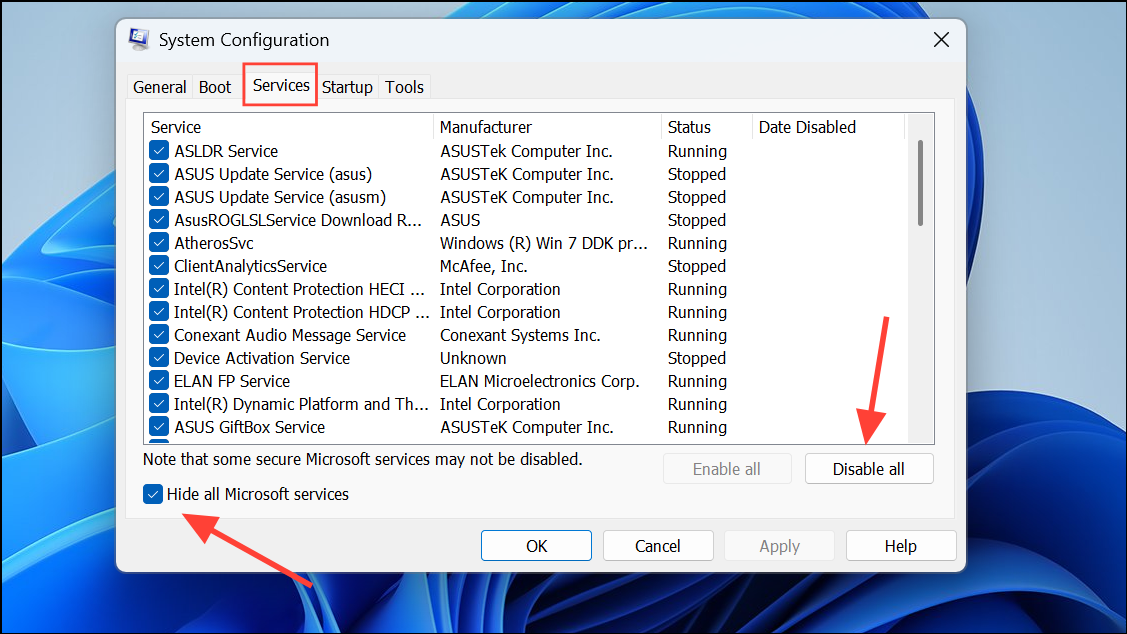
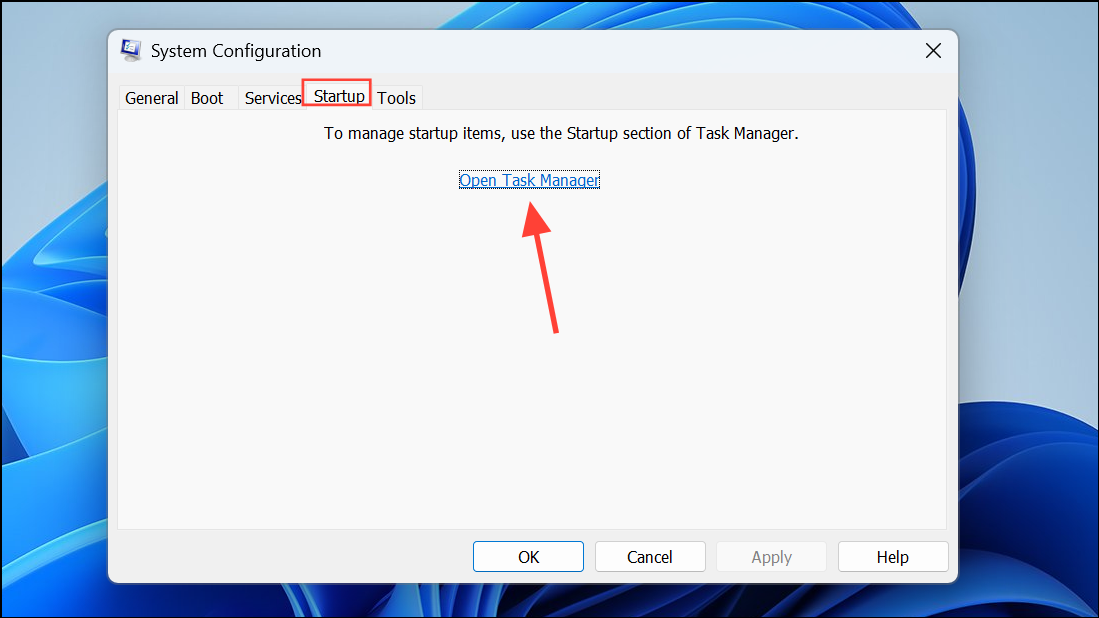
Perform a Clean Boot to Isolate Software Conflicts
Third-party software, especially antivirus programs or system utilities, can interfere with Windows Update. A clean boot starts Windows with only essential services and drivers, helping to identify or bypass conflicting software.
Check Firewall and Antivirus Settings
Overly strict firewall or antivirus settings can block update processes. Temporarily disabling your antivirus or allowing the svchost.exe process through the firewall can restore update access.
svchost.exe through the firewall, search for Firewall & network protection in the Start menu.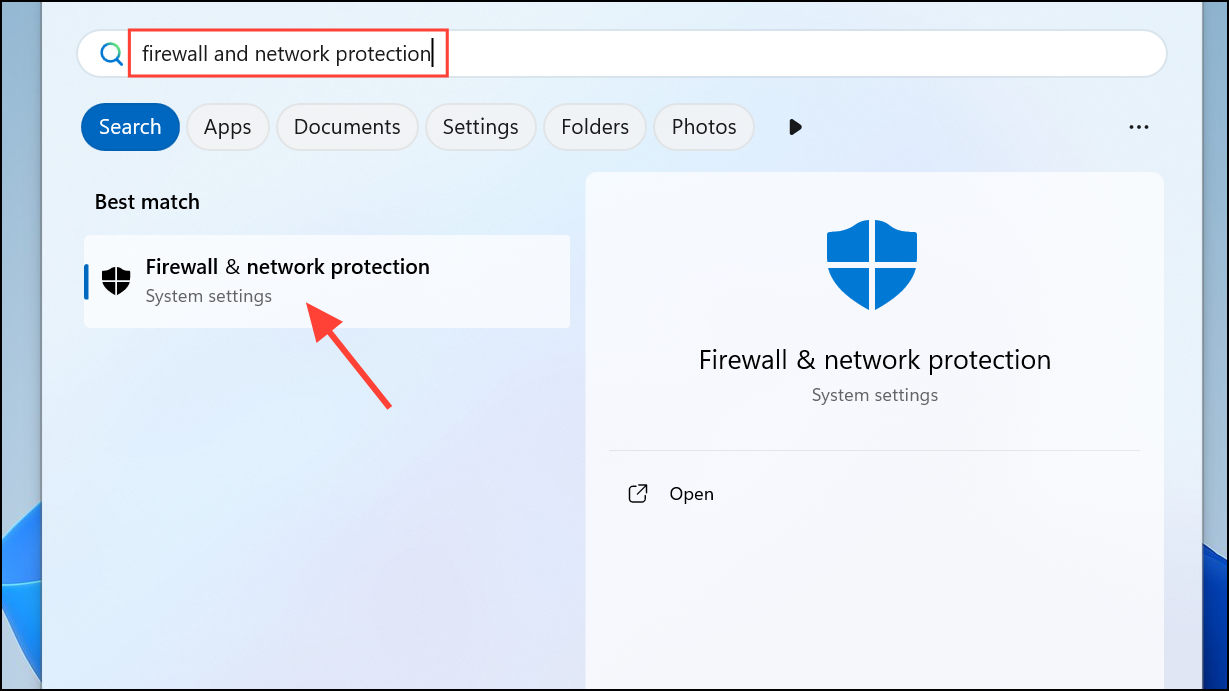
svchost.exe from C:\Windows\System32. Ensure both Private and Public boxes are checked.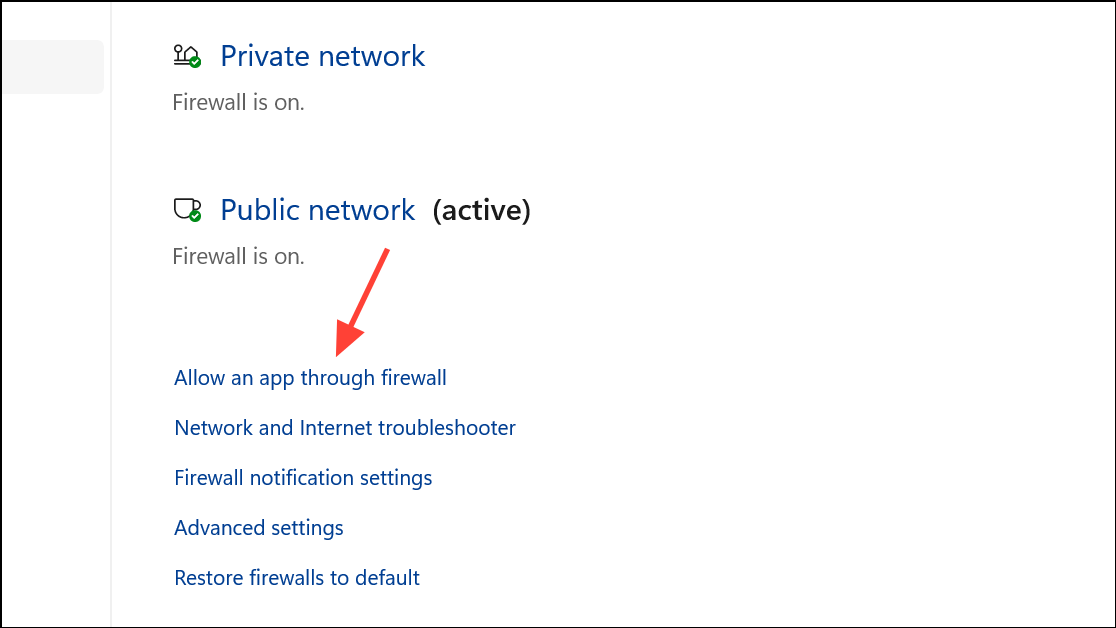
Run an In-Place Upgrade as a Last Resort
If all previous methods fail, performing an in-place upgrade reinstalls Windows 11 while keeping your files and applications intact. This method repairs system files, resets permissions, and resolves persistent update issues.
Resolving error 0x80070005 on Windows 11 restores update functionality and strengthens system security. Regularly checking permissions and keeping third-party software up to date reduces the risk of future update failures.



