
Unexpected system slowdowns and failed updates often trace back to error 0x8007045A, commonly accompanied by the message ERROR_DLL_INIT_FAILED. This issue interrupts essential Windows 11 operations, typically surfacing during Windows Update or when launching specific programs. The root cause usually lies in corrupted or missing DLL files, particularly those related to Microsoft XML Core Services (MSXML). Addressing this error promptly prevents further system instability and potential data loss.
Run DISM and SFC Scans to Repair System Files
Corrupted or missing system files frequently trigger error 0x8007045A. Windows 11 provides built-in tools—Deployment Image Servicing and Management (DISM) and System File Checker (SFC)—to identify and restore these files.
Windows + S. Type Command Prompt, right-click the result, and choose Run as administrator.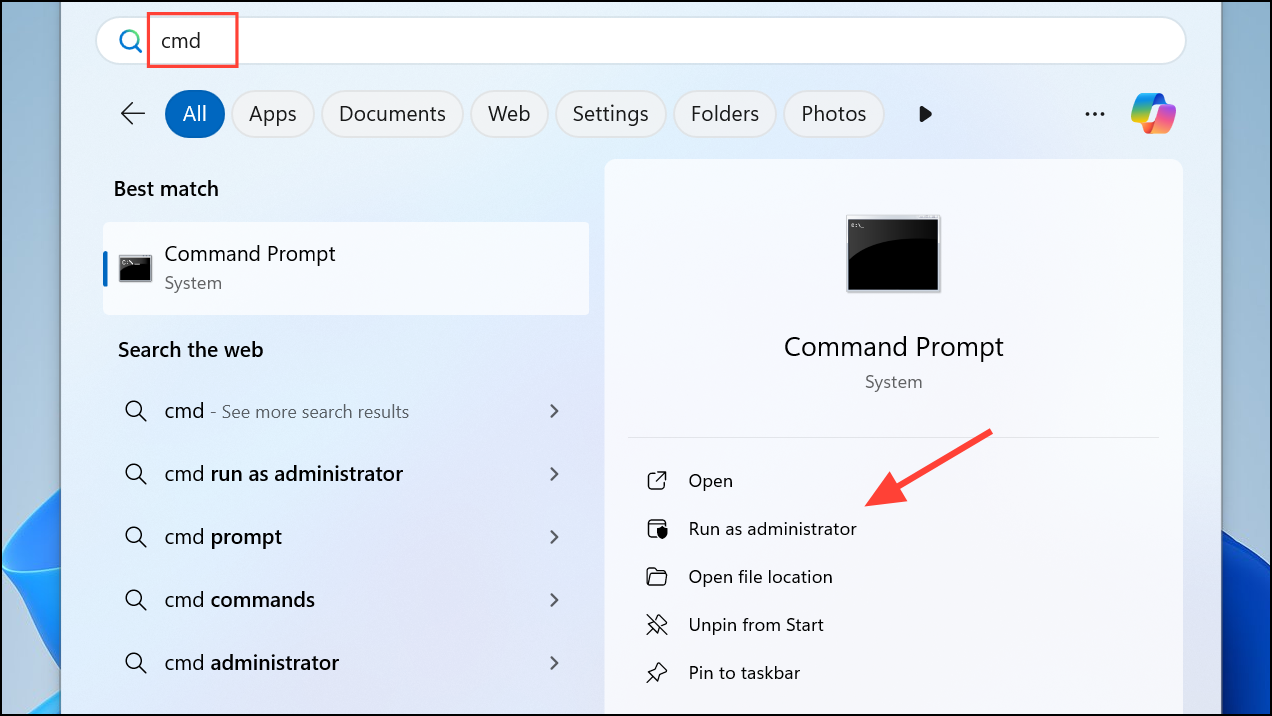
dism /online /cleanup-image /restorehealth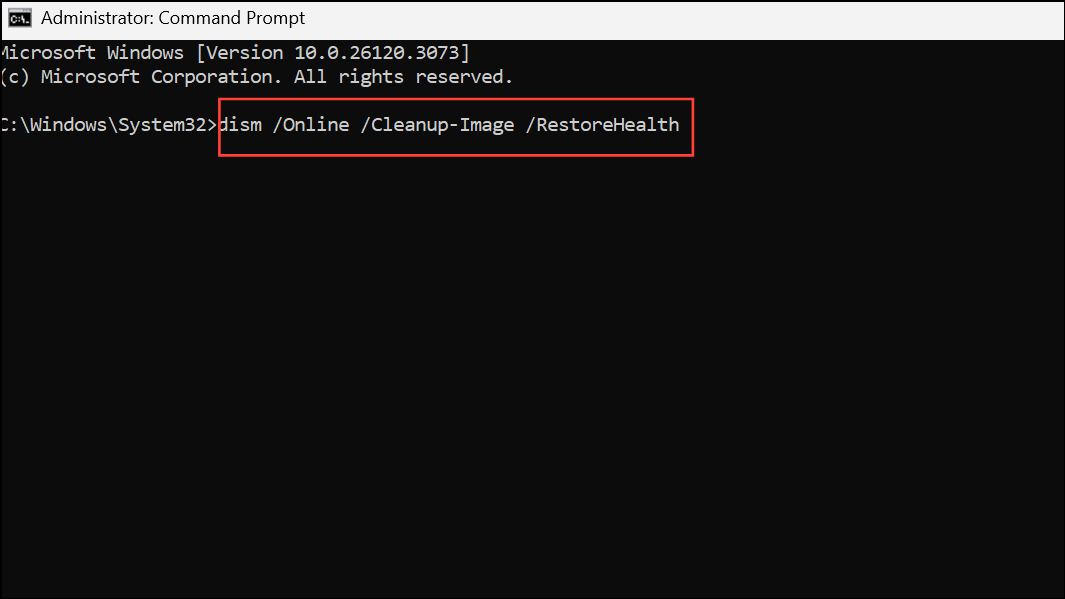
This command checks the Windows image for corruption and initiates repairs as needed. The process may take several minutes.
sfc /scannow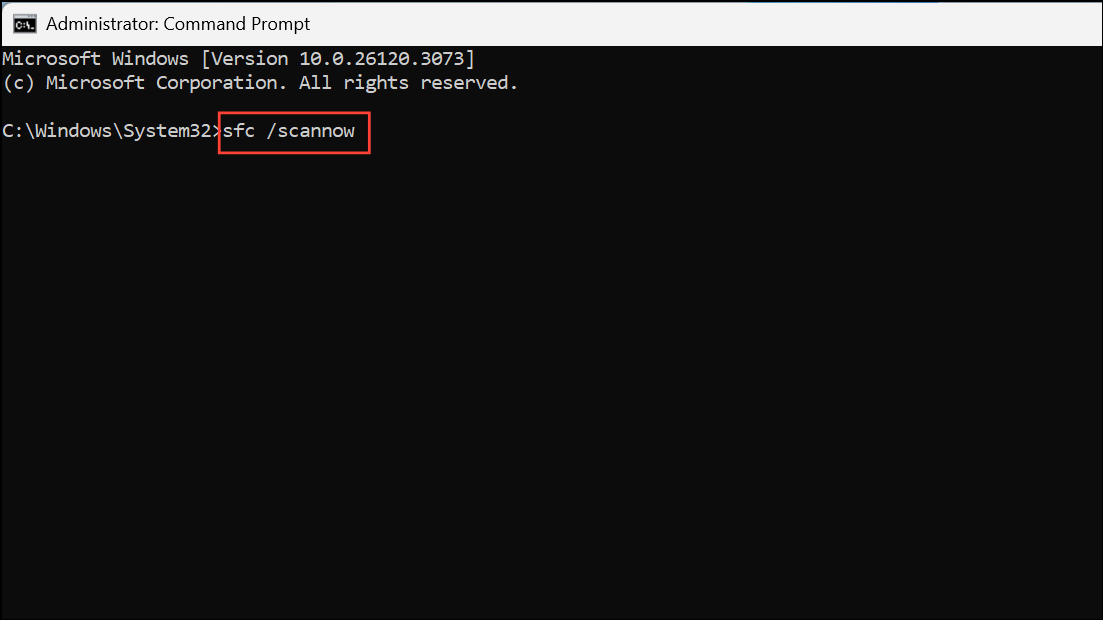
SFC scans all protected system files and replaces any corrupted or missing ones with the correct versions. Wait for the scan to finish.
Re-Register and Replace Damaged MSXML DLL Files
MSXML DLL files, such as msxml3.dll and msxml6.dll, are vital for Windows Update and other system processes. If these files are corrupted or missing, manually re-registering or replacing them can resolve initialization errors.
msxml3.dllmsxml3a.dllmsxml3r.dllmsxml6.dllmsxml6r.dll
Copy these files into C:\Windows\System32 on your affected PC. Overwrite only if the files are confirmed to be corrupted and you have backups.
Enter:regsvr32 C:\Windows\System32\msxml3.dll
regsvr32 C:\Windows\System32\msxml3a.dll
regsvr32 C:\Windows\System32\msxml3r.dll
regsvr32 C:\Windows\System32\msxml6.dll
regsvr32 C:\Windows\System32\msxml6r.dll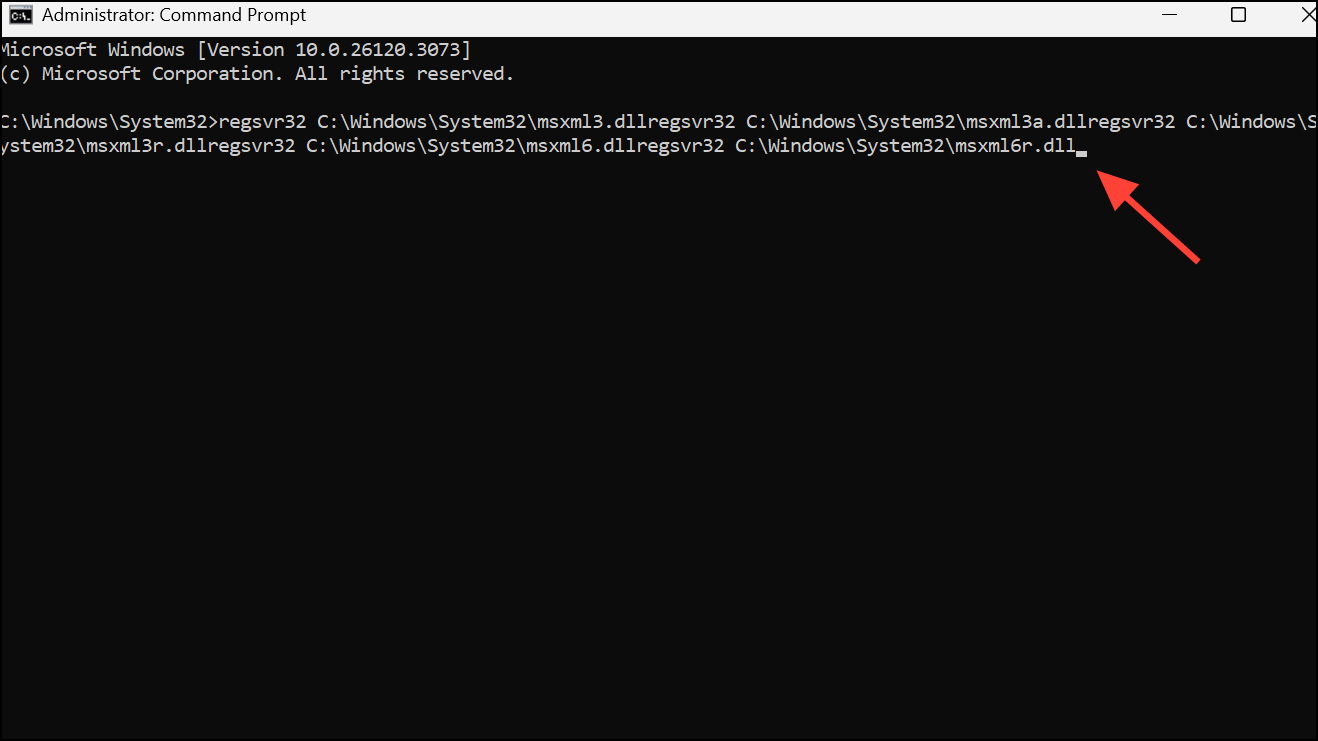
Repeat for each file. Successful registration will display a confirmation message.
Update the Microsoft XML Parser
Outdated or faulty Microsoft XML Core Services can cause initialization errors. Upgrading to the latest version ensures compatibility and stability.
Scan for Malware and Remove Faulty Software
Malware infections or incompatible third-party programs can corrupt DLL files and disrupt system processes. Performing regular scans and managing installed applications helps maintain system integrity.
Settings > Apps > Installed apps. Confirm removal and restart your PC.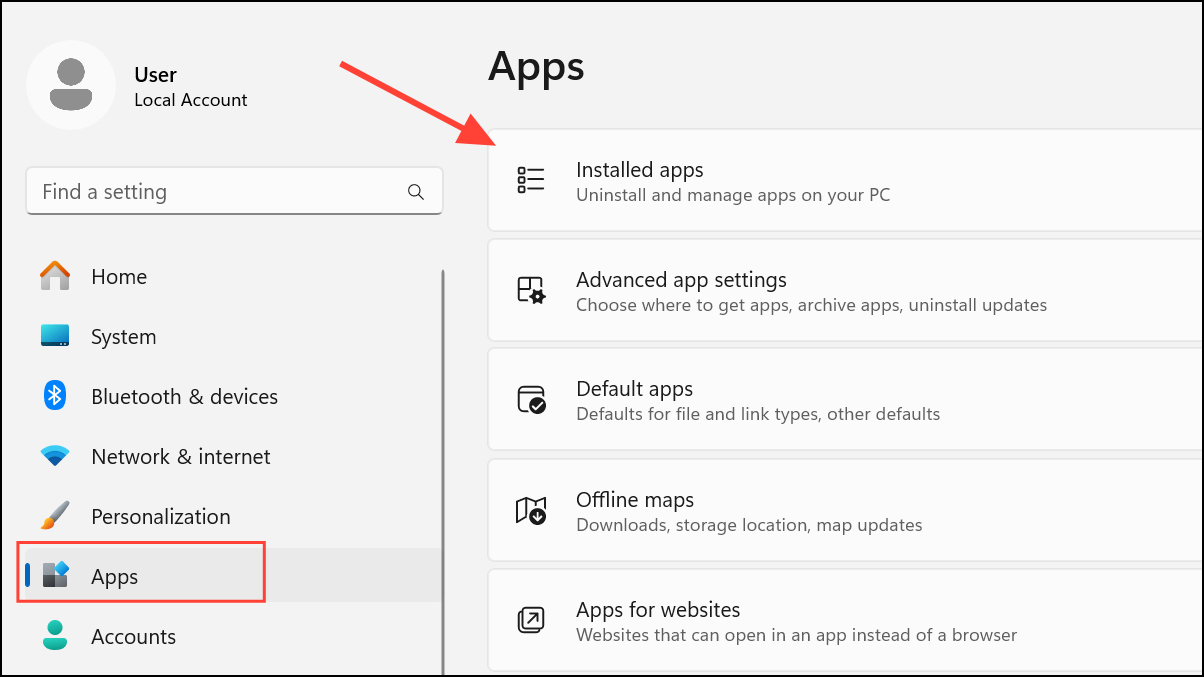
Restore System Using a Previous Restore Point
If the error began after a recent system change, such as a software installation or Windows update, restoring your computer to an earlier state may resolve the problem.
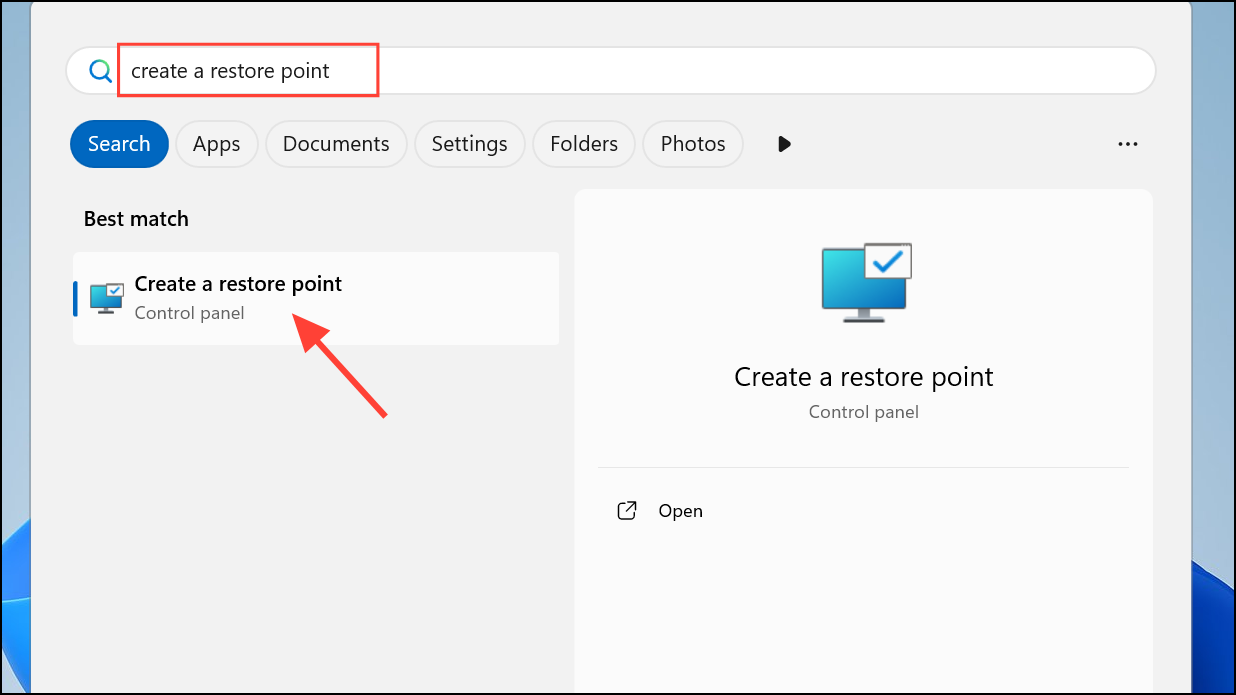
System Restore. Choose a restore point dated before the error appeared and follow prompts to complete the process. Your PC will restart during restoration.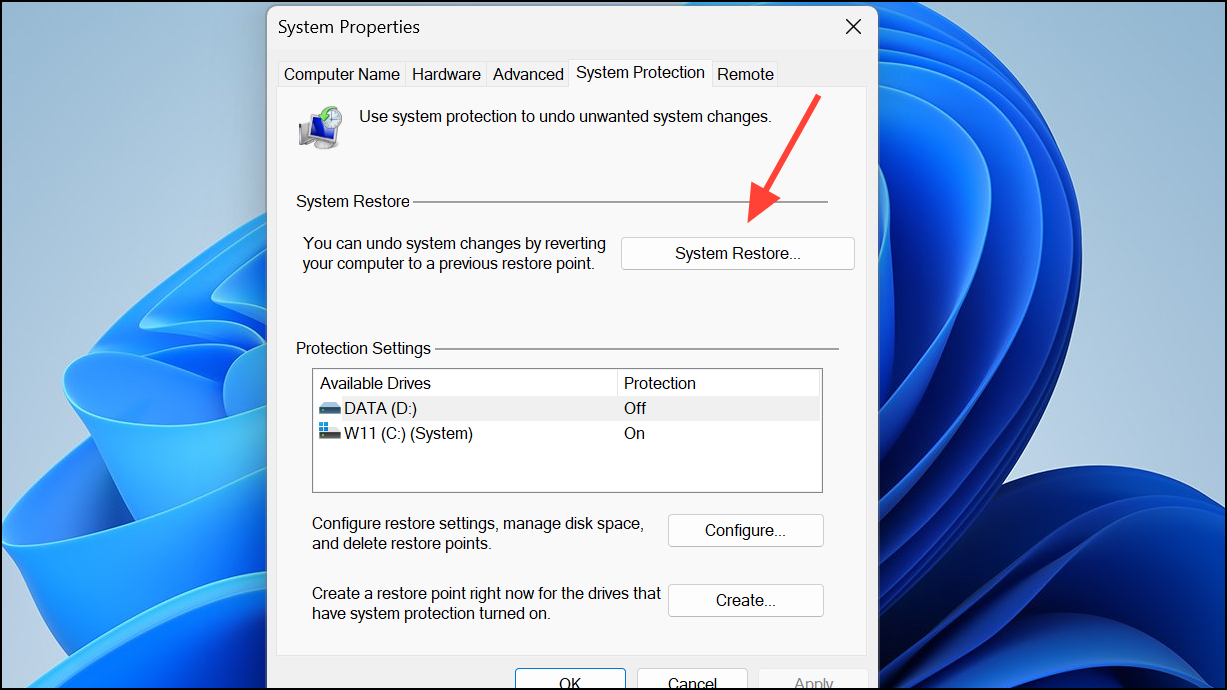
After restoration, check if error 0x8007045A is resolved. Note that apps installed after the restore point may need to be reinstalled.
Addressing error 0x8007045A in Windows 11 often involves repairing system files, updating or re-registering DLLs, and ensuring your system is free from malware. Regular backups and keeping Windows updated help prevent future occurrences.



