

Repeated Windows Update failures or blue screen loops often point to error code 0x8007139f on Windows 11 systems. This error can disrupt essential functions such as system updates, security scans, email access, and even prevent normal startup. Addressing the root causes—ranging from system file corruption to software conflicts—restores critical operations and prevents recurring problems.
Run Startup Repair for Boot Loop or Blue Screen
When Windows 11 is stuck in a blue screen loop and displays error code 0x8007139f, Startup Repair in the Windows Recovery Environment (WinRE) can resolve system corruption and restore normal startup.
F11 (or Shift + F8 on some devices) repeatedly until the recovery screen appears. Alternatively, after three interrupted startups, Windows should automatically boot into WinRE.Troubleshoot, then Advanced options, and choose Startup Repair. Click Restart to begin the repair process. Windows will scan for startup issues and attempt to fix them automatically.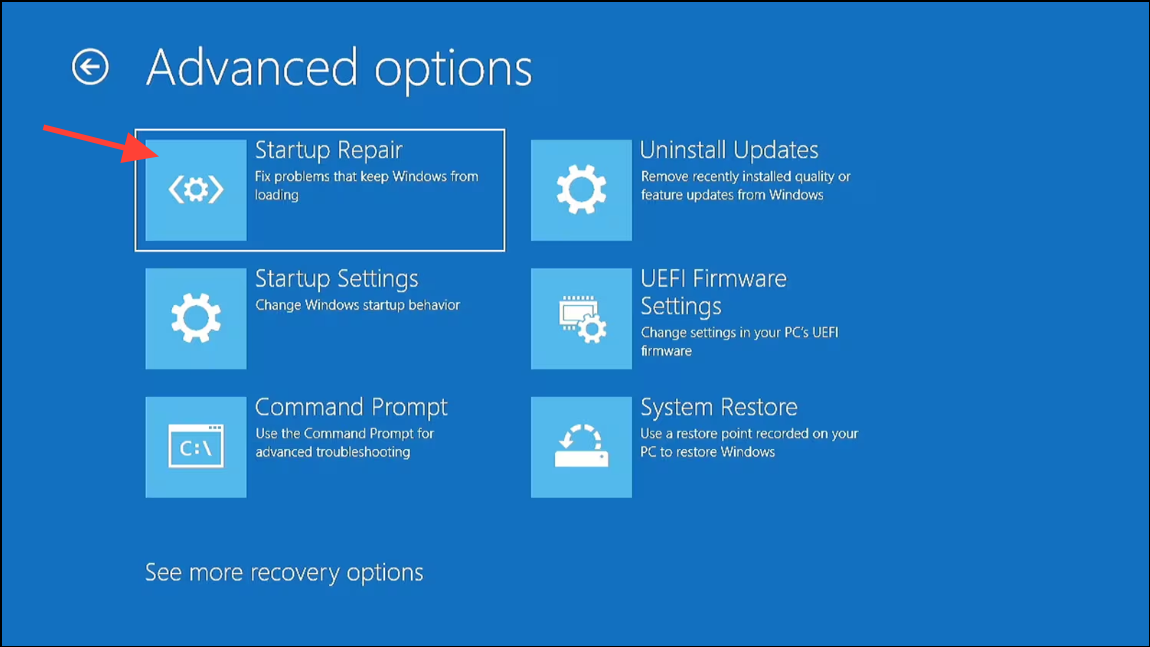
Startup Repair targets issues such as missing or damaged system files, corrupted boot configuration, and other problems that prevent Windows from starting. If Startup Repair completes successfully, your system should boot normally. If the loop persists, consider additional recovery options like System Restore or a clean Windows installation.
Disable or Remove Third-Party Antivirus Software
Conflicts between third-party antivirus programs and the built-in Windows Defender frequently cause error 0x8007139f, especially during updates or security scans. Disabling or uninstalling non-Microsoft antivirus software often resolves these conflicts.
Settings > Apps > Installed apps (or Apps & features), find your antivirus in the list, select it, and click Uninstall. Follow on-screen instructions to complete removal. Restart your PC afterward.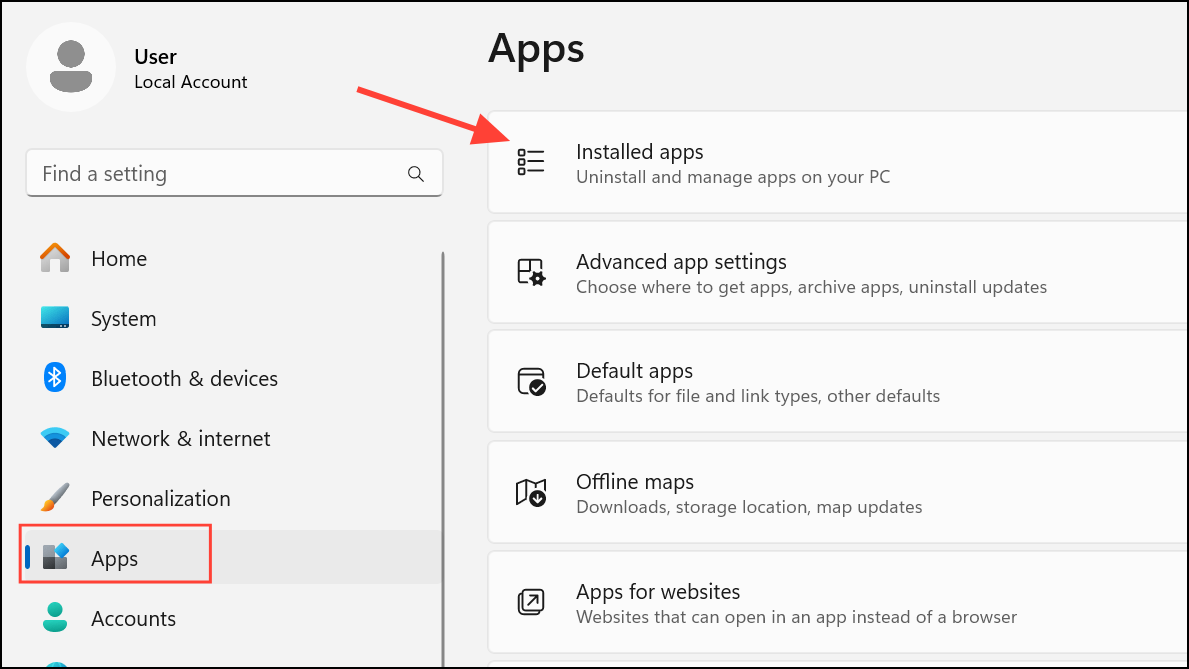
Windows Defender will automatically activate if no other antivirus is installed, maintaining baseline protection. If you prefer, you can reinstall the antivirus after confirming the error is resolved, or switch to a different security solution that doesn’t conflict with system updates.
Reset Windows Update Components
Corrupted Windows Update components can block updates and trigger error 0x8007139f. Resetting these components clears update caches and re-registers essential services.
Command Prompt as administrator by typing cmd in the Start menu, right-clicking Command Prompt, and choosing Run as administrator.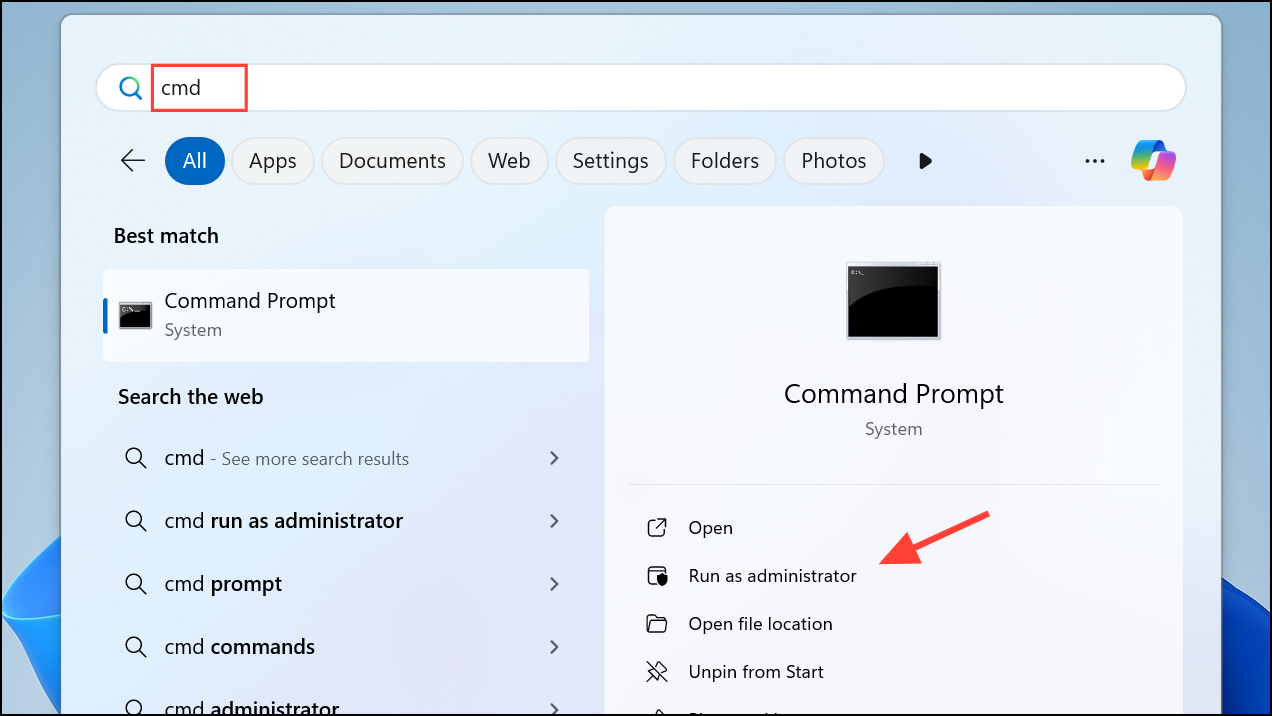
net stop wuauserv
net stop cryptSvc
net stop bits
net stop msiserver
ren C:\Windows\SoftwareDistribution SoftwareDistribution.old
ren C:\Windows\System32\catroot2 Catroot2.old
net start wuauserv
net start cryptSvc
net start bits
net start msiserver
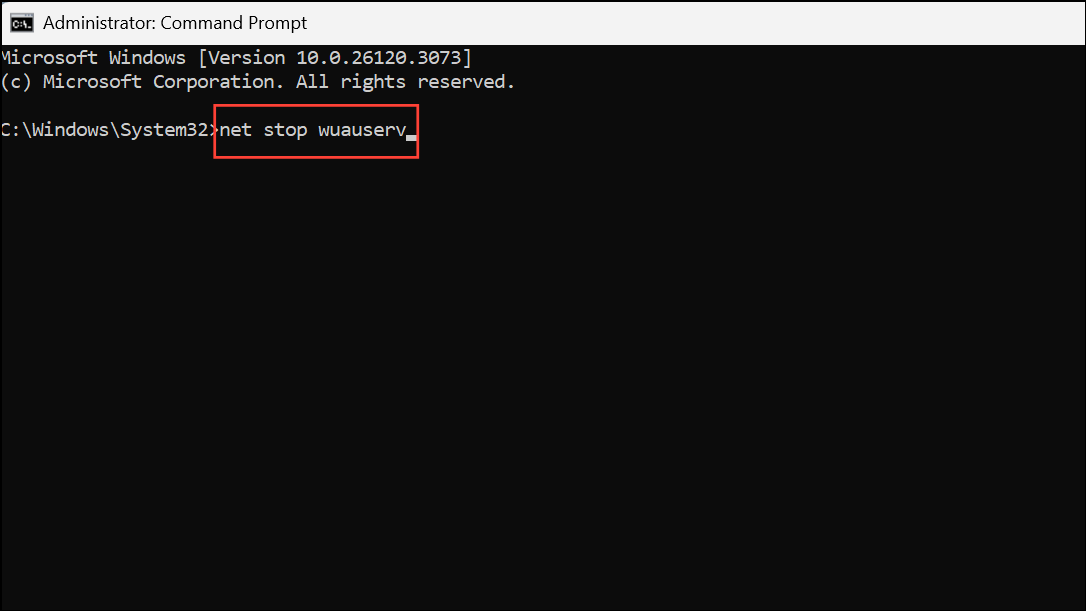
These commands stop update services, rename update cache folders, and restart services. After running them, restart your PC and attempt to update Windows again.
Run System File Checker (SFC) and DISM Scans
System file corruption disrupts Windows Update, Defender, and other core services. The System File Checker (SFC) and Deployment Imaging Service and Management Tool (DISM) can repair damaged files and restore system stability.
sfc /scannow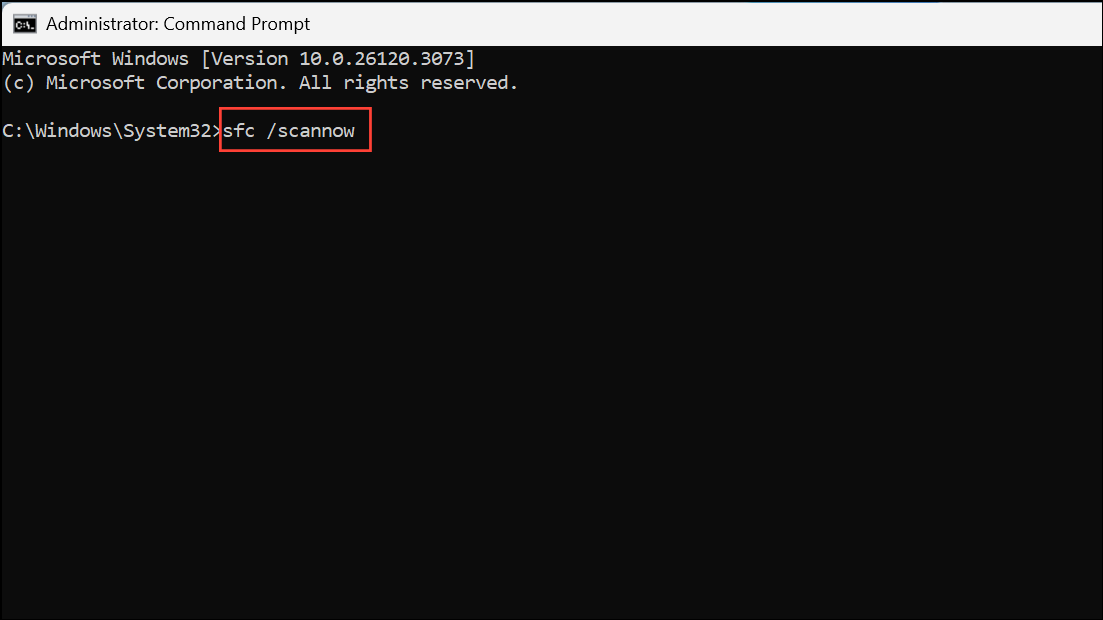
This scan checks and automatically repairs corrupted system files. Wait for the process to complete; do not close the window during the scan.
DISM /Online /Cleanup-Image /RestoreHealth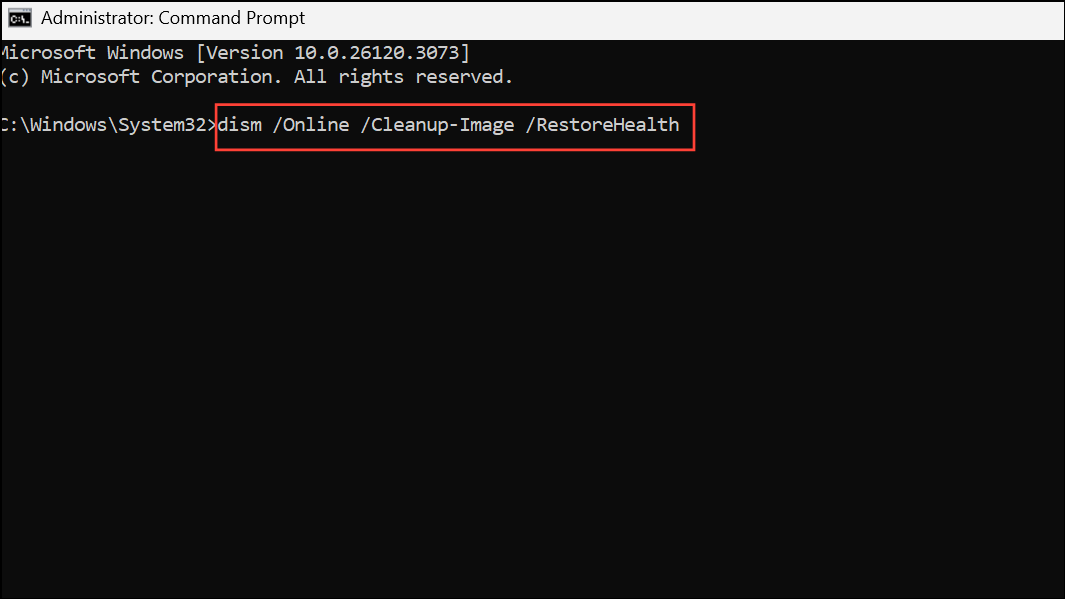
Allow DISM to complete; it may take several minutes. Once done, reboot your computer and retest the update or affected feature.
Manually Install Windows Updates
When automatic updates repeatedly fail with error 0x8007139f, manually installing the update can bypass the issue.
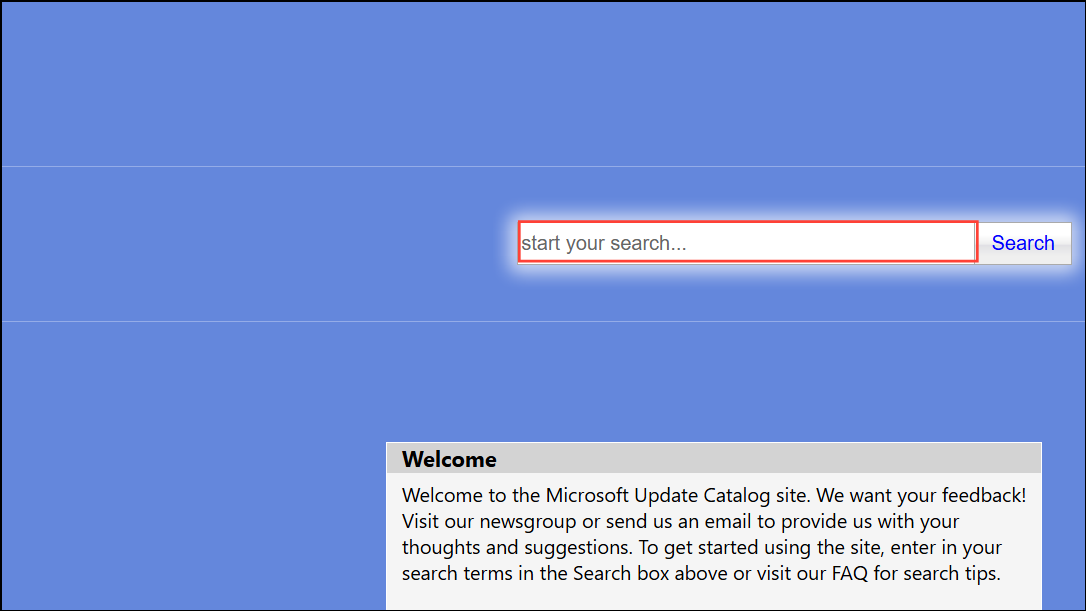
This direct approach often succeeds where standard update mechanisms fail, especially when update components are partially corrupted.
Check Date and Time Settings
Incorrect date and time settings can prevent Windows from validating update certificates, resulting in update errors.
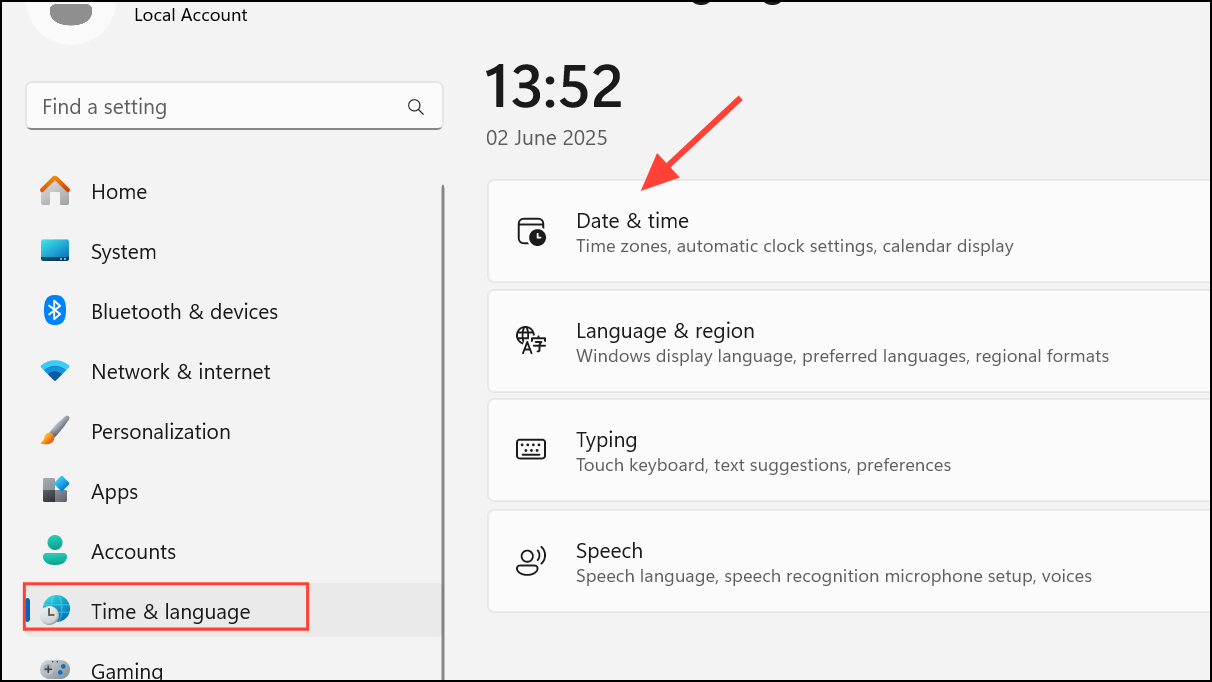
Set time automatically and Set time zone automatically. If these options are unavailable, manually set the correct date, time, and time zone.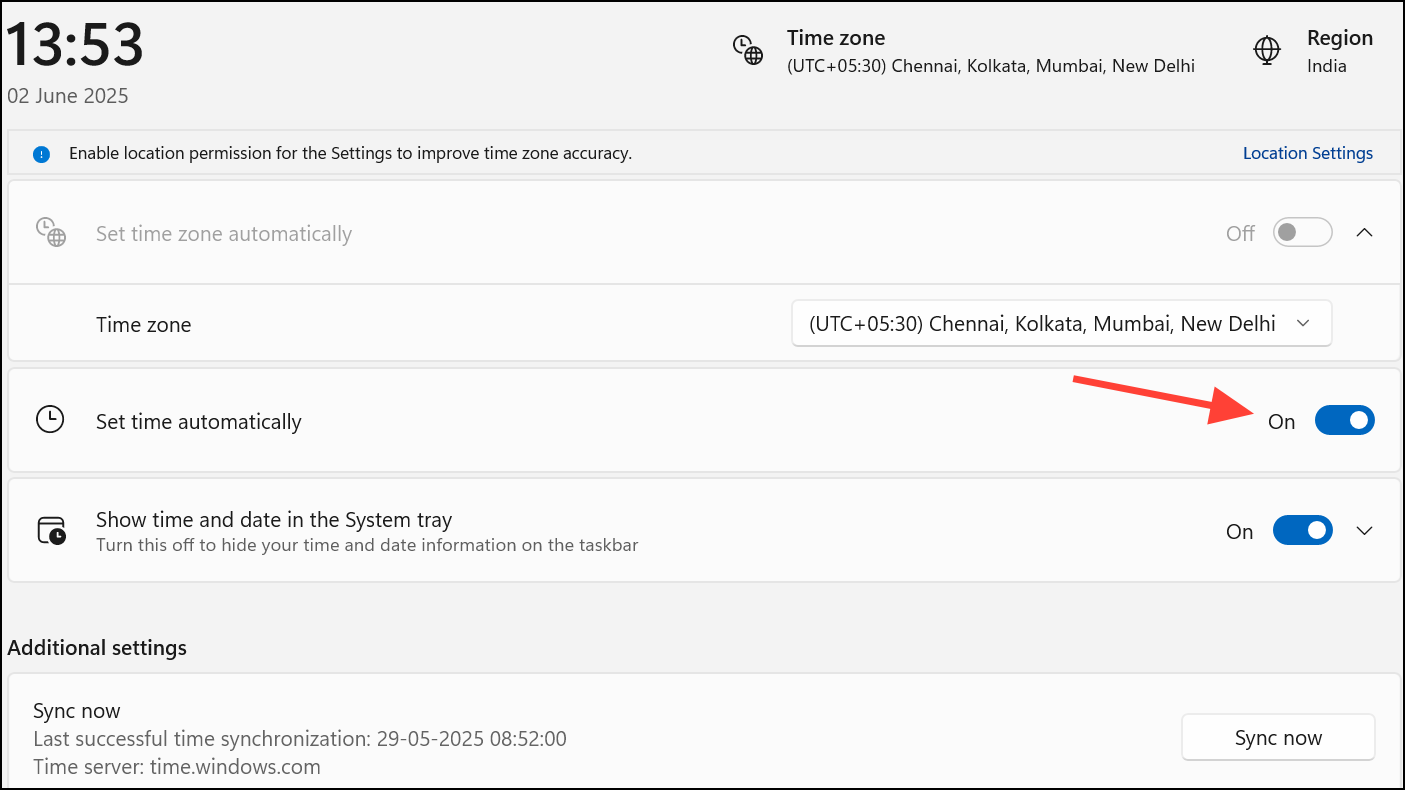
After correcting these settings, retry any failed updates or app actions.
Repair Windows Defender Errors
Error 0x8007139f may block Windows Defender scans or updates. Addressing Defender-specific issues restores security scanning and threat detection.
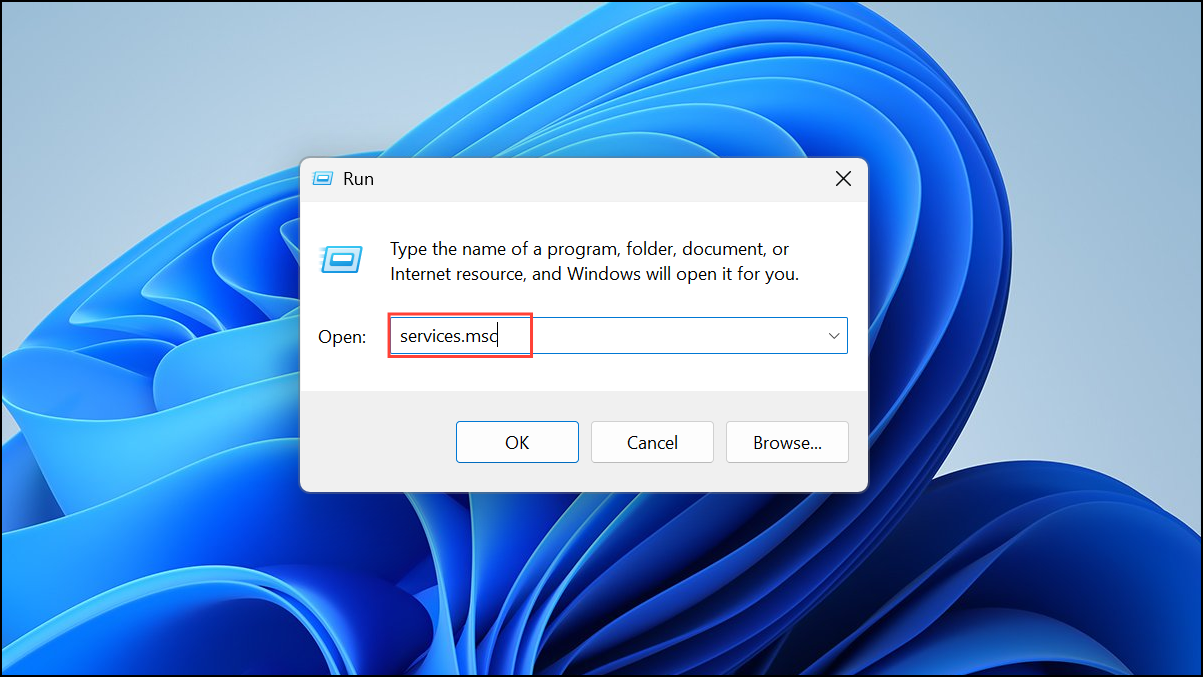
Windows Defender Antivirus Service and ensure its status is Running and its startup type is Automatic. If not, right-click and choose Start or Restart.Reset or Reinstall Problematic Apps (Mail, Outlook, etc.)
Error 0x8007139f can occur in Windows apps such as Mail or Outlook, blocking email access or sync. Resetting or reinstalling the affected app often restores functionality.
Settings > Apps > Installed apps. Find the Mail or Outlook app, select it, and click Advanced options.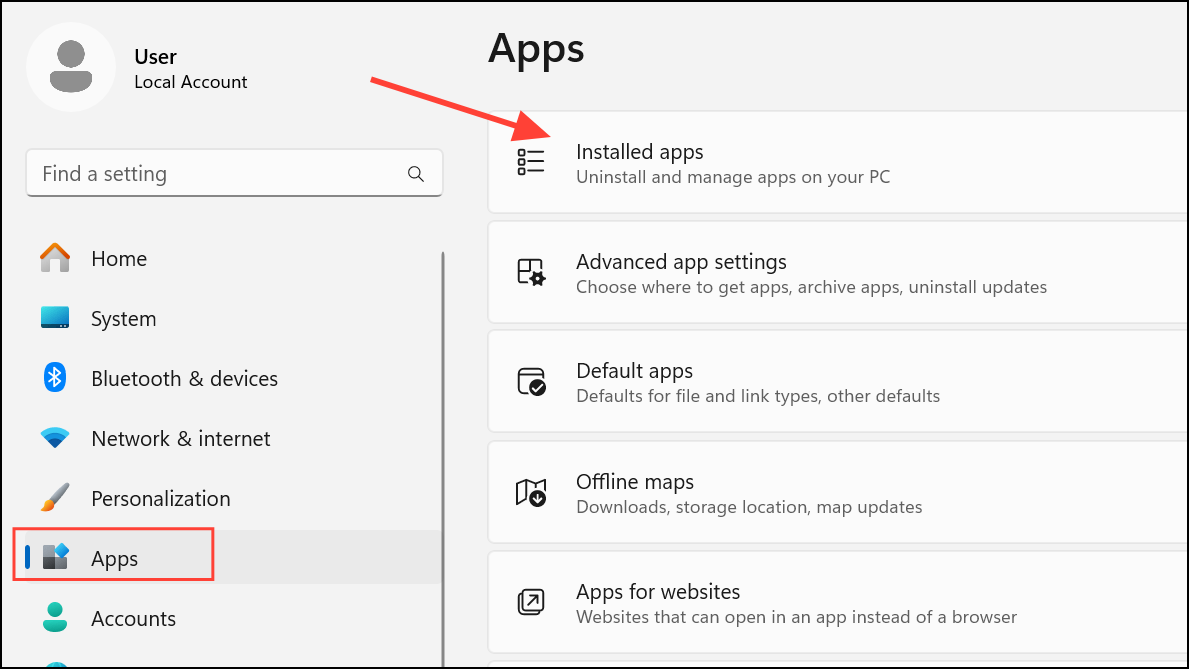
Reset to restore the app to default settings. If the issue remains, uninstall and reinstall the app from the Microsoft Store.After resetting or reinstalling, re-add your account and check if the error is resolved.
Resolving error 0x8007139f on Windows 11 restores system reliability, security, and access to essential features. Regularly updating Windows, maintaining accurate system settings, and using compatible security software help prevent this error from returning.



