
Outlook error 0x800CCC1A prevents email sending and receiving when encryption settings or security software block proper server connections. This issue often appears after Windows 11 updates or changes to mail client configurations, disrupting workflow and causing missed messages or delays. Addressing the root causes—encryption mismatches, firewall interference, or corrupted profiles—restores Outlook’s functionality and ensures uninterrupted email communication.
Update Encryption and Port Settings in Outlook
Incorrect encryption methods or mismatched port numbers between Outlook and your email provider’s server are the most common triggers for error 0x800CCC1A. Ensuring these settings match your provider’s specifications allows Outlook to establish secure connections and transmit messages without interruption.
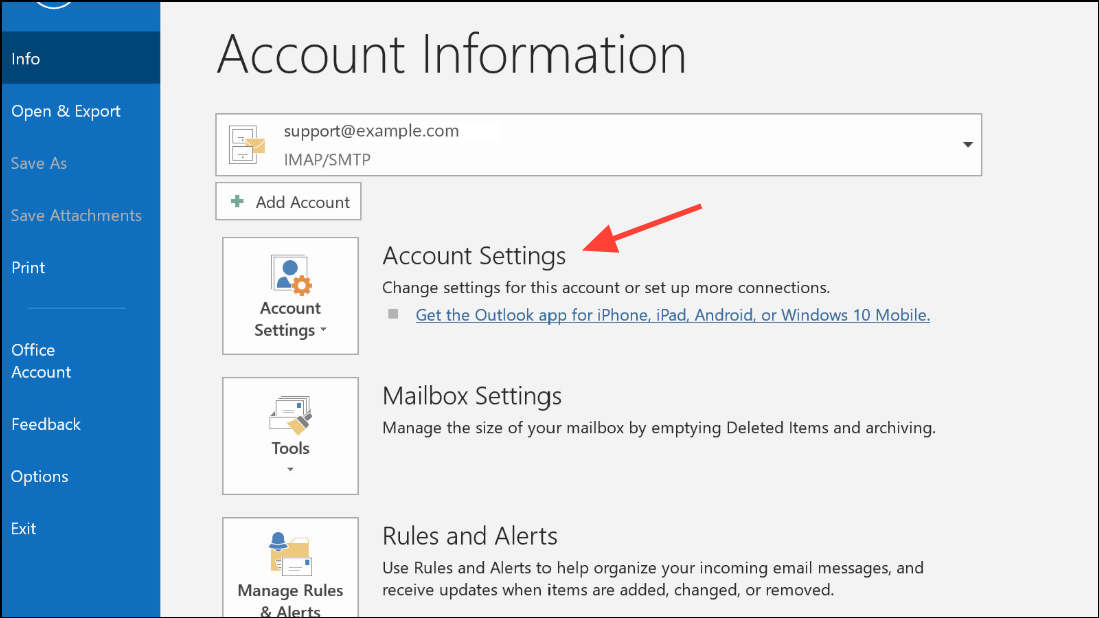
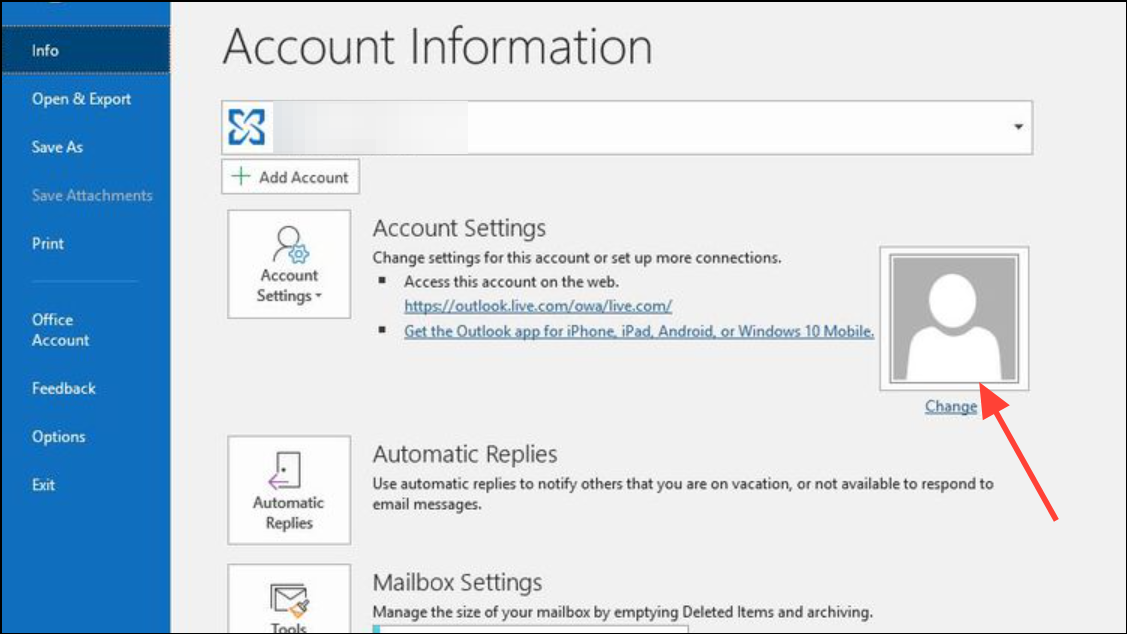
993 (SSL) or 143 (TLS) for incoming, and 465 (SSL) or 587 (TLS) for outgoing. For POP, use 995 (SSL) or 110 (TLS) for incoming. Adjust the encryption method to match your provider’s recommendations (SSL/TLS or STARTTLS).Configure Firewall and Antivirus Software
Firewalls or antivirus programs sometimes block Outlook’s communication with mail servers, especially when email scanning or network protection features are enabled. Temporarily disabling these protections can help identify if they’re causing the error, but creating permanent exceptions ensures ongoing security and connectivity.
Outlook.exe) as an allowed or trusted application. This permits Outlook traffic without disabling all protections.Repair or Recreate Outlook Profile
Corrupted Outlook profiles or data files can cause persistent connection errors, even when all settings are correct. Creating a new profile or repairing existing data files resolves deeper configuration problems and restores smooth operation.
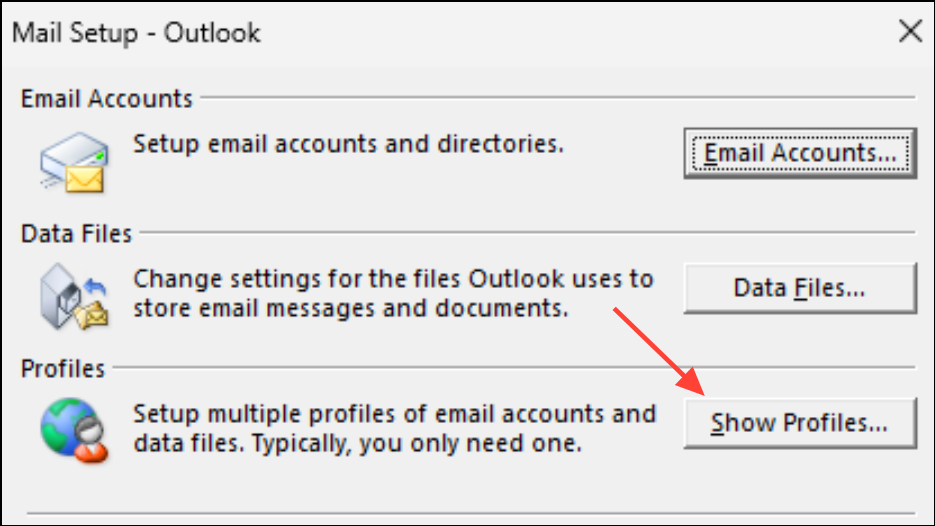
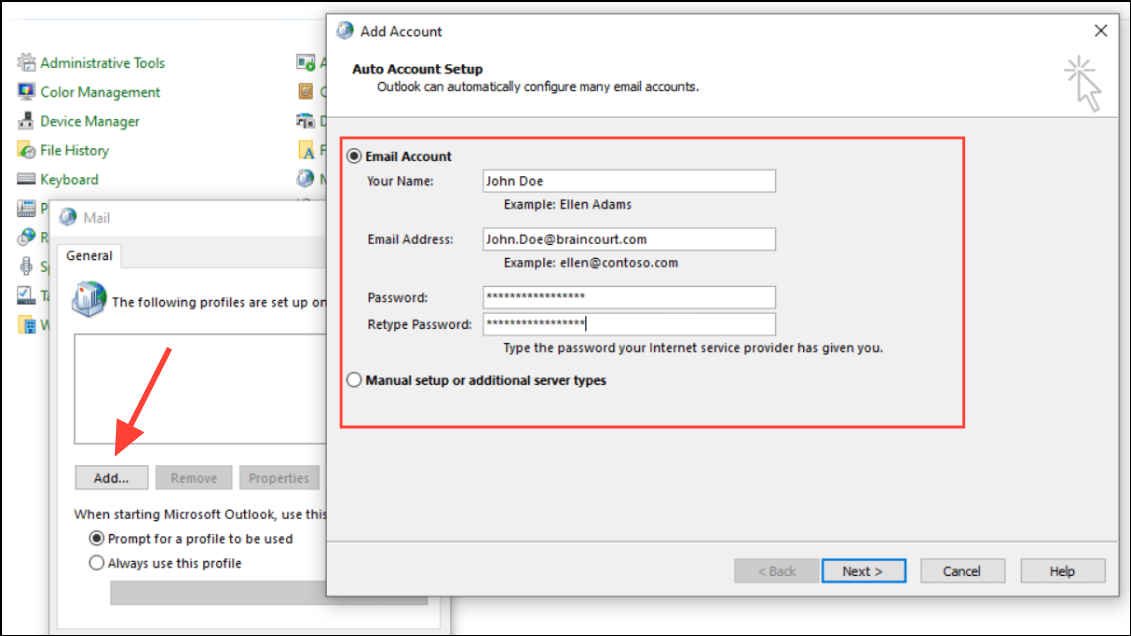
Scanpst.exe). Locate this tool in your Office installation folder (C:\Program Files\Microsoft Office\root\OfficeXX), run it, and follow prompts to scan and repair your .pst or .ost file.Start Outlook in Safe Mode and Check Add-ins
Faulty or incompatible add-ins can disrupt Outlook’s ability to connect to mail servers. Running Outlook in Safe Mode disables all add-ins, helping you isolate the source of the problem.
Windows Key + R to open the Run dialog, type outlook /safe, and press Enter. Outlook will launch in Safe Mode, indicated in the title bar.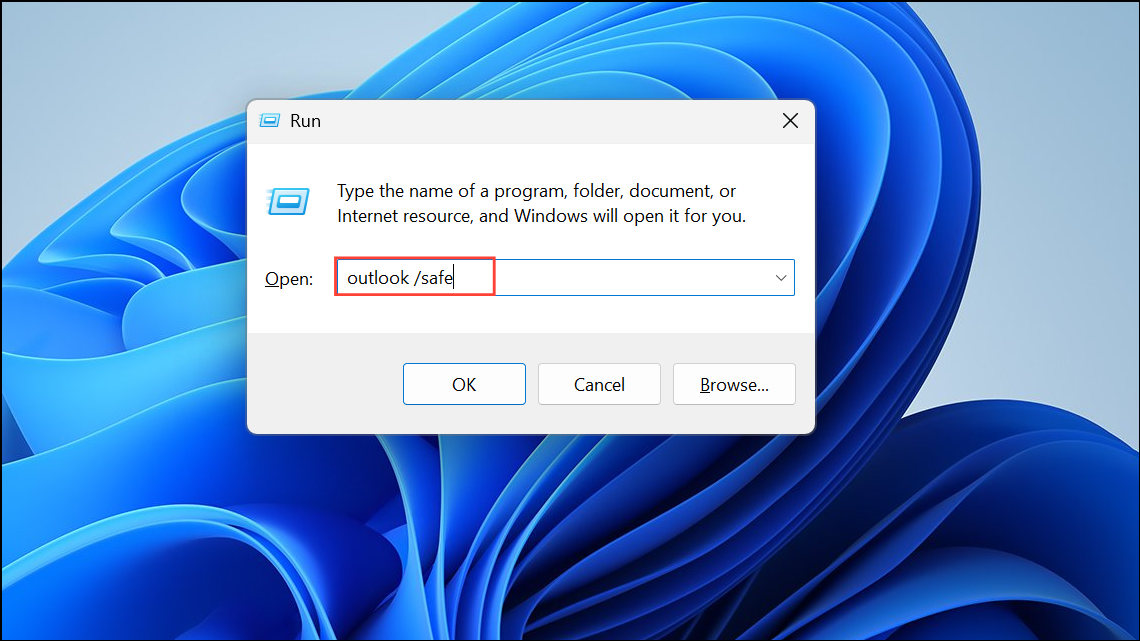
Apply Windows and Outlook Updates
Outdated software can introduce compatibility issues, especially after major Windows 11 updates. Applying the latest updates for both Windows and Outlook addresses known bugs and restores compatibility with mail servers.
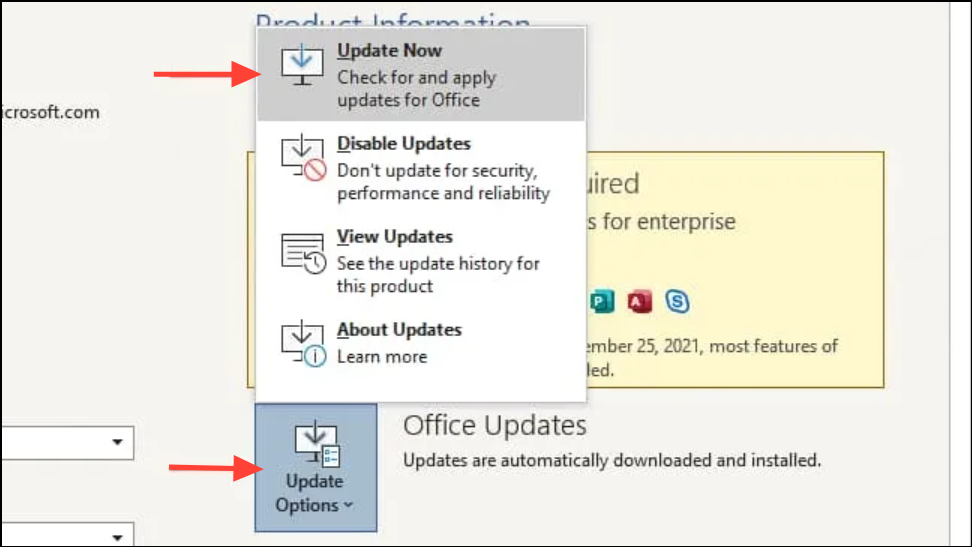
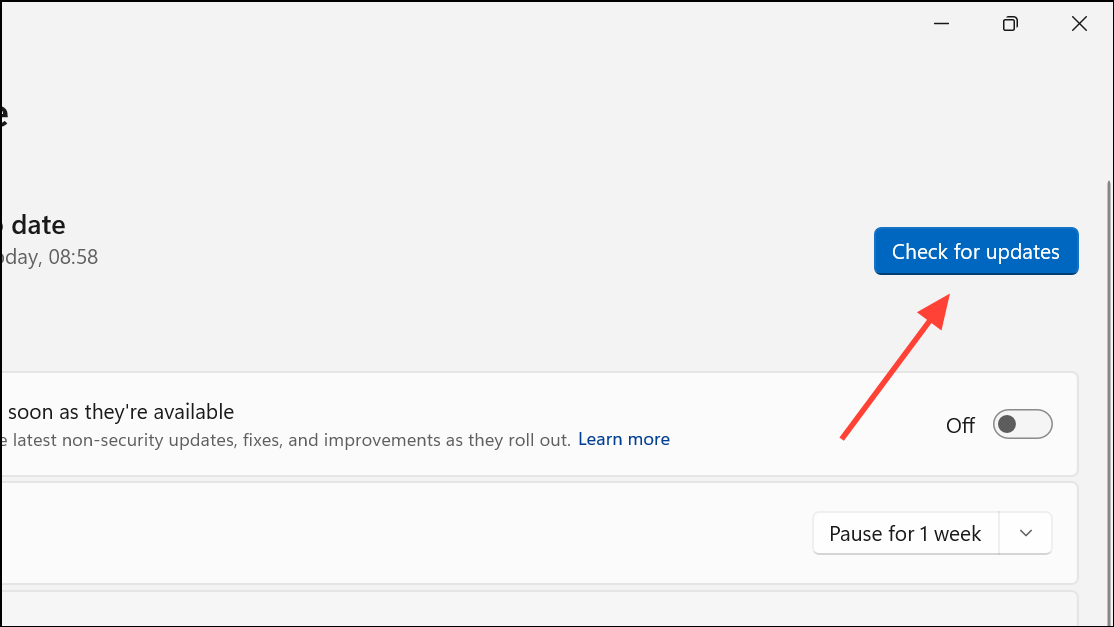
Additional Troubleshooting Steps
- Disable VPNs temporarily, as some VPNs block or reroute email traffic, causing encryption errors.
- Check with your email provider for any recent changes to server settings or required encryption methods.
- Remove and re-add your email account in Outlook if settings cannot be edited or have become inaccessible.
- Contact your ISP or mail provider if all accounts fail simultaneously, as server-side issues may be involved.
Resolving error 0x800CCC1A in Outlook on Windows 11 involves correcting encryption settings, allowing Outlook through security software, and repairing any corrupted profiles or data files. Regularly updating your system and verifying account settings helps prevent future disruptions.



