
Windows Update failures with error code 0x800f0991 often occur due to missing system files, corrupted update components, or conflicts with installed applications. This error blocks cumulative and security updates, leaving your system without the latest features and security patches. The following methods address the root causes and restore normal update functionality.
Perform an In-Place Upgrade
Running an in-place upgrade repairs system files and reinstalls Windows while keeping your apps, settings, and personal files intact. This approach directly addresses underlying corruption or missing dependencies that typical troubleshooting steps may not resolve.
Mount. Open the mounted drive and run setup.exe. Follow the prompts, select the option to keep your files and apps, and proceed through the installation. The process may require several restarts and can take some time.Reset Windows Update Components
Corrupted or stuck Windows Update components can prevent updates from installing. Resetting these components forces Windows to rebuild update-related folders and services.
Command Prompt as an administrator by searching for cmd in the Start menu, right-clicking it and selecting Run as administrator.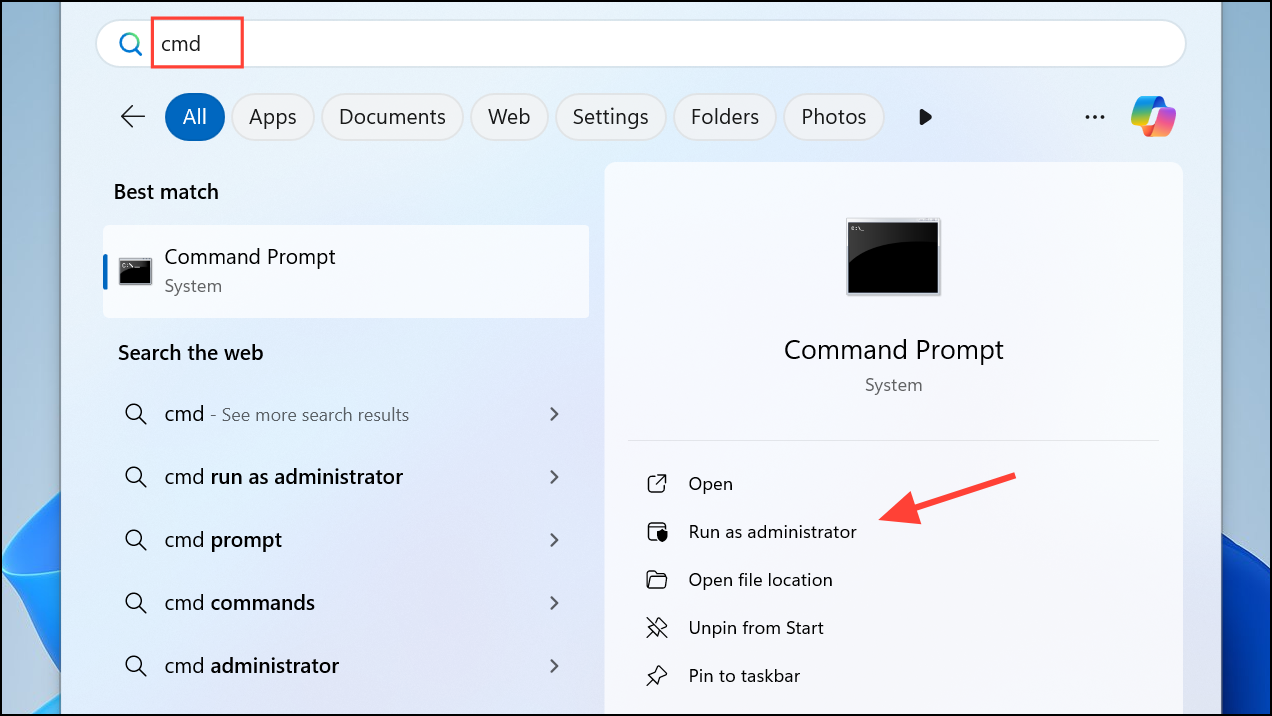
net stop wuauserv
net stop cryptSvc
net stop bits
net stop msiserver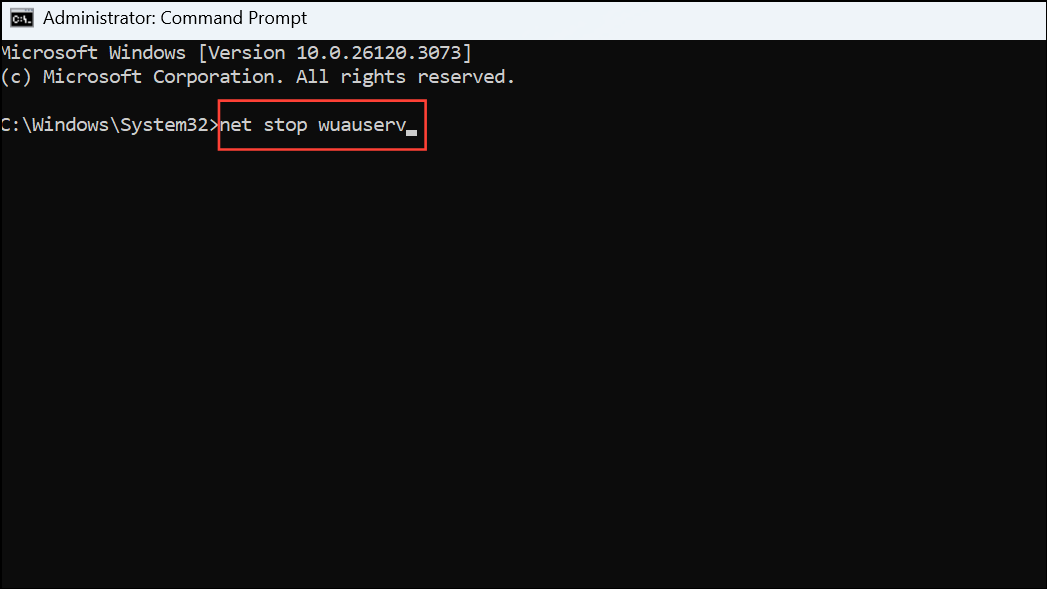
ren C:\Windows\SoftwareDistribution SoftwareDistribution.old
ren C:\Windows\System32\catroot2 catroot2.oldnet start wuauserv
net start cryptSvc
net start bits
net start msiserver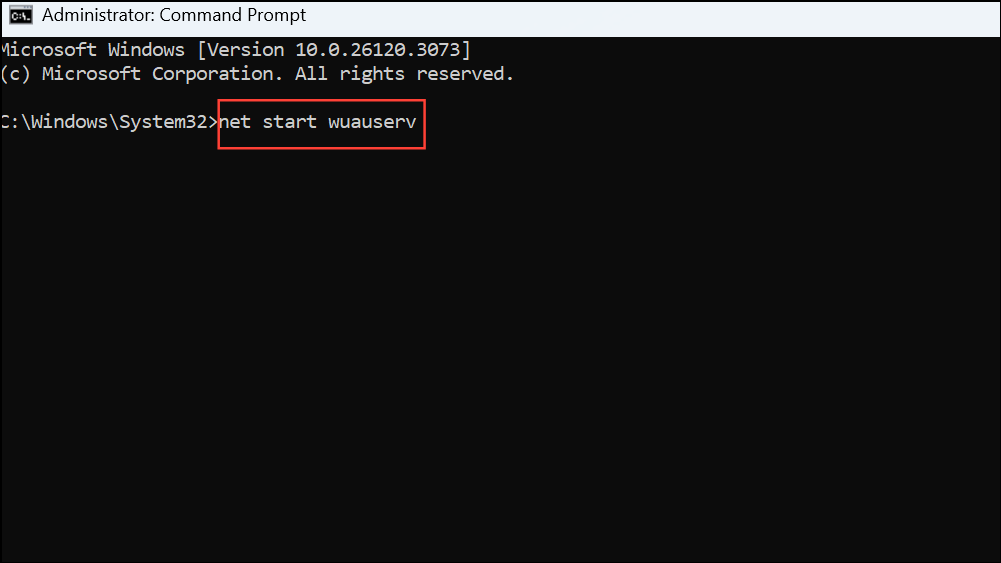
Run System File Checker and DISM Tools
Corruption in system files or the Windows component store can trigger update errors. System File Checker (SFC) and Deployment Imaging Service and Management Tool (DISM) are built-in utilities that scan and repair these problems.
sfc /scannow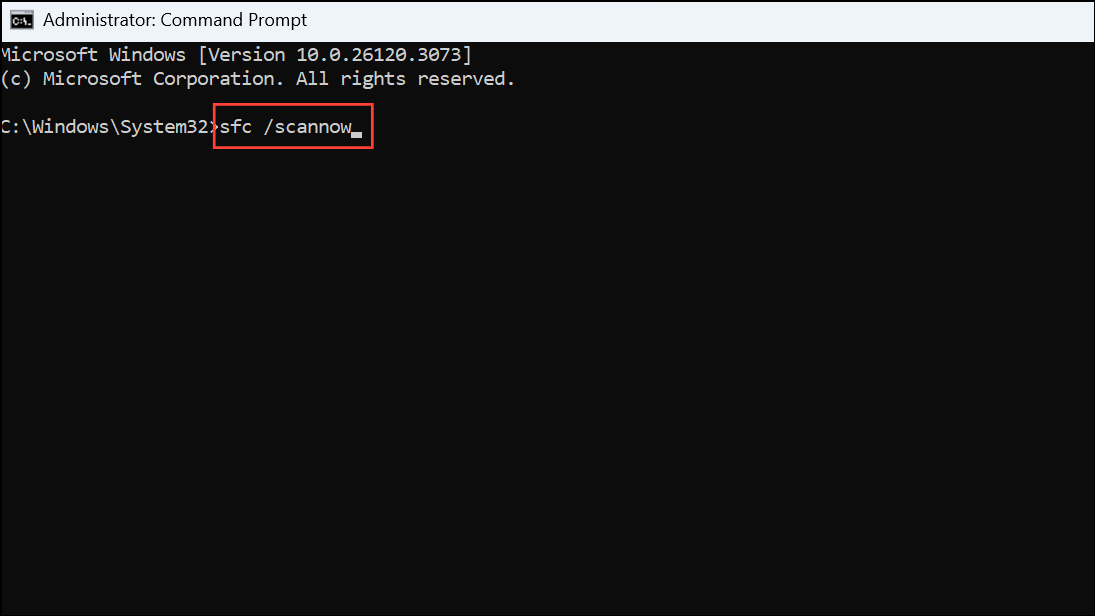
This process scans for and repairs corrupted or missing system files. Wait for it to complete before proceeding.
DISM /Online /Cleanup-Image /CheckHealth
DISM /Online /Cleanup-Image /ScanHealth
DISM /Online /Cleanup-Image /RestoreHealth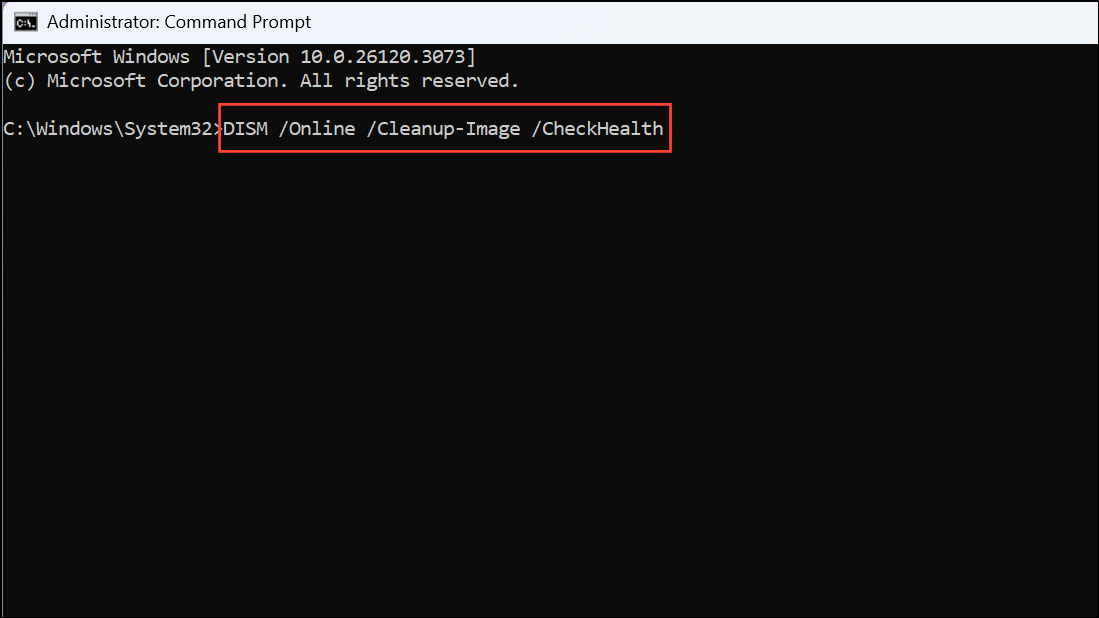
These commands check for corruption, scan the system image, and attempt repairs. After completion, restart your computer and try updating again.
Install Updates Manually
When automatic updates fail, manually downloading and installing the update package can sometimes bypass the issue—especially if the update process is blocked by incomplete downloads or catalog mismatches.
KB5036893 or KB5053598).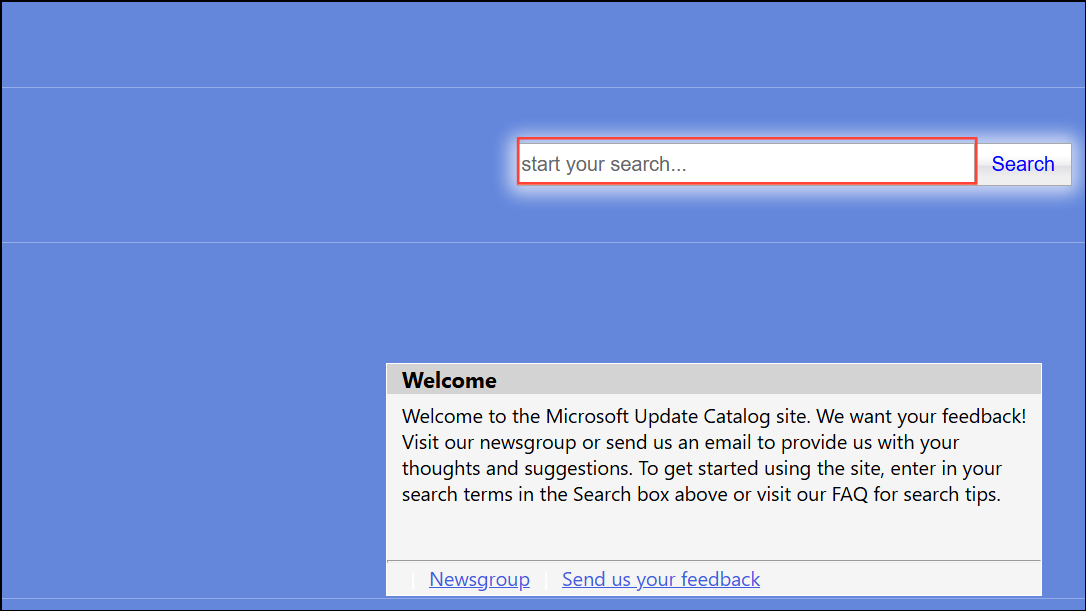
Additional Steps and Cautions
For persistent issues, check that critical services like Windows Update, Windows Installer, and Background Intelligent Transfer Service are running. You can verify and restart these from the services.msc management console. If you encounter permissions errors with specific folders (such as C:\Program Files\WindowsApps), ensure you have a complete backup before making any changes, as deleting or modifying these folders can affect app functionality.
Some users have reported that disk cleanup utilities may not remove all update remnants. If disk cleanup fails to clear update files, focus on the above repair methods instead of repeated cleanup attempts.
If all else fails and you continue to receive error 0x800f0991, a fresh installation of Windows 11 using the latest ISO may be necessary. Choose the installation option that retains your files and apps to minimize disruption.
Resolving error 0x800f0991 on Windows 11 restores update functionality and keeps your system secure. Regularly running system maintenance tools and keeping backups can prevent similar issues in the future.



