
Windows 11 update error 0x80244018 signals a breakdown in communication between your device and Microsoft’s update servers. This issue often appears when proxy settings, network misconfigurations, or corrupted system files interrupt the update process. Addressing these underlying causes restores your ability to download and install critical updates, keeping your system secure and current.
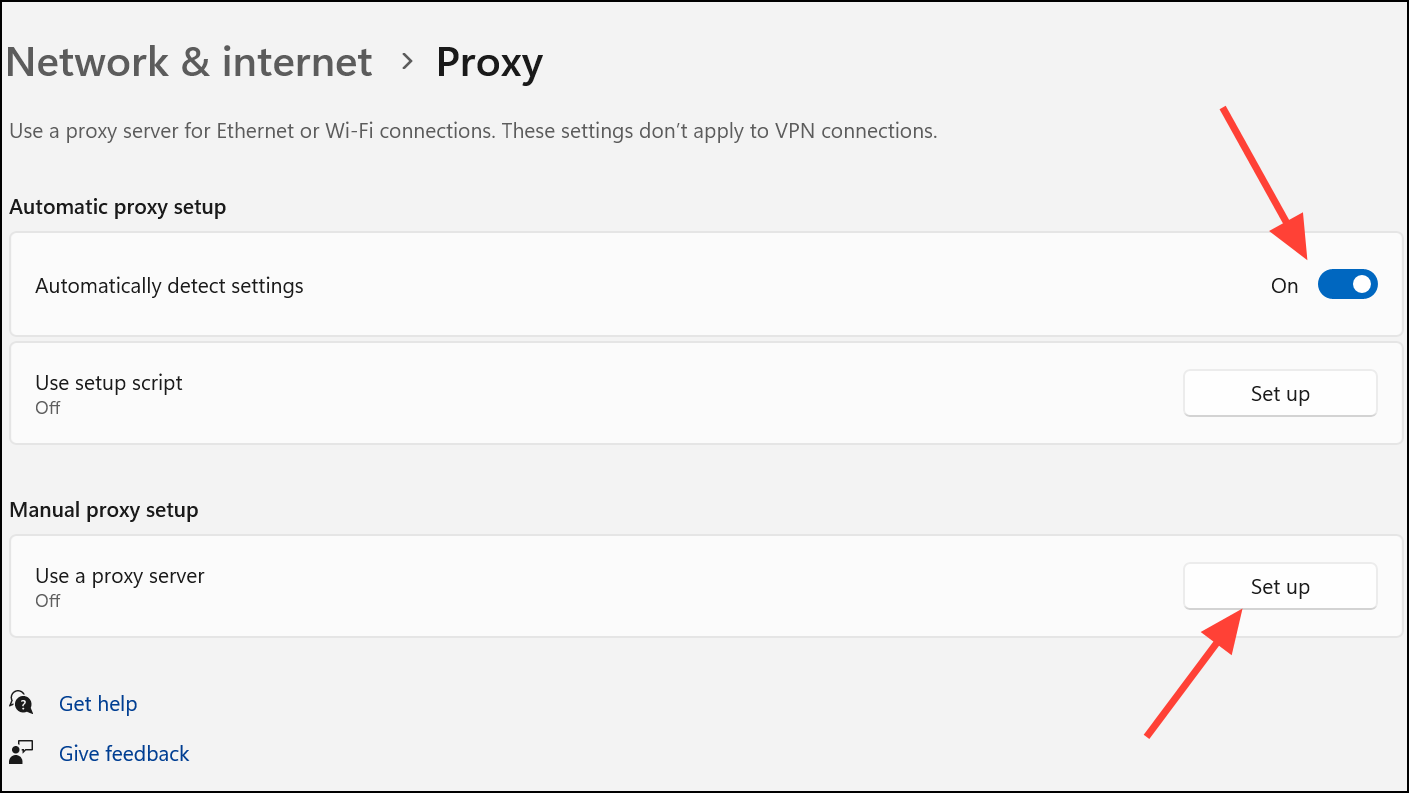
Adjust Proxy and Network Settings
Windows key + I. Select Network & Internet from the left sidebar.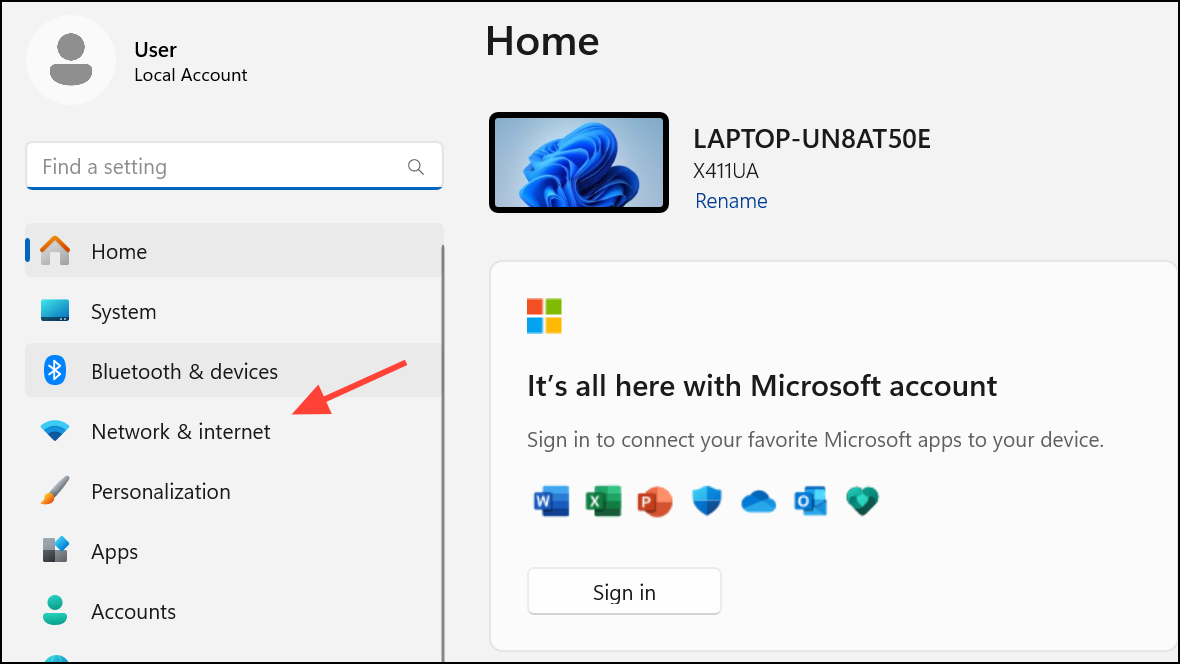
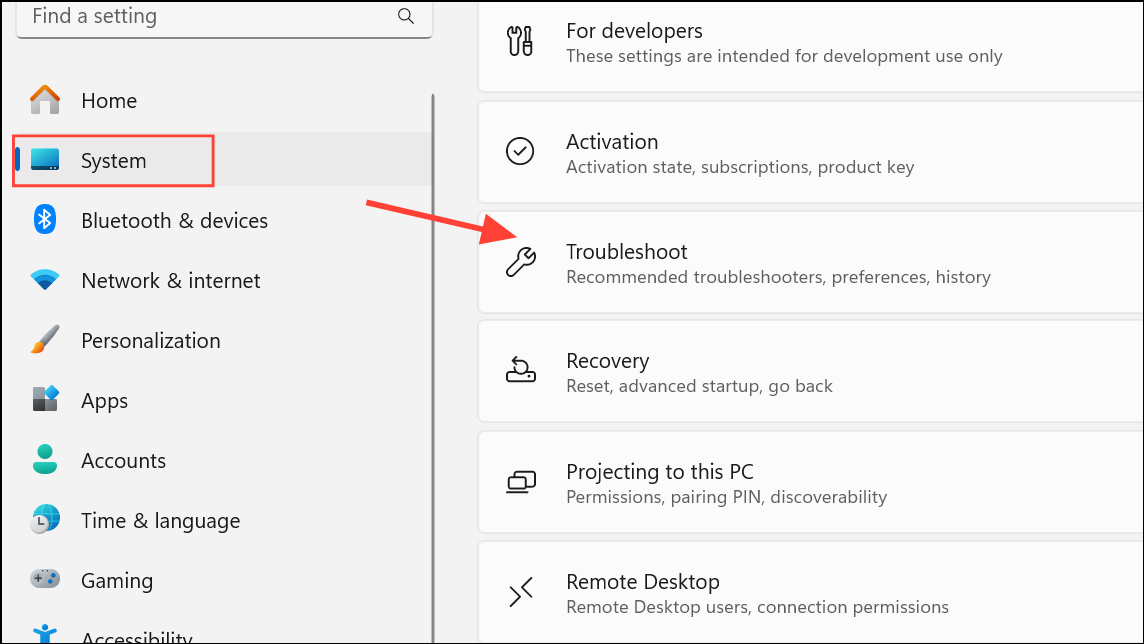
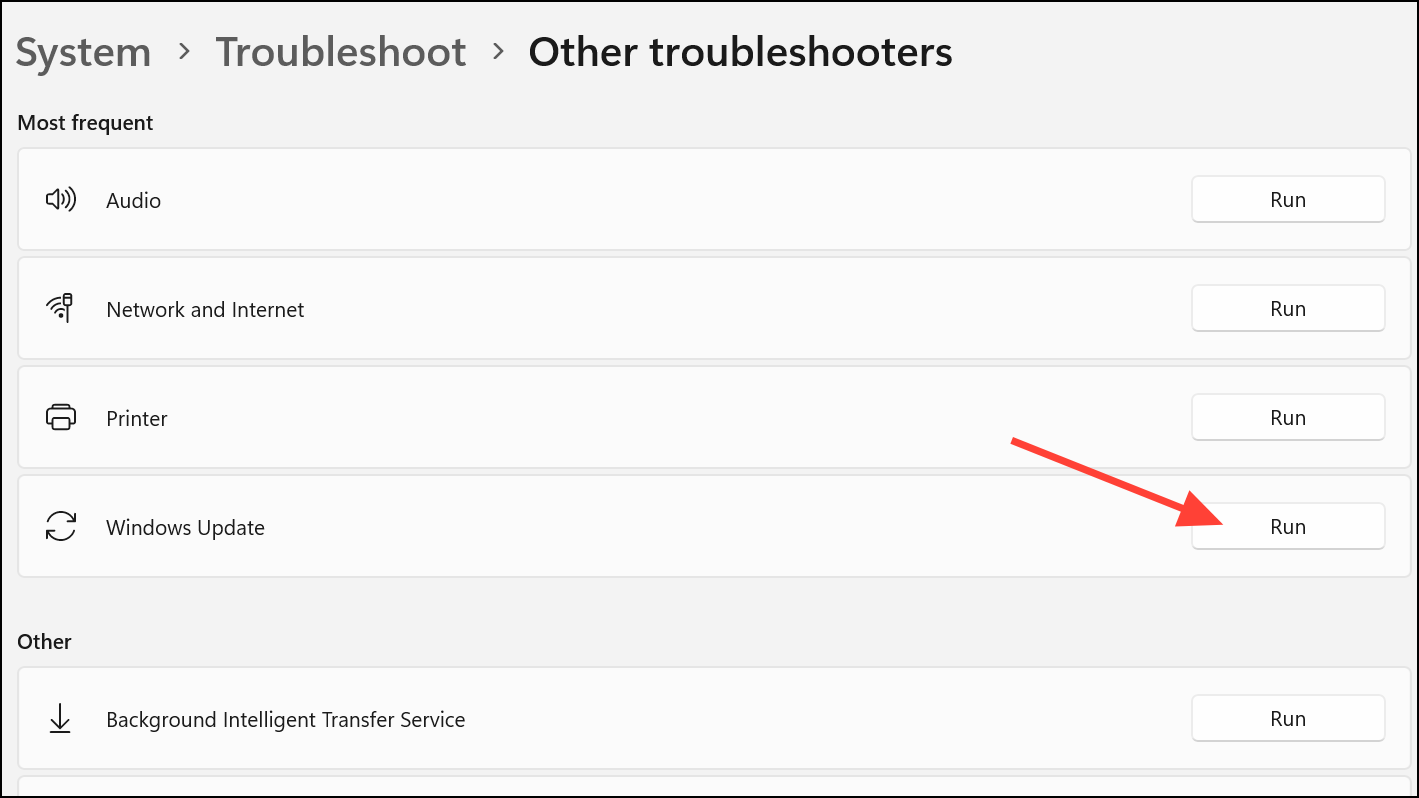
Run the Windows Update Troubleshooter
Restart Update Services and Refresh Update Cache
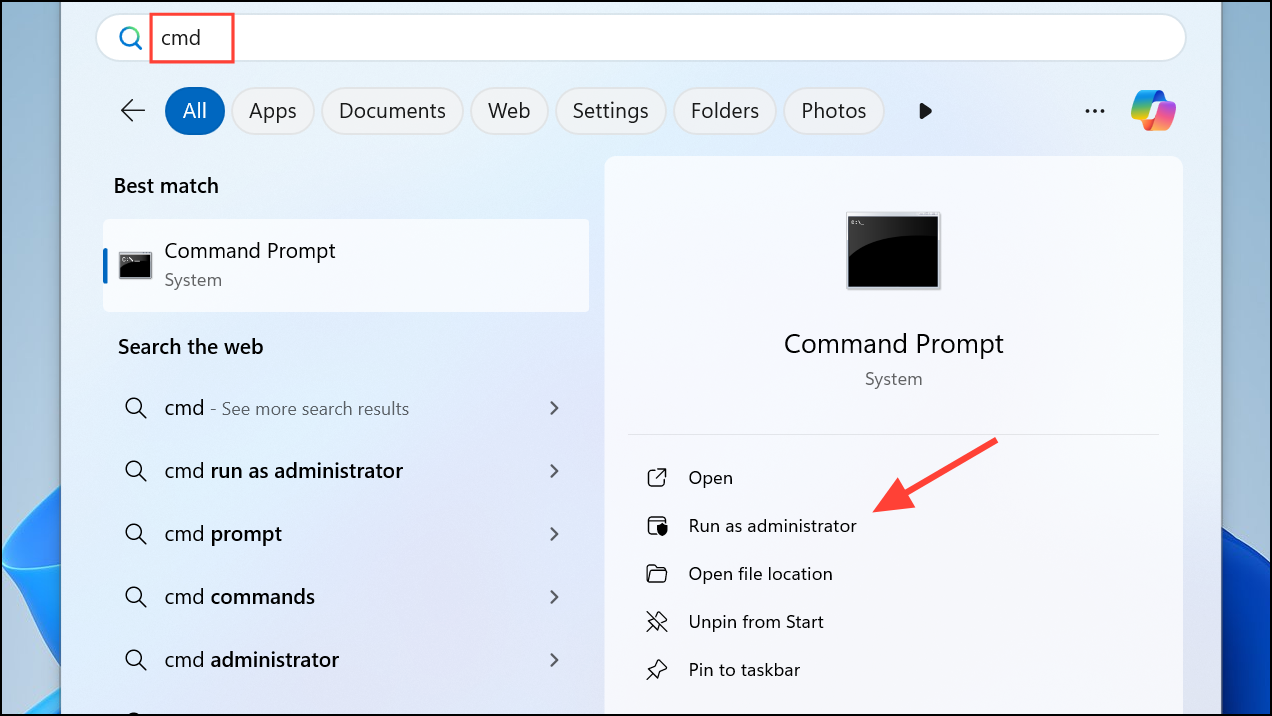
net stop wuauserv
net stop cryptSvc
net stop bits
net stop msiserver
ren C:\Windows\SoftwareDistribution SoftwareDistribution.old
ren C:\Windows\System32\catroot2 catroot2.old
net start wuauserv
net start cryptSvc
net start bits
net start msiserver
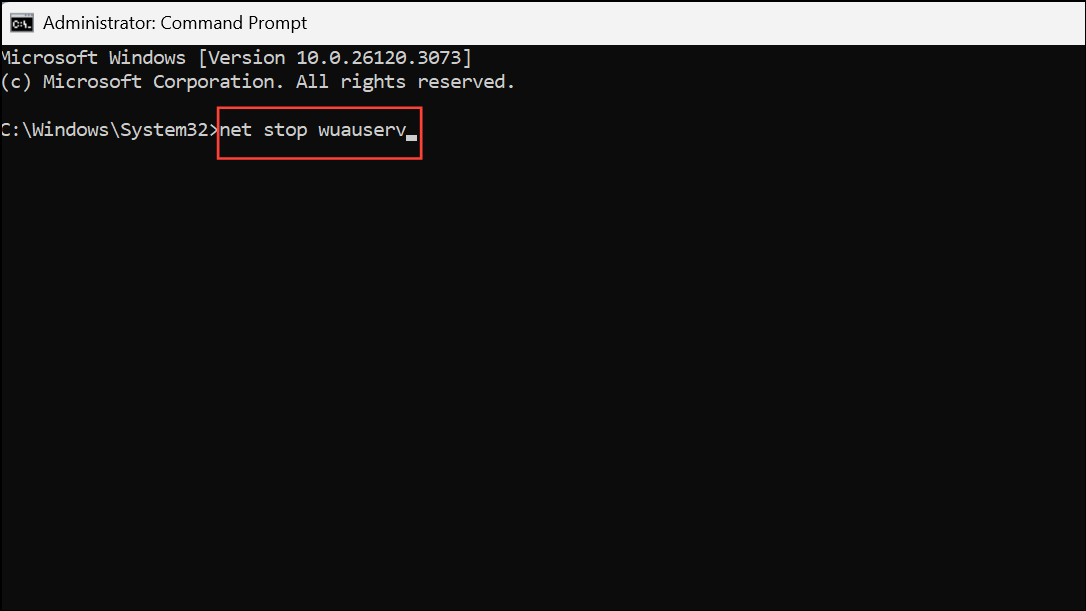
This sequence stops update-related services, renames the folders that store temporary update files (causing Windows to generate new ones), and restarts the services. This process removes corrupted or stuck files that may block updates.
Repair System Files with SFC and DISM
Corrupted Windows system files can prevent updates from installing properly. Use built-in repair tools to check and fix these files.
sfc /scannow and press Enter. Wait for the scan to finish. This tool checks for and repairs damaged system files.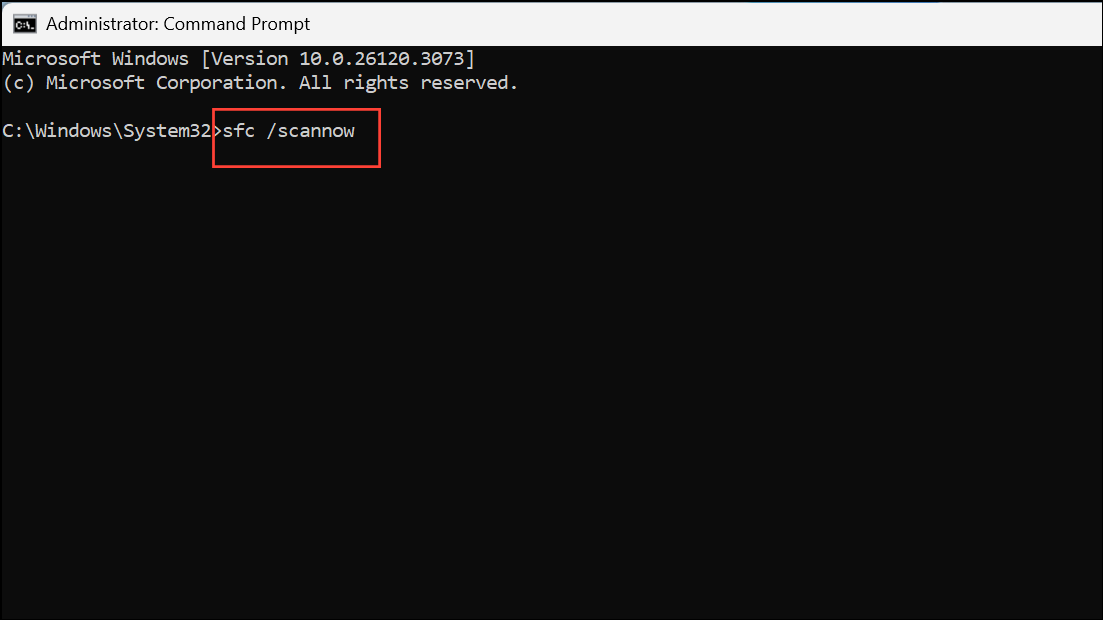
Dism /Online /Cleanup-Image /CheckHealth
Dism /Online /Cleanup-Image /RestoreHealth
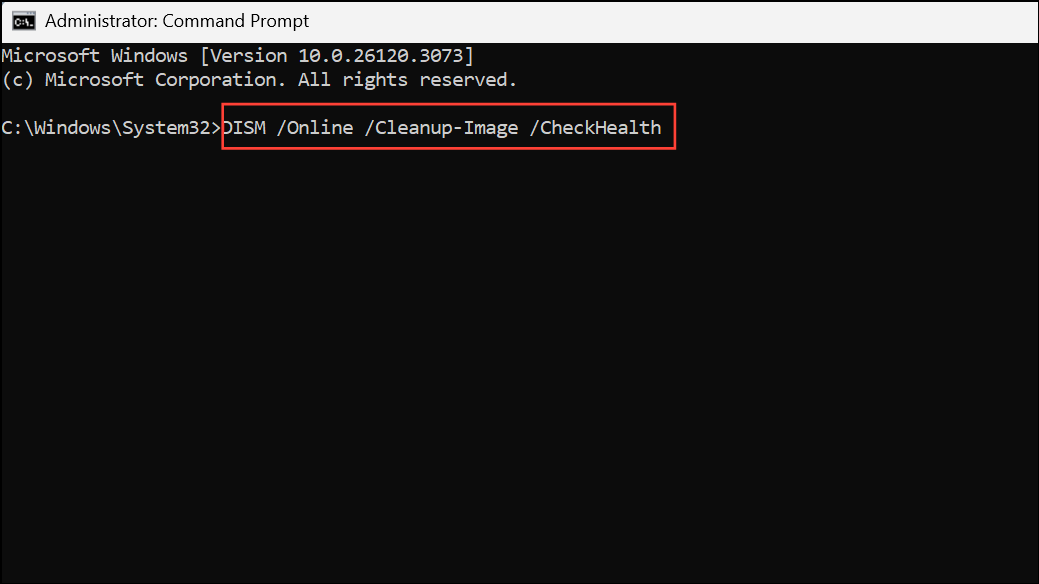
Each command may take several minutes. Once finished, restart your system and check for updates again.
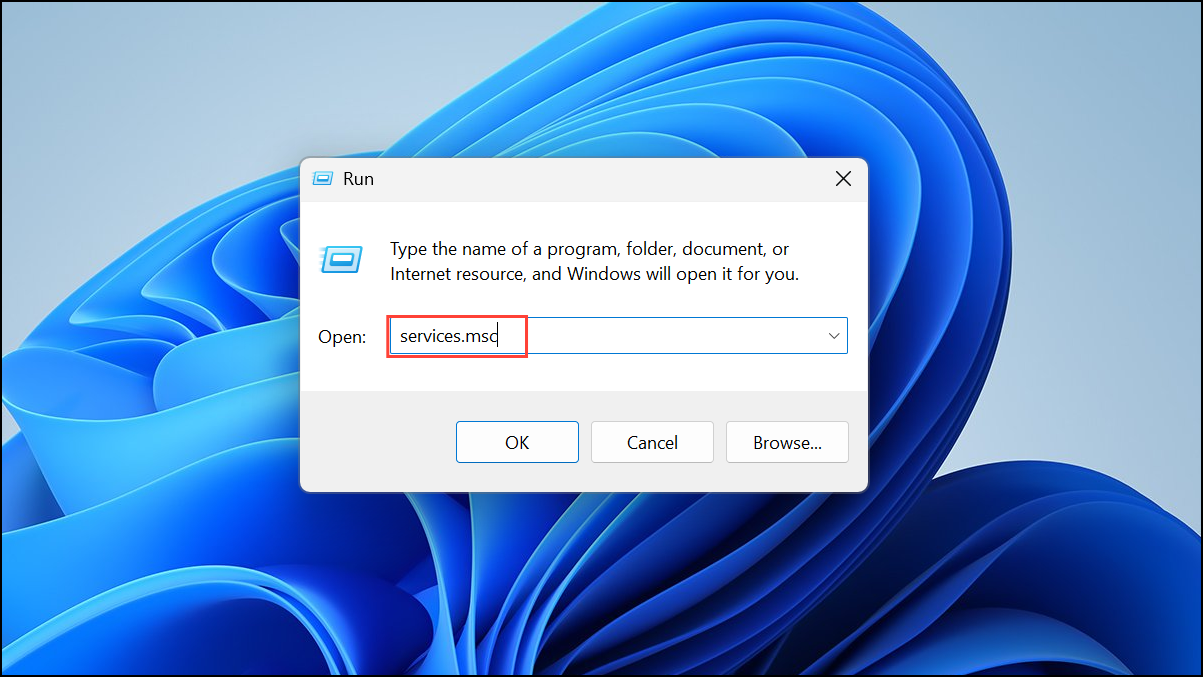
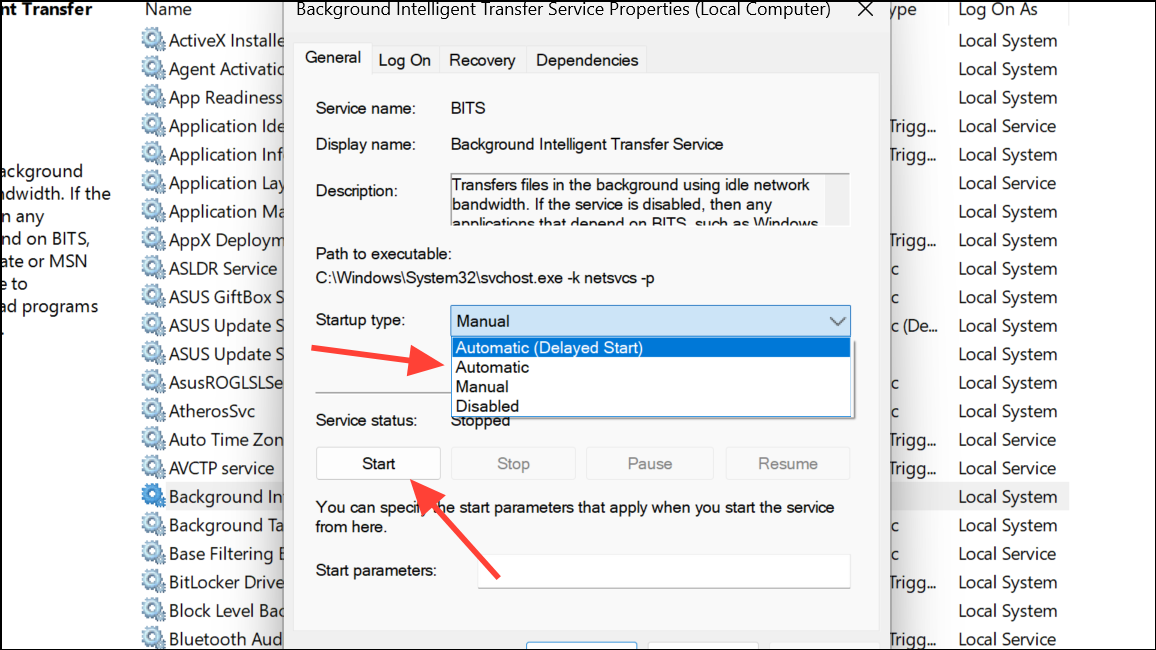
Check and Start Essential Update Services
Background Intelligent Transfer Service (BITS) and Windows Update services must be running for updates to work.
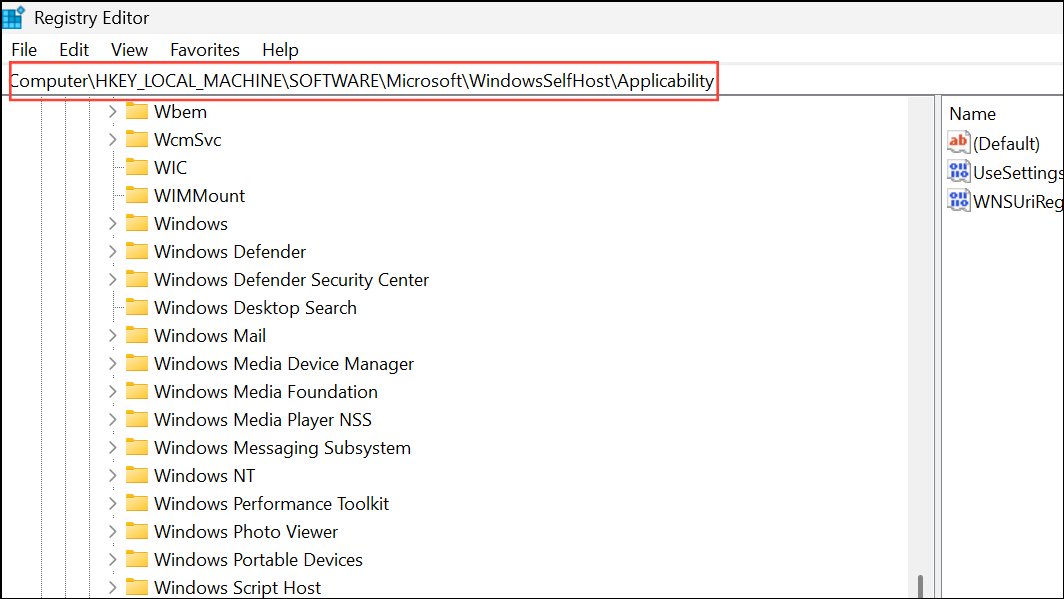
Remove Corrupt Registry Entries
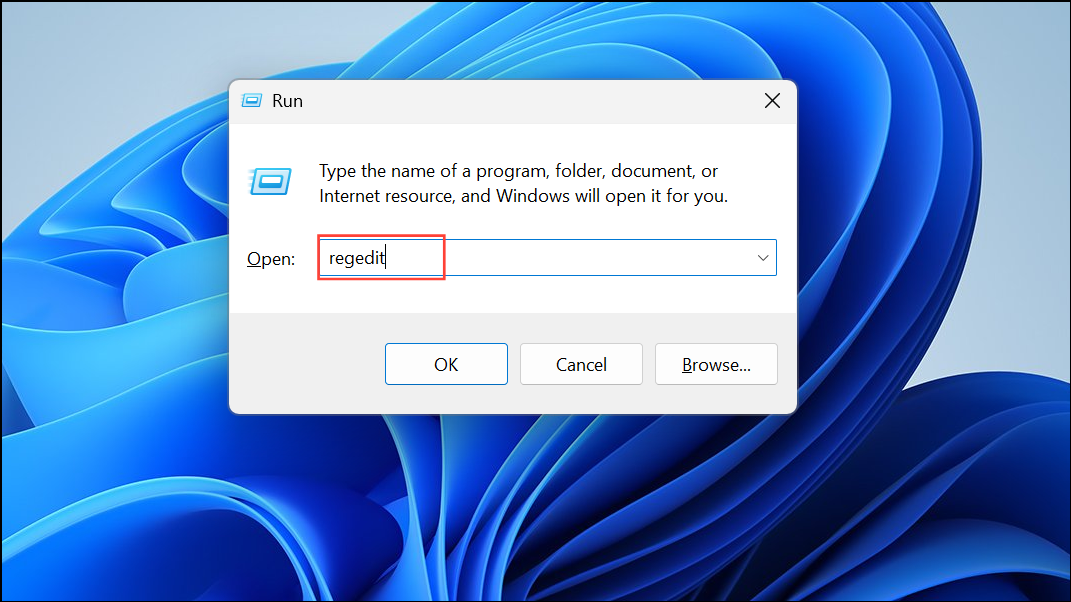
Some failed updates leave behind registry entries that block future updates. Removing specific entries may resolve persistent errors.
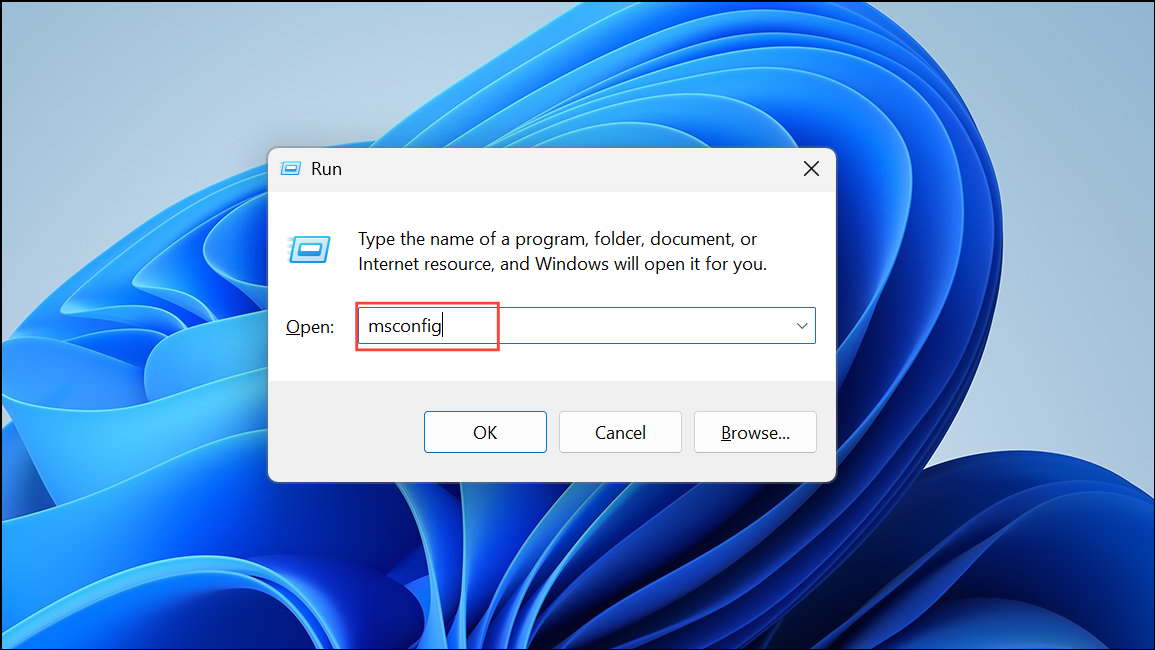
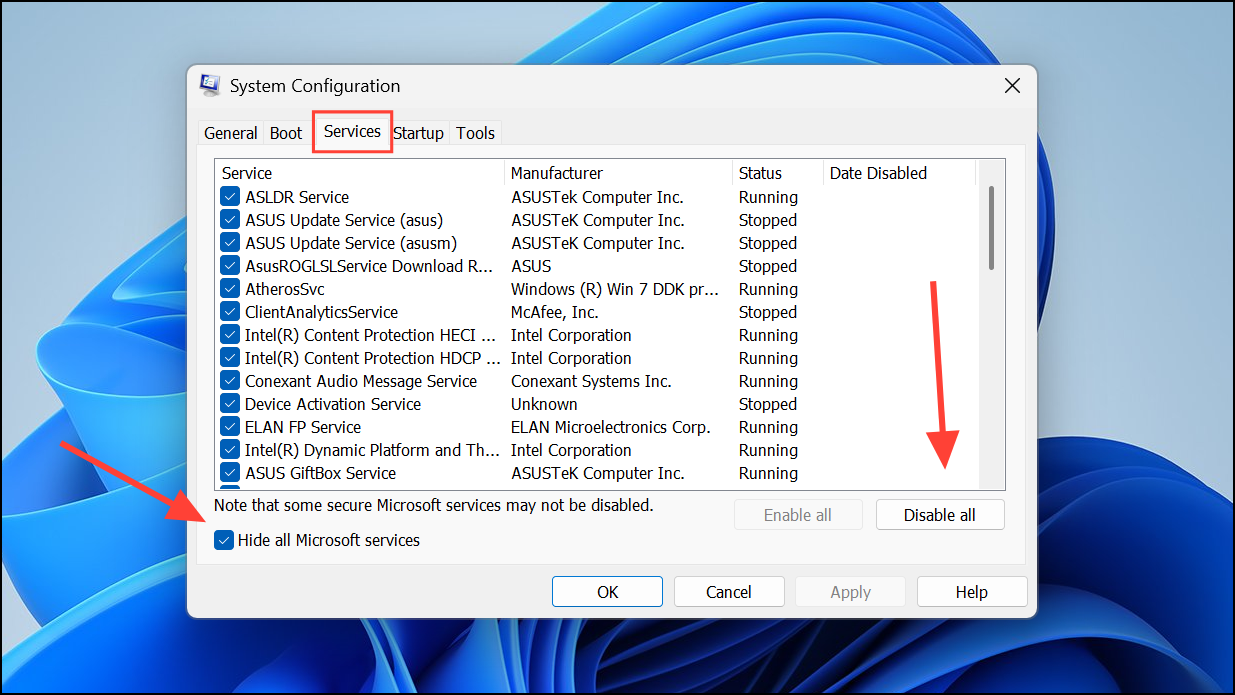
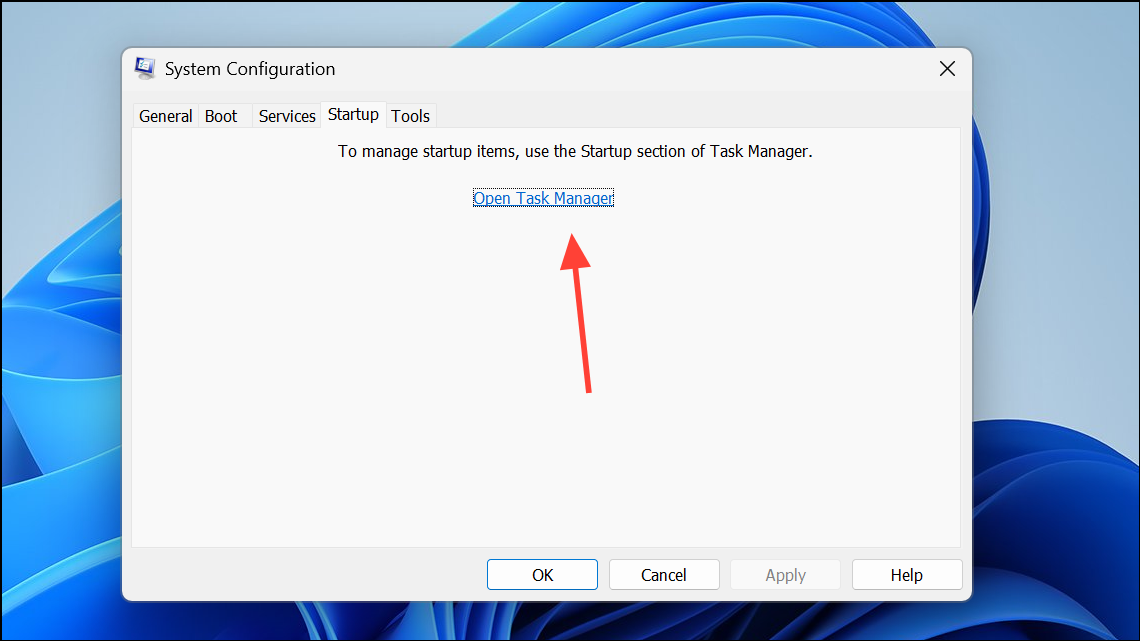
Perform a Clean Boot to Eliminate Software Conflicts
Third-party applications or services can interfere with Windows Update. A clean boot starts Windows with only essential services and drivers, helping you isolate the cause of persistent errors.
Resolving error 0x80244018 on Windows 11 usually comes down to correcting proxy settings, refreshing update components, and repairing system files. Regularly checking your network configuration and keeping system files healthy ensures smoother future updates.



