Resolve Windows Update error 0x80246005 in Windows 11 by following proven troubleshooting methods that restore update functionality and system reliability.
Resolve Windows Update error 0x80246005 in Windows 11 by following proven troubleshooting methods that restore update functionality and system reliability.
by Pallav Pathak
Windows Update error 0x80246005 in Windows 11 interrupts the update process and leaves your device without the latest security and feature updates. This error often points to issues with update files, system components, or security software interfering with the update service. Addressing this error restores the ability to download and install updates, which keeps your system secure and stable.
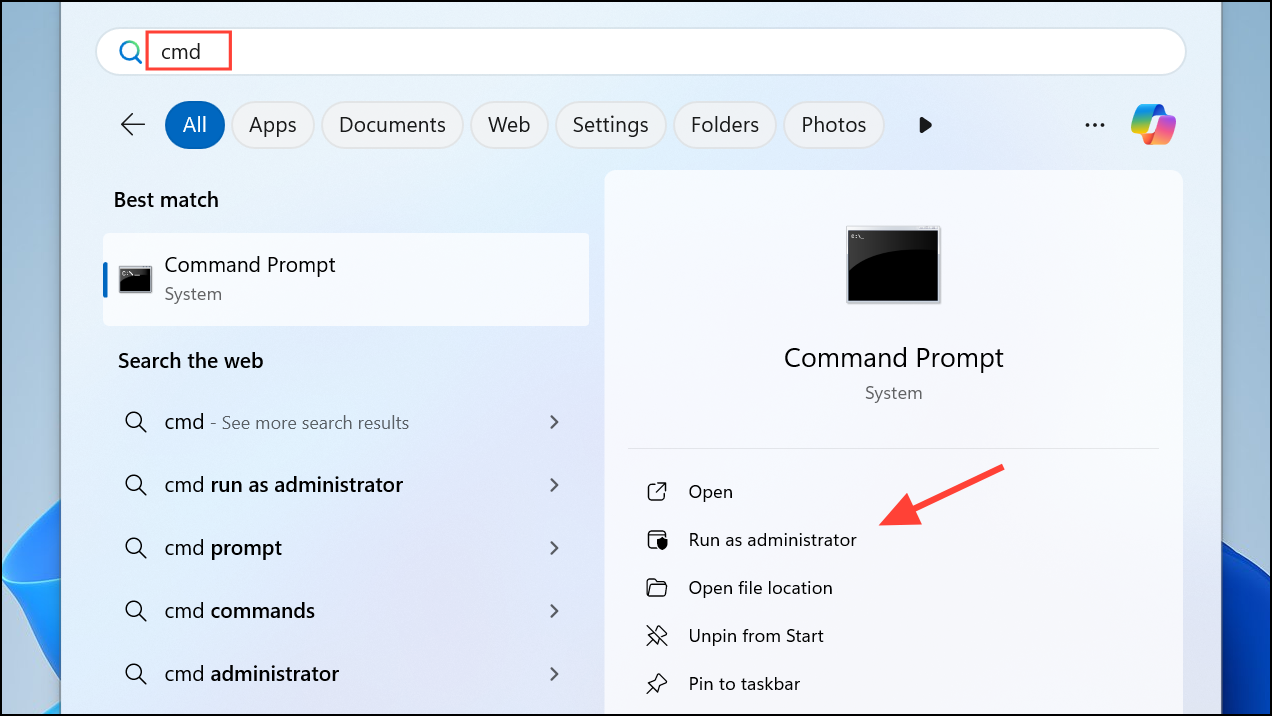
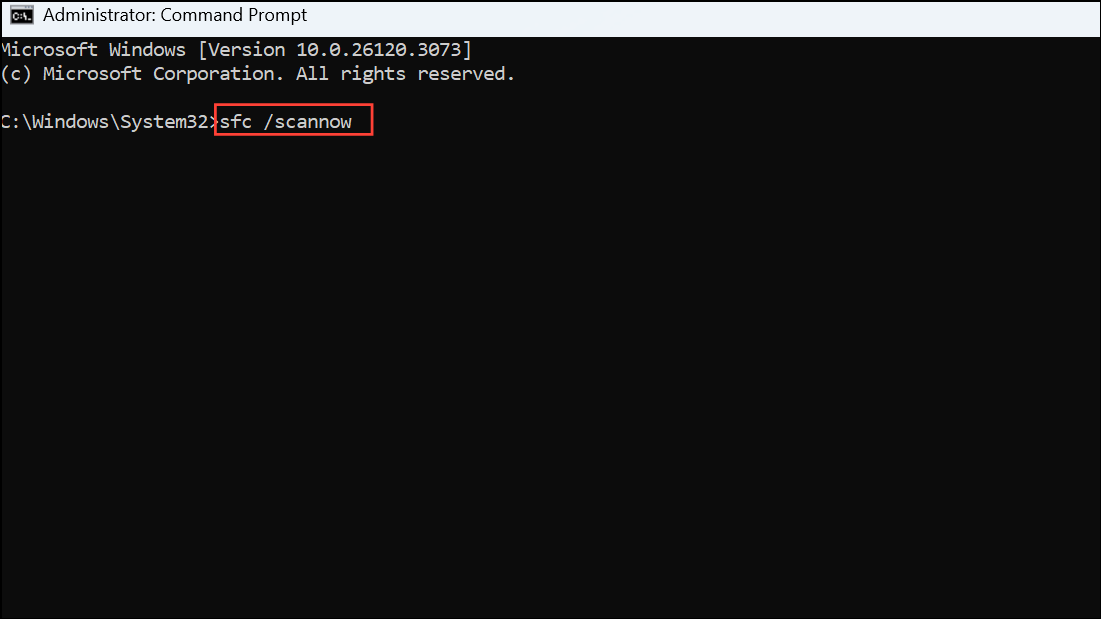
Open the Start menu, type cmd, right-click Command Prompt, and select Run as administrator. This gives you the necessary permissions to run system-level commands.
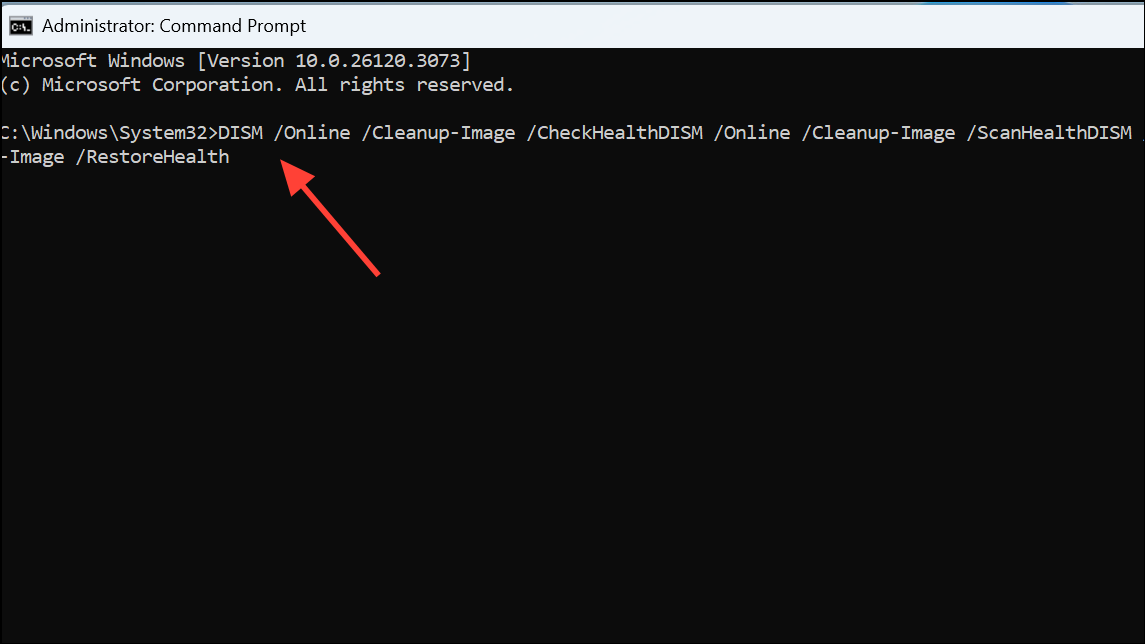
Next, use the Deployment Imaging Service and Management Tool (DISM) to check and repair Windows image corruption. Enter the following commands one at a time, pressing Enter after each:
These commands will identify and fix deeper issues that can prevent Windows Update from functioning correctly. Allow each command to finish before proceeding to the next.
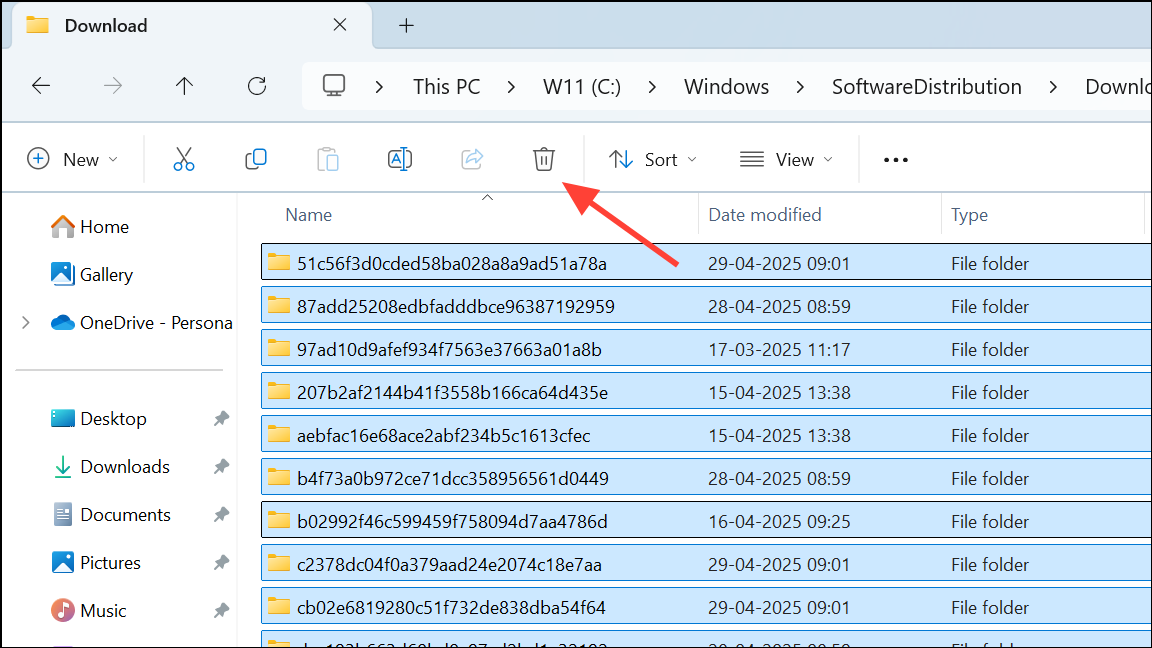
Select all files and folders inside the Download folder and delete them. If prompted, provide administrator permission. Removing these files forces Windows Update to re-download fresh update packages.
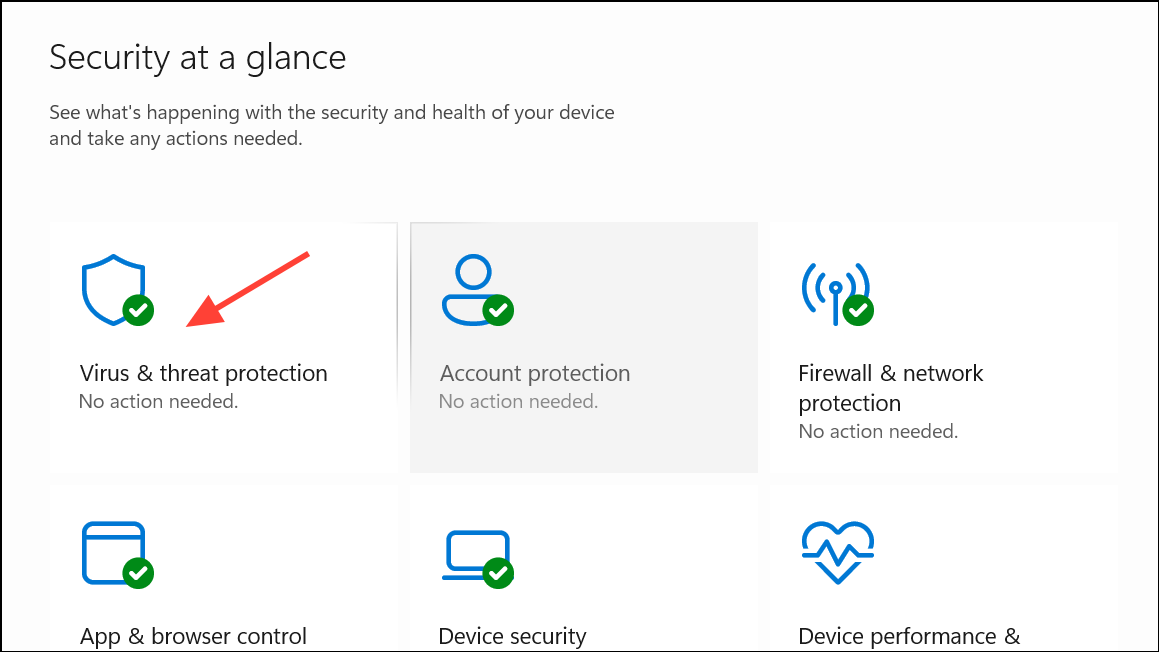
Third-party antivirus software and firewalls can block Windows Update components. Temporarily disable any non-Microsoft antivirus programs. If you use Windows Defender, open Windows Security, go to Virus & Threat Protection settings. Turn off Real-time protection.
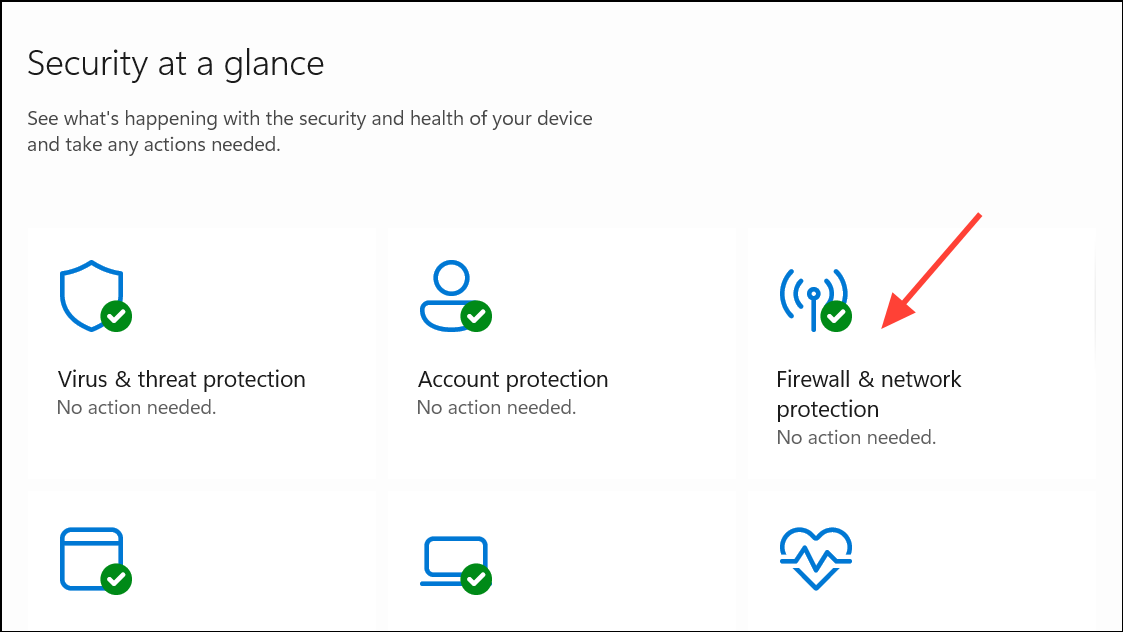
Open Windows Security again, select Firewall & network protection, and turn off the firewall for your active network profile. Remember to re-enable both antivirus and firewall after troubleshooting to maintain system security.
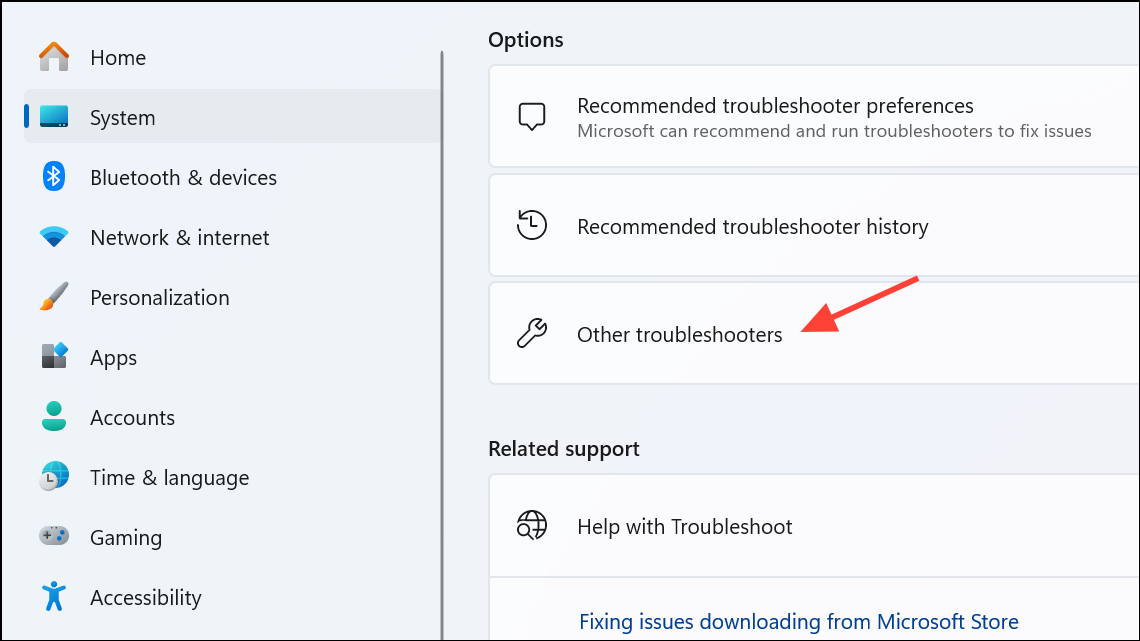
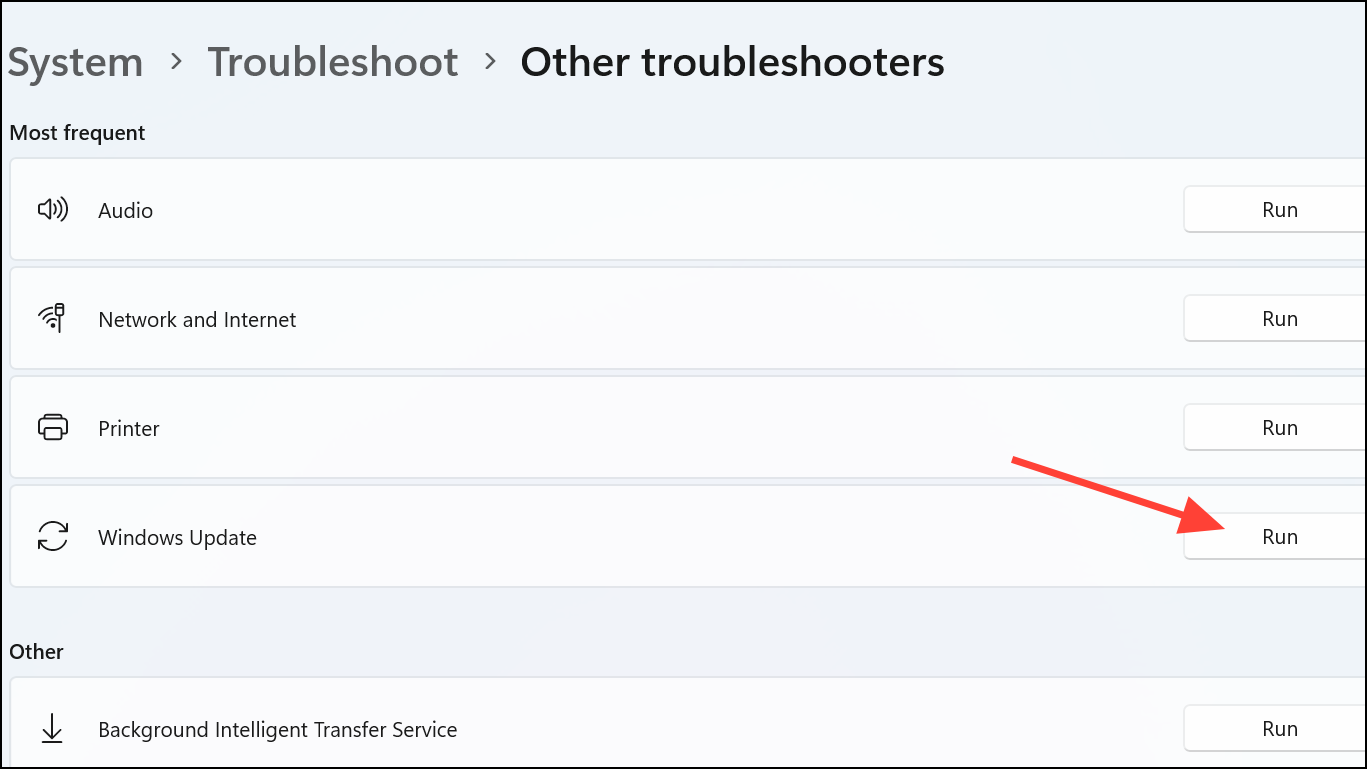
Find Windows Update in the list and click Run. The troubleshooter will automatically scan for and attempt to fix common update problems, including service misconfigurations and missing files.
If update errors persist, download the latest Windows 11 installation media from the official Microsoft website. Search for “Windows 11 Media Creation Tool” and follow the prompts to download the tool.
Run the tool and choose Upgrade this PC now. This process repairs and updates your Windows installation without deleting personal files or installed applications. Ensure you have at least 40GB of free space on your system drive before starting.
Follow on-screen instructions to complete the update. After the process, check Windows Update to verify that updates now install correctly.
Additional Checks and Maintenance
Verify your system date and time are set correctly. Incorrect settings can block update downloads.
Disconnect unnecessary external drives or USB devices during updates.
Ensure a stable internet connection throughout the update process.
After troubleshooting, re-enable antivirus and firewall protection.
Consistently applying these methods resolves error 0x80246005 and restores your device’s ability to receive updates, which directly improves system security and reliability.
Regular maintenance and prompt troubleshooting keep Windows 11 running smoothly and secure. If issues persist, contacting Microsoft Support through the Get Help app provides direct assistance for complex cases.