
Windows Update error 0x8024800C prevents critical updates from installing on Windows 11 systems, often causing system security and performance issues. This error typically results from problems with the SoftwareDistribution folder, corrupted system files, or interrupted update services. Addressing these underlying causes restores the update process and ensures your device stays current and secure.
Clear the SoftwareDistribution Folder and Reset Update Components
Corruption or sync issues in the SoftwareDistribution folder frequently trigger error 0x8024800C. Clearing this folder removes outdated or damaged update files, prompting Windows to download fresh update data and resolve update failures.
Windows + S, type cmd, right-click the result, and choose Run as administrator.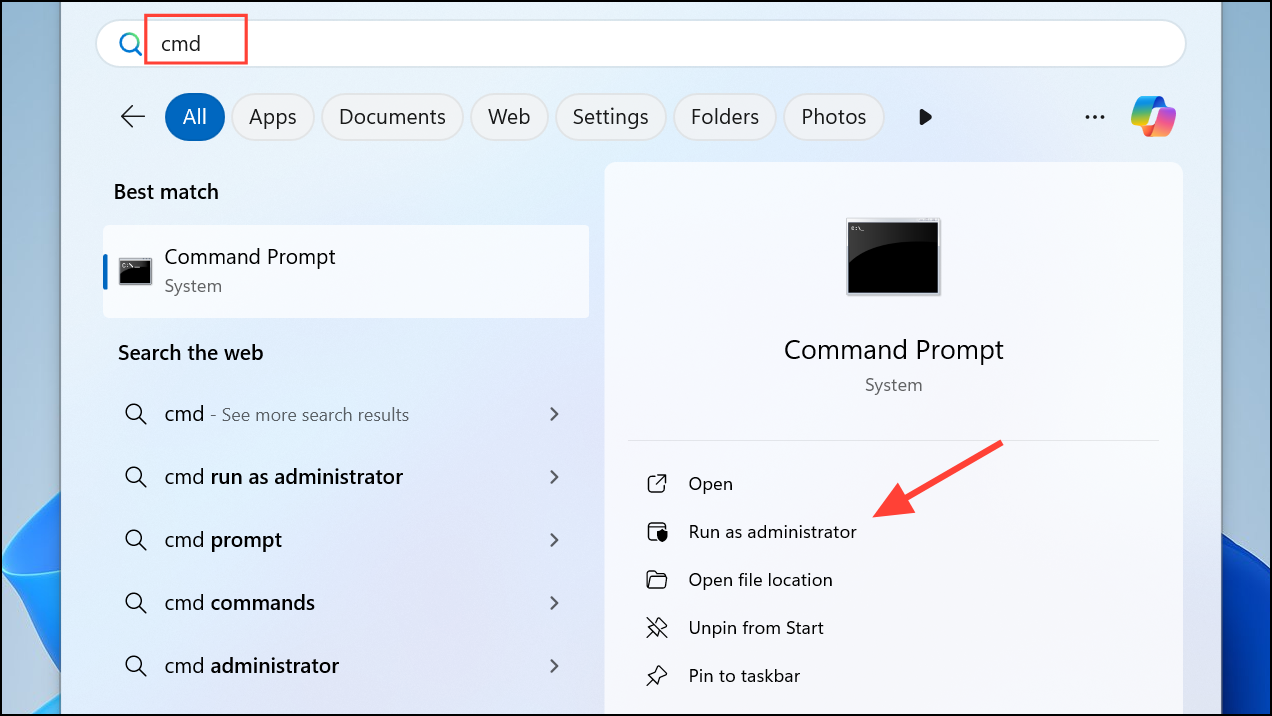
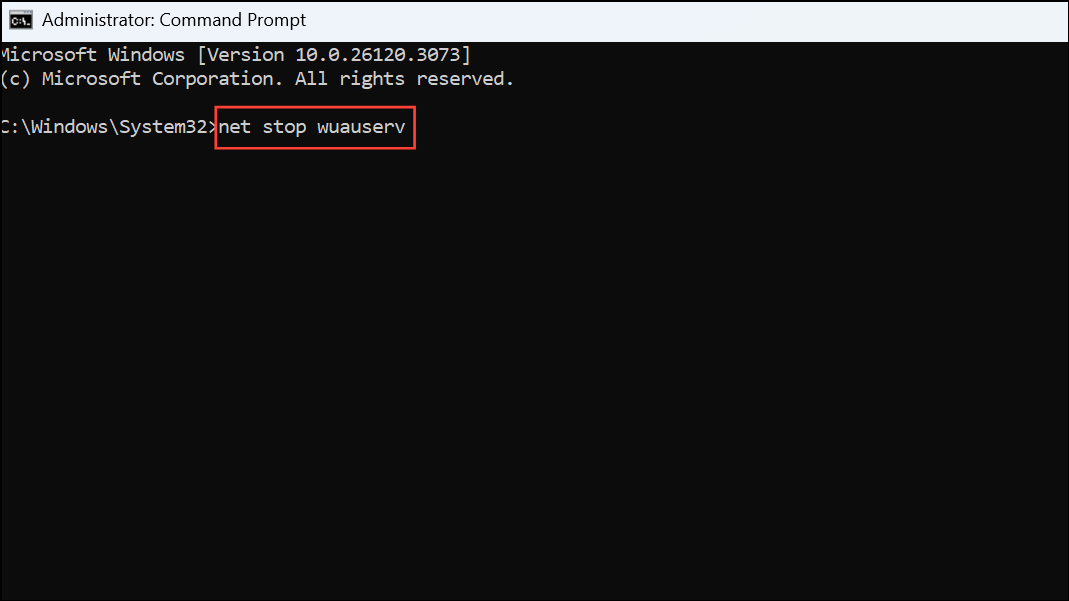
net stop wuauserv
net stop cryptSvc
net stop bits
net stop msiserver
C:\Windows\SoftwareDistribution. Delete all files and folders inside both the DataStore and Download subfolders. This process removes corrupted cache files that may be blocking updates.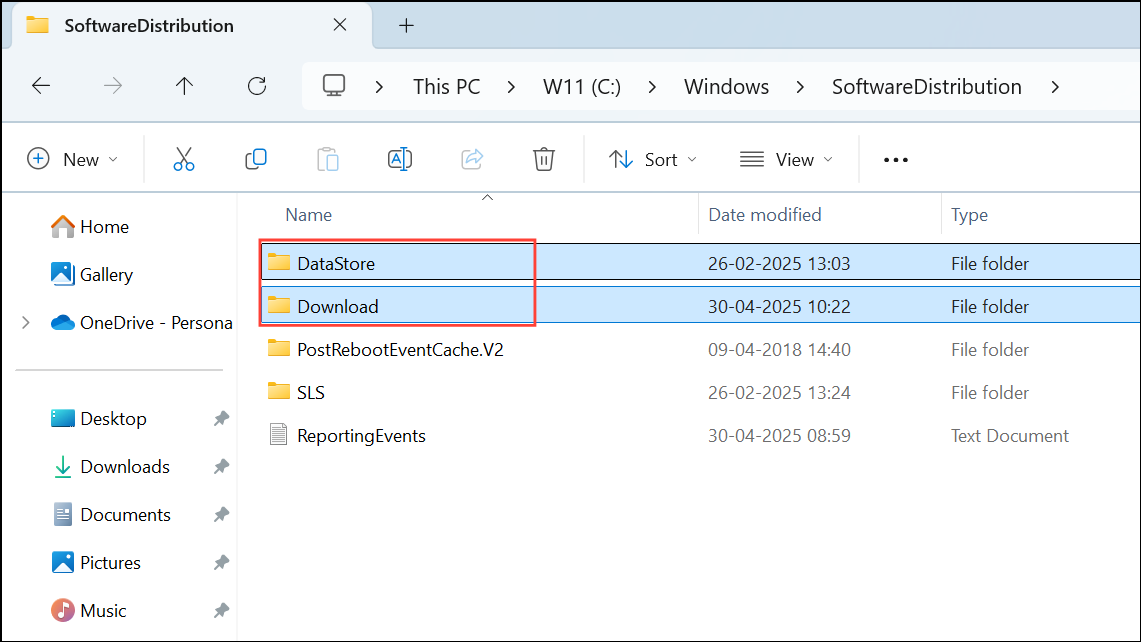
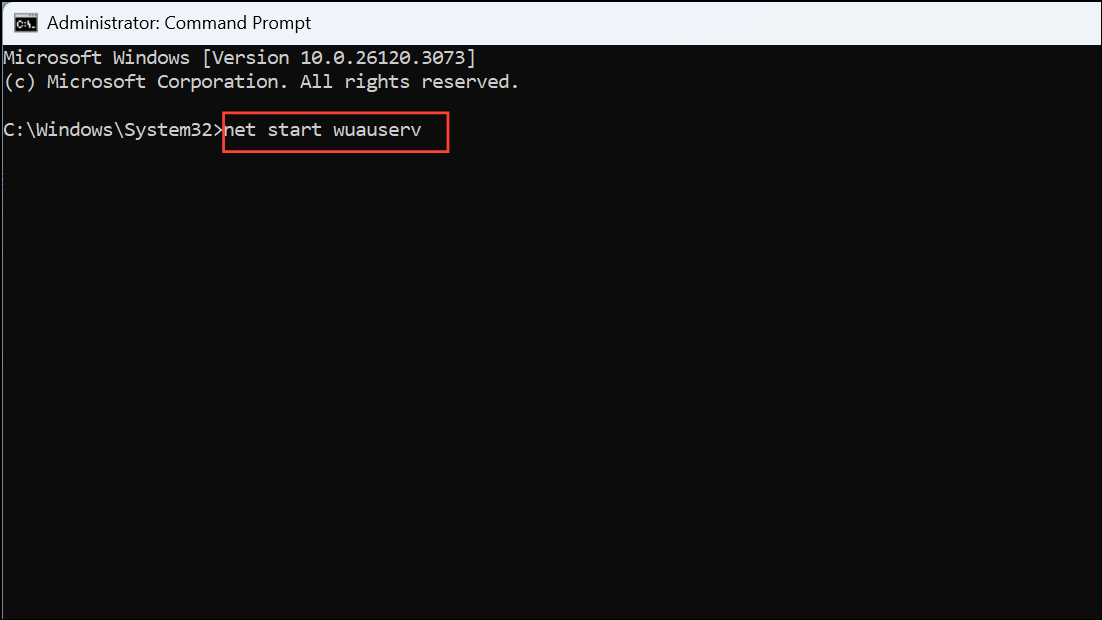
net start wuauserv
net start cryptSvc
net start bits
net start msiserver
Run the Windows Update Troubleshooter
The built-in Windows Update Troubleshooter automatically detects and repairs common update issues, including service misconfigurations and corrupted update files. Running this tool often resolves error 0x8024800C without manual intervention.
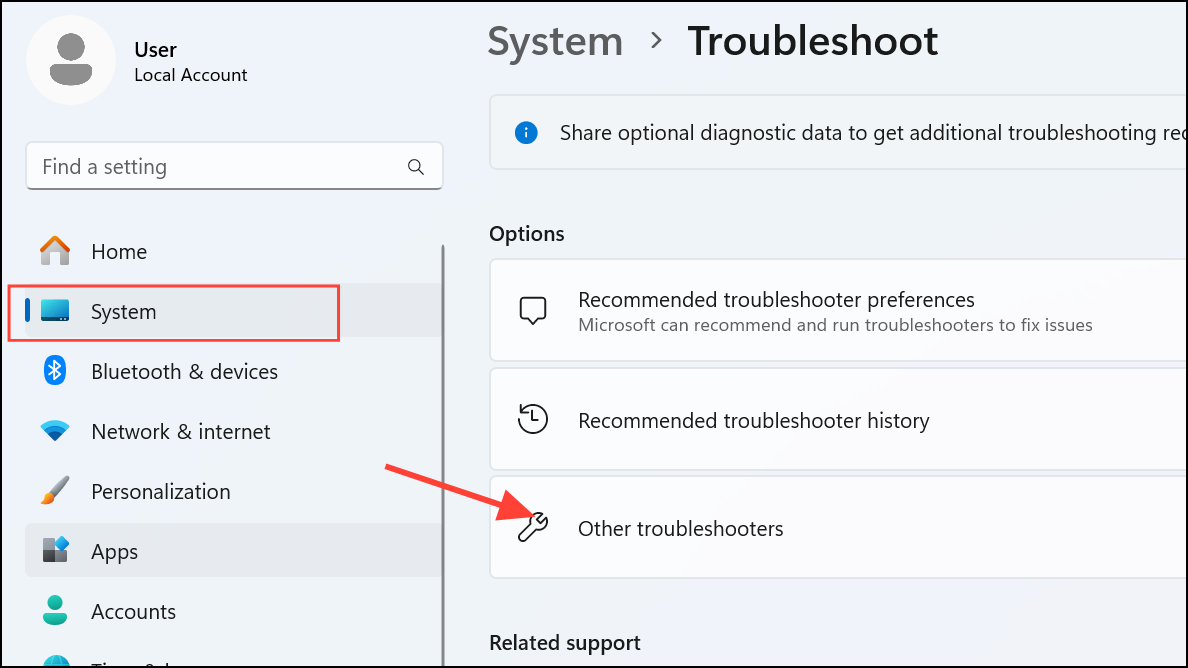
Windows Update in the list and click Run next to it. The tool will scan for update issues and apply recommended fixes automatically.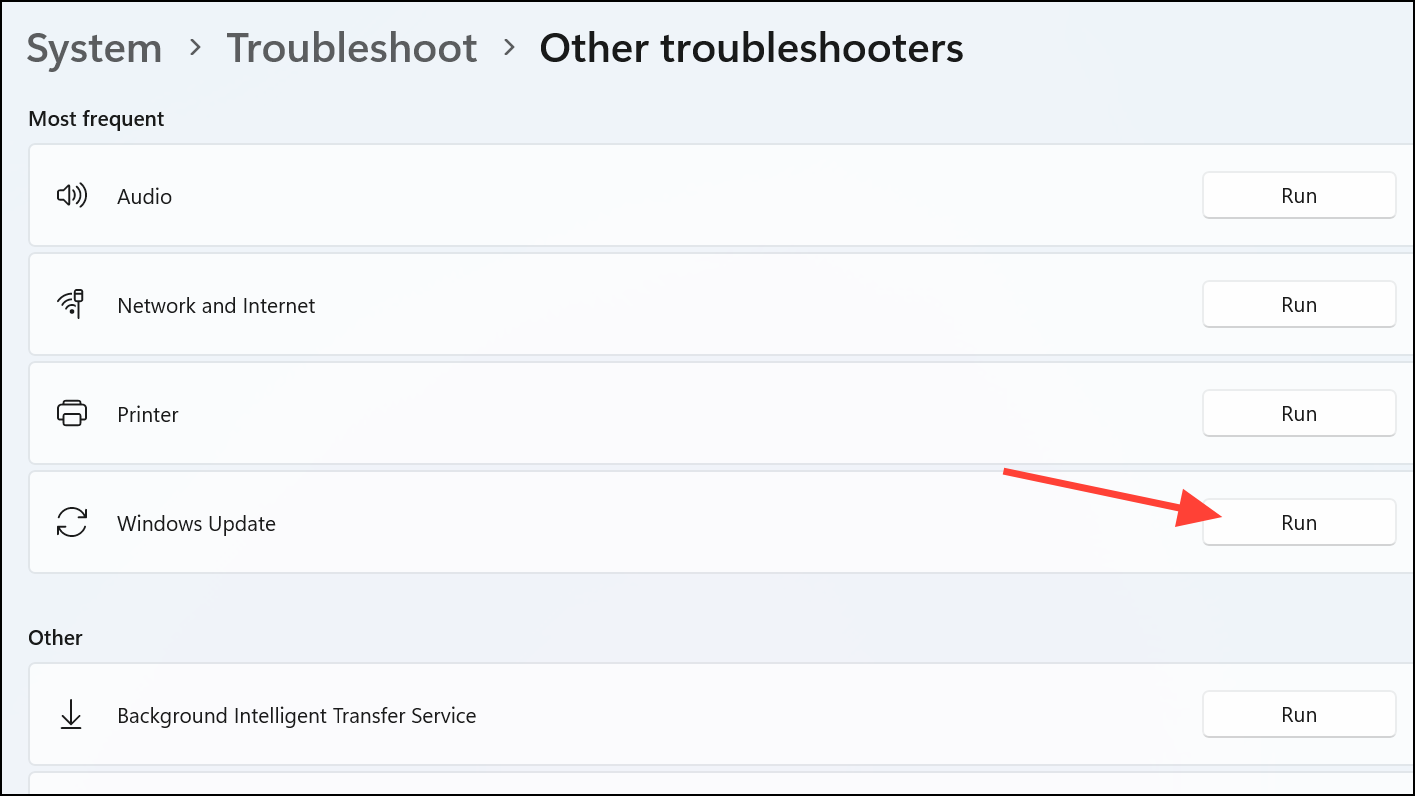
Repair System Files with System File Checker (SFC)
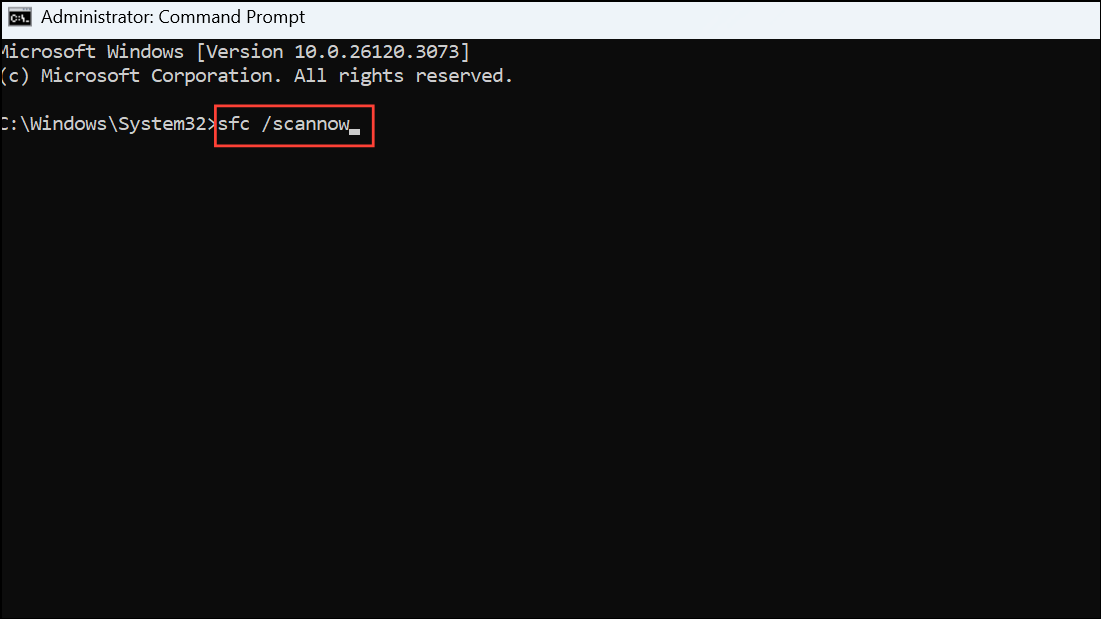
Corrupted or missing system files can disrupt update operations, leading to error 0x8024800C. The System File Checker (SFC) tool scans and repairs these files, restoring update functionality.
sfc /scannow
Verify and Restart Update Services
Windows Update depends on several background services, including Windows Update, Background Intelligent Transfer Service (BITS), and Cryptographic Services. If these services are disabled or not running, updates will fail.
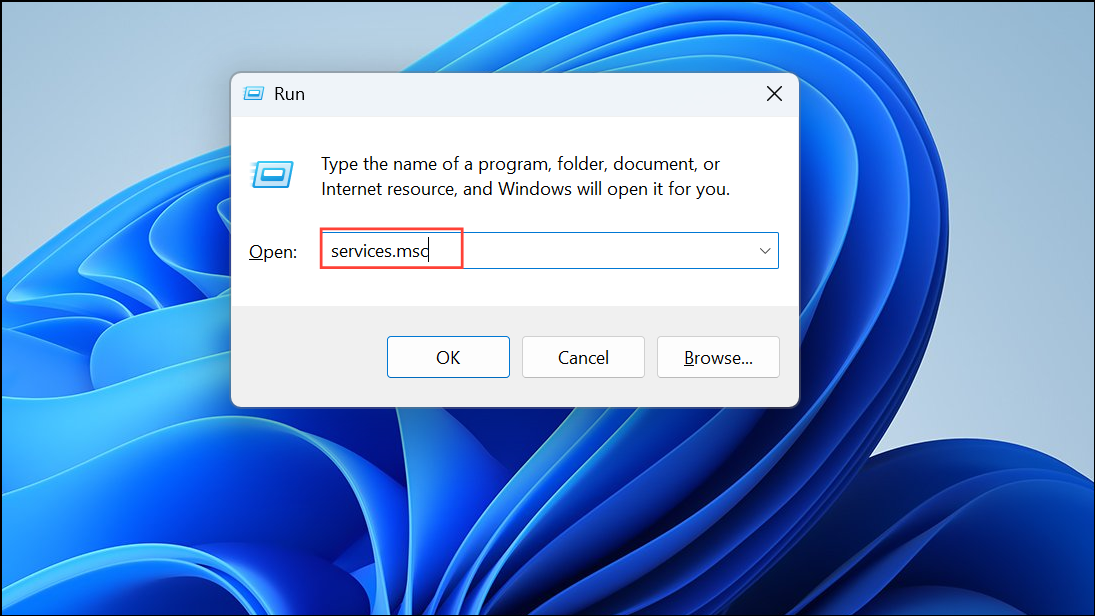
Windows Update, Background Intelligent Transfer Service, and Cryptographic Services. Right-click each one and select Start or Restart if they are not running.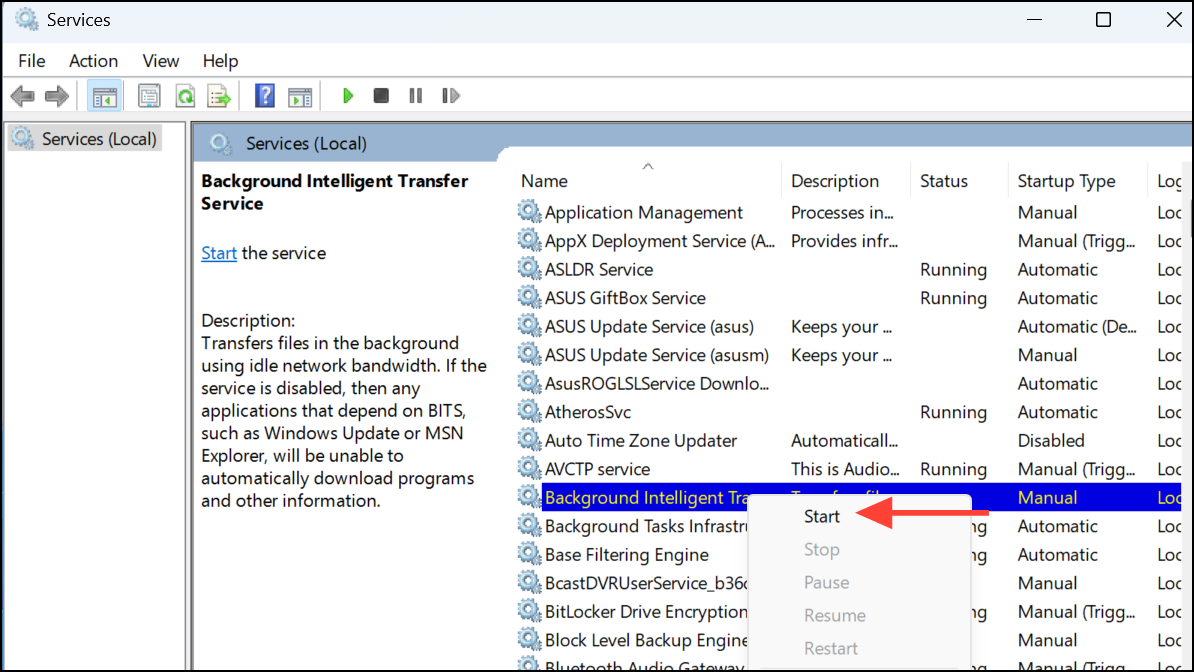
Manually Download and Install Updates
If standard update methods continue to fail, manually downloading and installing updates bypasses many common errors. This approach is useful when a specific update repeatedly triggers error 0x8024800C.
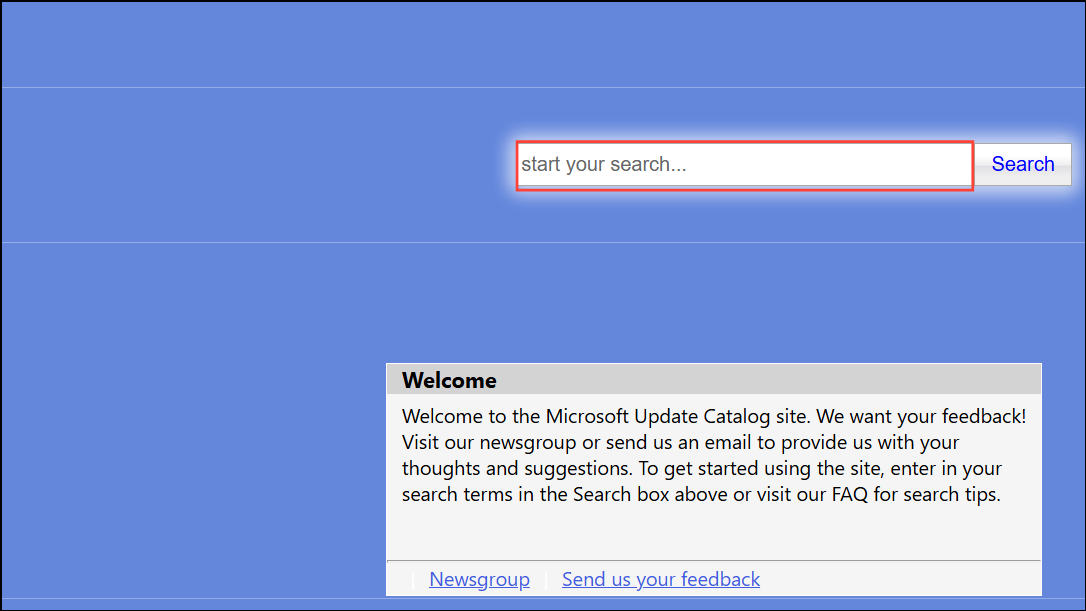
.msu file to begin installation. Follow the prompts, and restart your computer if required.Perform an In-Place Upgrade (Repair Install)
When all other solutions fail, an in-place upgrade repairs Windows system files without affecting personal data or installed applications. This process reinstalls Windows 11 over your current installation, resolving deep-seated update issues.
Keep personal files and apps is selected. Proceed with the installation and allow your PC to restart as needed.Resolving error 0x8024800C restores access to Windows updates and keeps your device running smoothly. Regularly maintaining update components and system files helps prevent future update disruptions.



