

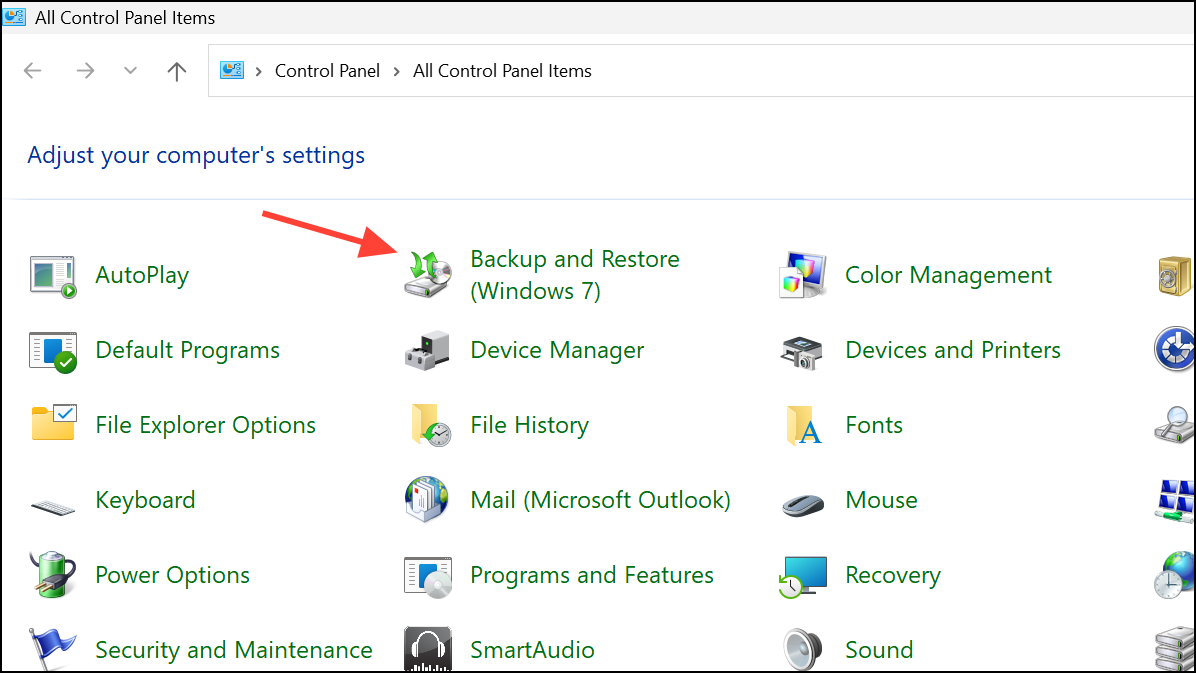
Windows 11’s built-in backup tools can stop working with error code 0x81000036, often displaying a message like “Windows could not find backup devices.” This issue disrupts the ability to create or restore system images, putting important files and recovery options at risk. The error is frequently linked to conflicts with virtualization features, corrupted backup folders, or misconfigured system services. Addressing these causes restores reliable backup functionality and ensures your data remains protected.
Disable Windows Sandbox
Virtualization features such as Windows Sandbox can interfere with the backup process and trigger error 0x81000036. Temporarily turning off Windows Sandbox resolves conflicts that prevent the backup service from detecting storage devices.
Windows key + R, typing appwiz.cpl, and pressing Enter. In the Programs and Features window, select Turn Windows features on or off from the left pane.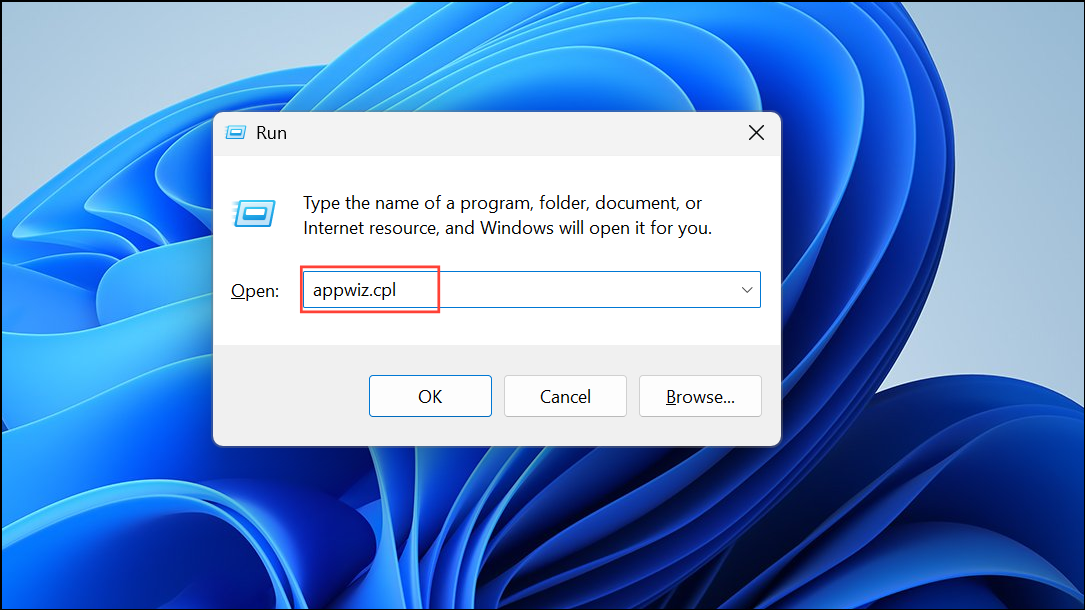
Disable Hyper-V
Hyper-V, Microsoft’s virtualization platform, can also cause conflicts with the backup system. Disabling Hyper-V removes this interference and allows the backup utility to function correctly.
Remove or Rename the WindowsImageBackup Folder
Corrupted or incomplete backup data in the WindowsImageBackup folder can block new backup attempts and cause error 0x81000036. Clearing out this folder restores the backup utility’s ability to create fresh images.
C:\System Volume Information. Note that this folder may be hidden, so enable viewing of hidden items from the View menu if necessary.Restart Volume Shadow Copy and Related Services
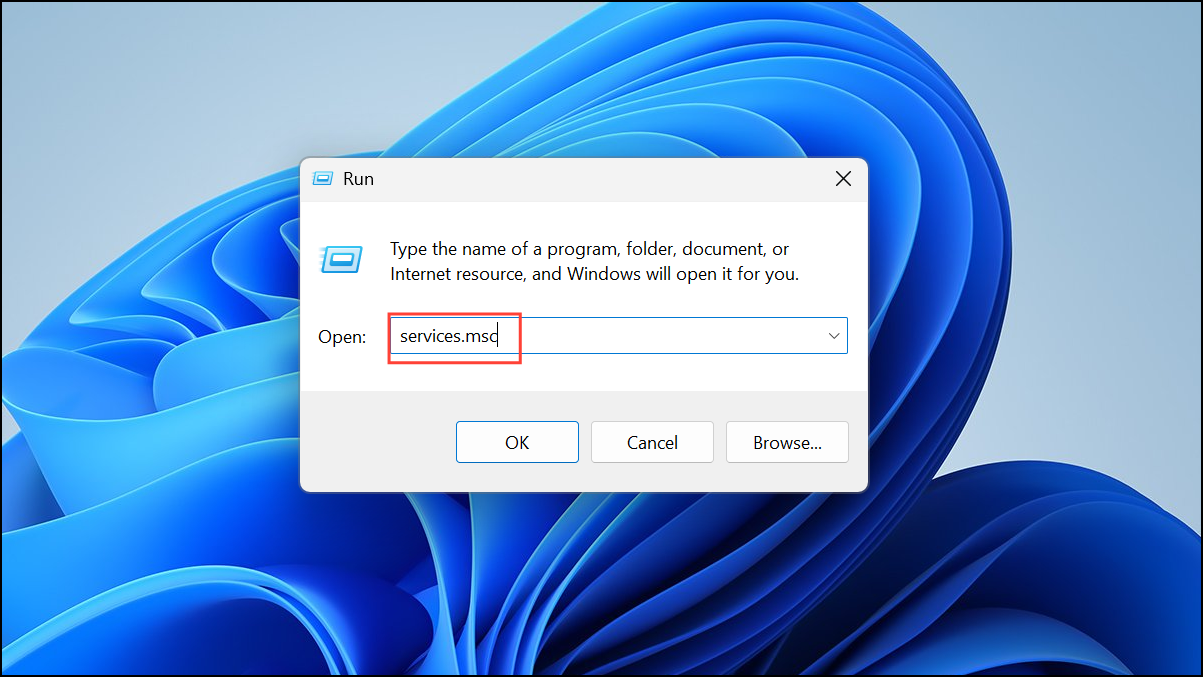
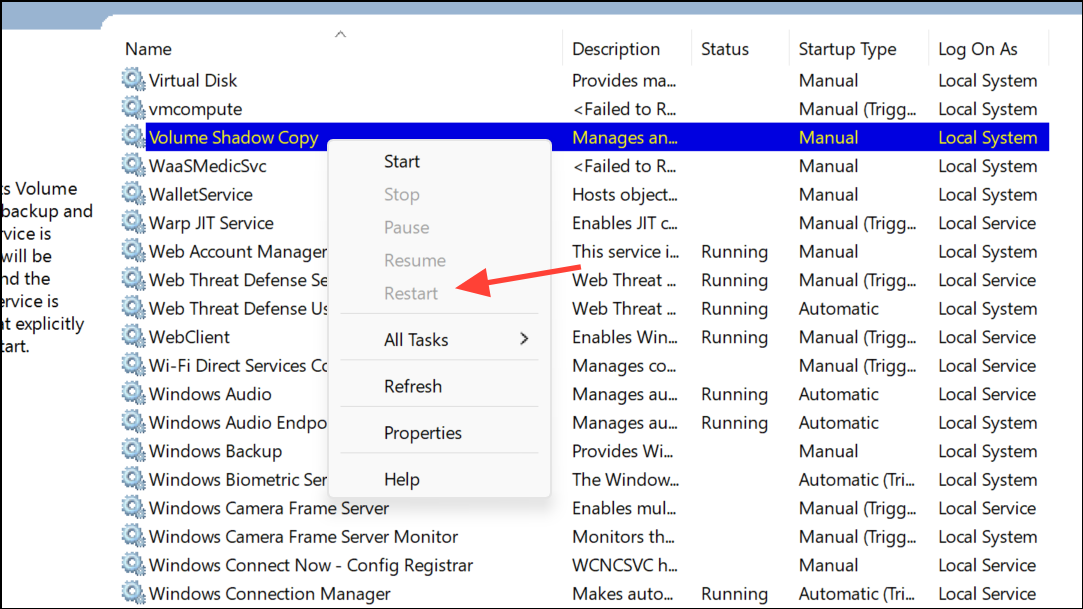
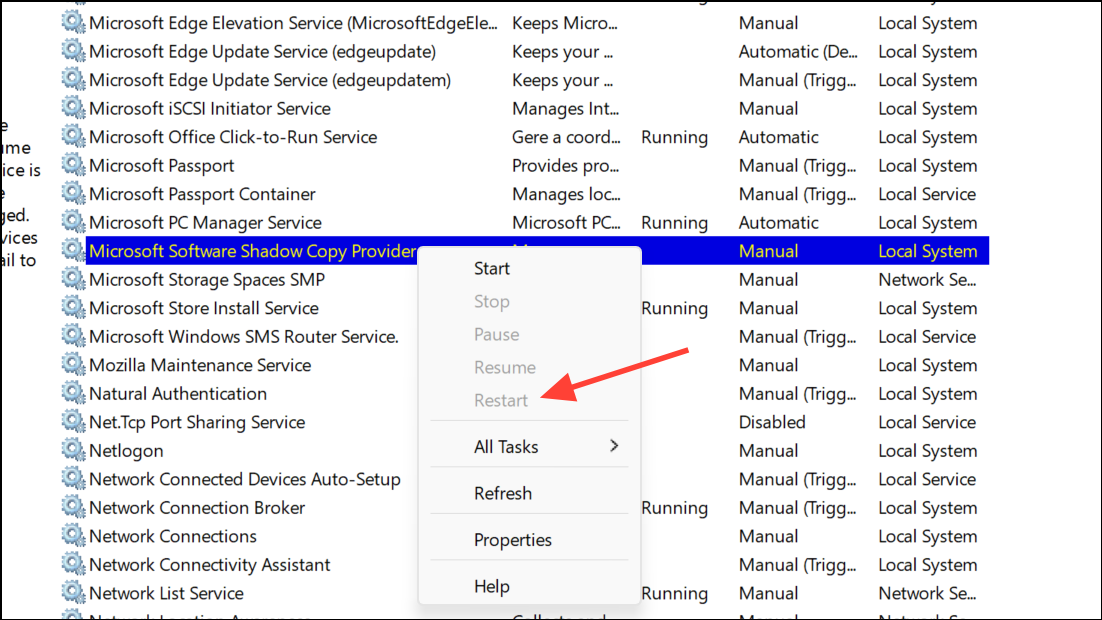
The Volume Shadow Copy Service (VSS) is essential for backups. If this service or related components are not running, backup operations may fail with error 0x81000036. Restarting these services often restores normal function.
Run System File Checker and DISM to Repair System Files
Corrupted system files can block backup operations and result in error 0x81000036. Running built-in repair tools addresses underlying file integrity issues that may be affecting the backup system.
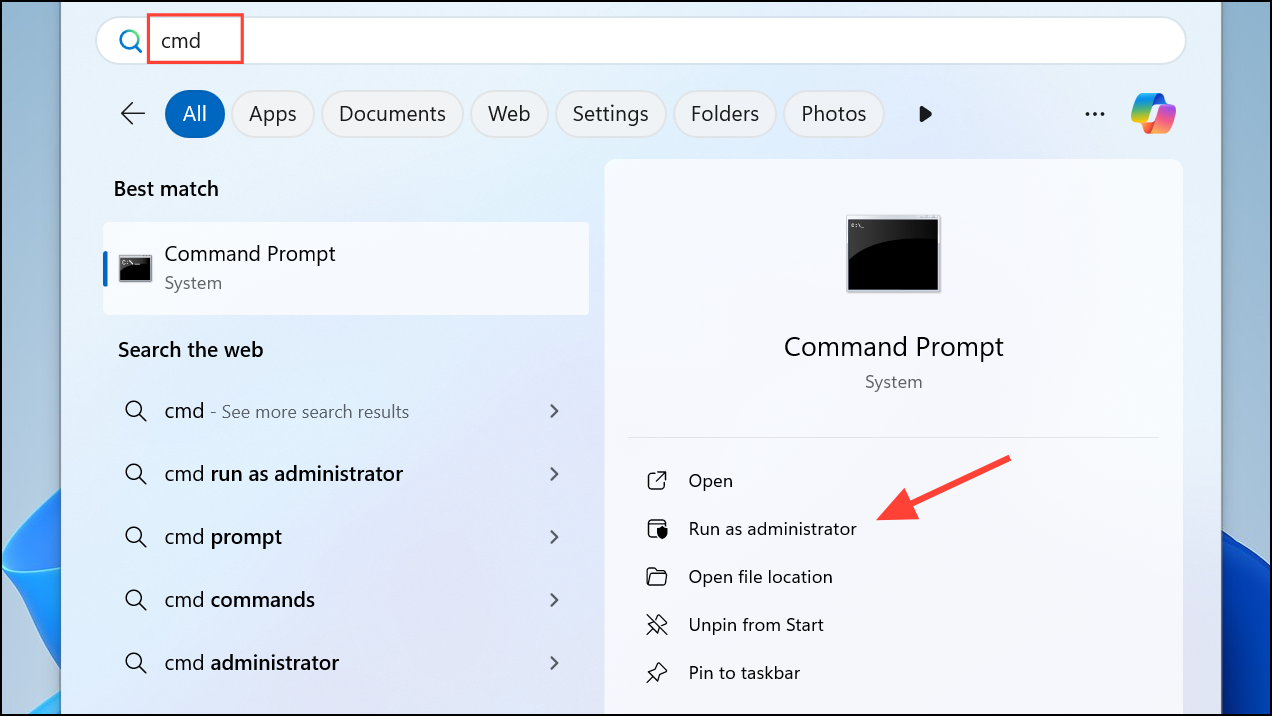
sfc /scannow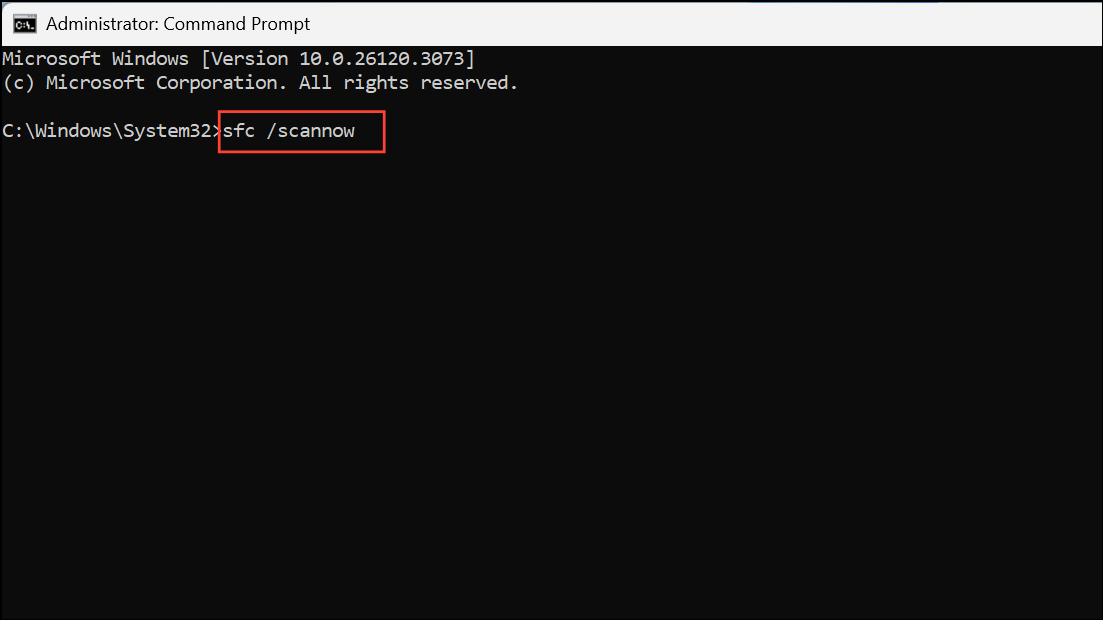
This process checks for and replaces corrupted Windows files.
DISM /Online /Cleanup-Image /RestoreHealth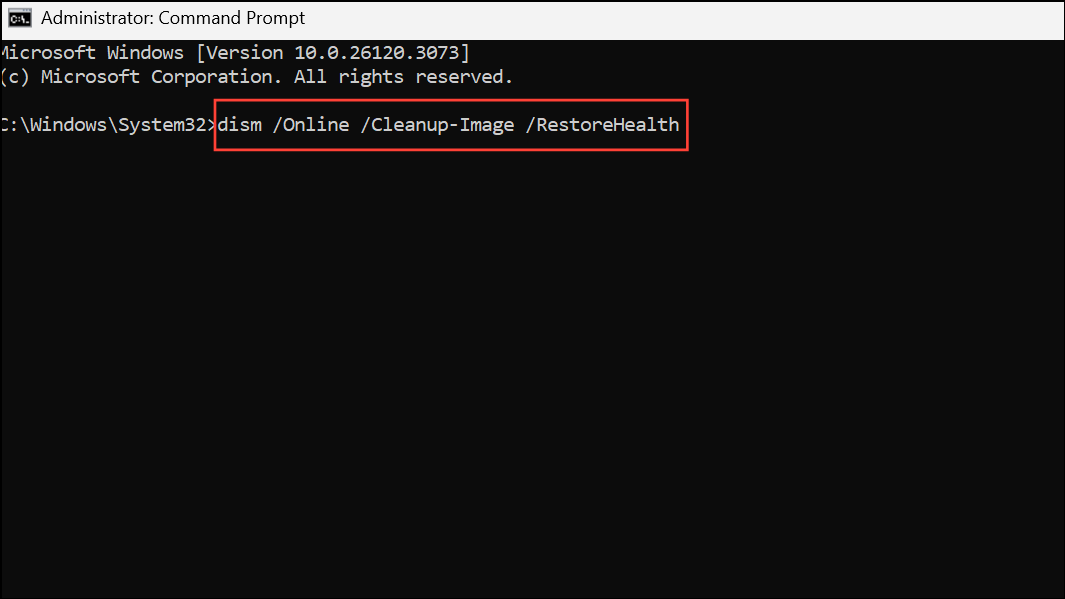
Check Disk Space and Backup Configuration
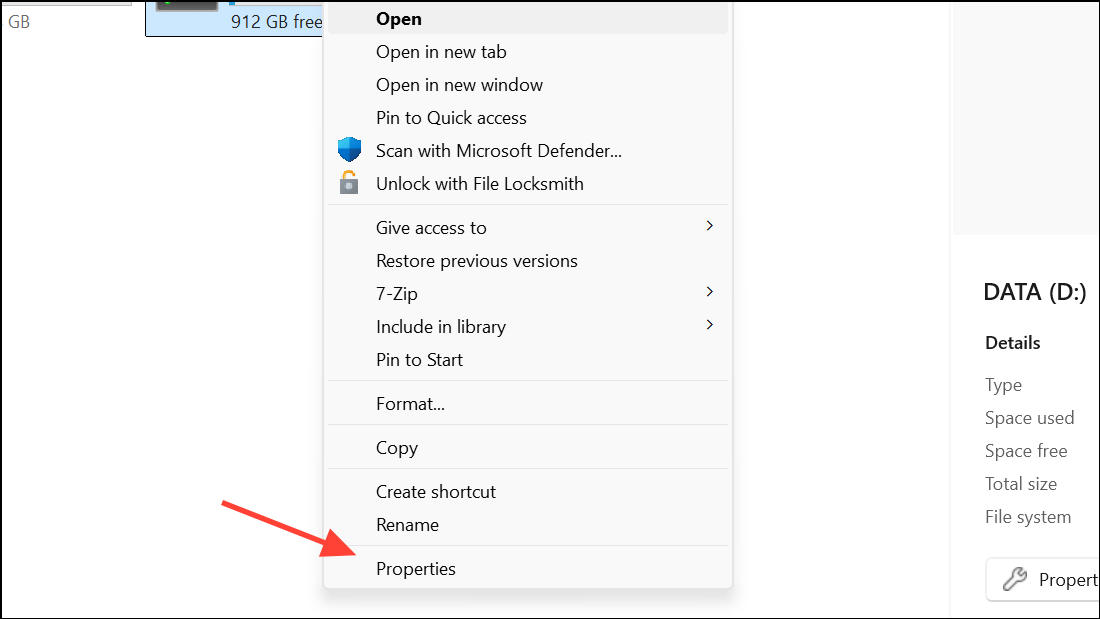
Insufficient disk space or misconfigured backup settings can also cause error 0x81000036. Ensuring adequate free space and correct backup settings removes these obstacles.
Turning off Windows Sandbox and Hyper-V resolves most cases of error 0x81000036 in Windows 11 backup. If problems persist, clearing old backup folders, restarting system services, repairing system files, and adjusting backup settings restore full backup functionality and keep your data safe.



