

The “Your PC/Device needs to be repaired” error with code 0xc000000d stops Windows 11 from booting, often pointing to missing or corrupted Boot Configuration Data (BCD) files. This issue can appear after failed updates, abrupt shutdowns, or disk errors, and usually prevents access to normal or recovery boot options. Addressing this problem requires targeted recovery steps to restore or rebuild system boot files and, if necessary, reinstall Windows.
Clean Install Windows 11 Using Installation Media
Performing a clean installation is the most direct way to resolve persistent 0xc000000d errors, especially if the system cannot access standard recovery tools or if boot repairs do not work. This method completely replaces corrupted system files and resets the boot configuration, allowing the PC to start normally again.
F12, Esc, or another key depending on your hardware) to set the USB drive as the first boot device. Save changes and restart.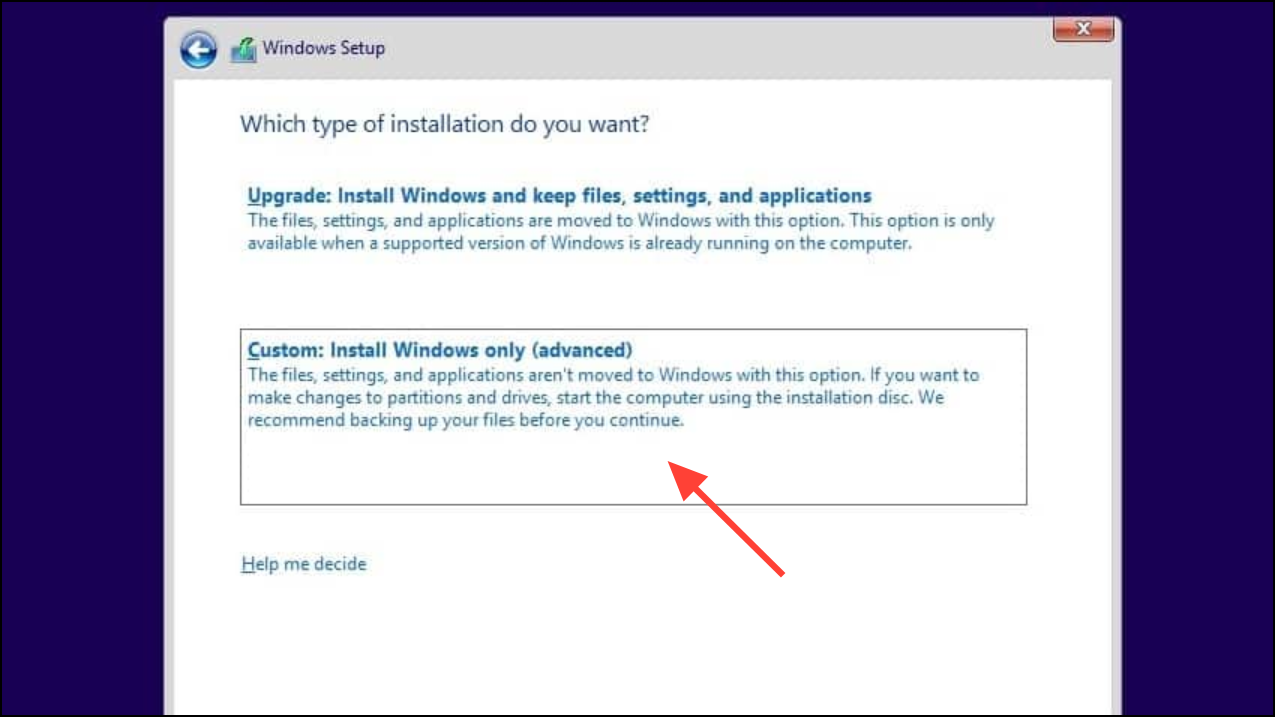
Repair Boot Configuration Data (BCD) Using Command Prompt
Corrupted or missing BCD files are a primary cause of error 0xc000000d. Rebuilding the BCD can restore the boot process without reinstalling Windows, provided the disk and system files are otherwise healthy.
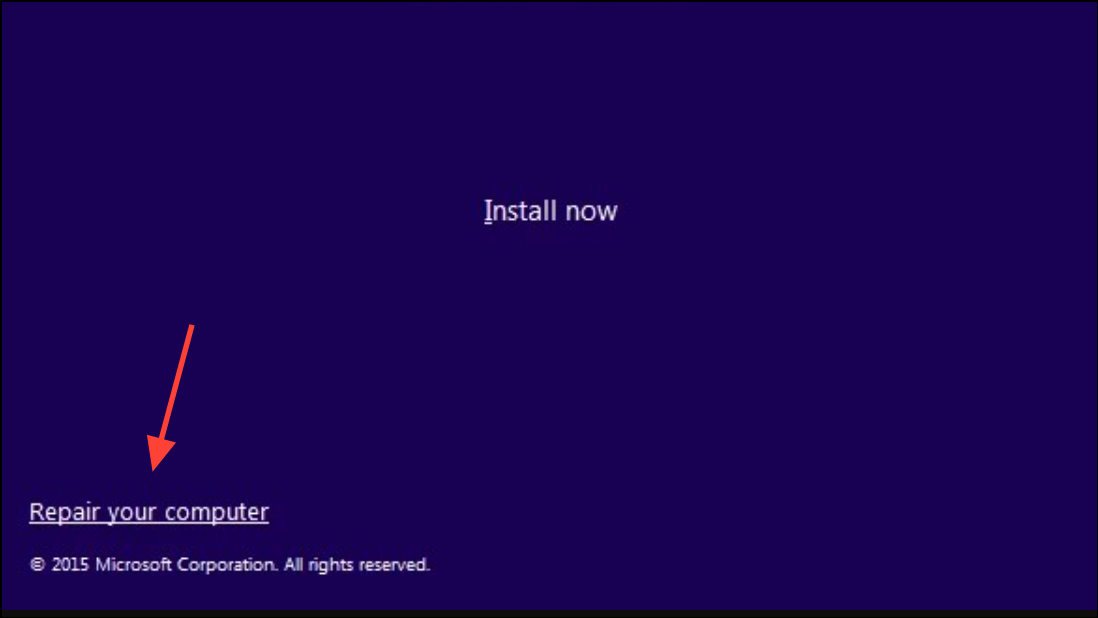
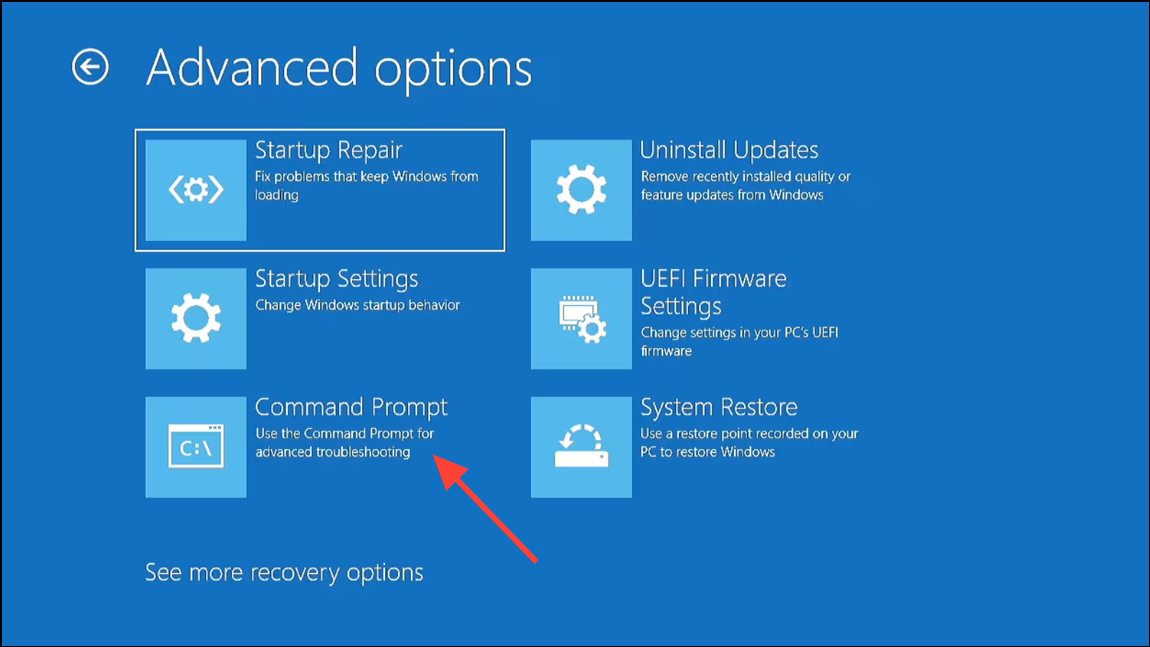
bootrec /fixmbr
bootrec /fixboot
bootrec /scanos
bootrec /rebuildbcd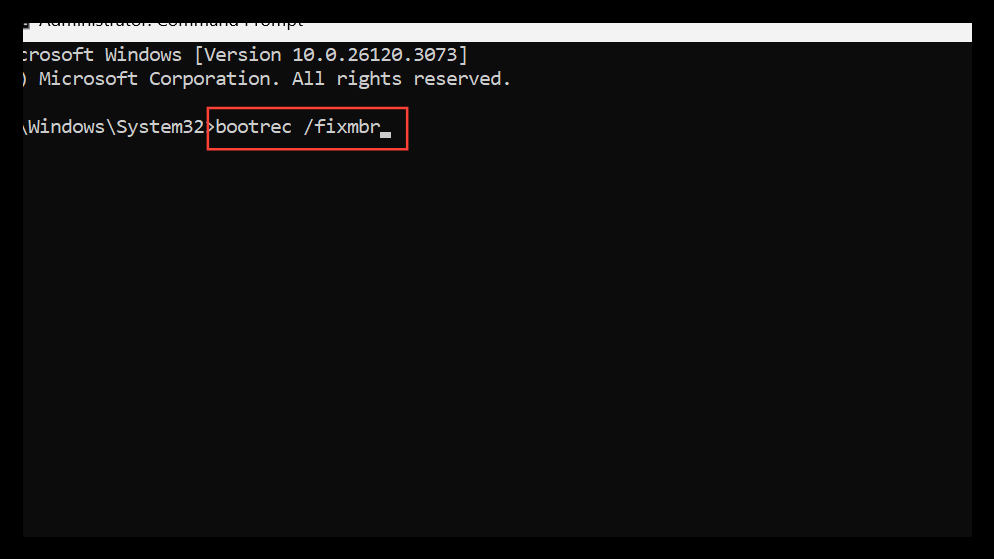
These commands attempt to repair the Master Boot Record, fix boot sectors, scan for Windows installations, and rebuild the BCD store. If successful, restart the PC and check if Windows boots normally.
bootrec /rebuildbcd, additional troubleshooting may be required, such as using diskpart to assign drive letters or checking disk health.Run Startup Repair
Startup Repair is an automated recovery tool that can fix certain boot errors, including those related to BCD corruption.
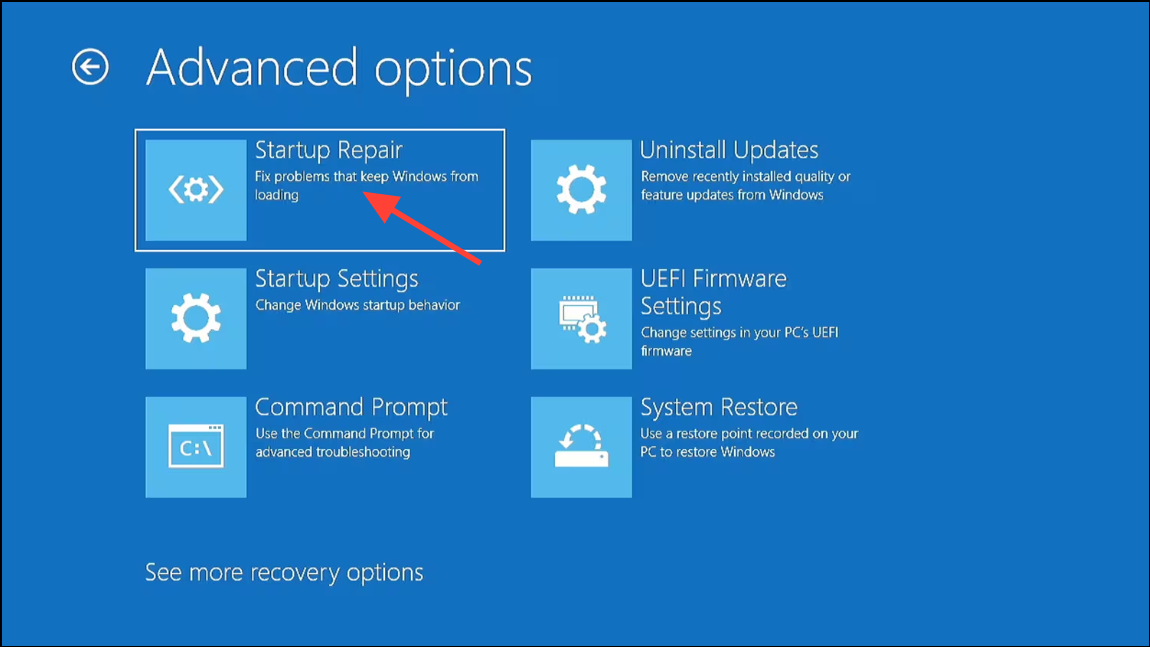
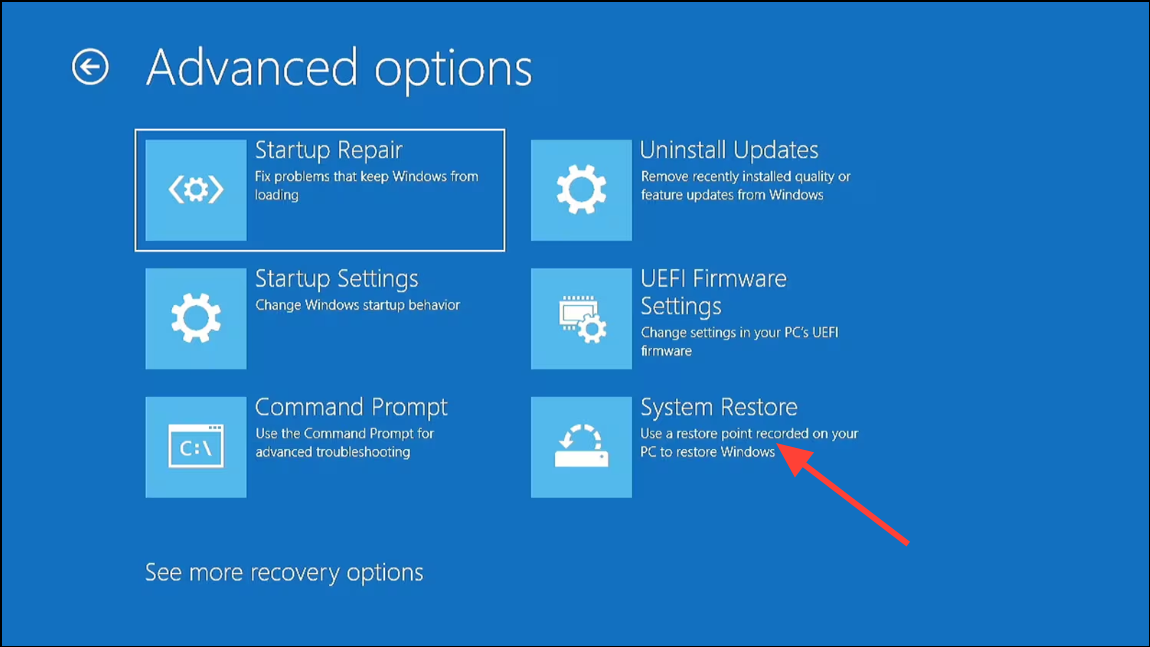
Restore System Using System Restore
If a system restore point exists from before the error occurred, this method can revert the system configuration and potentially resolve 0xc000000d without affecting personal files.
Check the Hard Drive for Errors
Disk problems can cause boot configuration corruption. Checking the disk for errors can resolve some underlying issues.
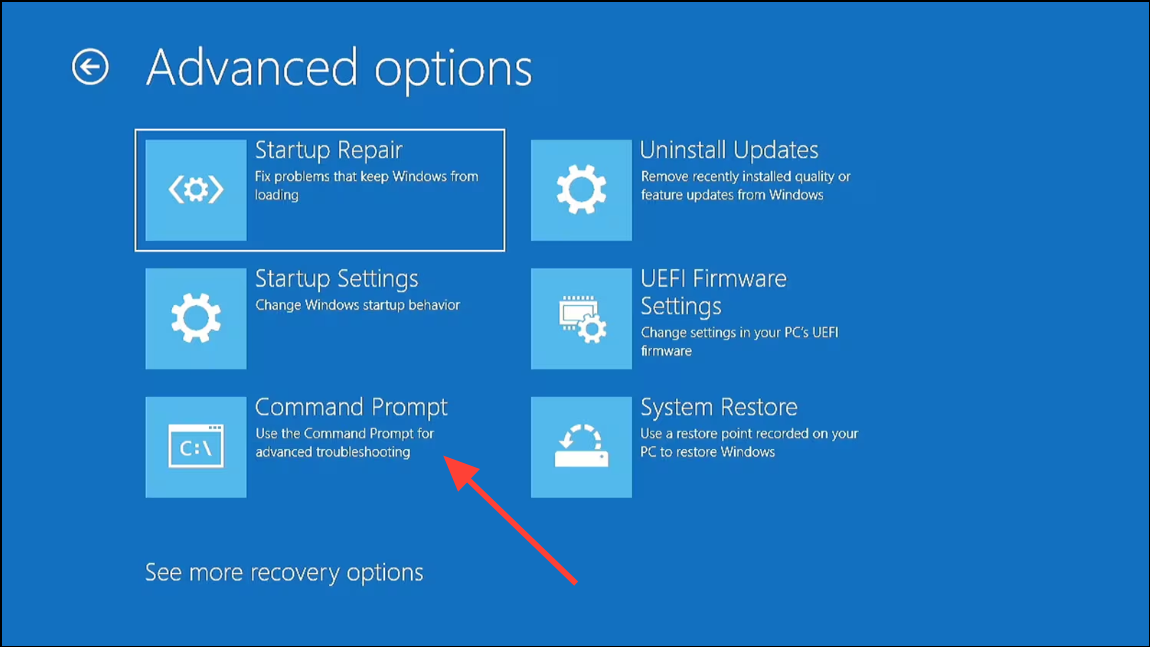
C: if your Windows partition uses a different letter):chkdsk C: /f /r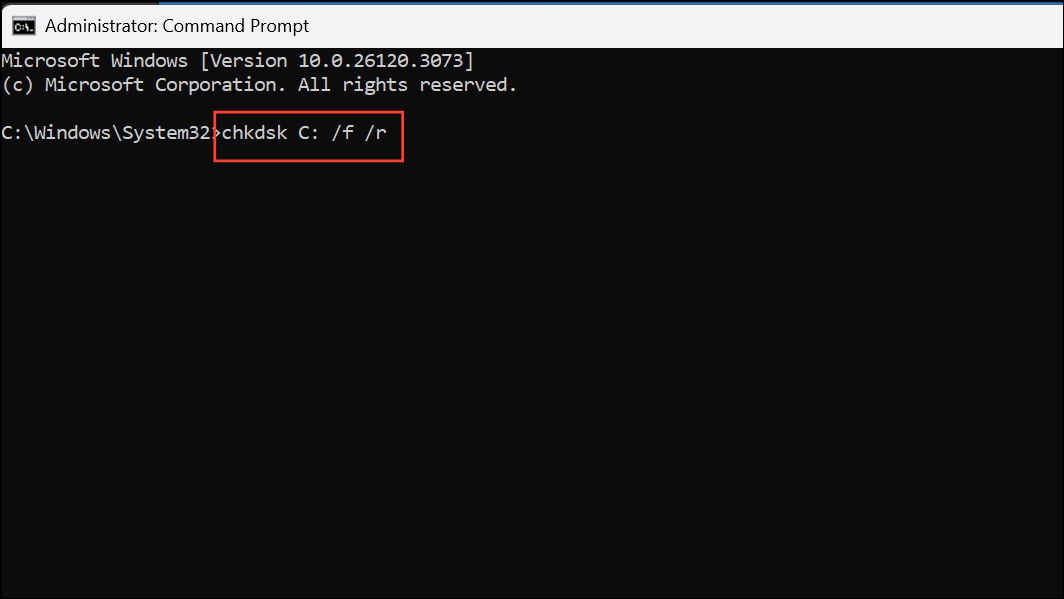
This command scans for and repairs file system errors and bad sectors. Allow the process to finish, then restart the computer.
Additional Tips and Considerations
- Disconnect all unnecessary peripherals before troubleshooting to rule out hardware conflicts.
- If you cannot access recovery tools, seek help from a technician or use third-party bootable recovery software to rescue important files.
- If repeated errors occur after reinstalling Windows, test your RAM and storage hardware for faults.
Resolving error 0xc000000d restores normal startup and system access on Windows 11. If these methods don’t work, hardware diagnostics or professional repair may be necessary.



