
Error code 0xc0000098 appears when Windows 11 cannot locate or read essential Boot Configuration Data (BCD) files needed to start the operating system. This issue typically results in a blue screen with messages referencing missing or corrupt files such as \BCD, winload.efi, or \windows\system32\config\system. Systems may fail to boot, become stuck in repair loops, or be unable to access recovery tools. Several factors can cause this error, including failed updates, disk errors, incorrect BIOS/UEFI settings, or problems creating installation media. The following methods address the root causes and help restore normal boot functionality.
Startup Repair Using Windows Recovery Environment
F12, F2, Esc, or Del) to access the boot menu, then select the USB drive as the boot device.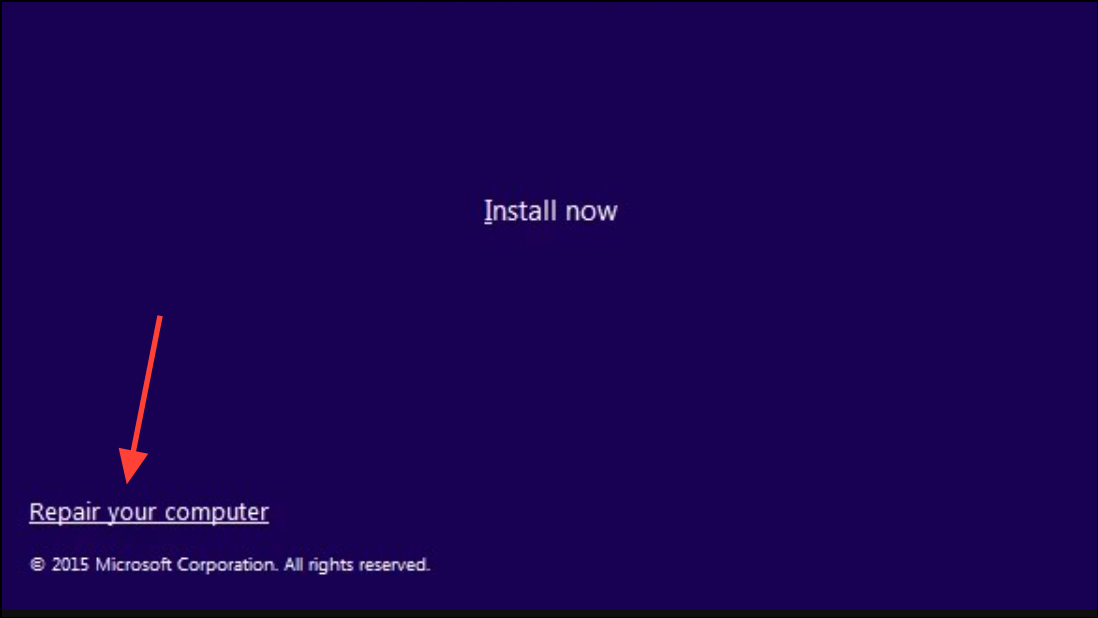
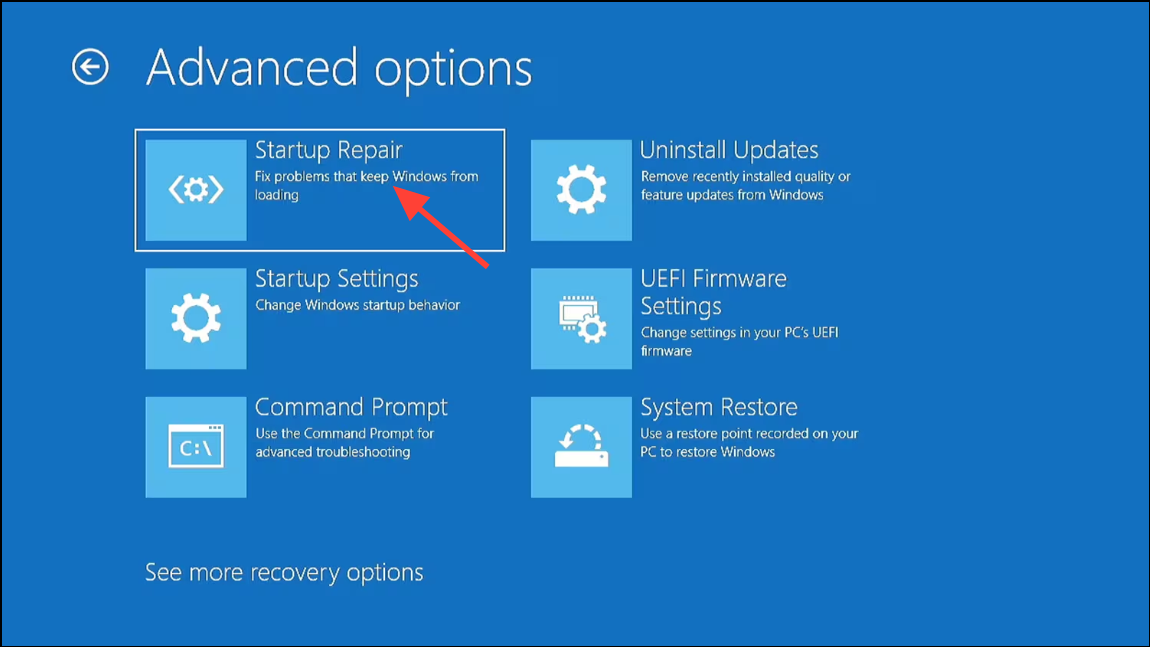
Startup Repair diagnoses and repairs boot file corruption automatically. If the repair is successful, Windows will restart and boot normally.
Rebuild Boot Configuration Data (BCD) Using Command Prompt
If Startup Repair does not resolve the issue, you can manually rebuild the BCD. This process is effective when the BCD file is missing, corrupted, or contains incorrect entries.
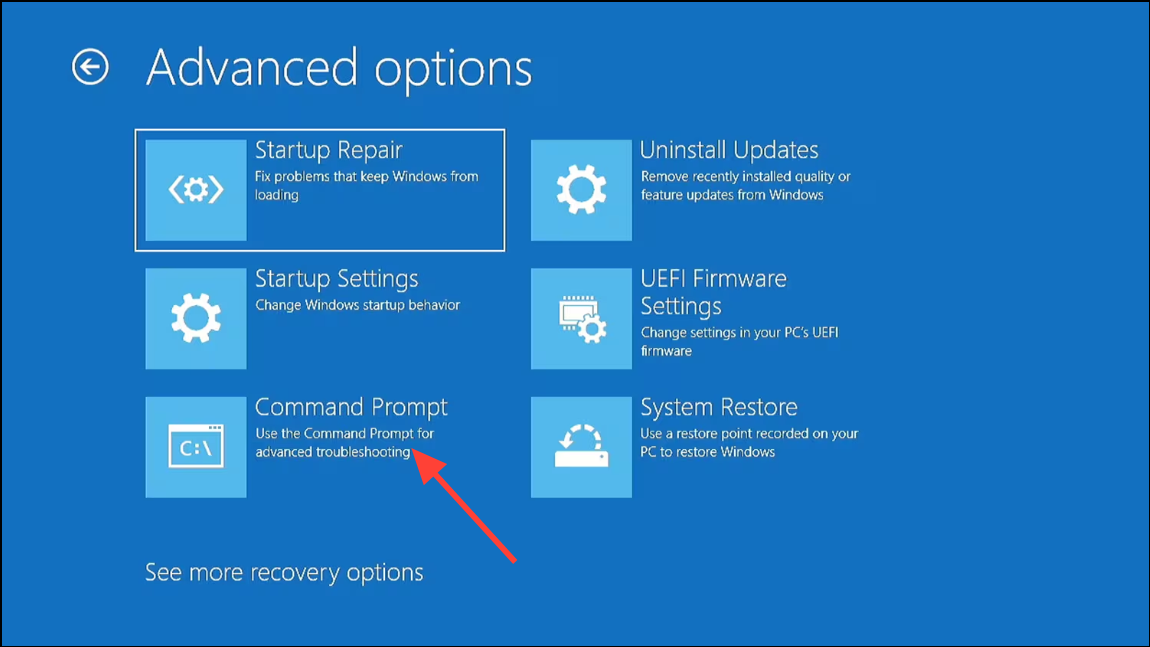
bootrec /fixmbr
bootrec /fixboot
bootrec /scanos
bootrec /rebuildbcd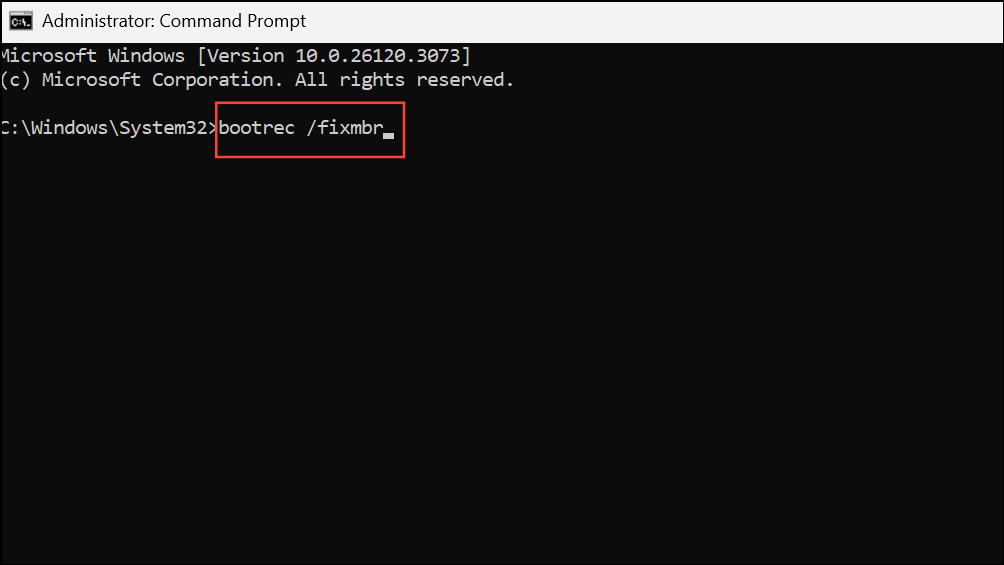
These commands repair the Master Boot Record (MBR), fix the boot sector, scan for installed Windows systems, and rebuild the BCD. If prompted to add installations to the boot list, type Y and press Enter.
After completing these steps, close Command Prompt and restart your PC. If the error persists, proceed to the next method.
Check Disk and Repair File System Errors
Disk errors or bad sectors can prevent Windows from reading boot data. Running a disk check can identify and repair these problems.
chkdsk c: /f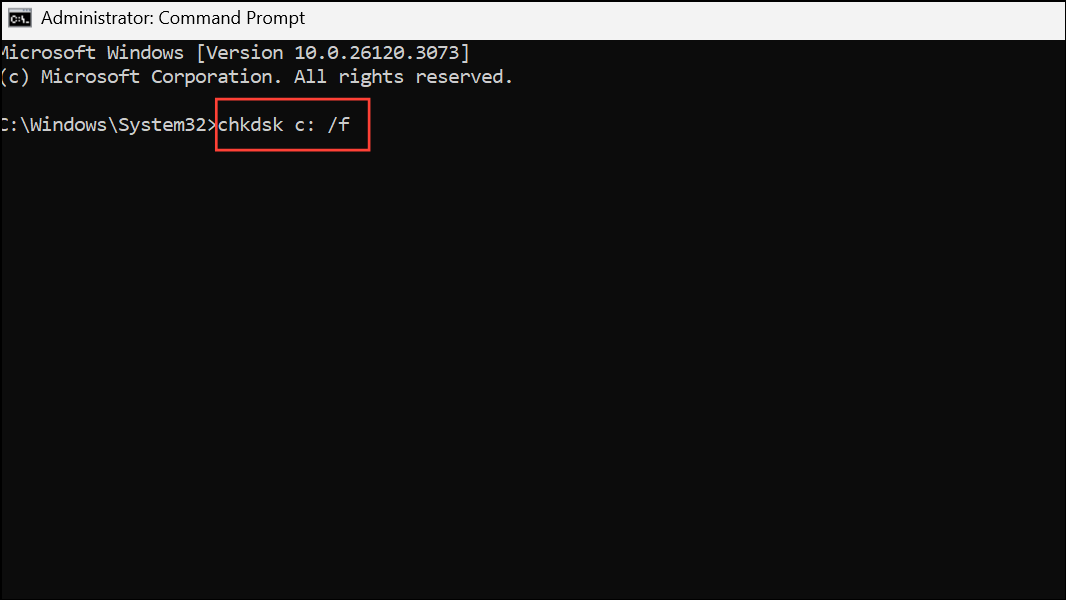
The /f switch instructs Windows to fix any detected file system errors. Allow the process to complete, then restart the computer.
Run System File Checker (SFC) Offline
Corrupted or missing system files can also trigger error 0xc0000098. The System File Checker utility scans and restores these files.
sfc /scannow /offbootdir=C:\ /offwindir=C:\Windows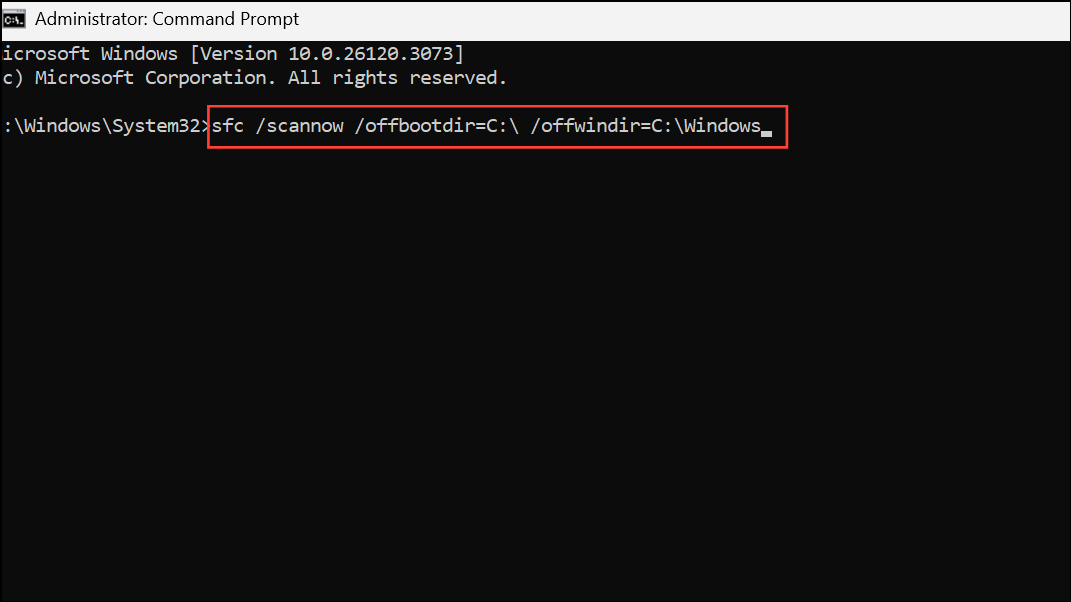
This command scans the specified Windows directory for missing or corrupted files and replaces them with correct versions. Adjust the drive letter if your Windows installation is not on C:.
System Restore to a Previous Working State
If you created restore points before the issue occurred, restoring your system can revert changes that caused boot failures.
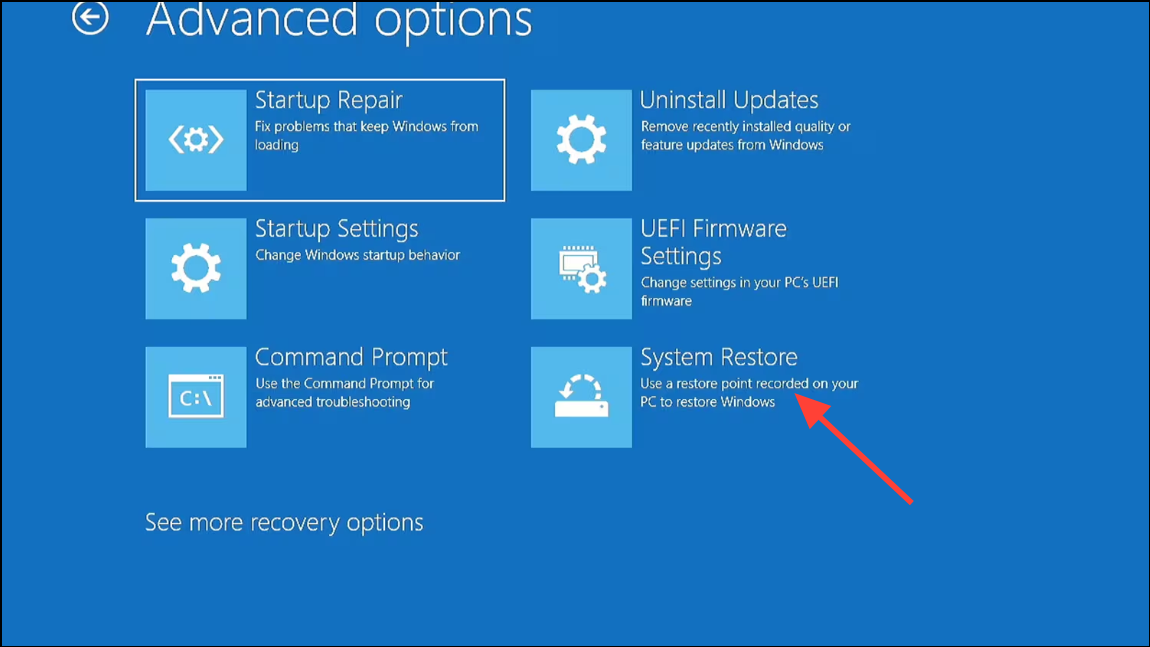
This process does not affect personal files but will remove apps and drivers installed after the restore point was created.
Reset This PC While Keeping Files
Resetting Windows reinstalls the operating system while optionally preserving your personal files. This method is useful if previous repairs have failed, and you want to avoid a full clean install.
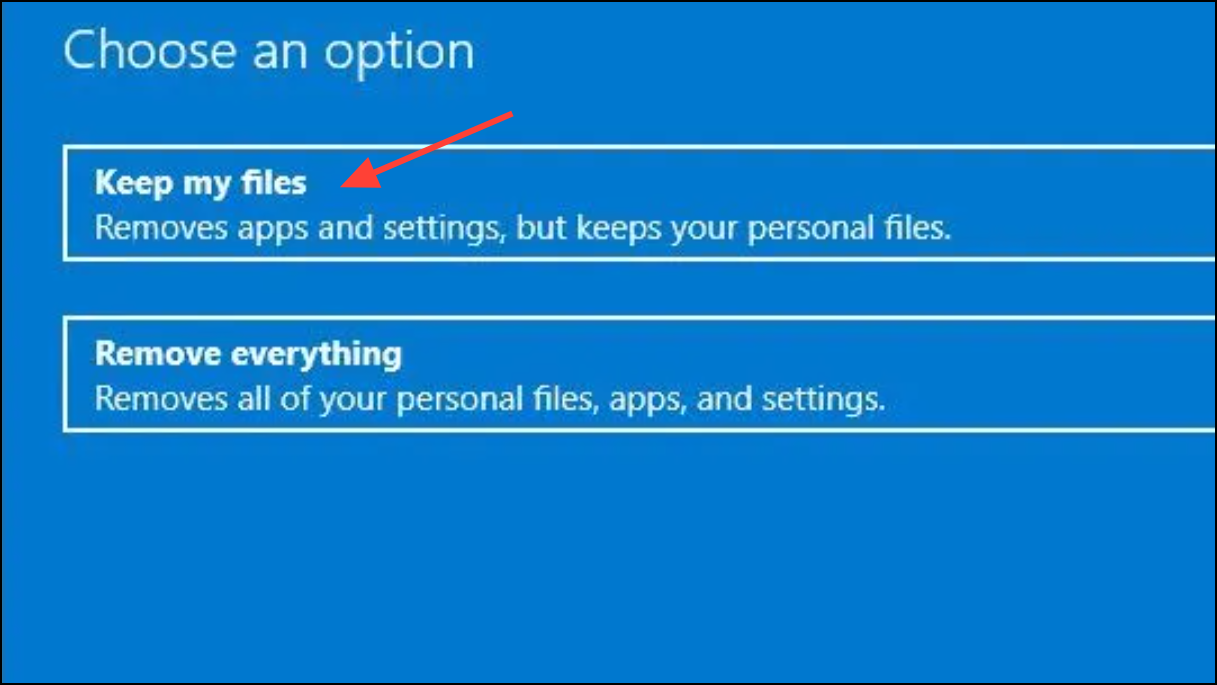
Resetting Windows removes installed applications and system settings but can resolve persistent boot errors.
Clean Install of Windows 11
If all repair attempts fail and your system remains unbootable, performing a clean installation of Windows 11 is a reliable solution. This erases all data on the Windows drive, so back up important files beforehand using a bootable Linux USB or by connecting the drive to another computer.
This process guarantees a fresh system free of previous configuration errors or corrupt files.
Additional Troubleshooting Tips
- Verify BIOS/UEFI boot order to ensure the correct drive is set as the primary boot device.
- Disconnect unnecessary drives (such as external HDDs or secondary internal disks) to avoid BCD confusion.
- When creating installation media, use a reliable USB drive and official ISO files to prevent corruption.
- If your system uses RAID or NVMe drives, ensure appropriate drivers are loaded during installation or repair.
- For persistent hardware detection issues, check drive connections and update firmware if possible.
Addressing error 0xc0000098 in Windows 11 involves targeted repairs to boot data, file systems, and system files. Each method above targets a specific cause, allowing you to restore normal startup without unnecessary data loss.
Resolving error 0xc0000098 restores your ability to boot Windows 11 reliably and avoids repeated blue screen interruptions. Regular backups and careful update management can help prevent future boot issues.



