
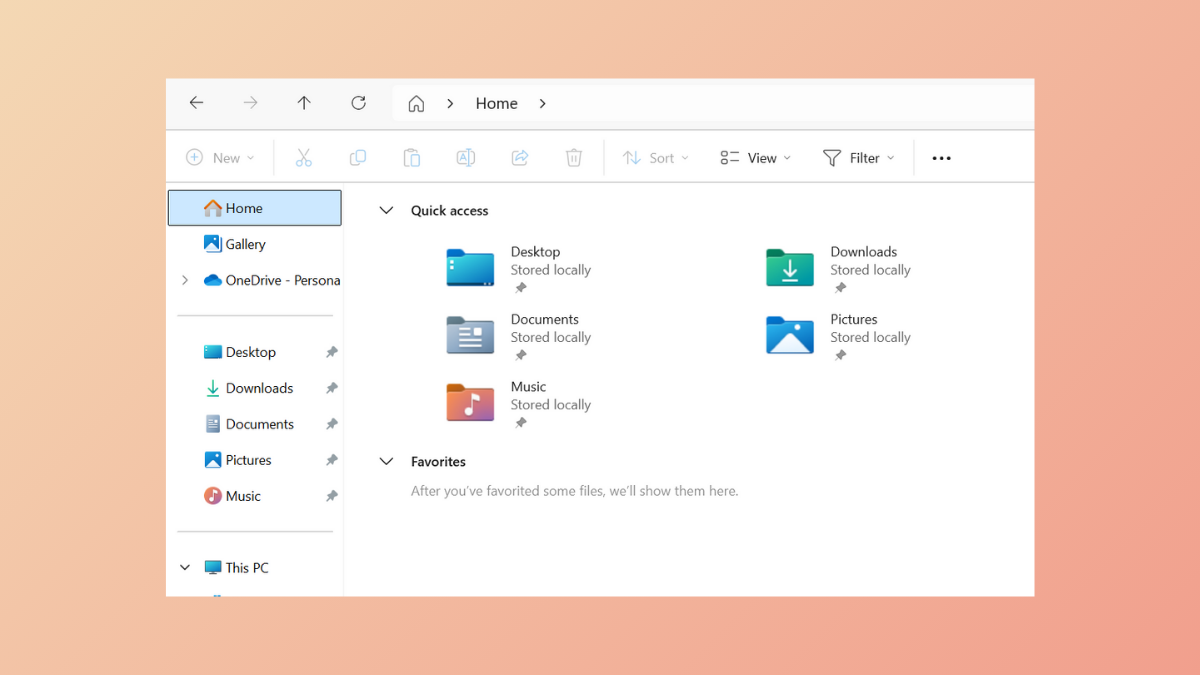
Slow folder navigation and frequent freezes in Windows 11 File Explorer often surface when working with directories containing thousands of files or mixed content types. These performance drops can disrupt file management tasks, causing delays, failed searches, and even system-wide slowdowns. Several factors contribute to this issue, including search indexing overload, real-time antivirus scans, Quick Access misconfigurations, and unnecessary visual effects. Addressing these root causes can significantly speed up File Explorer and restore smooth navigation, especially with large folders.
Rebuild and Refine Windows Search Indexing
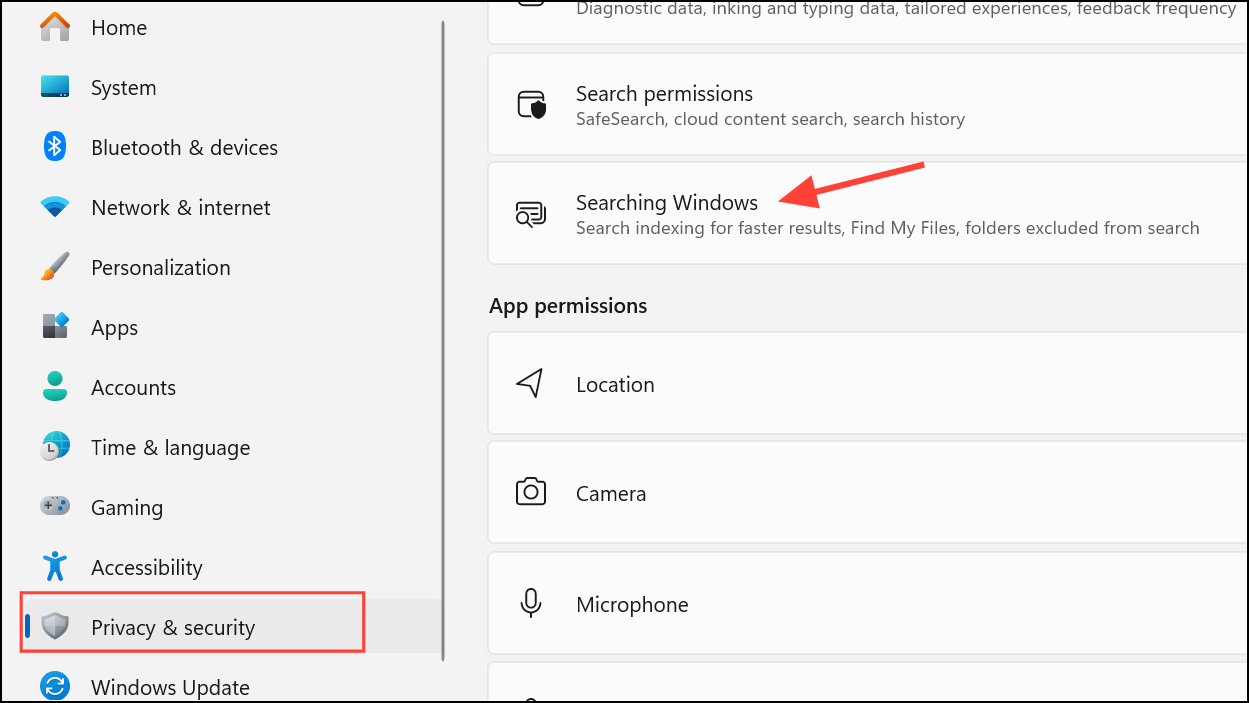
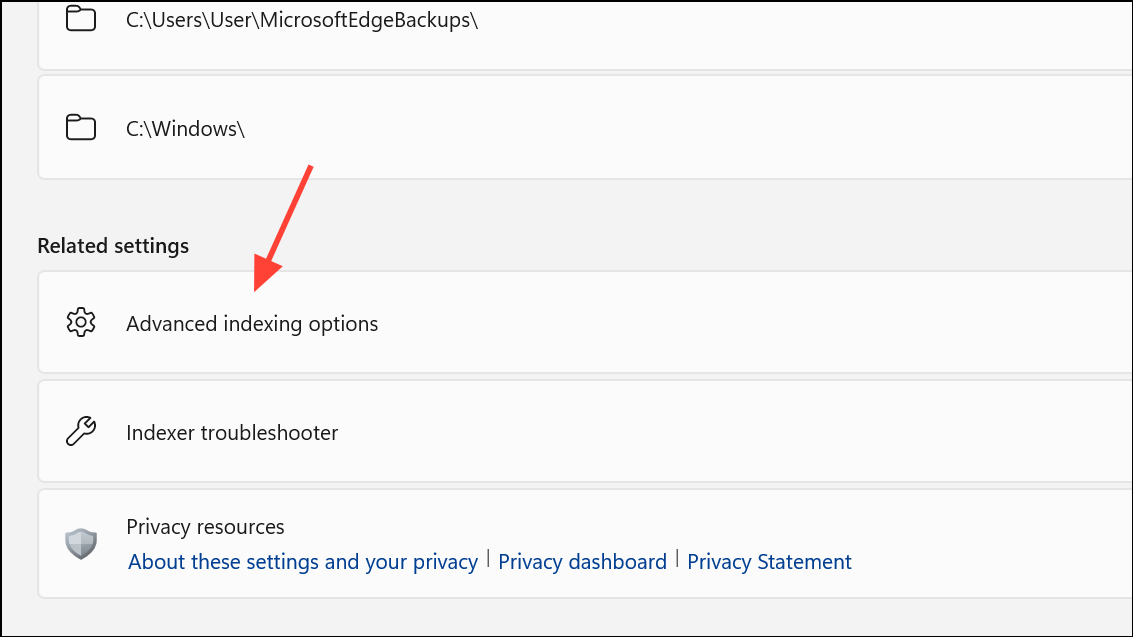
Modify and review the list of indexed locations. Deselect any locations marked as unavailable or with cryptic names (such as those showing as SIDs) and remove network drives or folders you rarely access. This prevents Windows from repeatedly trying to index unreachable or massive network folders, which can stall File Explorer.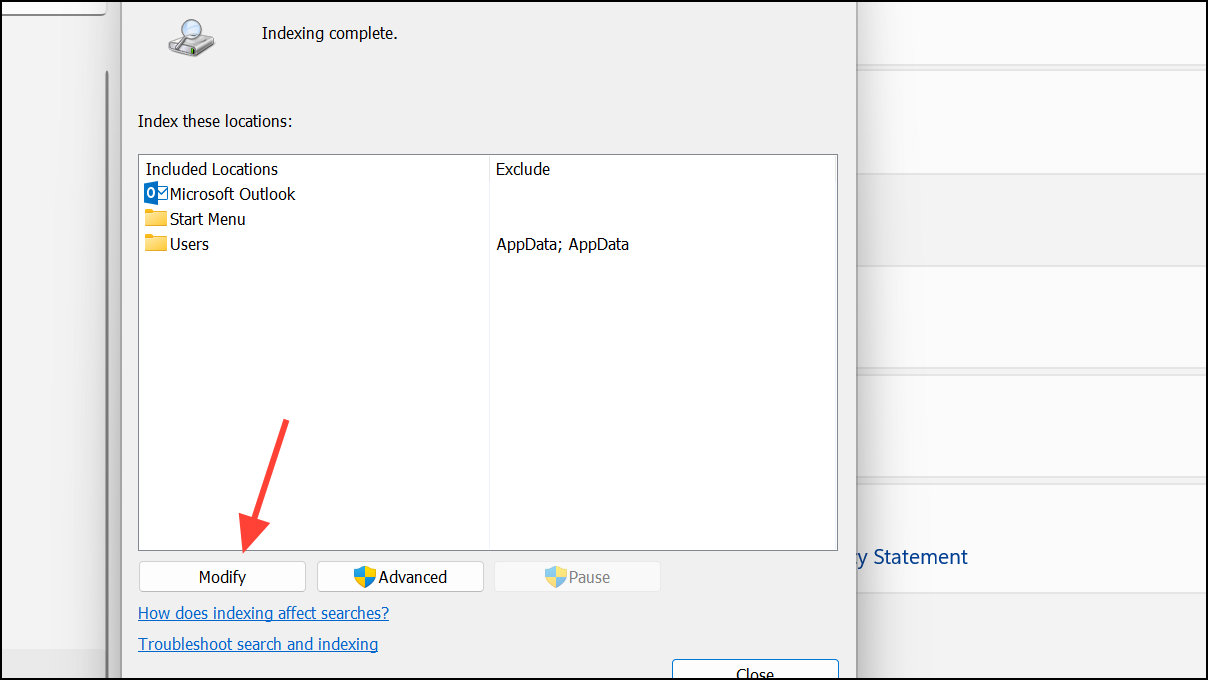
Advanced and click Rebuild under Troubleshooting. Confirm to delete and rebuild the index. The process runs in the background and may take time, especially if you have many files, but it resolves database corruption and clears stuck indexing jobs.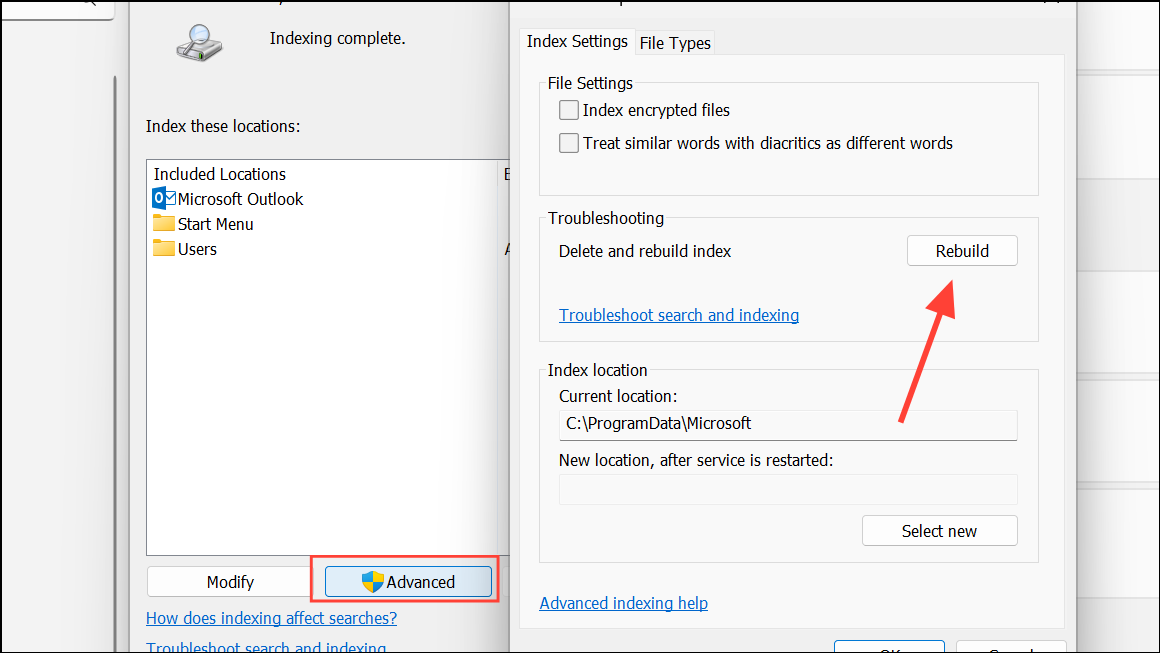
Refining the search index reduces unnecessary background processing and eliminates delays when opening large folders or searching within them.
Disable Real-Time Antivirus Scanning on Large Folders
Real-time antivirus, especially Microsoft Defender, can scan every file as you open a folder, causing significant slowdowns with directories containing thousands of files or images.
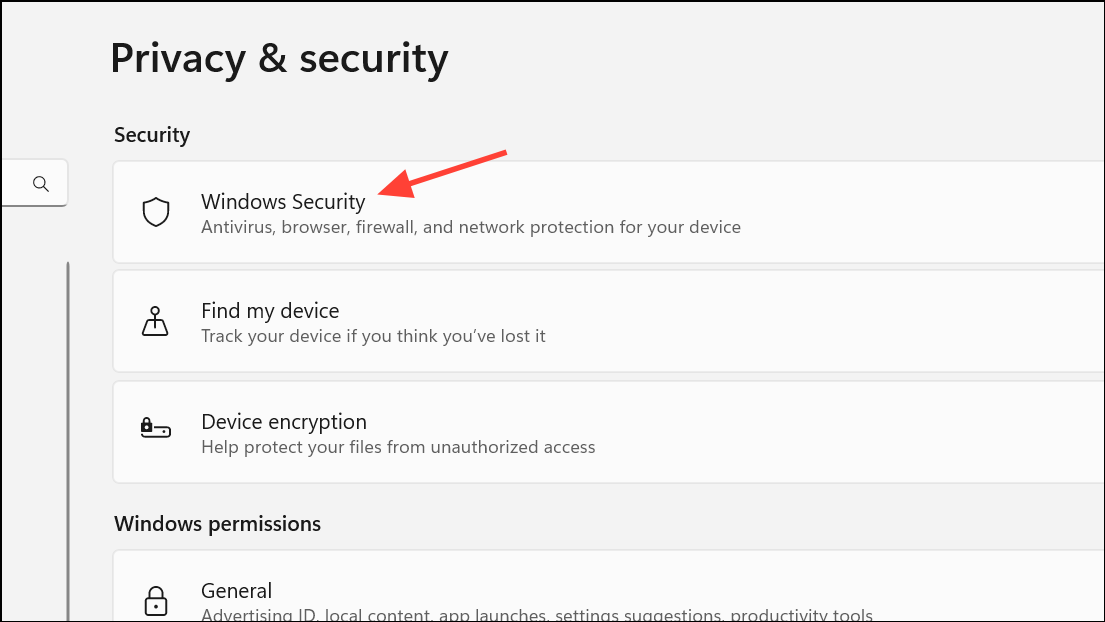
Virus & threat protection and select Manage settings under “Virus & threat protection settings”.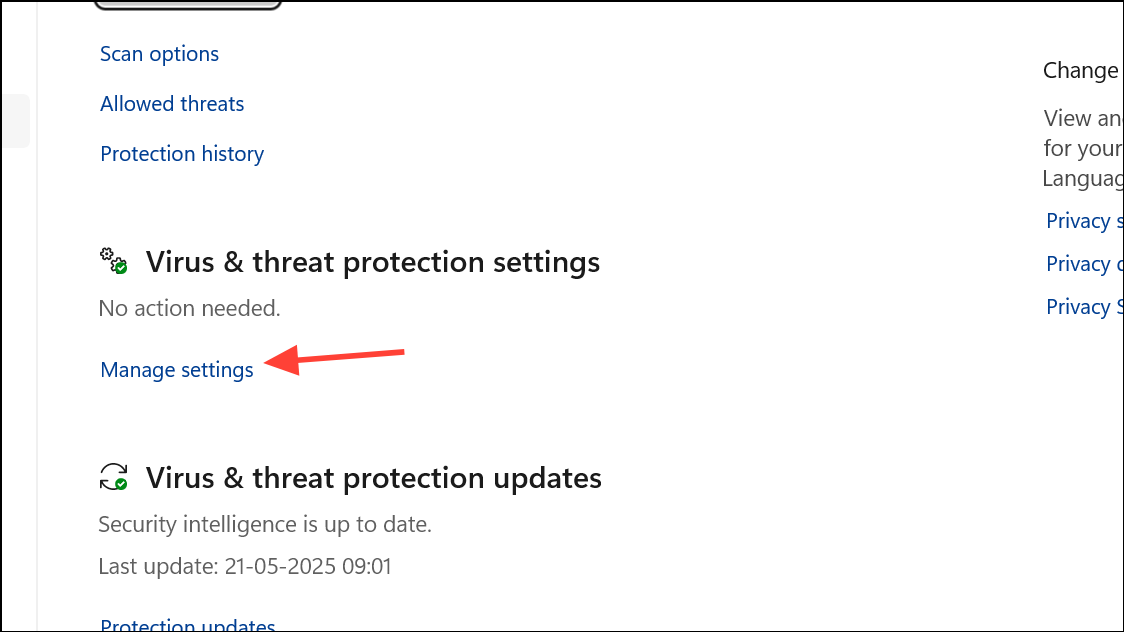
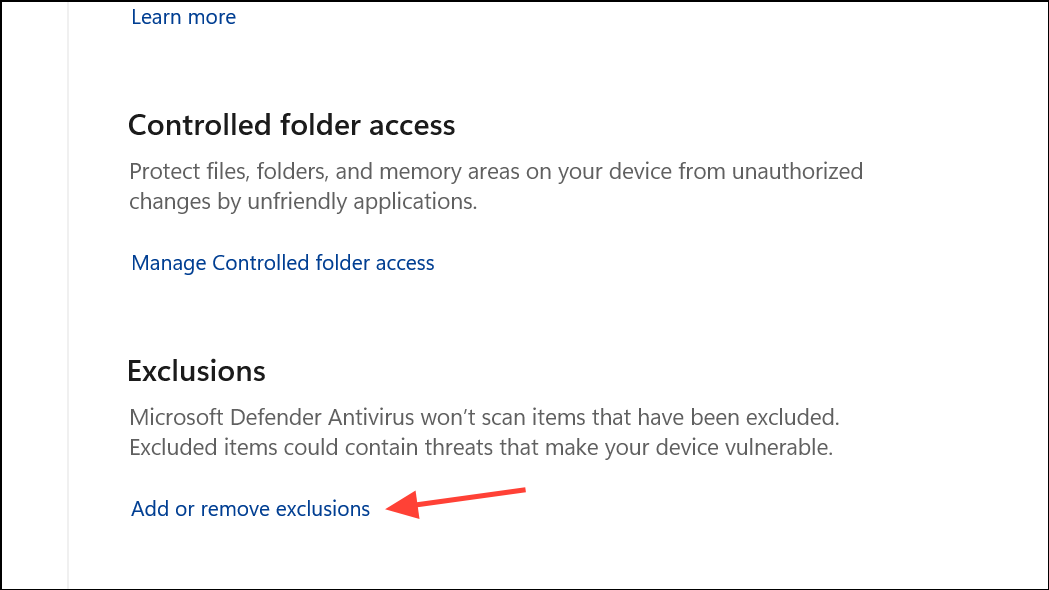
+ Add an exclusion to select the specific folder or drive that causes lag. This prevents Defender from scanning every file on access, dramatically reducing wait times when opening large folders.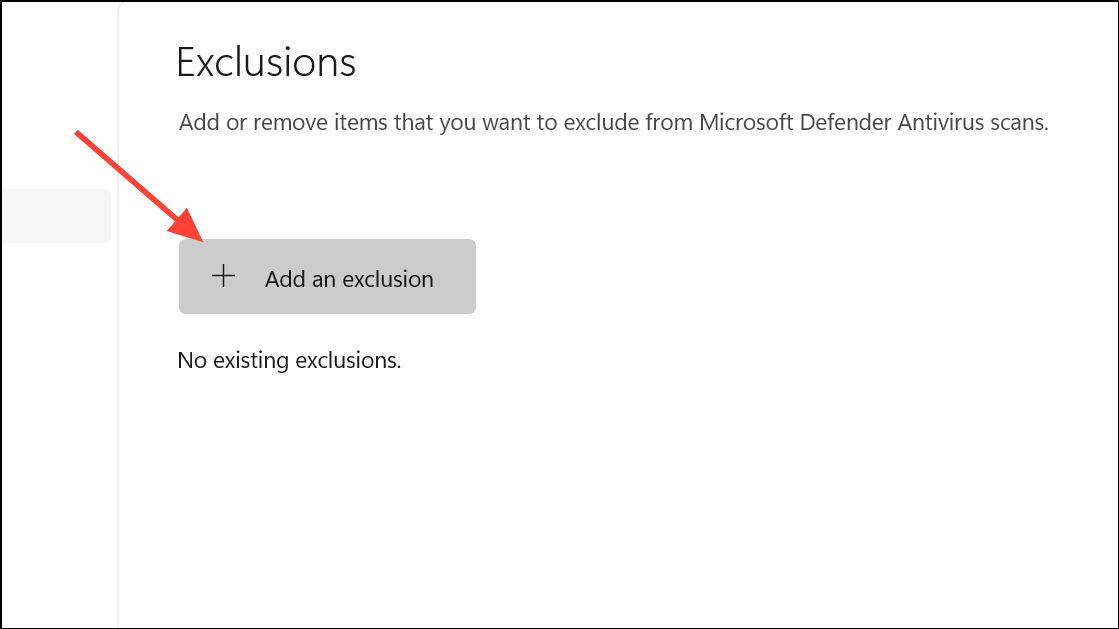
Switch File Explorer Startup Location and Disable Quick Access
By default, File Explorer opens to Quick Access, which aggregates recent files and folders from across your system. This can introduce delays, especially if network drives or disconnected devices are pinned.
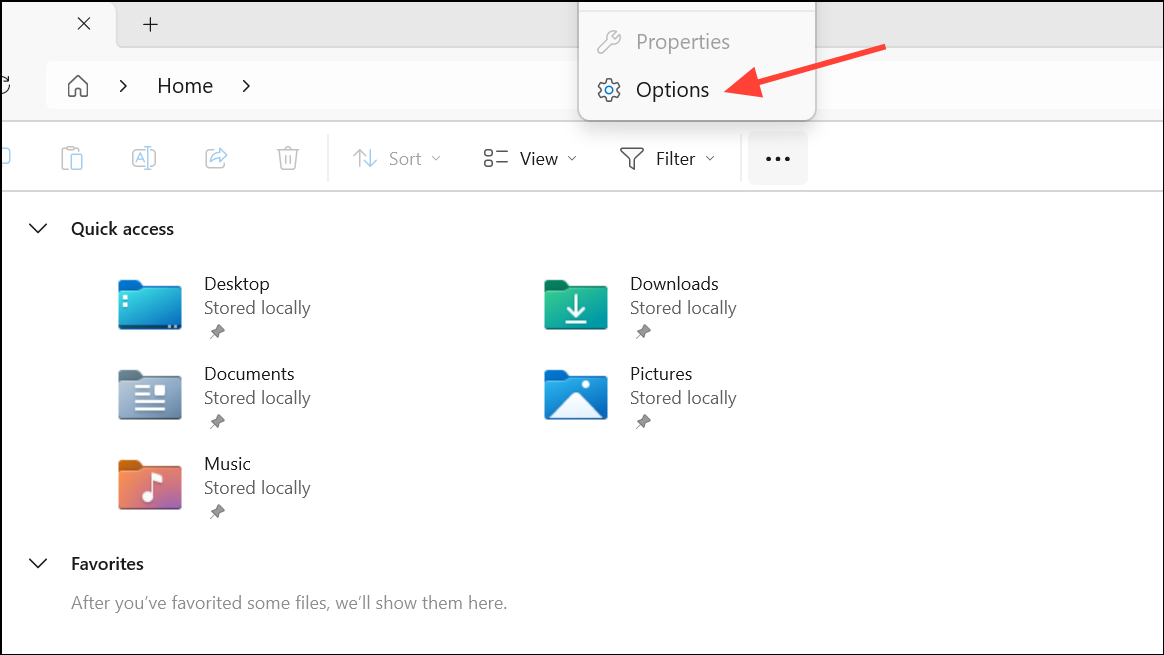
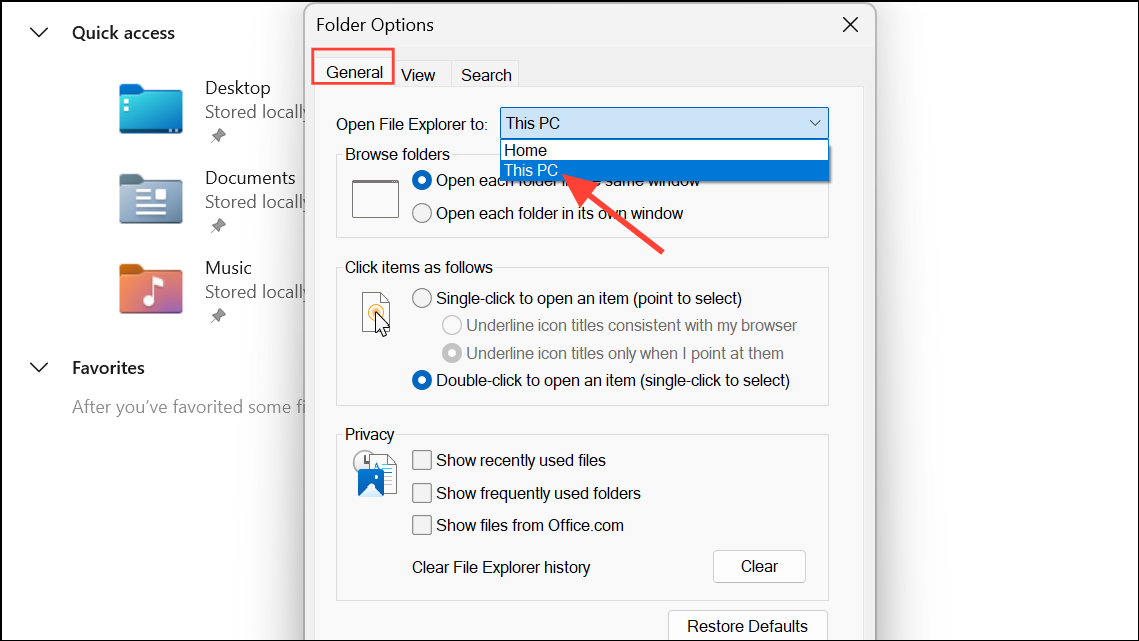
Privacy, click Clear to remove File Explorer history, which can accumulate and slow down performance.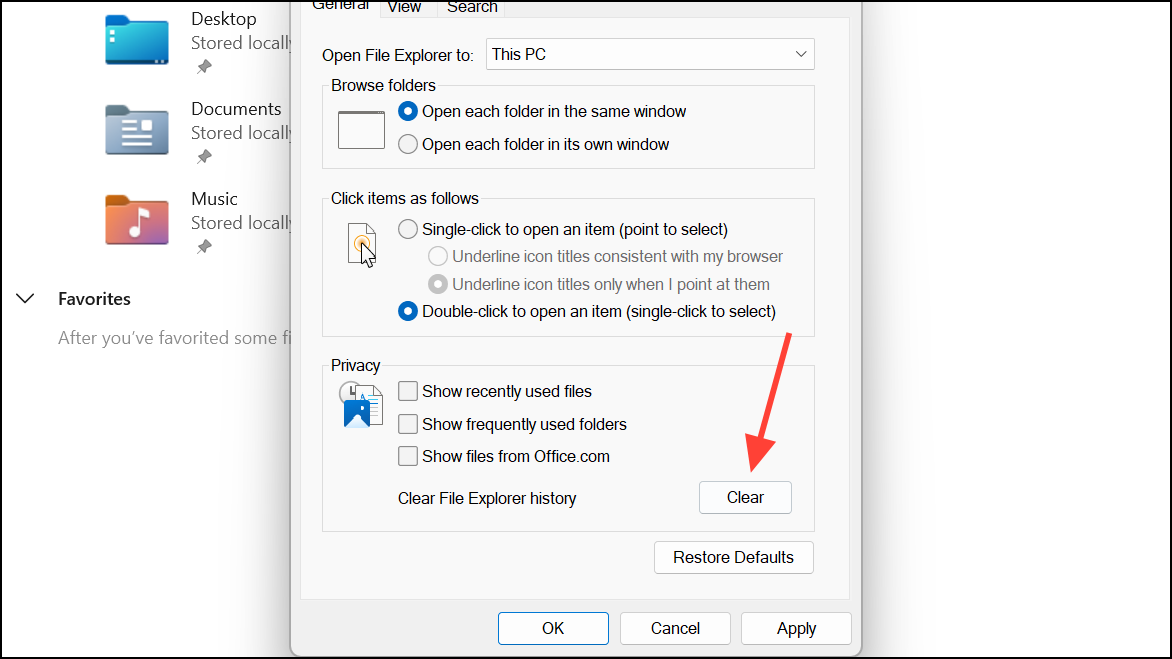
By bypassing Quick Access and opening directly to “This PC”, File Explorer loads local drives only, reducing delays caused by unreachable or slow network resources.
Optimize Folder Type for General Items
Folders containing thousands of mixed files (images, videos, documents) are sometimes auto-optimized for Pictures or Videos, which triggers thumbnail generation and metadata parsing that can freeze File Explorer.
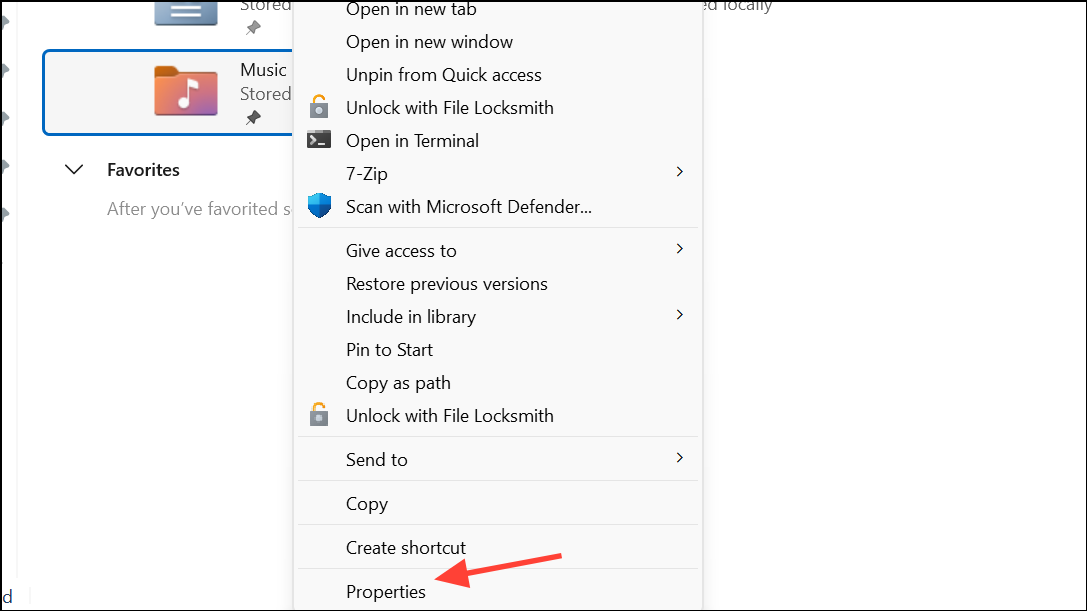
Customize tab. Under Optimize this folder for:, select General items. Check Also apply this template to all subfolders if needed, then click Apply and OK.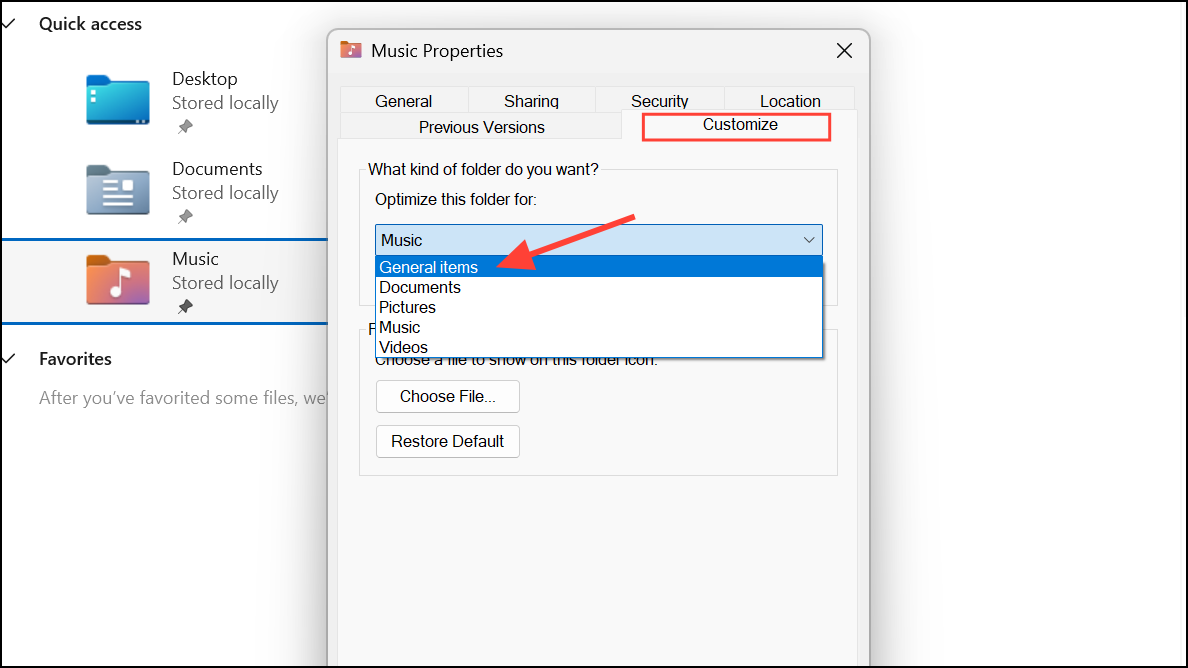
This change stops Windows from generating thumbnails and metadata for every file, which is a common cause of slowdowns in large folders.
Remove Unused or Disconnected Network Drives from Quick Access
Pinned network drives or folders in Quick Access can cause File Explorer to hang if the network location is unavailable or slow to respond. This is especially problematic after device upgrades or changes in network configuration.
Unpin from Quick Access.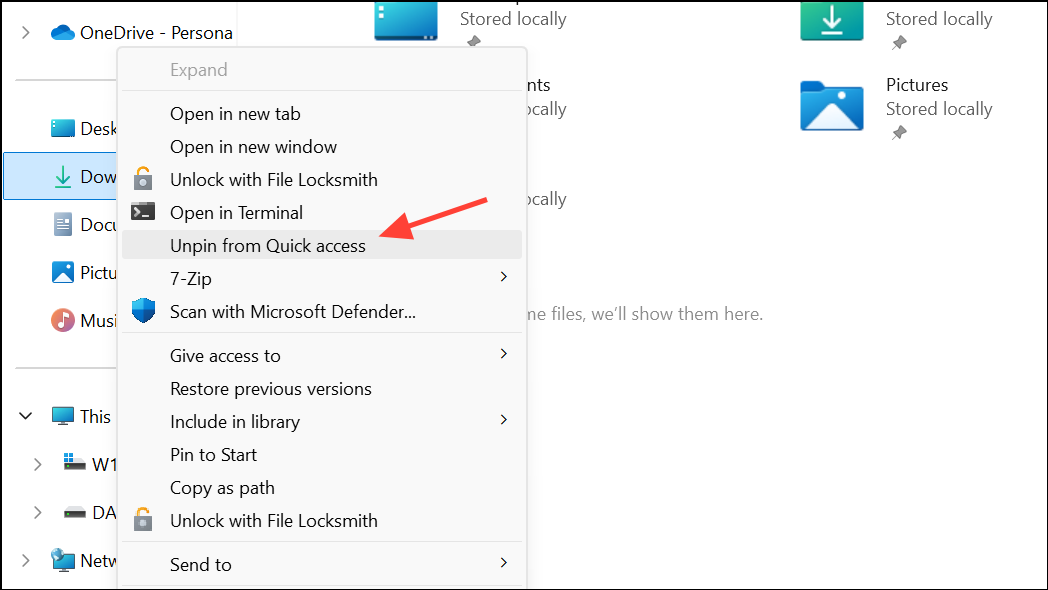
Removing disconnected or slow network resources streamlines File Explorer startup and folder navigation.
Disable Search Indexing for Large or Rarely Accessed Folders
Indexing can overload system resources when applied to directories with massive numbers of files or external/network drives.
General tab, uncheck Allow files on this drive to have contents indexed in addition to file properties. Click Apply and OK.Disabling indexing for problematic folders reduces background system activity and improves folder opening speed, though search within these folders may become slower.
Restart File Explorer to Clear Temporary Glitches
Occasional lags or freezes can be resolved by restarting the File Explorer process, which clears temporary memory leaks or stuck operations.
Windows Explorer in the list, right-click it, and select Restart. This will briefly close and reopen all File Explorer windows.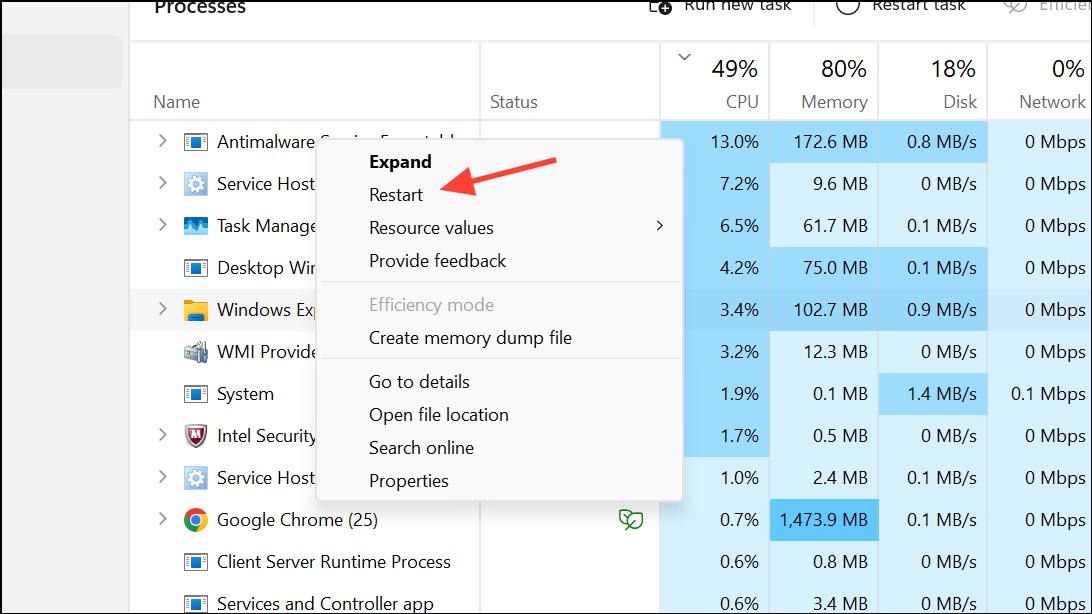
This step is quick and resolves many minor issues without requiring a system reboot.
Run System File Checker to Repair Corrupted Files
Corrupted system files can interfere with File Explorer performance, causing persistent lag and unpredictable behavior.
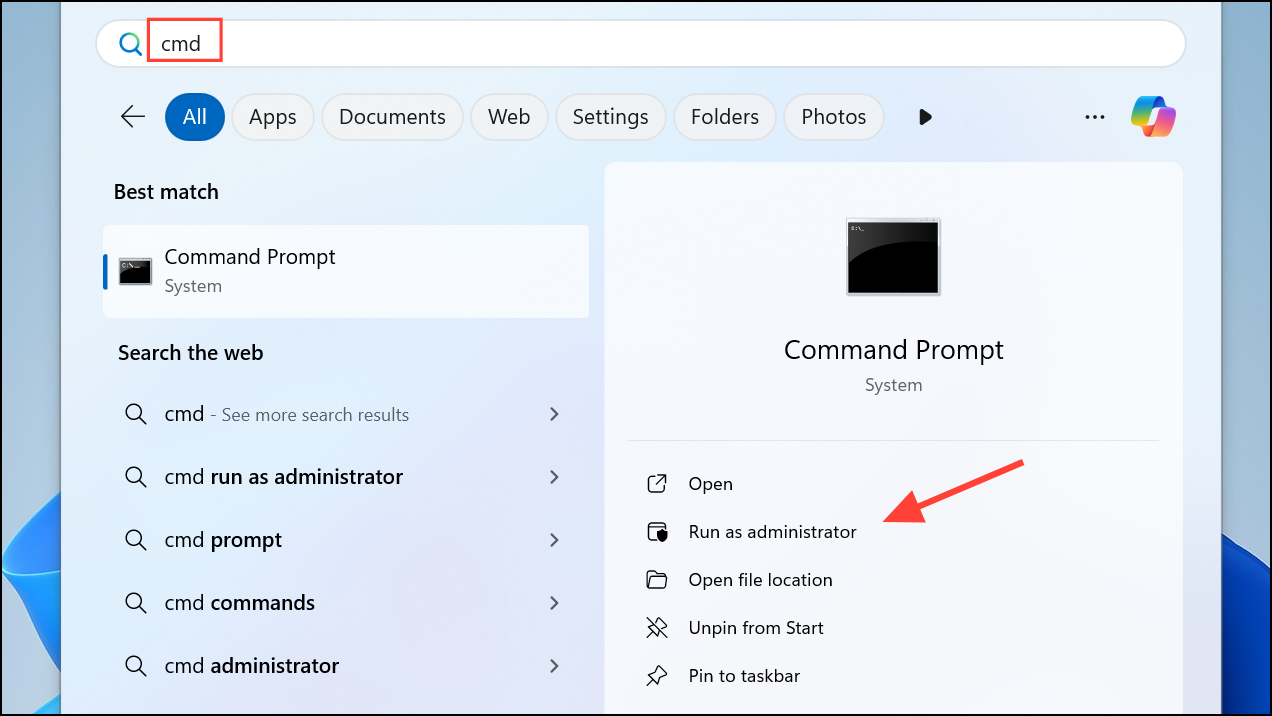
sfc /scannow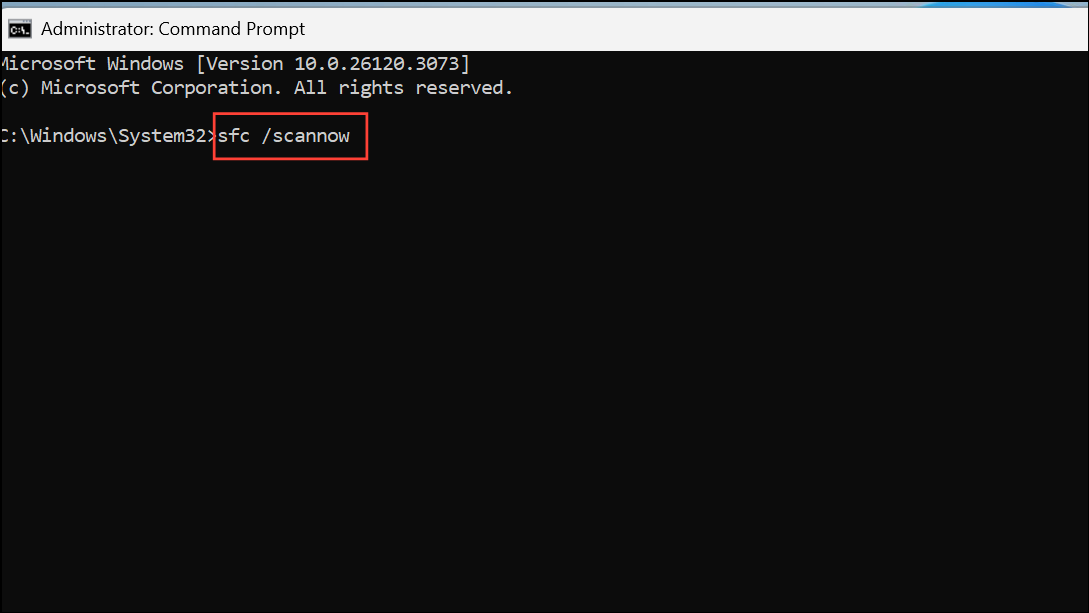
This scan checks for and repairs any damaged system files. Allow it to complete and restart your computer if prompted.
Disable Unnecessary Visual Effects
Windows 11 visual effects can add polish but may slow down file operations on older or resource-limited hardware.
Settings with Windows + I, go to System > About, and click Advanced system settings on the right.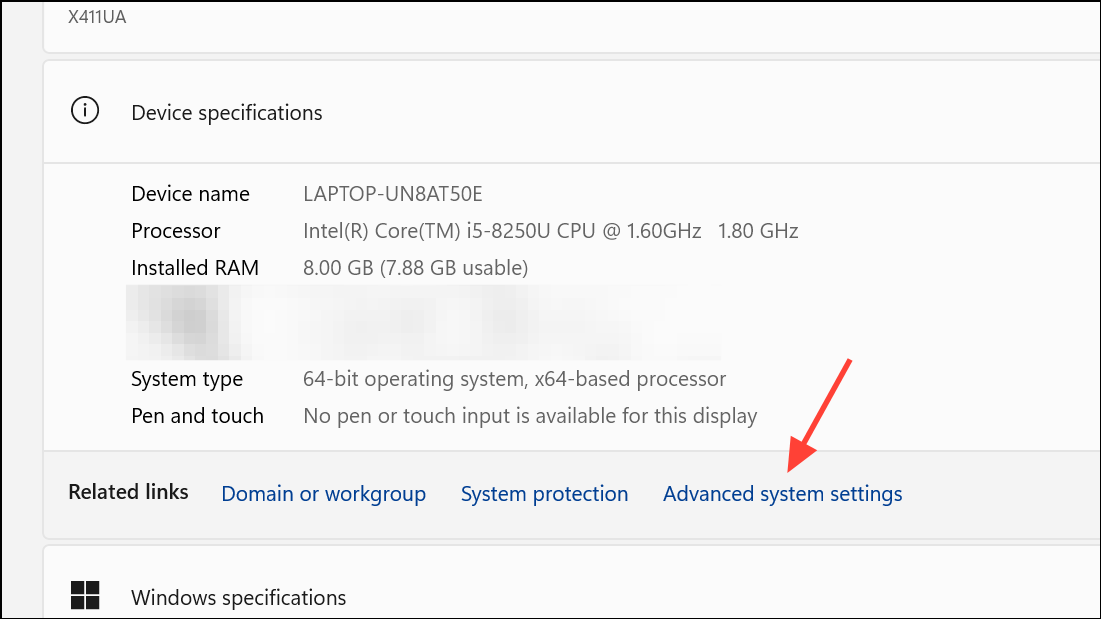
Settings, select Adjust for best performance, then click Apply and OK.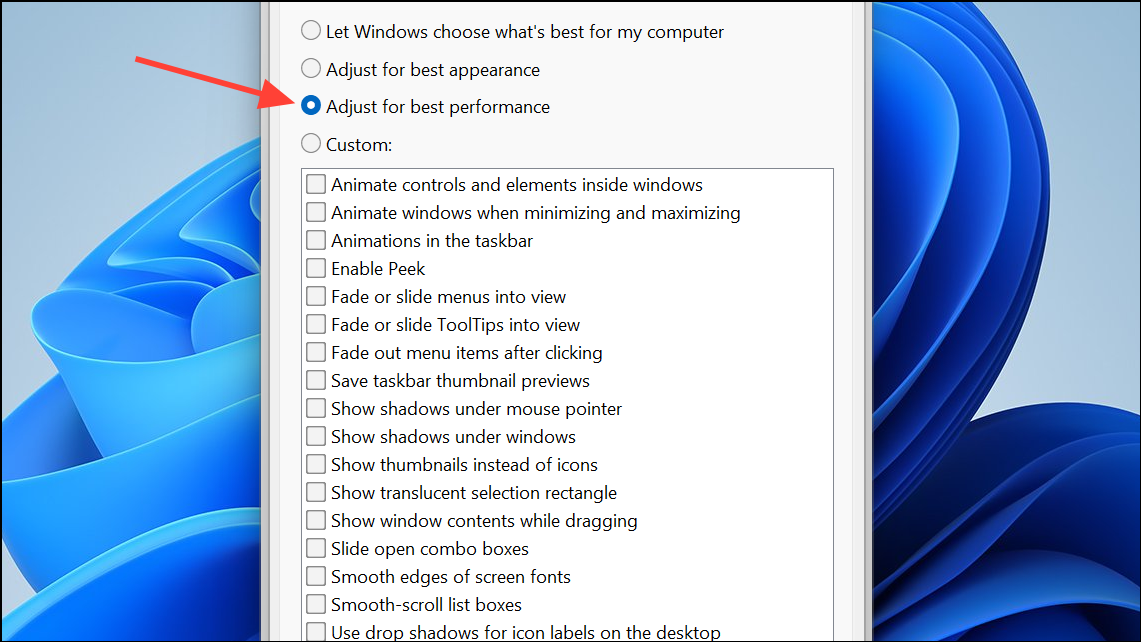
Disabling these effects can accelerate folder browsing and window transitions, especially on systems that struggle with large folders.
Applying these targeted adjustments transforms File Explorer from a sluggish bottleneck to a responsive file manager, especially when handling large or complex folders. Regularly review pinned locations, indexing settings, and antivirus exclusions to maintain optimal performance as your file organization evolves.



