
Unexpected keyboard behavior, like function keys (F1–F12) failing to adjust volume or brightness, often signals issues with system settings, drivers, or background services in Windows 11. When these keys stop responding, tasks such as controlling media, toggling wireless connections, or accessing system shortcuts become much less efficient. Addressing the underlying causes restores full keyboard functionality and helps prevent workflow disruptions.
Restart the Human Interface Device Service (HidServ)
The Human Interface Device Service, known as HidServ, manages special keys and input devices. If this service stops or malfunctions, function keys may become unresponsive or perform the wrong actions.
Ctrl + Shift + Esc or by right-clicking the taskbar and selecting Task Manager.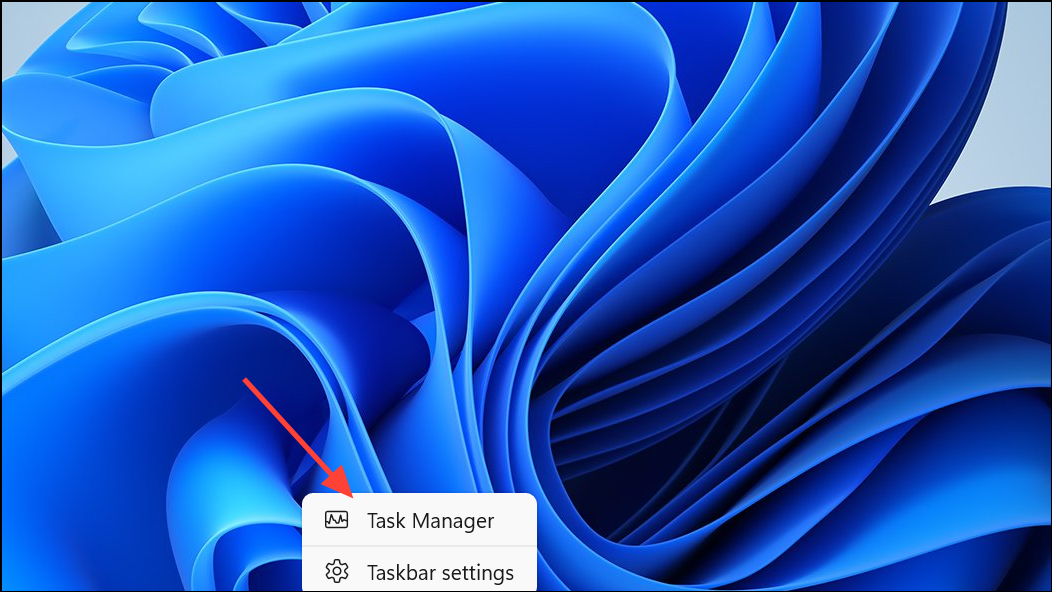
Services tab. Locate HidServ in the list. If you do not see the service, use the search bar at the top of the tab.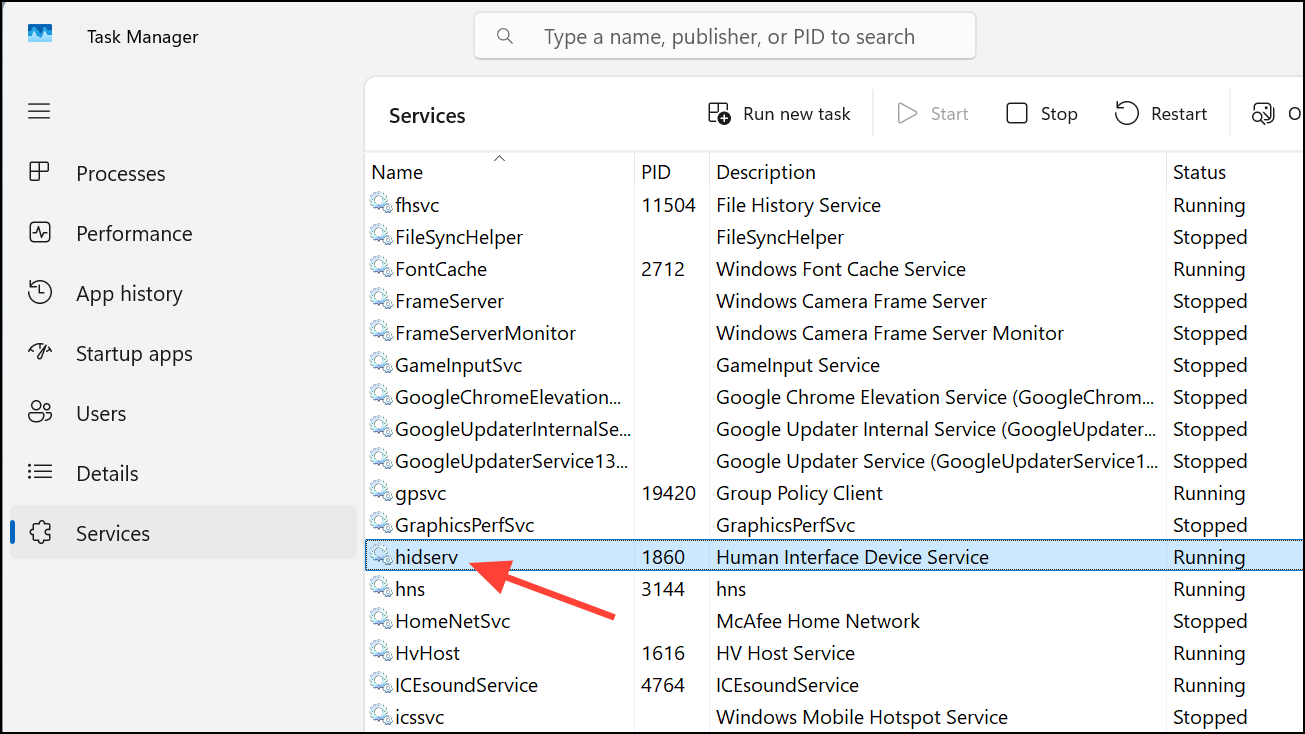
HidServ and choose Restart. This restarts the service, which can restore normal function key operation.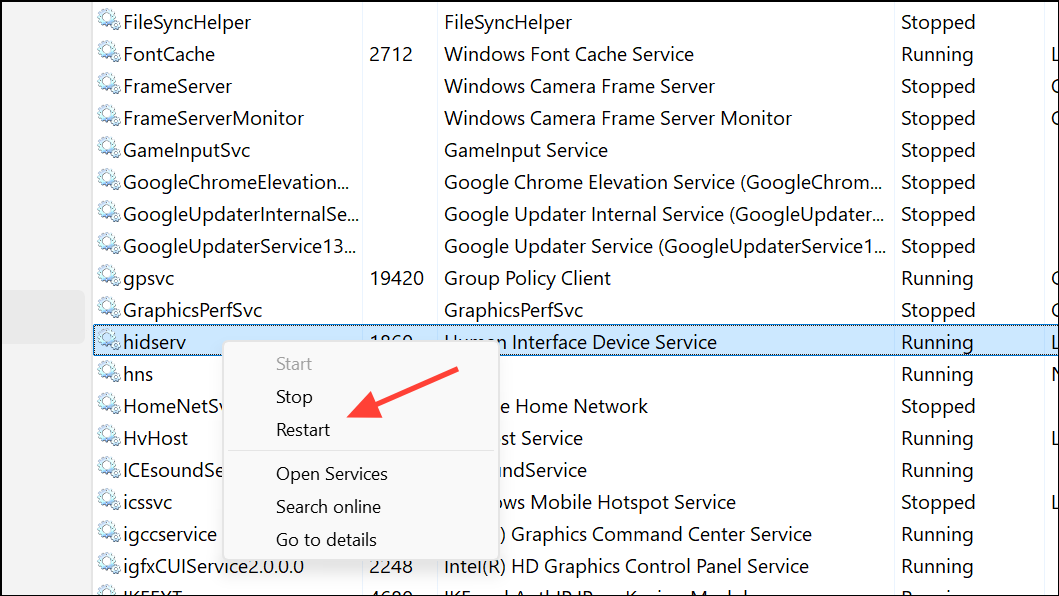
Update or Reinstall Keyboard Drivers
Outdated or incompatible keyboard drivers often cause function keys to malfunction, especially after a Windows update or clean installation. Updating or reinstalling drivers ensures your device communicates correctly with Windows 11.
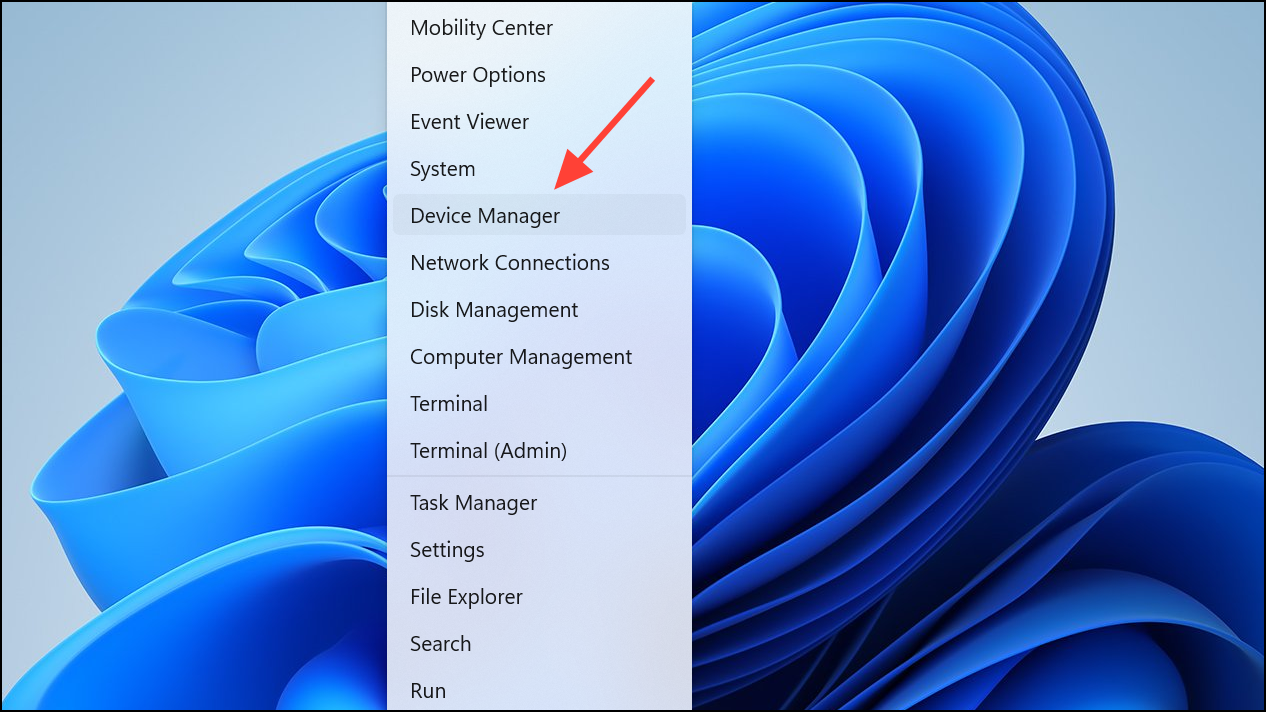
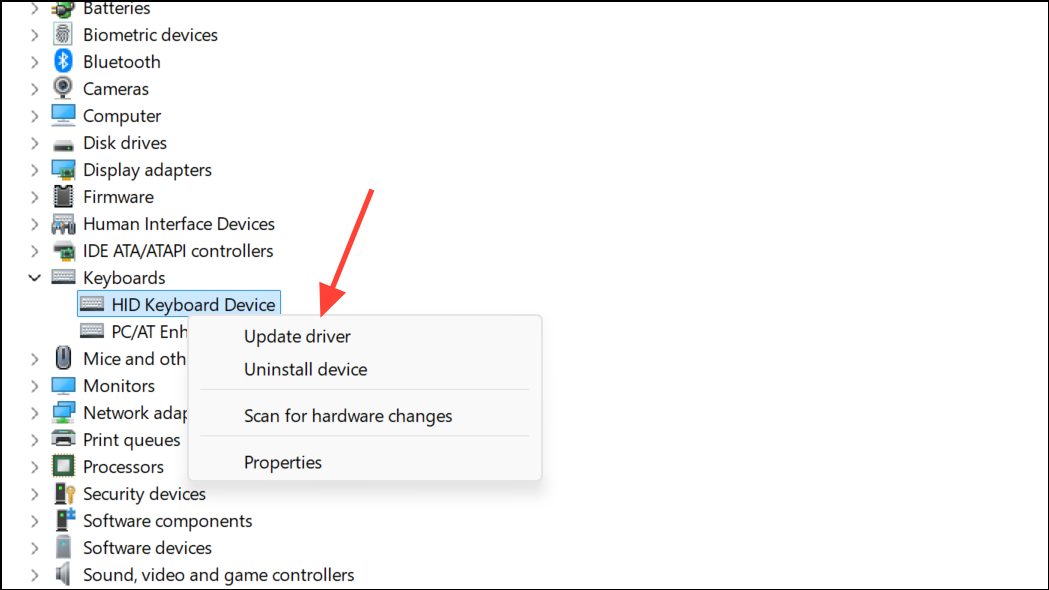
Search automatically for drivers to let Windows find the latest compatible driver. Follow the prompts to complete installation.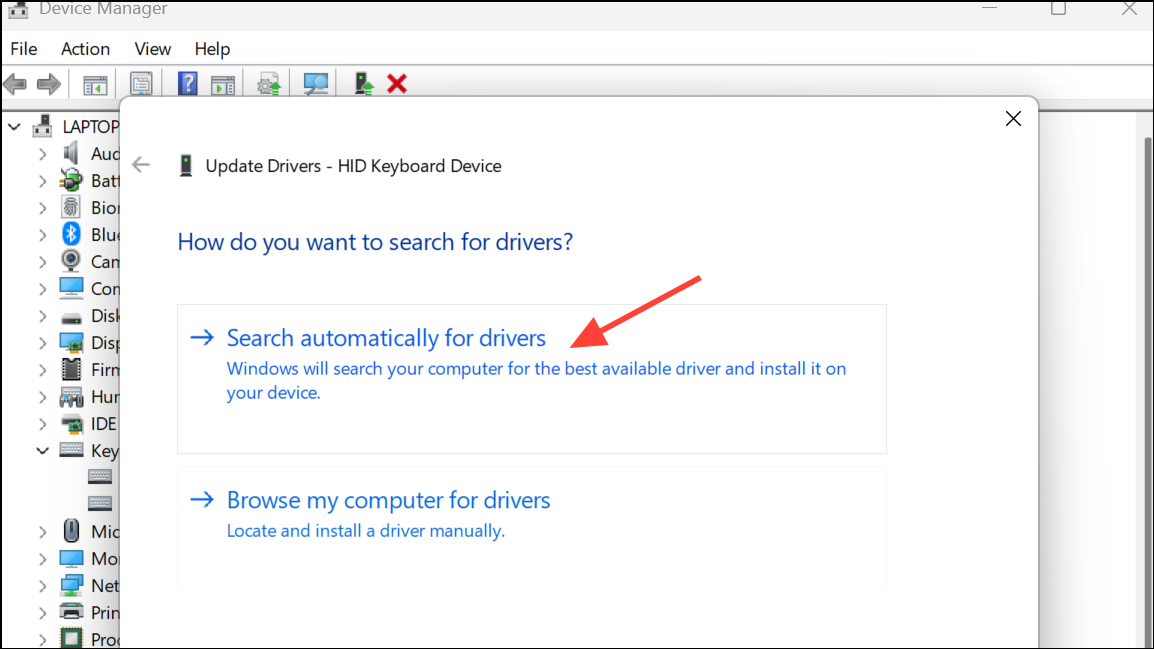
If Windows does not find a new driver, visit your laptop or keyboard manufacturer’s website for the latest drivers and install them manually. For some brands (like ASUS or MSI), installing hotkey utilities or proprietary control software may also be necessary for full function key support.
Check Function Lock and Keyboard Shortcuts
Many laptops use a function lock (Fn Lock) feature to toggle between standard function key behavior and special functions like volume or brightness. If enabled or disabled unintentionally, function keys may not work as expected.
Fn Lock key, or try pressing Fn + Esc. On some keyboards, this toggles the lock on or off.Adjust BIOS or UEFI Settings
Some laptops allow users to change the default behavior of function keys (standard F1–F12 vs. special actions) via BIOS or UEFI firmware settings. If the setting is incorrect or missing after a Windows update, function keys may not respond properly.
Function Key Behavior or Action Keys Mode. Adjust as needed, save changes, and restart your computer.Run Windows Keyboard Troubleshooter
Windows 11 includes built-in troubleshooters to diagnose and fix hardware issues, including keyboard problems.
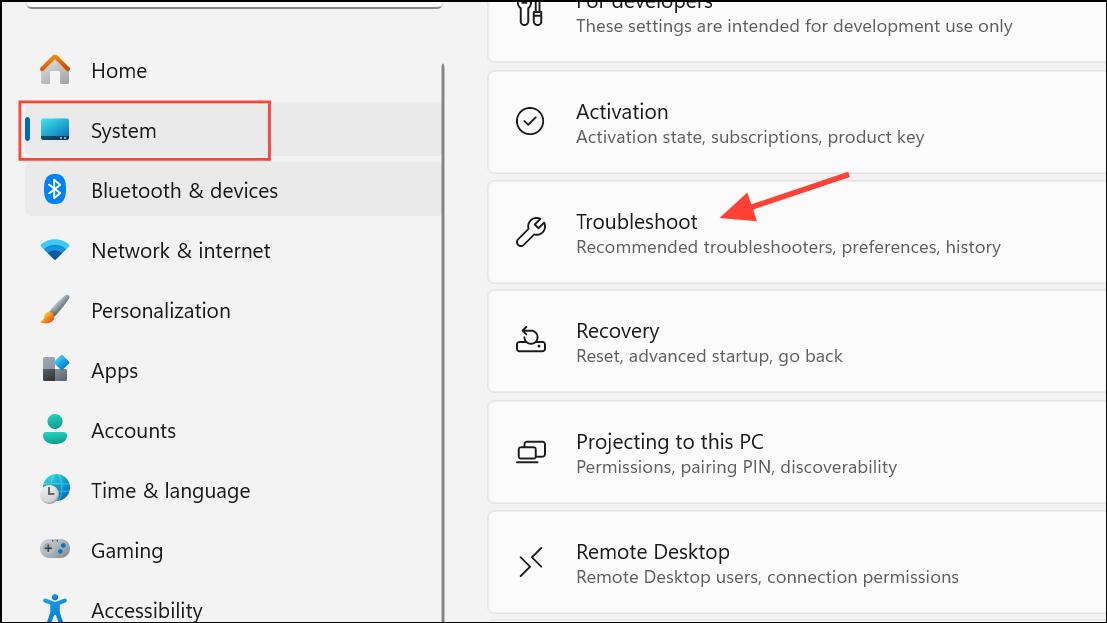
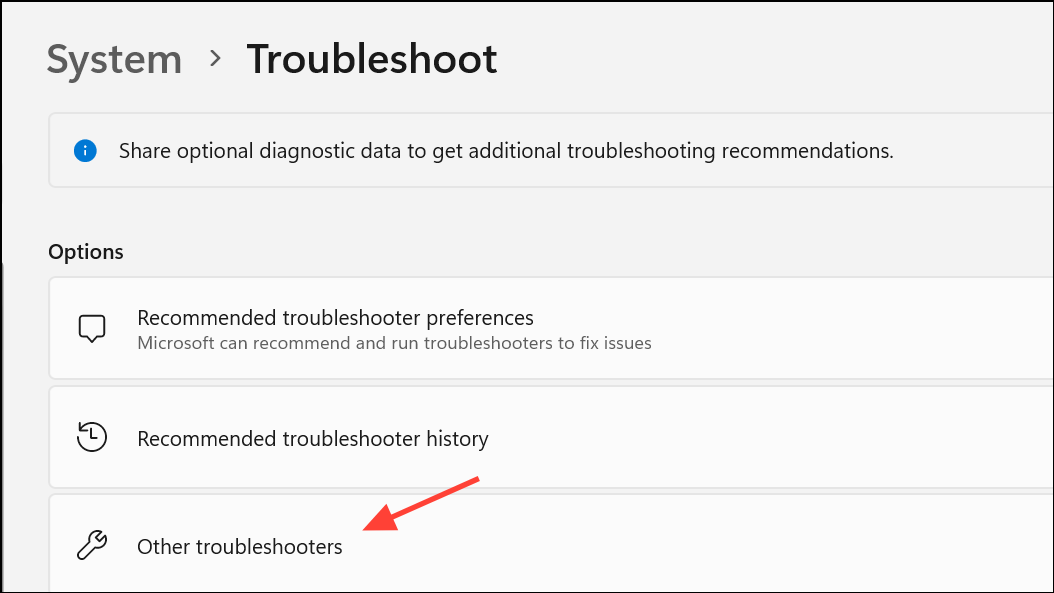
Keyboard section and click Run. Follow the on-screen instructions to let Windows check for and resolve keyboard issues.Check for Key Remapping and Third-Party Software Interference
Key mapping utilities or keyboard management software (such as PowerToys, manufacturer utilities, or gaming overlays) can override or disable function keys. If you’ve installed such software, it may have changed key assignments.
Some browser or system applications may also intercept function keys for shortcuts. Test the keys in multiple programs to rule out app-specific conflicts.
Turn Off Filter Keys and Accessibility Options
Accessibility features like Filter Keys can cause Windows to ignore brief or repeated keystrokes, including function keys.
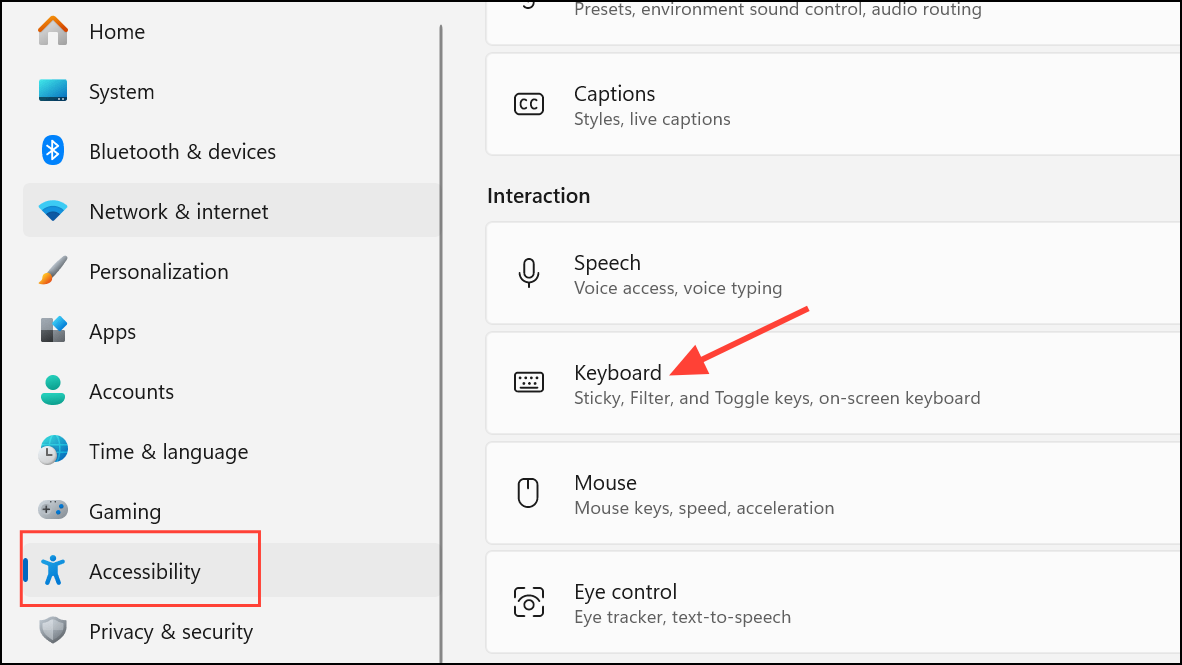
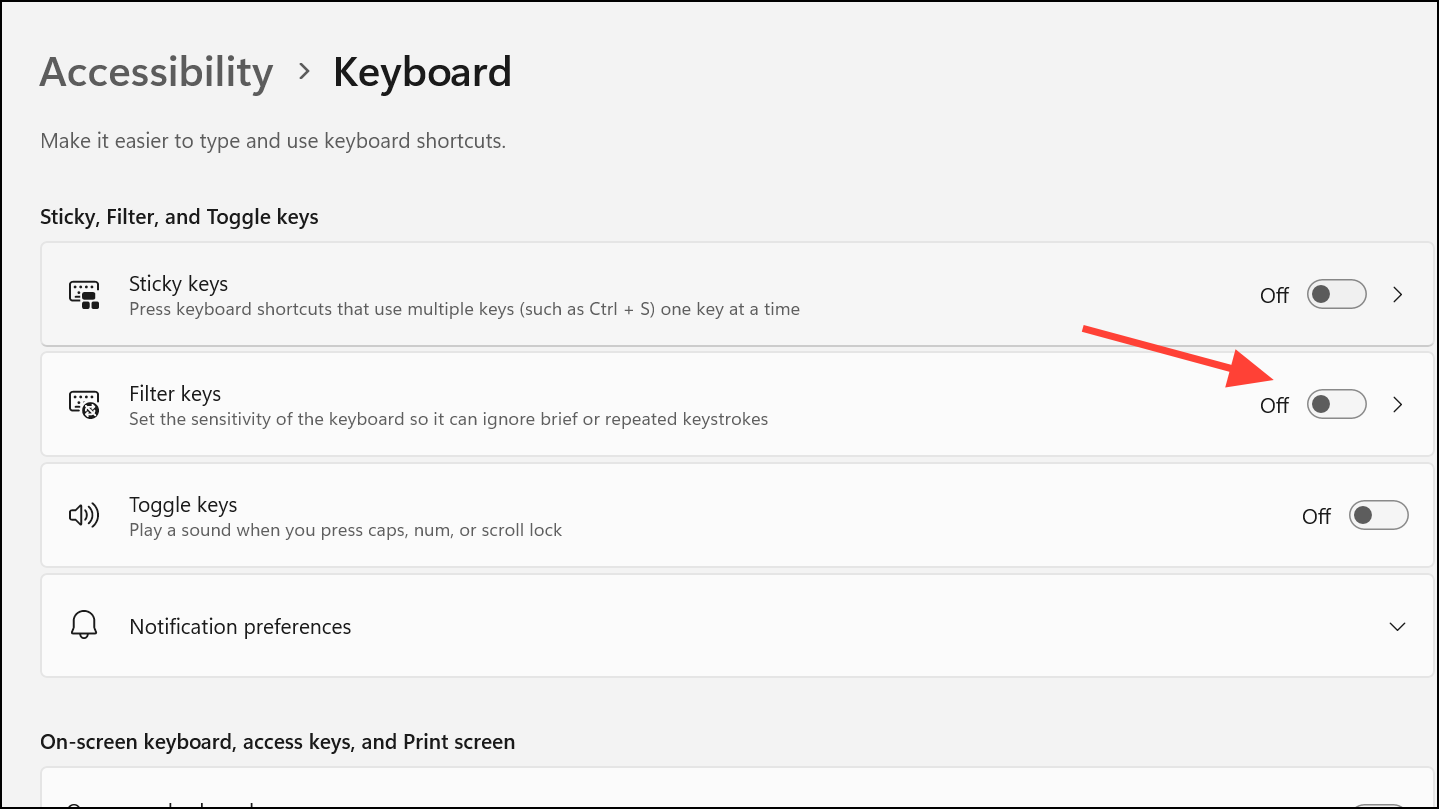
Run System File Checker (SFC) and DISM Scans
Corrupted system files can interfere with keyboard input and function key operation. Running SFC and DISM scans checks for and repairs damaged files.
cmd in the Start menu, right-click, and select Run as administrator.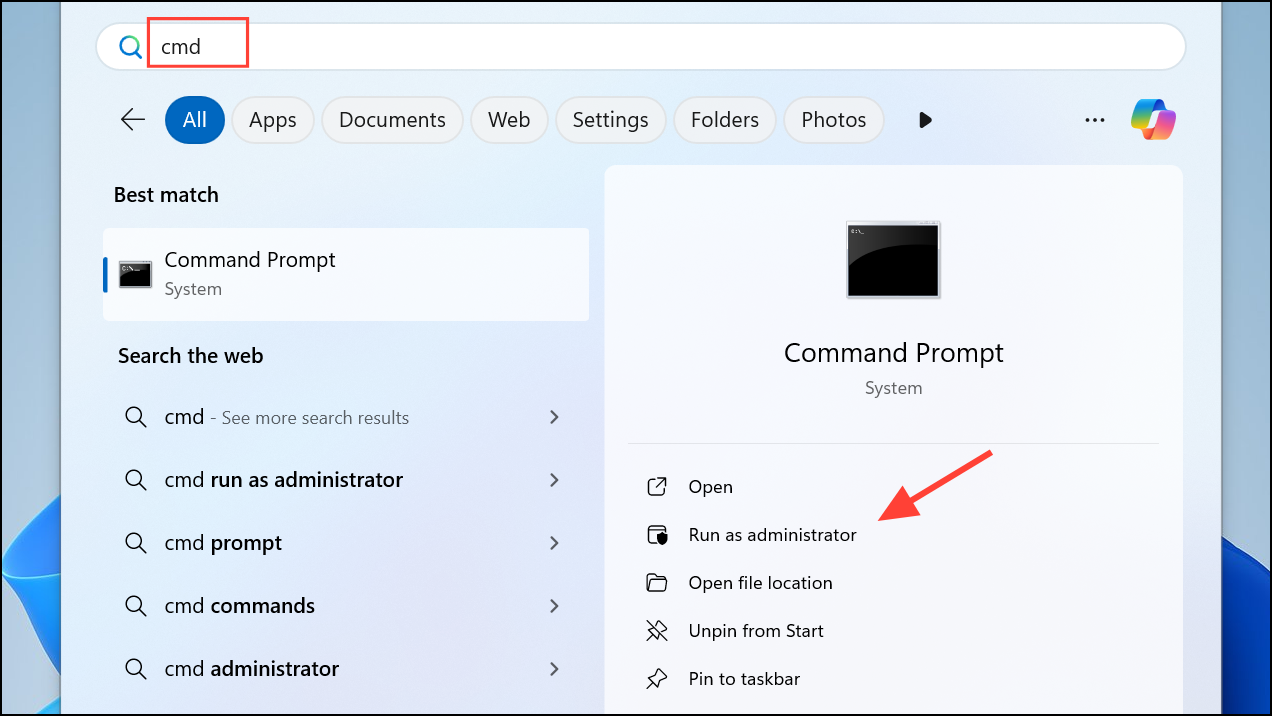
sfc /scannow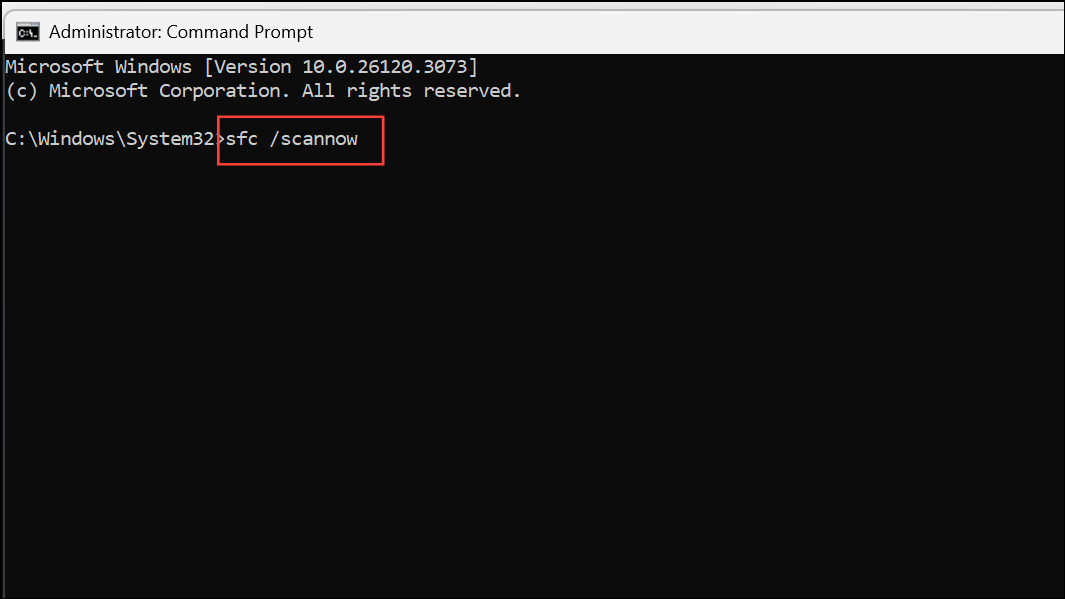
DISM /Online /Cleanup-Image /RestoreHealth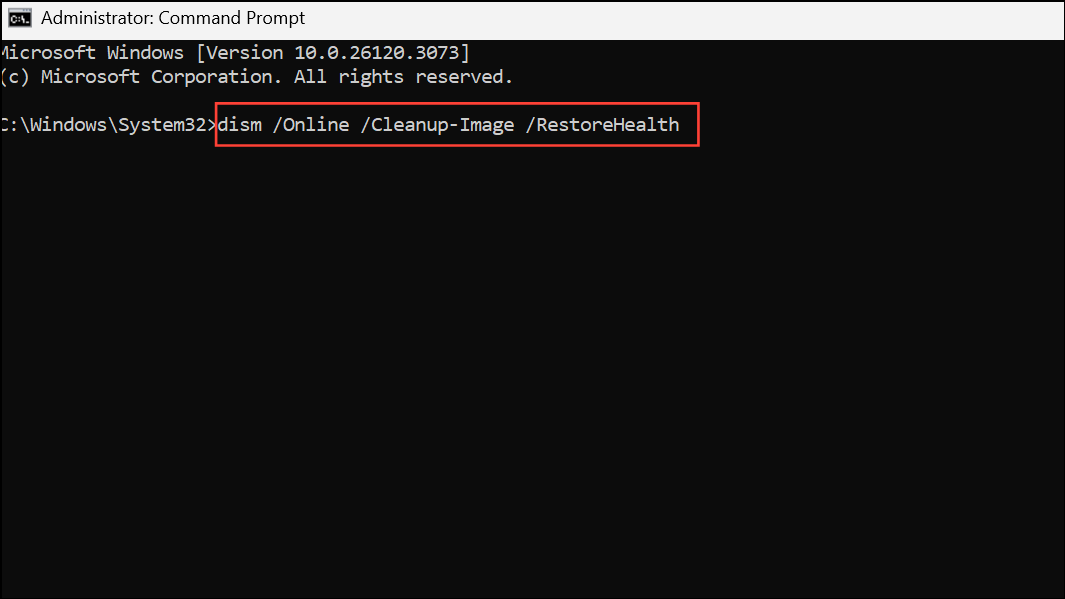
Install Manufacturer Hotkey Utilities or Support Software
Some laptops (especially ASUS, MSI, HP, or Dell) require manufacturer-specific software for full function key support. After a Windows upgrade or clean install, these utilities may be missing.
If you recently upgraded to Windows 11 and lost function key support, this step is often essential for restoring features like keyboard backlighting, media controls, or wireless toggles.
Reset Windows or Restore to a Previous State
If all other methods fail, consider using Windows’ reset or restore features. Resetting Windows reinstalls the operating system, which can resolve persistent software conflicts affecting keyboard input. Before resetting, back up your important files.
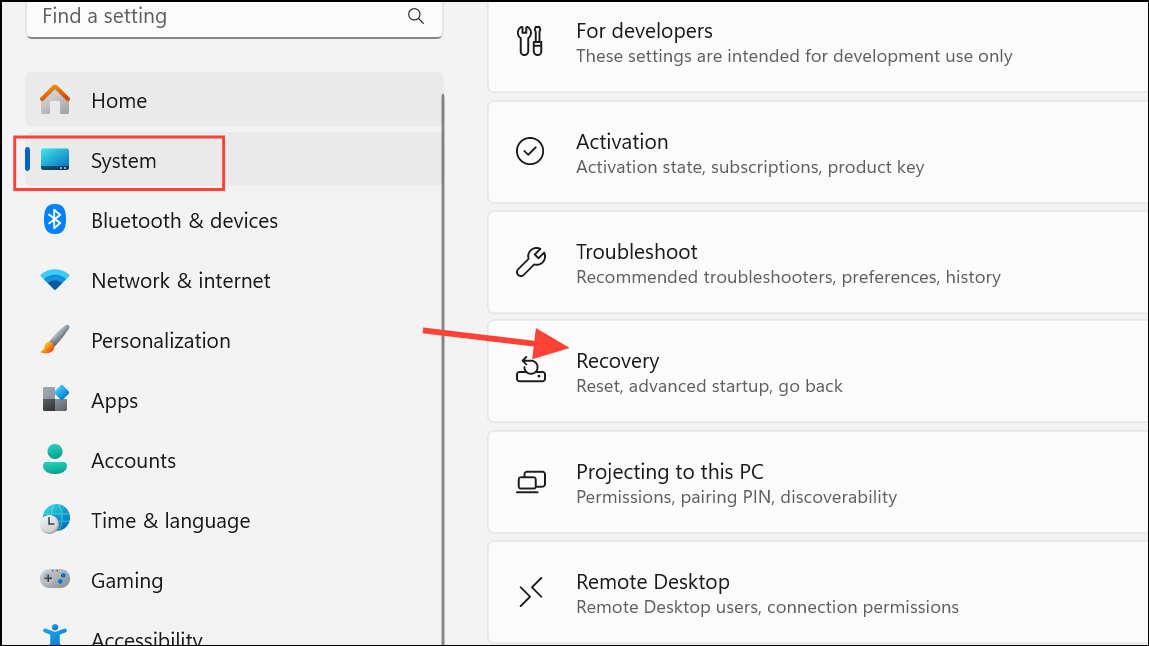
Reset this PC, click Reset PCand follow the prompts. You can choose to keep your files or remove everything.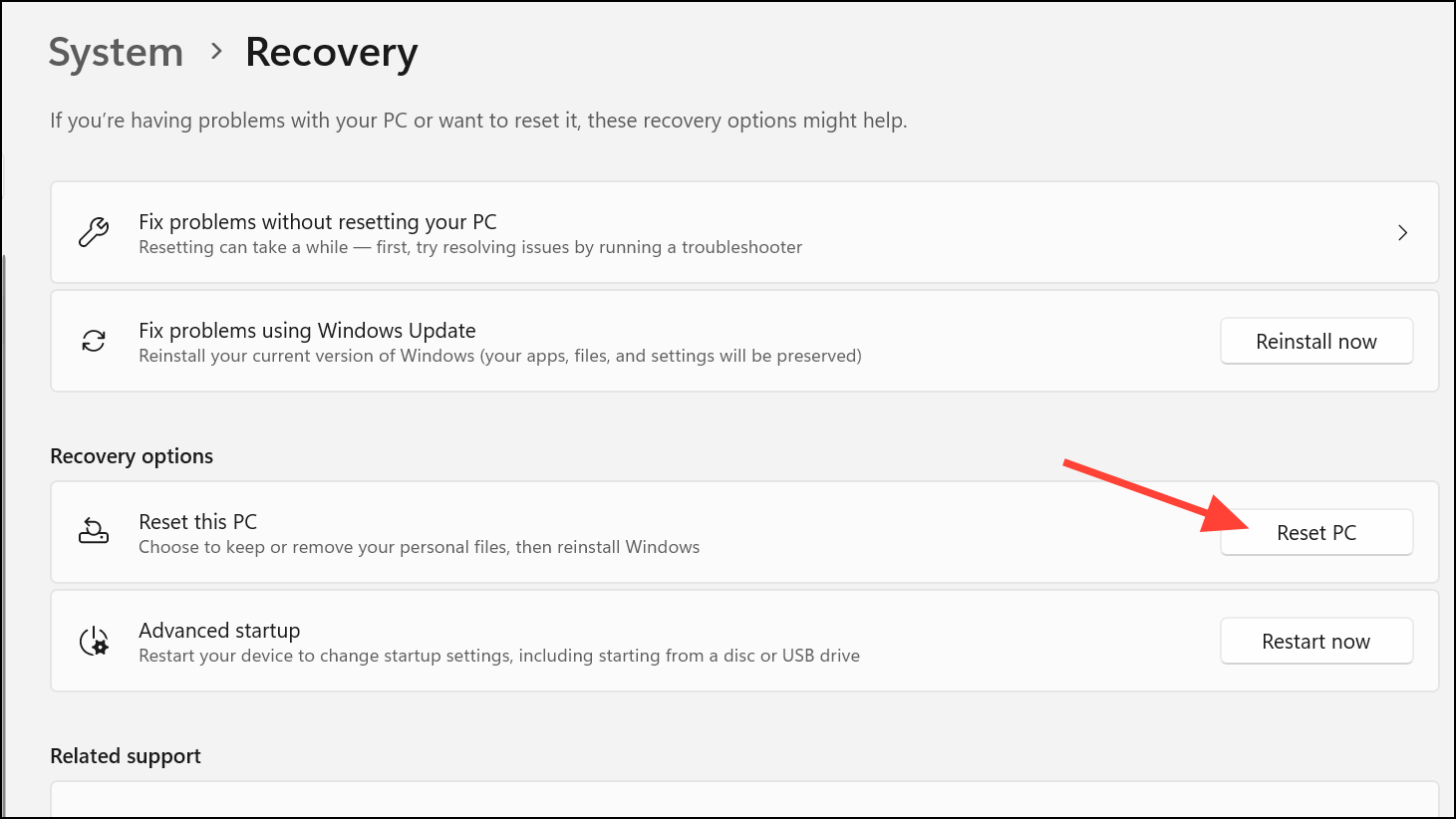
Restoring function keys in Windows 11 often requires a combination of driver updates, service checks, and utility installations. By methodically working through these solutions, you can quickly diagnose and resolve most issues, getting your keyboard back to full working order.



