
The gdi32full.dll file is a core component of the Microsoft Graphics Device Interface (GDI) on Windows. This system file is essential for rendering graphical elements, managing fonts, and displaying the user interfaces of many applications. When this file is missing, corrupt, or unregistered, you may receive a “gdi32full.dll not found” error, preventing programs from starting and potentially causing system instability or display issues.
This problem can arise from various causes, including corrupted system files, malware infections, outdated graphics drivers, or issues from a recent software installation. The following methods are ordered from the most common and safest solutions to more involved troubleshooting steps.
Run System File Checker and DISM Scans
The most reliable first step is to use Windows’ built-in utilities to find and repair corrupt or missing system files. The System File Checker (SFC) and Deployment Image Servicing and Management (DISM) tools are designed to restore the integrity of your Windows installation, which includes essential DLL files like gdi32full.dll.
CMD, right-click on the result, and select “Run as administrator.” This ensures the tool has the necessary permissions to modify system files.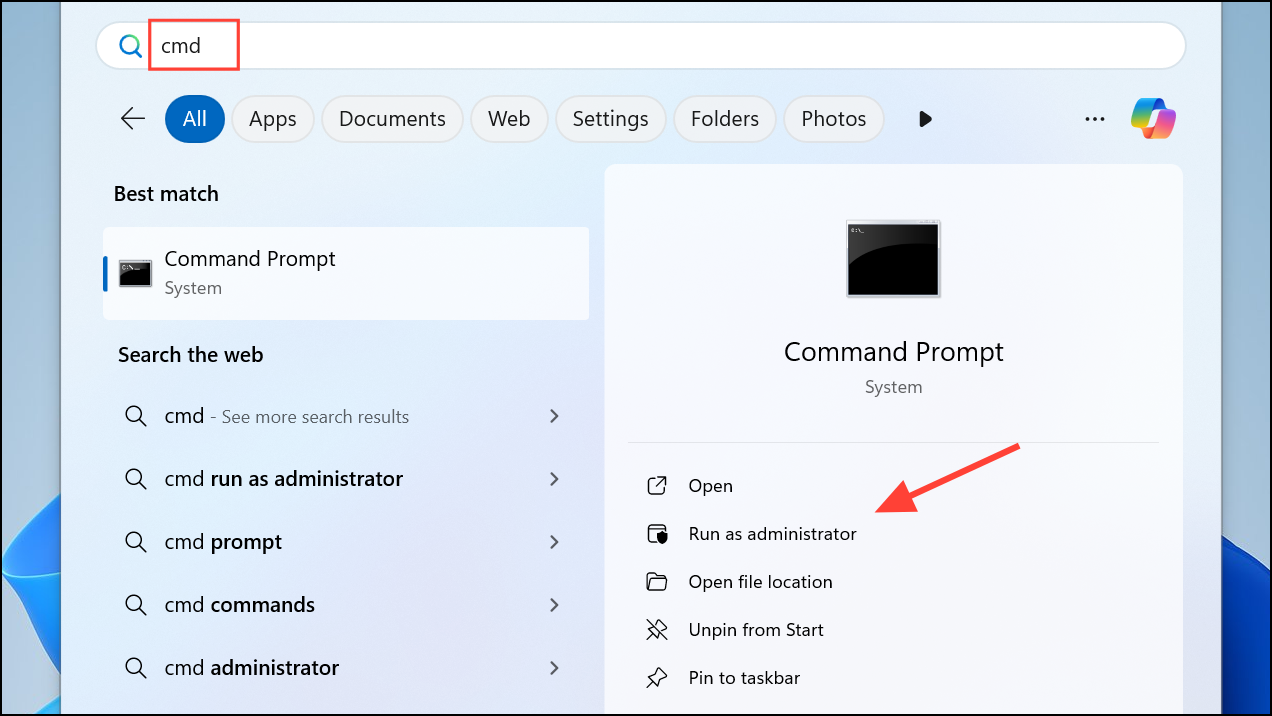
sfc /scannow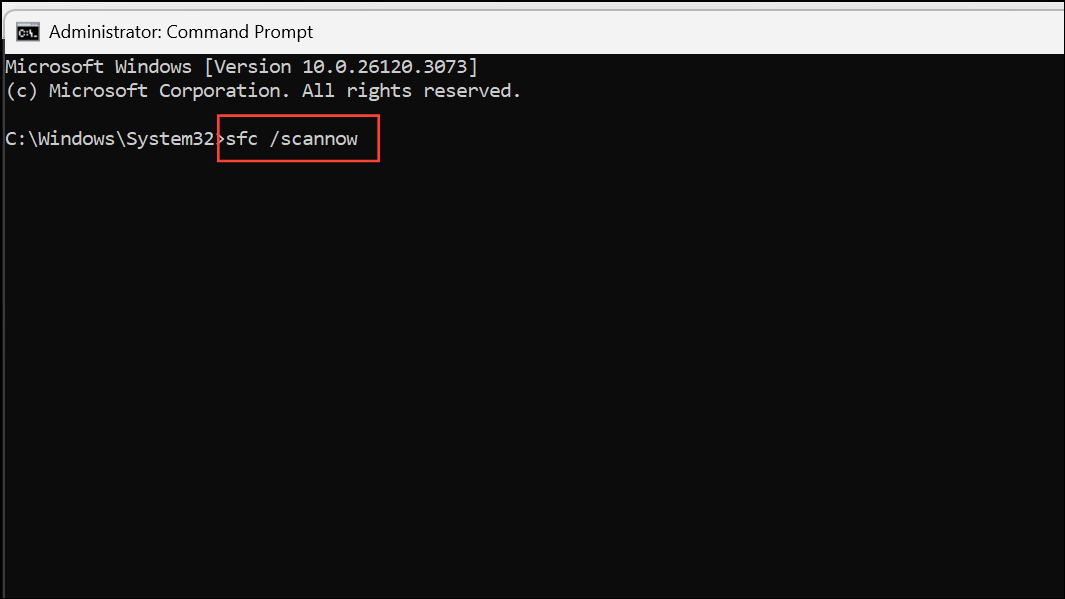
DISM /Online /Cleanup-Image /RestoreHealth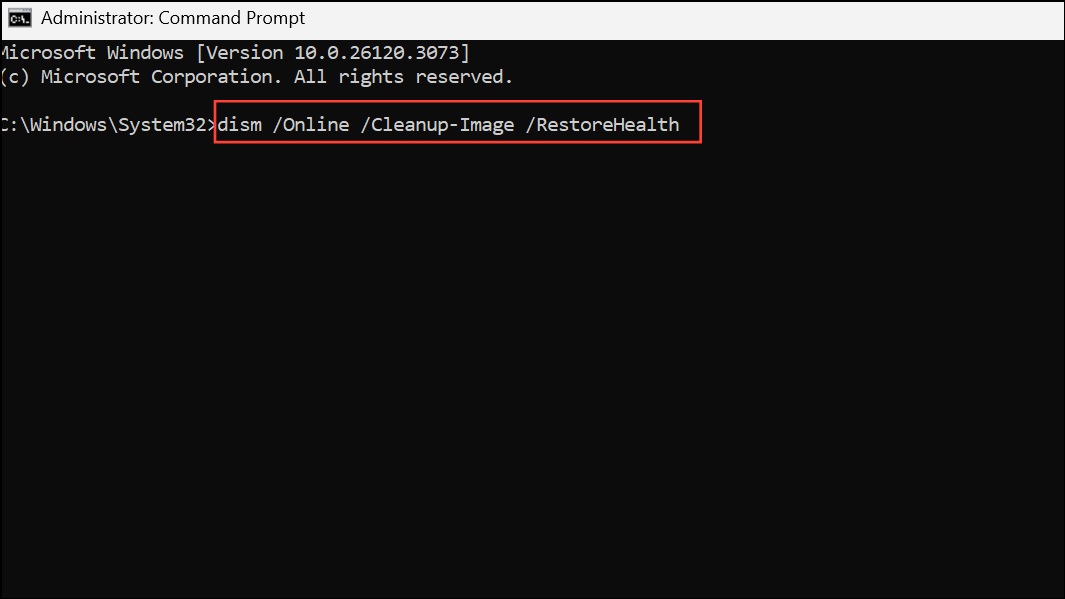
Update Windows and Your Graphics Driver
Since gdi32full.dll is directly related to graphics rendering, an outdated or faulty graphics driver is a common cause of the error. Likewise, an out-of-date Windows system may lack important patches that address DLL issues. Updating both can often fix the problem.
Windows + I keys to open the Settings app. Navigate to the Windows Update tab and click “Check for updates.” Install any available updates, including optional driver updates, and restart your computer.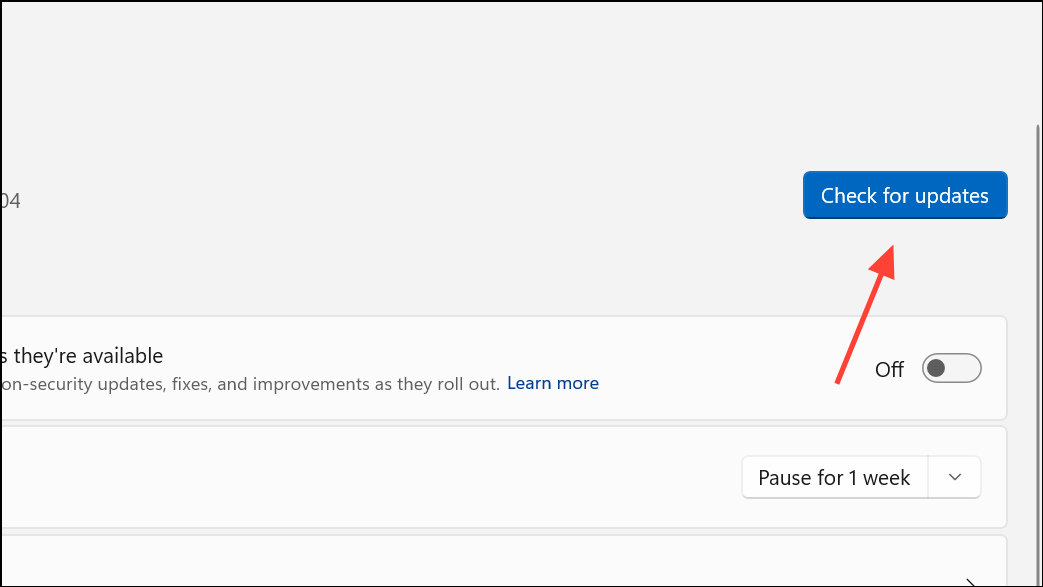
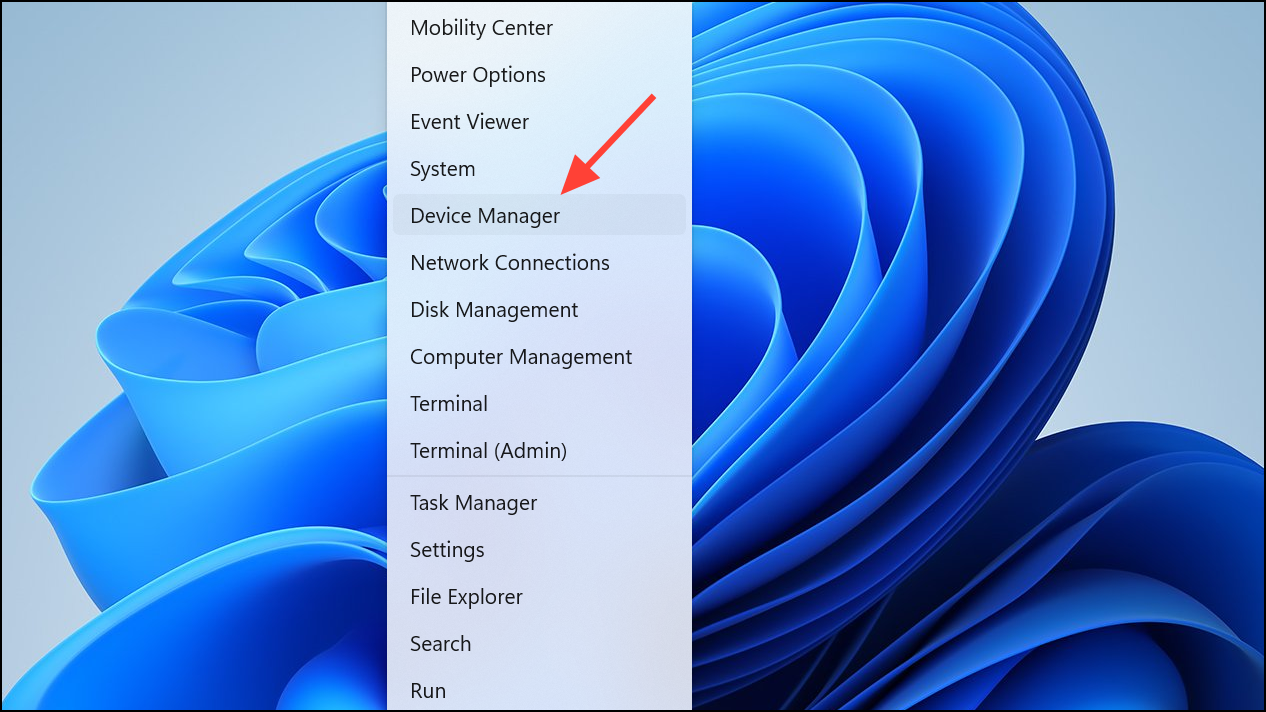
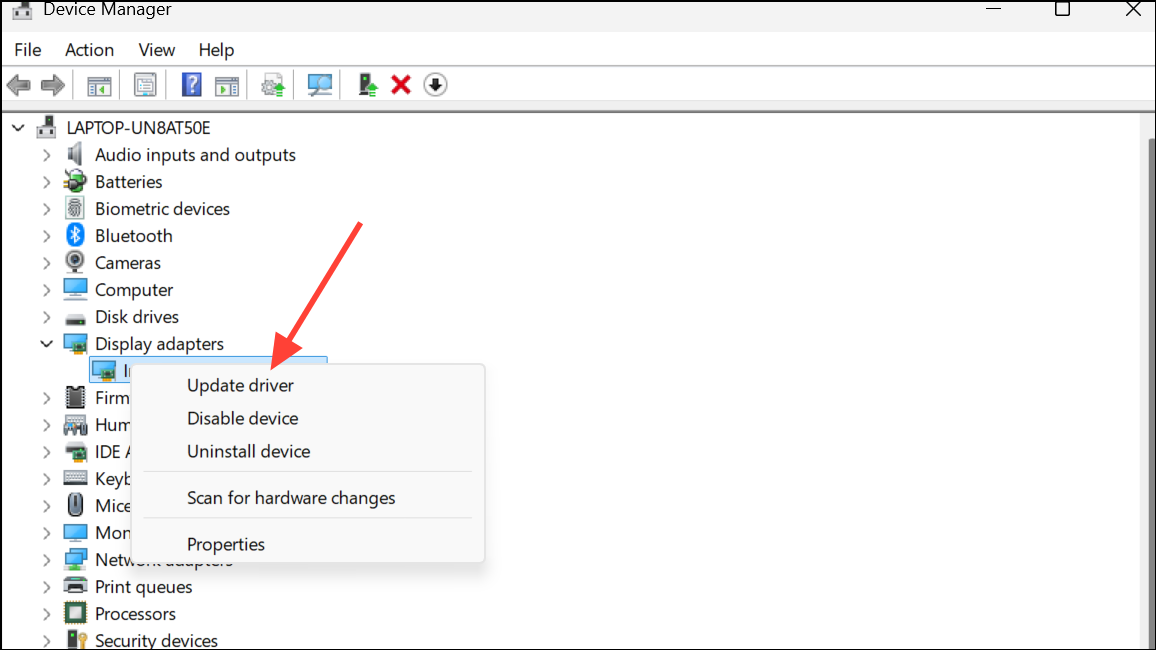
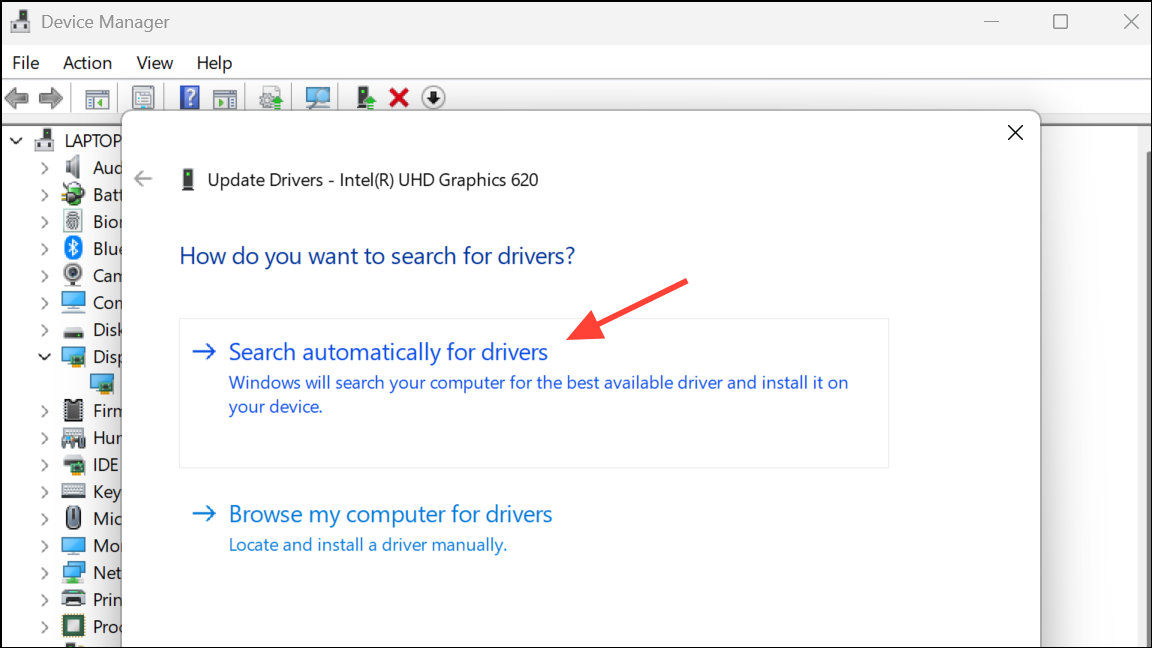
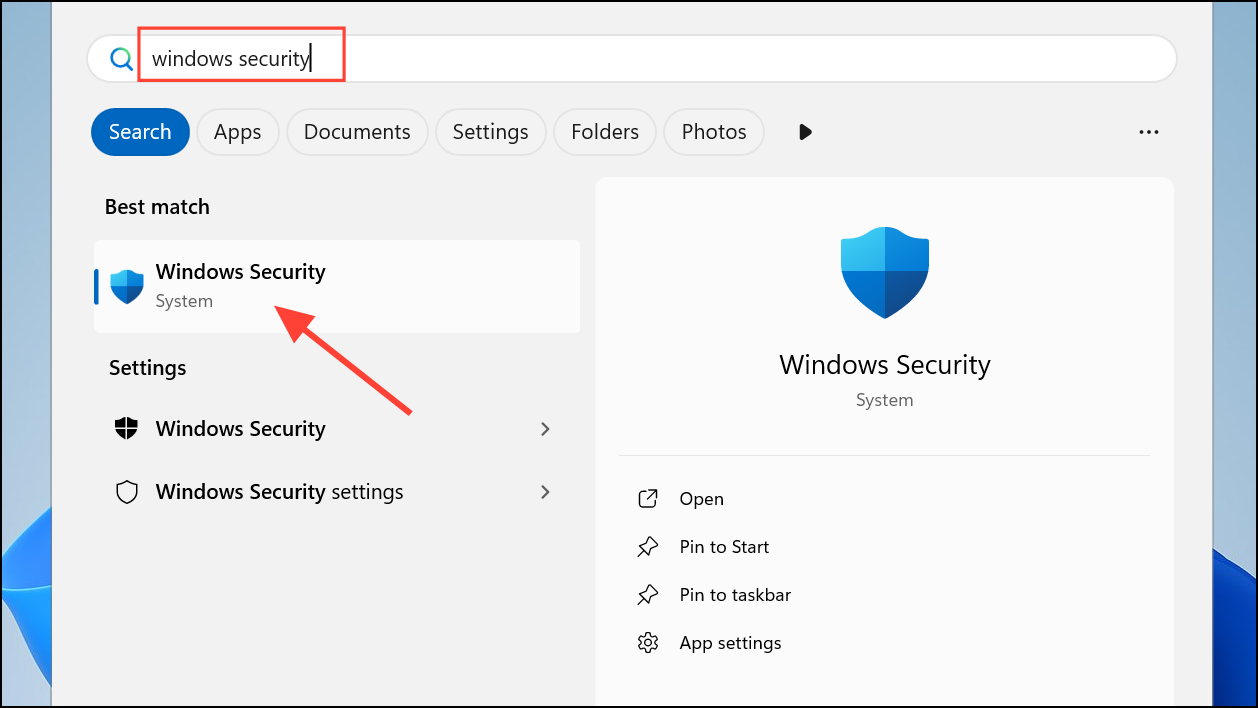
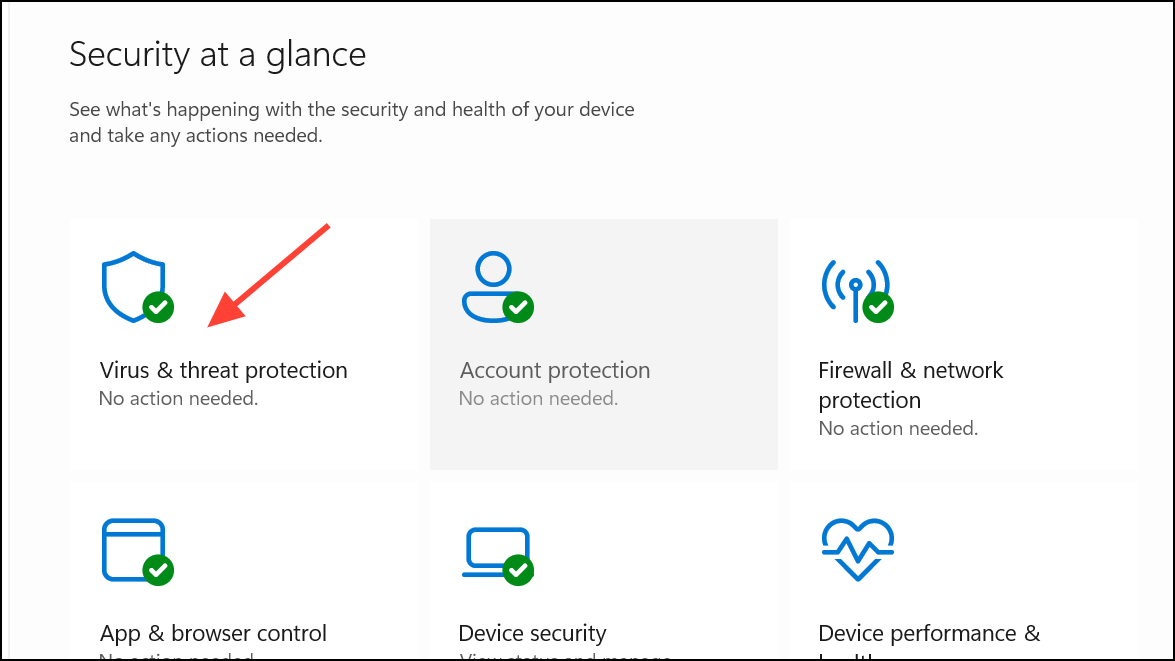
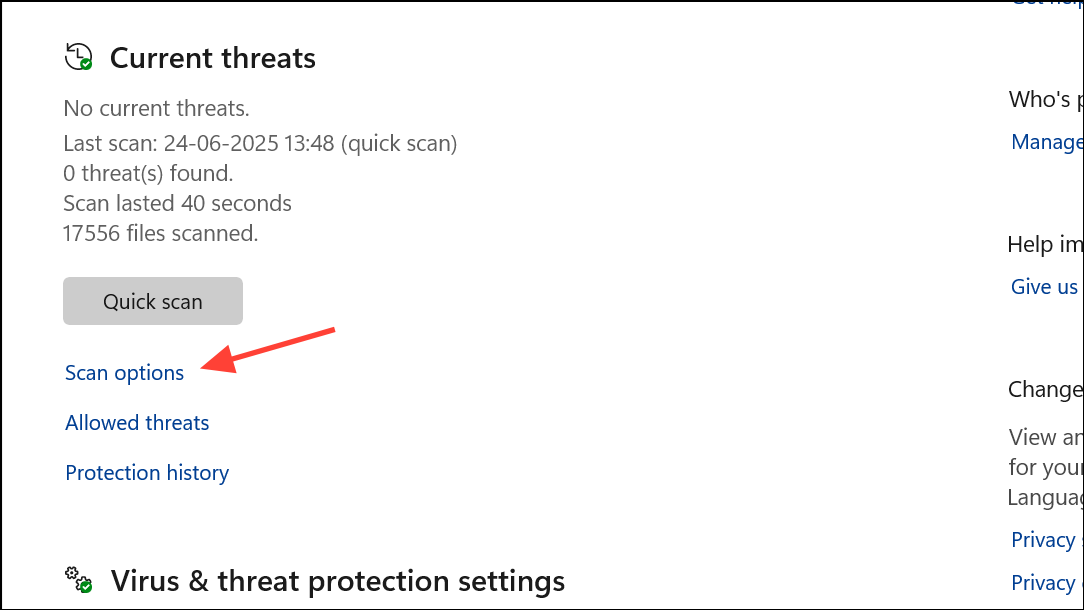
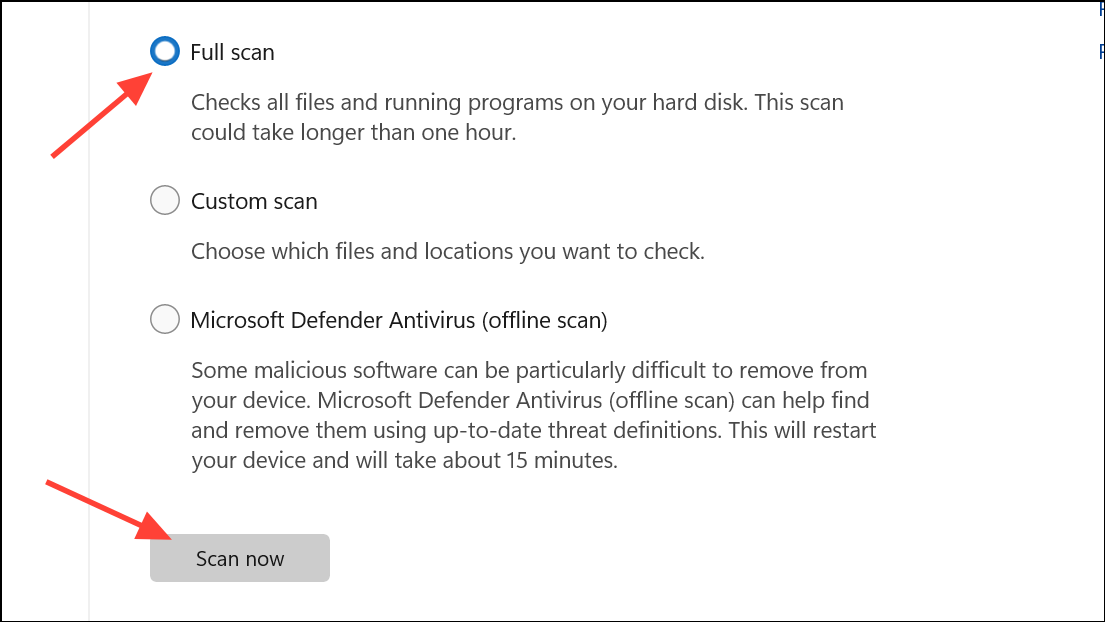
Scan Your System for Malware
Malicious software can delete or corrupt DLL files to disrupt your system’s operation. A thorough malware scan can detect and remove any threats that may be causing the gdi32full.dll error.
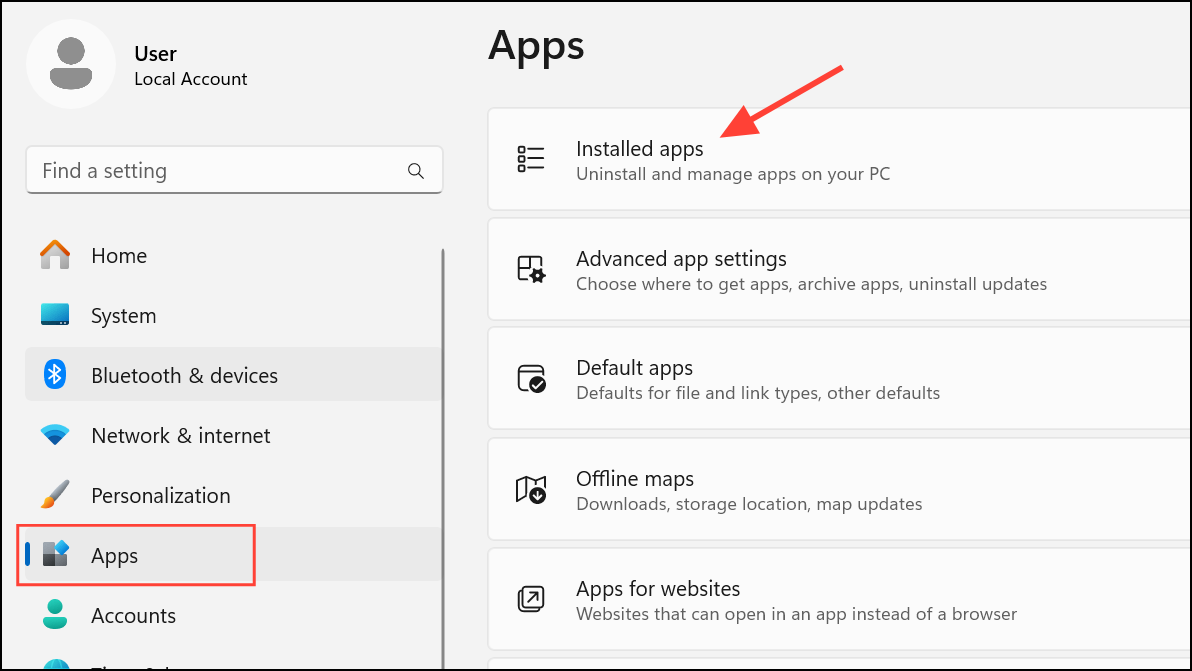
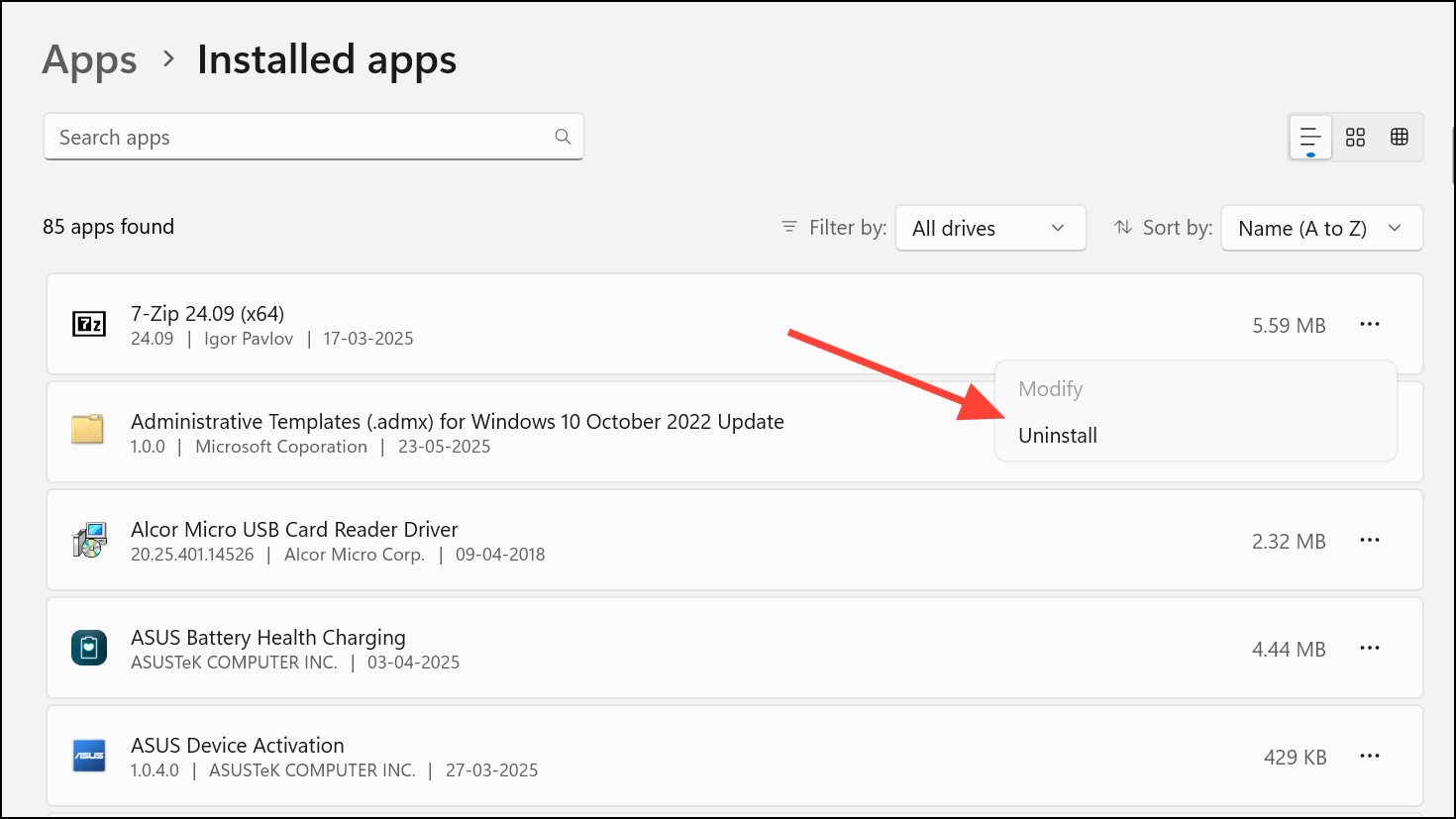
Reinstall the Problematic Application
If the error only appears when you try to launch a specific program, that application’s installation may be faulty or incomplete. Reinstalling it can often resolve the issue.
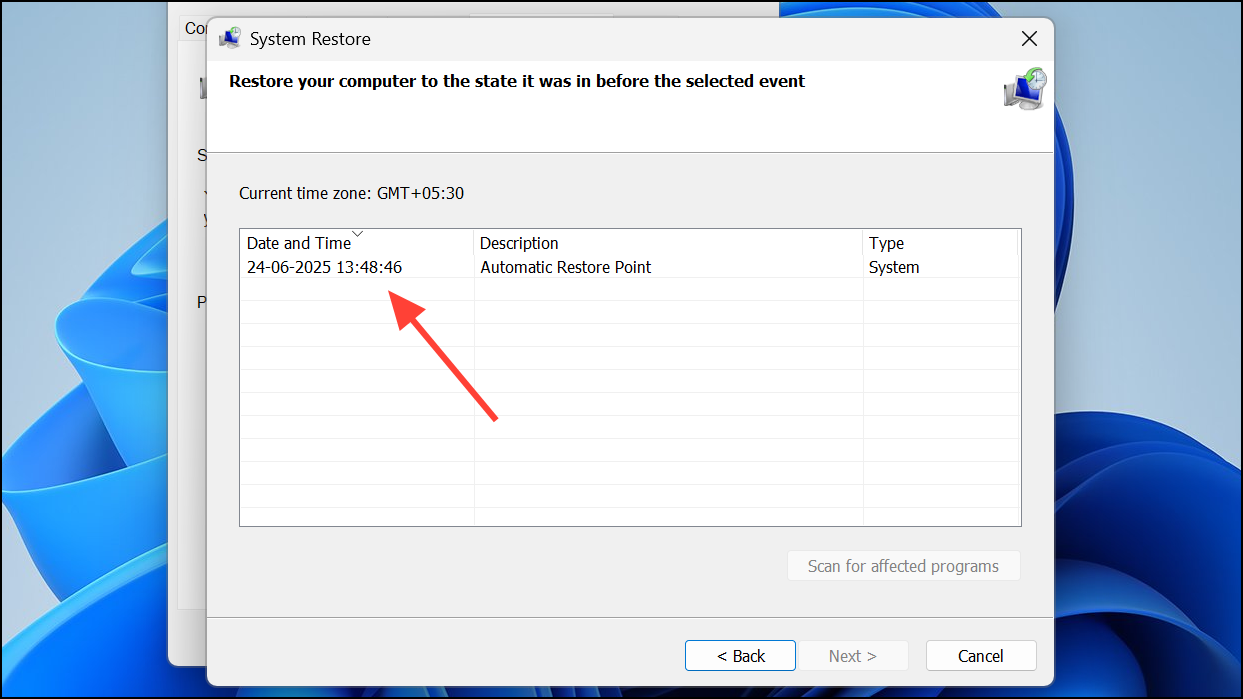
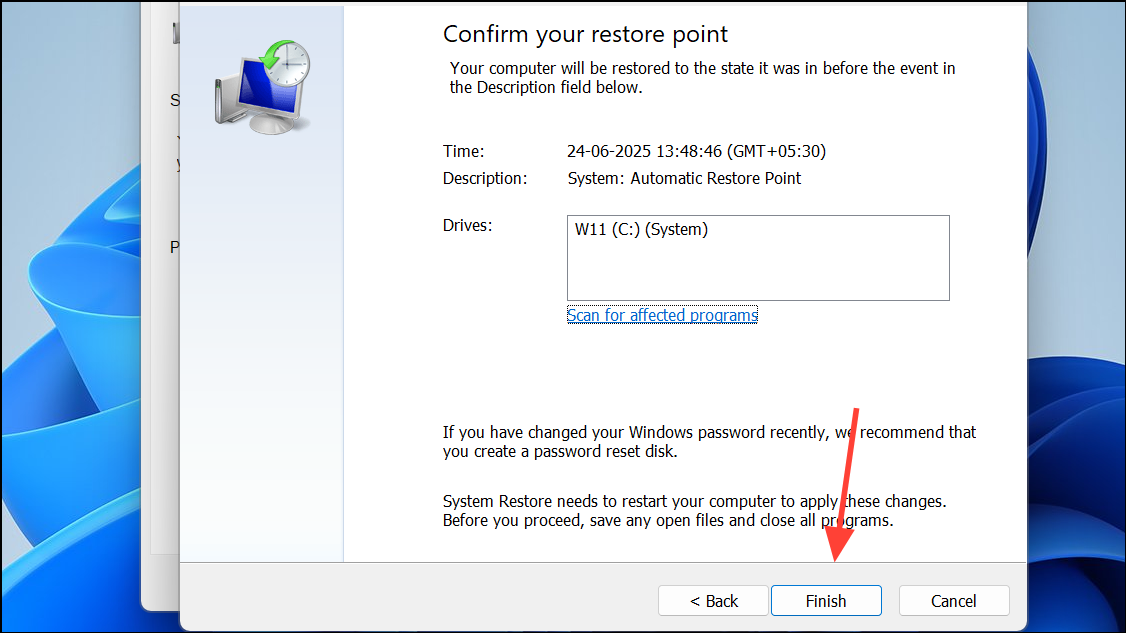
Perform a System Restore
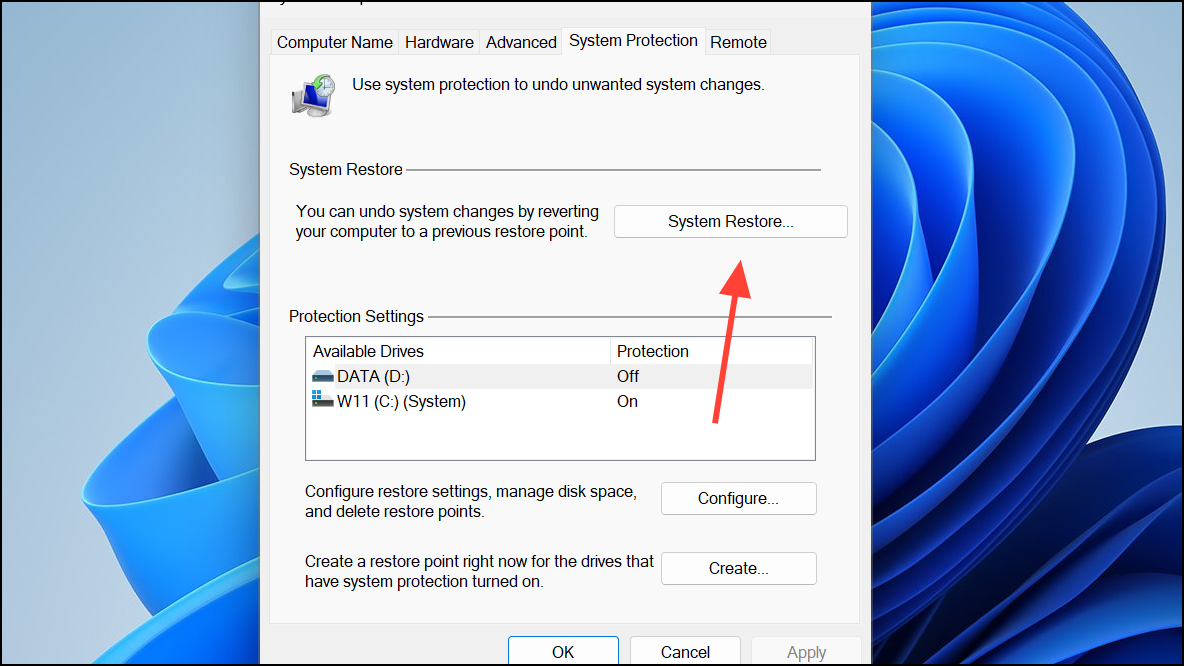
If the error started happening recently after a system change, such as a software or driver installation, using System Restore can revert your PC to an earlier point in time when it was working correctly. Note that this will uninstall any programs and drivers installed after the selected restore point was created.
Create a restore point and press Enter to open the System Properties window.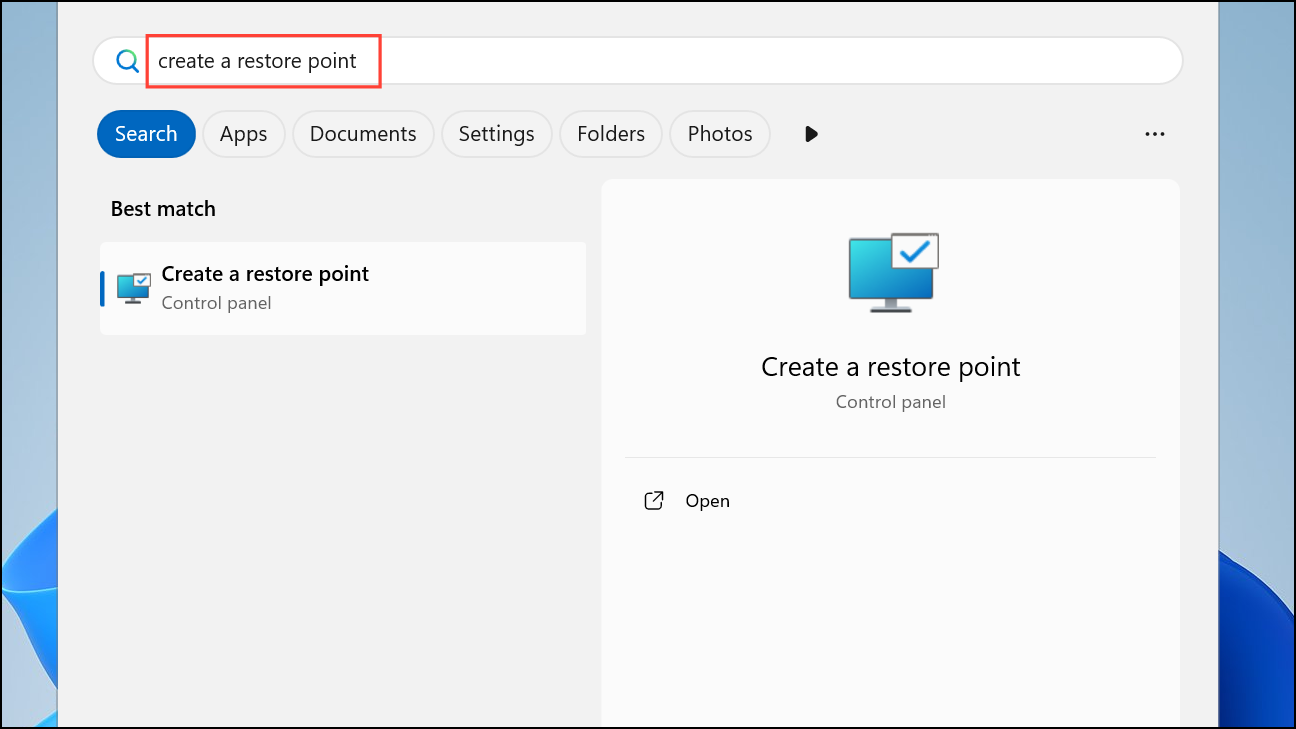
Going through these troubleshooting steps should help you repair the gdi32full.dll file and get your applications running properly again.



