

The “Invalid system disk, Replace the disk and then press any key” message on Windows 11 blocks normal boot, indicating your PC can’t find a valid bootable drive or the system disk is corrupted. This issue often arises after hardware changes, disk corruption, or incorrect boot settings. Restoring access requires targeted troubleshooting, starting with the most effective solutions and progressing to advanced repairs if needed.
Set the Correct Boot Disk as First Boot Device
Incorrect boot order prevents Windows 11 from loading, especially if a non-bootable drive or USB stick is prioritized. Adjusting the boot sequence in the BIOS ensures your system looks for the operating system on the right disk.
F2, F10, Delete, or Esc) to enter BIOS or UEFI firmware settings. The specific key is usually displayed briefly during startup.+ or - keys).F10) and exit BIOS. The computer will restart using the new boot order.Setting the correct boot device often resolves the error if it stemmed from a removable disk or incorrect configuration.
Repair Disk Errors Using CHKDSK
Disk corruption or file system errors can prevent Windows 11 from booting. The CHKDSK tool scans for and fixes logical and physical disk issues, restoring disk integrity and system access.
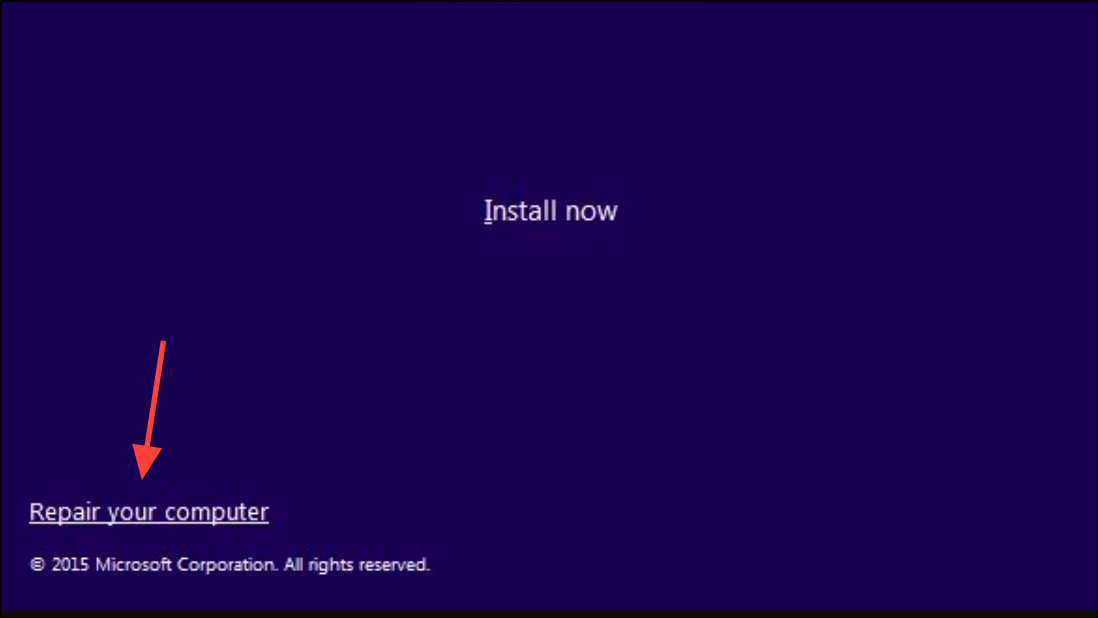
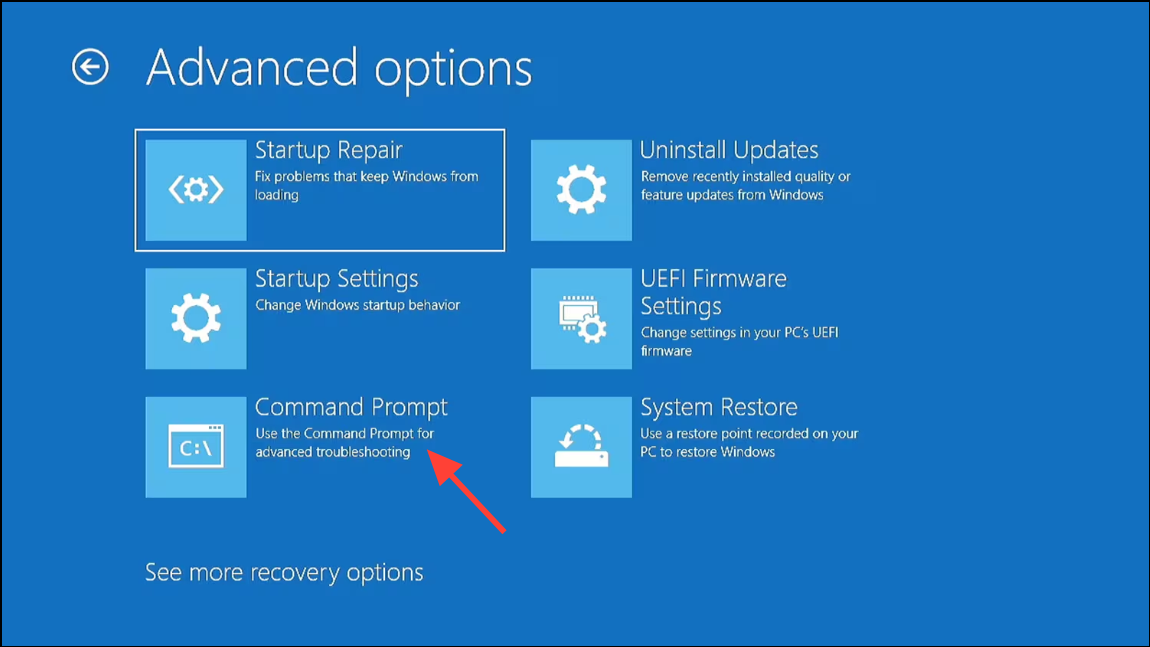
chkdsk C: /f /r /x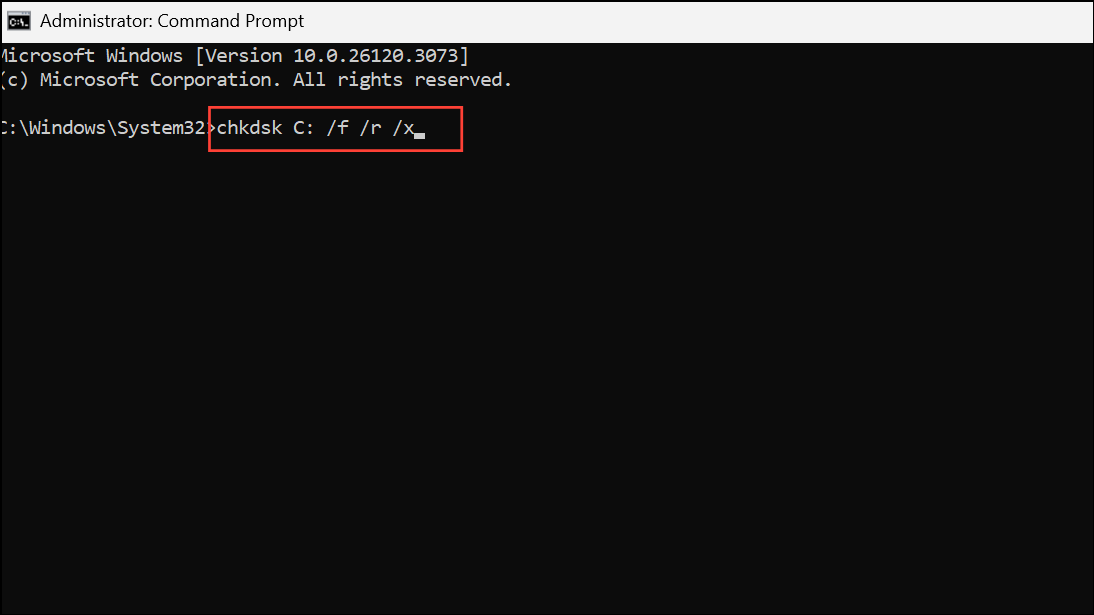
This command checks drive C: for file system errors (/f), scans for bad sectors and attempts recovery (/r), and forces the drive to dismount first (/x). Replace C: with the correct drive letter if Windows is on a different partition.
CHKDSK is highly effective for resolving file system corruption that causes invalid system disk errors.
Repair the Master Boot Record (MBR)
A damaged Master Boot Record prevents the system from identifying bootable drives, resulting in the invalid system disk error. Rebuilding the MBR restores essential boot information.
bootrec /fixmbr
bootrec /fixboot
bootrec /rebuildbcd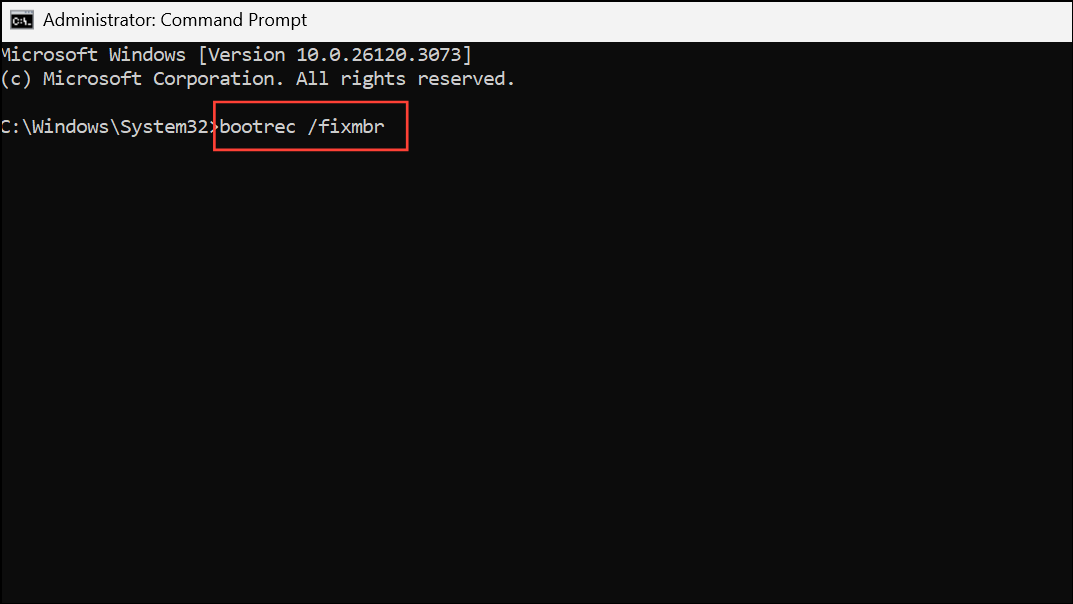
Repairing the MBR is crucial if the boot sector is corrupted or overwritten, restoring the system’s ability to locate the Windows loader.
Run Automatic Startup Repair
Windows 11 includes a built-in Startup Repair tool that scans for and corrects boot issues, including missing or corrupt system files and boot records.
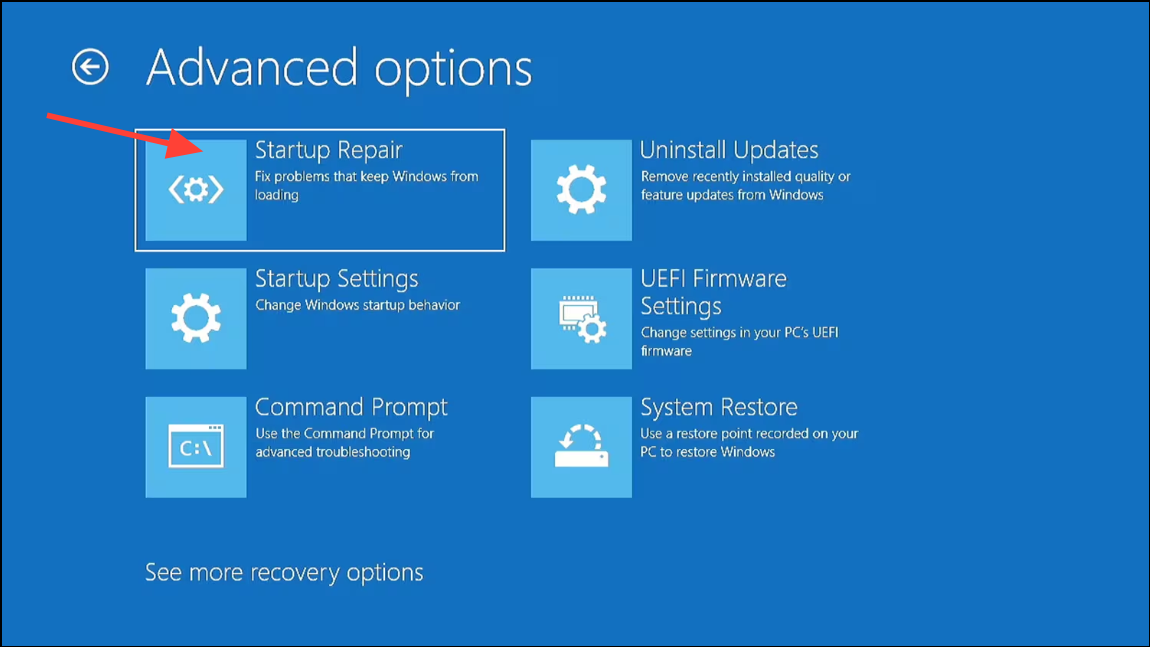
Startup Repair is effective for resolving a wide range of boot-related problems, especially when the cause is unclear.
Check for Physical Hard Drive Failure
If none of the above solutions restore normal boot, the disk may have suffered hardware failure. Symptoms include persistent errors, clicking noises, or the drive not appearing in BIOS.
Replacing a failed hard drive is the only option when hardware damage prevents system access.
Recover Data Before Repair Attempts
Before performing repairs that could affect data, especially if the drive shows signs of failure, use a bootable recovery tool to back up important files. Tools like MiniTool Power Data Recovery or similar utilities can create a bootable USB to access and transfer data to another device.
Prioritizing data recovery reduces the risk of file loss during troubleshooting or after drive replacement.
Addressing the invalid system disk error on Windows 11 requires careful diagnosis, starting with BIOS settings and progressing to disk repairs and hardware checks. With the right steps, you can restore system boot and minimize downtime—just don’t forget to back up your data before making major changes.



