
The IO1_INITIALIZATION_FAILED blue screen error, also known as bug check 0x00000069, signals a failure during the initialization of the Windows I/O subsystem. This error frequently disrupts the boot process, preventing Windows 11 from starting and locking users out of their systems. Causes range from corrupted boot configuration, incompatible hardware changes, and outdated drivers to issues with disk partitions or recent system updates.
Repair Boot Configuration and Master Boot Record (MBR)
Advanced options to continue.Troubleshoot, then Advanced options, and finally Command Prompt.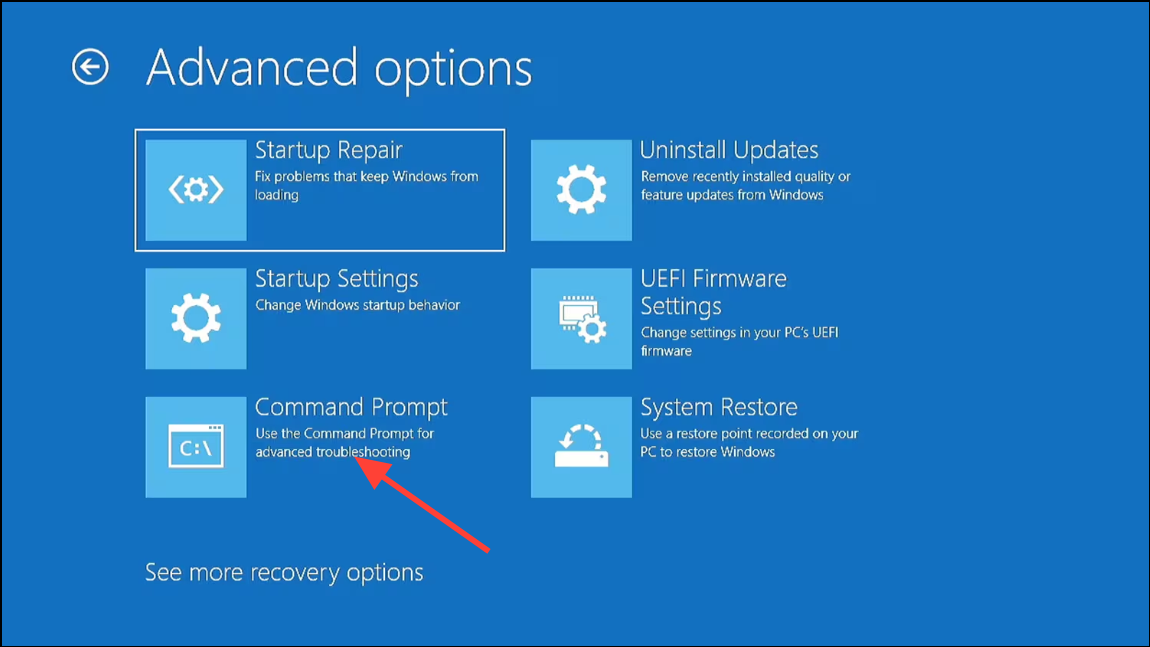
chkdsk c: /f
bootrec /fixmbr
bootrec /fixboot
bootrec /rebuildbcd
bcdboot c:\windows /s c:
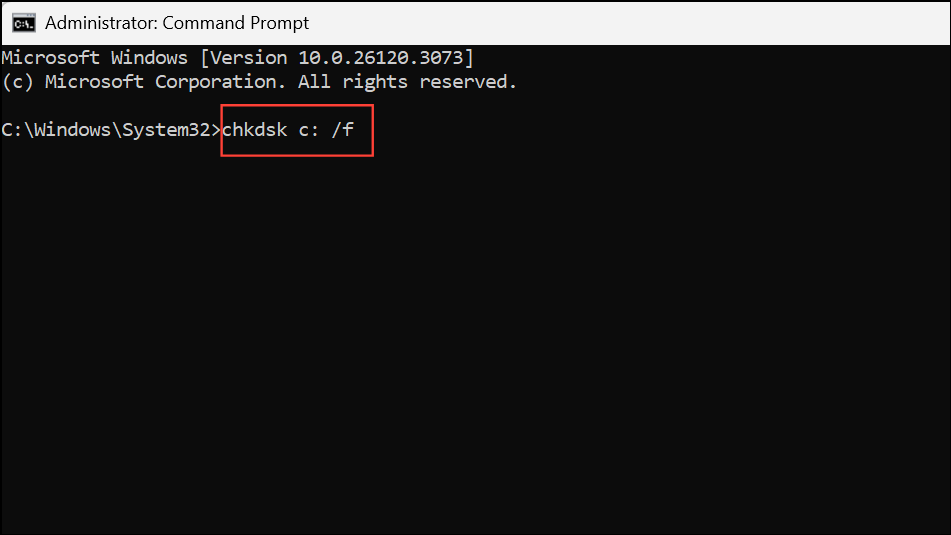
These commands scan and repair disk errors, fix the master boot record, and rebuild the boot configuration data. Once complete, restart your computer and check if Windows loads successfully.
Update Device Drivers in Safe Mode
F8 (or Shift + F8 on some systems) during boot. Select Safe Mode with Networking from the options.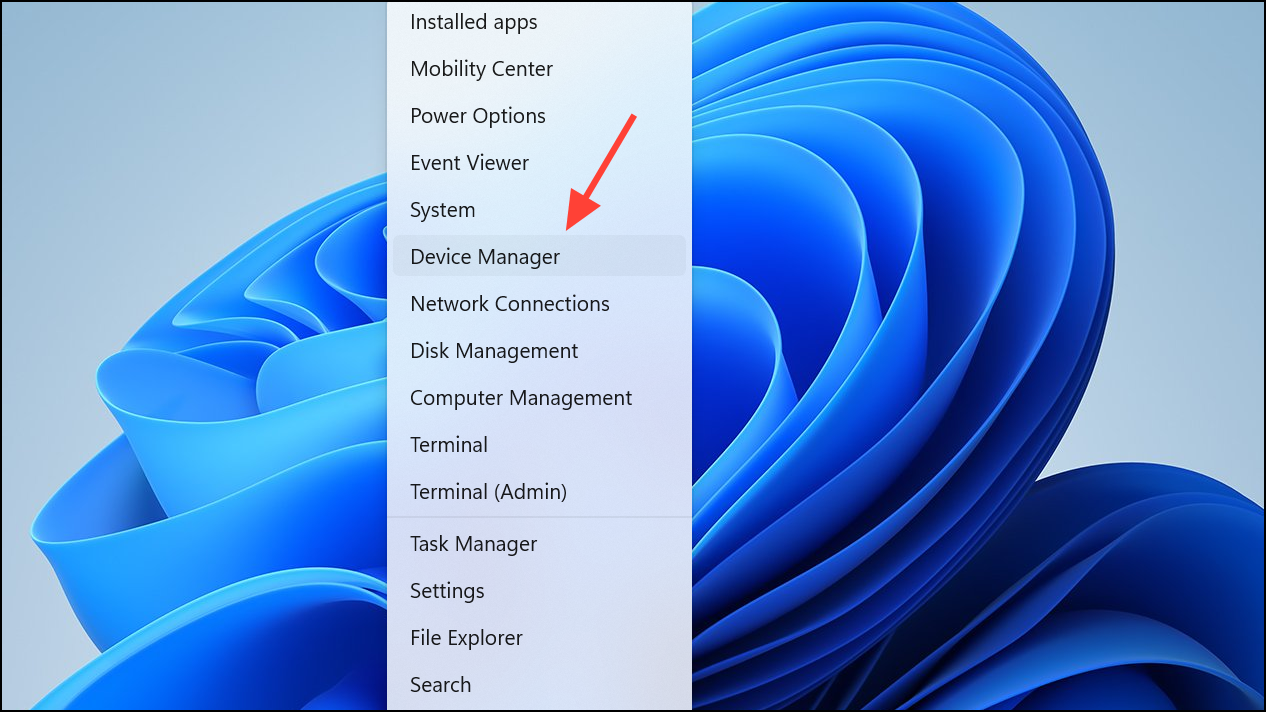
Update driver, then choose Search automatically for drivers. Allow Windows to search for and install the latest drivers.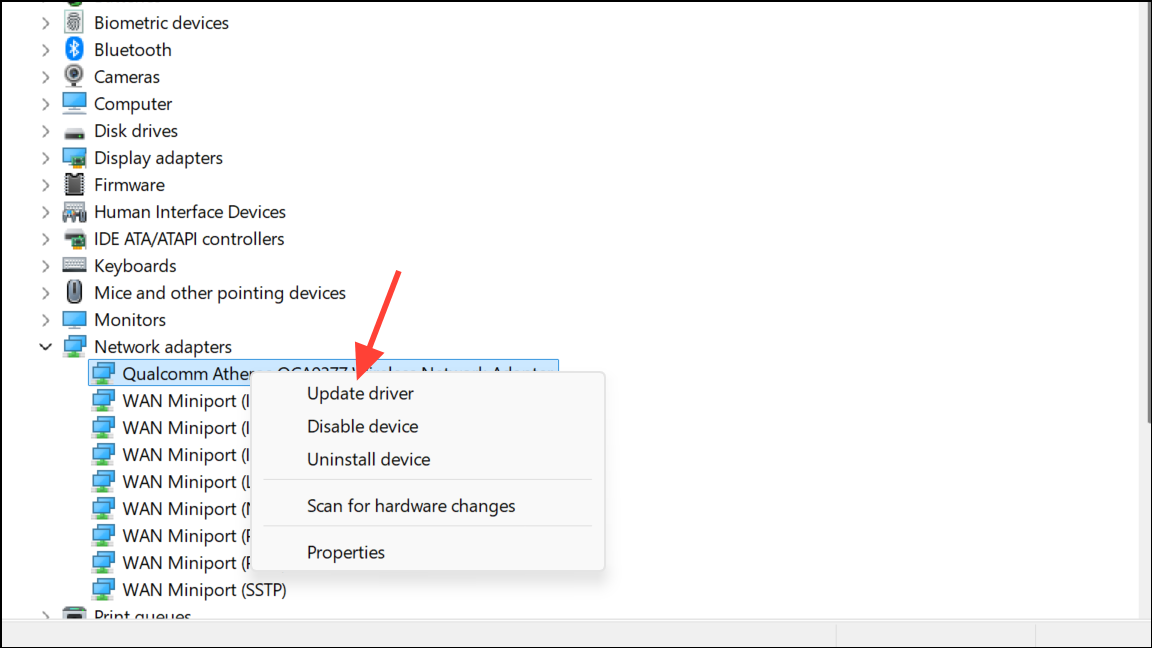
Outdated or incompatible drivers—especially for storage controllers, graphics cards, or chipset components—often trigger I/O-related blue screen errors. Updating these drivers can restore normal system function.
Run System File Checker (SFC) and DISM
DISM /Online /Cleanup-Image /RestoreHealth
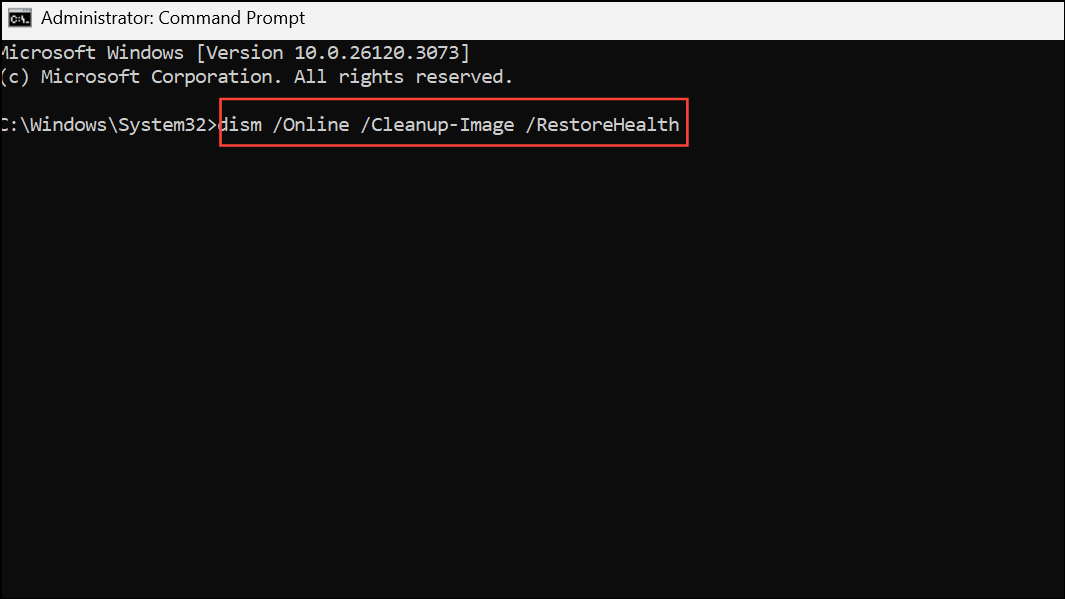
This command checks the Windows image for corruption and repairs it using files from Windows Update.
sfc /scannow
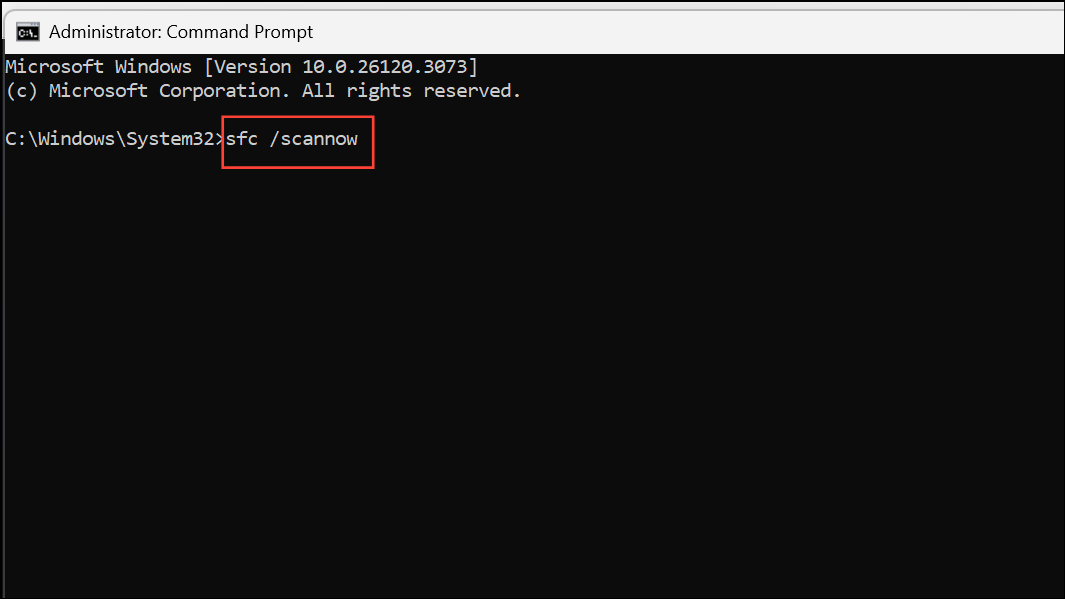
This scans for and repairs corrupted or missing system files. If either scan finds and fixes issues, restart your PC and see if the blue screen error is resolved.
Perform Startup Repair
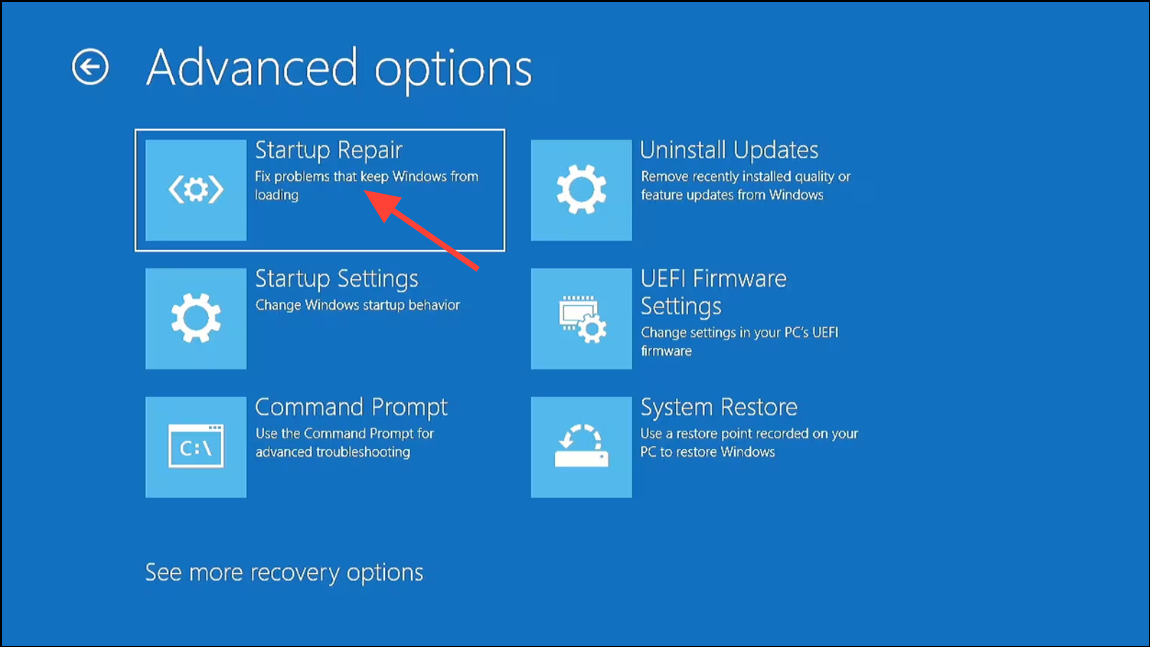
This tool automatically detects and fixes problems that prevent Windows from booting, such as boot sector corruption or missing system files. Follow the on-screen instructions and restart your computer after the repair completes.
Check Disk and Hardware Integrity
chkdsk /f /r C:
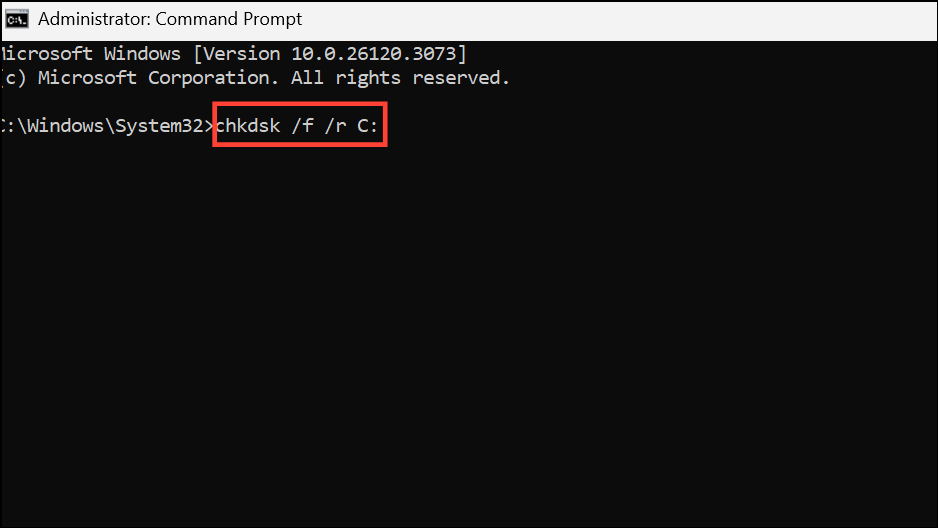
This command scans for bad sectors and attempts to recover readable information. Replace C: with the appropriate drive letter if Windows is installed elsewhere. Faulty or aging hard drives can cause critical system errors during boot, so this step helps identify hardware issues.
Change Disk Controller Mode in BIOS
DEL, F2, or F10 immediately after powering on).AHCI or RAID, try switching it to SATA or ATA mode. Save changes and reboot.Incorrect or unsupported disk controller modes can prevent Windows from accessing system files during startup, leading to blue screen errors.
Reinstall Windows Using Official Installation Media
Reinstalling Windows replaces corrupted system files and boot records, resolving persistent initialization failures that other methods cannot fix.
Additional Considerations
- Recent hardware changes, such as new RAM or storage devices, can trigger IO1_INITIALIZATION_FAILED. If the error started after a hardware upgrade, revert to the previous configuration and test system stability.
- Ensure all storage devices are properly connected and listed in BIOS. Loose cables or failing drives may prevent Windows from initializing the I/O subsystem.
- For dual-boot or multi-disk systems, verify that the EFI partition and Windows partition reside on the same disk. If not, use disk management tools or Linux utilities to recreate the EFI partition on the correct drive.
- Use reputable data recovery software if you need to recover files from a system that cannot boot due to this error.
Resolving the IO1_INITIALIZATION_FAILED blue screen on Windows 11 typically involves repairing boot records, updating drivers, checking hardware, and—if necessary—reinstalling Windows. Taking these steps restores system reliability and gets you back to work quickly.



