
Location-based apps and features in Windows 11 depend on the system’s location services being active. When the Location Services toggle is greyed out in Settings, apps like Maps, Weather, or Find My Device lose access to your device’s position, causing real-world inconvenience. The message “Some settings are managed by your organization” often appears, even on personal computers, signaling that a system policy or registry setting is blocking changes to location permissions.
Modify Group Policy Settings (Windows 11 Pro and Enterprise)
Win + R to open the Run dialog, then type gpedit.msc and press Enter. This launches the Local Group Policy Editor. If you receive an error or the tool is missing, your edition of Windows likely does not include it—skip to the next method.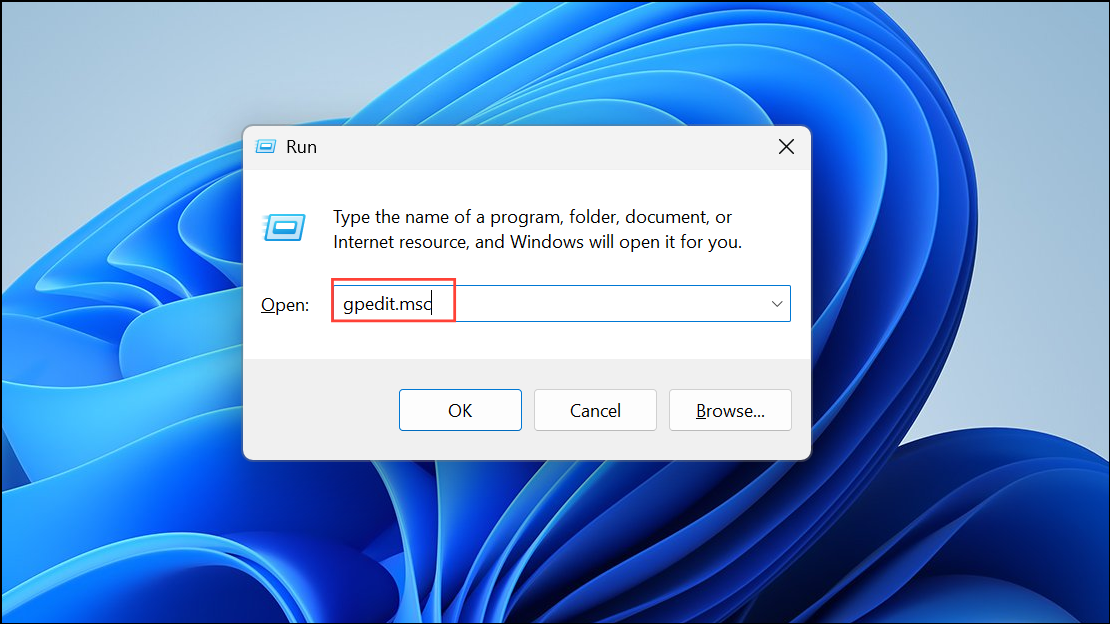
Computer Configuration > Administrative Templates > Windows Components > Location and Sensors. Here, locate the policy labeled Turn off location or similar entries.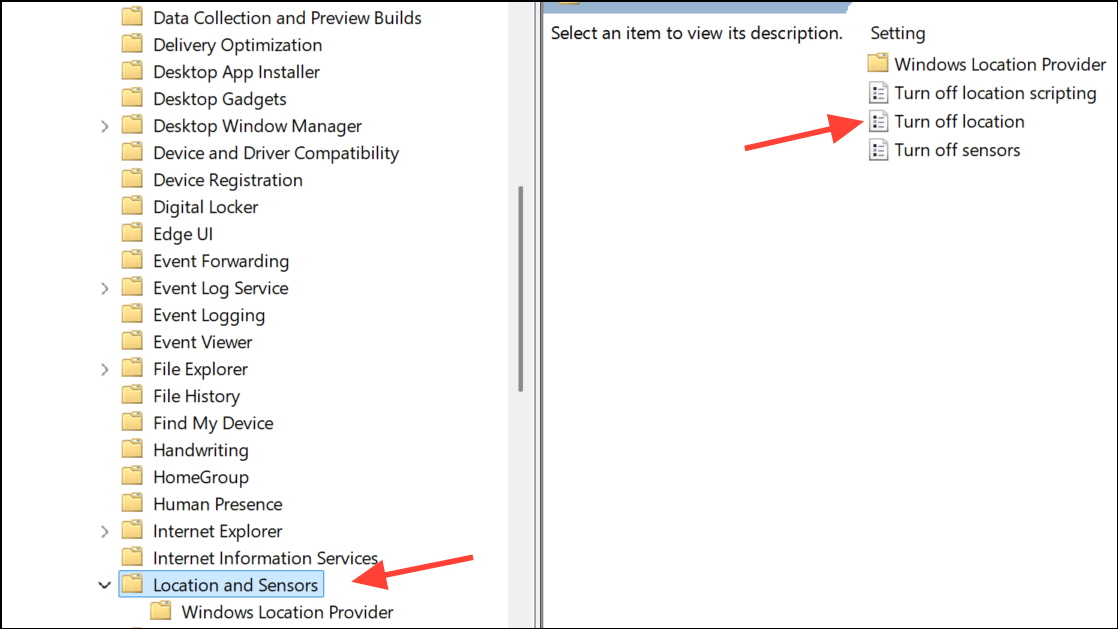
Enabled, change it to Not Configured or Disabled. Click Apply, then OK.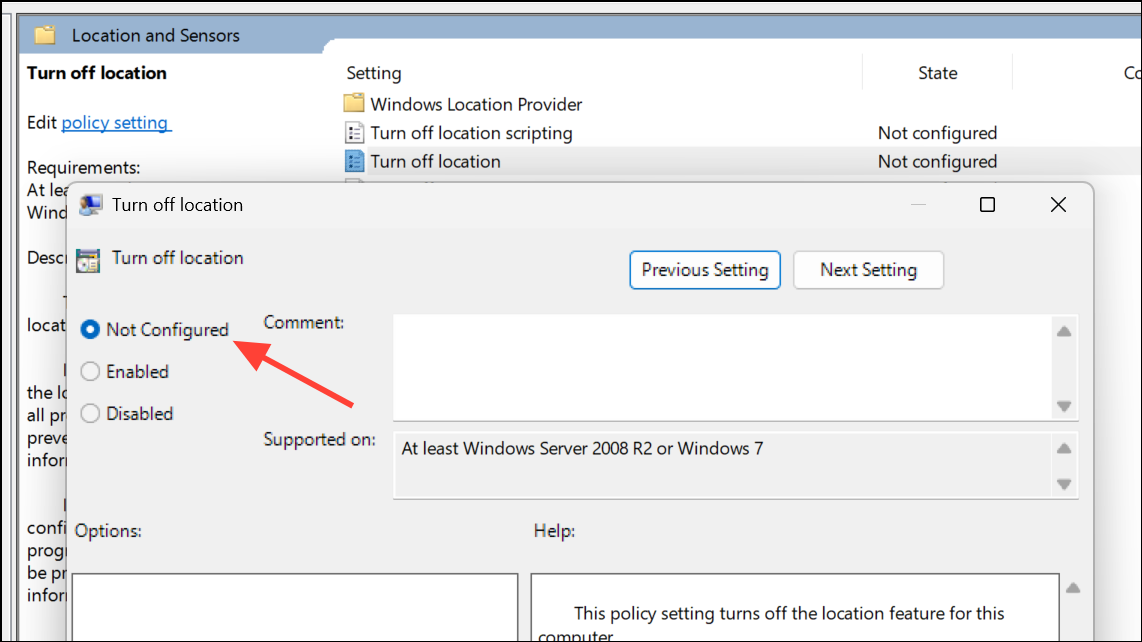
Edit the Windows Registry (All Editions)
Windows Home users do not have access to the Group Policy Editor, but registry edits can achieve the same result. Misconfigurations in the registry can cause system instability, so back up your registry before making changes.
Win + R, type regedit, and press Enter. If prompted by User Account Control, select Yes to proceed.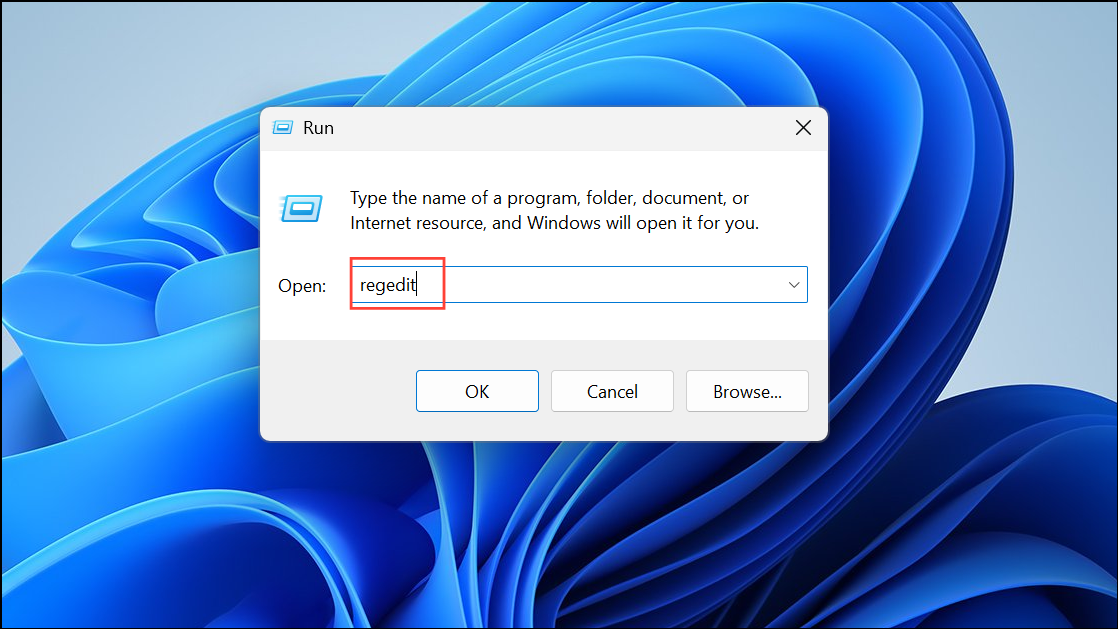
HKEY_LOCAL_MACHINE\SOFTWARE\Policies\Microsoft\Windows\LocationAndSensors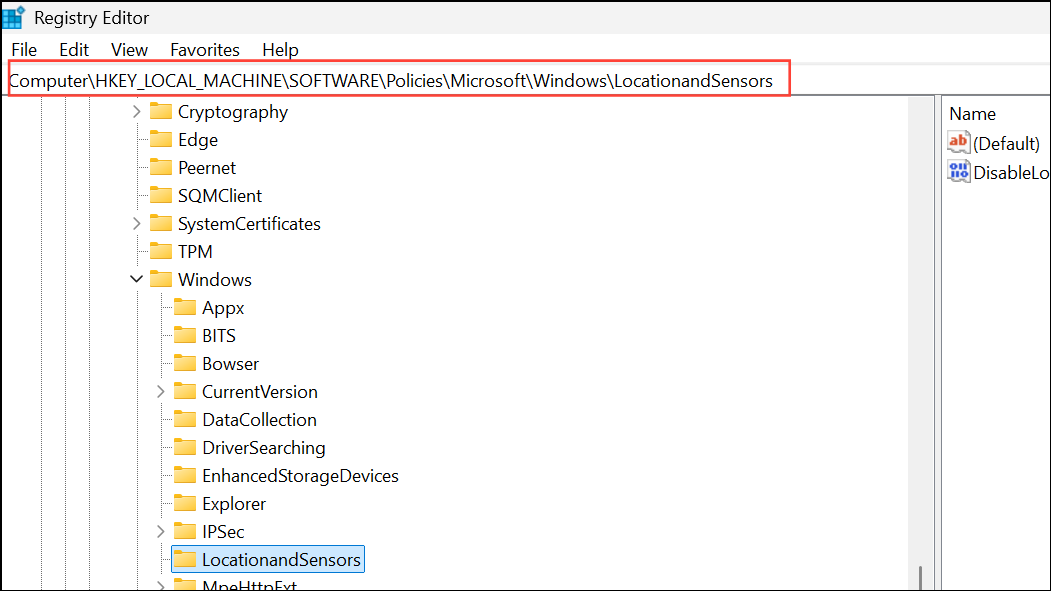
DisableLocation. If it exists and is set to 1, double-click it and change the value data to 0. If the value does not exist, right-click in the right pane, select New > DWORD (32-bit) Value, name it DisableLocation, and set its value to 0.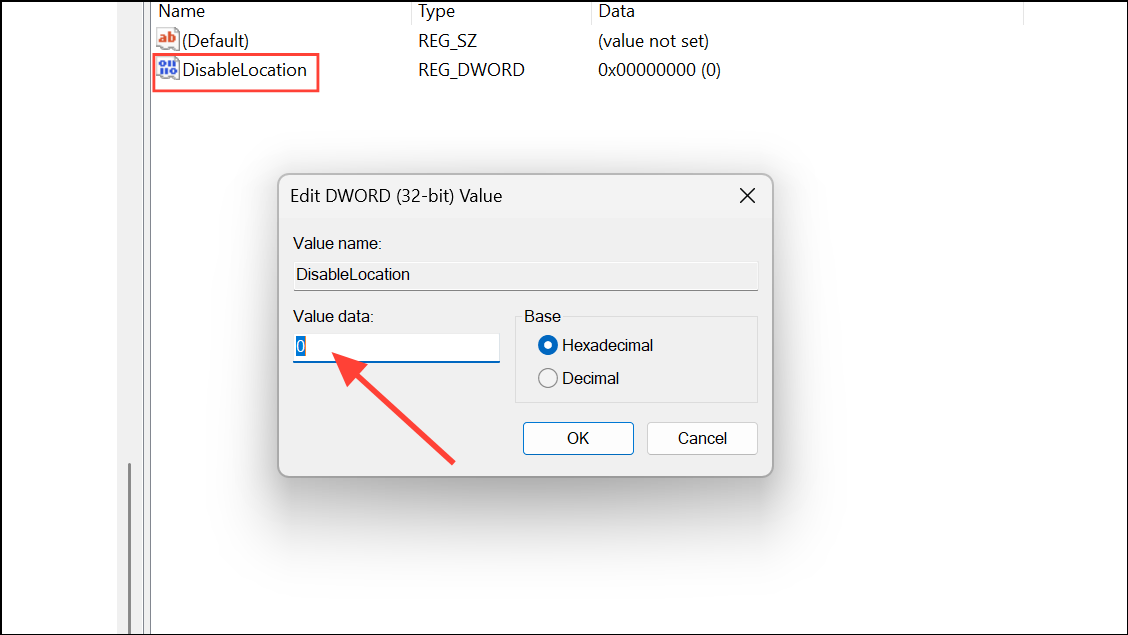
Check for Restrictive Management or Security Software
Location Services may be blocked by management software, security suites, or parental controls, even on personal devices. Software that enforces enterprise policies, VPNs, or privacy tools can apply restrictions similar to those used in organizational environments.
Verify Windows Services and System Updates
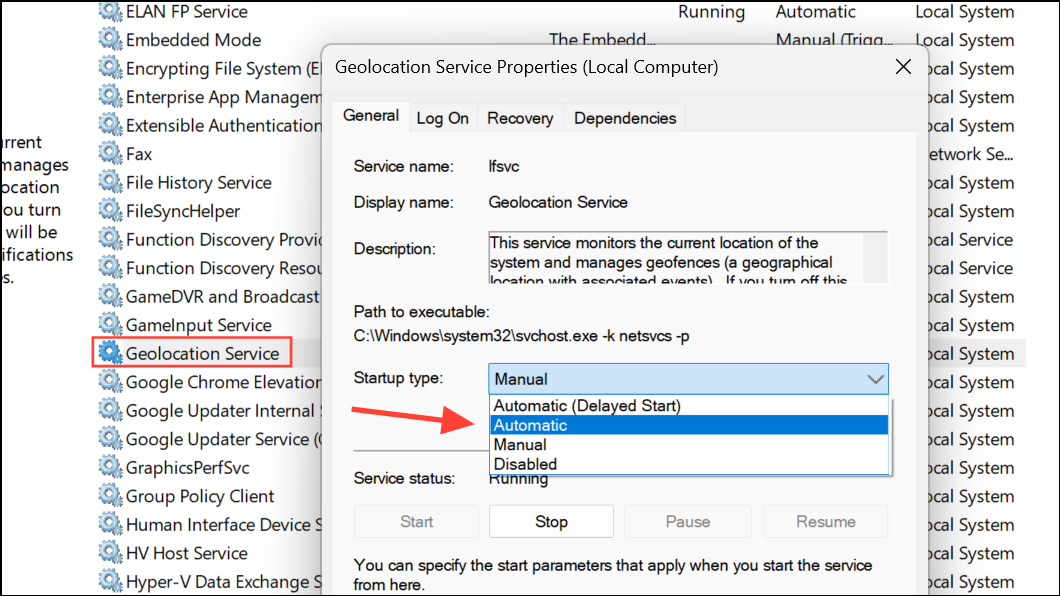
Windows relies on the “Geolocation Service” to provide location data. If this service is disabled, the Location Services setting may appear greyed out.
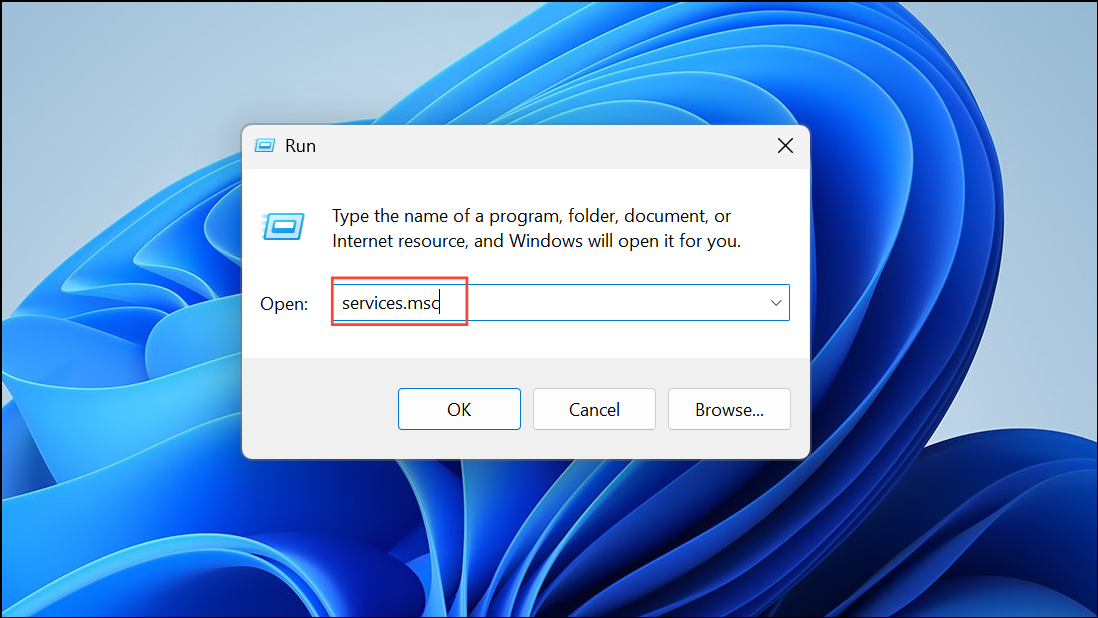
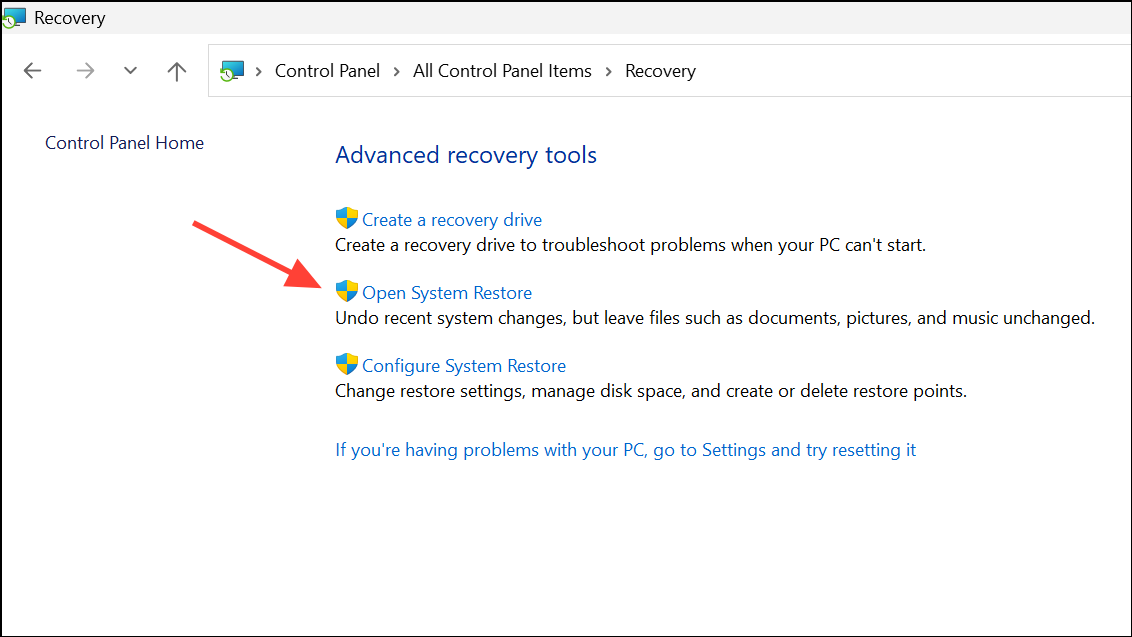
Occasionally, recent system updates can introduce new policies or bugs that affect privacy settings. If the problem started after a Windows update, consider using System Restore to revert to a previous state:
Additional Tips and Considerations
- Devices joined to a work or school domain may have organization-enforced policies that cannot be overridden without administrator intervention.
- If you see messages such as “Your organization manages this setting,” double-check if your device is connected to a domain or Azure AD, and contact your IT administrator if applicable.
- Always restart your computer after making changes to policies, registry, or services to ensure the new settings take effect.
- Keep Windows updated, as Microsoft may release patches addressing bugs related to privacy and location controls.
Resolving greyed out Location Services in Windows 11 restores app functionality and system features that depend on device location. Regularly review your privacy and security settings to maintain control over location permissions.



