
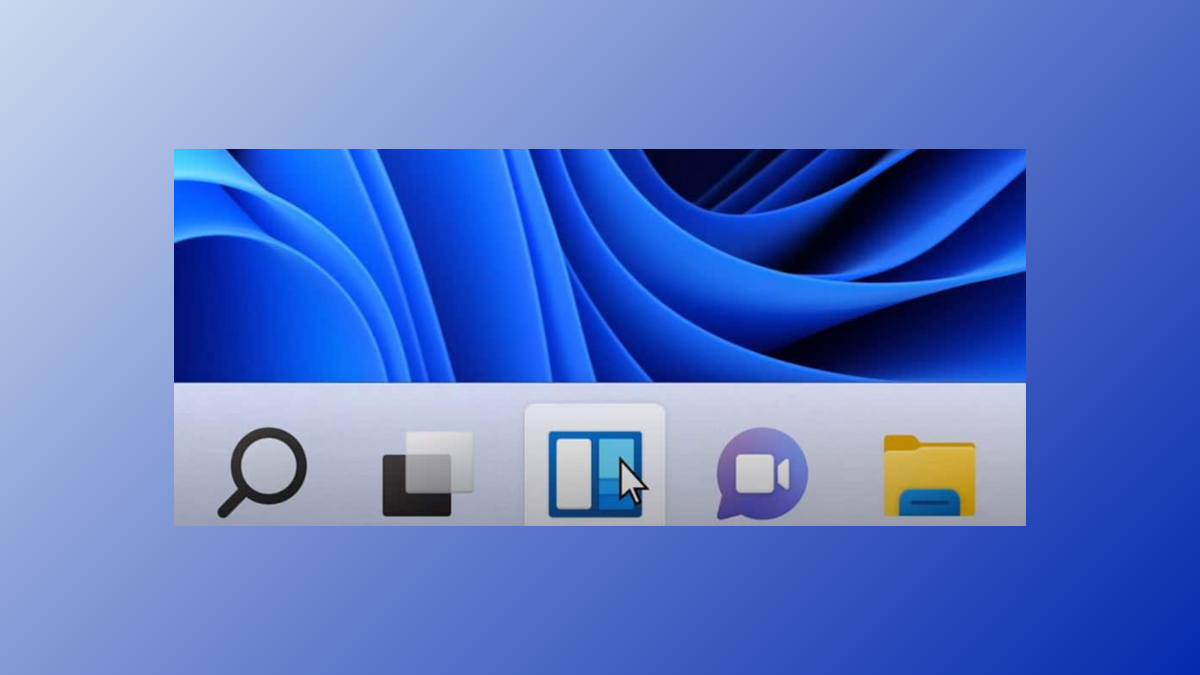
The Windows 11 taskbar sometimes fails to load, becomes unresponsive, or disappears entirely after updates or software changes, disrupting access to essential system functions and open applications. Several factors can trigger this issue, including problematic Windows updates, third-party software conflicts, or corrupted system files. Addressing the taskbar problem requires a systematic approach, starting with the most effective solutions and progressing through additional methods as needed.
Uninstall Recent Windows Updates Causing Taskbar Issues
Windows updates, especially cumulative or feature updates, can sometimes cause the taskbar to vanish or become unresponsive. Rolling back the problematic update restores taskbar functionality in many cases.
Ctrl + Shift + Esc to open Task Manager. If Task Manager does not appear, press Ctrl + Alt + Delete and select Task Manager from the menu.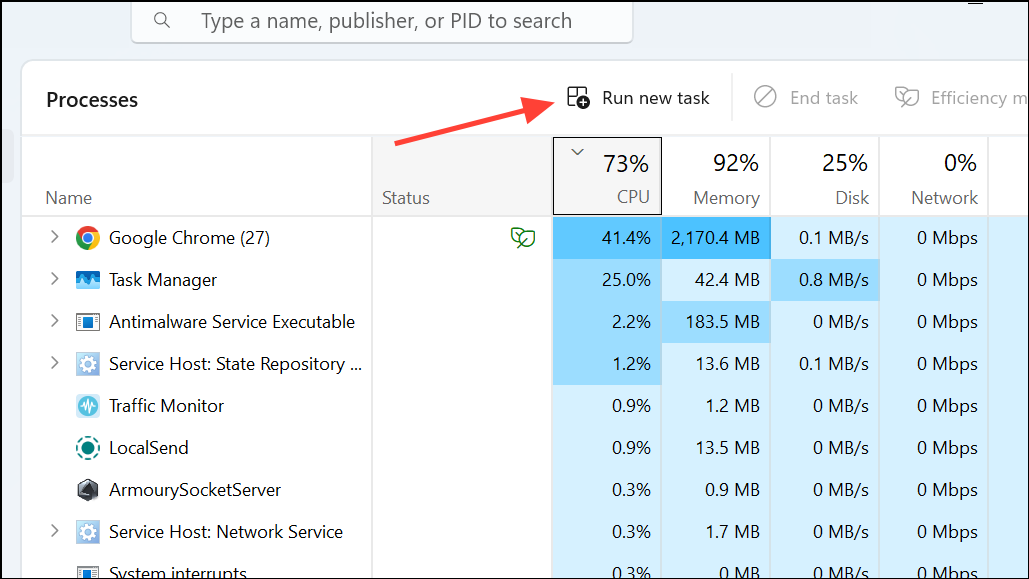
cmd, check the box for Create this task with administrative privileges, and click OK to open an elevated Command Prompt.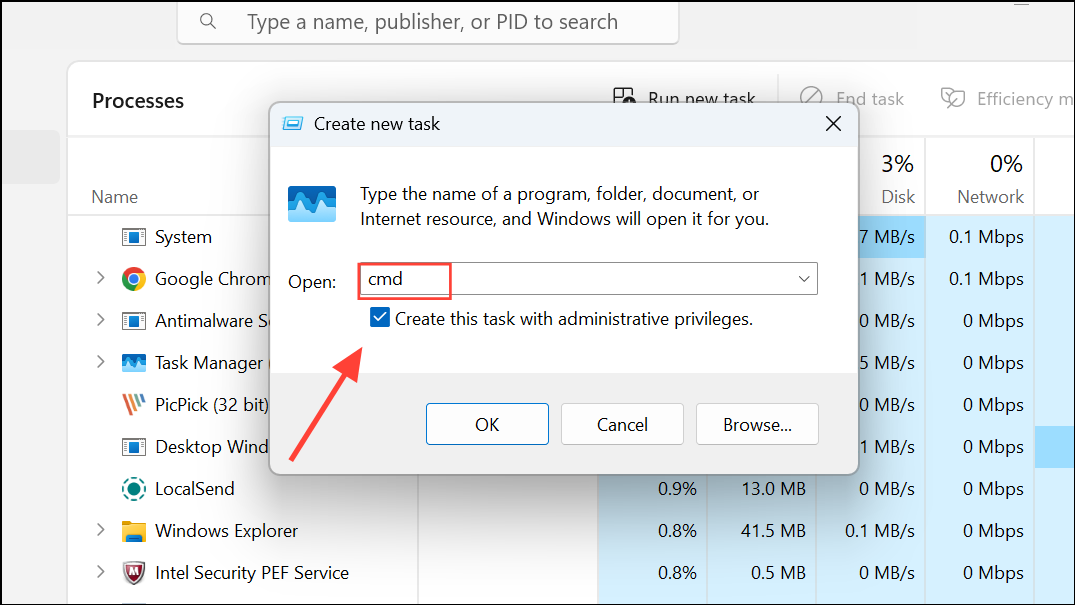
wmic qfe list brief /format:table
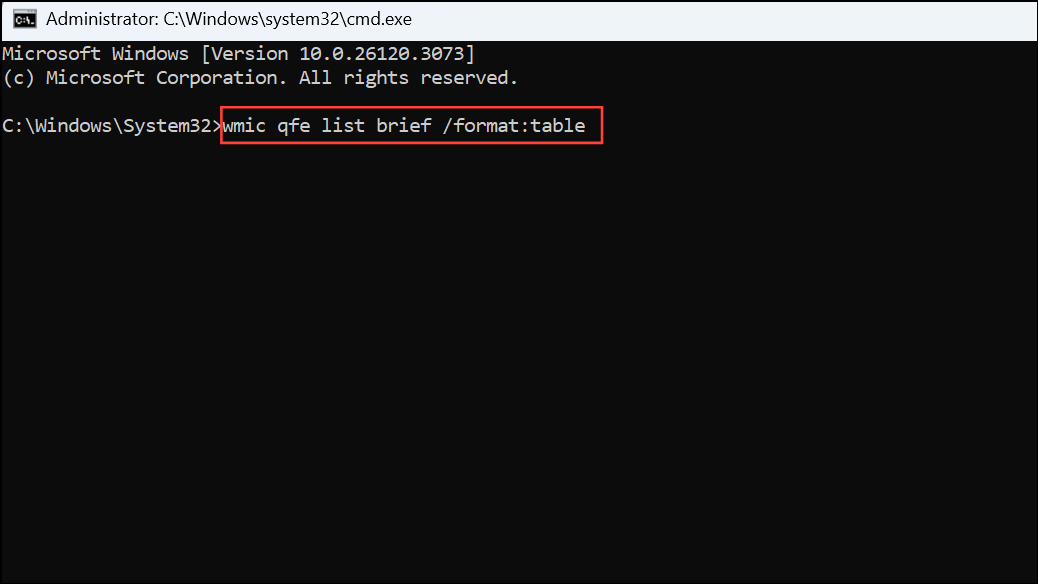
This command displays a table of installed updates with their KB numbers and installation dates.
wusa /uninstall /kb:XXXXXXX
Replace XXXXXXX with the KB number of the update.
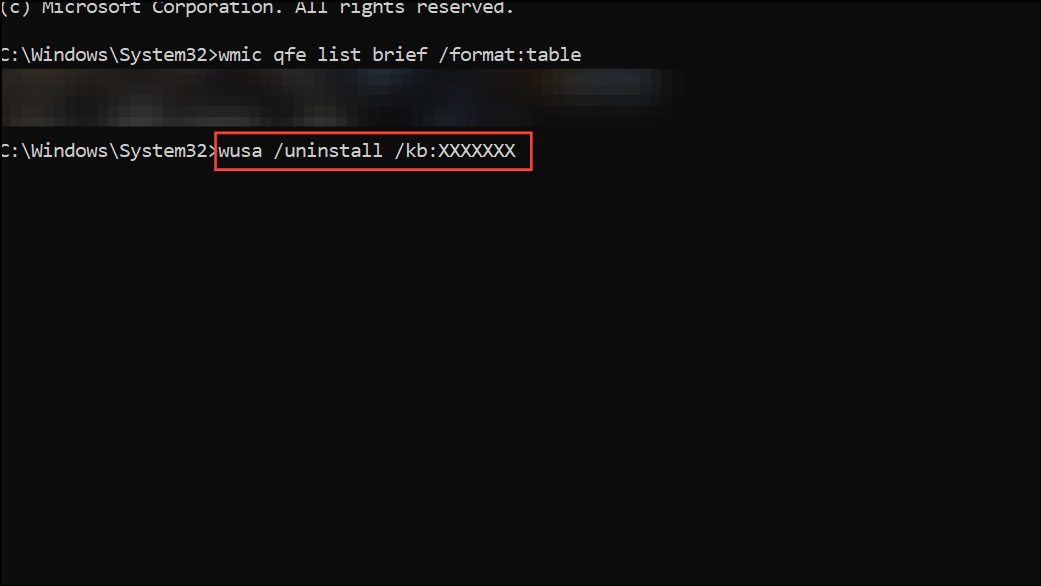
If you are unable to access the Start menu or Settings, all steps can be performed entirely from Task Manager and Command Prompt as described above. Some users may need to uninstall multiple recent updates if the issue persists after removing one.
Restart Windows Explorer to Restore Taskbar Functionality
Restarting the Windows Explorer process often restores a missing or unresponsive taskbar without requiring a full system reboot.
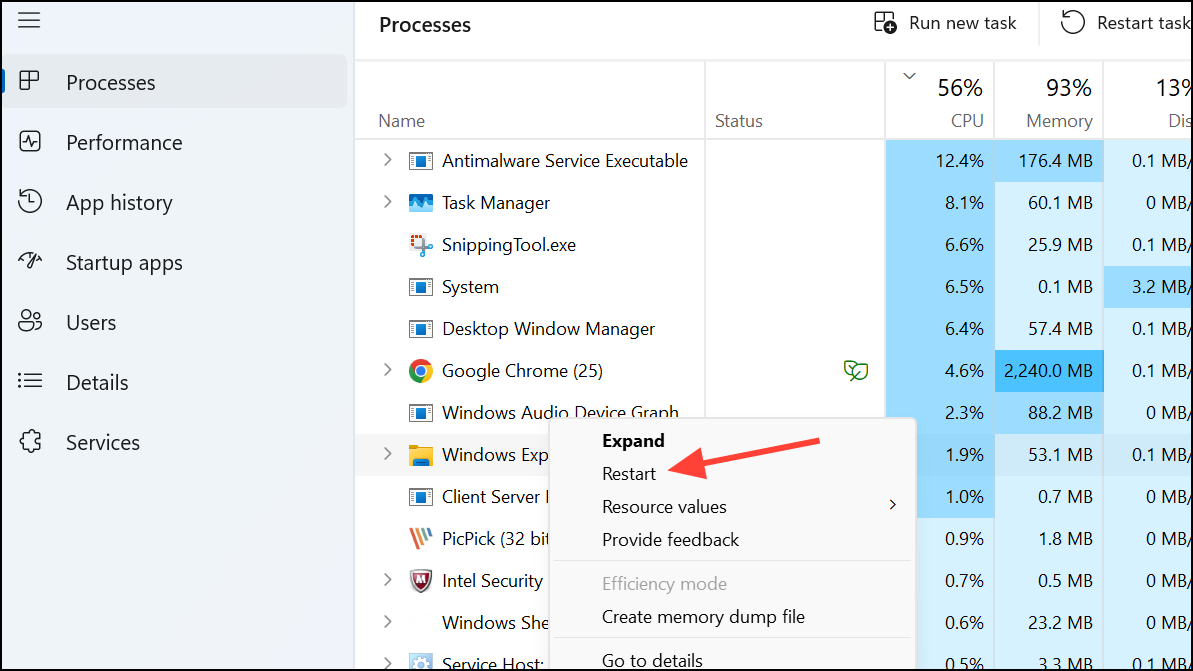
explorer.exe, right-click, and select End task. Then, in Task Manager, click File > Run new task, type explorer.exe, and press Enter.
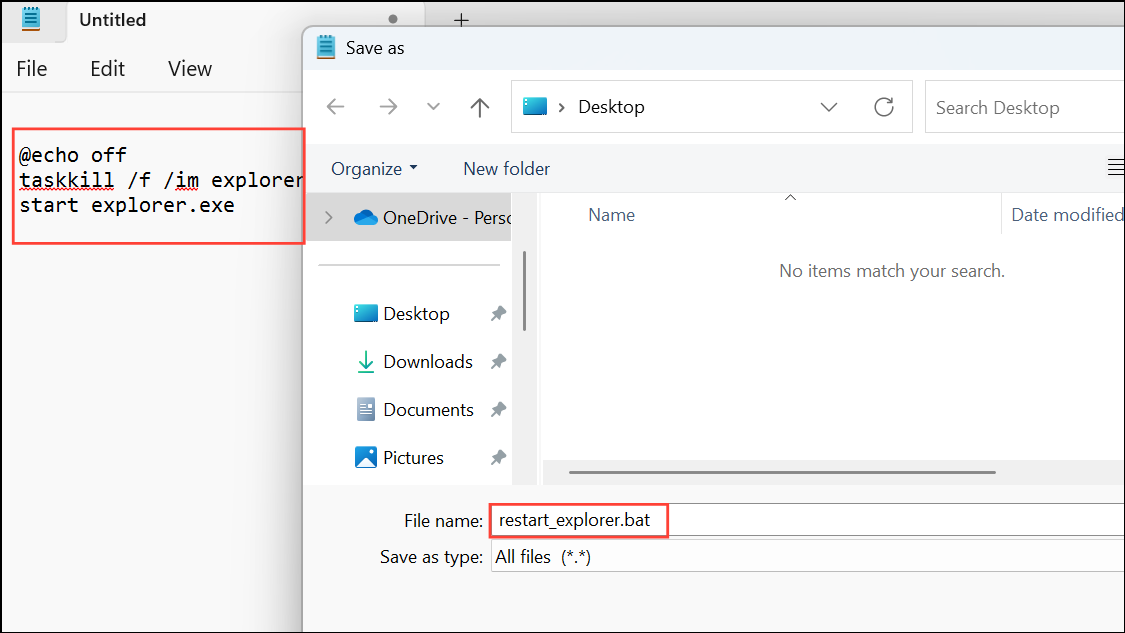
@echo off
taskkill /f /im explorer.exe
start explorer.exe
Remove or Update Conflicting Third-Party Software
Some third-party applications, especially those that modify system appearance or interact with peripherals, can interfere with the taskbar. Examples include Razer Synapse, ExplorerPatcher, TranslucentTaskbar, and certain graphics drivers.
If you cannot access the uninstaller through the Start menu, use Task Manager to run appwiz.cpl or open a Command Prompt to remove software manually.
Repair System Files and Windows Image
Corrupted system files or a damaged Windows image can prevent the taskbar from loading properly. Running built-in repair tools addresses underlying file integrity issues.
sfc /scannow
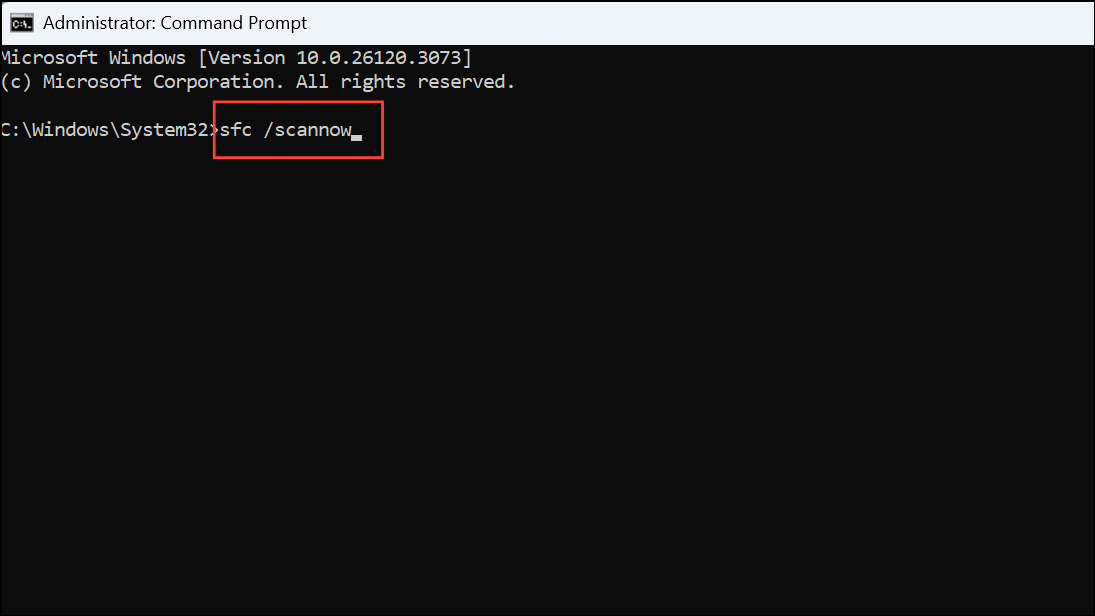
sfc /scannow cannot fix all problems, run the Deployment Imaging Service and Management Tool (DISM) command:
DISM.exe /Online /Cleanup-image /Restorehealth
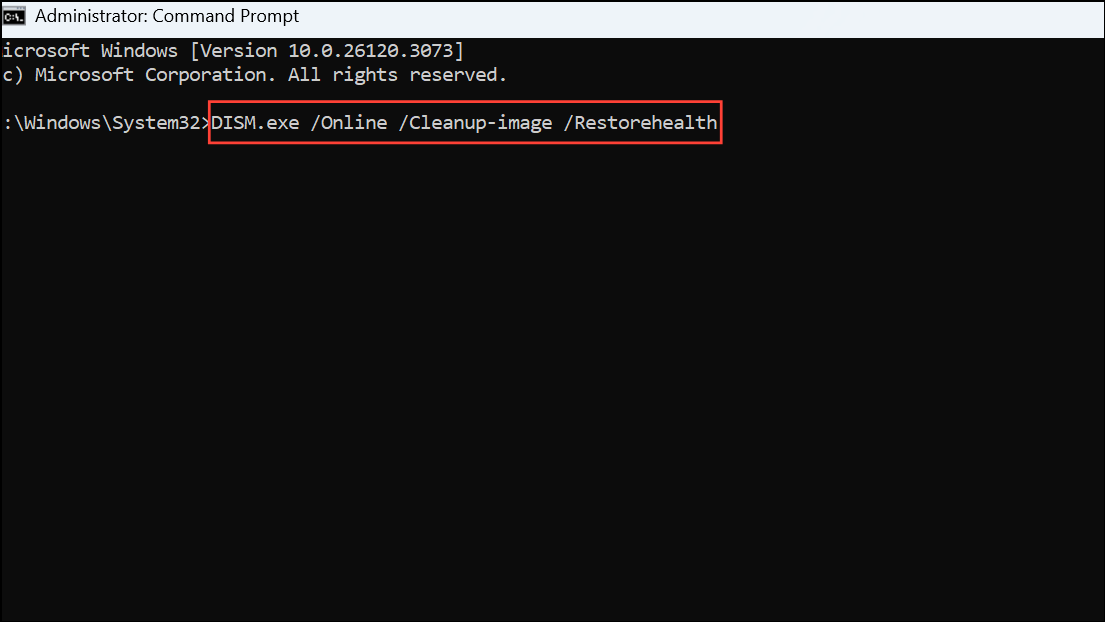
This process checks for corruption in the Windows image and attempts to download and replace damaged files. After completion, run sfc /scannow again, then restart.
Re-register Taskbar and UWP Components
Corrupted or missing Universal Windows Platform (UWP) components can disrupt the taskbar. Re-registering these components via PowerShell may restore proper operation.
powershell in the Run new task dialog and checking the administrative privileges box.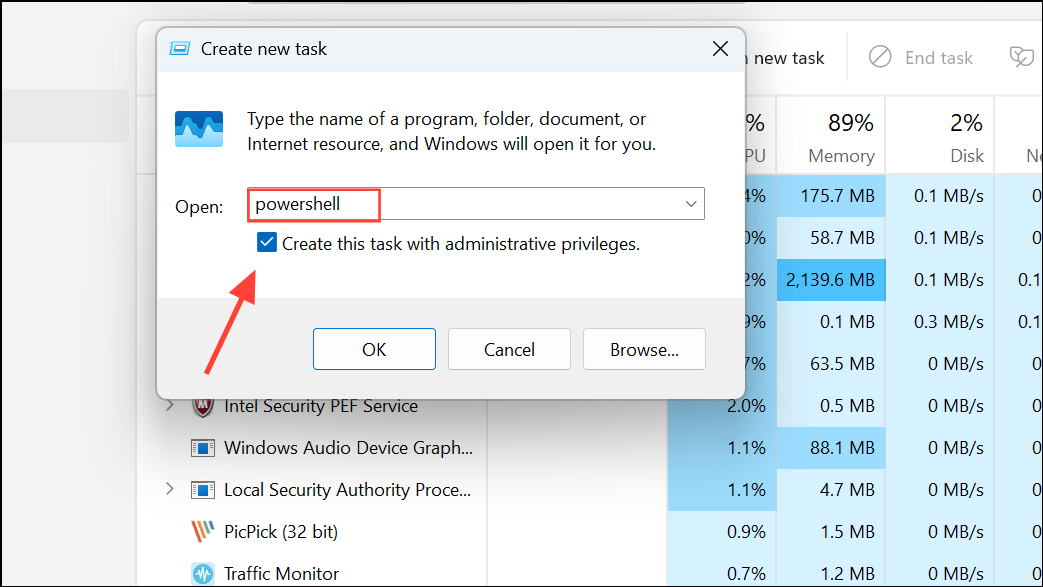
Get-AppxPackage -AllUsers | foreach {Add-AppxPackage -DisableDevelopmentMode -Register "$($_.InstallLocation)\AppXManifest.xml"}
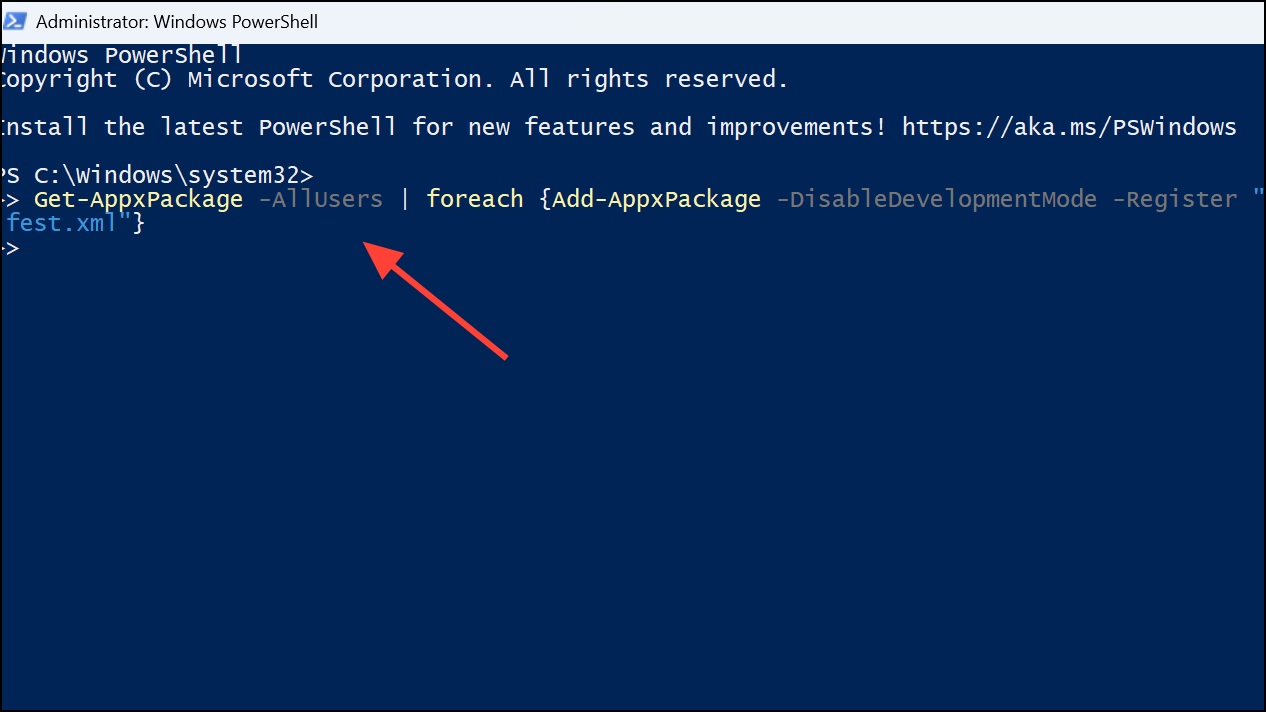
This process can fix missing or unresponsive taskbars caused by broken app registrations.
Additional Approaches and Preventive Measures
- Safe Mode Diagnosis: Booting into Safe Mode isolates third-party drivers and software, helping determine if the issue is caused by external programs.
- Clean Boot: Disabling all non-Microsoft services using
msconfigcan help identify problematic background processes. - Check for Driver Conflicts: Outdated or incompatible display drivers, especially after Windows updates, can interfere with the taskbar. Use Device Manager to update, roll back, or reinstall display drivers.
- Registry Tweaks: For advanced users, editing relevant registry keys (such as
EnableXamlStartMenu) can sometimes resolve stubborn taskbar issues, but proceed with caution and back up the registry first. - System Restore or In-Place Upgrade: If all else fails, restoring to a previous system state or performing an in-place Windows upgrade using the latest ISO can resolve persistent problems without deleting personal files.
Regularly updating drivers from the manufacturer’s website and avoiding bulk installation of Windows updates can reduce the risk of future taskbar problems. If you use customization tools, always check for compatibility after major Windows updates.
Resolving taskbar issues on Windows 11 often requires a combination of update management, process restarts, and targeted repairs. Applying these methods restores full access to system controls and streamlines daily PC use.



