
Windows 11 devices may display the message “We can’t set up Mobile Hotspot” or fail to allow other devices to connect, especially after system updates, network configuration changes, or security software installations. These disruptions can prevent internet sharing between your laptop and mobile devices, impacting your ability to stay online when Wi-Fi is limited or unavailable.
Update Network Adapter Drivers
Outdated or incompatible network drivers frequently cause mobile hotspot failures. Updated drivers ensure your hardware communicates correctly with Windows 11’s networking features.
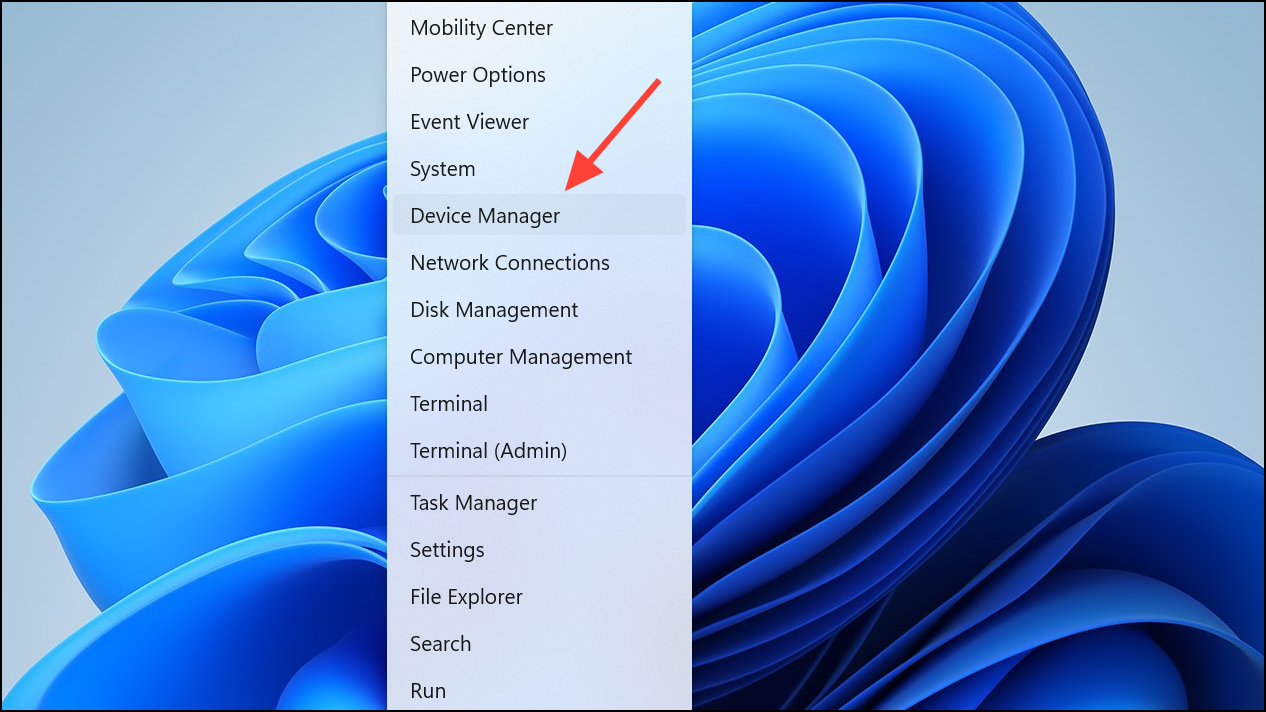
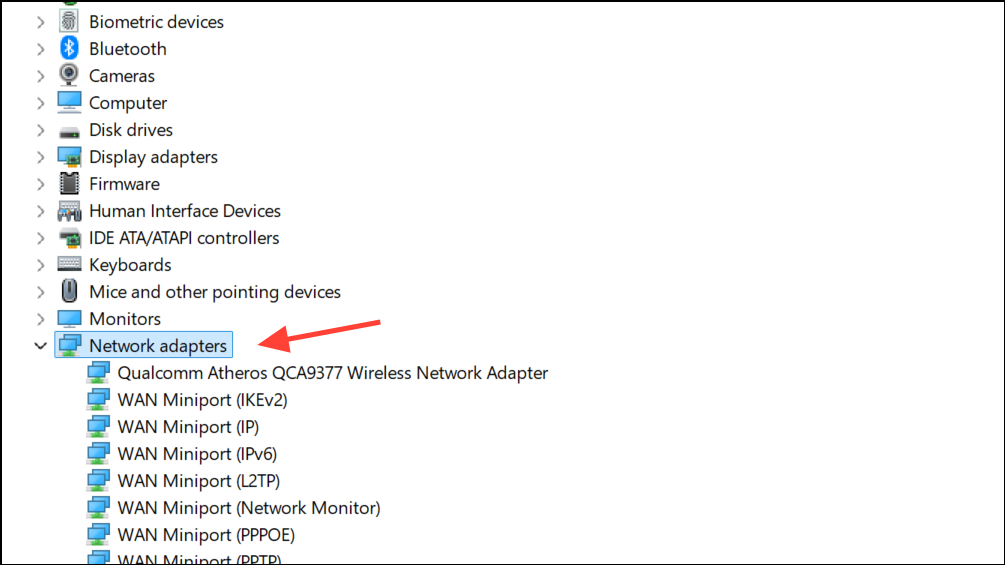
Update driver. Select Search automatically for drivers to let Windows find the latest version.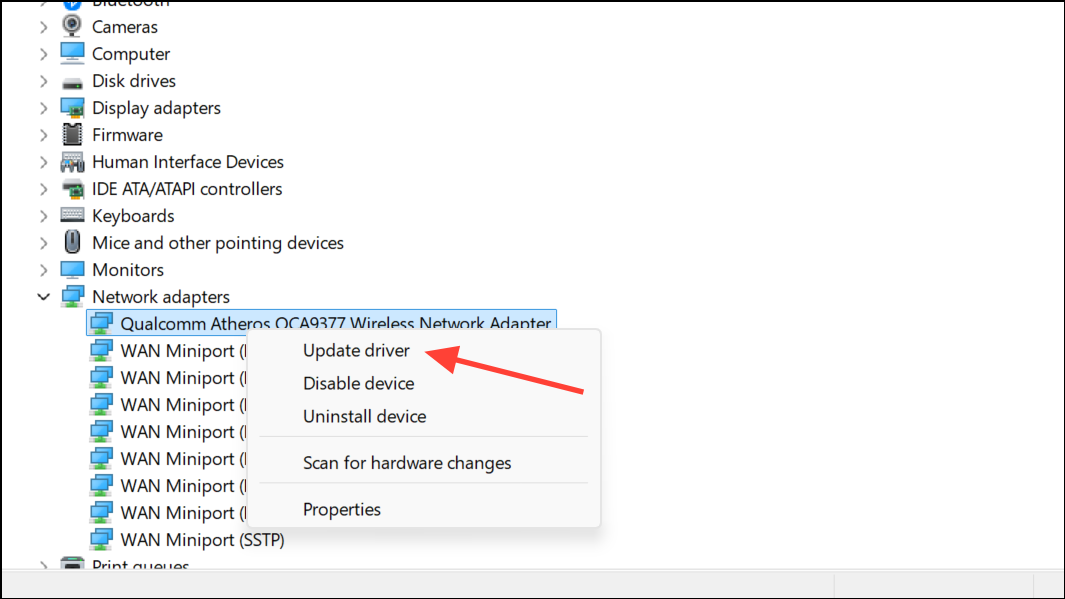
Browse my computer for drivers. Then click Let me pick from a list of available drivers and select an earlier version if available. Older, stable drivers sometimes resolve compatibility problems introduced by recent updates.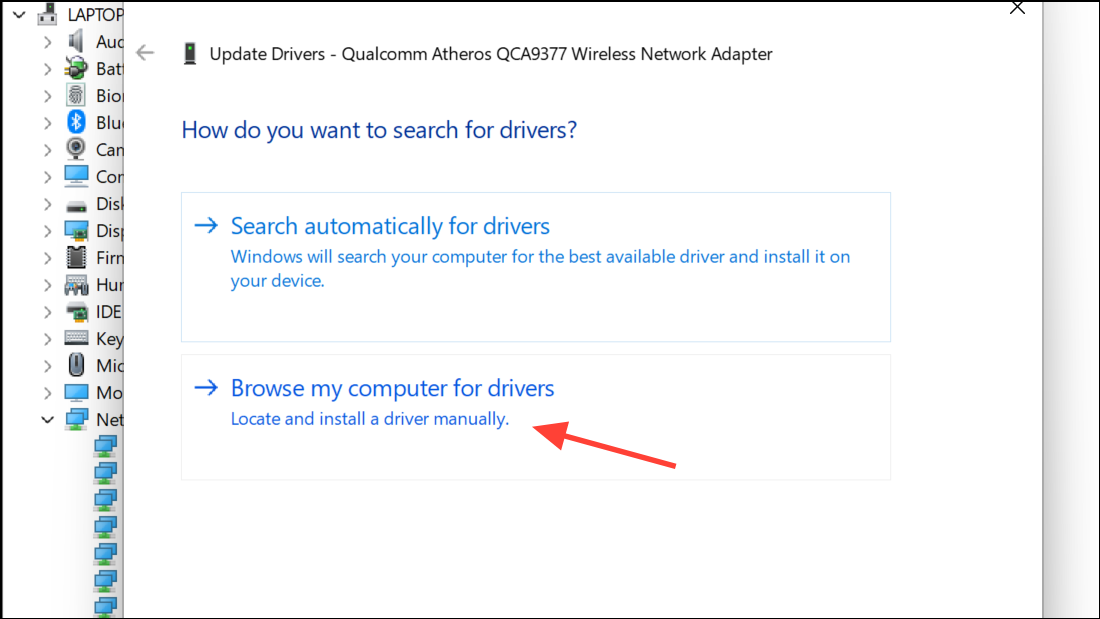
Restart your PC after making driver changes to ensure the new settings take effect.
Run the Network Adapter Troubleshooter
Windows 11 includes a built-in troubleshooter that scans for and repairs common network configuration problems. This tool can automatically restore connectivity in many cases.
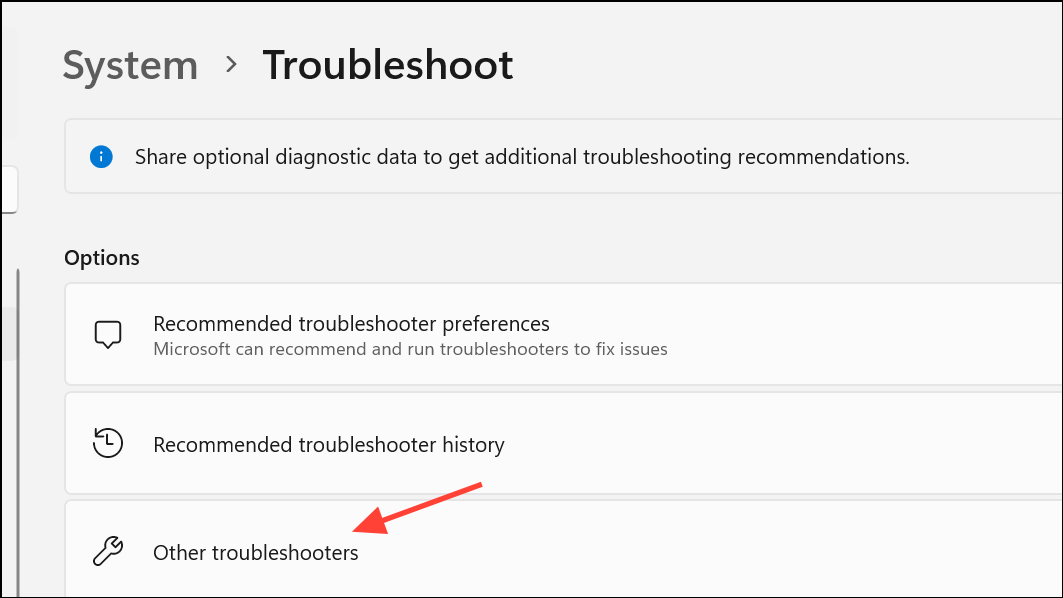
Network and Internetand click Run. Follow the on-screen prompts to allow Windows to detect and attempt to fix issues. The troubleshooter may identify firewall blocks, driver conflicts, or sharing misconfigurations.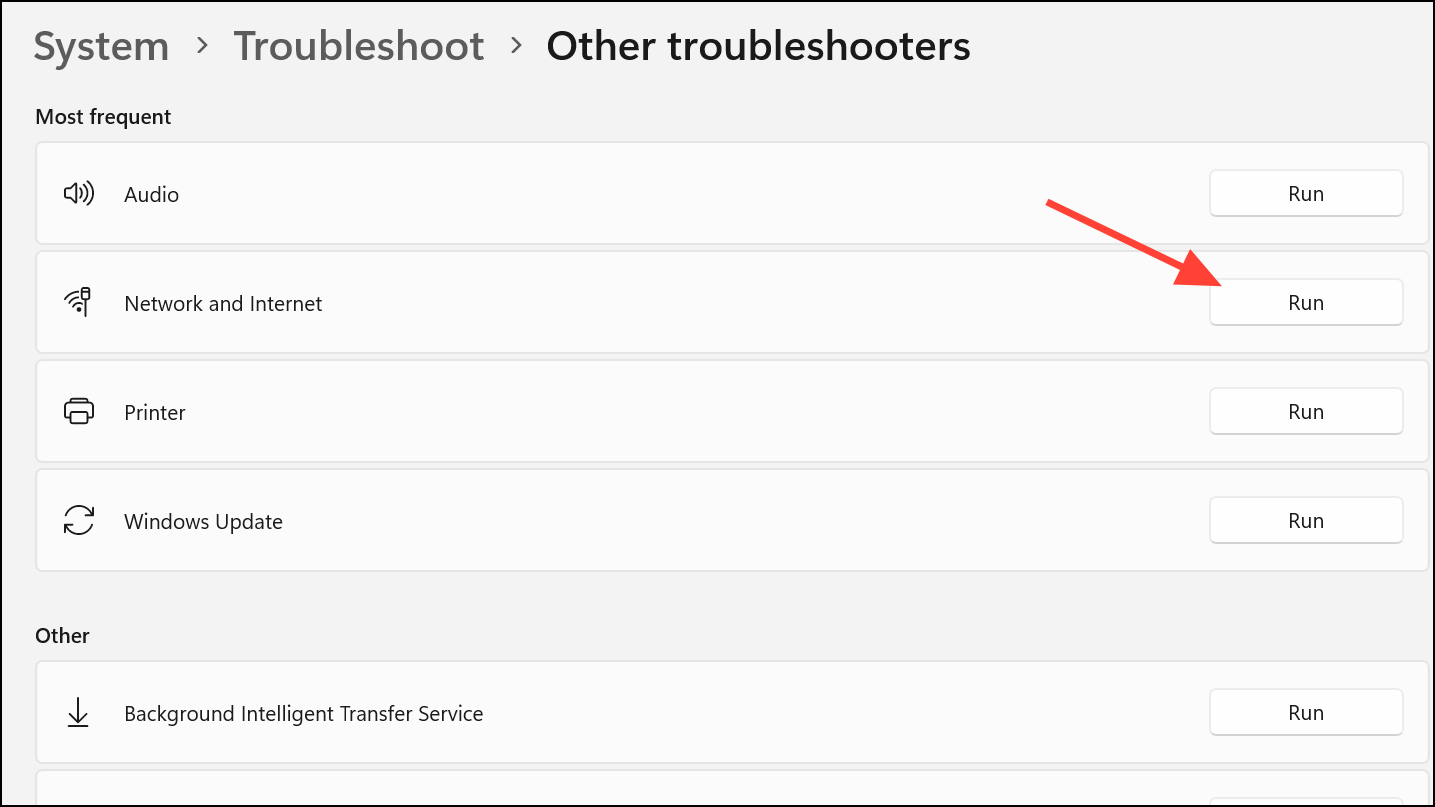
Adjust Network Adapter Sharing Settings
Incorrect sharing settings or virtual adapter issues often prevent the hotspot from broadcasting or accepting connections. Verifying and resetting these options can re-enable hotspot functionality.
Win + I), go to Network & internet > Advanced network settings, From there, you can manage network adapters, view network status, and access other advanced network settings. 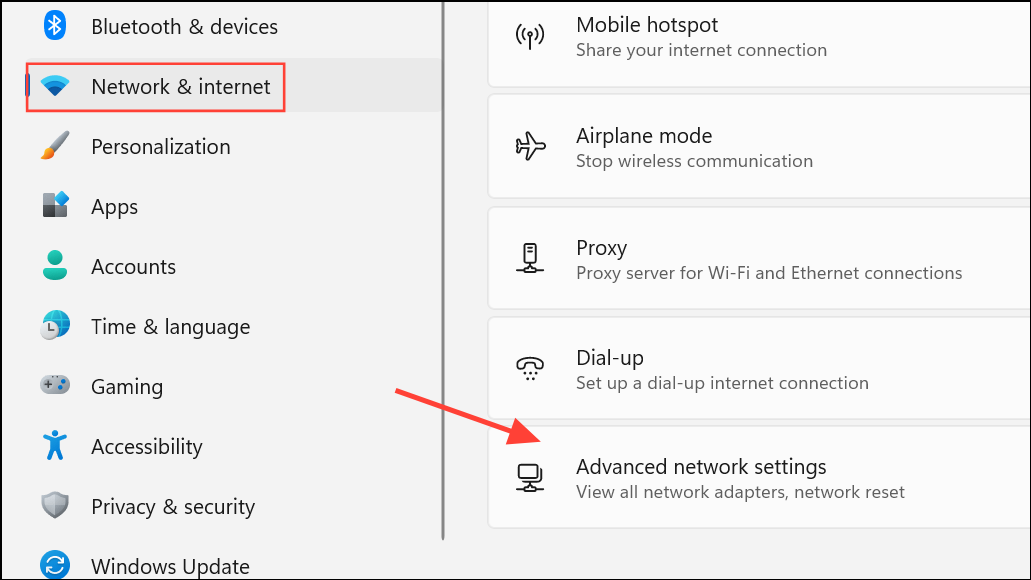
Properties.Sharing tab. Uncheck Allow other network users to connect through this computer’s Internet connection, click OK, then restart your computer. After rebooting, return to the same tab and re-enable sharing if needed. This resets the sharing configuration, resolving many hotspot access issues.Modify Registry Settings to Remove Corrupt Hosted Network Data
Corrupt or outdated Hosted Network settings in the Windows Registry can block hotspot activation. Removing these entries forces Windows to rebuild them with default values.
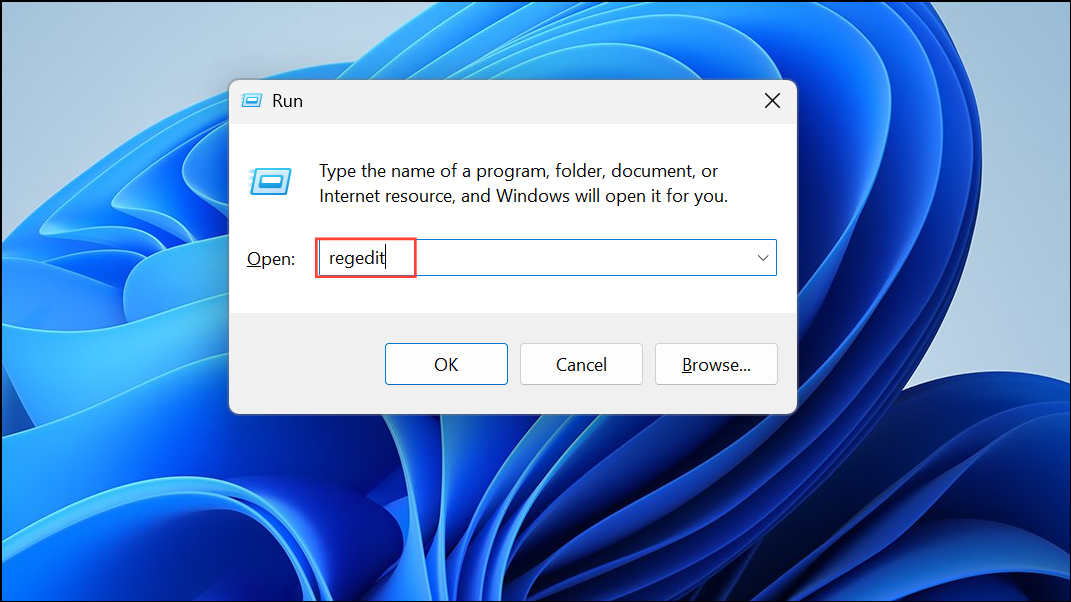
HKEY_LOCAL_MACHINE\SYSTEM\CurrentControlSet\Services\WlanSvc\Parameters\HostedNetworkSettings.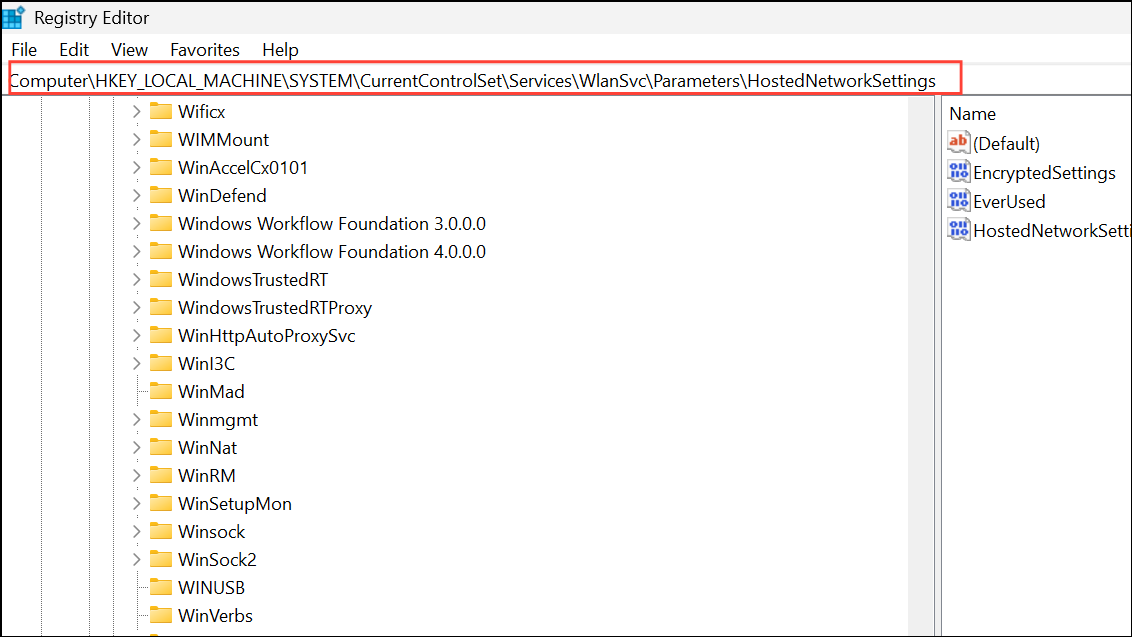
HostedNetworkSettings in the right pane and choose Delete. Confirm the deletion, then restart your PC. This clears any problematic configuration, allowing the hotspot to initialize with clean settings.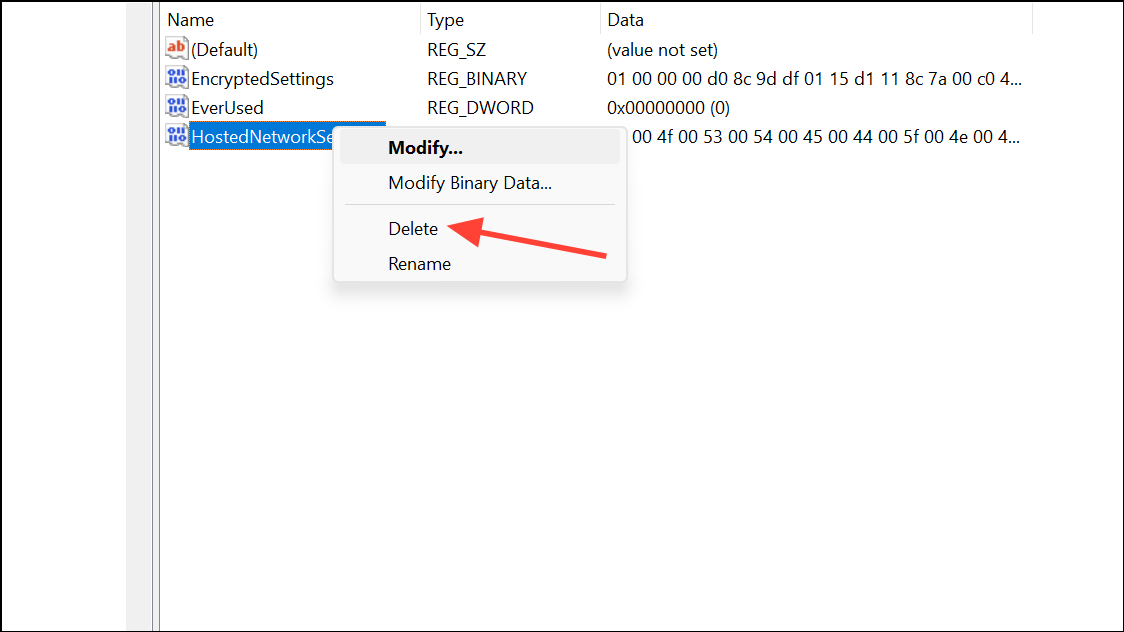
Reset Network Settings
Network misconfigurations or accumulated changes can block hotspot operation. Resetting network settings restores all adapters and configurations to their default state, often resolving persistent problems.
Win + I), go to Network & internet > Advanced network settings, then scroll down to Network reset.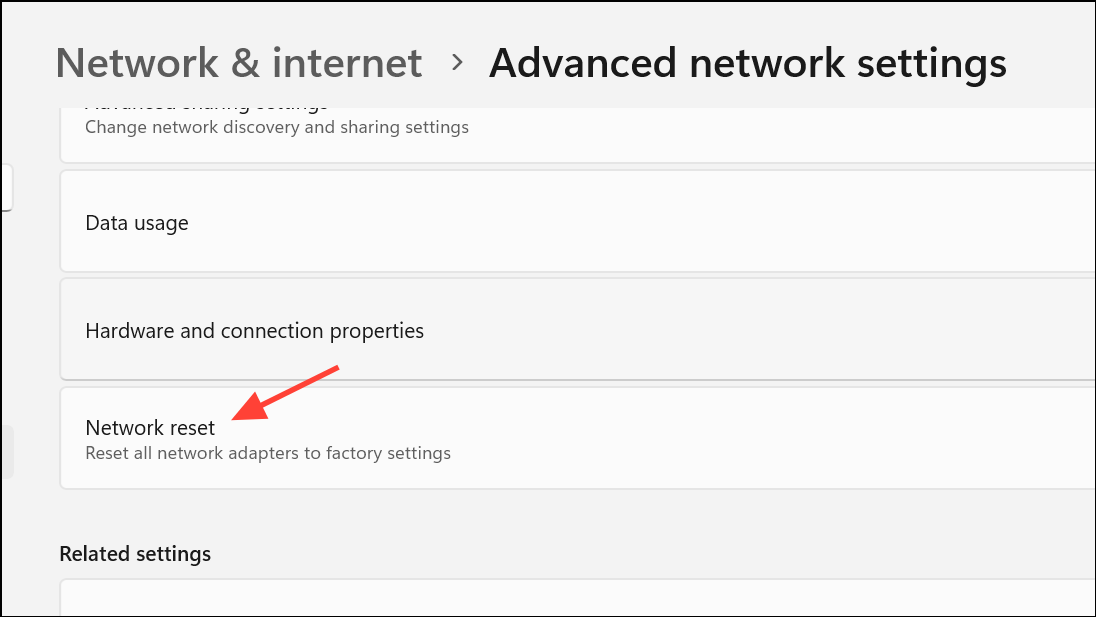
Reset now and confirm. Your PC will restart, and all network adapters will be reinstalled with default settings. Reconnect to your networks and test the hotspot again.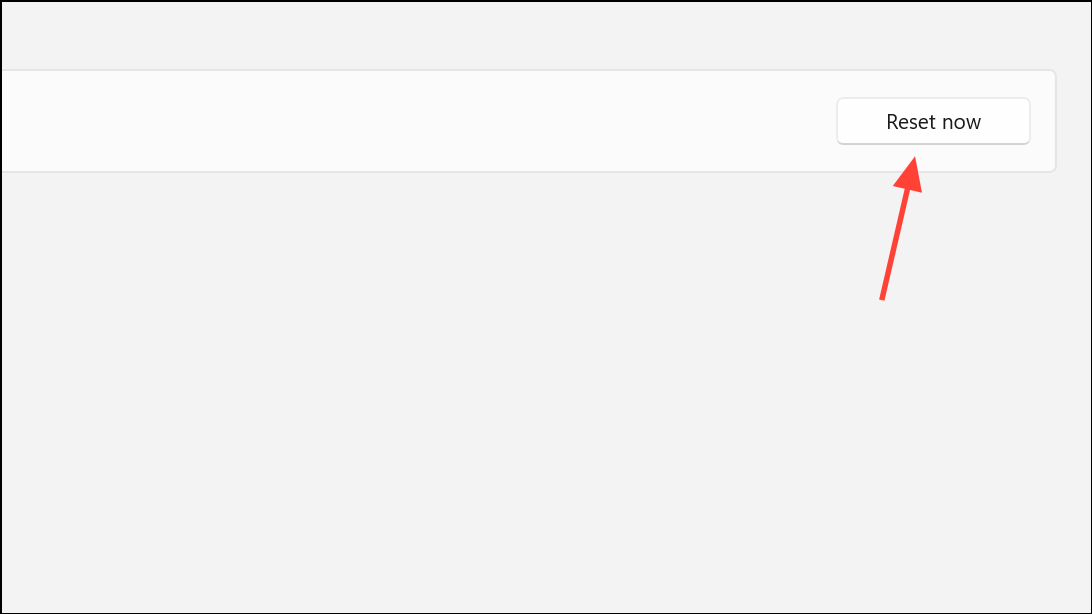
Check Firewall and Security Software
Firewall rules or security applications can block traffic required for the mobile hotspot to function. Windows Defender or third-party firewalls may restrict the “Windows Mobile Hotspot Service” or related processes.
Change Hotspot Password and Forget Saved Networks
Previously saved network credentials or outdated encryption settings can prevent devices from connecting, even when the hotspot appears active.
Perform a Clean Boot to Identify Software Conflicts
Background services or startup applications may interfere with network sharing. A clean boot loads only essential Windows services, making it easier to pinpoint problematic software.
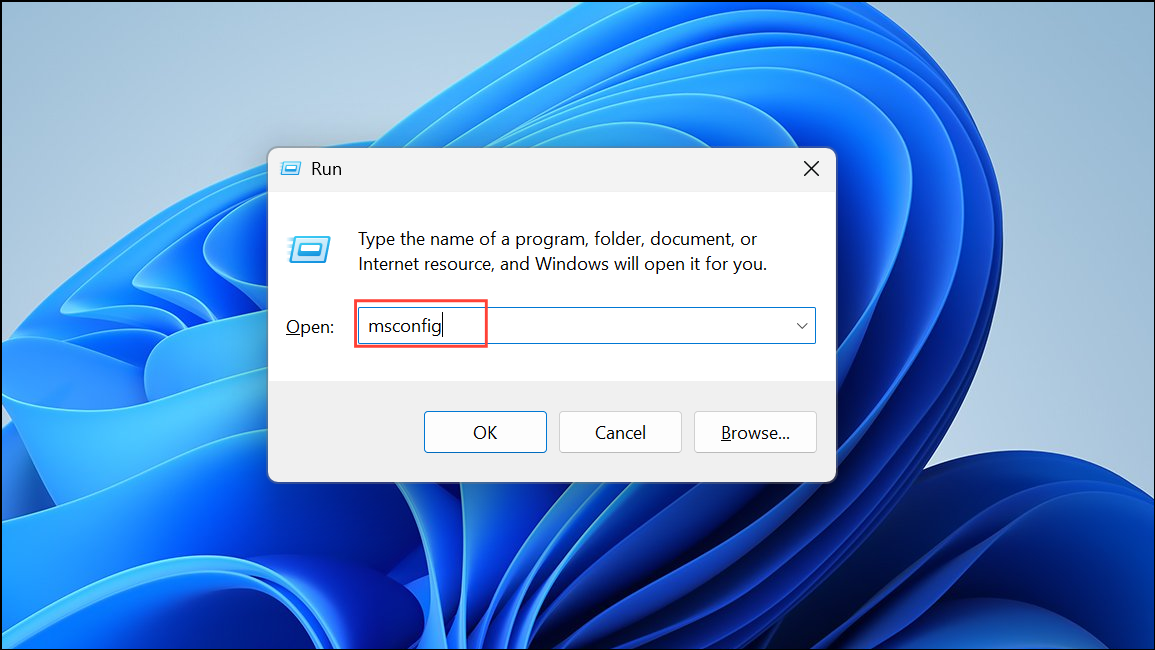
General tab, check Selective startup, and uncheck Load startup items.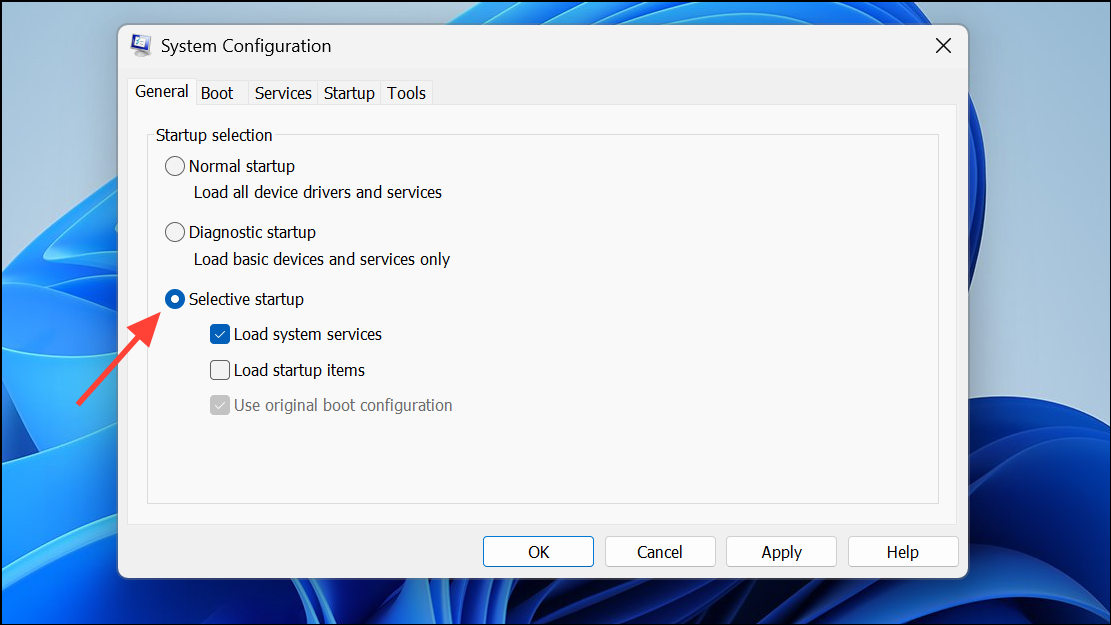
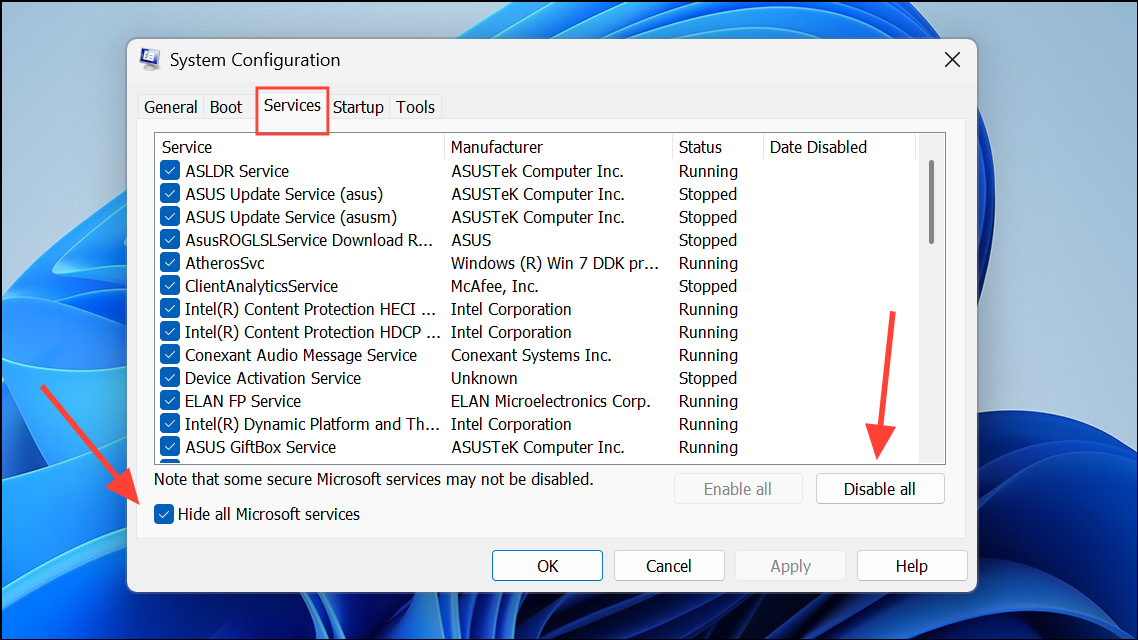
Startup tab, click Open Task Manager, and disable all startup items. Restart your PC and test the hotspot. If it works, re-enable services one by one to identify the conflict.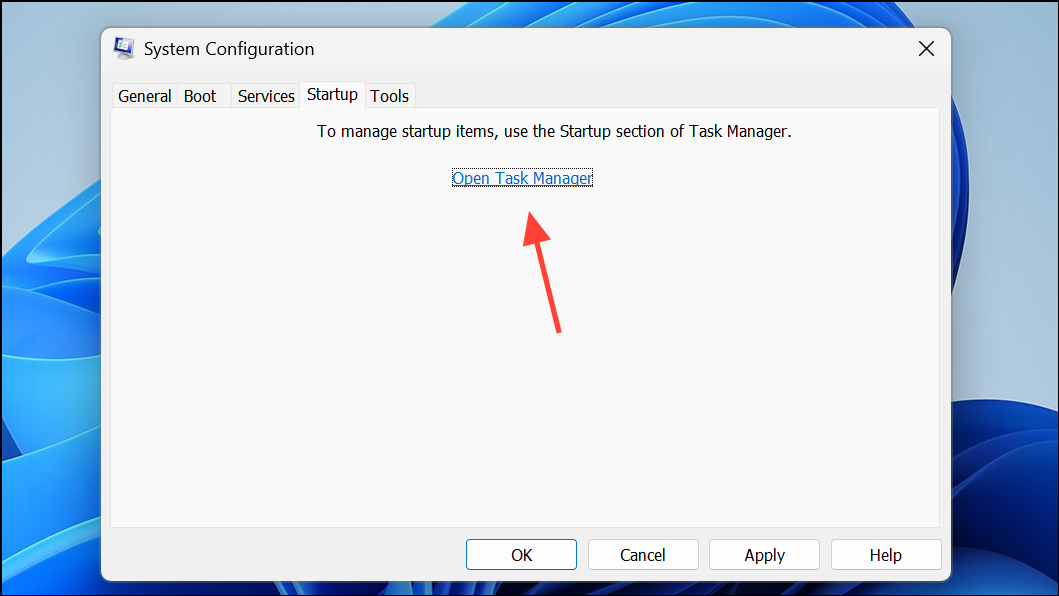
Try a Third-Party Hotspot Application
When built-in Windows hotspot features repeatedly fail, third-party utilities like MyPublicWifi can provide a workaround by creating a virtual router using your Wi-Fi adapter. These tools often bypass system-level bugs or configuration issues.
Regularly updating drivers and checking network settings maximizes hotspot reliability in Windows 11. If issues persist, reviewing security software or using alternative hotspot tools can restore connectivity for your devices.



