
Microsoft 365 and Office installations on Windows 11 sometimes fail with persistent error codes, incomplete setups, or repeated repair prompts. These issues can block access to essential productivity tools and disrupt daily workflows. Windows 11 includes the Get Help app, which features specialized troubleshooters to diagnose and resolve Office installation problems directly—eliminating guesswork and reducing downtime.
Fixing Office Installation Issues With the Get Help App
Get Help into the Windows search bar and click on Run as administrator. This tool is pre-installed on Windows 11 and does not require a separate download.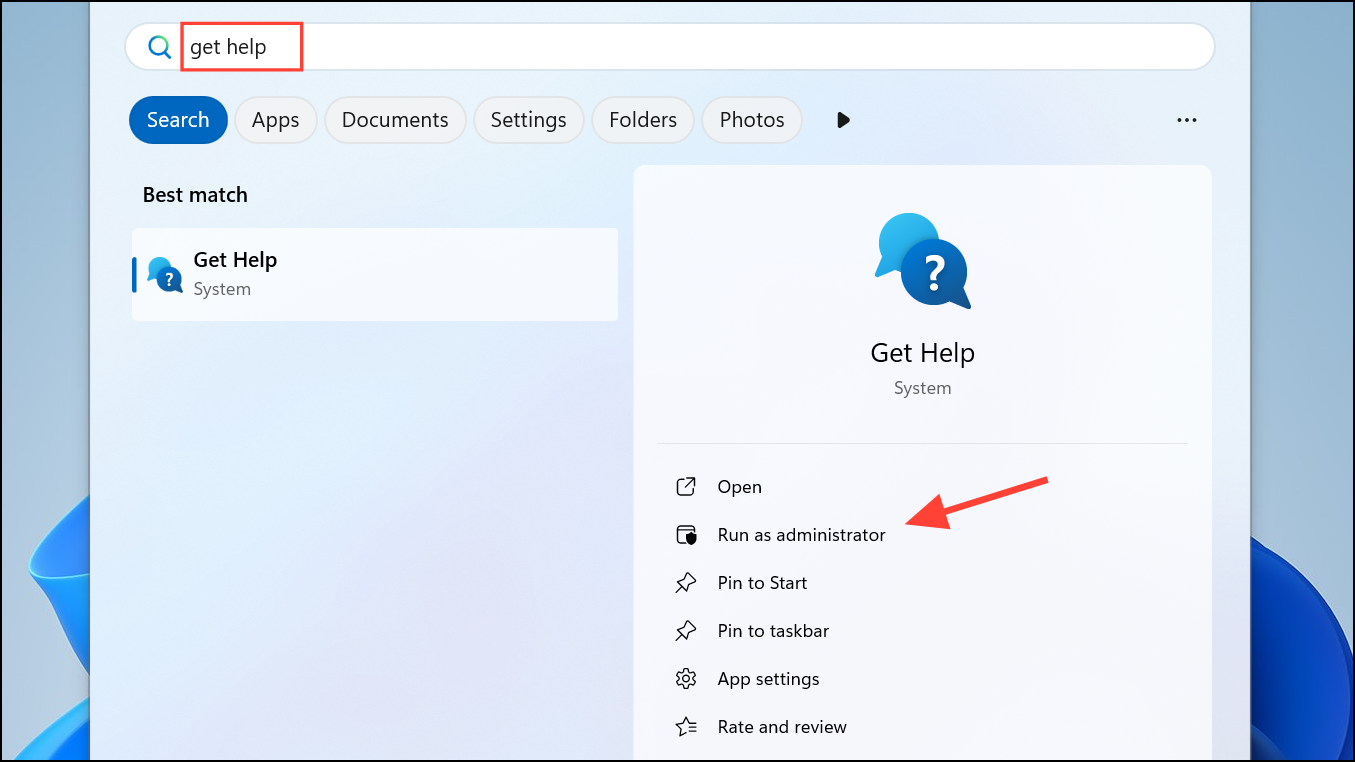
Setup Microsoft Office. This search will surface the Microsoft 365 Setup Troubleshooter, specifically designed for Office installation problems.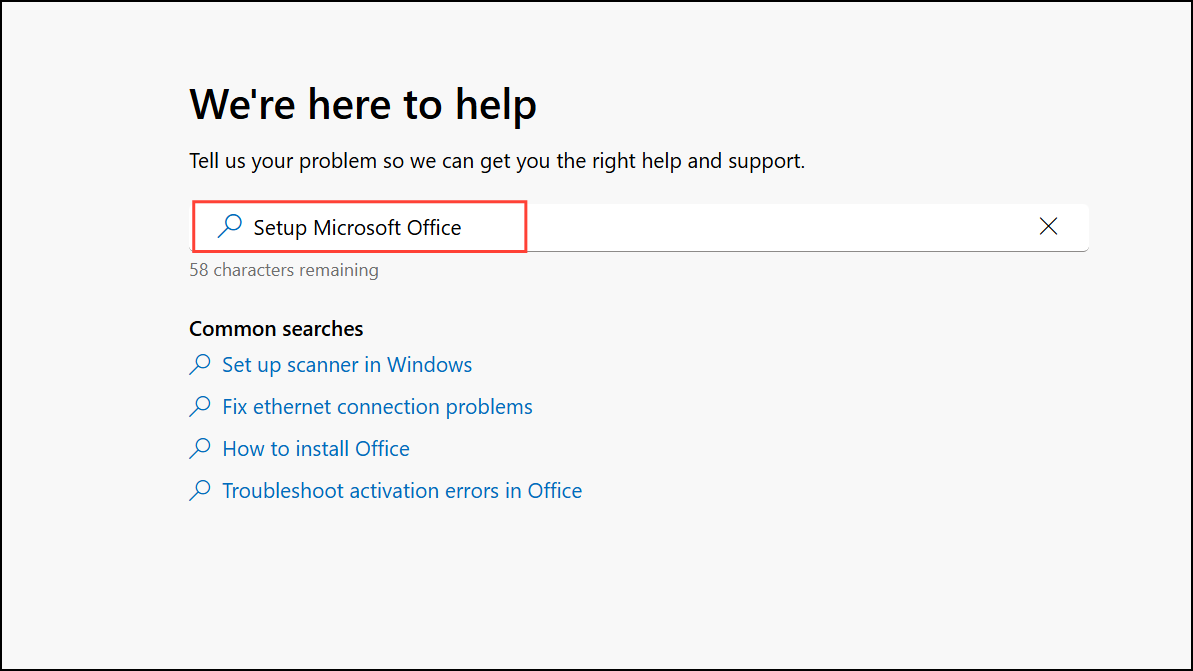
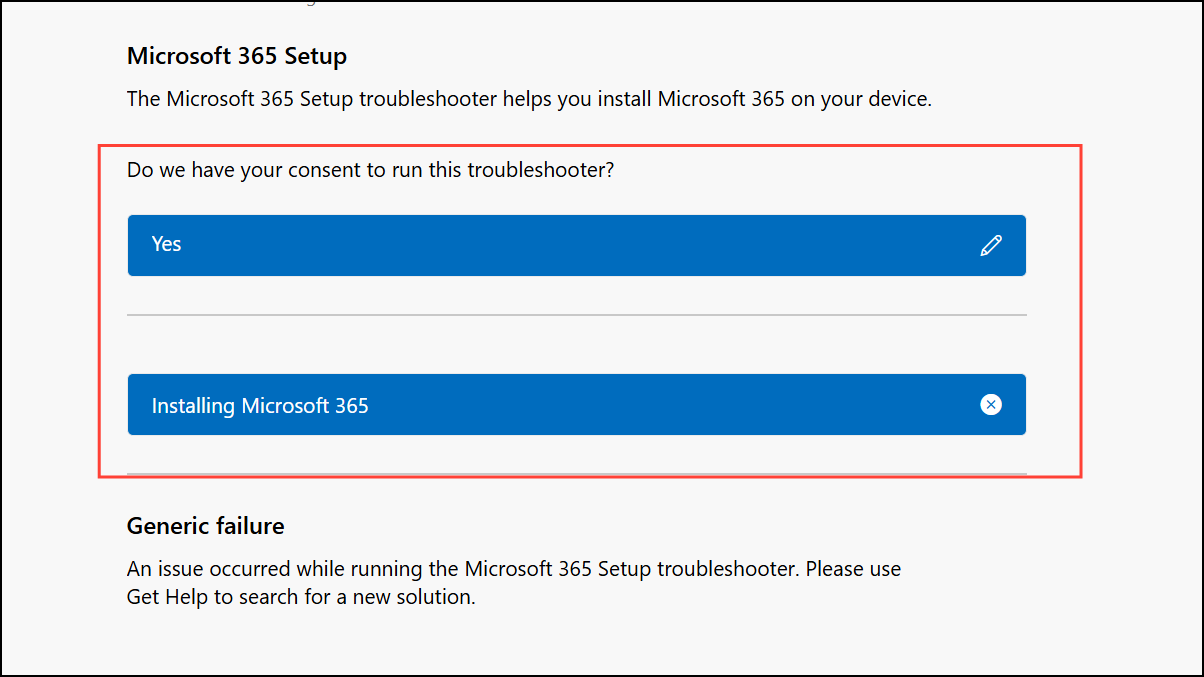
Yes button for the Microsoft 365 Setup Troubleshooter. If prompted, sign in with your Microsoft account credentials. This ensures the troubleshooter can check your license status and subscription details, which are often linked to installation issues.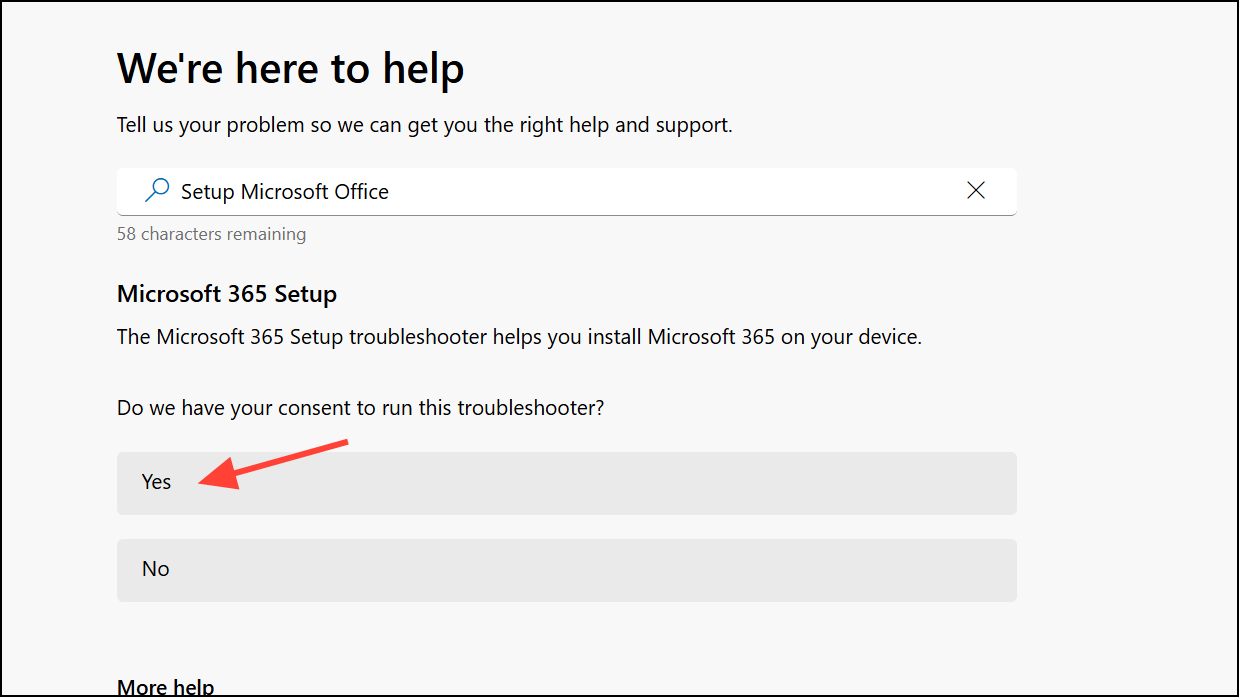
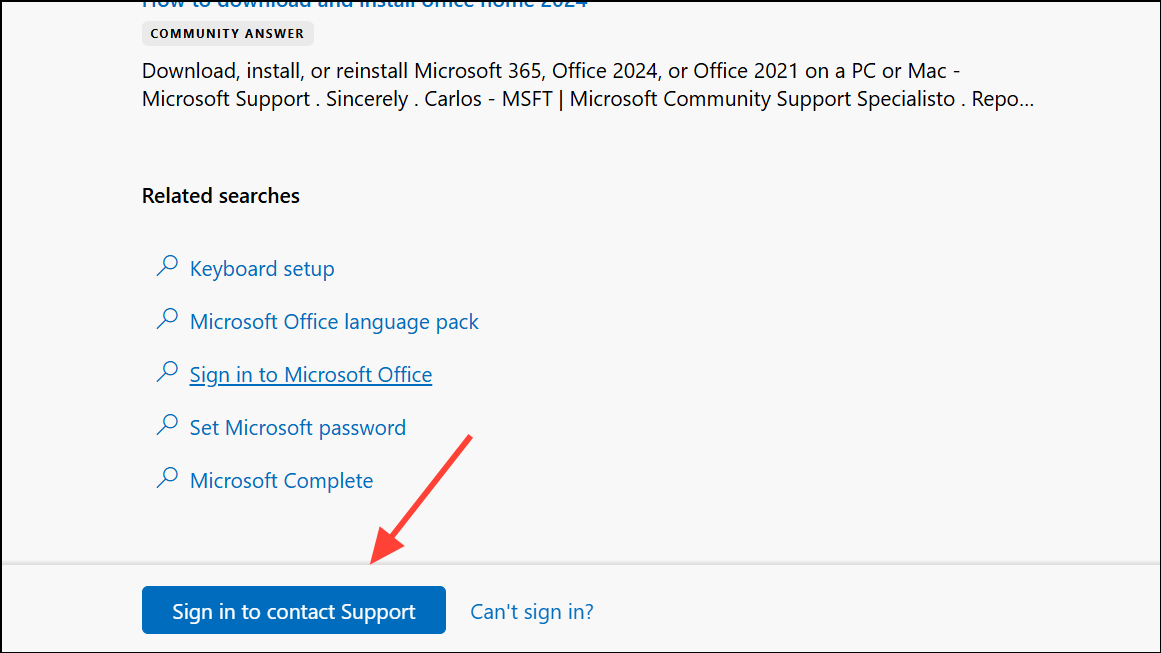
For users who continue to experience issues, the Get Help app offers a Contact Support option, allowing direct chat with a Microsoft agent for further troubleshooting.
Alternative Methods for Persistent Office Installation Problems
Manual Uninstall and Reinstall
If automated troubleshooting does not resolve the issue, a manual uninstall may be necessary to remove corrupted Office components:
Repair Office Applications via Windows Settings
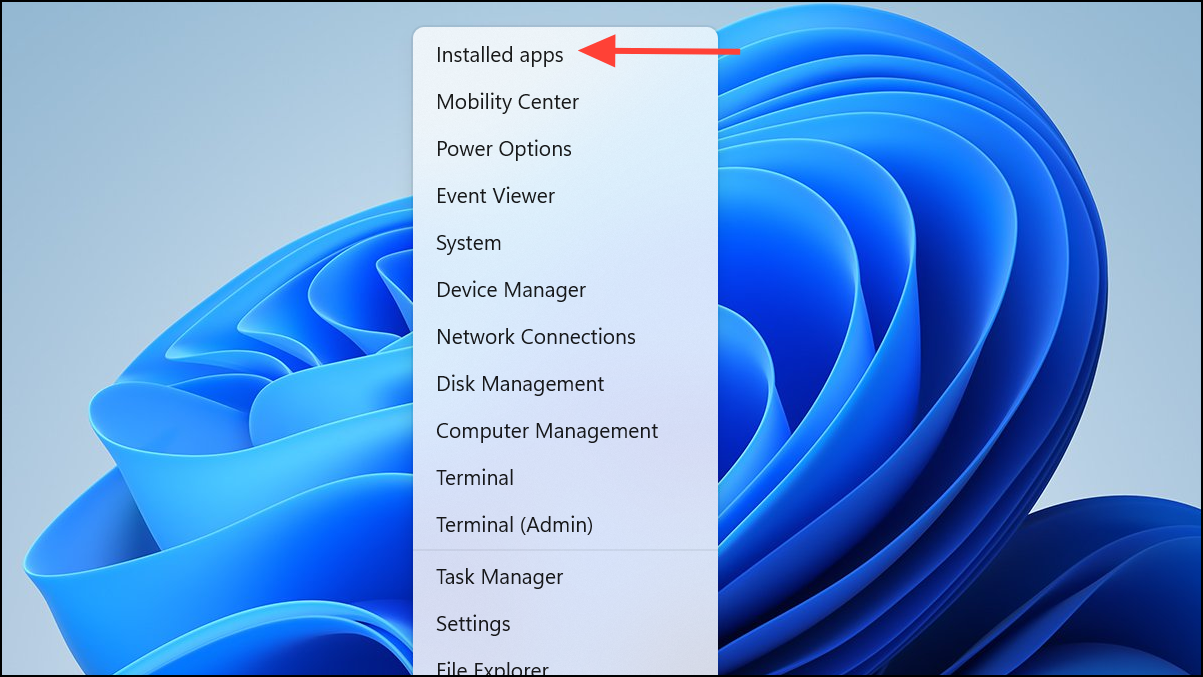
Sometimes, individual Office apps become corrupted and block installation or activation. Repairing Office through Windows Settings can resolve these issues:
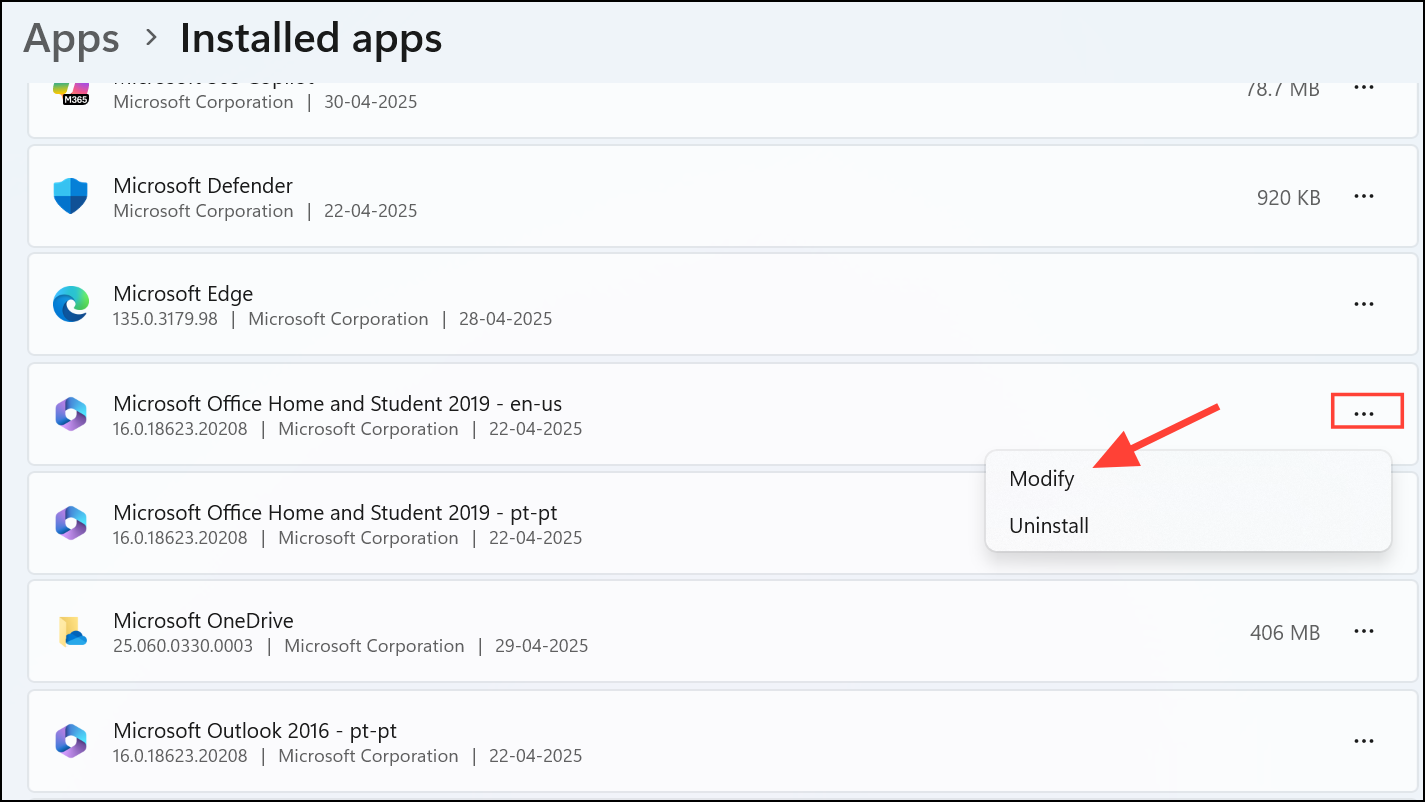
Online Repair for a thorough fix, or Quick Repair for a faster, less comprehensive option. Follow prompts to complete the repair and restart your PC.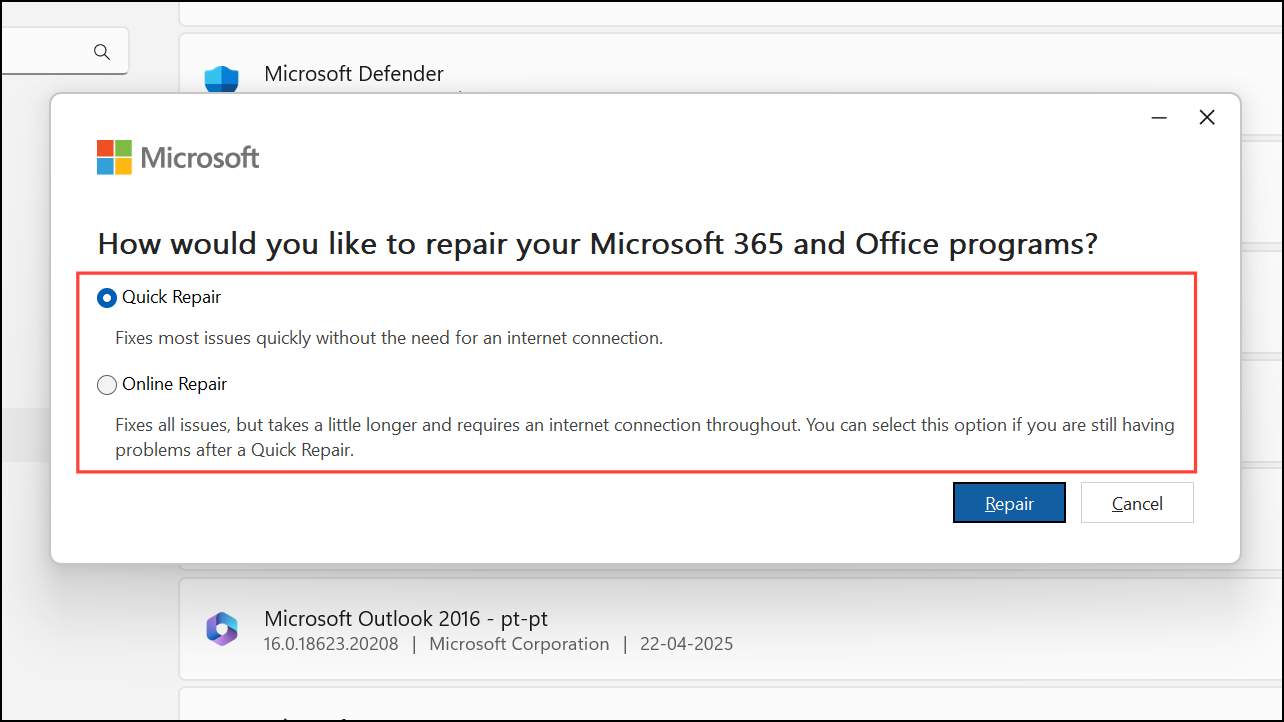
Common Causes of Office Installation Failures
- Expired or inactive Microsoft 365 subscriptions.
- Account mismatches between purchase and activation credentials.
- Network connectivity problems during download or activation.
- Corrupted remnants from previous Office installations.
- Unsupported Windows versions or missing system updates.
- Conflicts between 32-bit and 64-bit Office installations.
Addressing these root causes with the Get Help app or manual methods streamlines the installation process and restores Office functionality quickly.
Using the Get Help app’s Microsoft 365 Setup Troubleshooter on Windows 11 streamlines Office installation fixes, saving time and reducing frustration. For persistent issues, manual uninstall or repair methods provide reliable alternatives, ensuring you get back to work with minimal disruption.



