

Runtime error R6034 displays the message, An application has made an attempt to load the C runtime library incorrectly. This error typically appears when launching or updating certain applications, such as iTunes, Sony Vegas, or even during system operations like using File Explorer. It often disrupts app startup or prevents a program from running, but sometimes the application will continue after dismissing the error. The root causes range from corrupted Visual C++ Redistributable files and missing permissions to software conflicts and registry issues.
Repair Microsoft Visual C++ Redistributable Packages
Control Panel in the Start menu, then select Programs and Features. This section lists all installed programs, including various Microsoft Visual C++ Redistributable entries.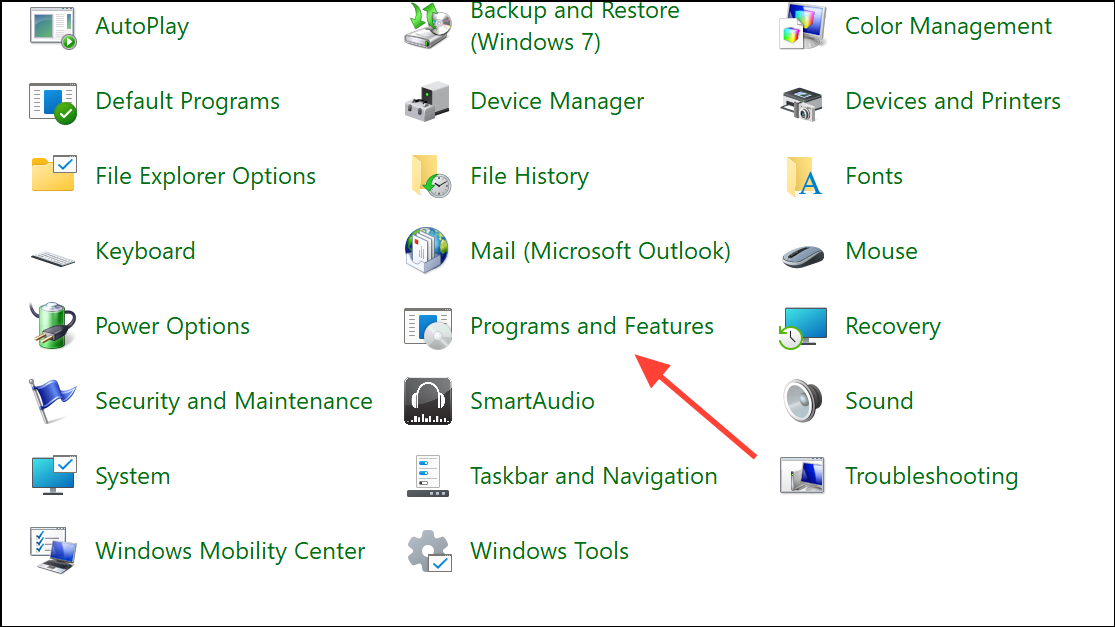
Microsoft Visual C++ Redistributable version in the list, right-click it, and choose Change. In the window that appears, select Repair. This process scans for and fixes missing or corrupted files in the redistributable package.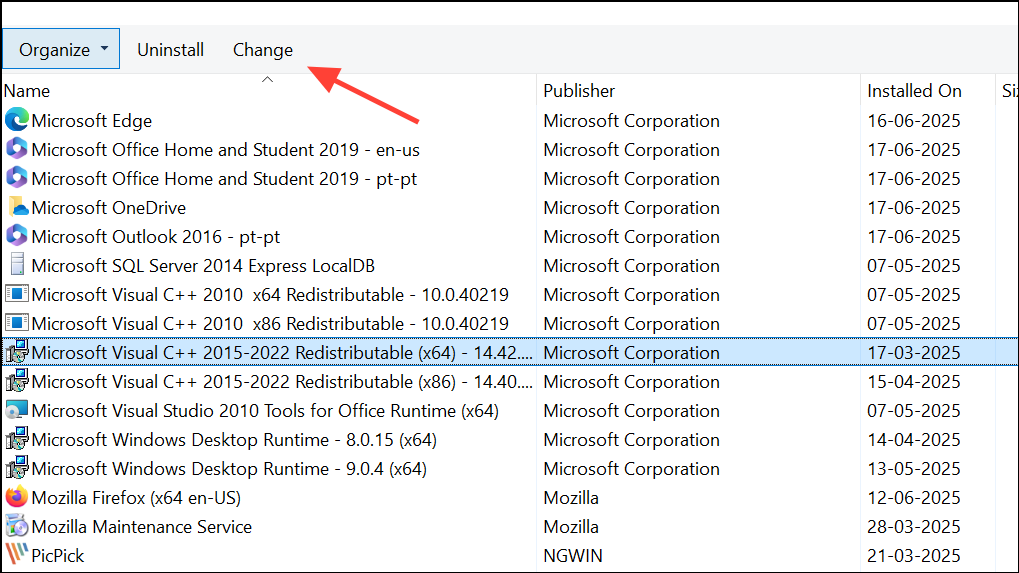
If the error remains, uninstall all Microsoft Visual C++ Redistributable packages, then download and reinstall the latest supported versions from the official Microsoft website. This ensures all required runtime components are present and up to date.
Run the Program as Administrator
Properties.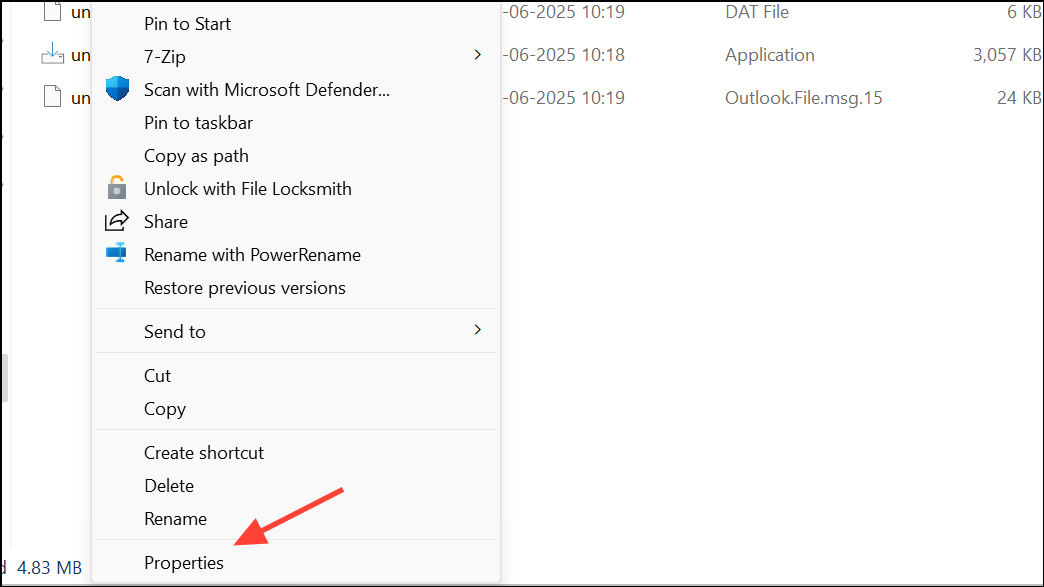
Compatibility tab. Under Settings, check the box labeled Run this program as an administrator. Click Apply and then OK.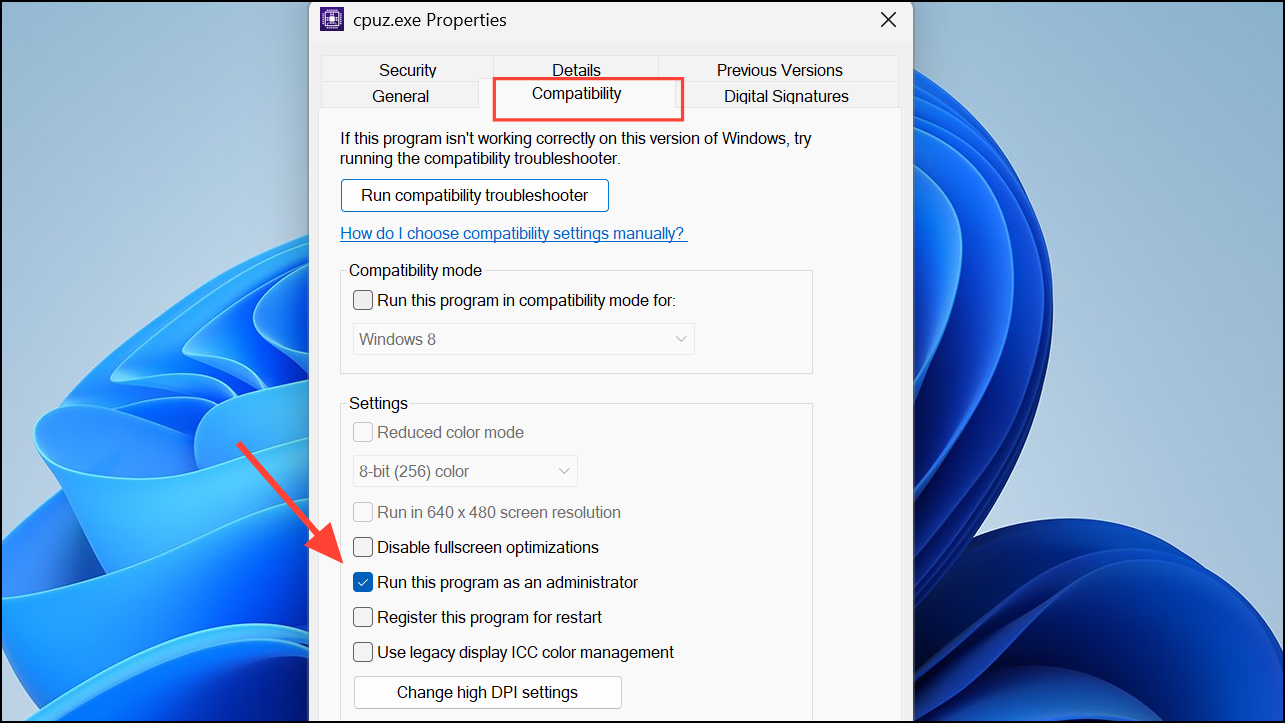
This change grants the application elevated permissions, which can resolve the error if it was caused by insufficient access to system resources or libraries.
Run System File Checker (SFC) and DISM Scans
Command Prompt as an administrator by searching for cmd, right-clicking it, and choosing Run as administrator.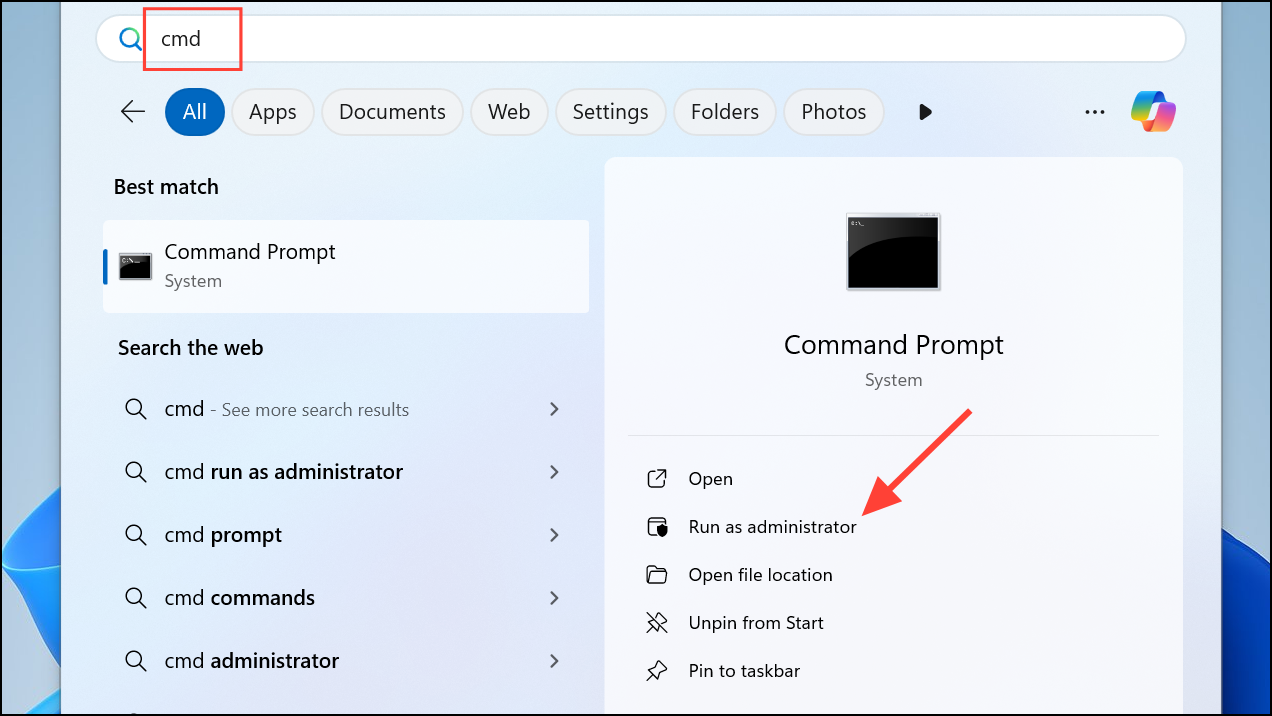
sfc /scannow and press Enter. The System File Checker scans for and repairs corrupted or missing Windows system files. Wait for the process to finish and follow any prompts to fix detected issues.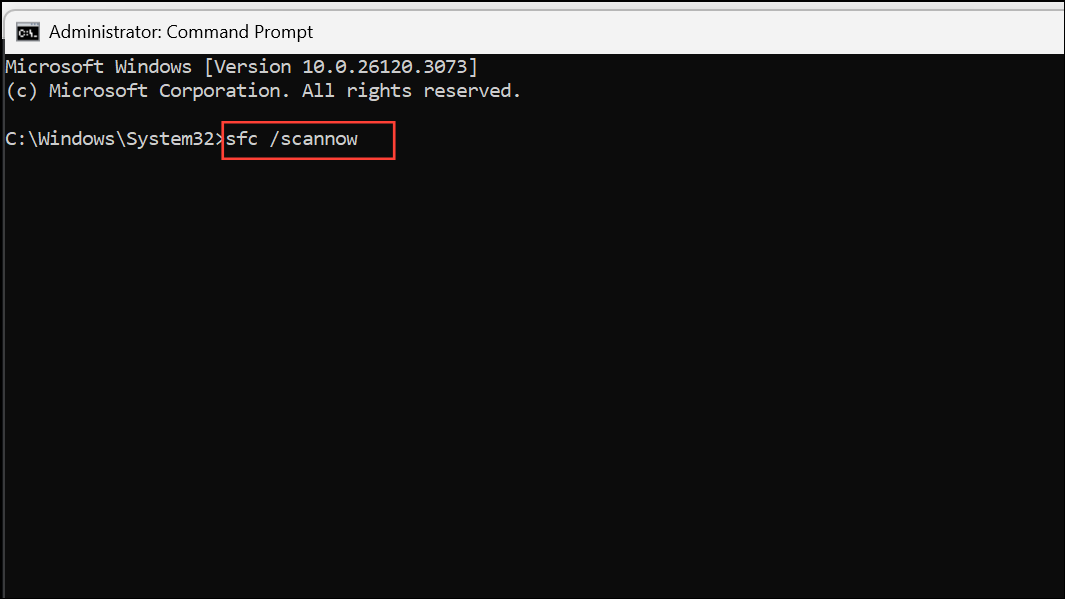
DISM /Online /Cleanup-Image /RestoreHealth in the same elevated Command Prompt window. This command repairs the Windows image and can resolve deeper corruption that SFC cannot fix alone.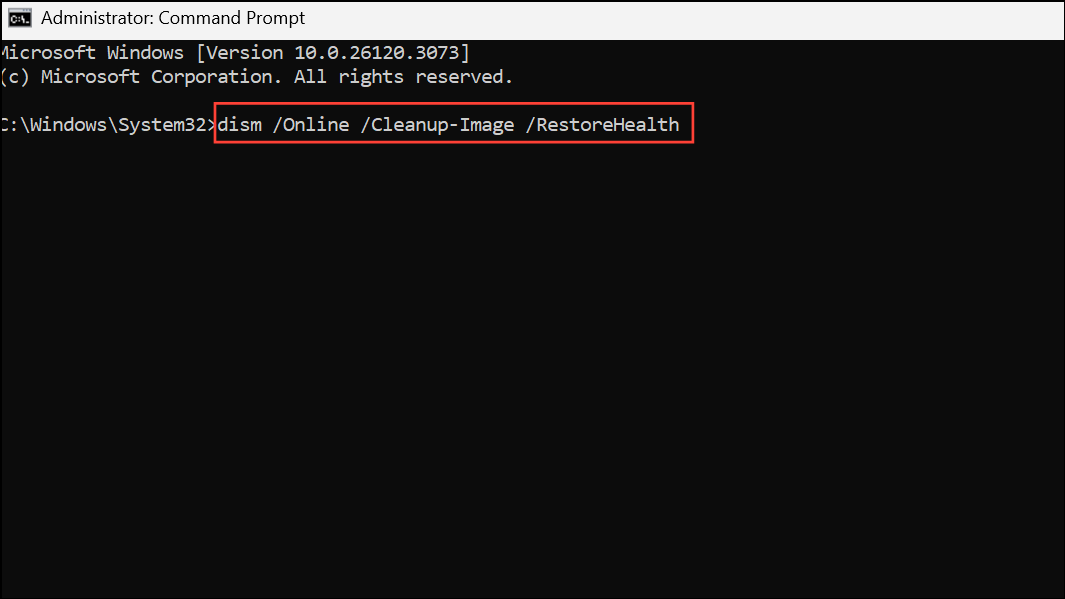
Uninstall Recently Installed Software or Hardware
Settings > Apps > Installed apps or use Control Panel > Programs and Features to remove the recent additions.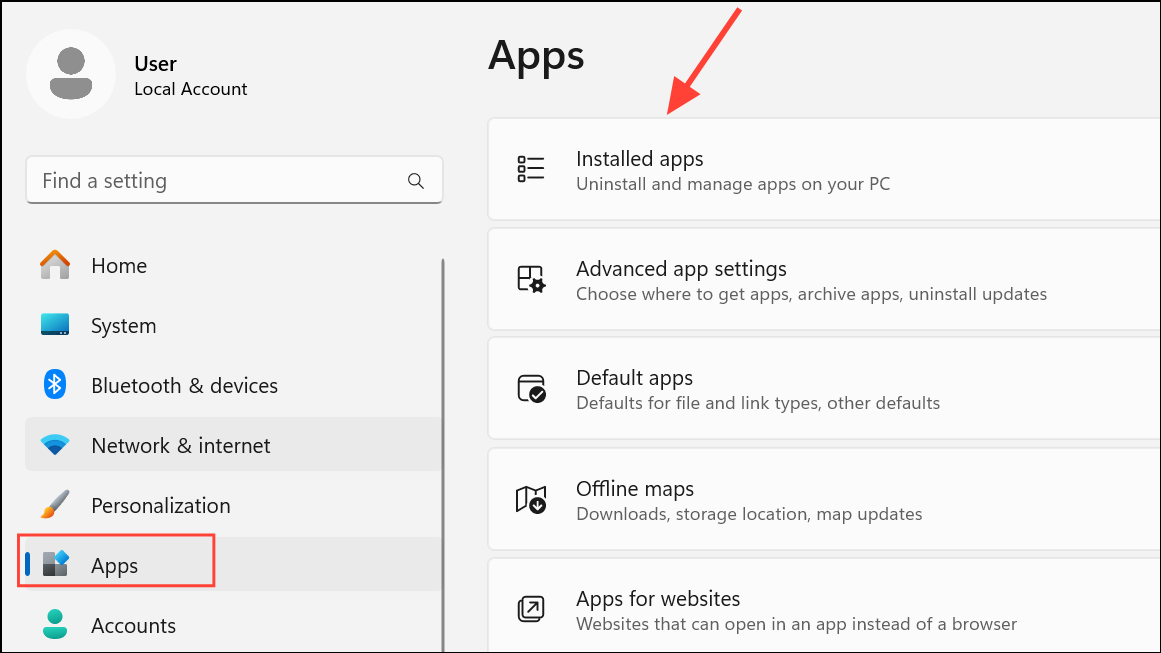
Device Manager, right-click the relevant device, and choose Uninstall device. Restart your PC and check if the error is resolved.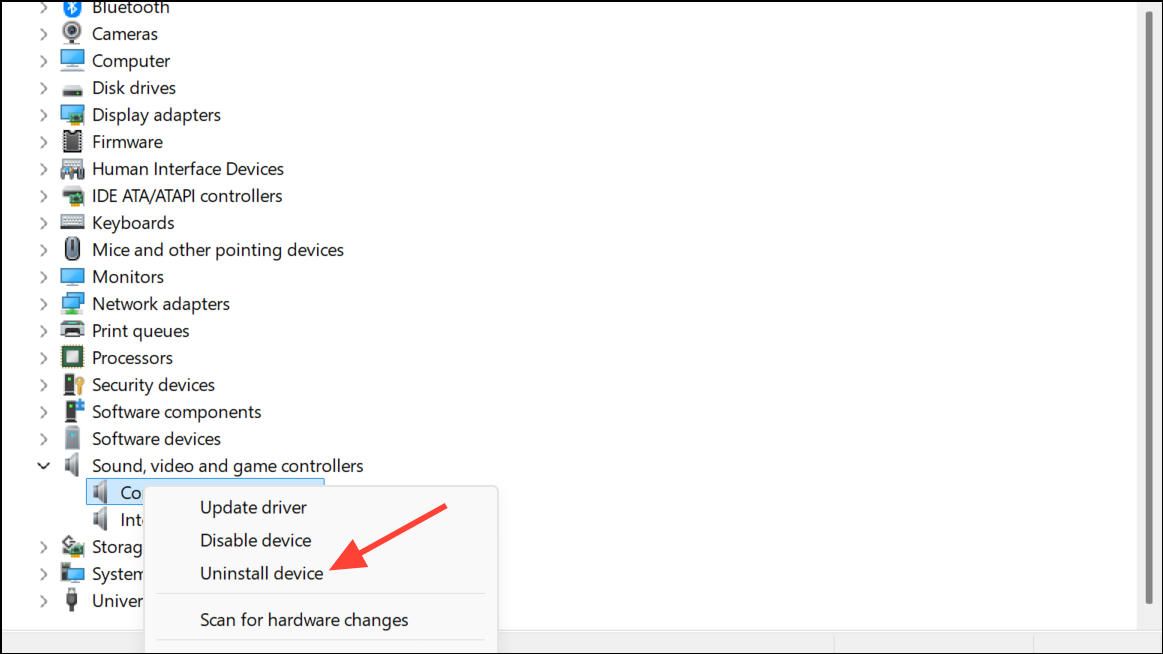
Some backup software, antivirus programs, or plugin managers have been known to trigger this error. If you identify a specific application as the cause, consider contacting the software vendor for updates or patches.
Start Windows in Safe Mode
Shift while clicking Restart from the Start menu. In the recovery menu, go to Troubleshoot > Advanced options > Startup Settings and press Restart again.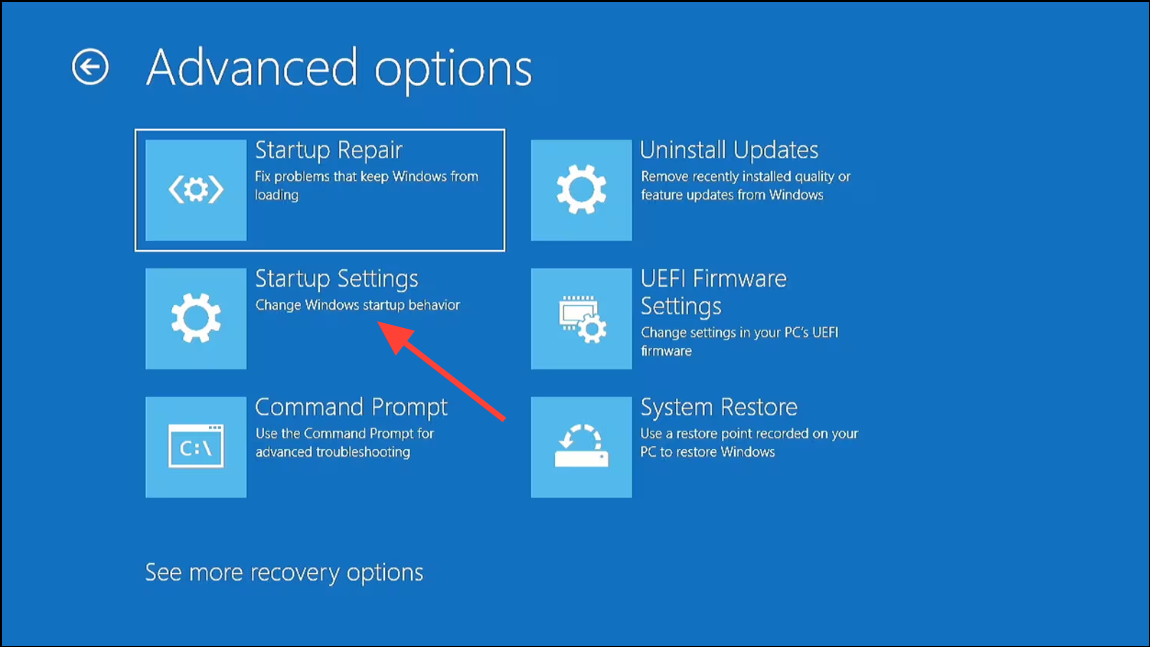
4 or F4 to boot into Safe Mode. Run the application or operation that caused the error. If the error does not occur, a background service or third-party program may be responsible.Troubleshoot in Clean Boot
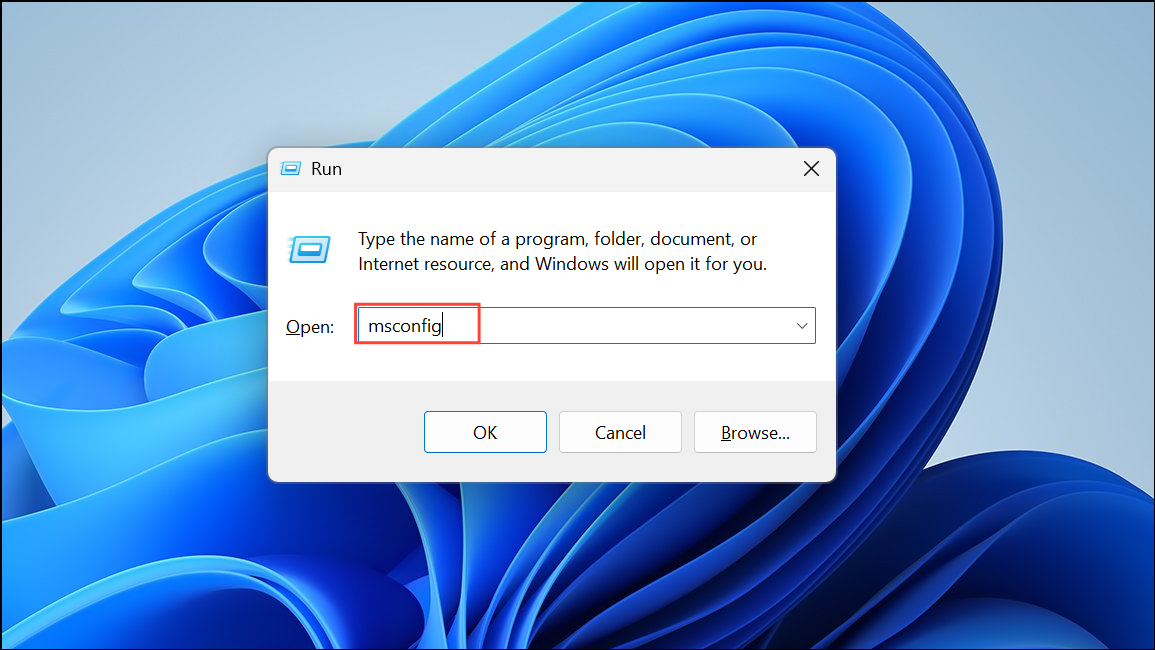
System Configuration window, go to the Services tab, check Hide all Microsoft services, then click Disable all.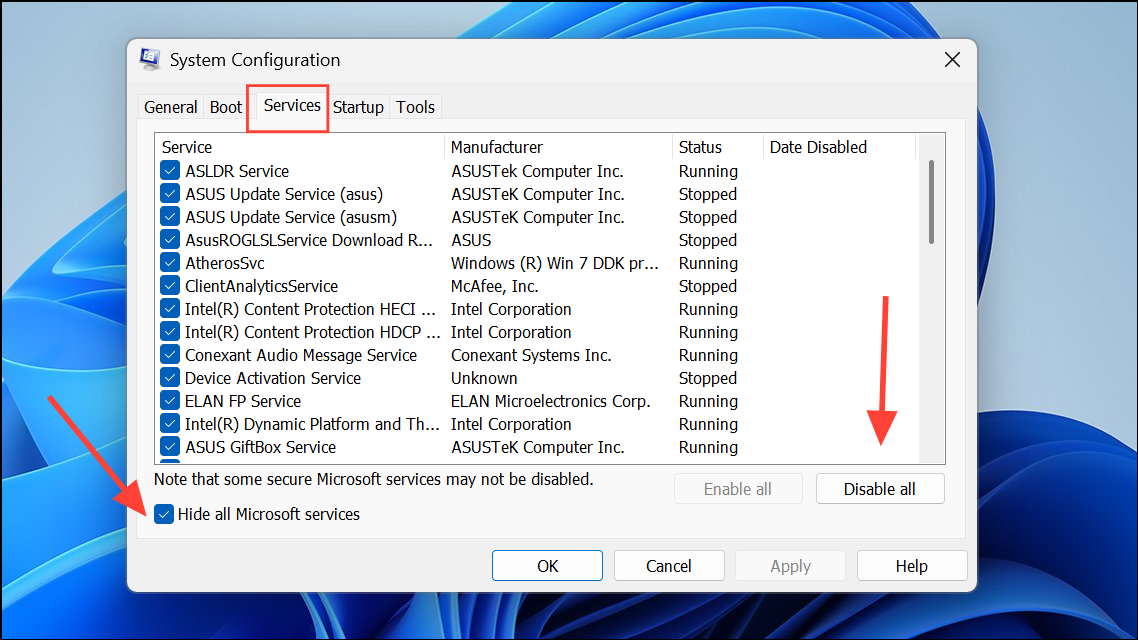
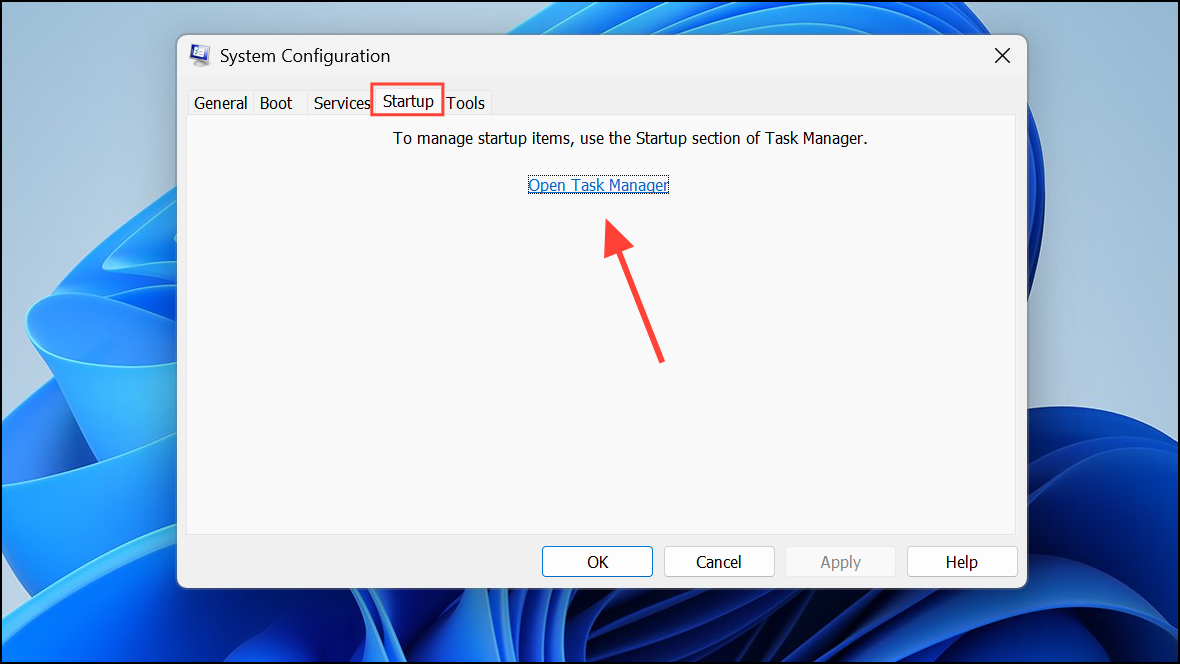
OK in the System Configuration window. Restart your computer.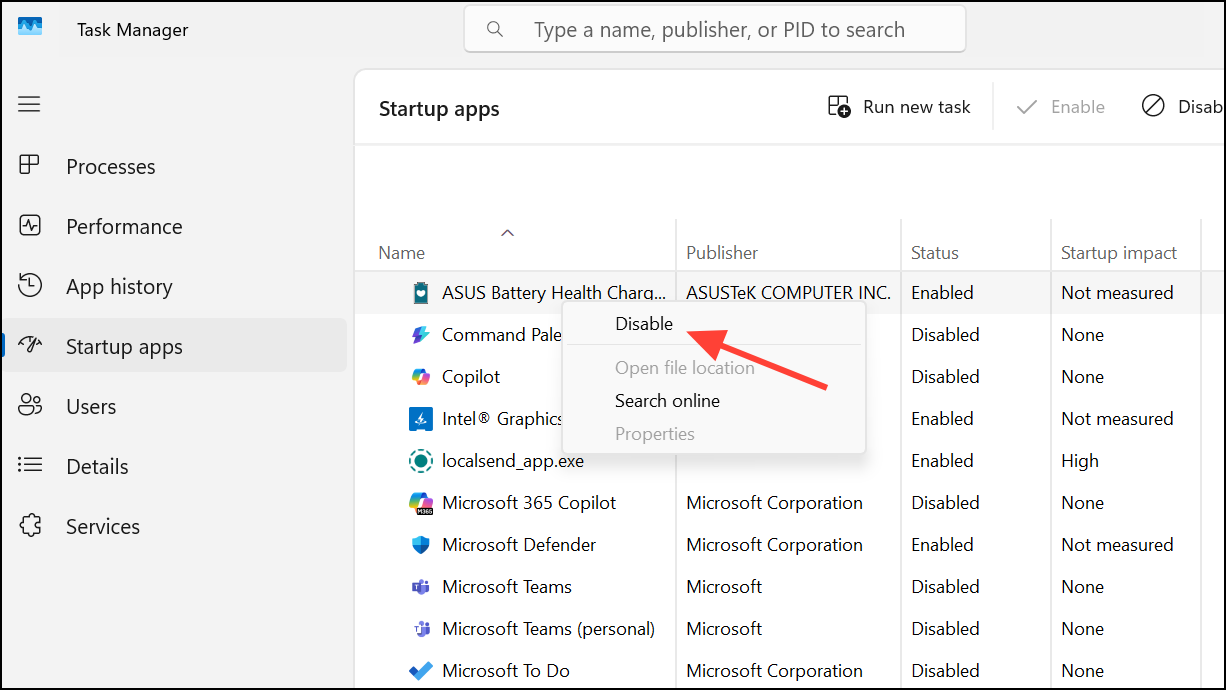
Test the problematic application. If the error disappears, re-enable services and startup items one by one to identify the specific cause.
Scan for Malware or Viruses
Perform System Restore
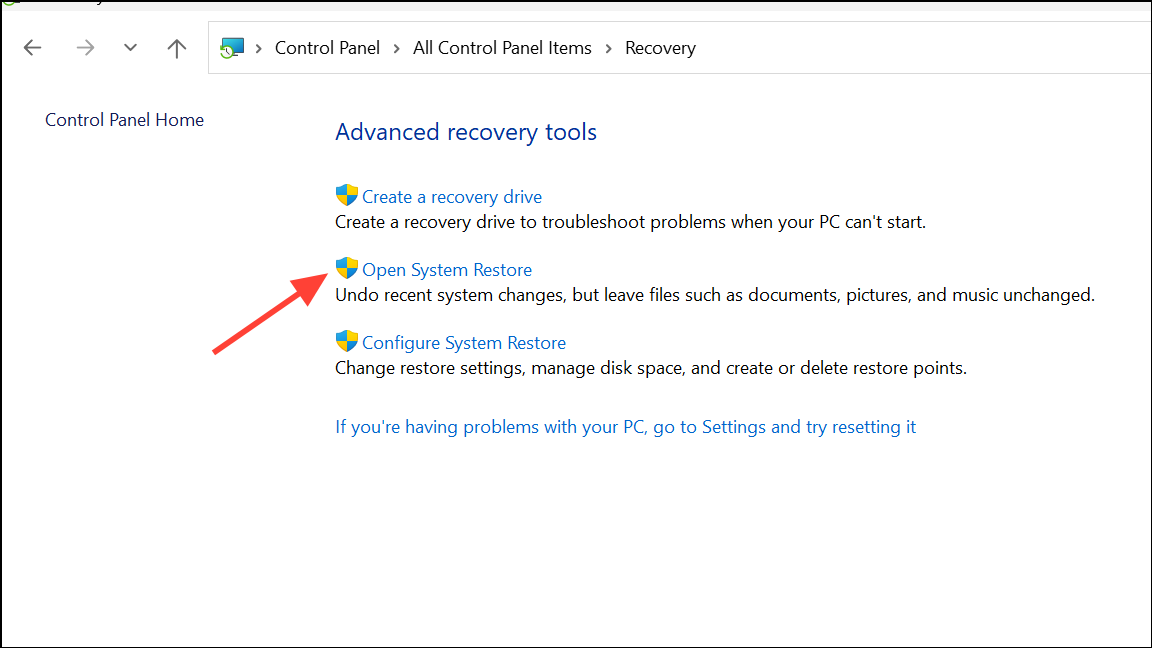
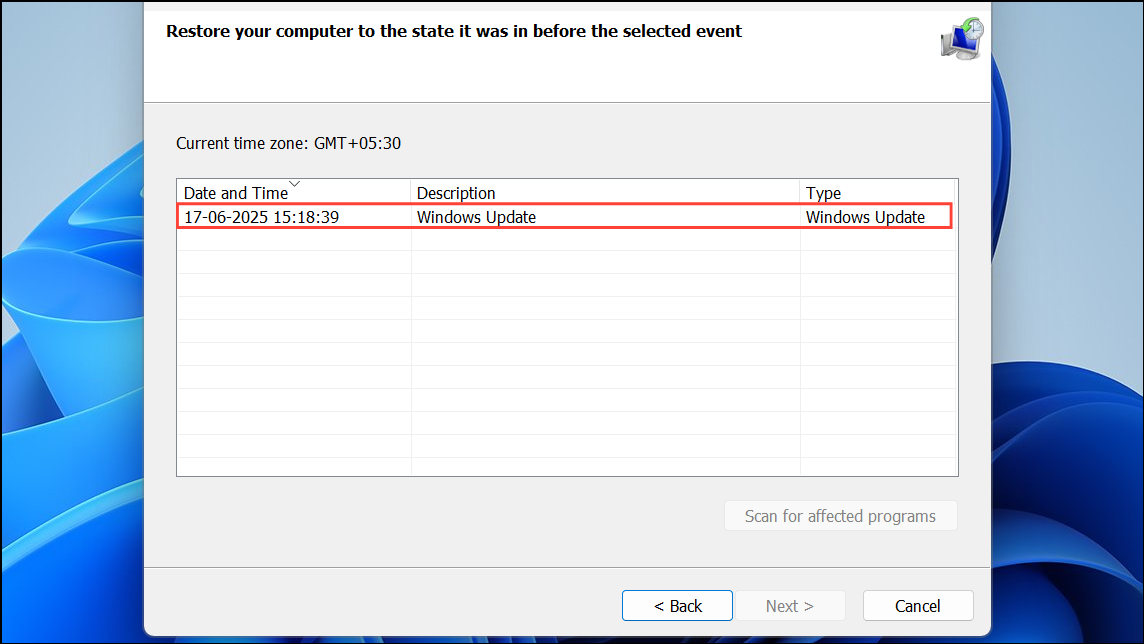
This process restores Windows system files and settings to a previous state, often resolving persistent runtime errors caused by recent changes or corruption.
Addressing runtime error R6034 in Windows 11 usually involves repairing Visual C++ packages, adjusting permissions, and checking for software conflicts. Regular updates and careful installation of new programs can help keep this error from recurring.



