
Display timeout failures in Windows 11 often disrupt daily routines, leading to wasted energy and unnecessary screen wear. When the screen refuses to turn off after the specified idle period, the root cause typically lies in software conflicts, device activity, or misconfigured power settings. Addressing this issue requires a stepwise approach, starting with the most effective and commonly successful solutions.
Adjust Display Timeout Using Command Line Tools
Win + X and selecting Terminal (Admin) or Command Prompt (Admin).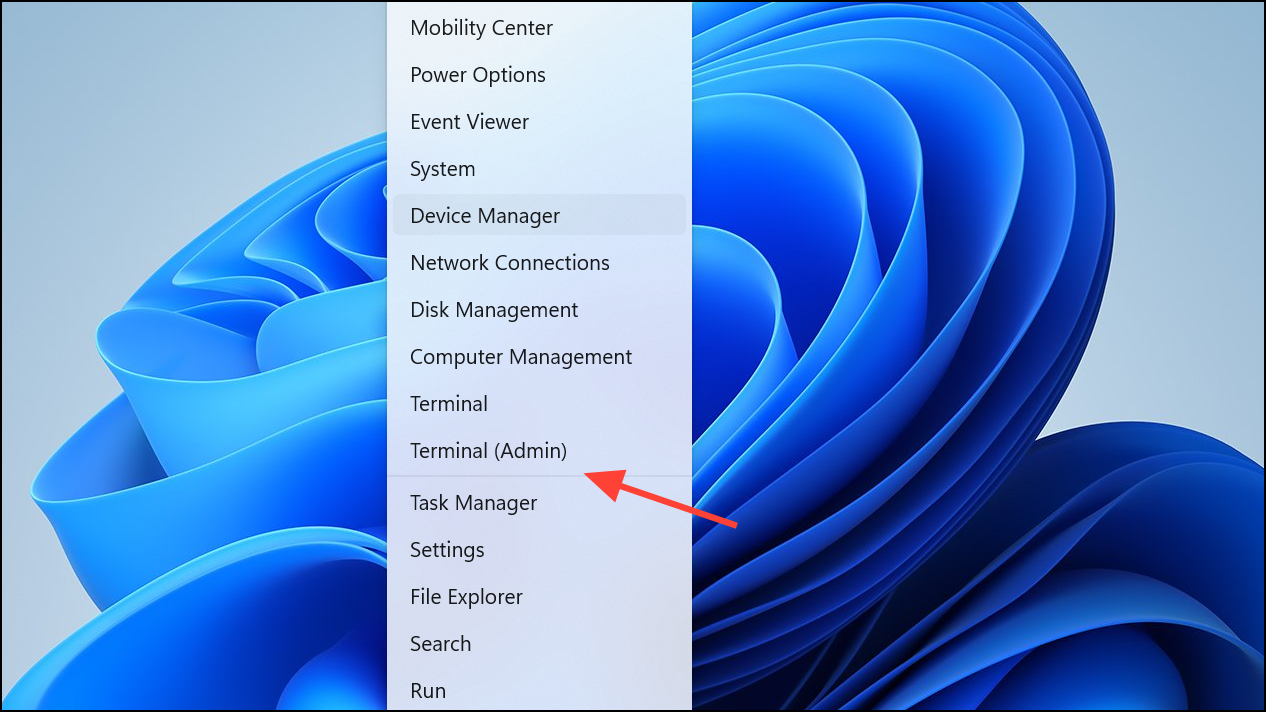
10 with your desired timeout in minutes:powercfg -change -monitor-timeout-ac 10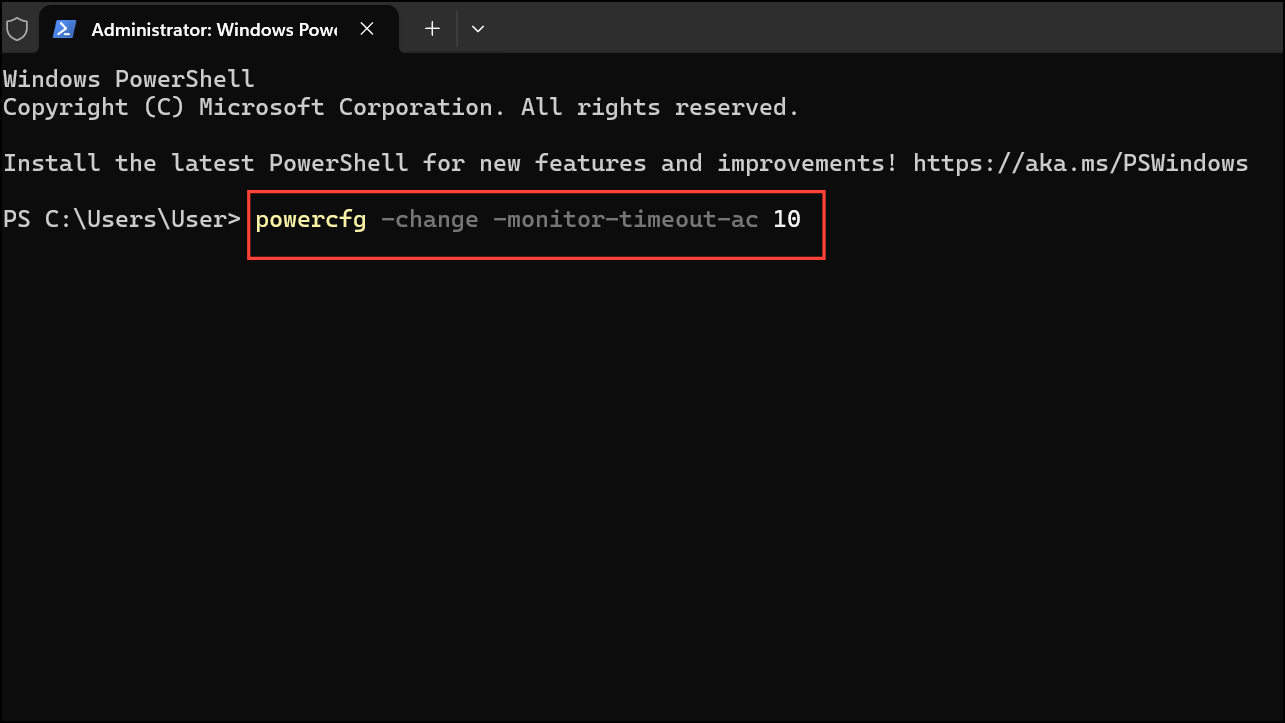
powercfg -change -monitor-timeout-dc 5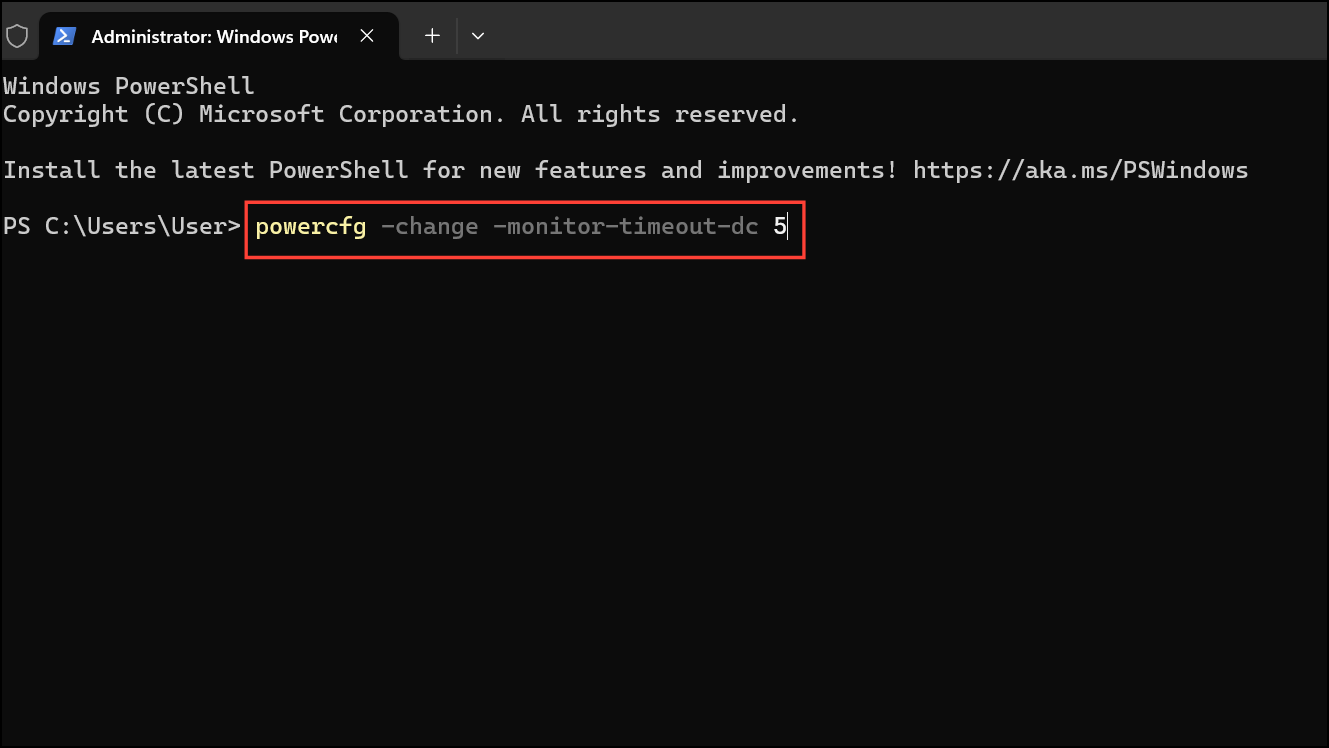
These commands directly set the system’s display timeout and often resolve issues where the graphical interface fails to update settings. Some users found that after running these commands, the system began honoring their chosen timeout values, even after reboots.
Identify Devices or Applications Preventing Idle Timeout
powercfg -requests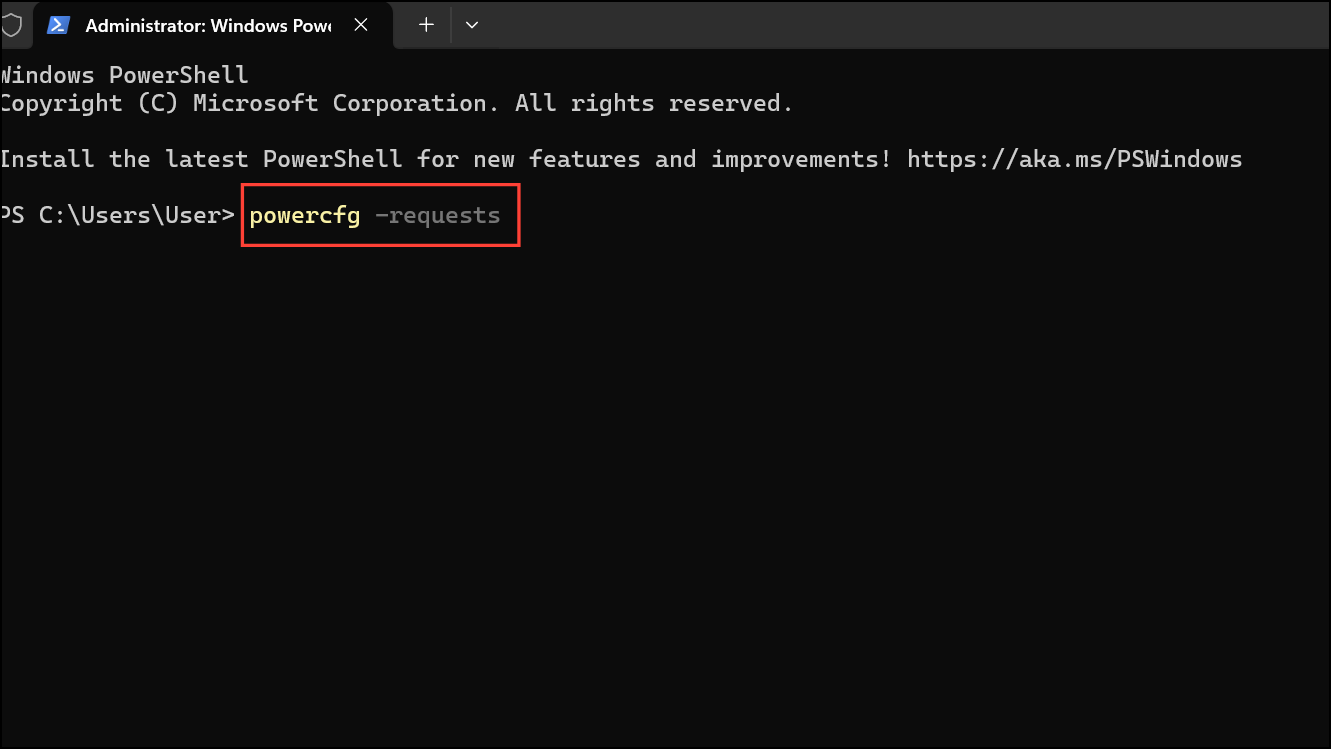
DISPLAY or SYSTEM. If you see specific applications or devices listed, these are keeping your system awake.Update Graphics Card Firmware and Drivers
Updating both drivers and firmware can resolve cases where the system fails to send the correct signal to the display for power management.
Reset or Reconfigure Power Settings
Settings with Win + I, then go to System > Power & battery > Screen, Sleep and Hibernate Timeouts.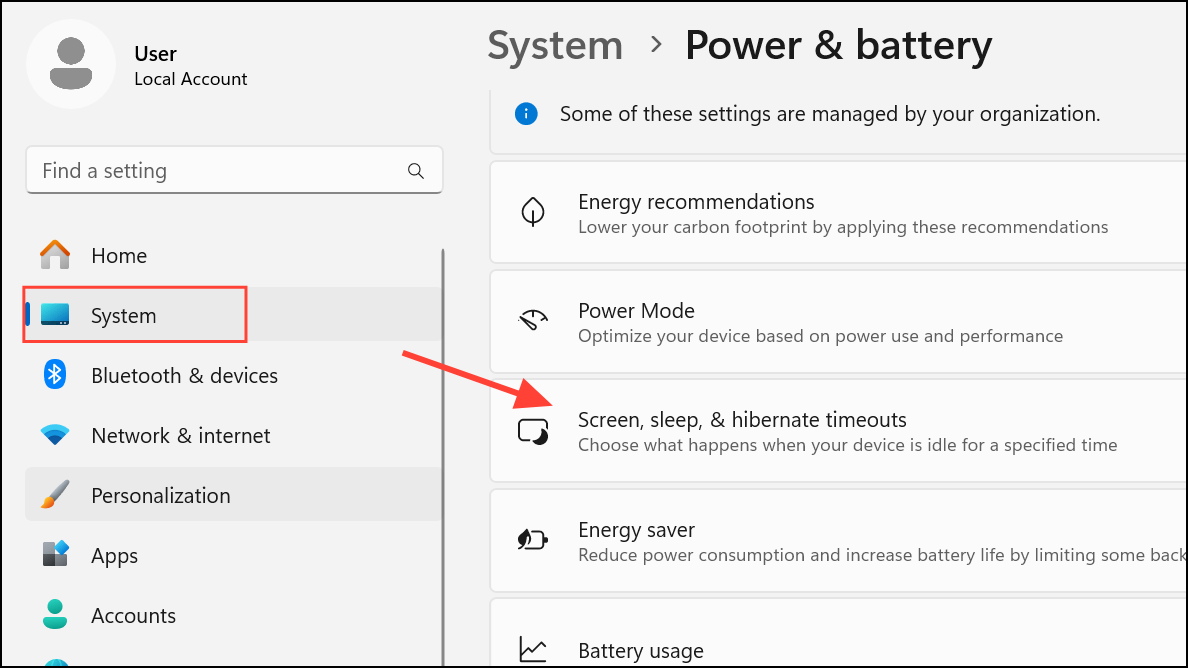
Turn off my screen after to your desired value for both battery and plugged-in modes.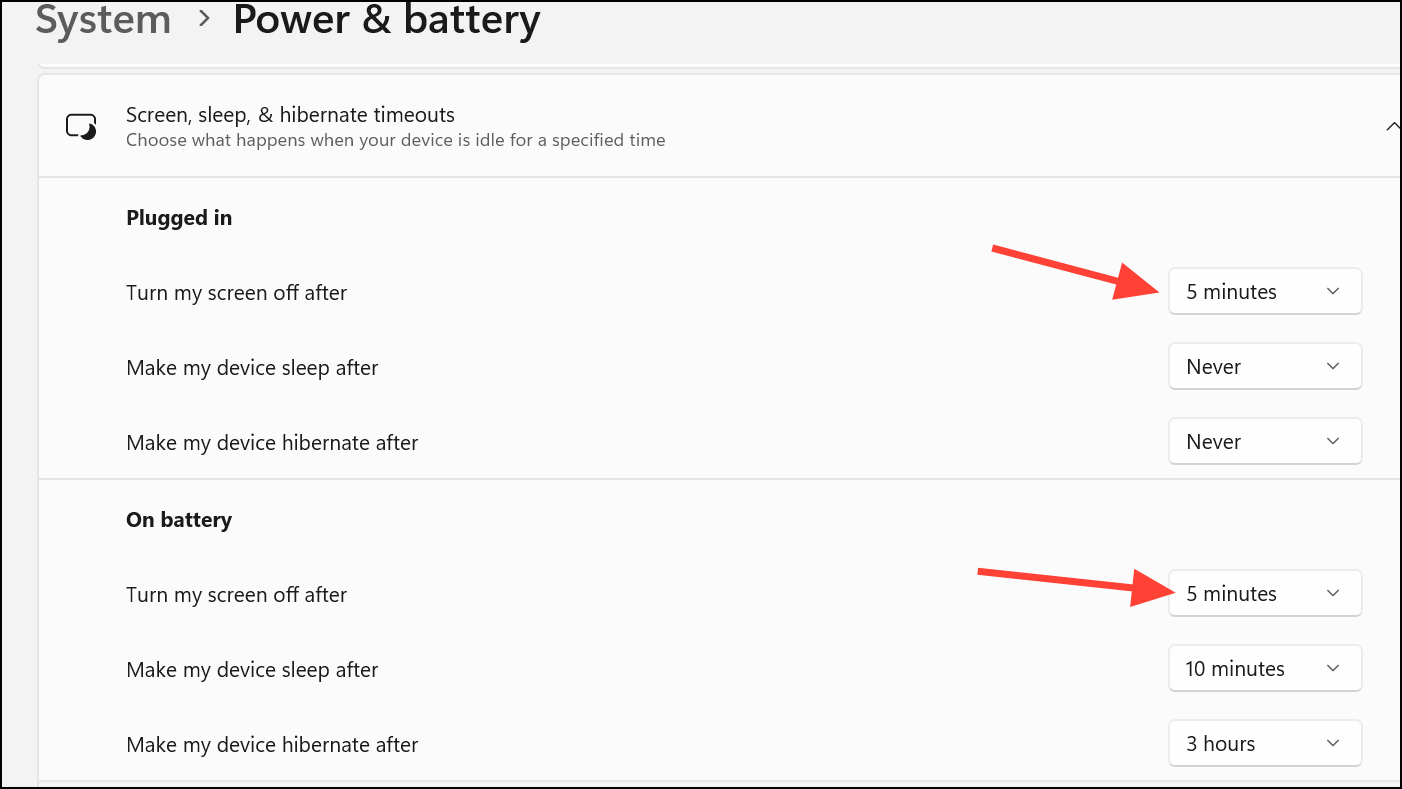
Win + R, typing control, and navigating to System and Security > Power Options.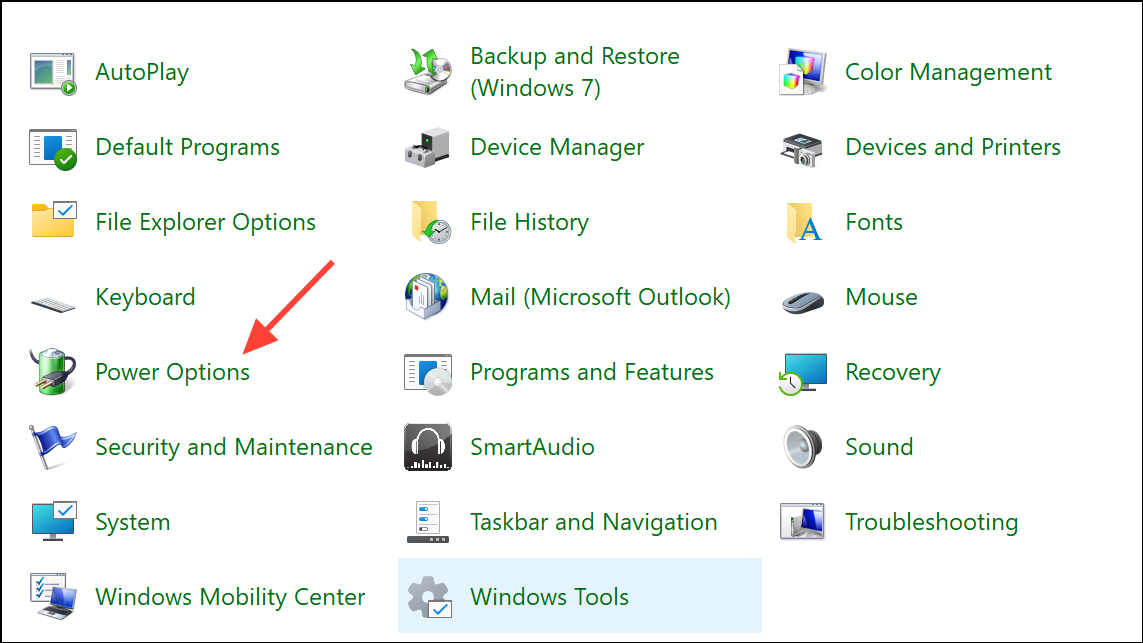
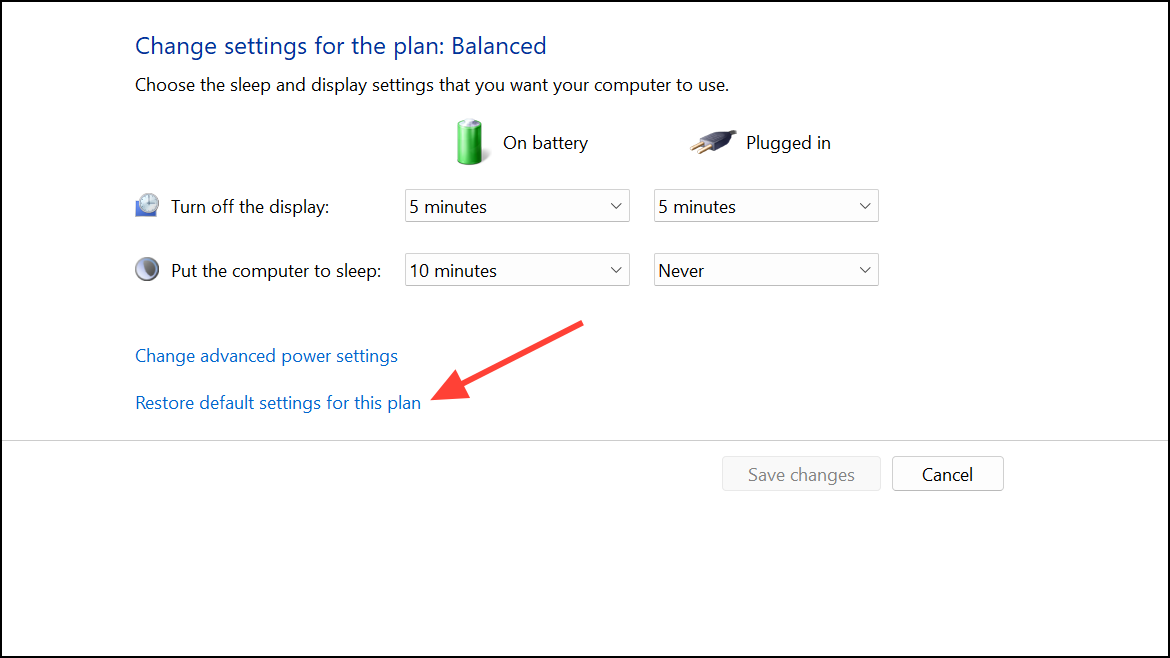
Disconnect and Reconnect External Devices
Peripheral devices, especially those connected via USB, can inadvertently keep the system awake. This includes keyboards, mice, webcams, hubs, and game controllers.
This process can reset certain hardware states that interfere with power management and has resolved persistent issues for several users.
Check for Software Interference and Background Processes
Background applications, especially those that monitor hardware or play media, can block the system from idling. Security utilities, media players, and system maintenance tools are common offenders.
msconfig, choosing Selective startup, and disabling all non-Microsoft services under the Services tab.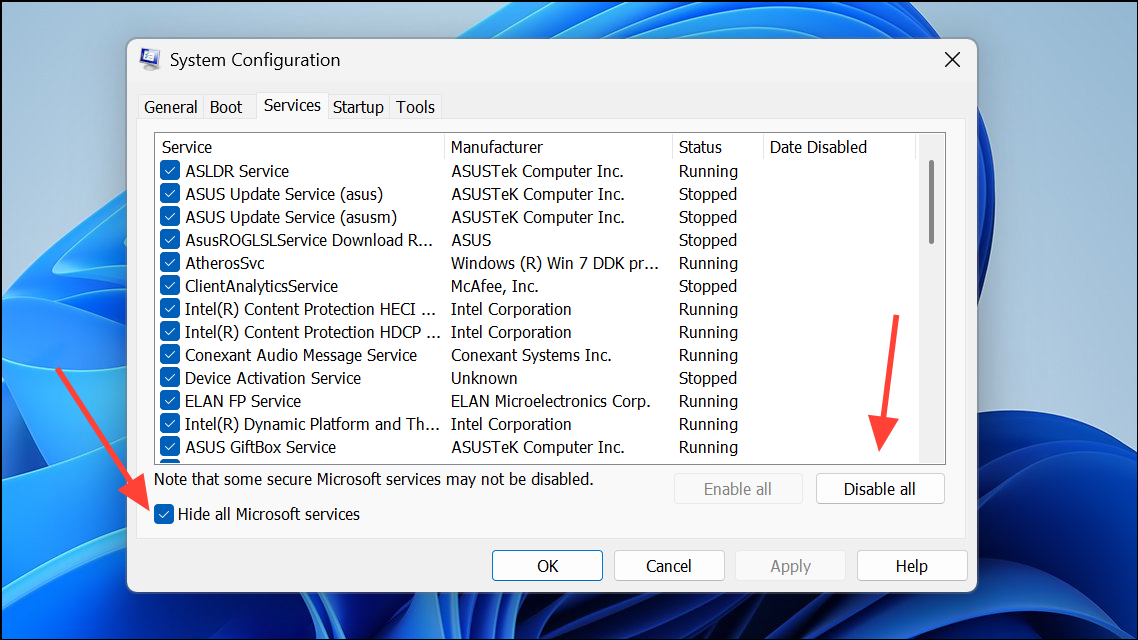
Update BIOS and Review Power Management Settings
Outdated BIOS firmware or incorrect power management settings can interfere with display timeout functionality.
Del, F2, or a similar key).Advanced Troubleshooting and Last Resorts
If none of the above methods resolve the issue, consider running system file checks and, as a last resort, performing a repair install of Windows 11.
sfc /scannow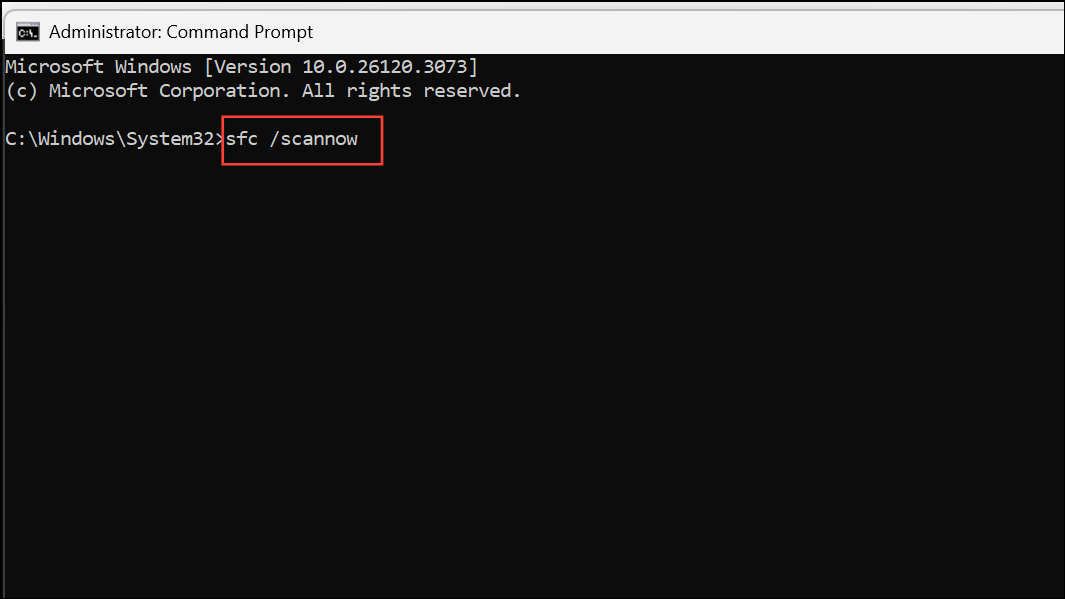
This checks for and repairs corrupted system files.
setup.exe to perform an in-place upgrade, choosing to keep your files and apps. This repairs Windows without deleting your data.Resolving the display timeout issue in Windows 11 typically involves a combination of adjusting power settings, updating system components, and isolating device or software conflicts. Regularly reviewing connected devices and keeping system firmware up to date can prevent future interruptions in display power management.



