

SSH key generation fails in Git Bash on Windows 11 when system permissions, environment variables, or file path settings are misconfigured. This issue prevents secure authentication with remote repositories and interrupts workflows that rely on Git. Addressing these root causes restores normal SSH functionality and enables seamless code operations.
Check Git Bash Installation and Run as Administrator
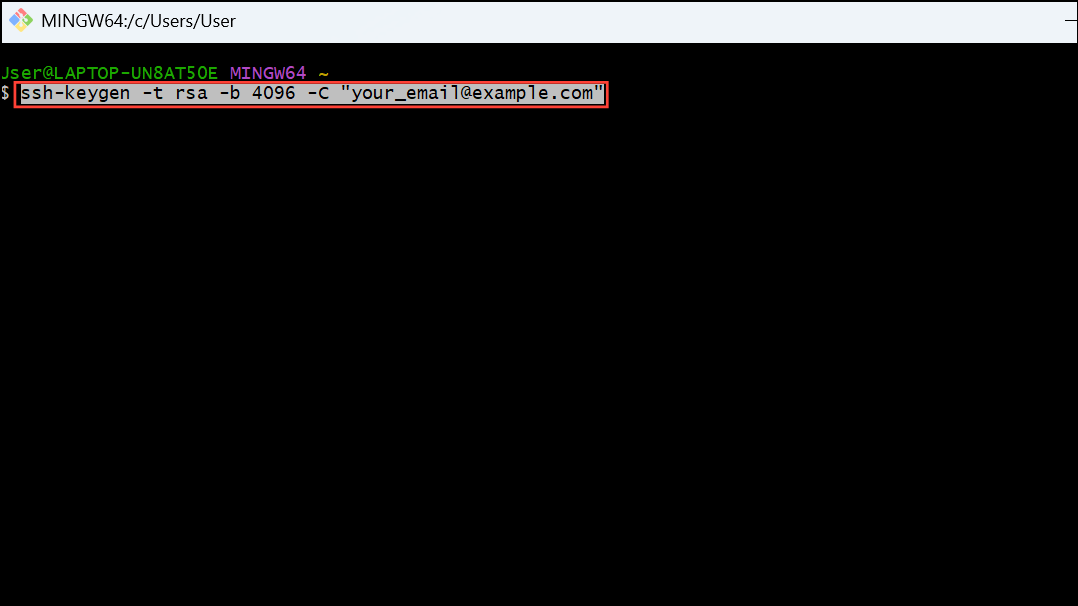
Run as administrator. Running Git Bash with administrative privileges ensures it can create files in protected directories and access necessary system resources. This step resolves permission-related failures that often occur when generating SSH keys.ssh-keygen -t rsa -b 4096 -C "[email protected]"This command initiates the SSH key generation process. If you are prompted to overwrite an existing key, choose n to avoid accidental data loss unless you intend to replace the old key. By default, keys are stored in the ~/.ssh directory.
Verify and Correct File Path or Directory Issues
ls ~/.ssh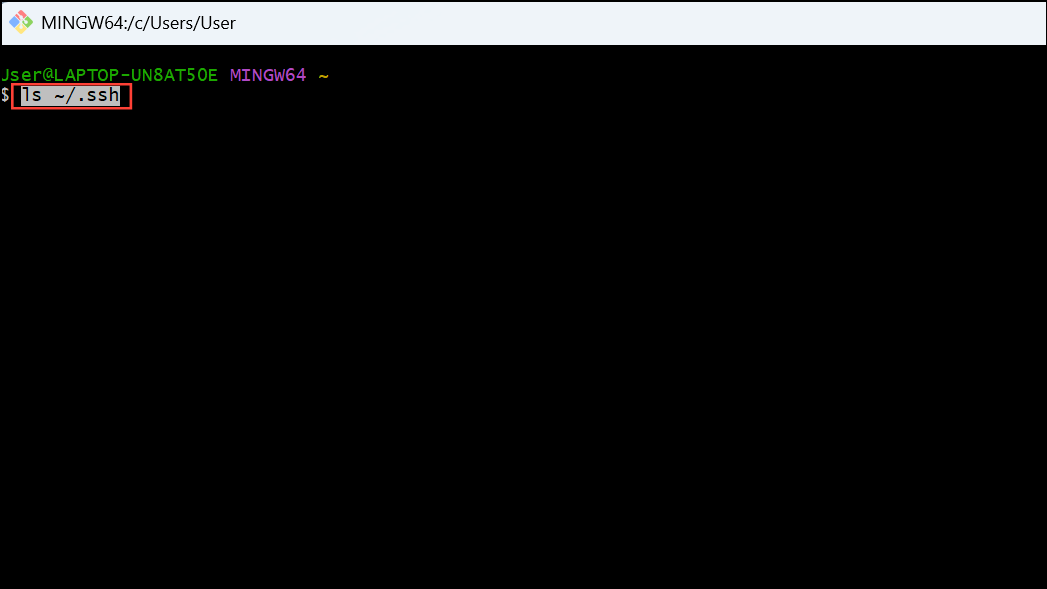
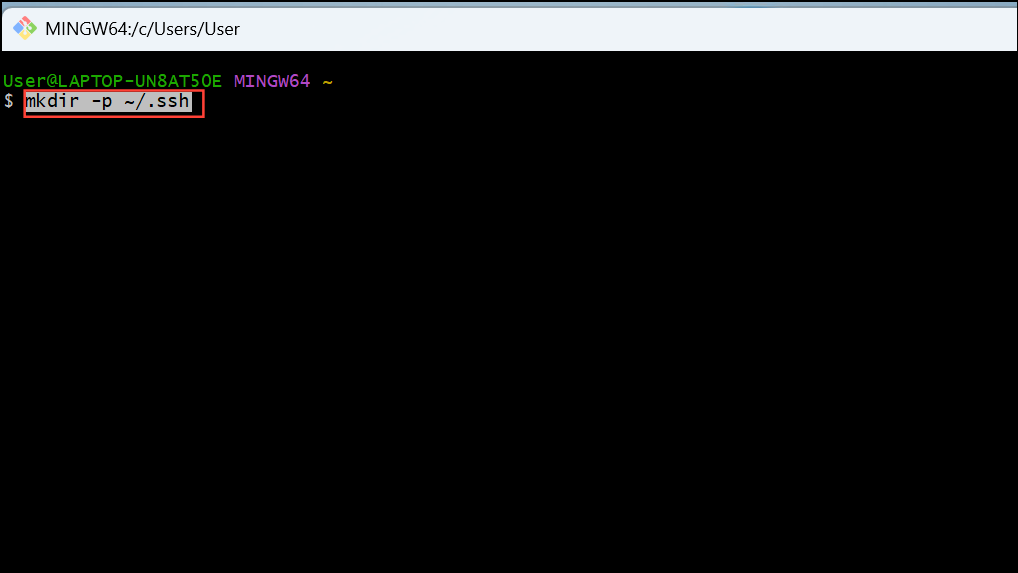
If the directory does not exist or you see a permission error, create the directory with the correct permissions:
mkdir -p ~/.ssh
chmod 700 ~/.ssh
These commands ensure that the SSH directory exists and is only accessible by your user account, which is required for SSH key operations.
ssh-keygen. If you still encounter errors, check if your Windows username contains special characters or spaces, as this can disrupt file path resolution in Git Bash. Consider creating a new Windows user account with a simple username if path issues persist.Adjust Environment Variables and PATH Settings
echo $HOME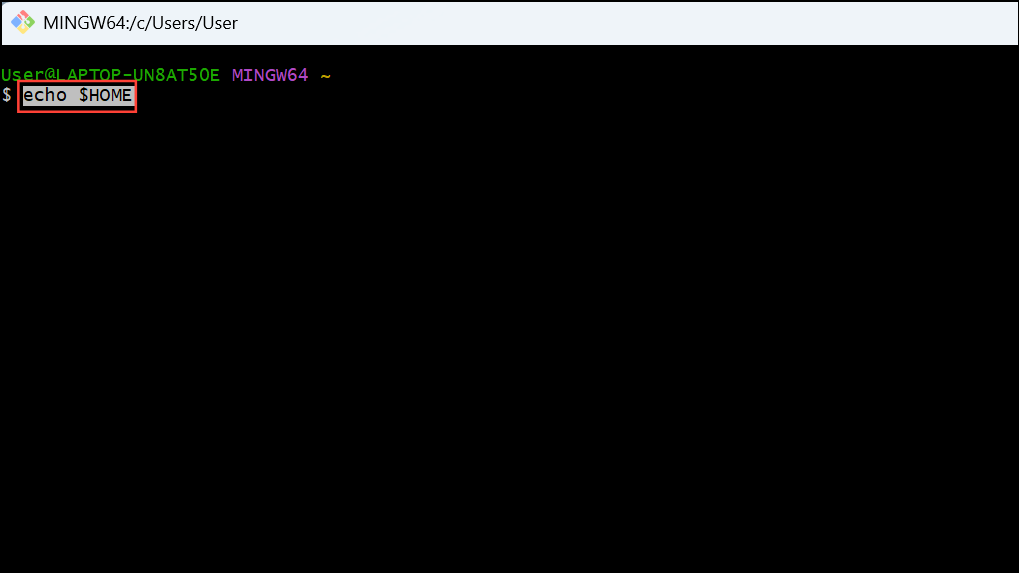
If $HOME does not point to your user directory (e.g., C:\Users\YourUsername), update it by adding the following line to your ~/.bashrc or ~/.bash_profile file:
export HOME=/c/Users/YourUsername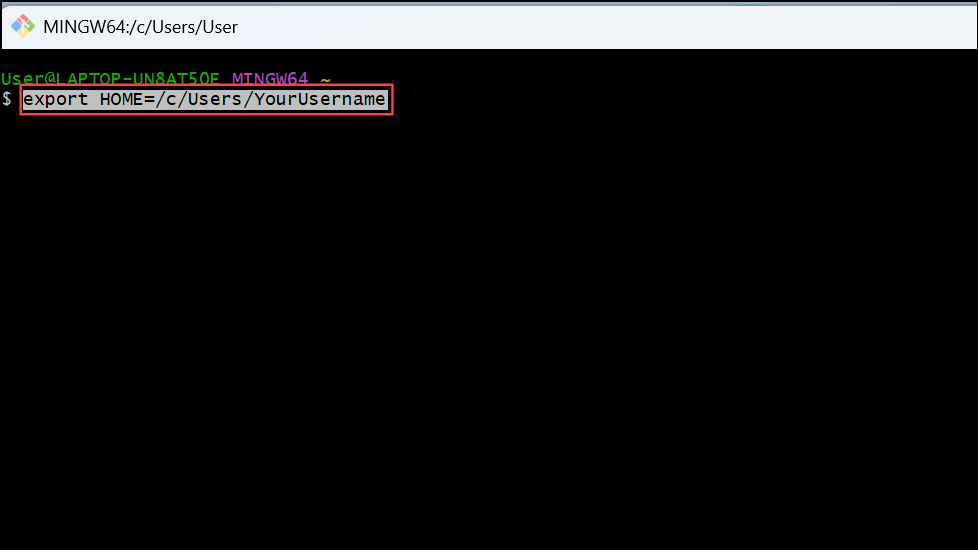
After editing, restart Git Bash to apply the changes. This adjustment resolves errors caused by incorrect home directory references, which can prevent SSH key files from being created or found.
which ssh-keygen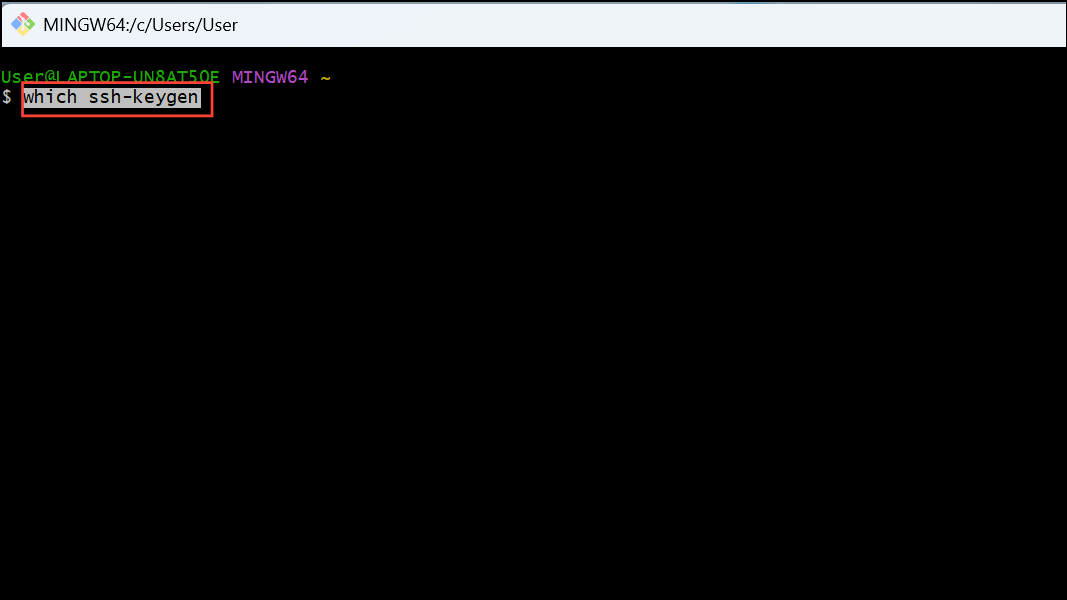
If no path is returned, reinstall Git for Windows or manually add the Git usr/bin directory to your system PATH environment variable.
Temporarily Disable Antivirus or Security Software
~/.ssh directory in your security software settings.Resolving SSH key generation failures in Git Bash on Windows 11 streamlines secure repository access and prevents workflow interruptions. Regularly updating Git and monitoring directory permissions keeps your development environment running smoothly.



