

File operations in Windows 11—such as deleting, renaming, or editing properties—can stall when the system displays the message: The action cannot be completed because the file is open in COM Surrogate. This error often appears even when the file isn’t open in any visible application, disrupting workflows and making file management unnecessarily complicated. The root cause usually involves the COM Surrogate process (dllhost.exe), which Windows uses to generate file thumbnails and handle certain file previews in Explorer. When COM Surrogate becomes stuck or fails to release a file, users lose access to basic file actions until the process is reset or terminated.
End the COM Surrogate Process in Task Manager
Ctrl + Shift + Esc to launch Task Manager. This utility lets you view and control active processes on your system.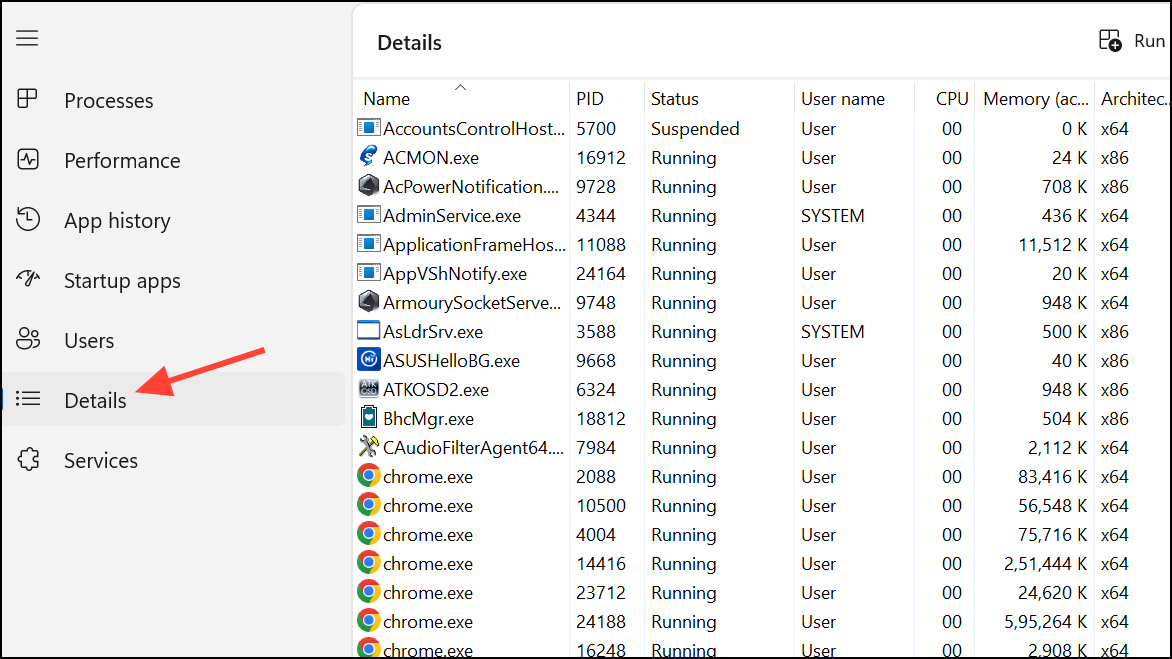
dllhost.exe. This represents the COM Surrogate process responsible for file previews and thumbnails.dllhost.exe and select End task. This action immediately closes the COM Surrogate process, releasing any files it was holding open. If multiple dllhost.exe entries exist, end each one. Afterward, retry your file operation—it should proceed without the error.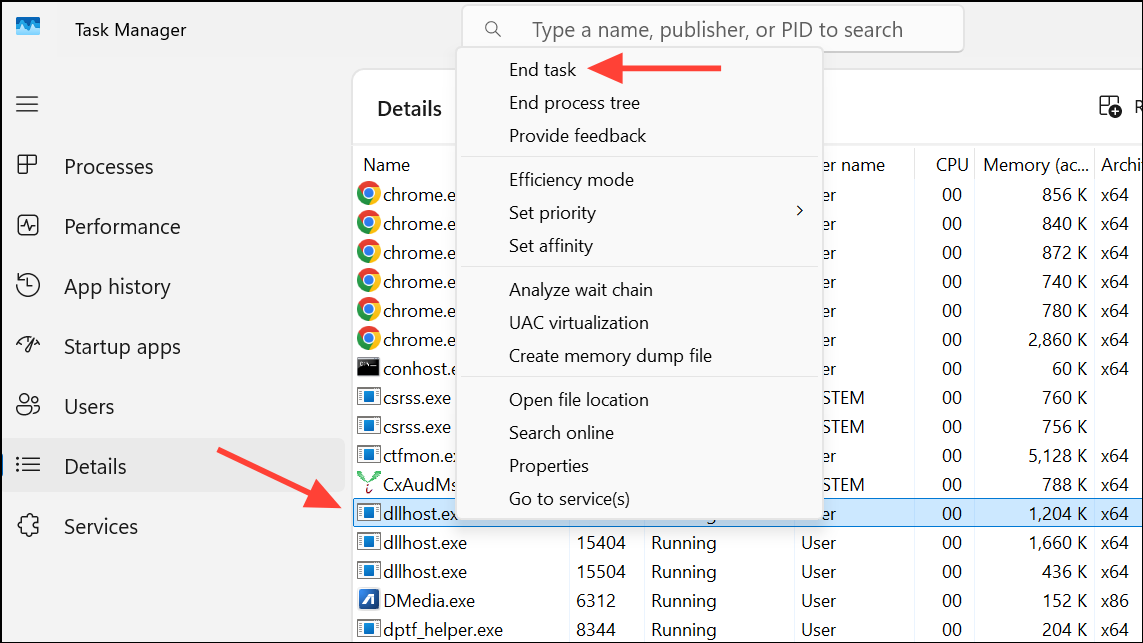
Terminating COM Surrogate may also temporarily resolve issues with missing thumbnails or slow Explorer performance. Windows will automatically restart the process as needed for future file previews.
Restart Windows Explorer
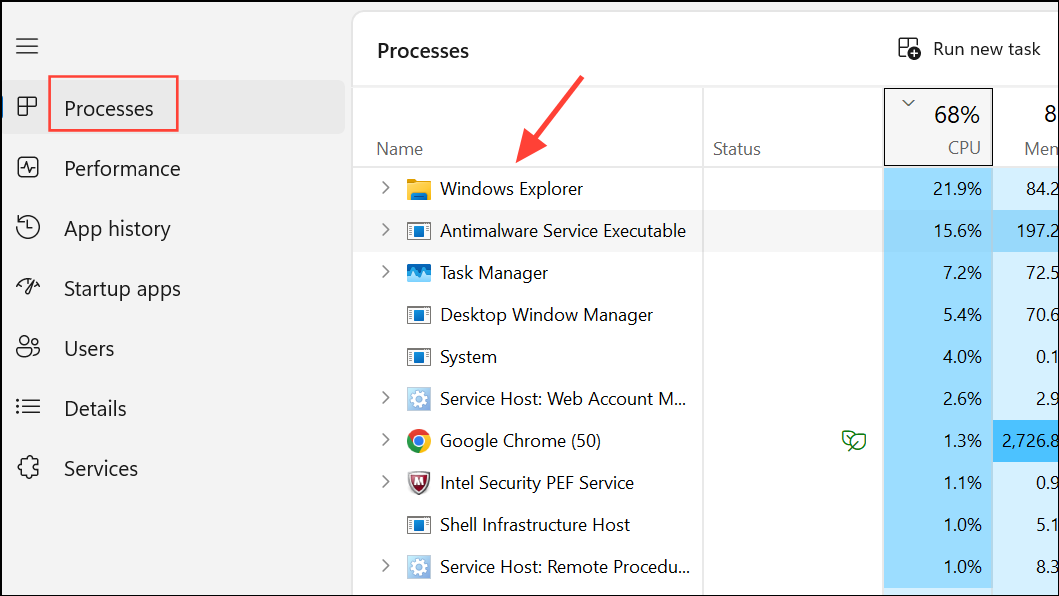
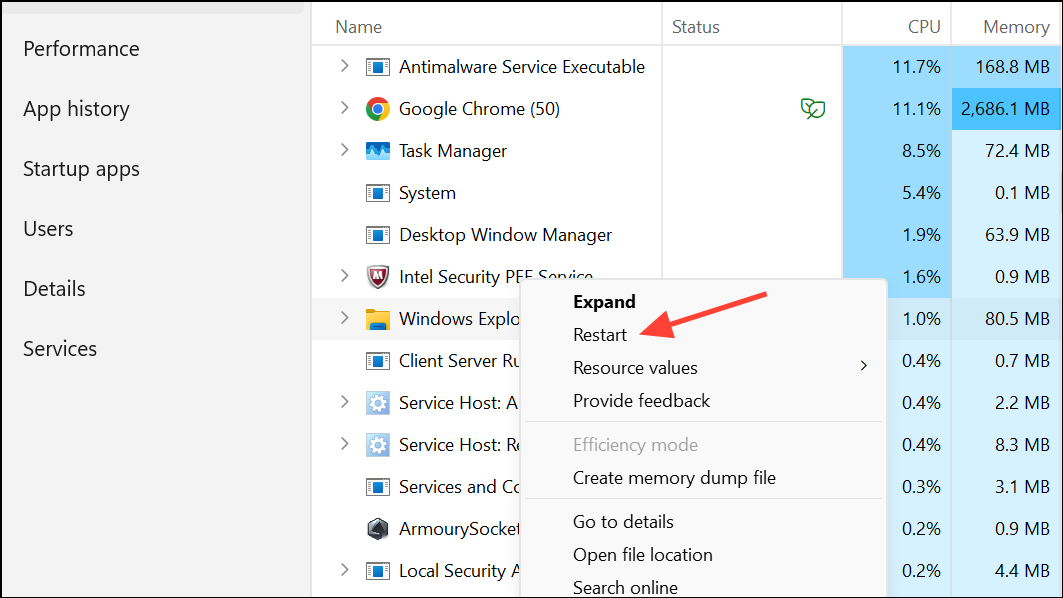
This approach helps if the error is triggered by Explorer’s preview pane or thumbnail cache becoming unresponsive.
Turn Off Preview Pane and Thumbnails
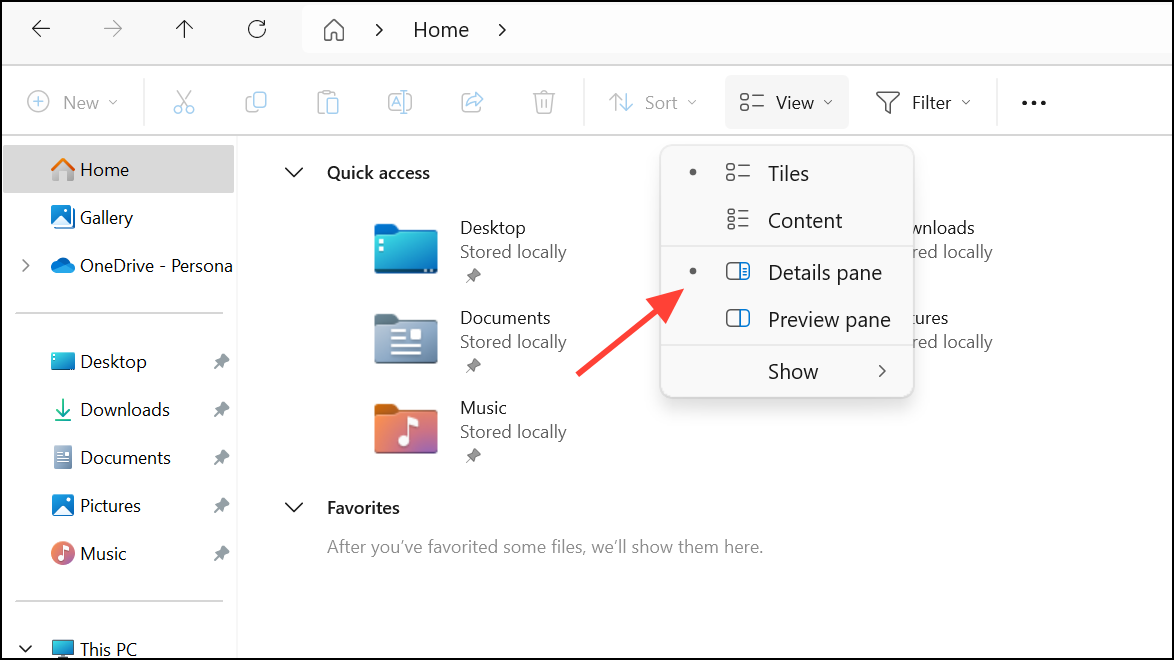

After these adjustments, retry deleting, renaming, or modifying the file.
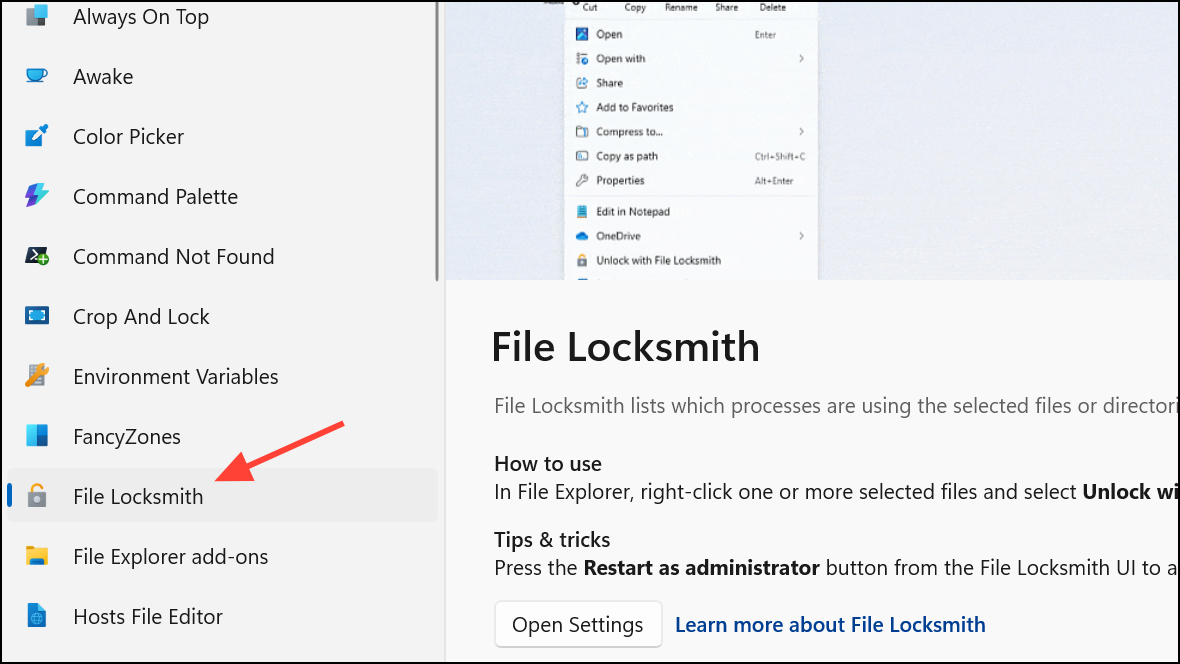
Use File Locksmith Utility in PowerToys
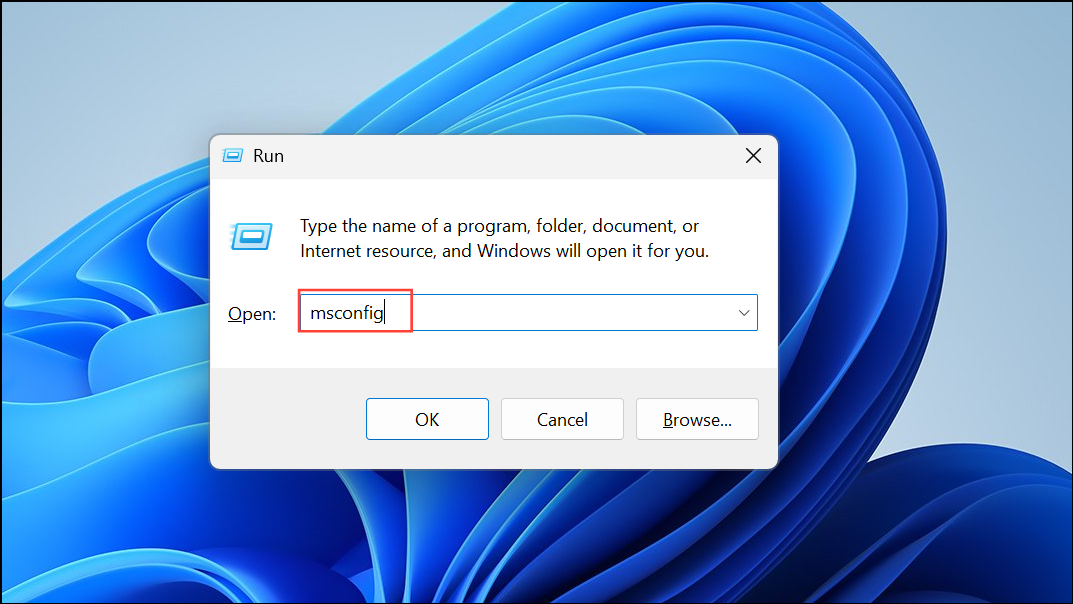
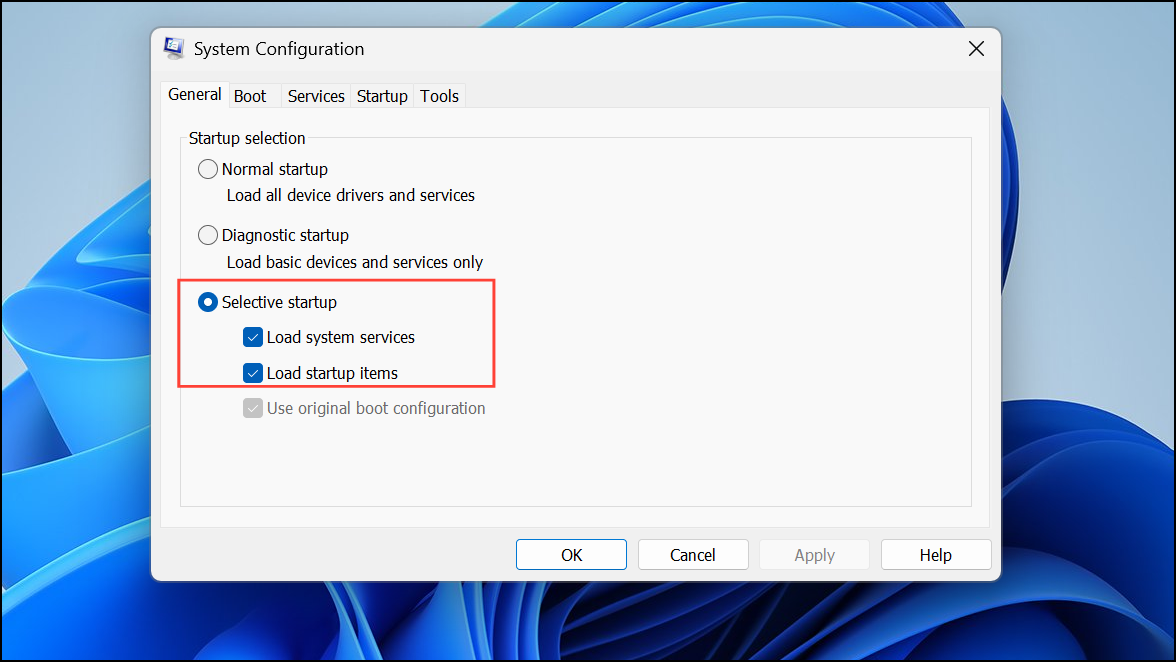
Perform a Clean Boot to Rule Out Third-Party Interference
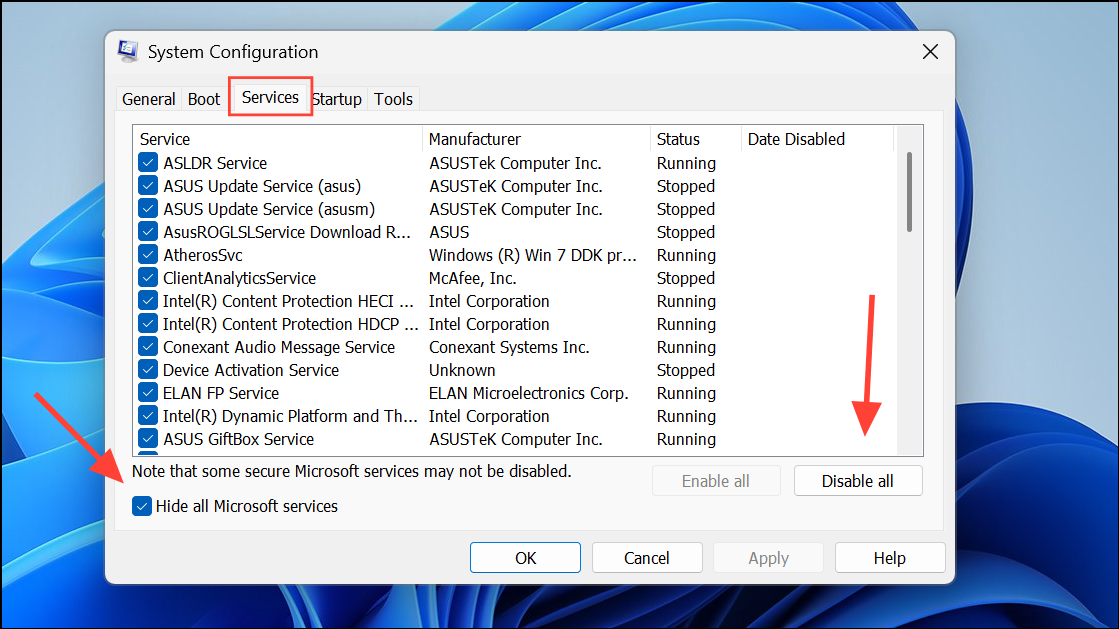
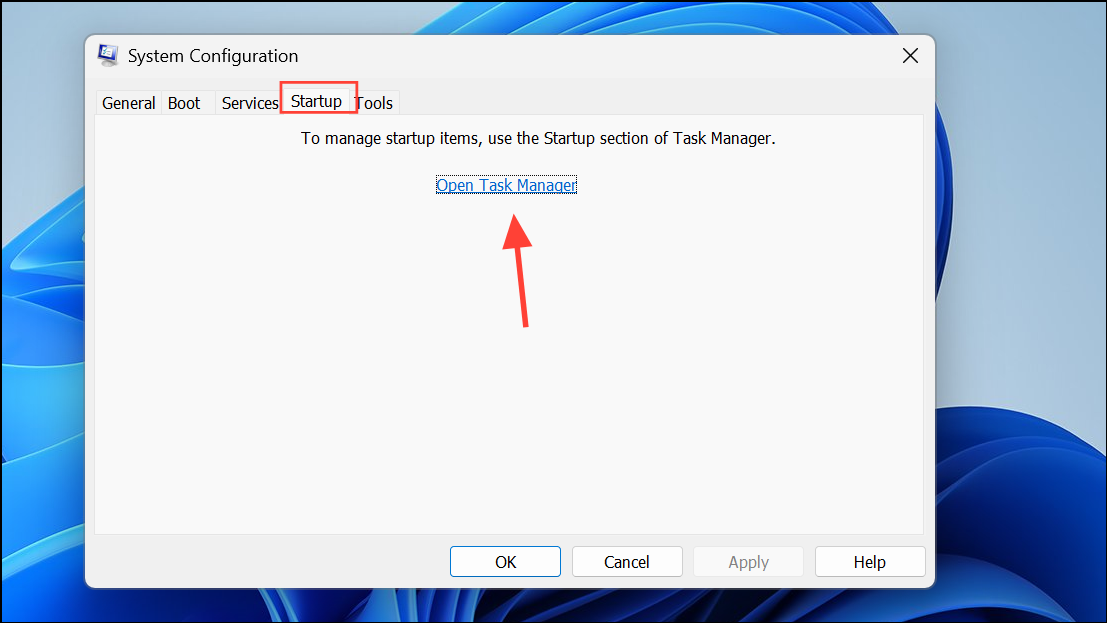
Disable Data Execution Prevention (DEP) for COM Surrogate
Data Execution Prevention (DEP) is a security feature that can sometimes interfere with certain processes like COM Surrogate. Disabling DEP for COM Surrogate may resolve persistent file lock issues, but it can reduce system security.
Win + R, typing cmd, then pressing Ctrl + Shift + Enter.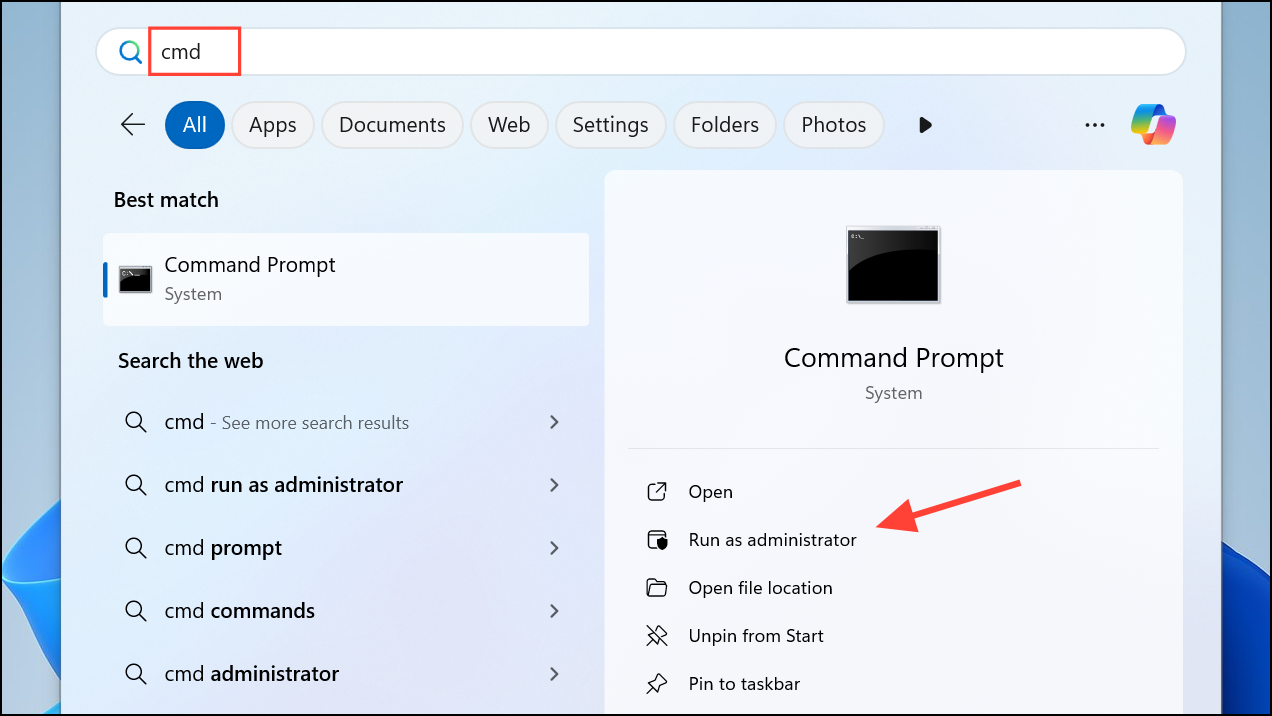
BCDEDIT /SET {CURRENT} NX ALWAYSOFF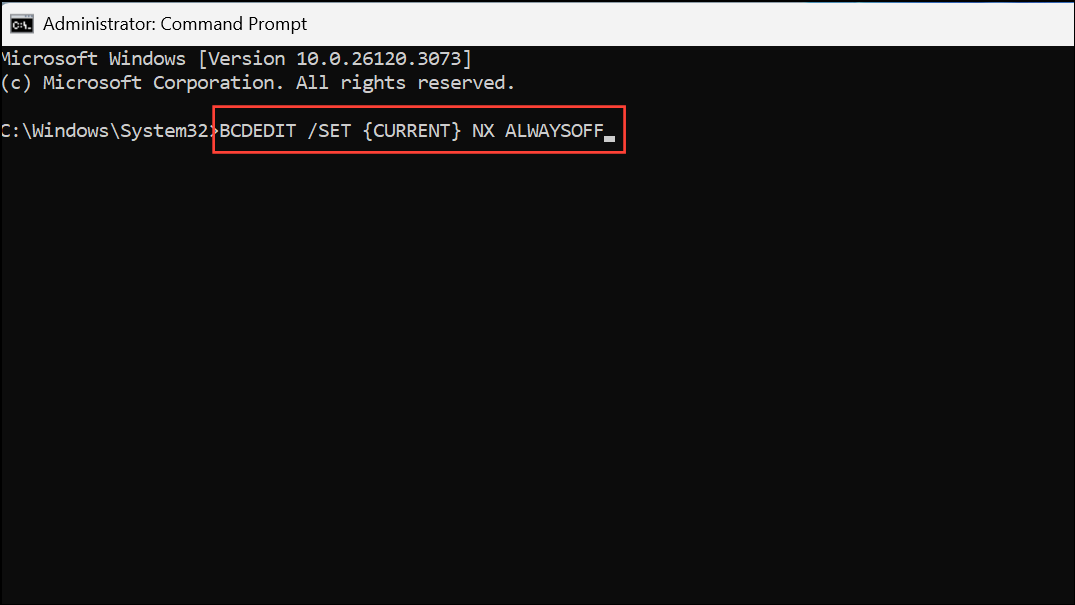
BCDEDIT /SET {CURRENT} NX ALWAYSON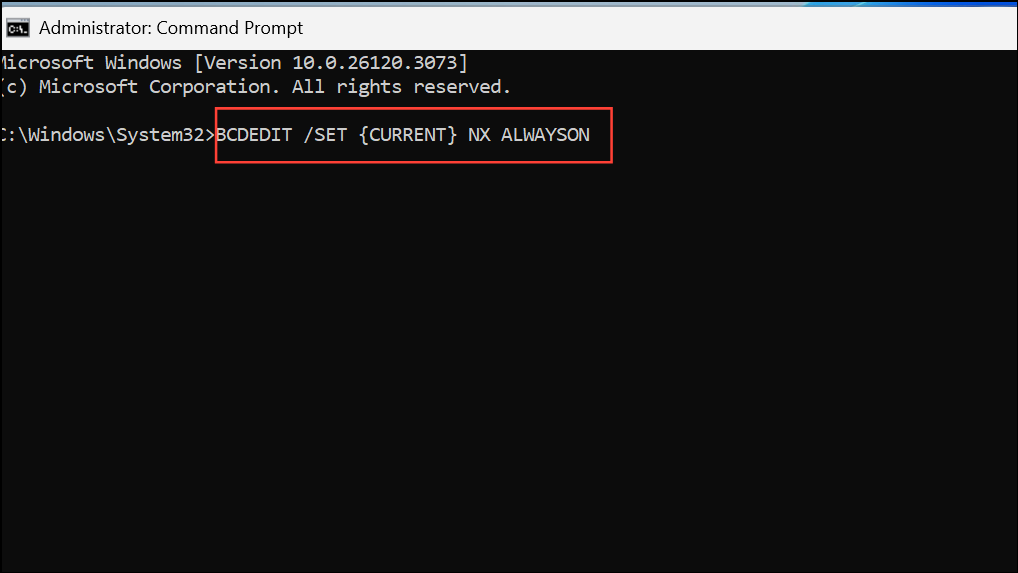
Only use this method if other solutions fail and you understand the security implications.
Delete Files Using Safe Mode or Command Prompt
If standard methods fail, booting into Safe Mode or using Command Prompt in Windows Recovery Environment (WinRE) can help remove stubborn files.
Shift while clicking Restart in the Start menu. This opens the advanced startup menu.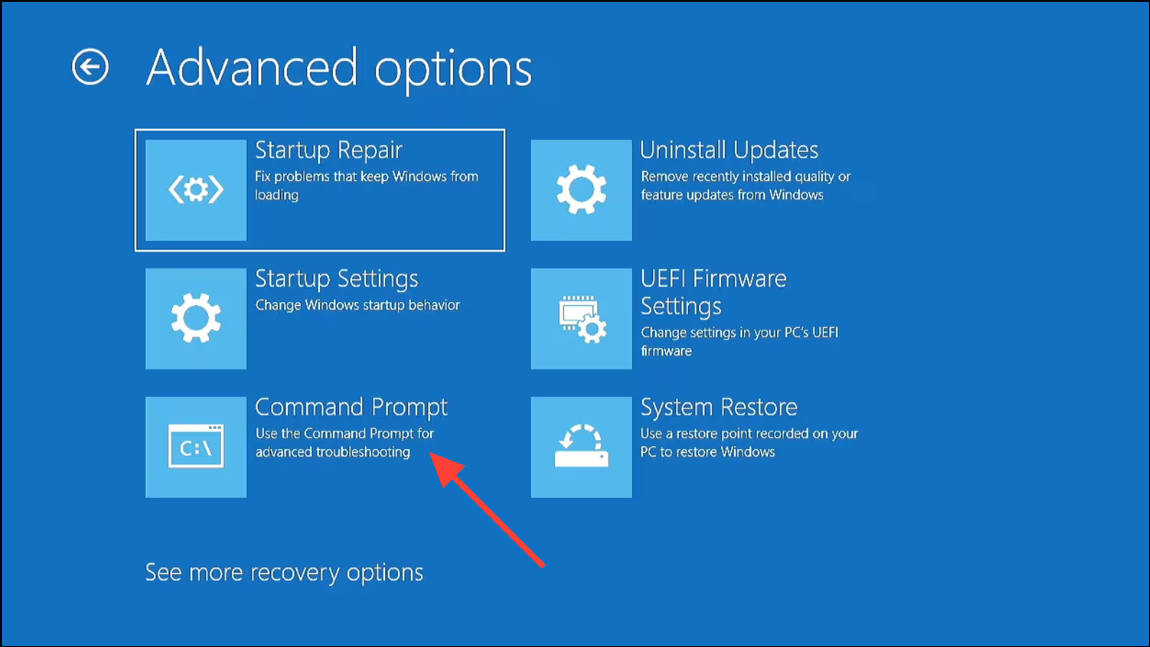
cd to navigate to the folder containing the locked file. Use del filename.ext to attempt deletion.This approach works because minimal system processes run in Safe Mode or WinRE, reducing the likelihood of COM Surrogate or other background processes holding file locks.
Additional Tips and Workarounds
- Some users find that opening the file, making a minor edit, saving, and closing the application can release the lock, allowing deletion.
- Disabling thumbnail previews system-wide can reduce the frequency of COM Surrogate errors. In File Explorer Options, select Always show icons, never thumbnails under the View tab.
- If the error persists across multiple files or after system updates, check for a corrupted thumbnail cache by running
cleanmgrand selecting Thumbnails for cleanup. - For files that remain locked despite all efforts, consider using third-party utilities such as Unlocker or performing the deletion from a Linux live USB environment as a last resort.
Resolving the COM Surrogate file lock error in Windows 11 often requires ending the related process in Task Manager or adjusting Explorer’s preview settings. If these steps don’t work, deeper troubleshooting with clean boot, Safe Mode, or system utilities can usually restore normal file operations.



