

The Universal Print service on Windows 11 can generate frequent event log entries showing Failed to get auth header with 0x8086000c or similar authentication errors. These errors often appear after system startup, wake-from-sleep, or when the McpManagementService is triggered, even if users do not actively use Universal Print. This can quickly clutter event logs and may indicate configuration or authentication problems, especially in environments using Azure Active Directory or Microsoft 365.
Disable Universal Print or McpManagementService
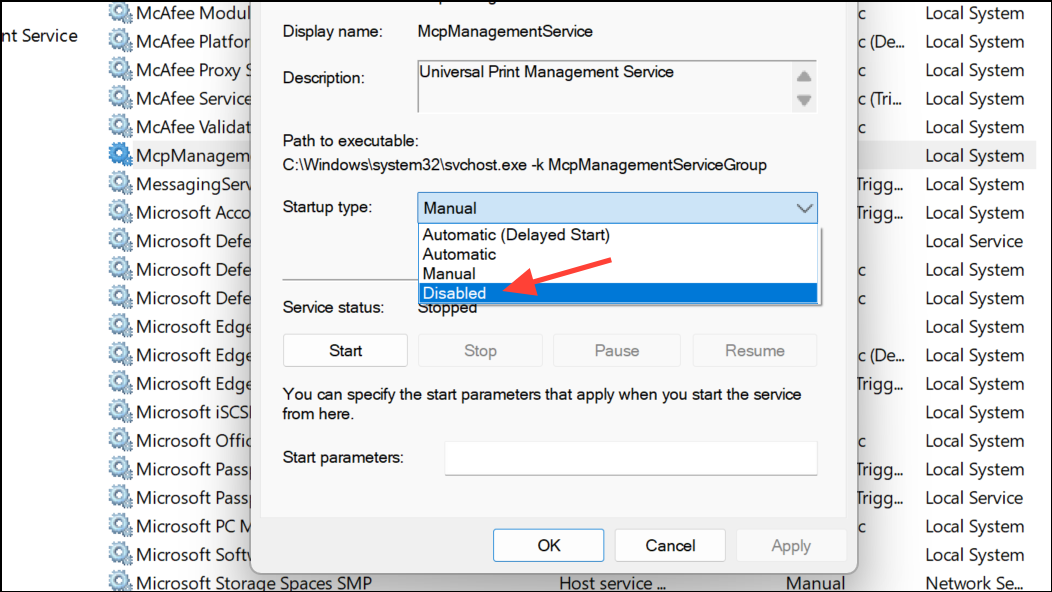
Disabling the Universal Print service or the related McpManagementService is the most direct solution when the service is not required. This stops the repetitive error messages and has no effect on local or LAN printing for most users.
Win + R to open the Run dialog, then type services.msc and press Enter. This opens the Services Manager.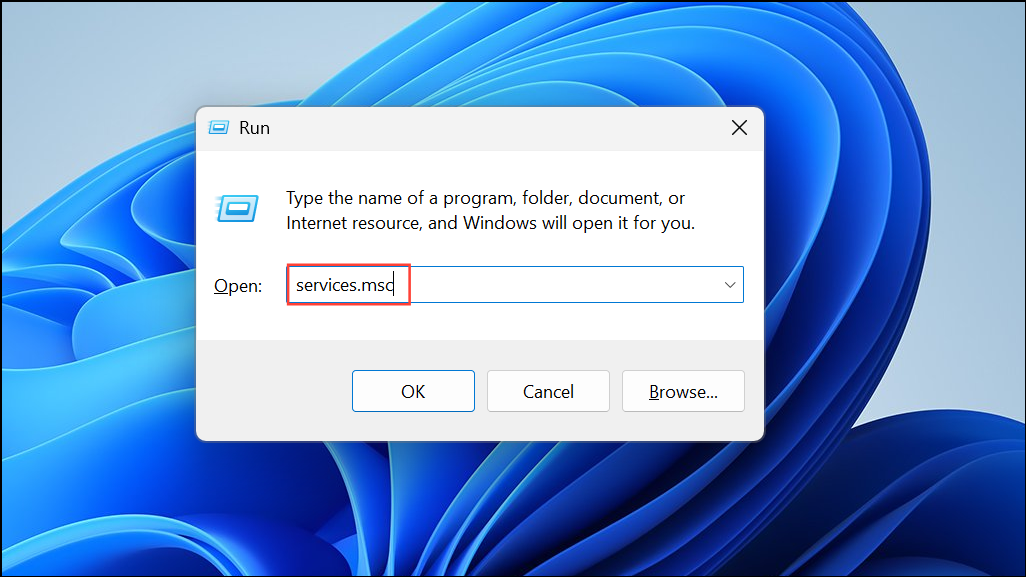
McpManagementService or any service labeled with Universal Print or Print Connector Service. Right-click the service and select Properties.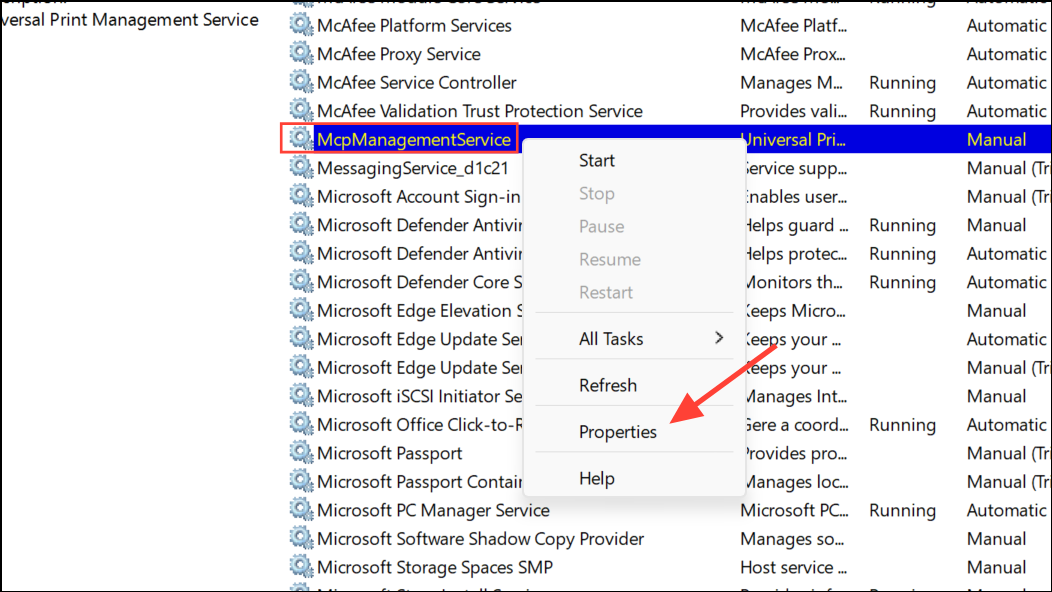
Replace or Repair McpManagementService.dll
If Universal Print is needed, a corrupted or mismatched McpManagementService.dll file can cause error 0x8086000c. Replacing or repairing this file may resolve the issue.
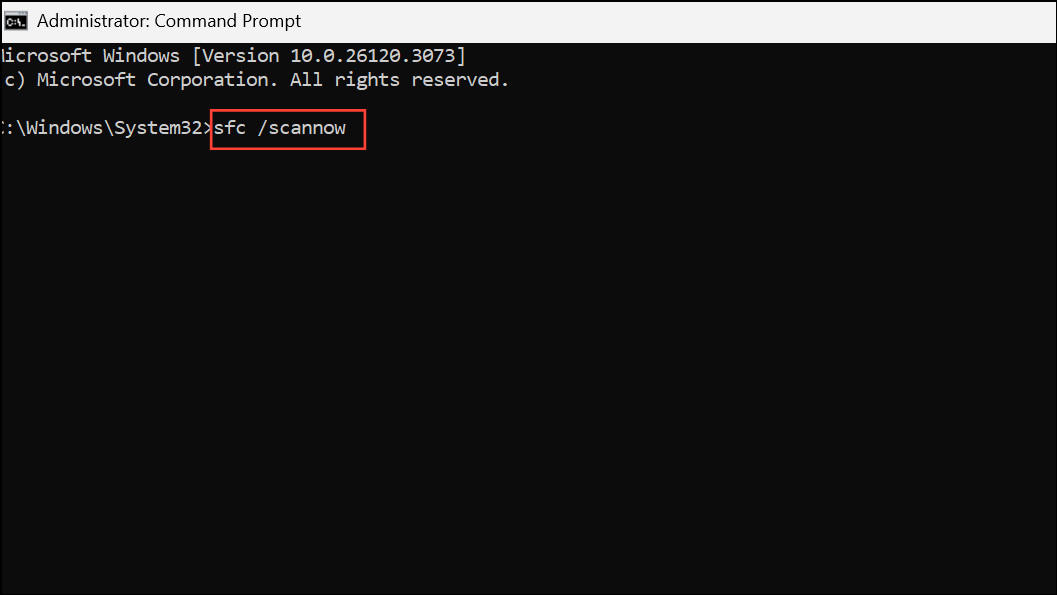
sfc /scannowThis scans and repairs system files, including McpManagementService.dll.
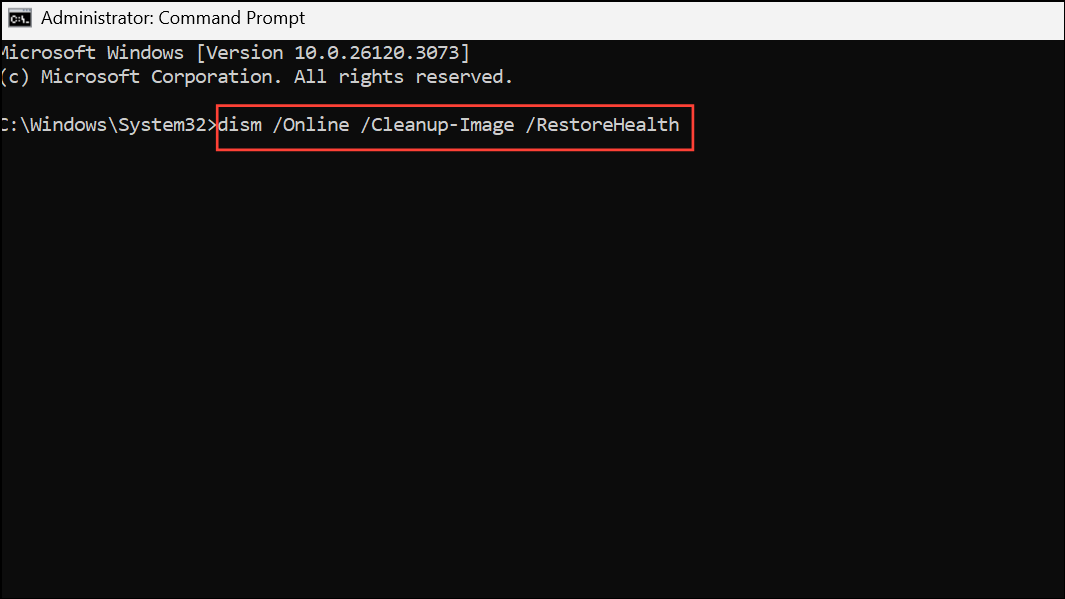
dism /Online /Cleanup-Image /RestoreHealthThis command repairs the Windows image and can resolve deeper corruption issues.
McpManagementService.dll from another Windows 11 computer with the same OS build. Replace the file at C:\Windows\System32 (after renaming the old file as a backup), then register the new DLL by running:regsvr32 McpManagementService.dll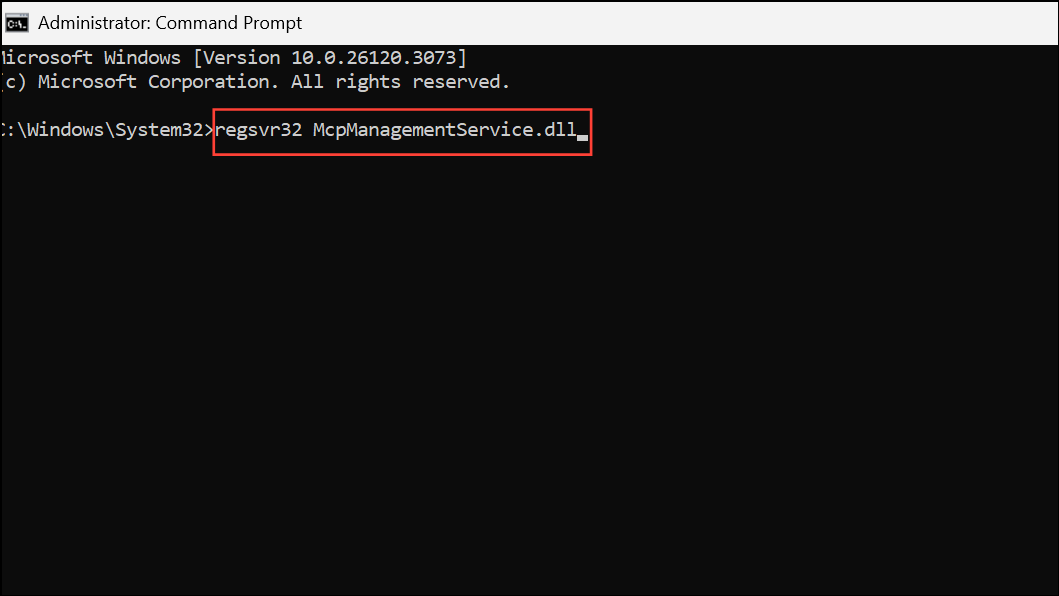
Restart the PC to apply changes.
Verify Azure AD Configuration and Credentials
Universal Print relies on Azure Active Directory (Azure AD) for authentication. Misconfigured or expired credentials can prevent the service from acquiring tokens, resulting in error 0x8086000c.
Reset or Re-Register the Universal Print Connector
The Universal Print Connector bridges local printers to Microsoft’s cloud print service. If connectors are misconfigured or registered with stale credentials, they may trigger authentication errors.
This process resets the authentication handshake and can resolve persistent token issues.
Clear Cached Credentials
Outdated or corrupted cached credentials can block Universal Print from obtaining valid authentication headers.
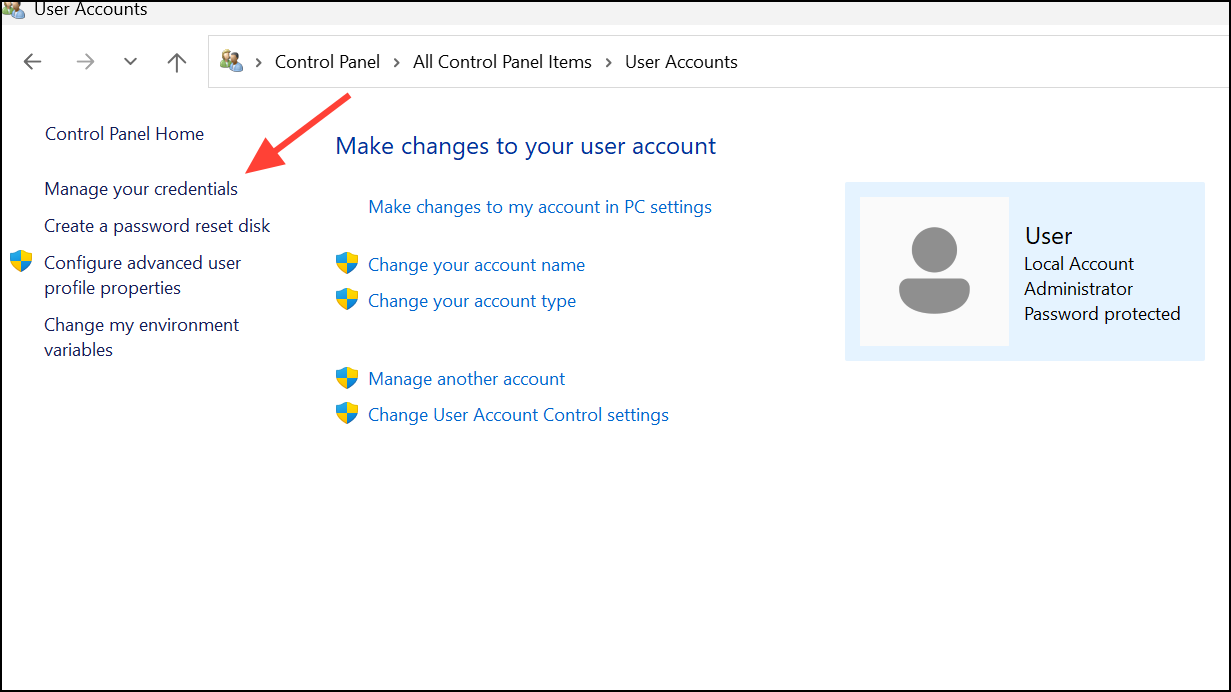
MicrosoftOffice_Data:SSO:, AzureAD\, or references to Universal Print or Microsoft Graph.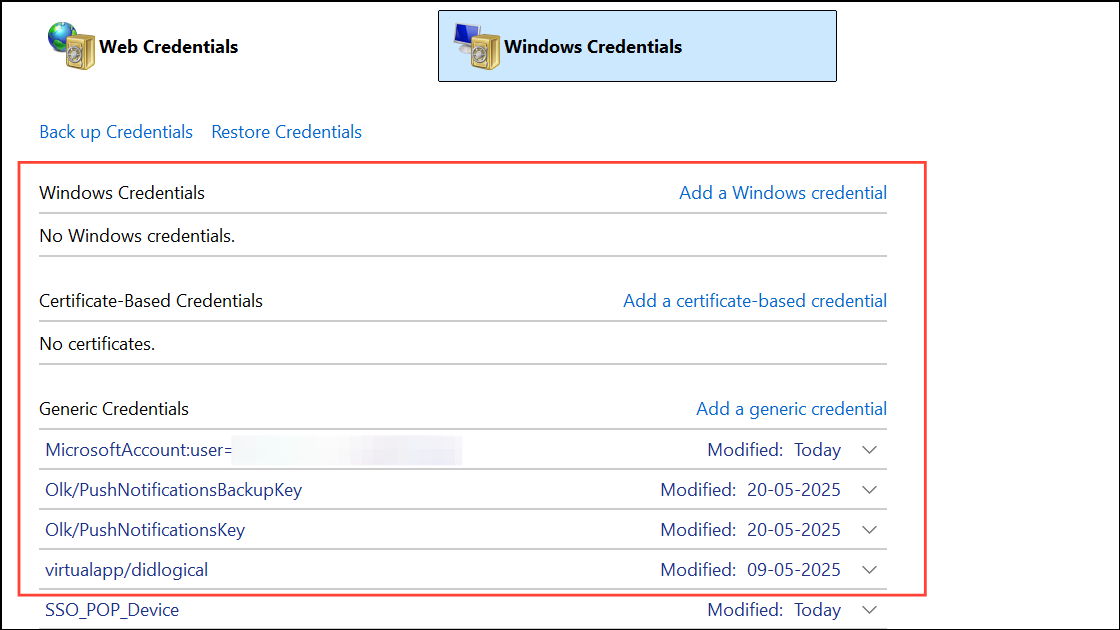
Restart or Troubleshoot Universal Print Services
Sometimes, Universal Print errors occur due to temporary glitches or service interruptions. Restarting related services or running Windows printer diagnostics can resolve transient issues.
services.msc), locate Microsoft Universal Print Service and Print Spooler. Right-click each and select Restart.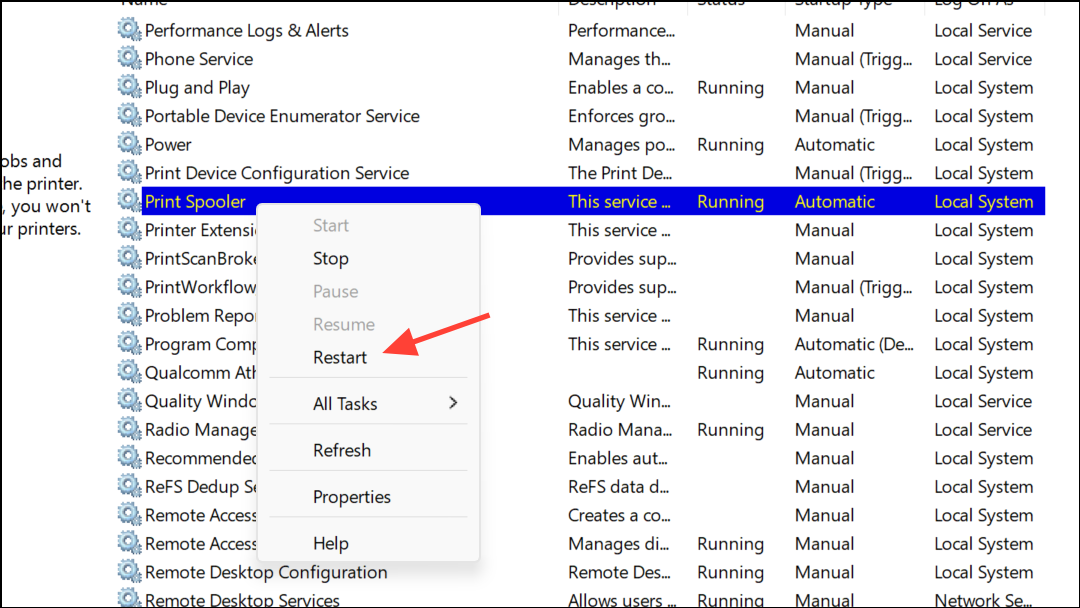
msdt.exe /id PrinterDiagnostic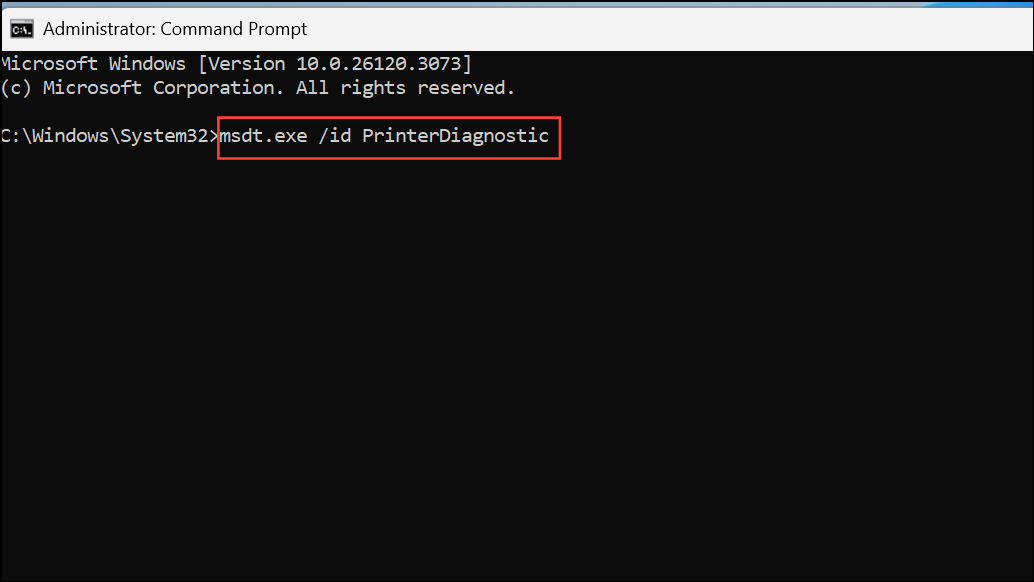
Follow the on-screen instructions to let Windows identify and fix common print-related issues.
Addressing error 0x8086000c on Windows 11 Universal Print involves confirming service necessity, repairing system files, checking Azure AD authentication, and clearing cached credentials. Disabling unnecessary services quickly stops repetitive errors and keeps event logs manageable.



