Fix Wi-Fi Not Connecting Automatically in Windows 11
Resolve persistent Wi-Fi auto-connect issues in Windows 11 with proven methods, from adjusting network settings to updating drivers and modifying system configurations.
Resolve persistent Wi-Fi auto-connect issues in Windows 11 with proven methods, from adjusting network settings to updating drivers and modifying system configurations.
by Pallav Pathak
Windows 11 systems sometimes fail to connect to Wi-Fi networks automatically after startup, sleep, or hibernation. This disrupts workflows, especially in environments where seamless connectivity is critical. The core issue often stems from configuration mismatches, outdated drivers, or power management settings that interfere with network adapter behavior. Addressing these root causes restores reliable, automatic wireless connectivity and eliminates the need for manual intervention each time your device wakes or restarts.
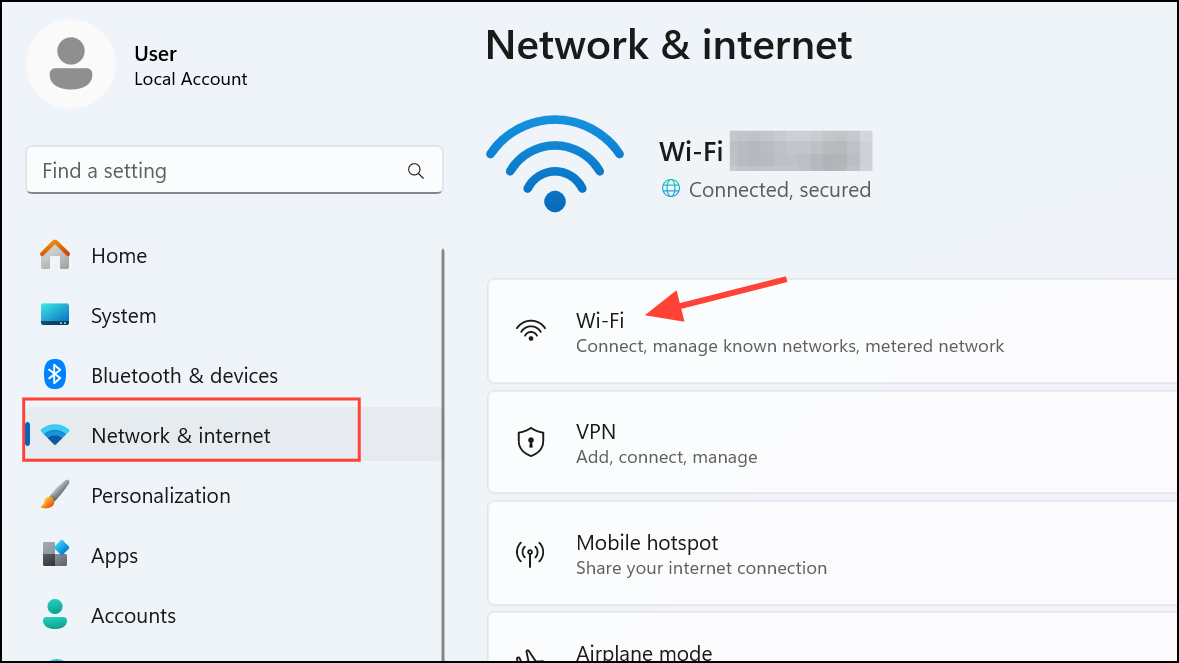
Open the Wi-Fi settings by selecting the network icon in the taskbar or pressing Windows + I to access the Settings app. Navigate to Network & internet and choose Wi-Fi.
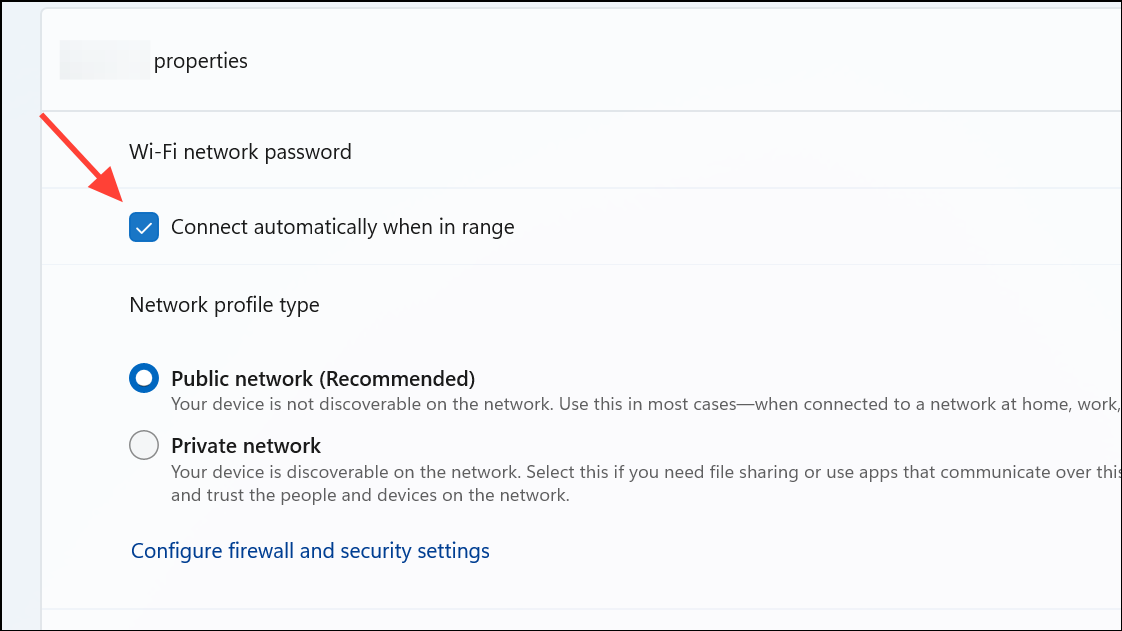
Ensure the box for Connect automatically when in range is checked. This setting instructs Windows 11 to connect to the selected network whenever it is within signal range, eliminating the need for manual connection each time.
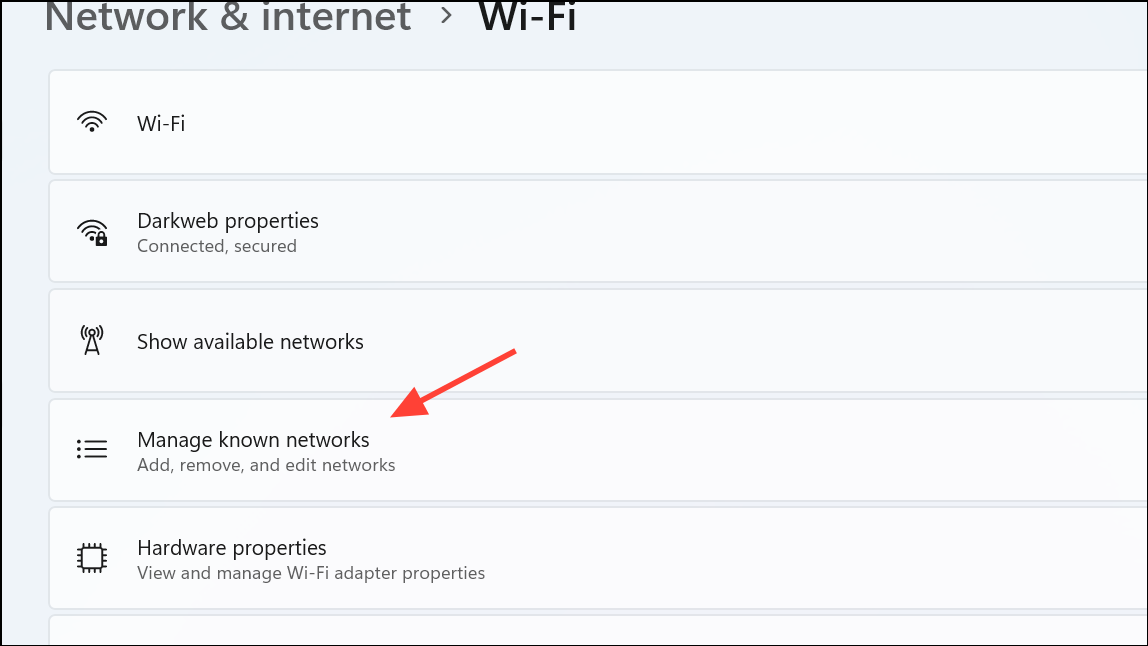
Reconnect to the network by selecting it from the list of available Wi-Fi networks. Before clicking Connect, check the Connect automatically box. Enter the updated password when prompted. This process refreshes your credentials and ensures Windows 11 will reconnect automatically in the future.
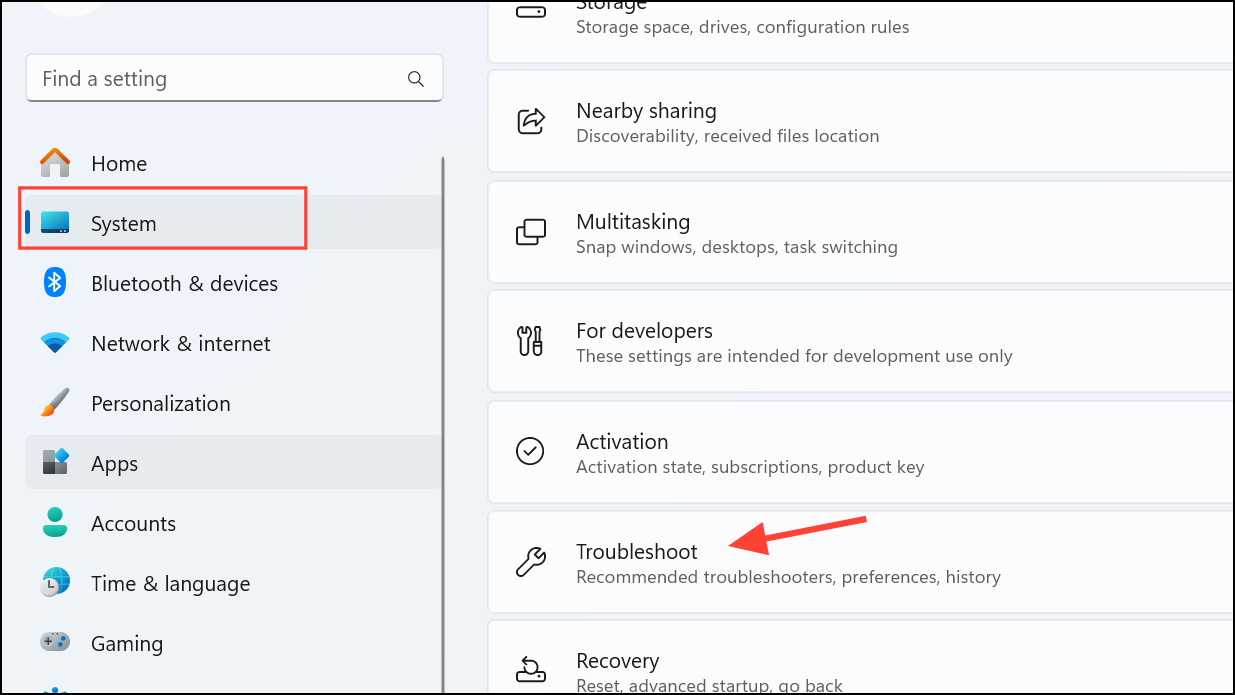
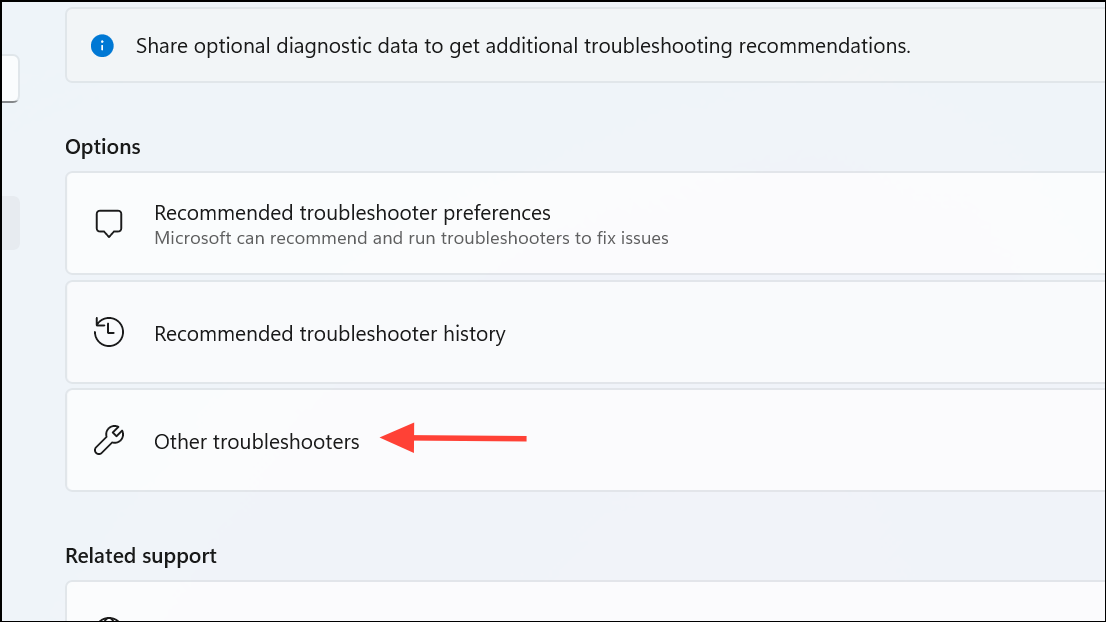
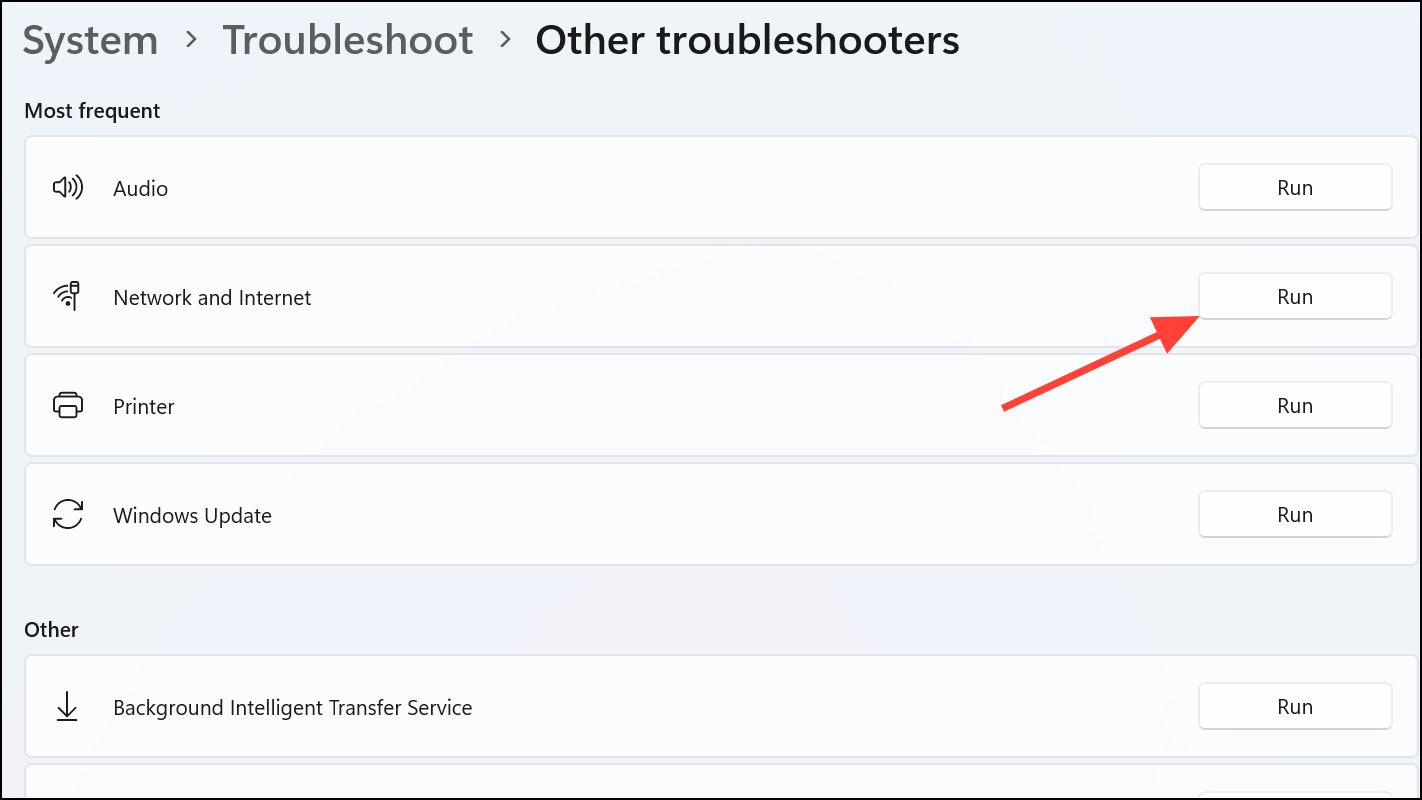
Click Run next to the troubleshooter. Follow the on-screen instructions. The tool will scan for common network-related issues and attempt to resolve them automatically, including problems that prevent Windows from connecting to Wi-Fi networks without user input.
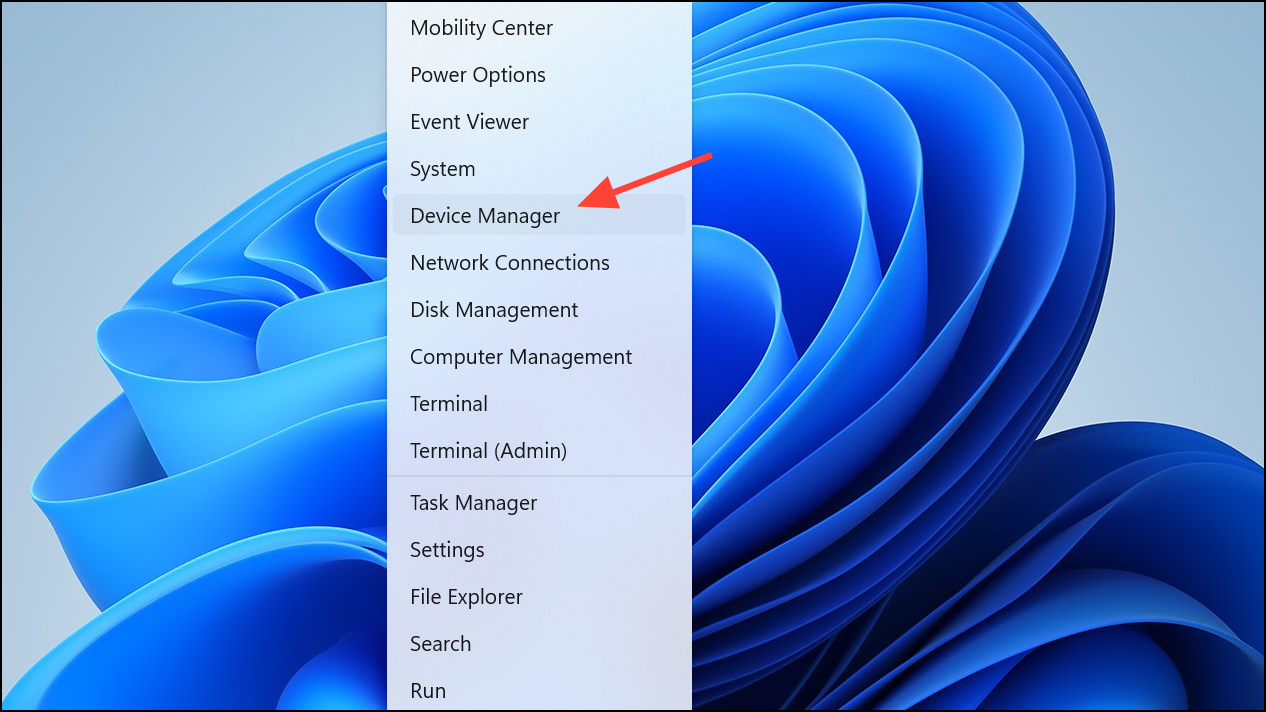
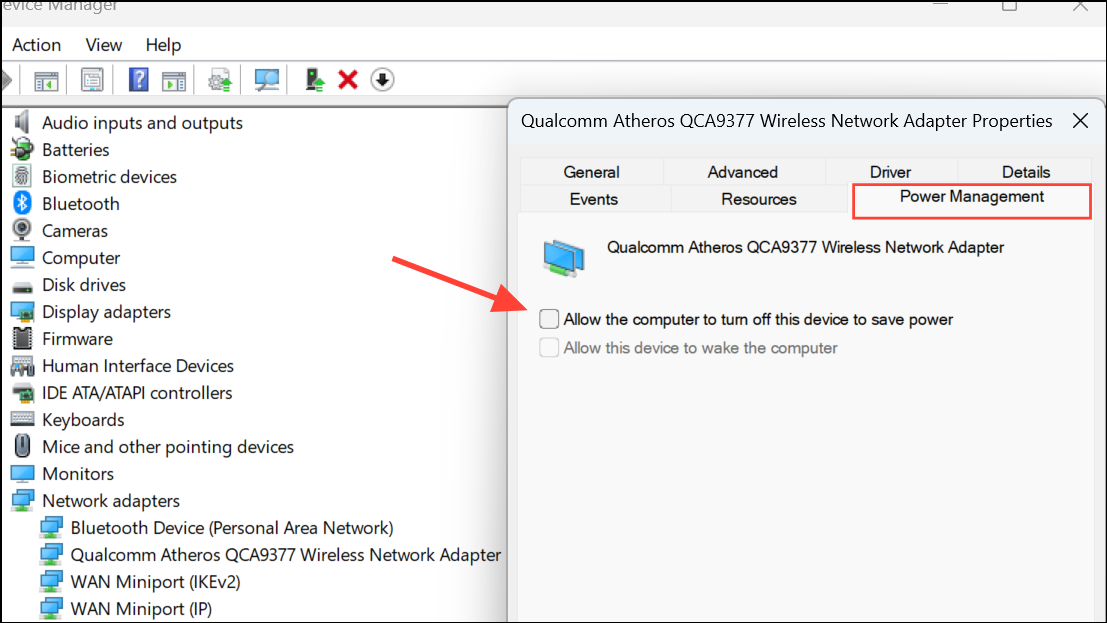
Go to the Power Management tab. Uncheck the box labeled Allow the computer to turn off this device to save power. Click OK to save the change.
This adjustment ensures the Wi-Fi adapter remains active during sleep or hibernation cycles, so automatic reconnection occurs as soon as the device resumes operation.
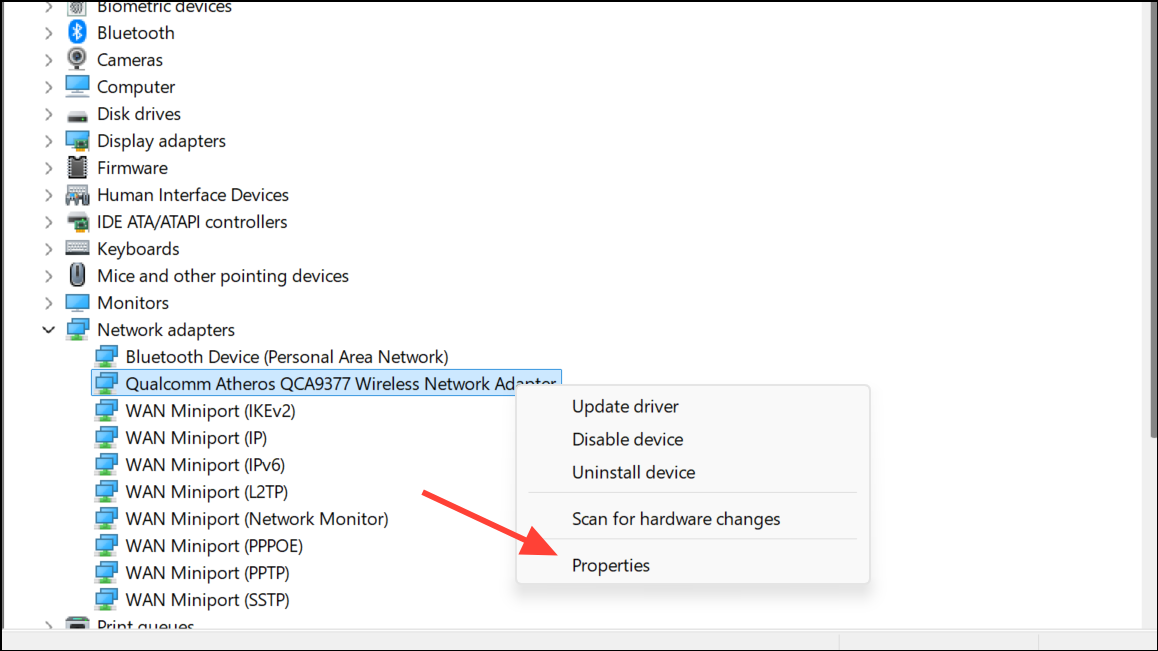
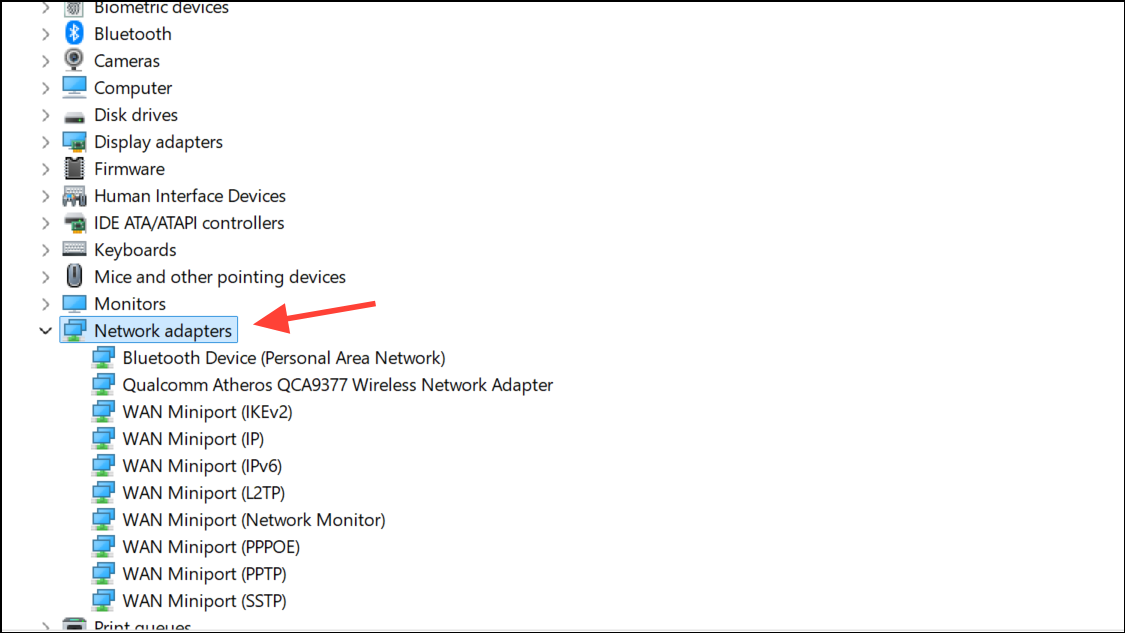
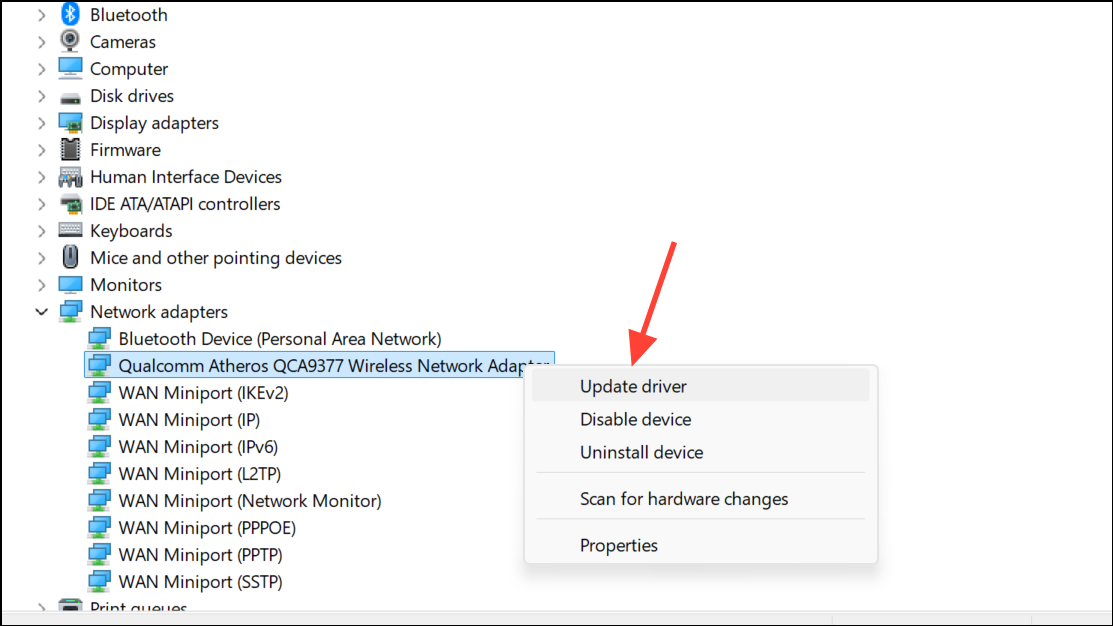
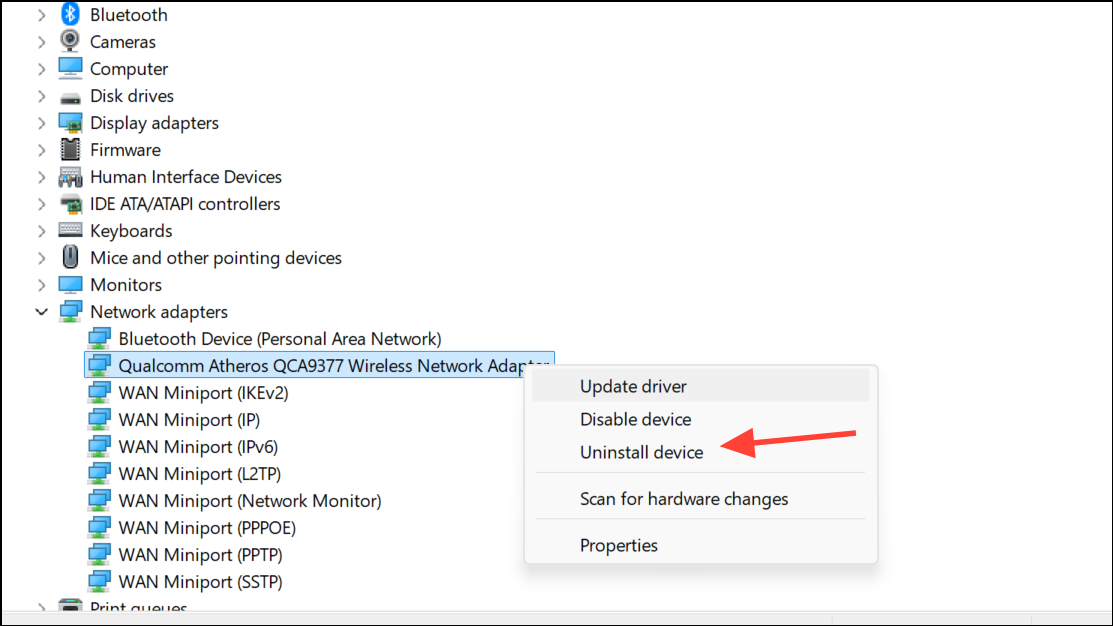
If automatic updates do not resolve the issue, right-click the adapter and select Uninstall device. Confirm the uninstallation, then restart your computer. Windows will reinstall the driver on boot, which can resolve corruption or compatibility issues that interfere with automatic connections.
For advanced troubleshooting, download the latest driver directly from your adapter or laptop manufacturer’s website and install it manually.
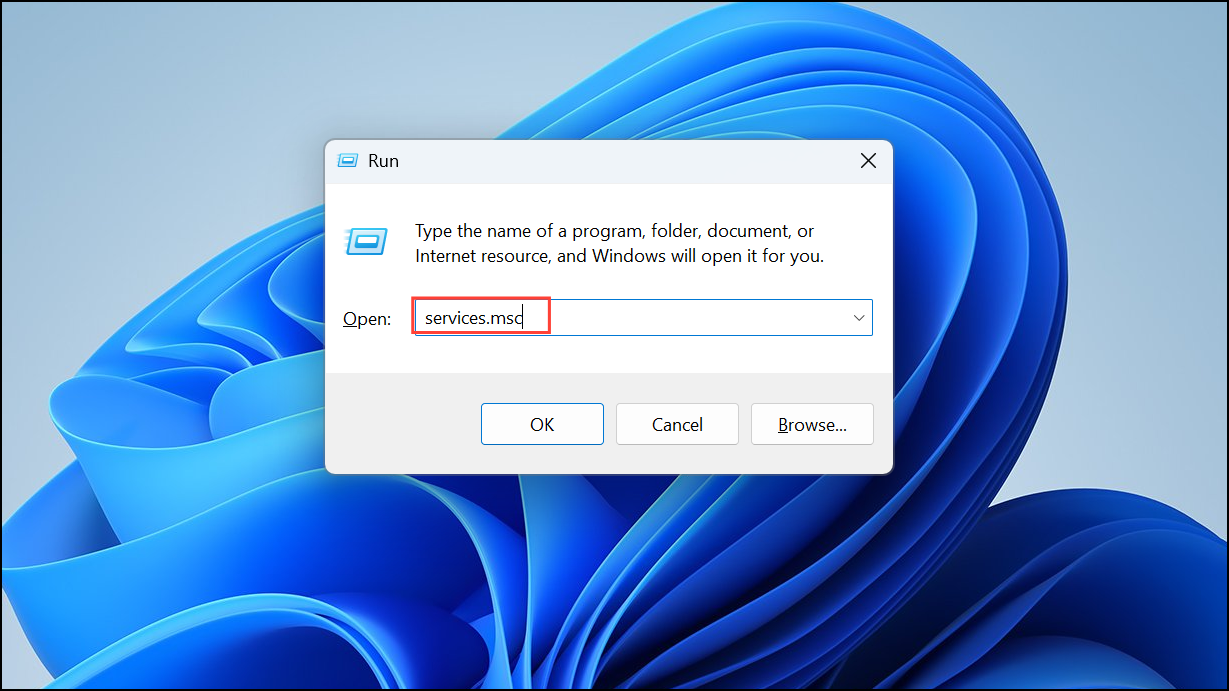
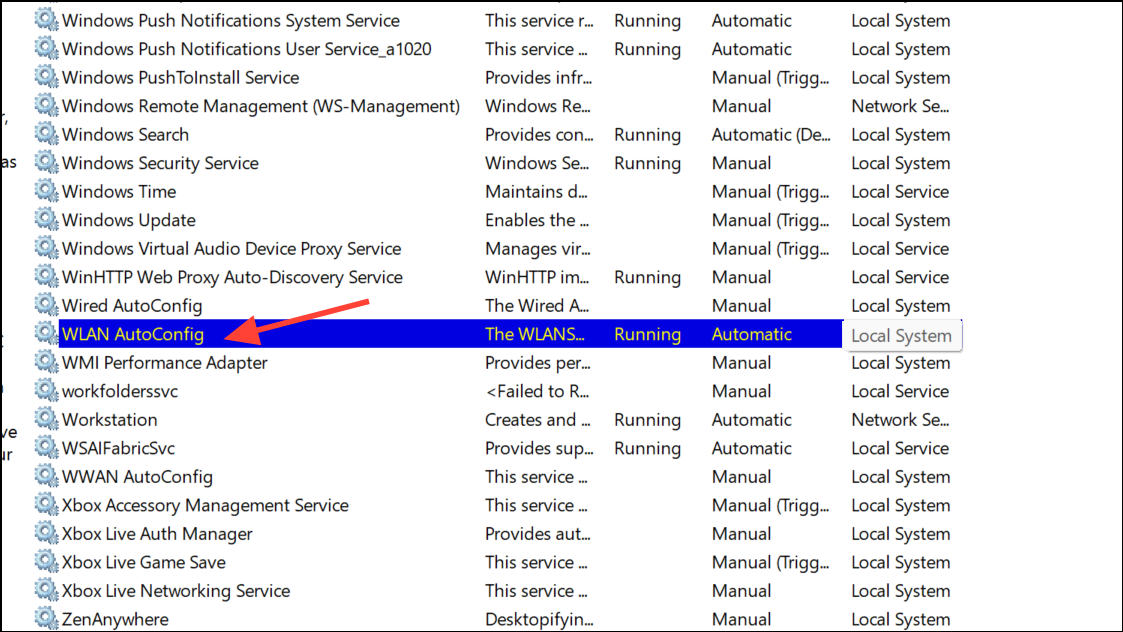
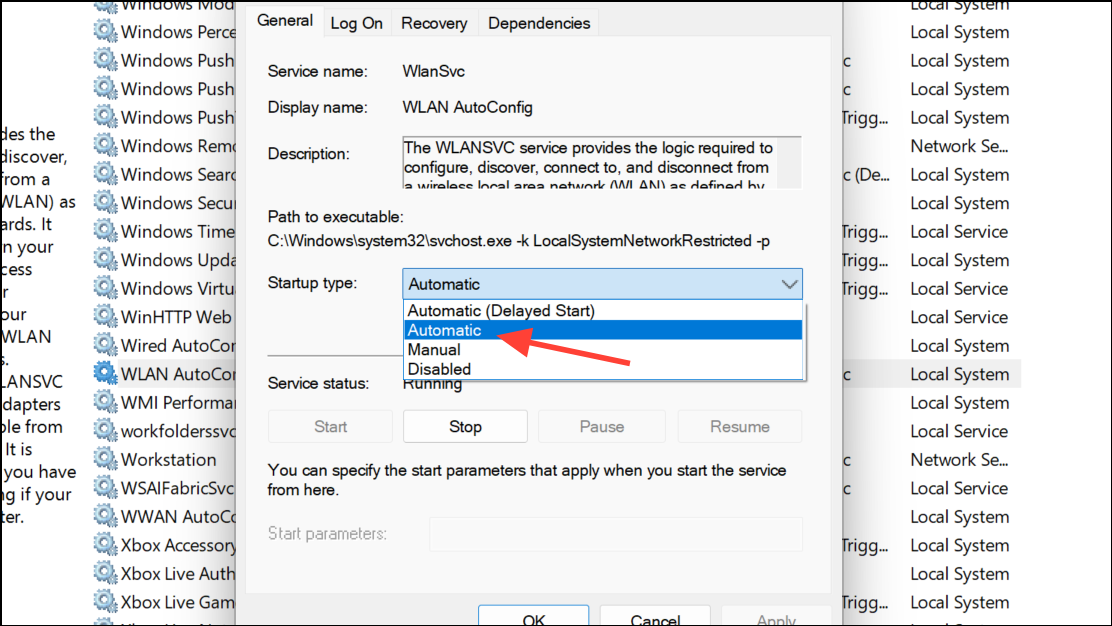
Set Startup type to Automatic. Click Apply and OK. Repeat this step for WWAN AutoConfig if present.
Setting these services to start automatically guarantees that Windows 11 manages wireless connections as soon as the system boots, supporting seamless auto-connect behavior.
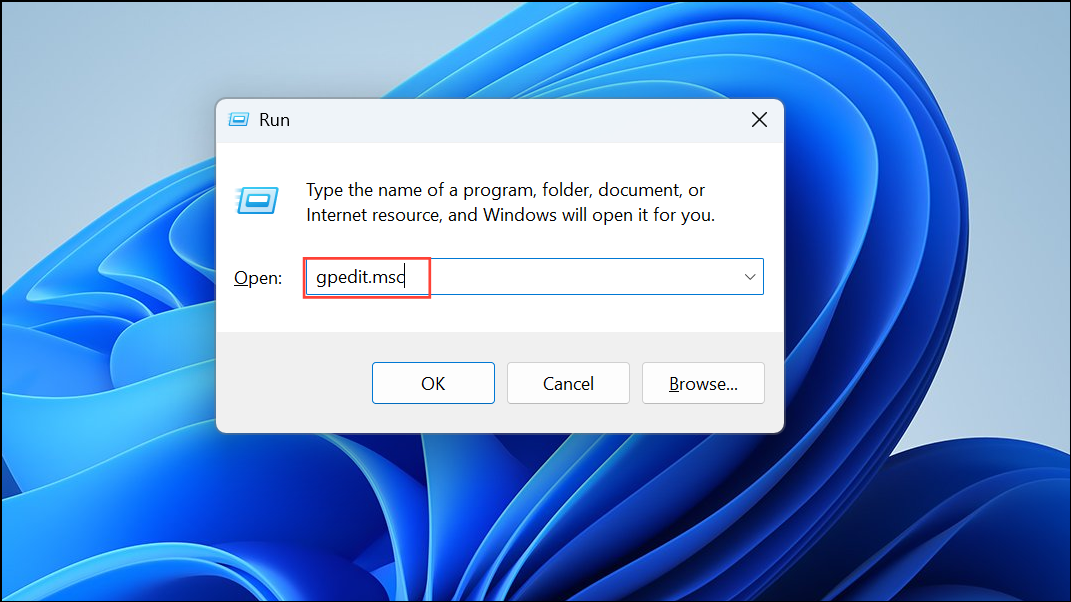
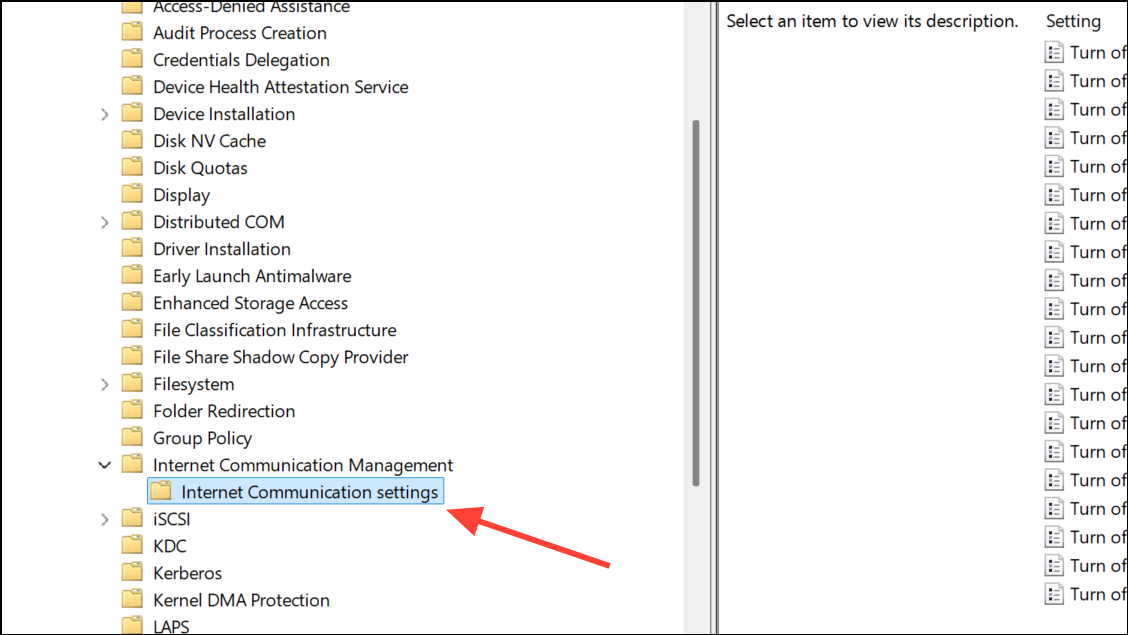
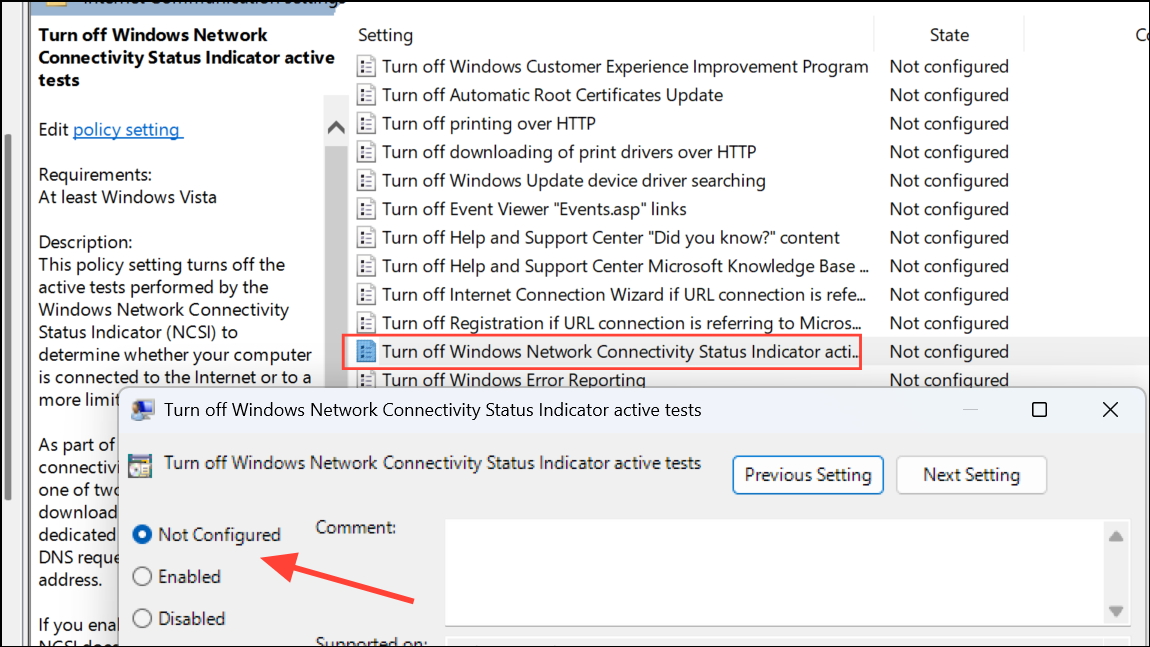
Double-click Turn off Windows Network Connectivity Status Indicator active tests. Set it to Not Configured, then click Apply and OK. Restart your PC to apply changes.
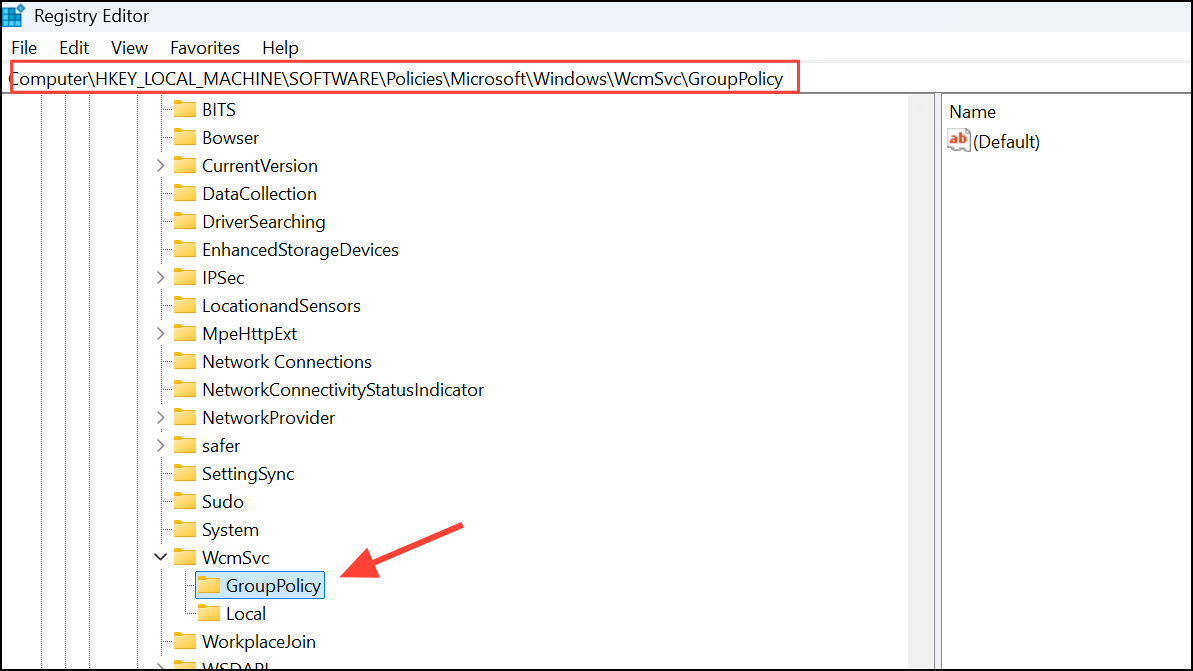
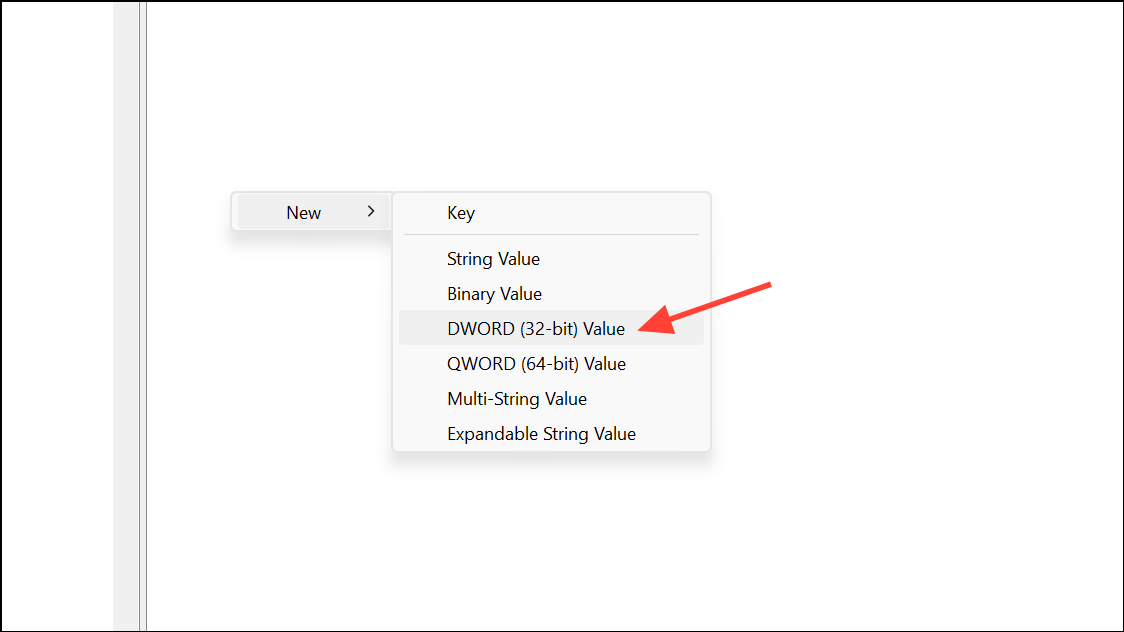
If Group Policy Editor is unavailable, modify the registry instead:
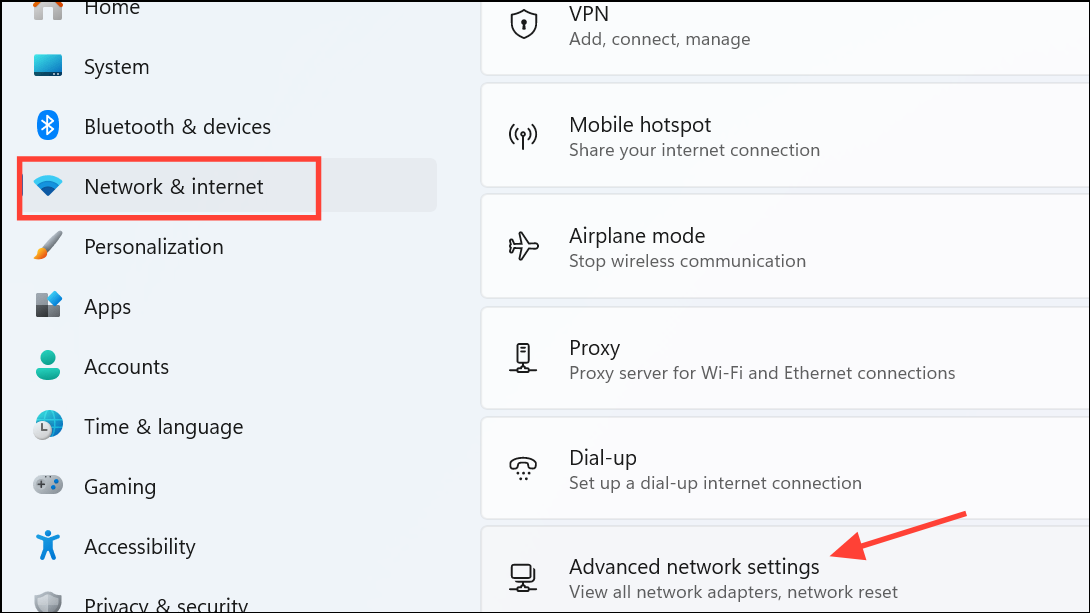
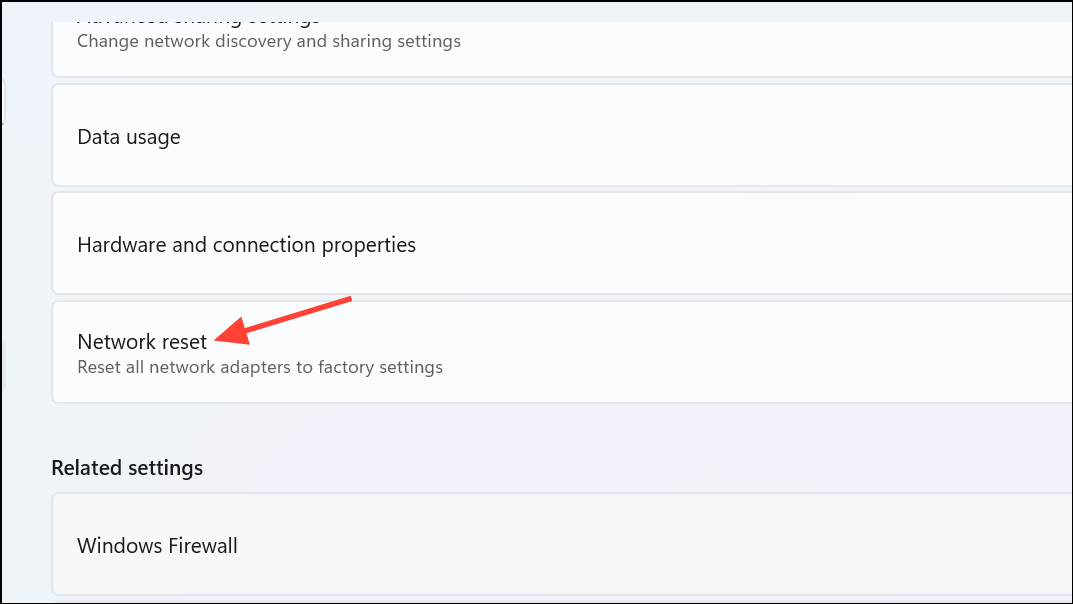
Click Network reset and then Reset now. Confirm when prompted.
This action reinstalls all network adapters and restores default networking configurations, resolving persistent issues that block automatic Wi-Fi connection. Note that you will need to re-enter Wi-Fi passwords and reconfigure VPN or custom DNS settings after the reset.
Check Wi-Fi Security and Authentication Mode
Authentication mode mismatches between your router and Windows 11 device can disrupt automatic connections. For example, if your router is set to use both WPA2 and WPA3, but your adapter struggles with WPA3, Windows may not auto-connect after sleep or restart.
Access your router’s admin interface and set the wireless security mode to WPA2 Personal if compatibility issues arise. On your Windows device, ensure your wireless adapter is set to match the router’s authentication mode. This adjustment often restores reliable auto-connect functionality.
Resolving Wi-Fi auto-connect problems in Windows 11 streamlines daily use and removes the hassle of manually connecting each session. Regularly updating drivers and reviewing network settings helps prevent future disruptions.