
Sudden shutdowns when plugging in USB devices on Windows 11 often indicate underlying hardware or software conflicts. This issue can disrupt workflow, risk data loss, and point to problems with power delivery, drivers, or device compatibility. Addressing it requires a systematic approach, starting with the most effective solutions and moving toward hardware checks if initial steps do not resolve the problem.
Update or Reinstall USB Drivers
Outdated, corrupted, or incompatible USB drivers frequently cause system instability when external devices are connected. Reinstalling or updating these drivers can restore proper communication between your hardware and Windows 11.
Windows + R to open the Run dialog. Type devmgmt.msc and press Enter to launch Device Manager.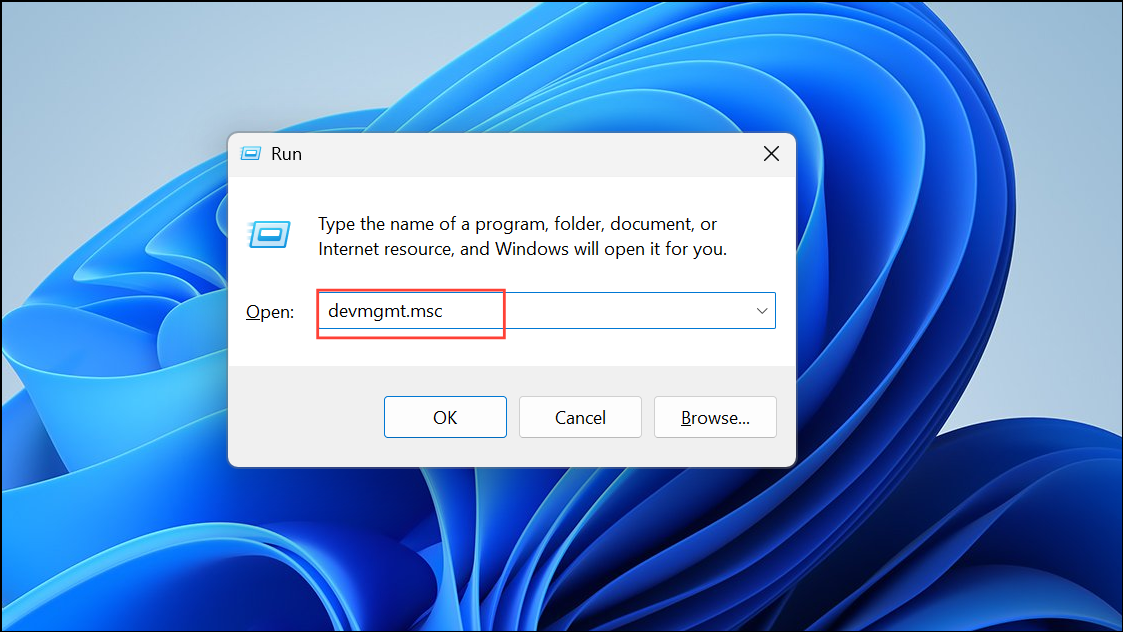
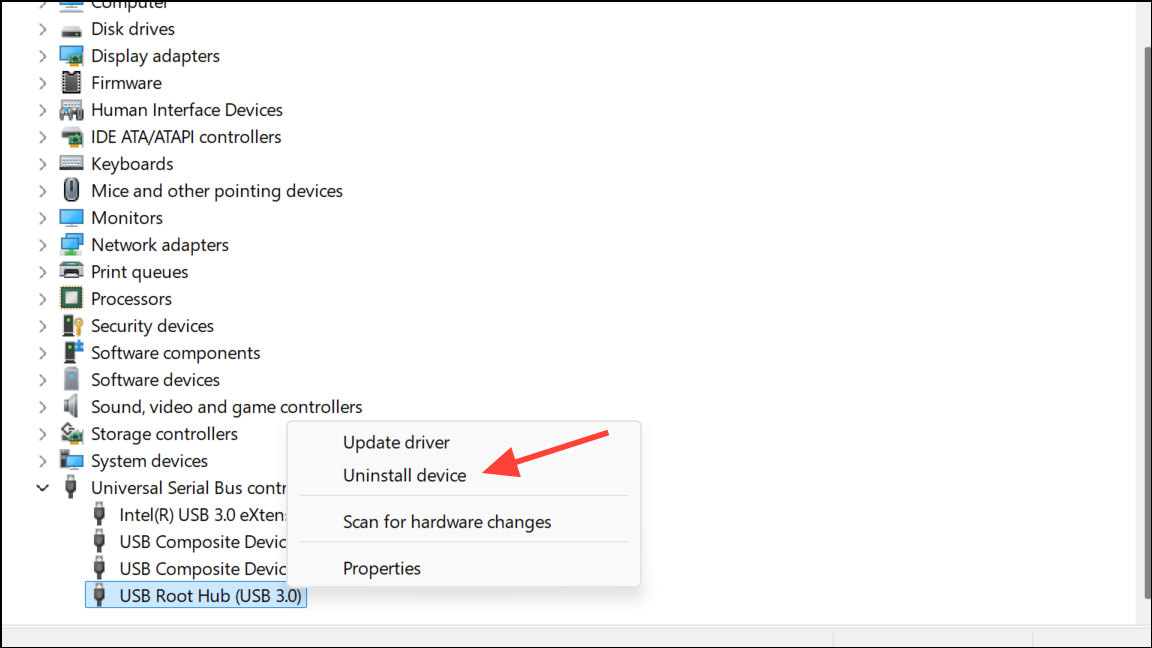
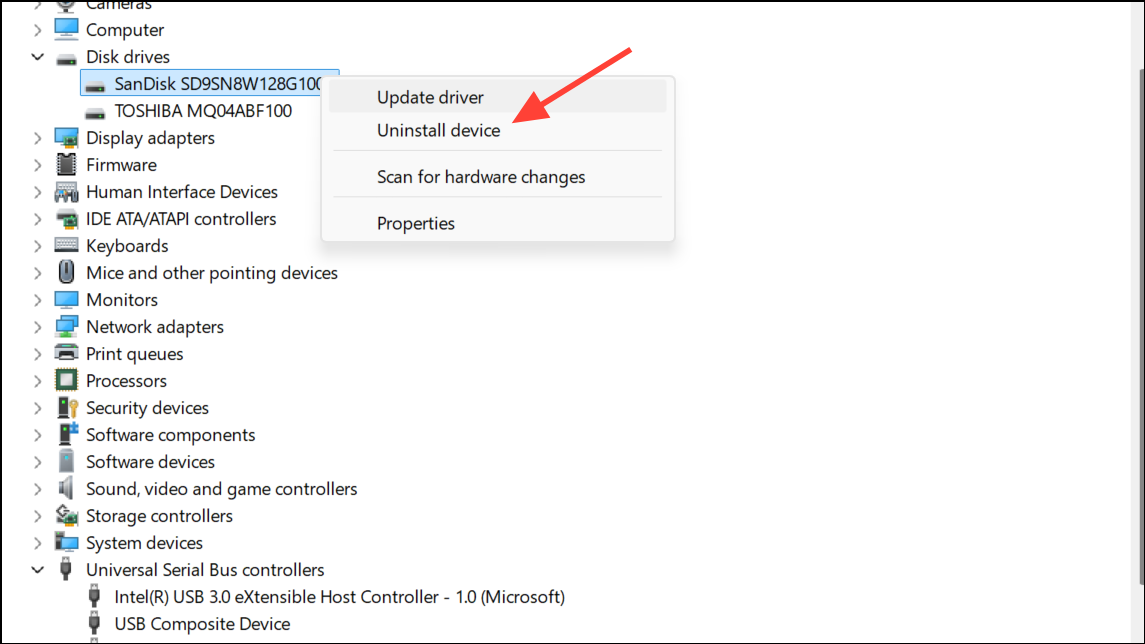
This process often resolves conflicts that cause shutdowns when new USB devices are detected.
Adjust Power Management and USB Selective Suspend Settings
Windows 11 includes power-saving features that can inadvertently cut power to USB ports, especially on laptops. Disabling these settings prevents the system from suspending USB devices to save energy, which can resolve unexpected shutdowns or device disconnects.
devmgmt.msc), expand Universal Serial Bus controllers and double-click each USB Root Hub entry.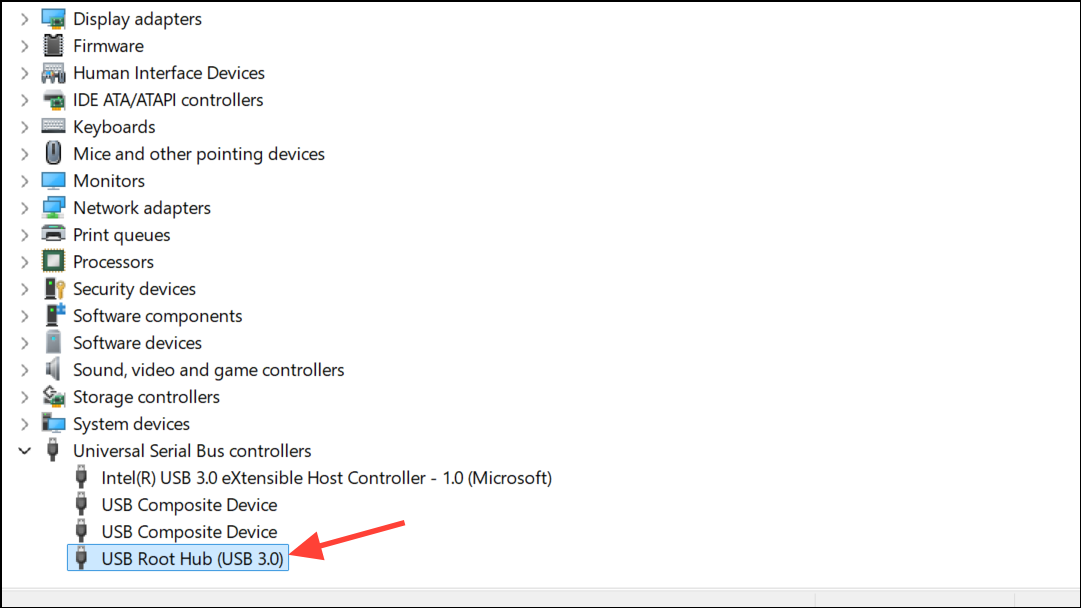
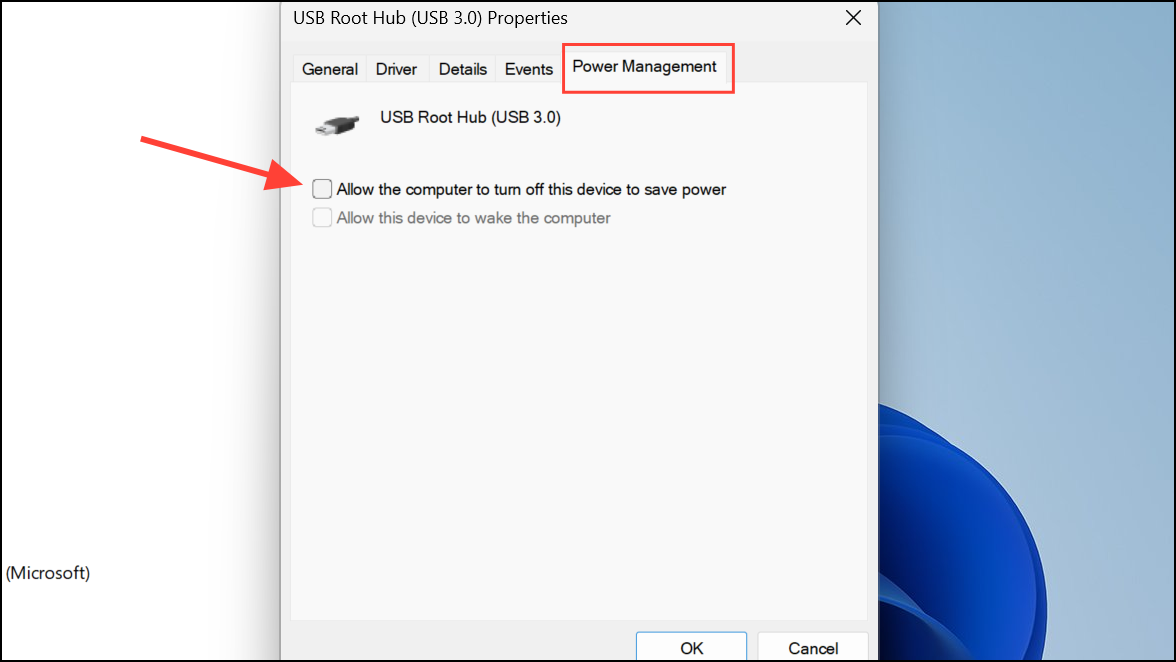
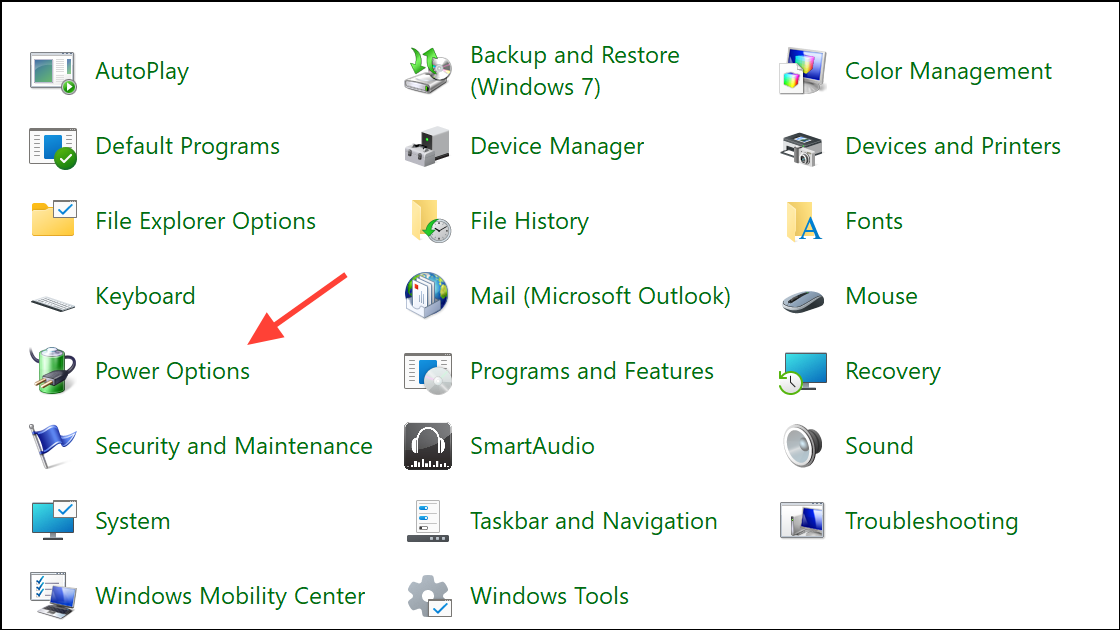
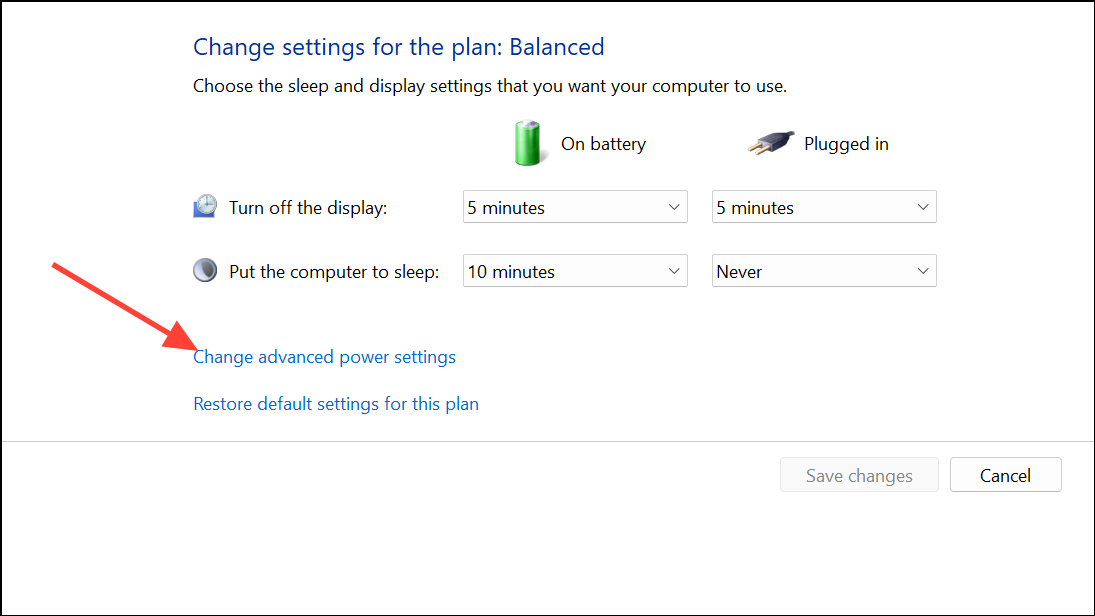
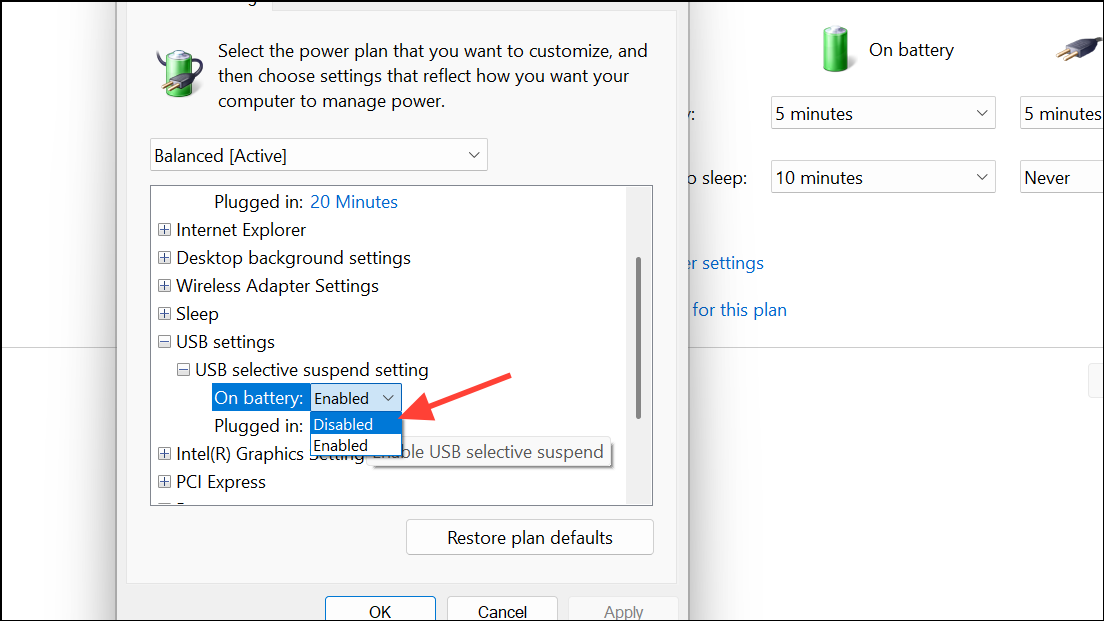
Disabling these features ensures that USB ports remain fully powered and less likely to trigger system shutdowns due to power management conflicts.
Run the Hardware and Devices Troubleshooter
Windows includes diagnostic tools that can automatically detect and resolve hardware-related issues, including those affecting USB connectivity and system stability.
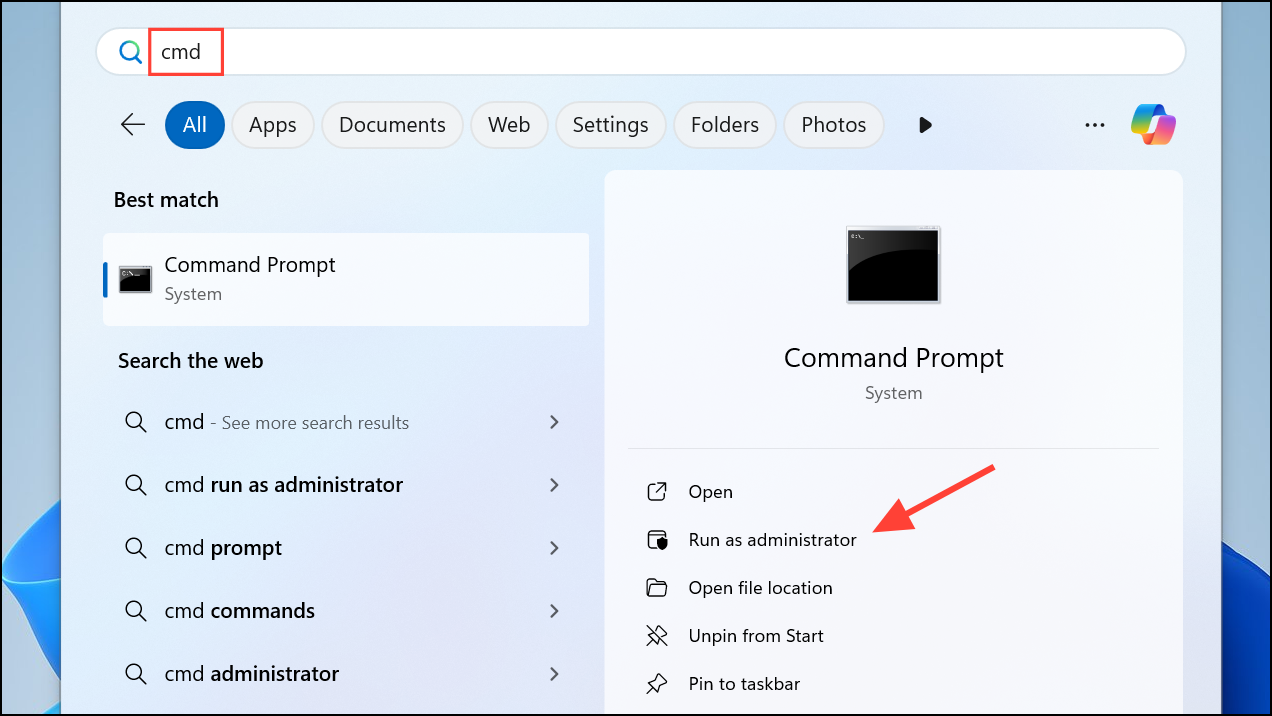
msdt.exe -id DeviceDiagnostic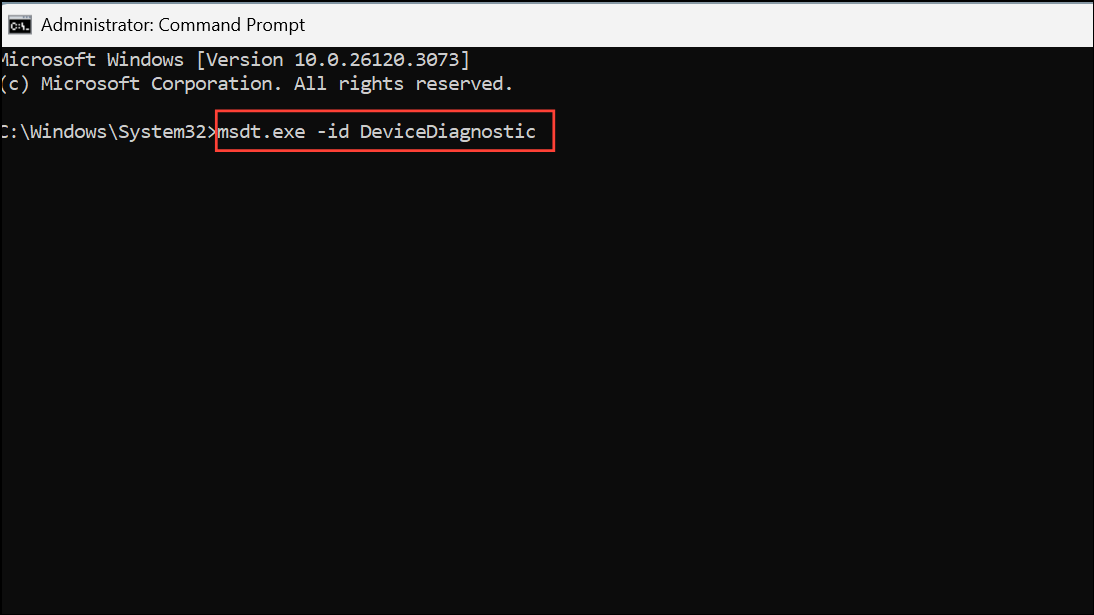
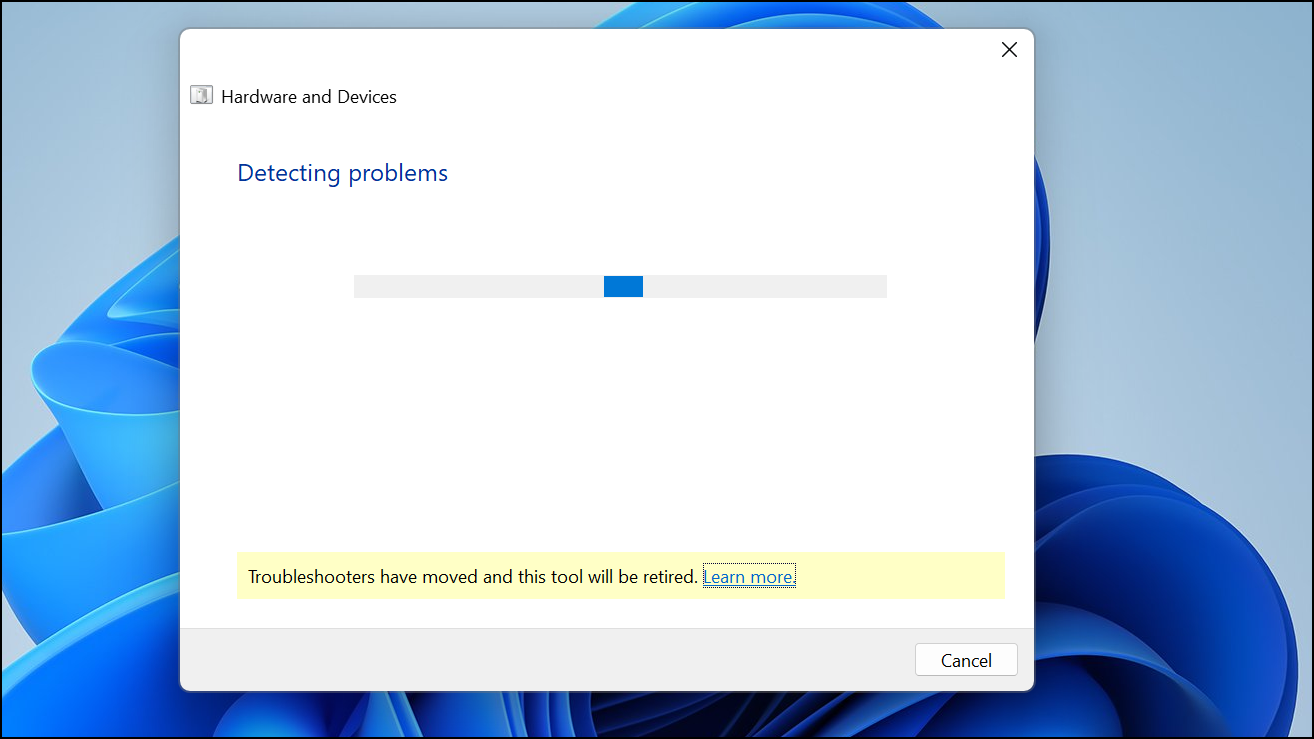
After the process completes, restart your PC and test by plugging in a USB device to see if the shutdown issue persists.
Check Connected USB Devices and Ports
Faulty or power-hungry USB devices can overload system power delivery or cause electrical shorts, leading to shutdowns. Isolating the problematic device or port helps prevent further disruptions.
Inspect and Replace the Power Supply Unit (PSU)
Insufficient or failing power supplies can trigger shutdowns when additional devices draw power via USB. This is especially relevant for desktops or high-powered external devices.
Upgrading or replacing a faulty PSU ensures stable power delivery and prevents shutdowns caused by overloading.
Temporarily Disable USB Ports (Last Resort)
Disabling USB ports is not a recommended long-term solution but may allow continued use of your PC until hardware repairs can be made.
Del, F2, or Esc keys) and look for USB configuration options.Only use this approach as a temporary fix until you can address the underlying hardware or driver issues.
Resolving shutdowns caused by USB devices in Windows 11 typically involves updating drivers, adjusting power settings, and checking hardware for faults. Regular maintenance and prompt attention to warning signs can keep your system running smoothly.



