Fix Windows 11 Stuck on Preparing Security Options
Resolve Windows 11 freezing at the "Preparing Security Options" screen by applying targeted troubleshooting methods, from disabling Fast Startup to repairing system files and restoring system stability.
Resolve Windows 11 freezing at the “Preparing Security Options” screen by applying targeted troubleshooting methods, from disabling Fast Startup to repairing system files and restoring system stability.
by Pallav Pathak
Windows 11 freezing on the “Preparing Security Options” screen disrupts access to the system, often leaving users unable to log in or interact with their devices. This issue can be traced to system file corruption, driver conflicts, problematic updates, or certain startup features. Addressing the root cause restores normal boot behavior and system reliability.
Disable Fast Startup
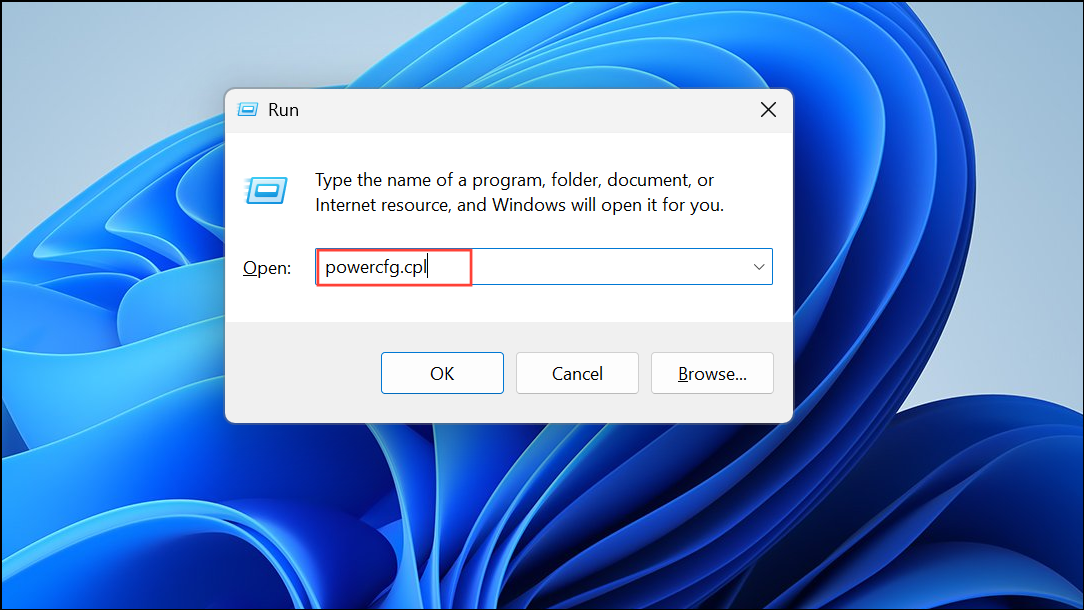
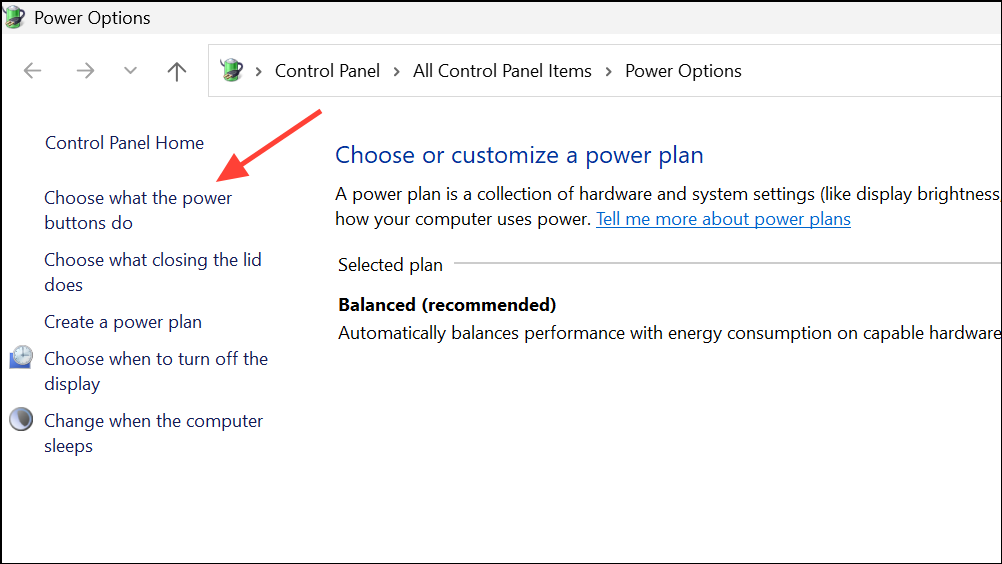
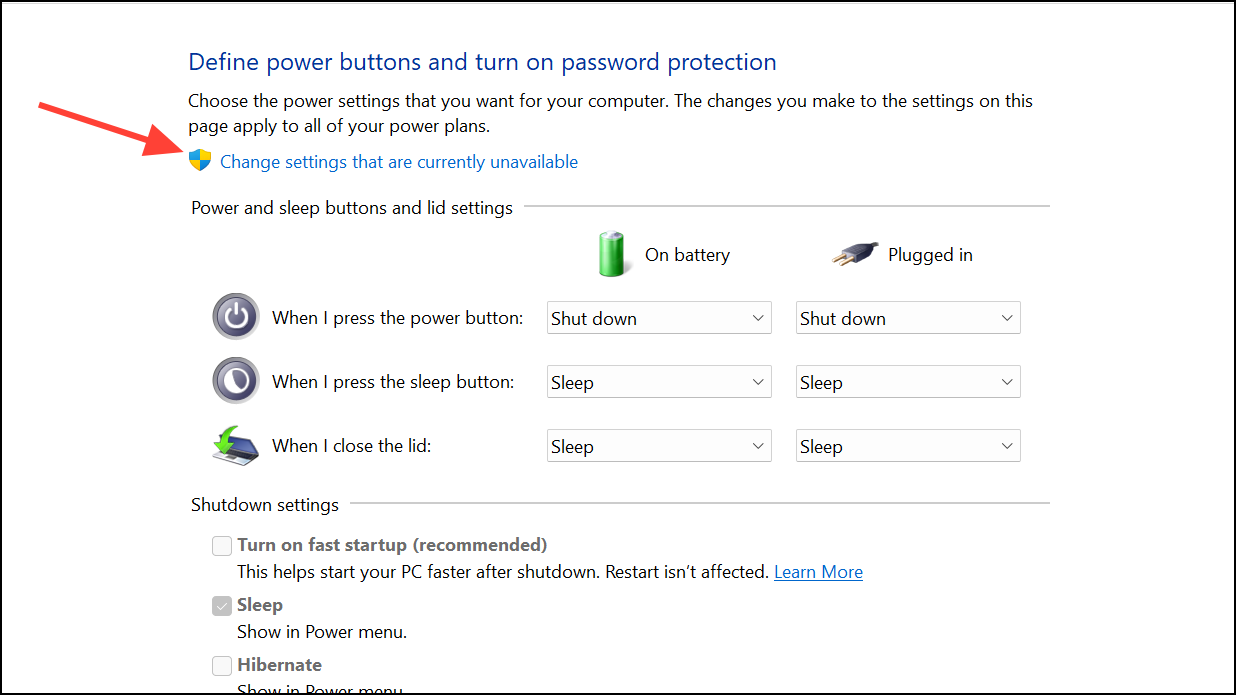
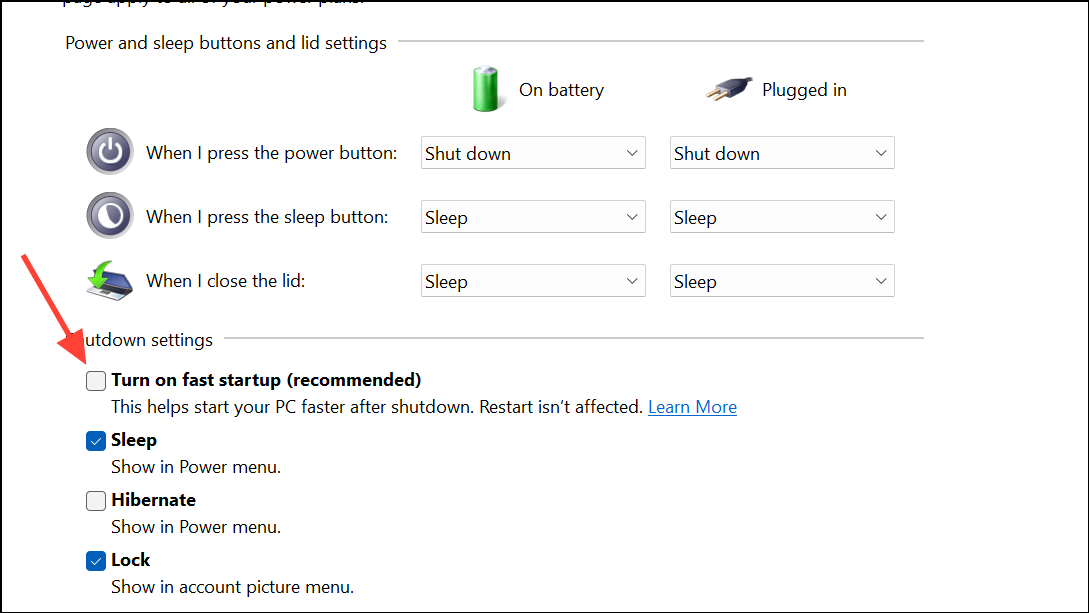
Fast Startup is a feature designed to reduce boot times by partially hibernating the system, but it can sometimes trigger boot issues, including getting stuck on the “Preparing Security Options” screen. Turning off this feature can resolve the problem.
Click Save changes and restart your computer. Disabling Fast Startup can prevent Windows from freezing during boot by forcing a complete shutdown and restart sequence.
Run System File Checker (SFC) and DISM Tools
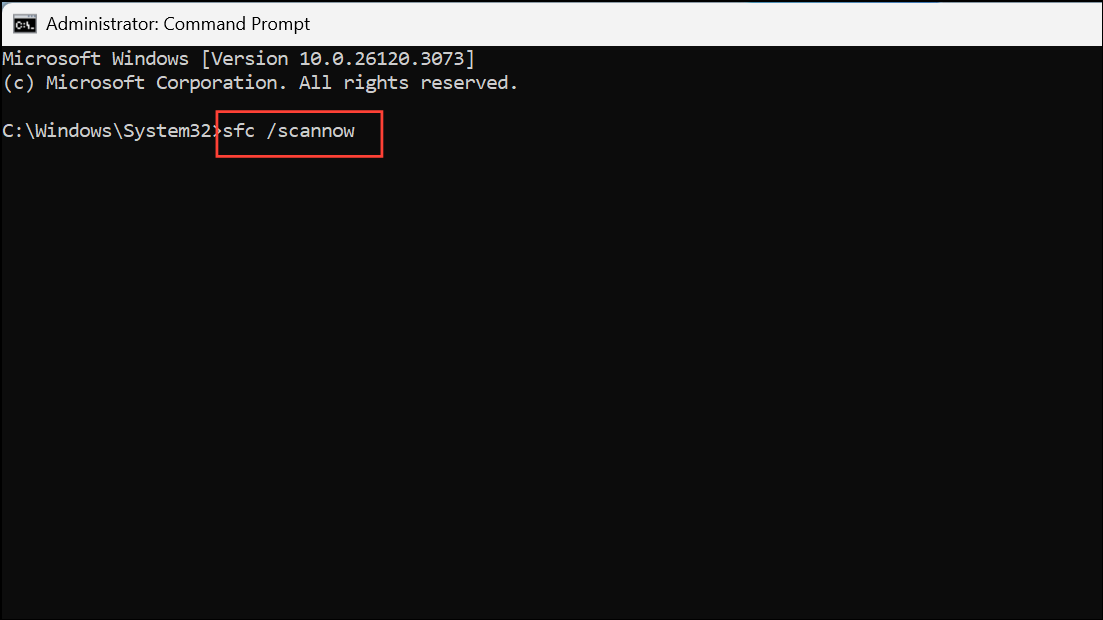
Corrupted or missing system files can interrupt the boot process, causing Windows to stall at security initialization. The SFC and DISM tools are built-in utilities that scan for and repair system file issues.
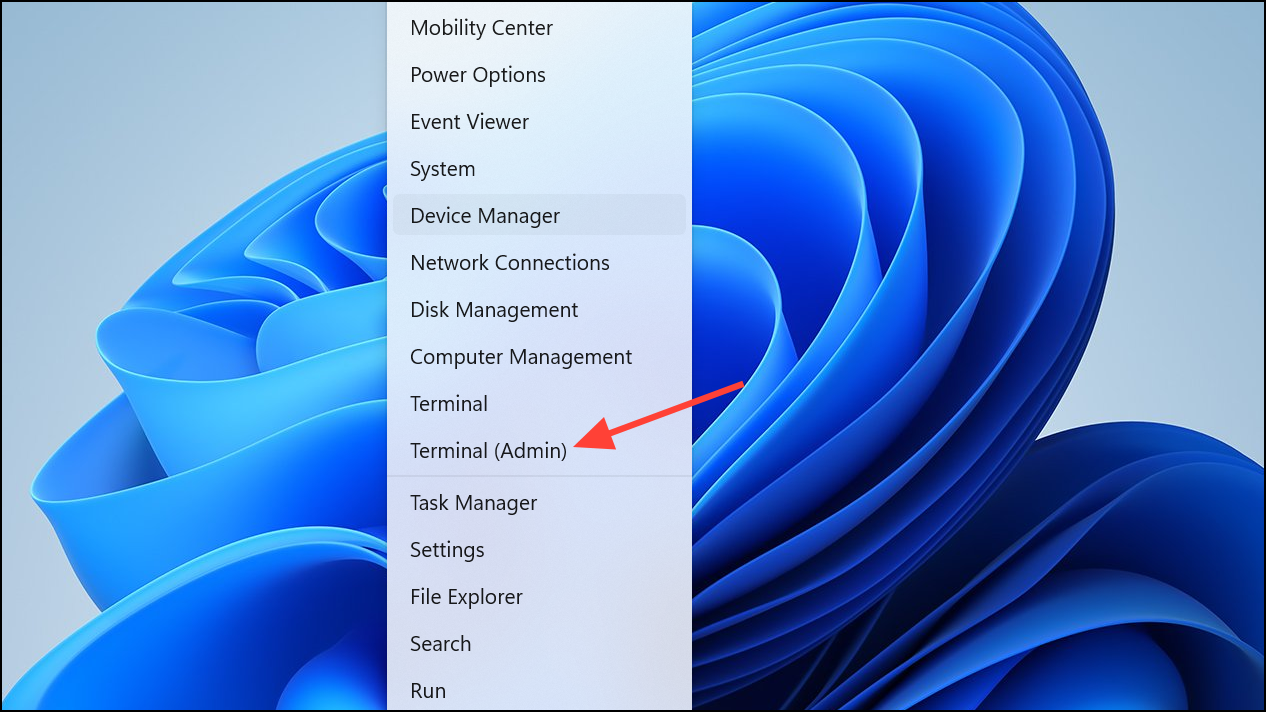
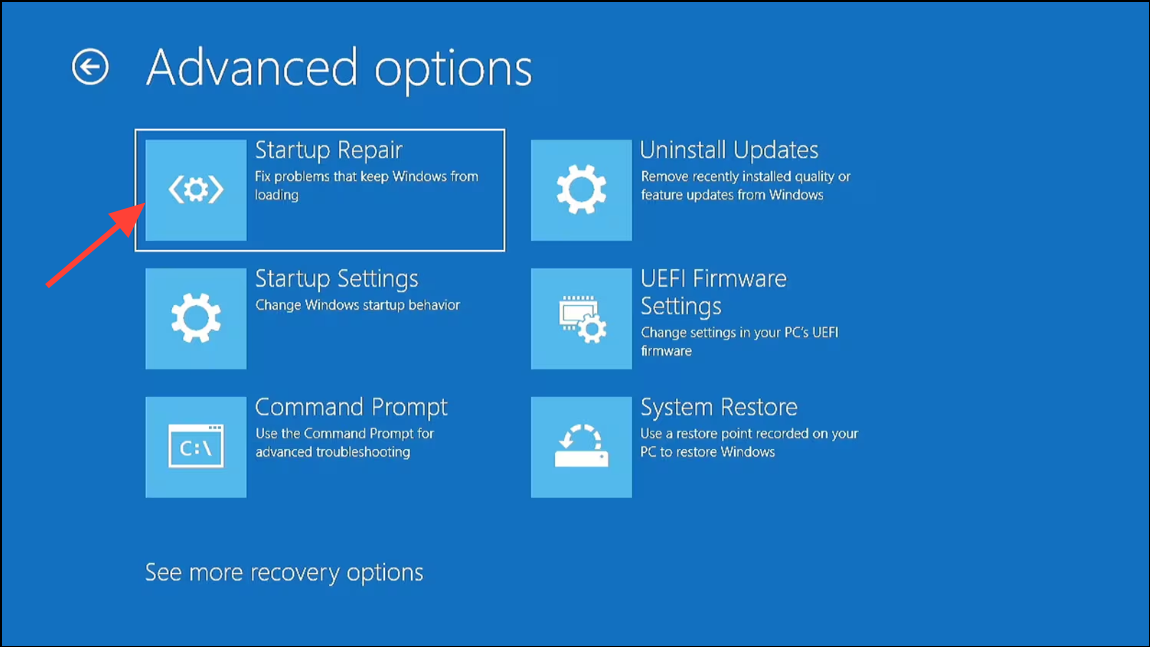
Boot your system into Safe Mode. If you cannot access Windows normally, power off and on your PC several times during boot to trigger the Automatic Repair screen. From there, navigate to Troubleshoot > Advanced options > Startup Settings, then select Restart and choose Safe Mode.
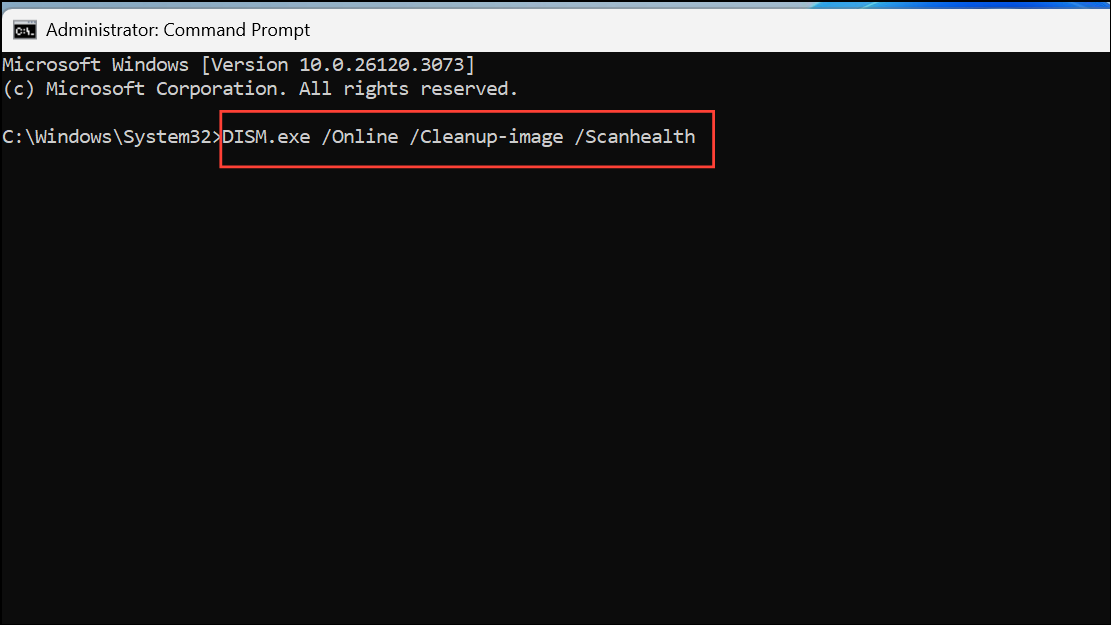
After the scan completes, run the Deployment Image Servicing and Management (DISM) tool to address deeper system corruption. Enter each command one by one, pressing Enter after each:
Restart your PC. These steps can restore missing or damaged system files, improving boot reliability.
Use System Restore
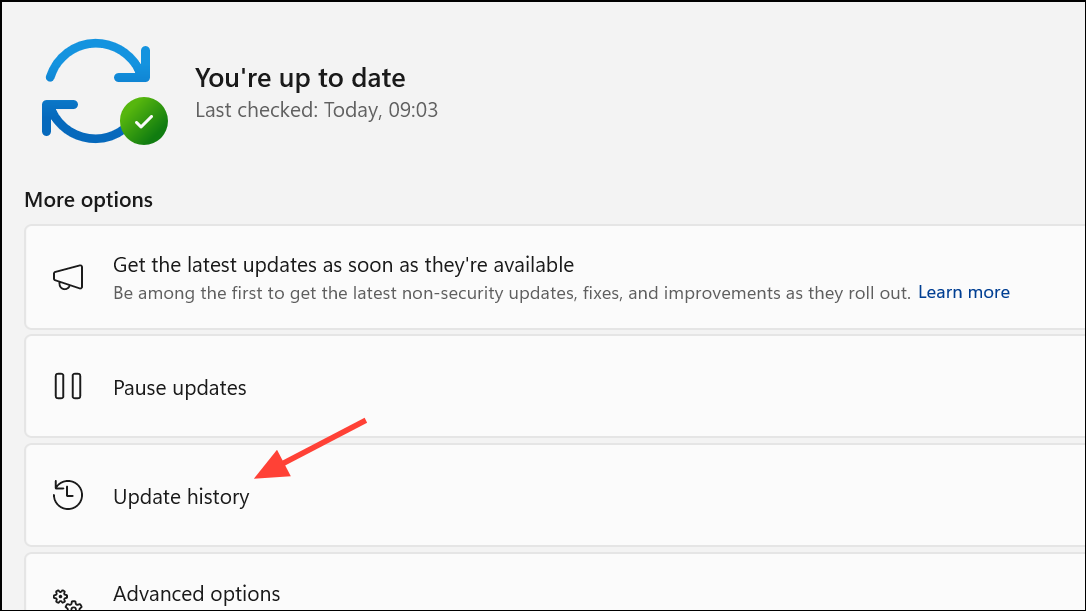
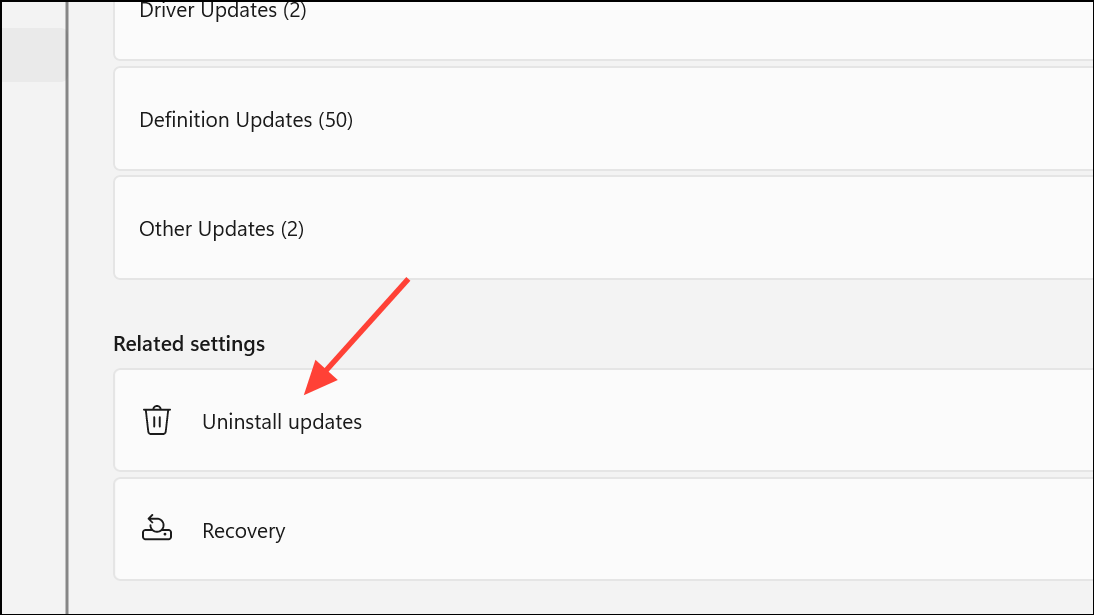
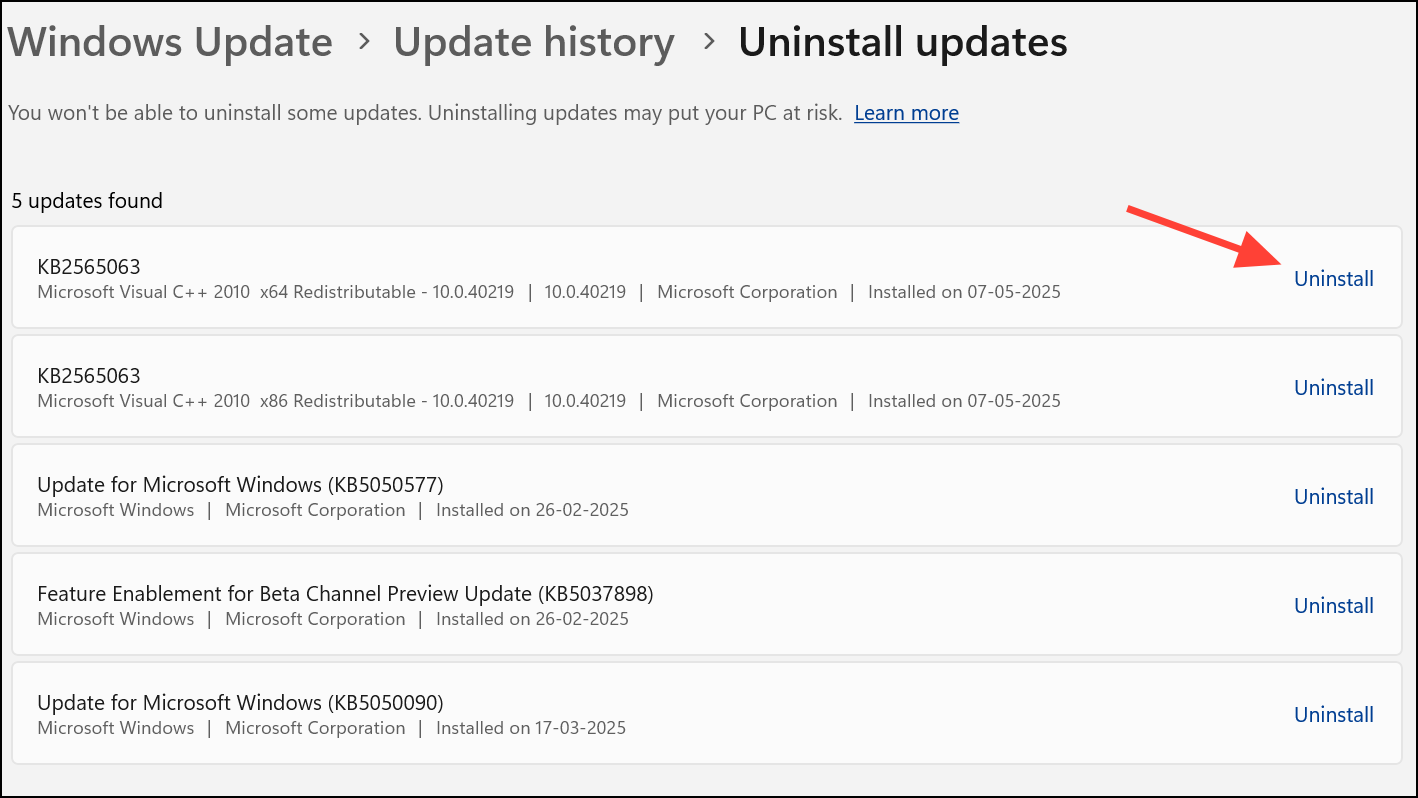
System Restore allows you to revert your system to a previous working state without affecting personal files. This is particularly effective if the issue began after a recent software installation, update, or configuration change.
Choose Uninstall for each relevant update. Restart your PC after removal to check if the issue is resolved.
Boot into Safe Mode and Remove Conflicting Drivers or Software
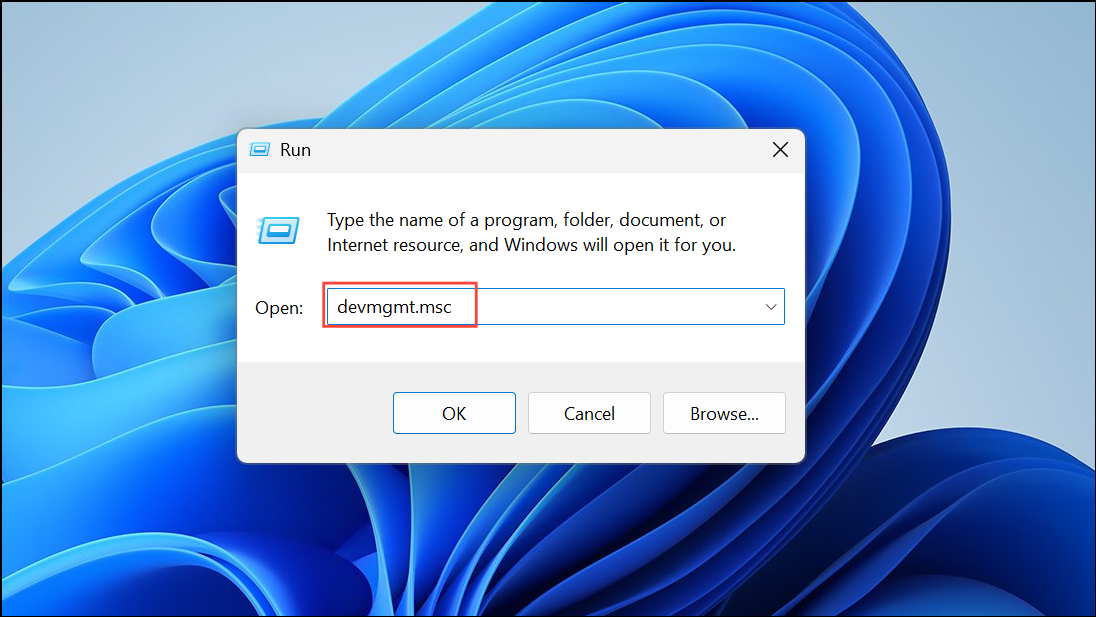
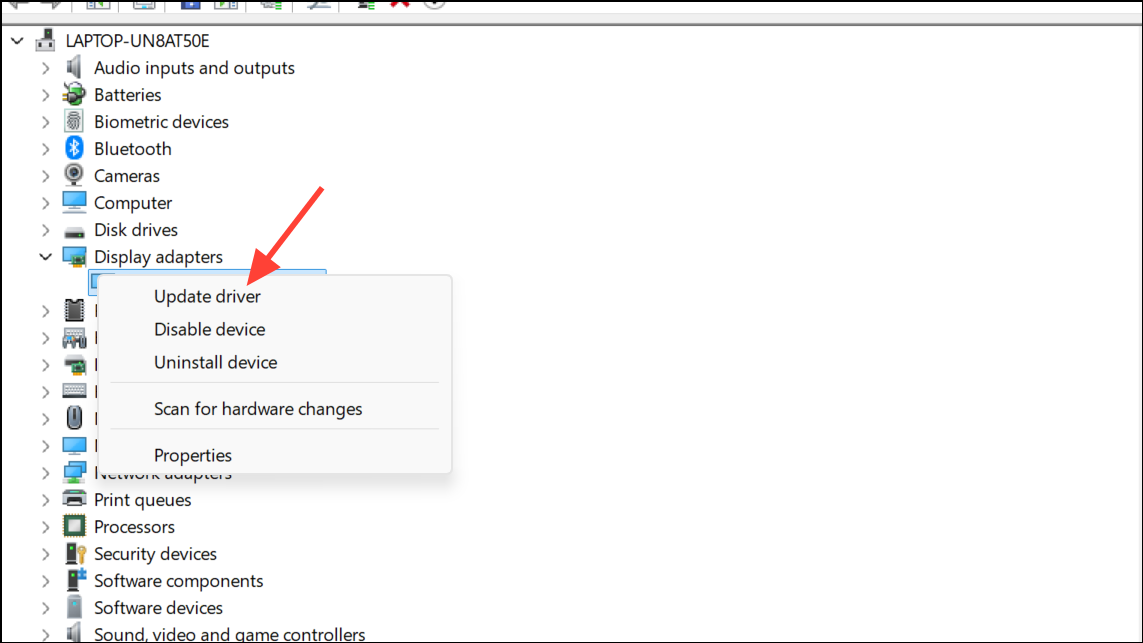
Driver or third-party software conflicts can prevent Windows from loading security options correctly. Safe Mode loads only essential drivers, making it easier to identify and remove problematic components.
Look for devices with a yellow exclamation mark, especially under Display adapters, Network adapters, or Storage controllers. Right-click and select Update driver or Uninstall device if recently updated or installed.
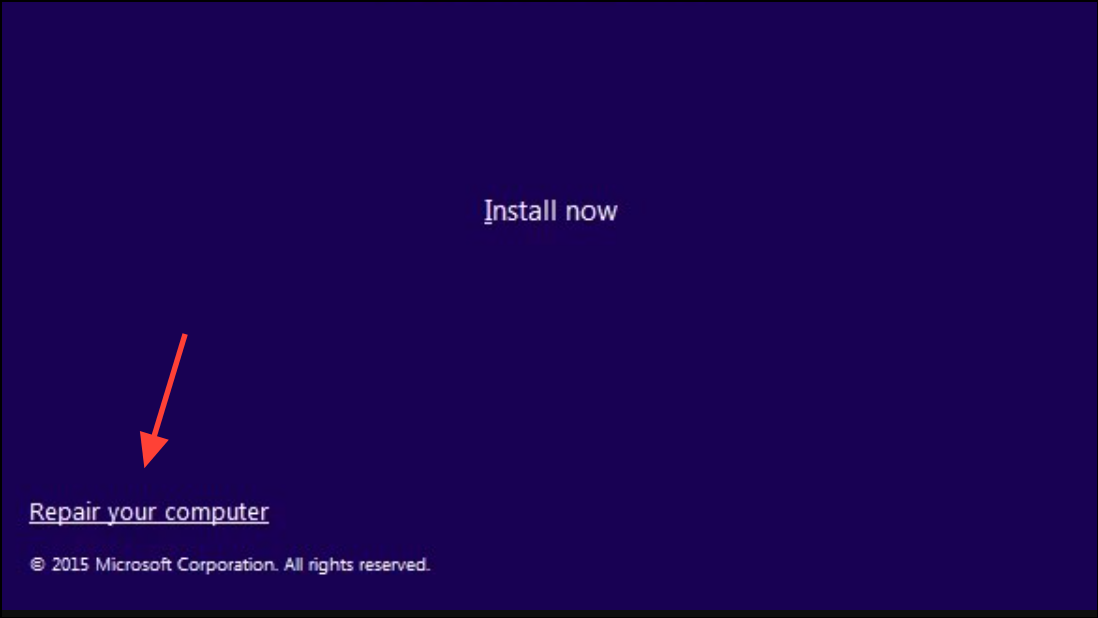
Follow the on-screen prompts. The system will attempt to diagnose and fix boot issues automatically.
Rename SoftwareDistribution Folder
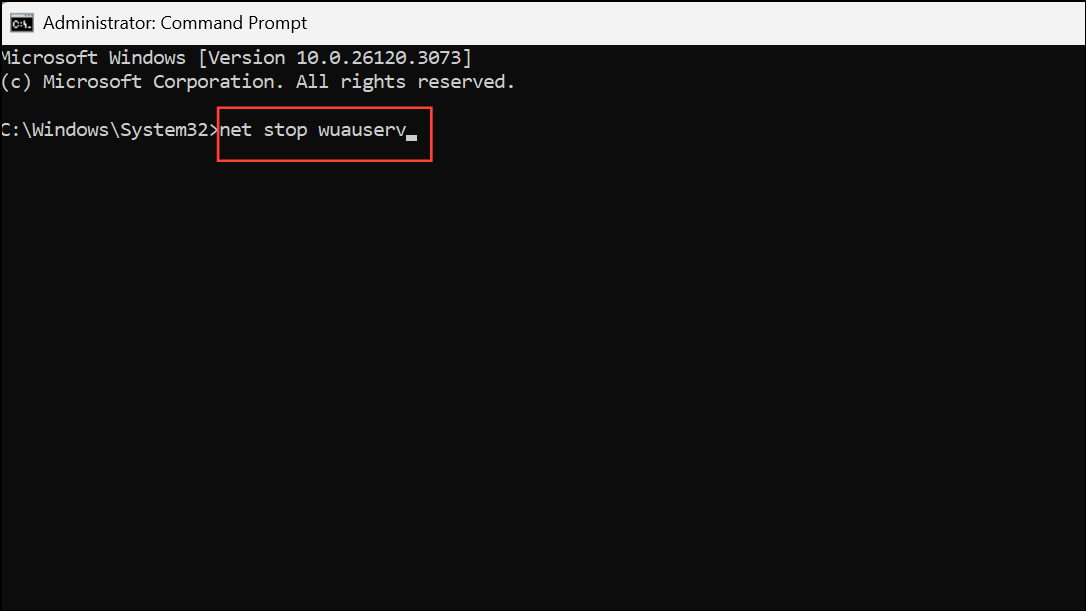
The SoftwareDistribution folder stores Windows Update files. Corruption here can cause boot and update problems. Renaming this folder forces Windows to recreate it, potentially resolving the issue.
Restart your PC to allow Windows to rebuild the update cache.
Check and Configure Essential Windows Services
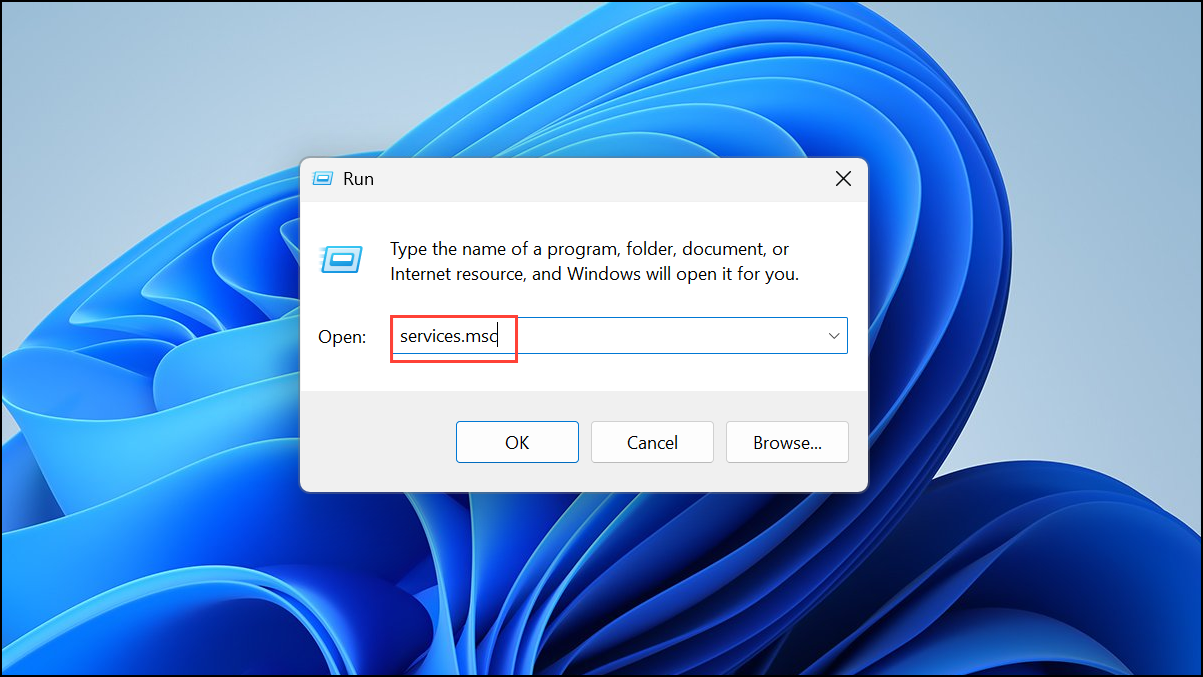
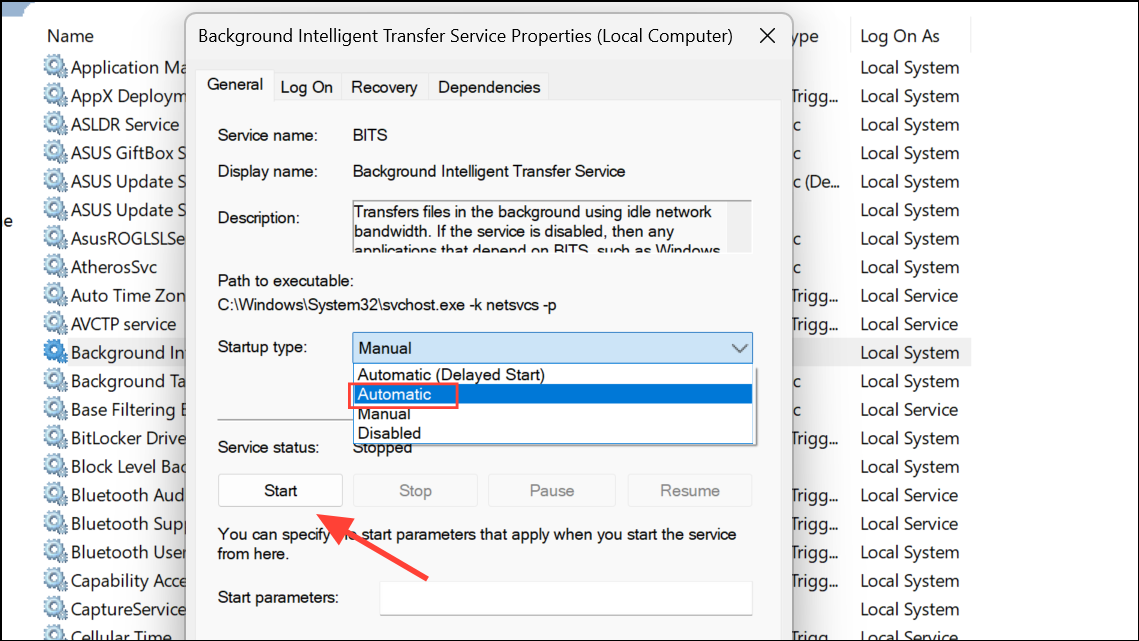
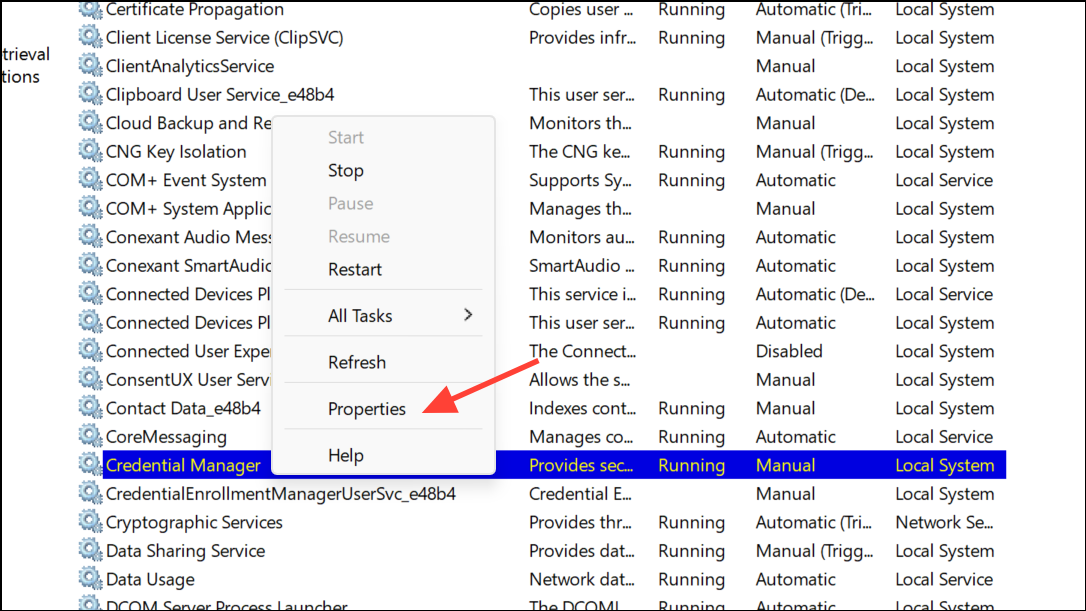
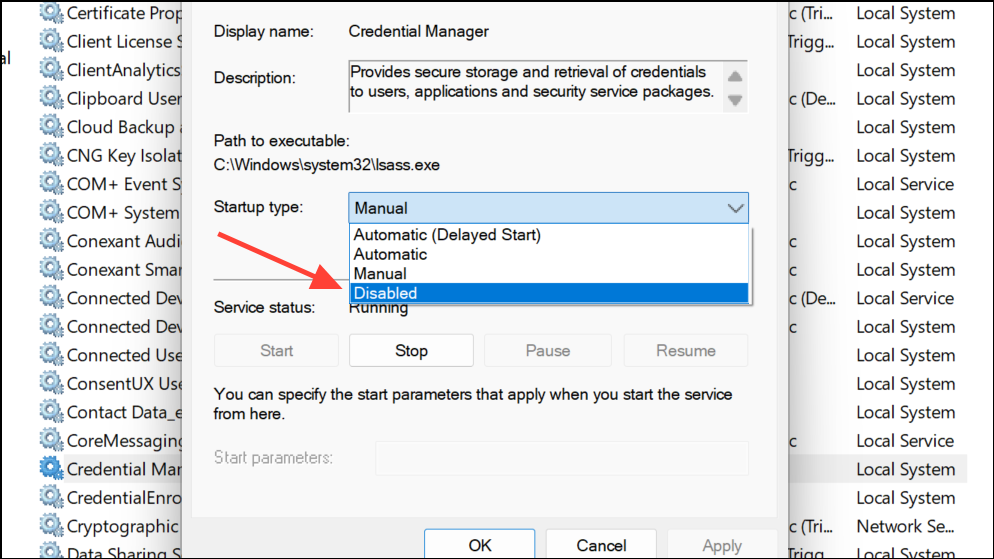
Certain Windows services must be running for updates and security features to load properly. If these services are disabled or stopped, the system may hang during boot.
Restart your PC and check if the issue is resolved.
Reset Windows 11
If all other solutions fail, resetting Windows reinstalls the operating system while giving you the option to keep your personal files. This can resolve persistent issues caused by deep system corruption or misconfiguration.
Choose whether to keep your files or remove everything, then follow the prompts to complete the reset.
Applying these targeted fixes can restore normal boot functionality and eliminate the “Preparing Security Options” freeze in Windows 11. Keeping drivers and updates current, and creating regular restore points, helps prevent future issues.