
Network interruptions occur immediately when Windows 11 displays the “Windows could not automatically detect this network’s proxy settings” error. This issue often blocks internet access or causes sluggish connections, and typically appears as a yellow warning icon on the system tray’s network indicator. The error points to misconfigured proxy settings, outdated drivers, or even malware, all of which can disrupt your ability to get online. Fortunately, several targeted fixes can restore normal network operation.
Run the Network Troubleshooter
Win + I. Navigate to System, then select Troubleshoot from the list.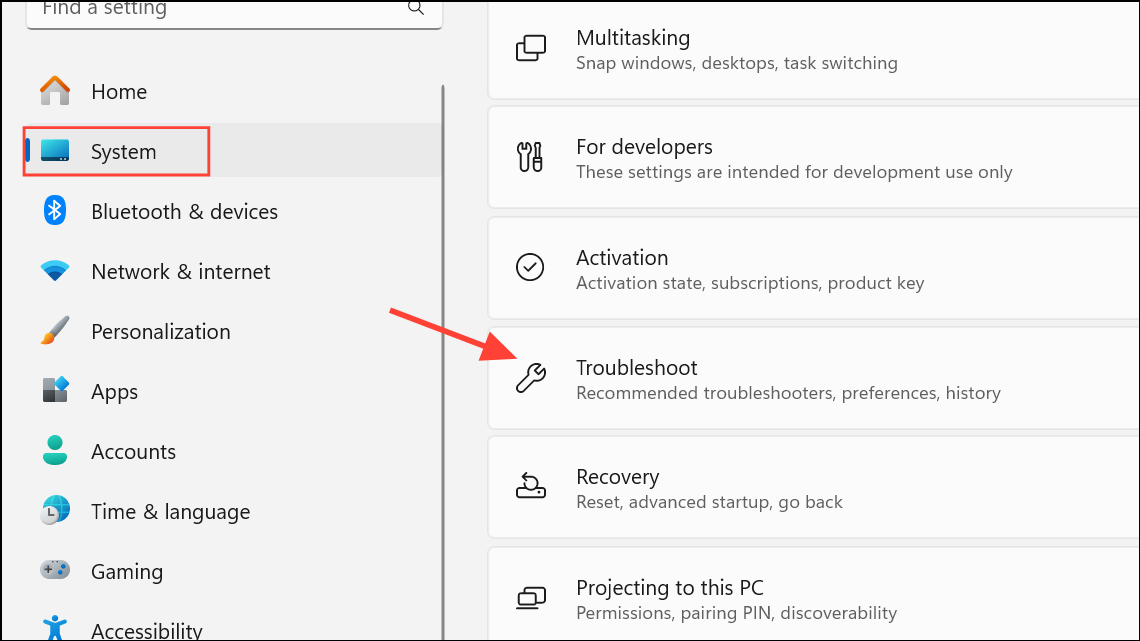
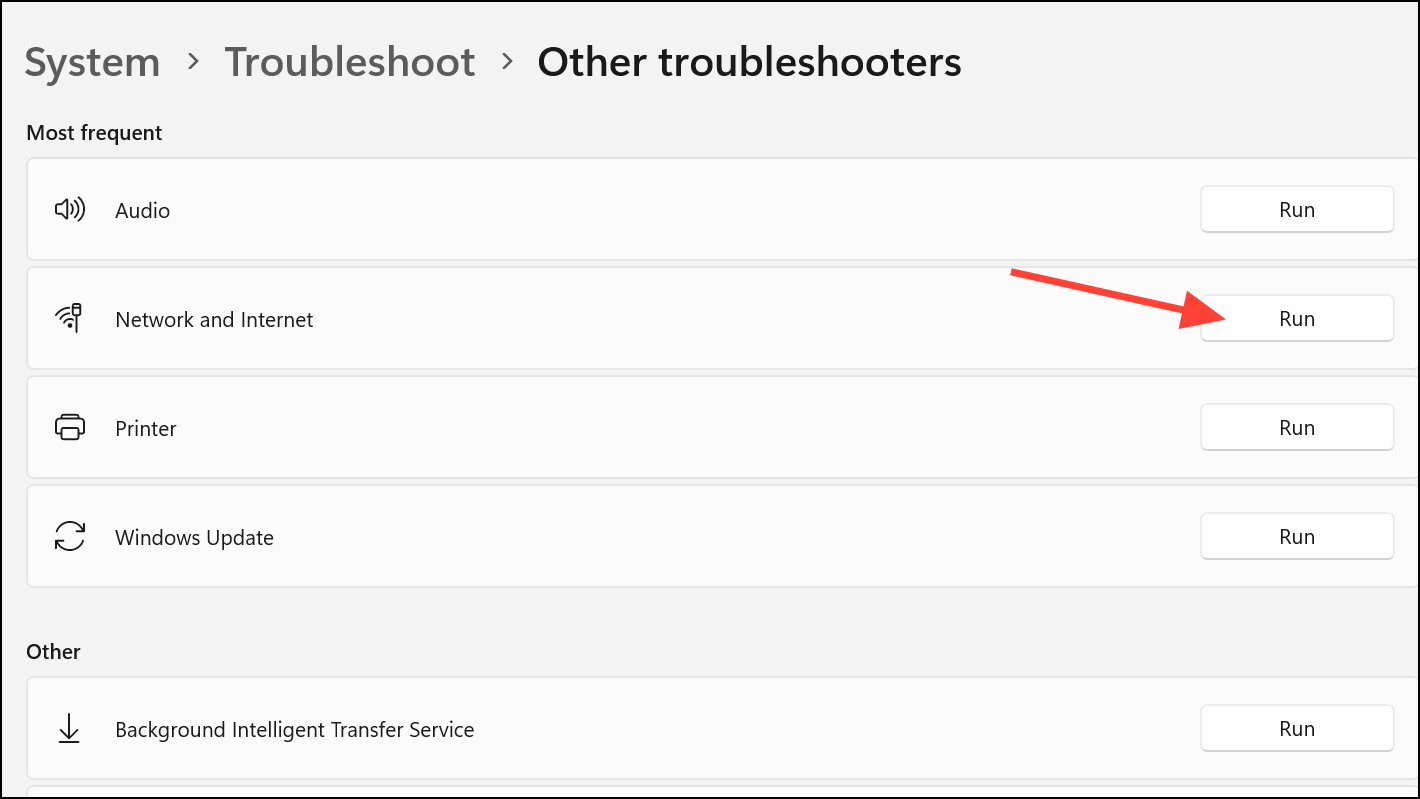
The troubleshooter checks for common misconfigurations, restarts relevant network services, and applies fixes where possible. This process often resolves the proxy detection error without further intervention.
Check and Adjust Proxy Settings
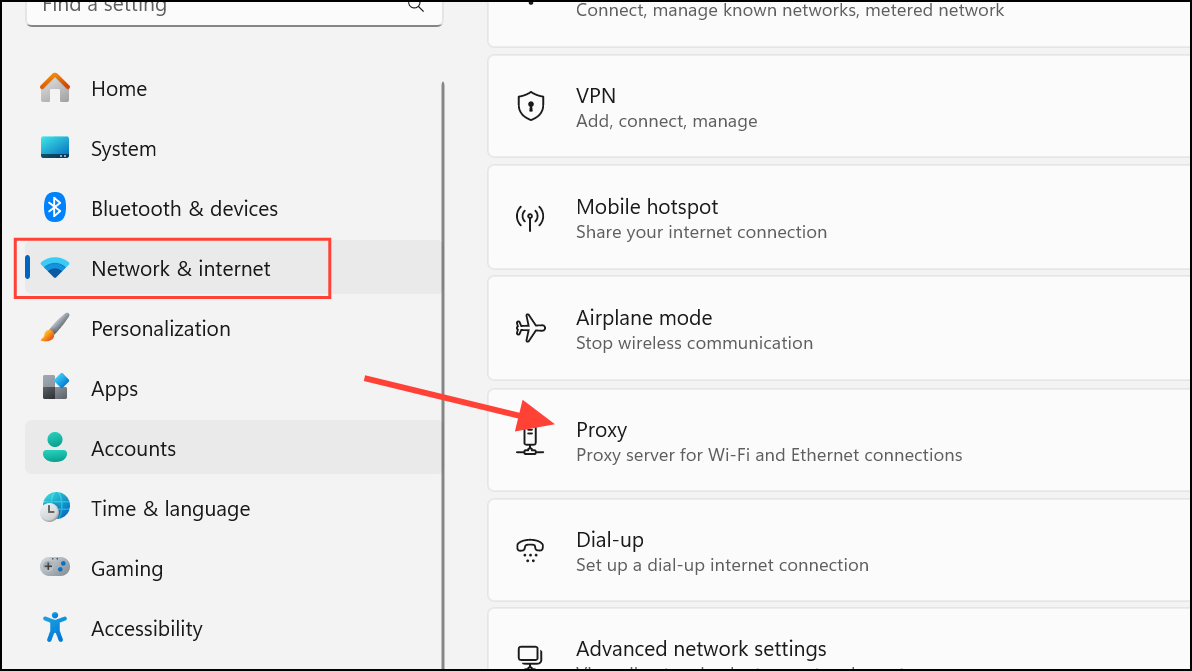
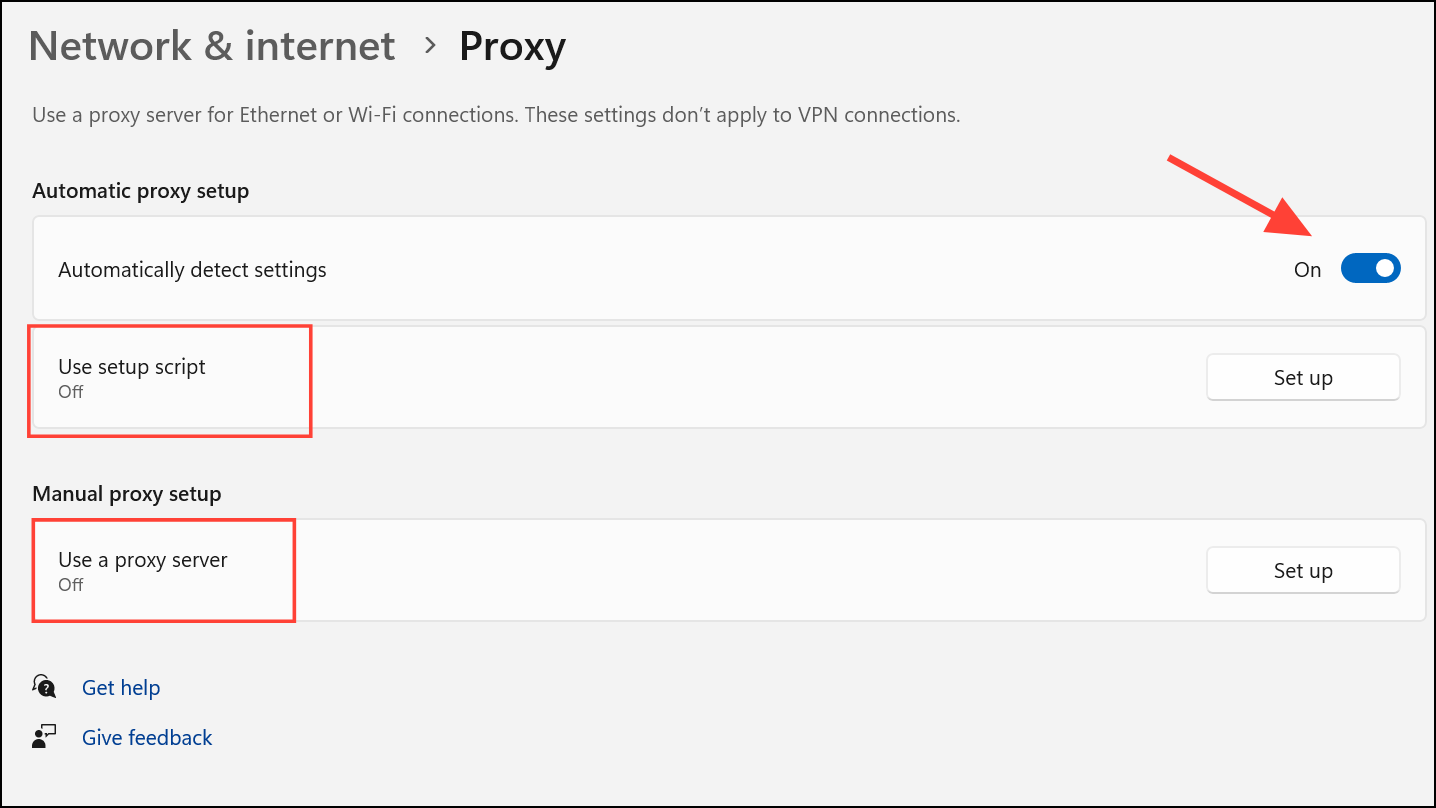
Incorrect proxy settings are a primary cause of this error. Setting the proxy options to automatic detection allows Windows to configure network access for typical home and small business environments.
Restart Network Adapter
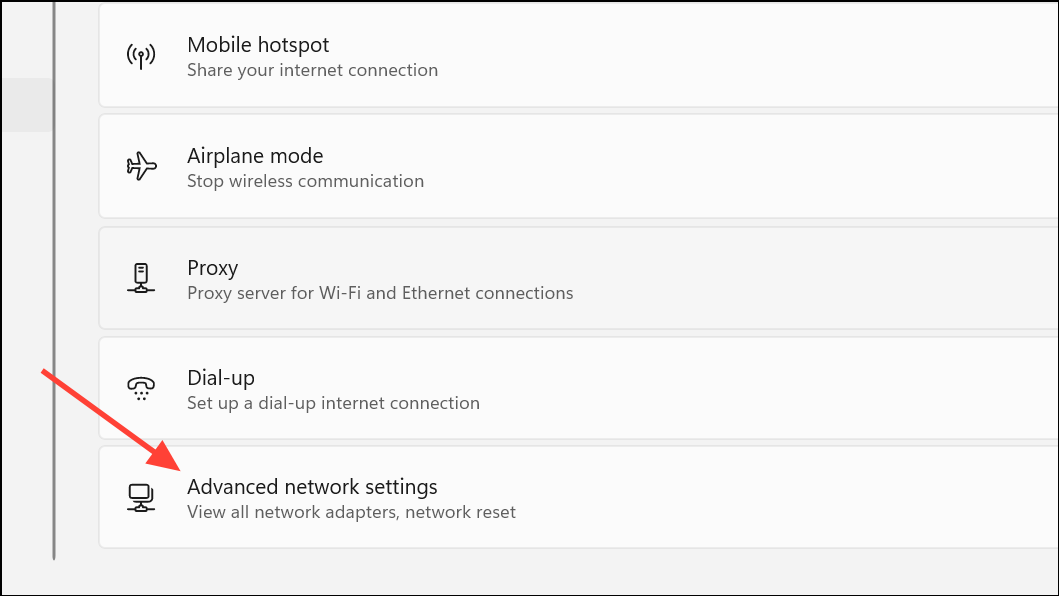
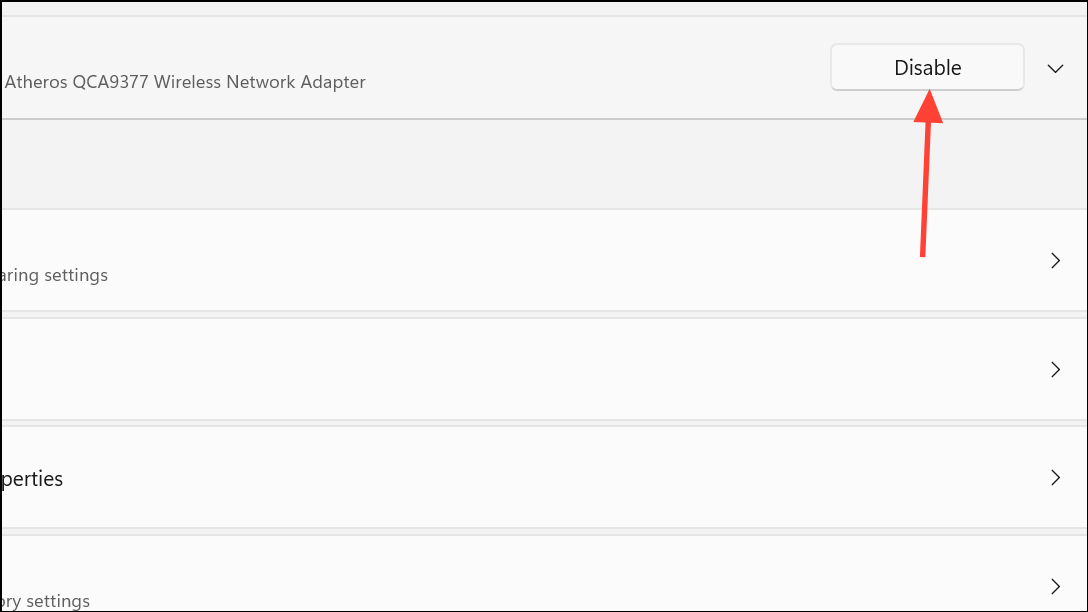
Restarting the adapter clears temporary glitches and resets low-level network hardware communication, which can restore connectivity if the adapter had entered a fault state.
Reset Network Settings
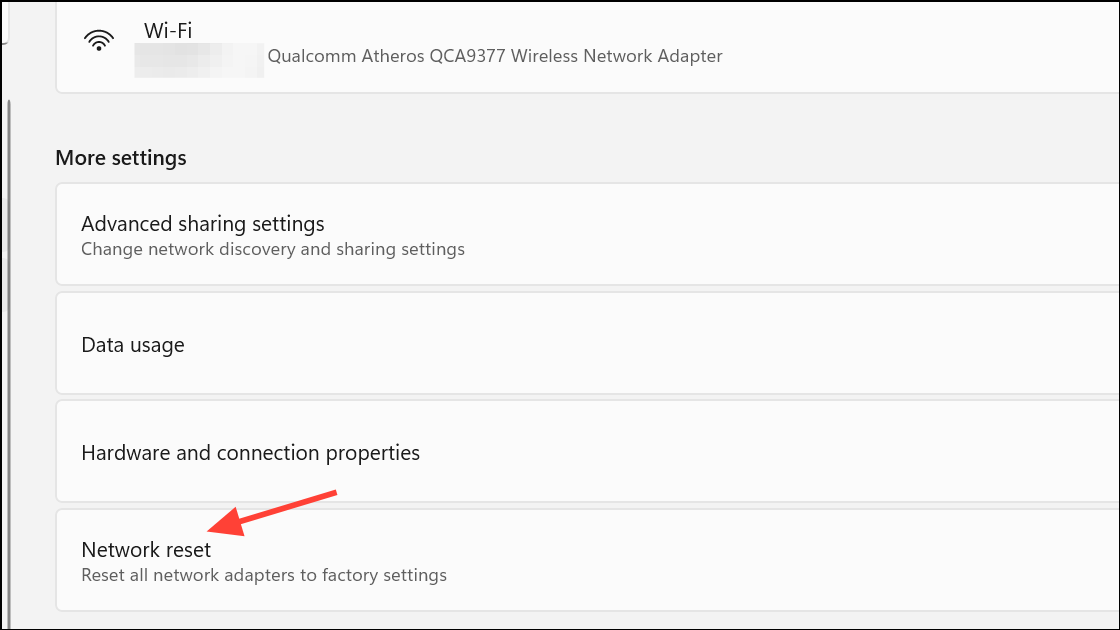
This step is especially effective when previous changes or third-party software have altered network settings in ways that are difficult to manually undo.
Disable Manual IP and DNS Settings
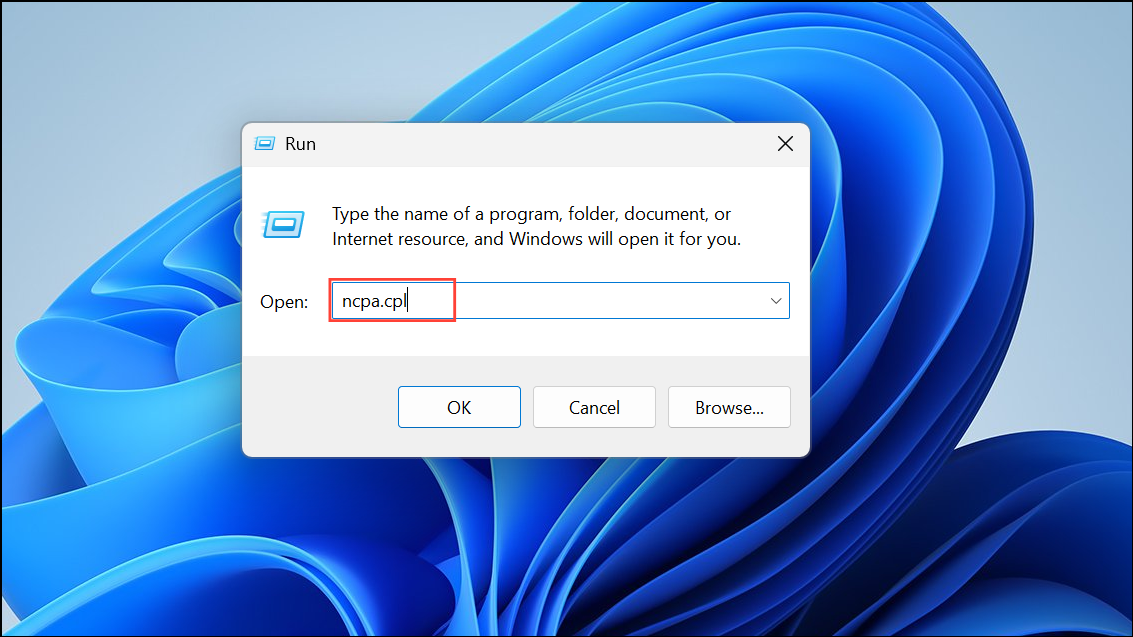
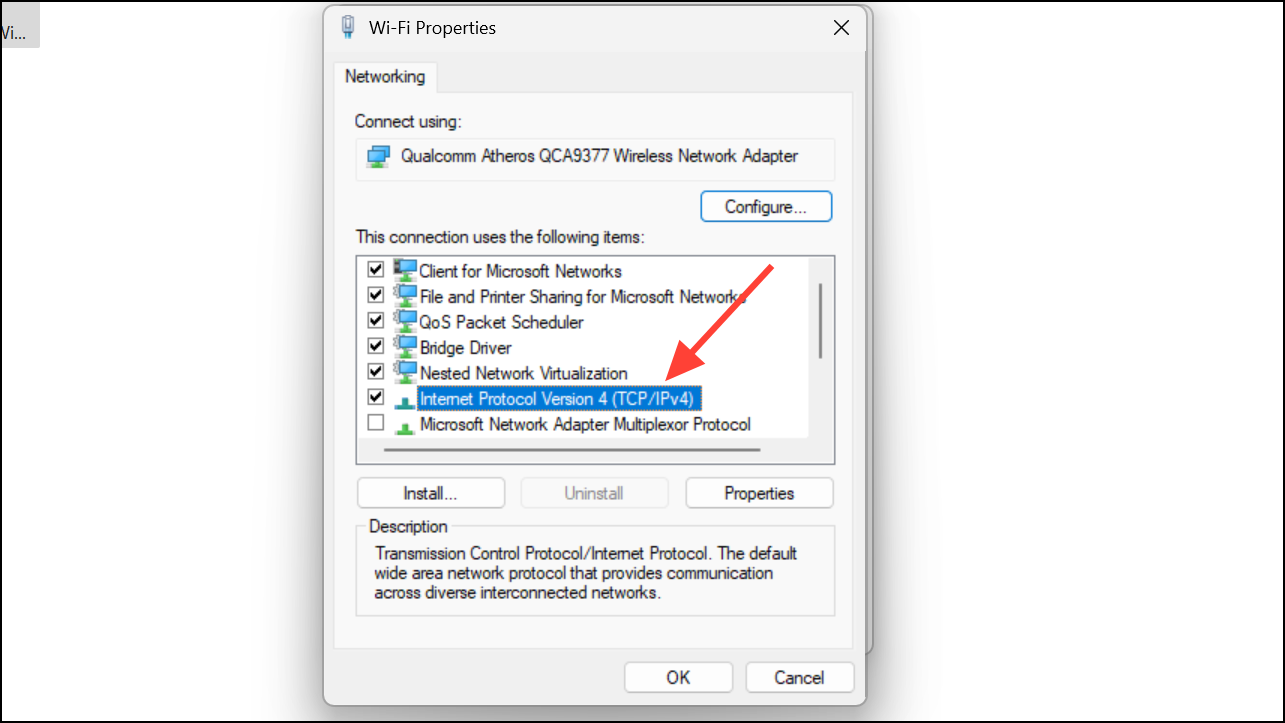
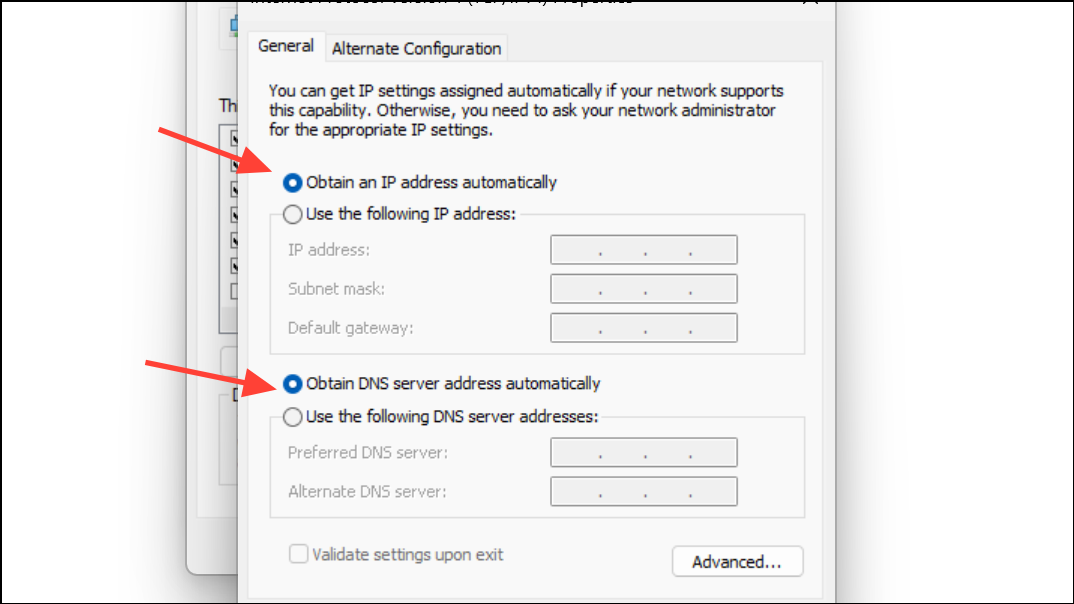
Manual IP or DNS configurations can prevent Windows from communicating properly with the network, especially if the assigned addresses are invalid or outdated.
Update or Reinstall Network Drivers
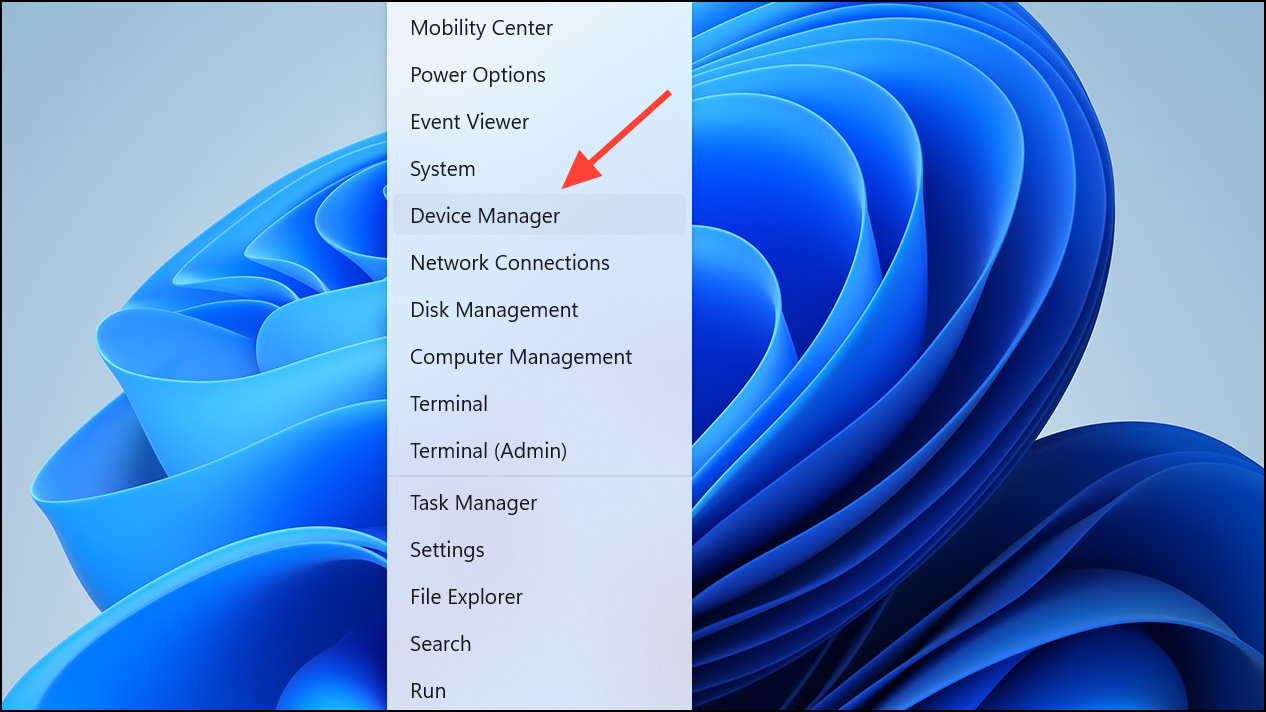
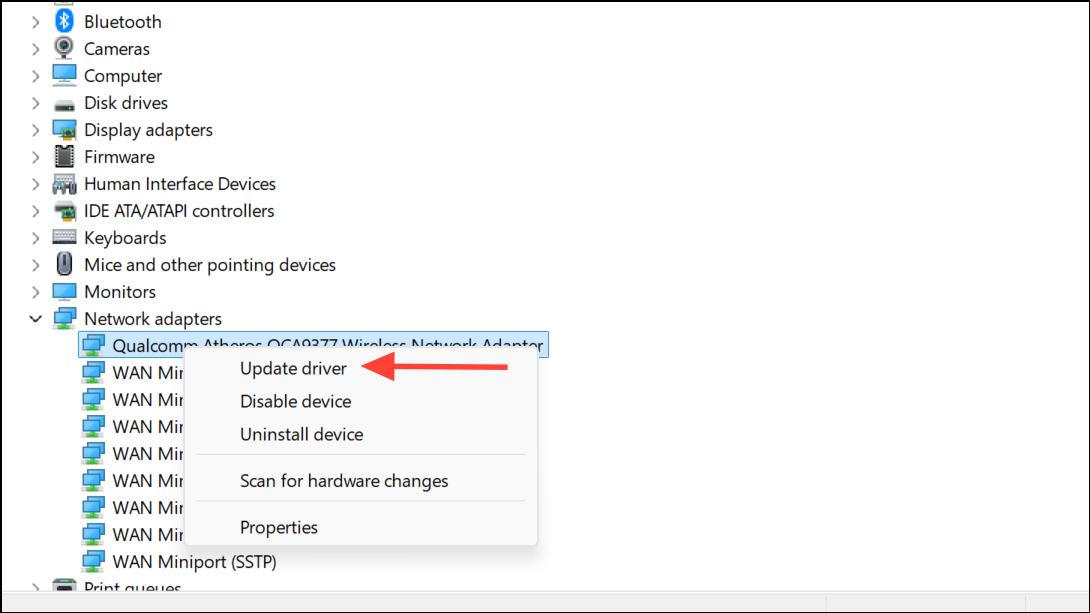
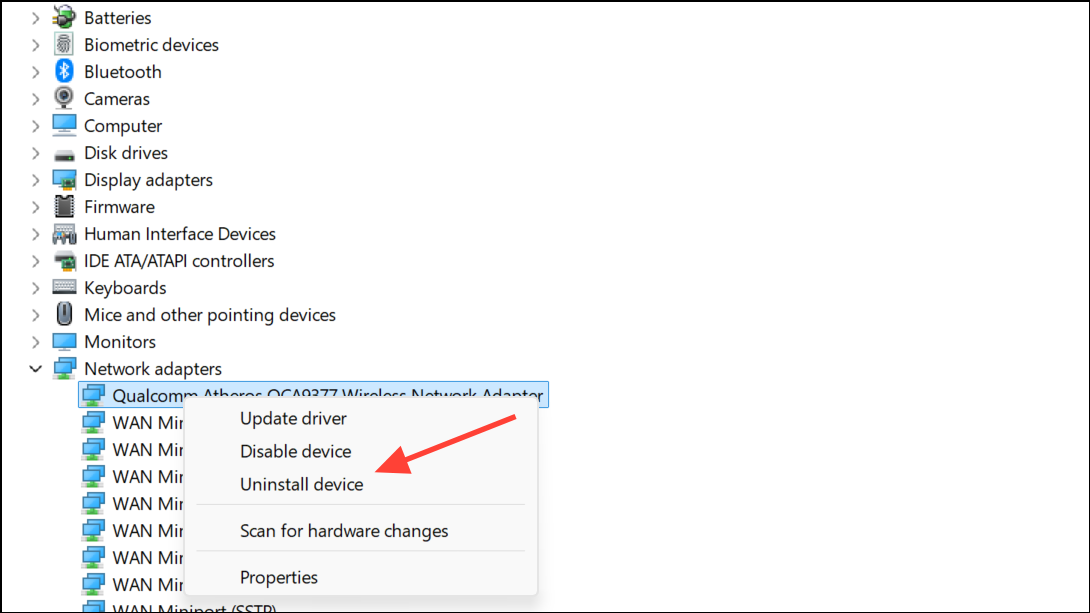
Corrupt or outdated drivers often cause persistent connectivity issues. Updating or reinstalling ensures compatibility with the latest Windows 11 updates and resolves low-level communication errors.
Scan for Malware and Adware
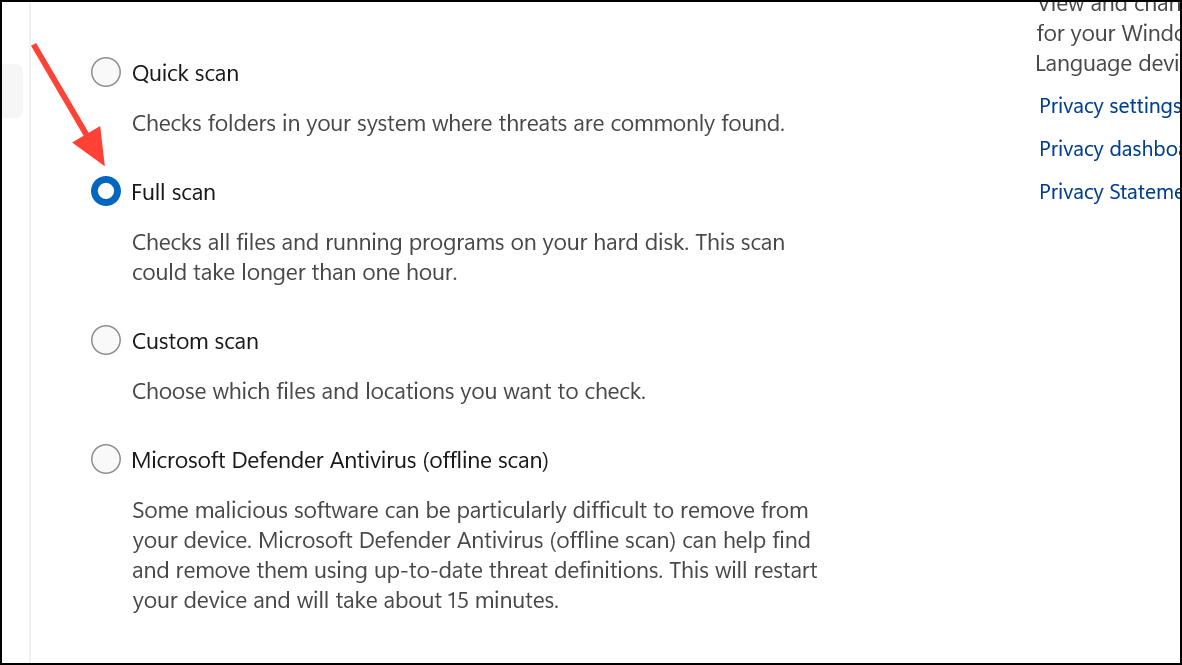
Malicious software can alter proxy and network settings, redirecting traffic or blocking internet access. Scanning for and removing malware restores normal configuration and prevents recurrence of the proxy error.
Reset Winsock and TCP/IP Stack
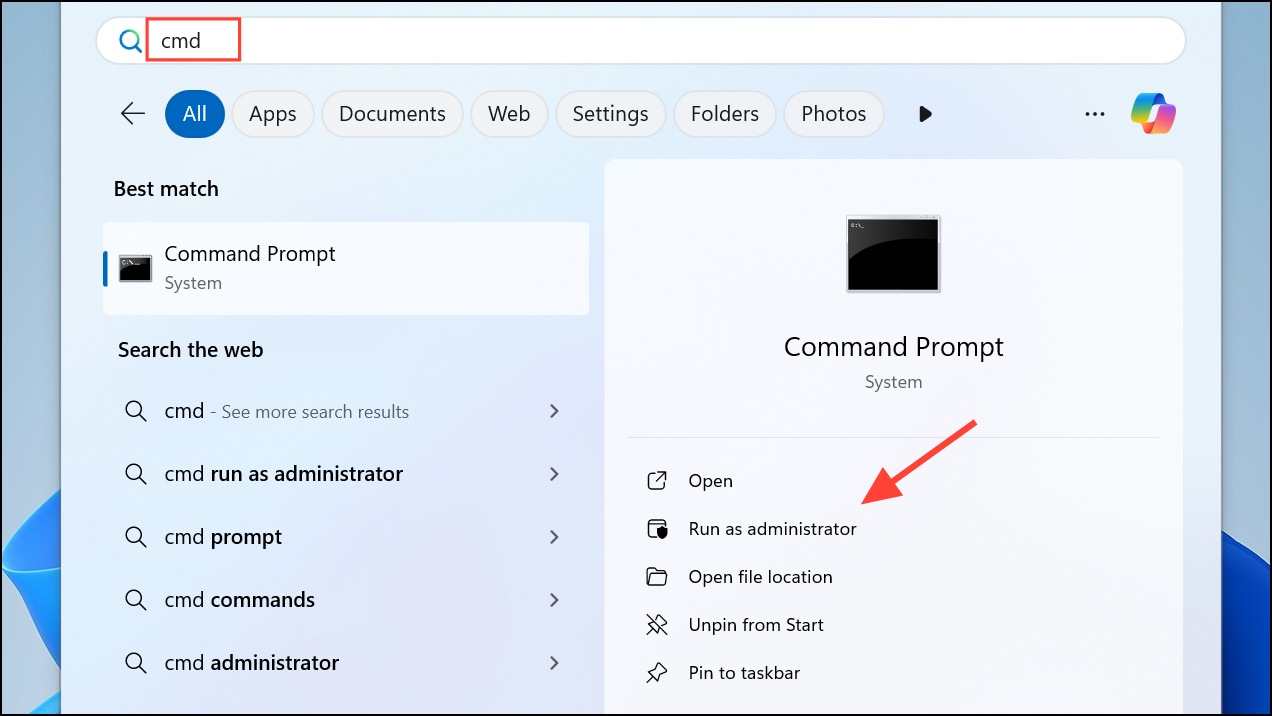
netsh winsock reset
netsh int ip reset
ipconfig /flushdns
ipconfig /release
ipconfig /renew
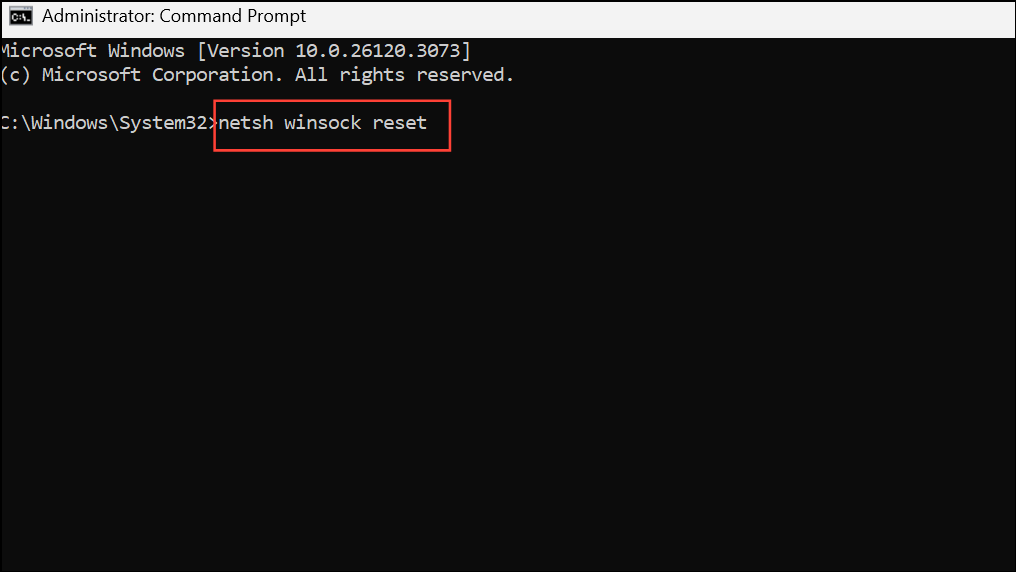
Winsock and TCP/IP stack resets clear out corrupt or misconfigured networking layers, restoring the default communication protocols Windows uses to access the internet.
Temporarily Disable VPN, Firewall, or Security Software
Overzealous security tools can inadvertently block or alter proxy settings, cutting off internet access. Isolating the issue to security software helps you adjust configurations or seek alternative solutions.
Restore Windows Using System Restore
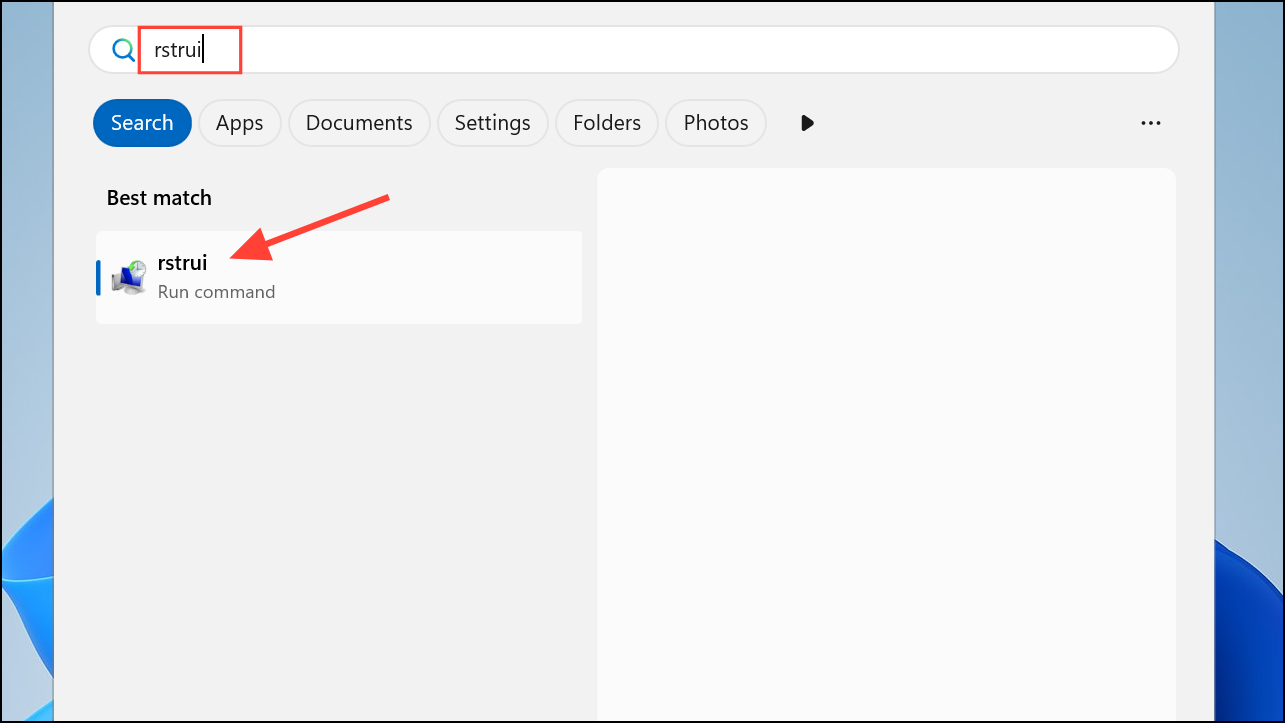
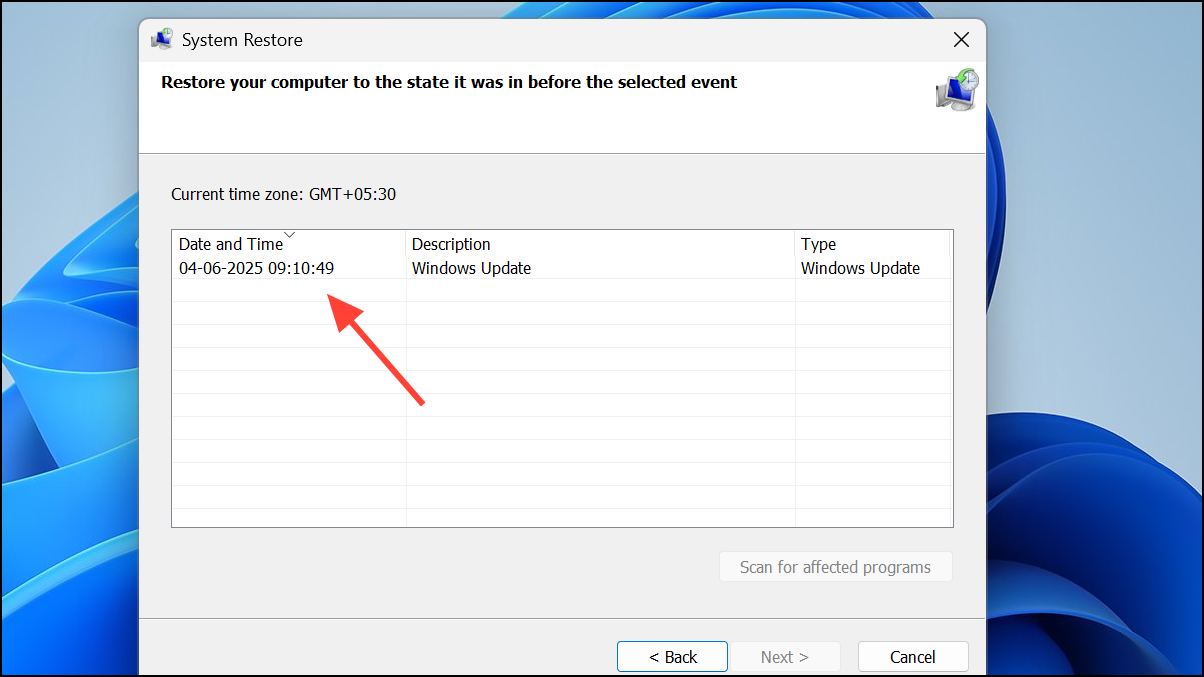
System Restore rolls back recent system changes, driver installations, or software updates that may have introduced the proxy error, without affecting your personal files.
Applying these targeted fixes will restore reliable internet access and resolve proxy detection errors in Windows 11. If none of these solutions work, contacting your network administrator or ISP for advanced troubleshooting may be necessary.



