

The sensitivity of your mouse, measured in DPI (dots per inch), directly controls how fast your cursor moves across the screen. Adjusting DPI is crucial for precise cursor control, especially in tasks like graphic design or gaming. Windows 11 doesn’t directly display mouse DPI in its standard settings, but there are several effective methods to find out your mouse’s DPI and adjust it accordingly.
Method 1: Check Mouse DPI Using Manufacturer’s Software
The most accurate way to determine your mouse DPI is by using the software provided by the mouse manufacturer. Brands like Logitech, Razer, and SteelSeries offer dedicated software to customize and view mouse settings.
Using official software is recommended because it provides precise DPI information and allows you to customize your mouse performance easily.
Method 2: Calculate Mouse DPI Using an Online DPI Analyzer
If you don’t have access to the manufacturer’s software, an online DPI analyzer tool can help you calculate your mouse DPI manually. A popular tool is the DPI Analyzer.
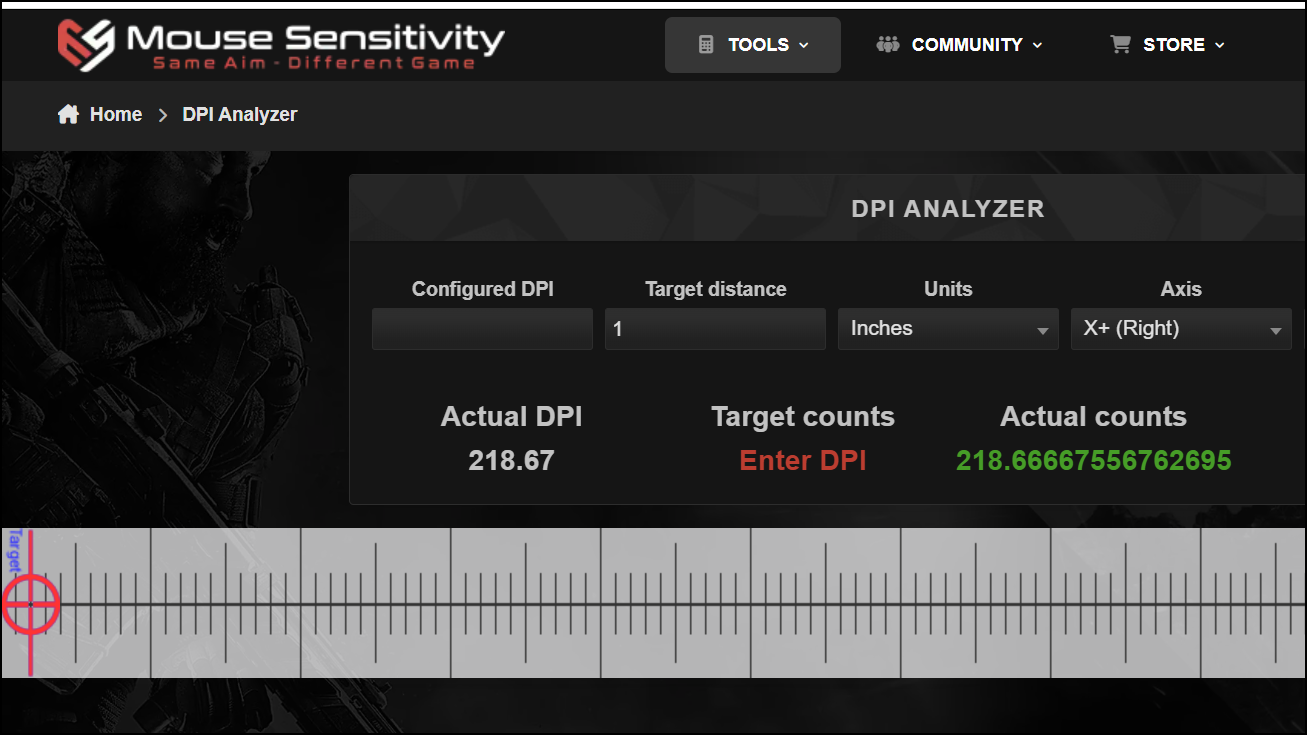
This method provides a reliable DPI measurement without needing specialized software installed on your system.
Method 3: Estimate Mouse DPI Using Microsoft Paint
You can also estimate your mouse DPI using Microsoft Paint. Although this method isn’t as precise as the previous methods, it gives a reasonably accurate estimate.
The average pixel count represents your mouse’s approximate DPI. For example, if you moved your mouse 2 inches and the average pixel count is 1600, simply divide 1600 pixels by 2 inches, resulting in an estimated DPI of 800.
Method 4: Check Mouse Specifications on Manufacturer’s Website or Documentation
If you’re looking for a quick reference without performing tests, you can check your mouse’s DPI range directly from its specifications provided by the manufacturer.
Alternatively, you can check the original packaging or user manual that came with your mouse for DPI details.
How to Change Mouse DPI in Windows 11
After checking your mouse DPI, you might want to adjust it to match your preferences. Windows 11 allows you to change mouse sensitivity through system settings.
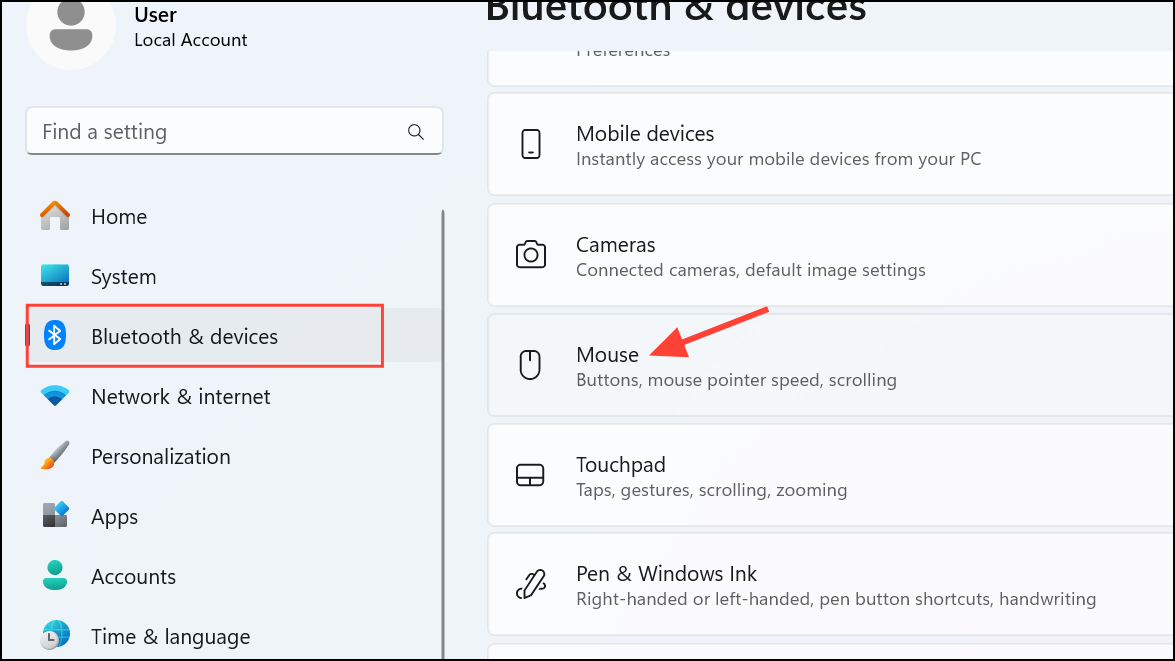
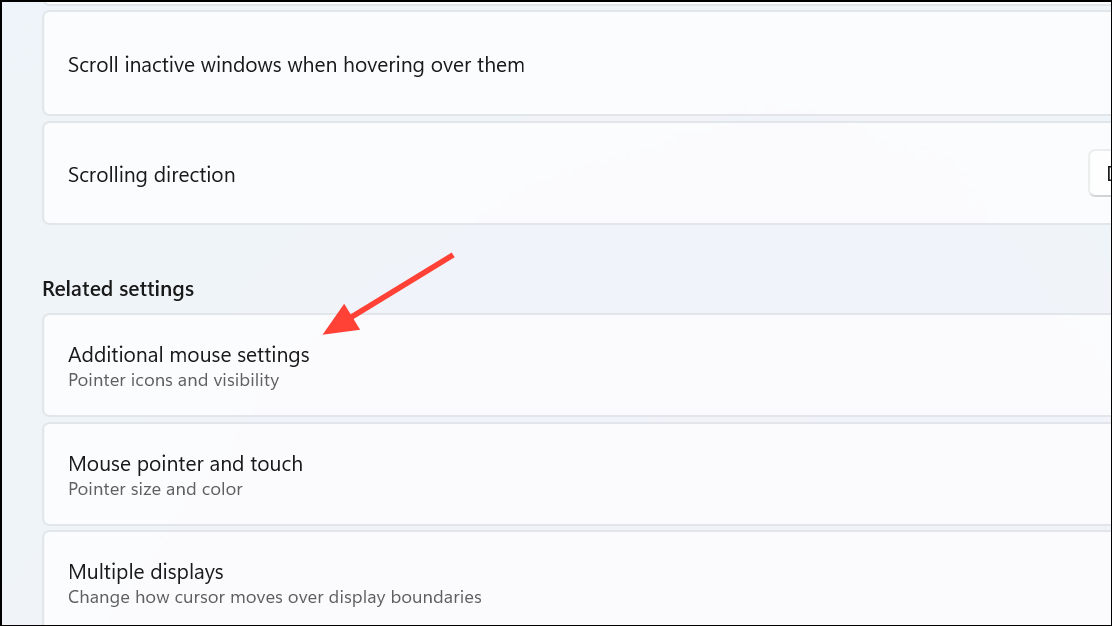
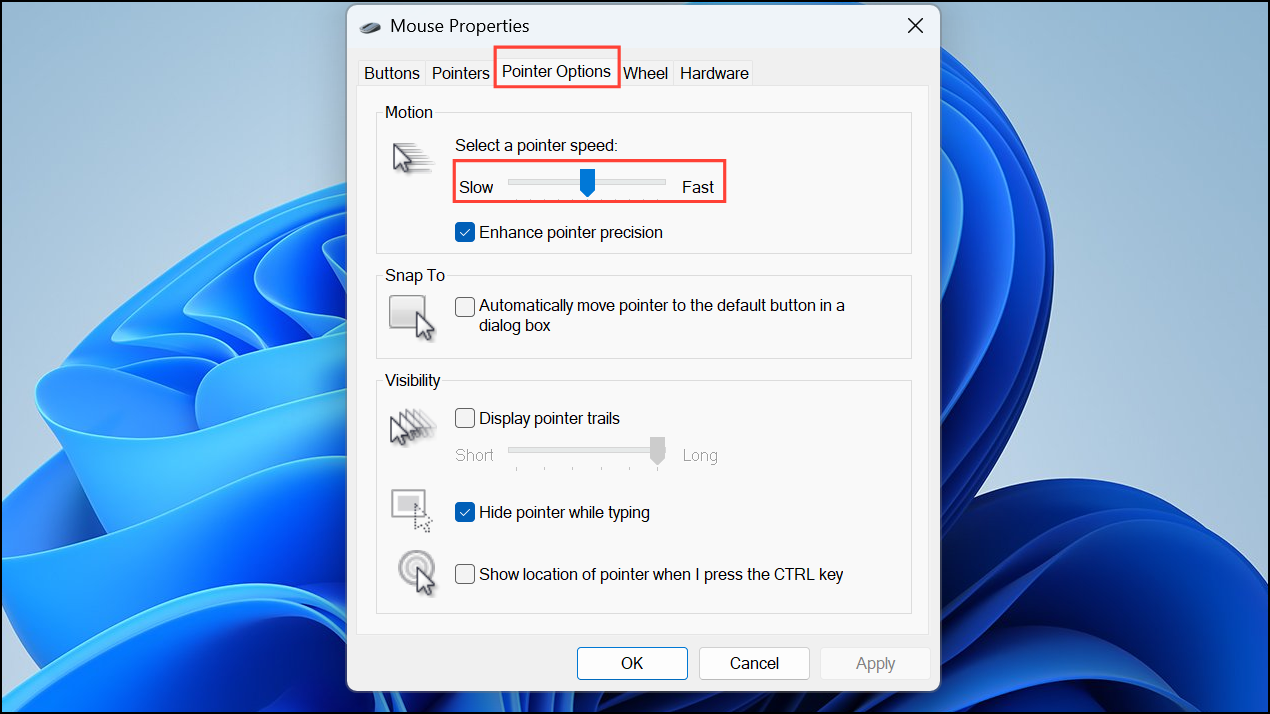
For gaming mice or mice with dedicated DPI buttons, you can adjust DPI directly using those buttons or through the manufacturer’s software.
Knowing your mouse DPI helps you optimize cursor performance for various tasks. Experiment with different DPI levels to find the best fit for your workflow or gaming style.



